
Apple PowerBook G3 400 Hard Drive Replacement

Last updated on Sep 17, 2016
Views: 51
View statistics:
- Past 24 Hours:
- 0
- Past 7 Days:
- 0
- Past 30 Days:
- 4
- All Time:
- 51
Comments: 0
No one has left comments on this guide. Will you be first?
Go to guide commentsCompleted: 0 1
No one has marked this guide "completed." Will you be the first?
1 person has marked this guide "completed." It's you — great job!
Favorites: 0 1
No one has favorited (and subscribed to) this guide. Will you be the first?
1 person has favorited (and subscribed to) this guide — and that's you!
-
-
-
Pull the keyboard tabs toward you while lifting up on the keyboard until it releases from it's hold.
-
To lift the keyboard out pull it up and away from you. Then place the keyboard on the track pad.
-
-
-
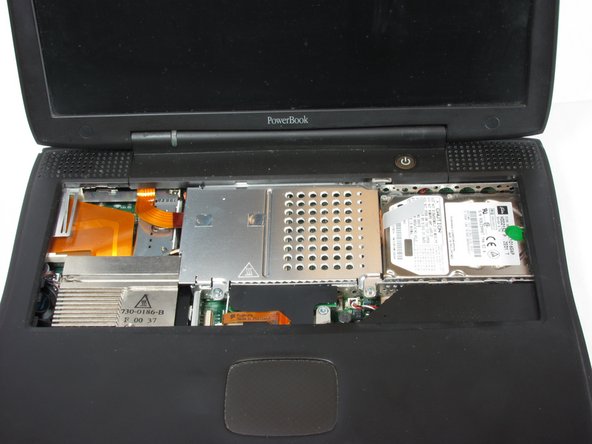
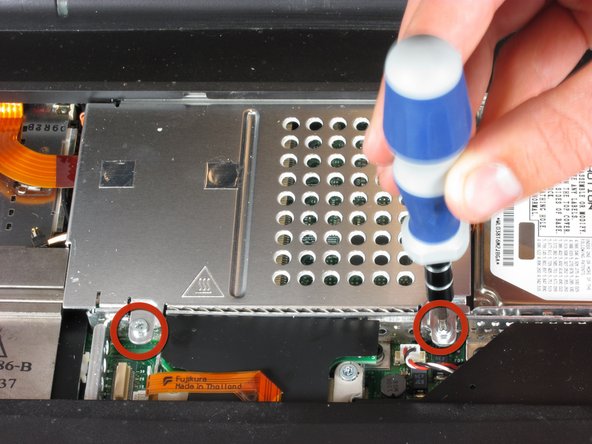
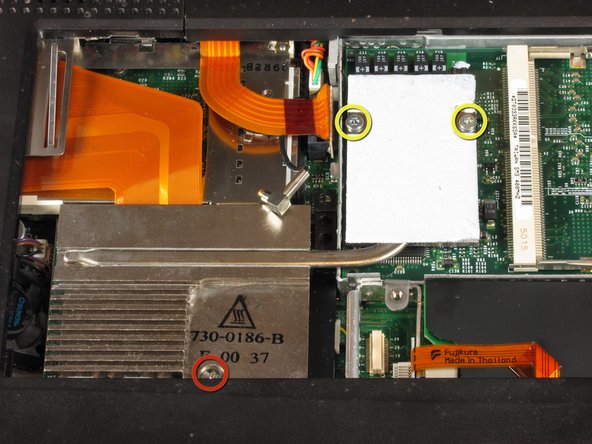
Remove the two silver Phillips #1 screws that attach the heat shield to the metal framework.
-
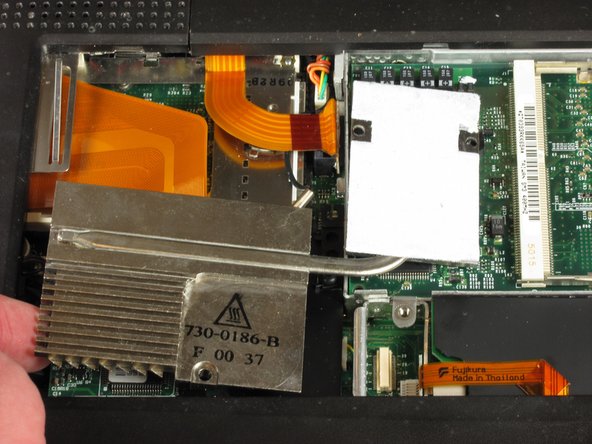
Lift the heat shield up and toward you.
-
-
-
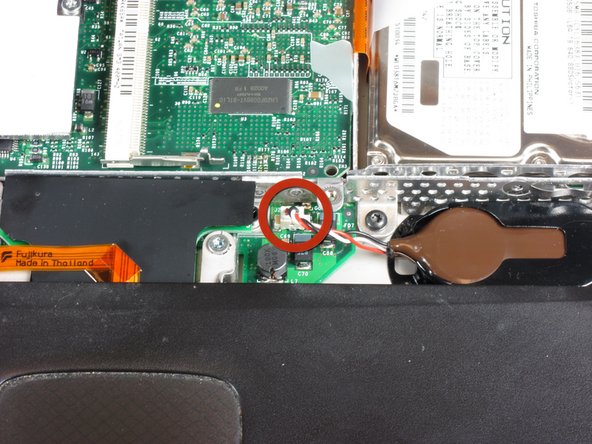
Pull the PRAM battery cable vertically upward to disconnect it.
-
Remove the battery by pulling up and to the left.
-
-
-
Remove the two T8 Torx screws that attach the heat sink to the processor.
-
Remove the long silver Phillips #1 screw from the heat sink.
-
-
-
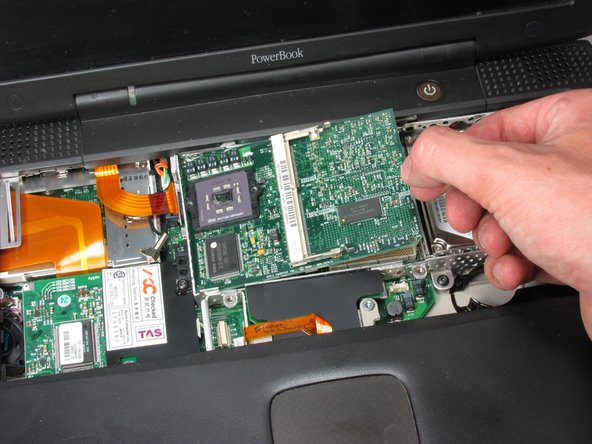
Lift the processor on the right side and pull directly up.
-
The RAM chips should be in the slots on the processor.
-
-
-
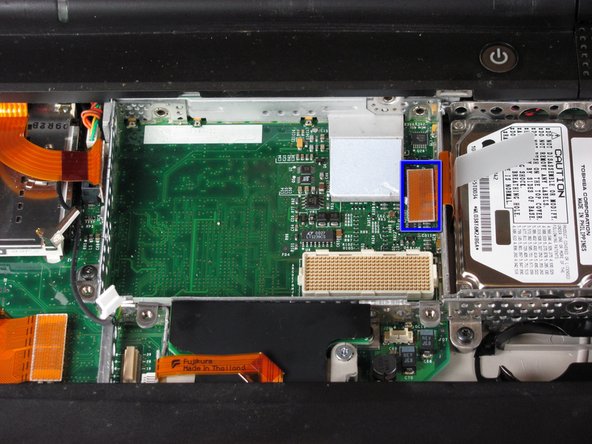
Locate the orange tab, which should be just left of the hard-drive.
-
You must disconnect this orange tab from the logic board to enable the next step.
-
It is better to do this by grabbing the plastic connection point, not the relatively flexible cable.
-
-
-
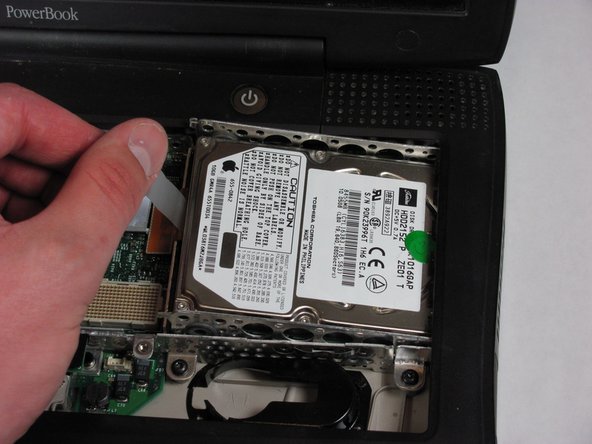
Grab the plastic strip shown here and gently remove, pulling up and left.
-
Pull left to avoid the hard drive catching the casing.
-
-
-
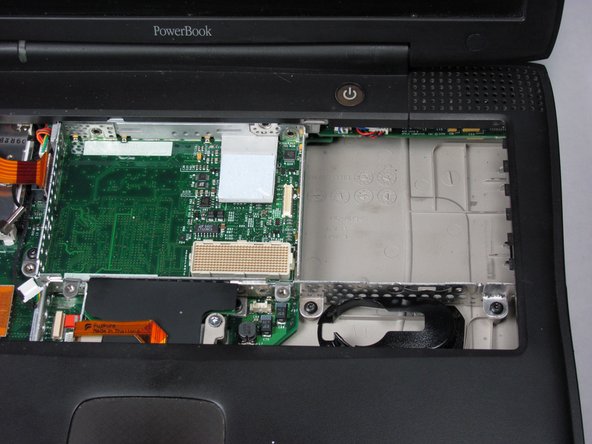
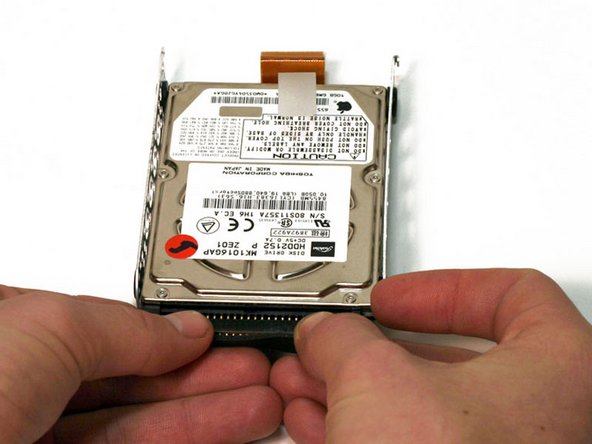
Applying even pressure during this step is key. You must be careful not to damage the hard-drive beyond repair.
-
Pull the connector cable from the hard-drive with even pressure the entire time.
-
-


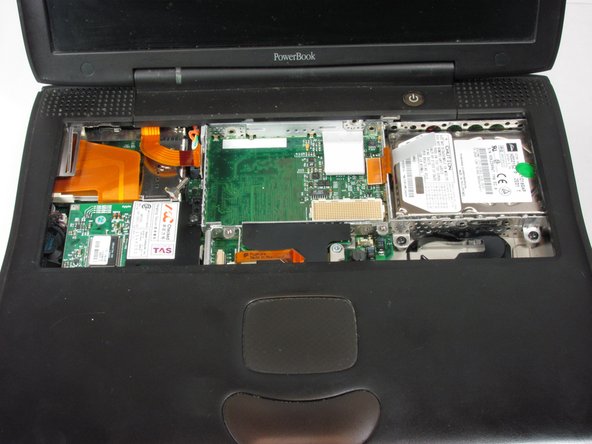
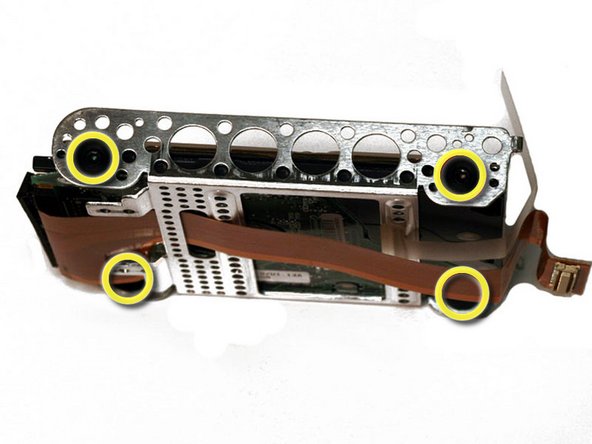
To reassemble your device, follow these instructions in reverse order.

