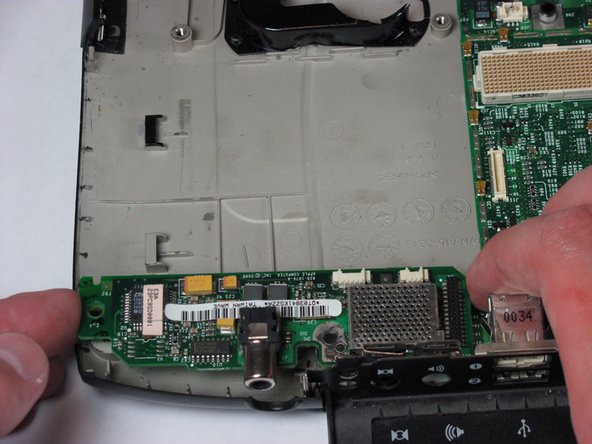
Apple PowerBook G3 400 Sound Card Replacement

What you need

  1. Apple PowerBook G3 400 Sound Card Replacement, Apple PowerBook G3 400 Sound Card Replacement: step 1, image 1 of 1
    • Pull the keyboard tabs toward you while lifting up on the keyboard until it releases from it's hold.

    • To lift the keyboard out pull it up and away from you. Then place the keyboard on the track pad.

    Add Comment

  2. Apple PowerBook G3 400 Sound Card Replacement: step 2, image 1 of 1
    • Pull the keyboard ribbon vertically from the logic board to release connection.

    • The connector may be tight and difficult to remove. If stuck try rocking the connector back and forth while pulling up until it releases. This same process can be used for many of the connectors on this device.

    • Remove battery and CD/DVD drives before proceeding any further.

    Add Comment

  3. Apple PowerBook G3 400 Sound Card Replacement: step 3, image 1 of 1
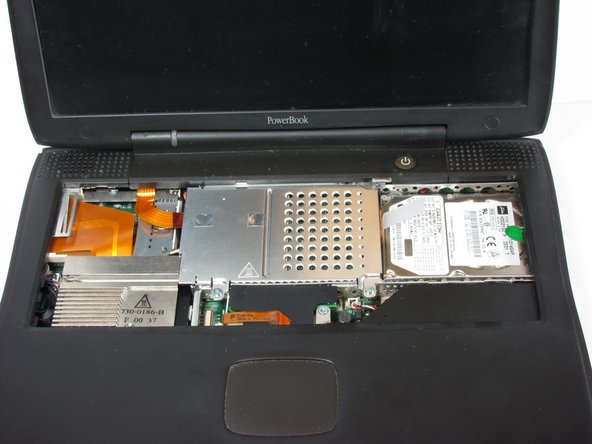
    • Your computer should look approximately like this.

    Add Comment

  4. Apple PowerBook G3 400 Sound Card Replacement: step 4, image 1 of 1
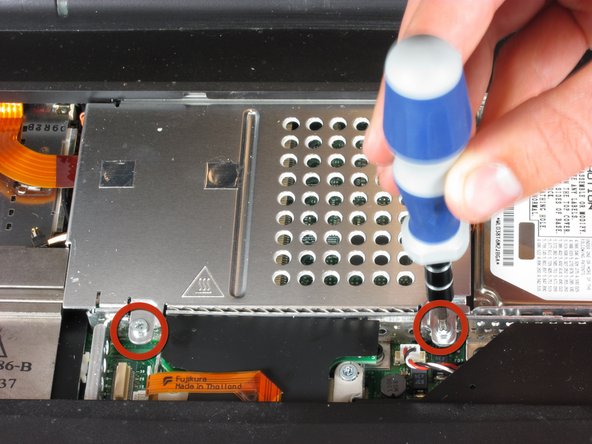
    • Remove the two silver Phillips #1 screws that attach the heat shield to the metal framework.

    • Lift the heat shield up and toward you.

    Add Comment

  5. Apple PowerBook G3 400 Sound Card Replacement: step 5, image 1 of 1
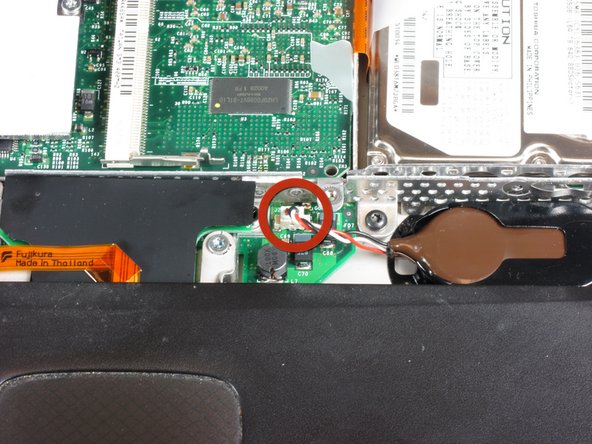
    • Pull the PRAM battery cable vertically upward to disconnect it.

    • Remove the battery by pulling up and to the left.

    Add Comment

  6. Apple PowerBook G3 400 Sound Card Replacement: step 6, image 1 of 1
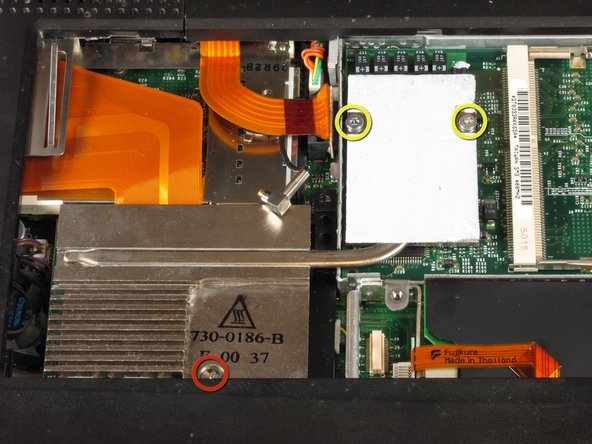
    • Remove the two T8 Torx screws that attach the heat sink to the processor.

    • Remove the long silver Phillips #1 screw from the heat sink.

    Add Comment

  7. Apple PowerBook G3 400 Sound Card Replacement: step 7, image 1 of 1
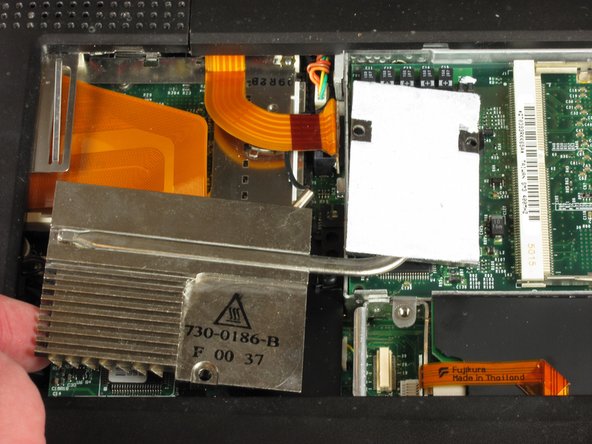
    • Lift up the heat sink unit from the left side and remove.

    Add Comment

  8. Apple PowerBook G3 400 Sound Card Replacement: step 8, image 1 of 1
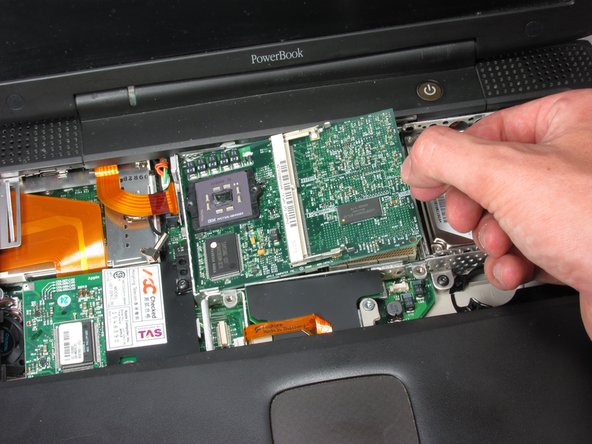
    • Lift the processor on the right side and pull directly up.

    • The RAM chips should be in the slots on the processor.

    Add Comment

  9. Apple PowerBook G3 400 Sound Card Replacement: step 9, image 1 of 1
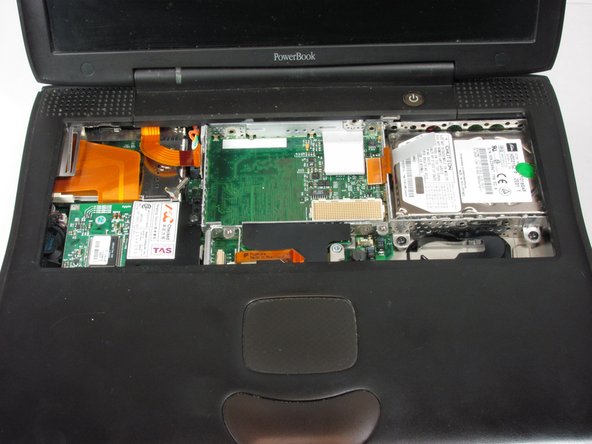
    • After removing the RAM, your laptop should now look like this.

    Add Comment

  10. Apple PowerBook G3 400 Sound Card Replacement: step 10, image 1 of 1
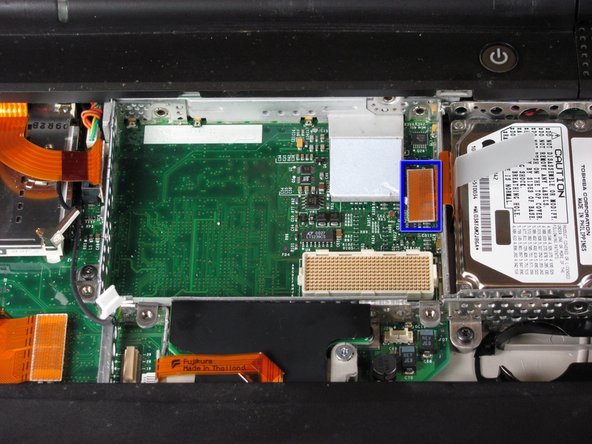
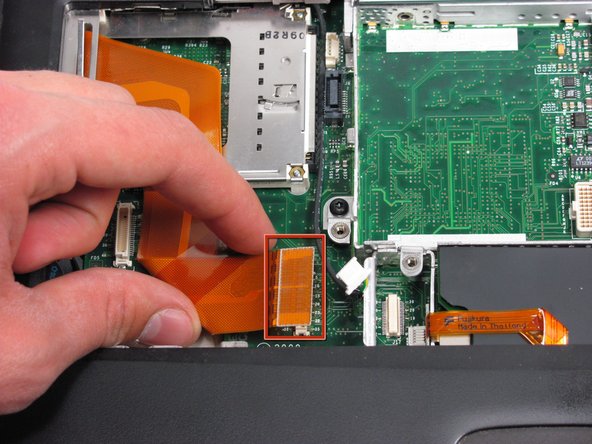
    • Locate the orange tab, which should be just left of the hard-drive.

    • You must disconnect this orange tab from the logic board to enable the next step.

    • It is better to do this by grabbing the plastic connection point, not the relatively flexible cable.

    Add Comment

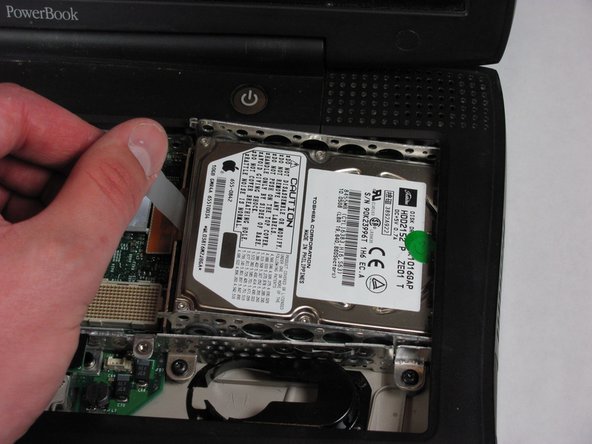
  11. Apple PowerBook G3 400 Sound Card Replacement: step 11, image 1 of 1
    • Grab the plastic strip shown here and gently remove, pulling up and left.

    • Pull left to avoid the hard drive catching the casing.

    Add Comment

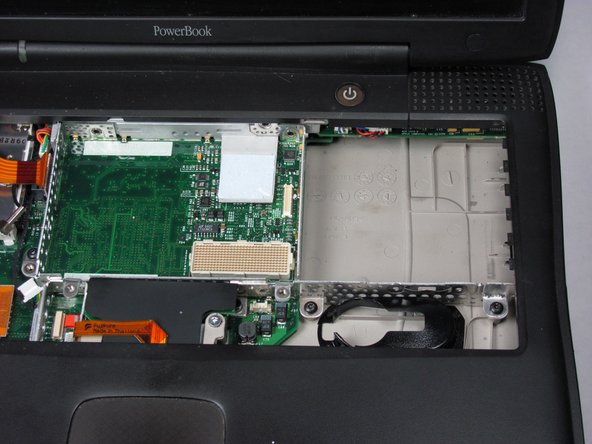
  12. Apple PowerBook G3 400 Sound Card Replacement: step 12, image 1 of 1
    • Once you have removed the hard-drive, your laptop should like this.

    Add Comment

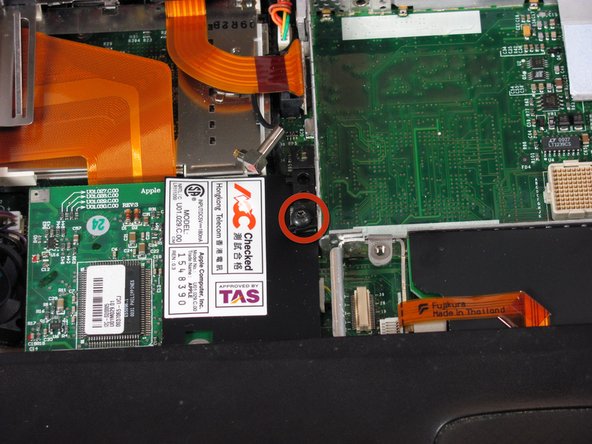
  13. Apple PowerBook G3 400 Sound Card Replacement: step 13, image 1 of 1
    • Remove the single black Torx screw from the modem.

    • Remove the black rectangle that is being held on by the one Torx screw.

    Add Comment

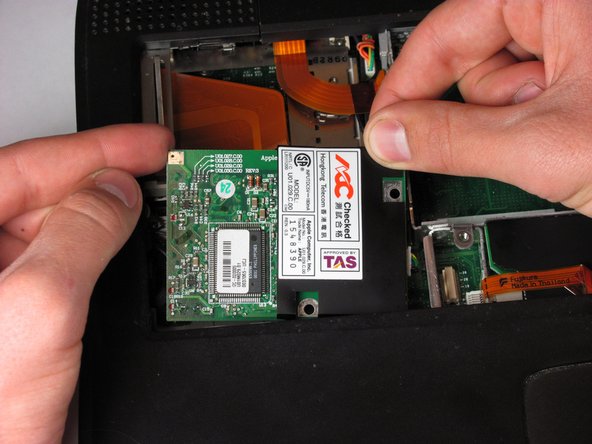
  14. Apple PowerBook G3 400 Sound Card Replacement: step 14, image 1 of 1
    • Using your fingers, lift the modem from the socket it is plugged into.

    Add Comment

  15. Apple PowerBook G3 400 Sound Card Replacement: step 15, image 1 of 1
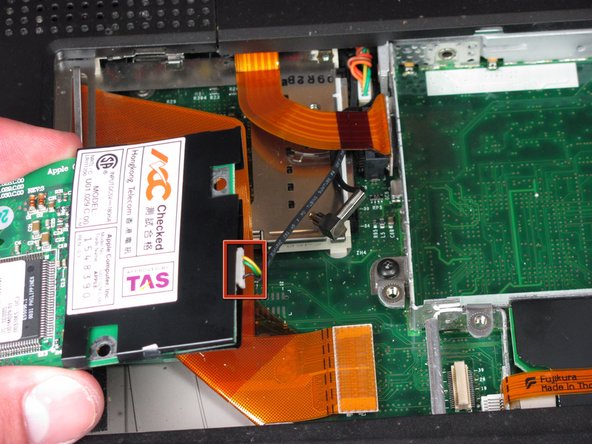
    • Disconnect the cable that is attached to the end of the modem to remove the modem.

    Add Comment

  16. Apple PowerBook G3 400 Sound Card Replacement: step 16, image 1 of 1
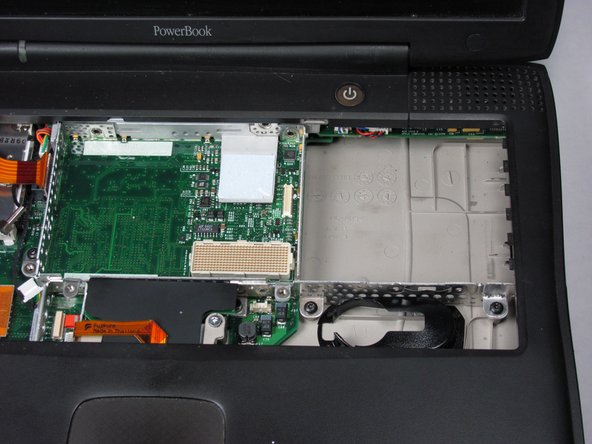
    • Your computer will look approximately like this.

    Add Comment

  17. Apple PowerBook G3 400 Sound Card Replacement: step 17, image 1 of 1
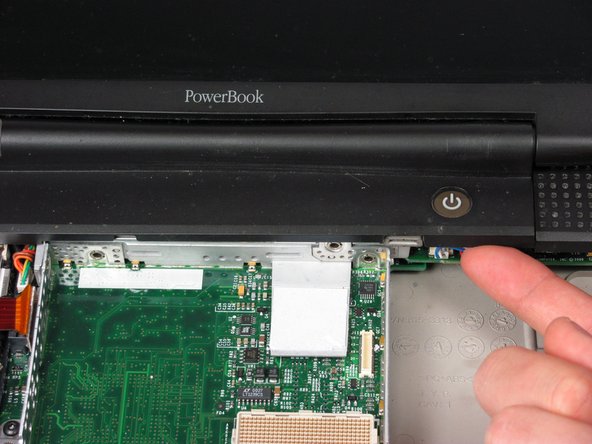
    • Push the display back.

    • Put your index finger under the power button and gently pull the clutch cover back.

    • Repeat for the left side.

    Add Comment

  18. Apple PowerBook G3 400 Sound Card Replacement: step 18, image 1 of 1
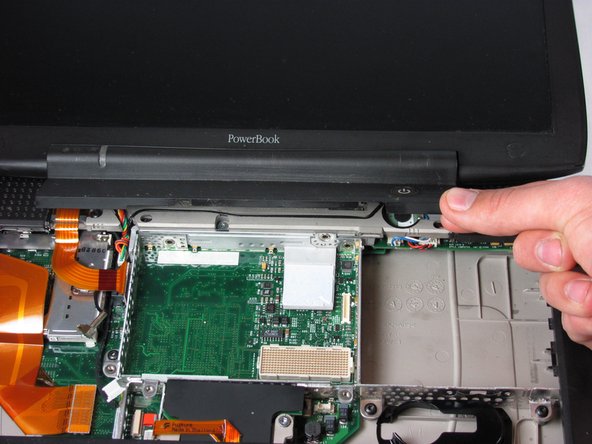
    • Lift the clutch cover up and off. Pull it towards yourself.

    Add Comment

  19. Apple PowerBook G3 400 Sound Card Replacement: step 19, image 1 of 1
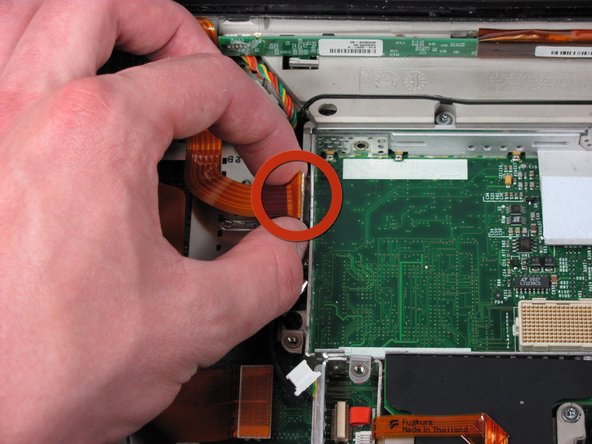
    • Disconnect the display cable from the logic board.

    Add Comment

  20. Apple PowerBook G3 400 Sound Card Replacement: step 20, image 1 of 1
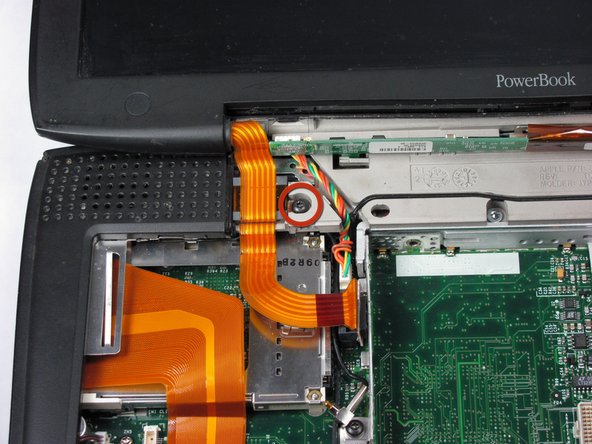
    • Remove the Torx screw that holds the display cable.

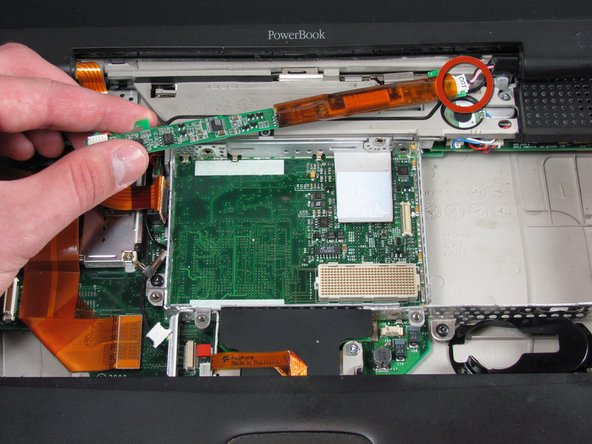
    • Pull out thick display inverter board by pulling it up and out. Two tabs will be holding it in place, you need to get pass these to pull the board free.

    Add Comment

  21. Apple PowerBook G3 400 Sound Card Replacement: step 21, image 1 of 1
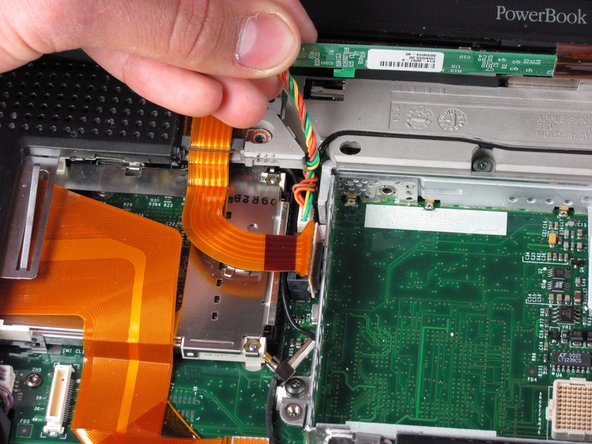
    • Disconnect the white inverter cable. Pull it towards the left.

    Add Comment

  22. Apple PowerBook G3 400 Sound Card Replacement: step 22, image 1 of 1
    • Disconnect the inverter plug by pulling it up from the logib board.

    Add Comment

  23. Apple PowerBook G3 400 Sound Card Replacement: step 23, image 1 of 1
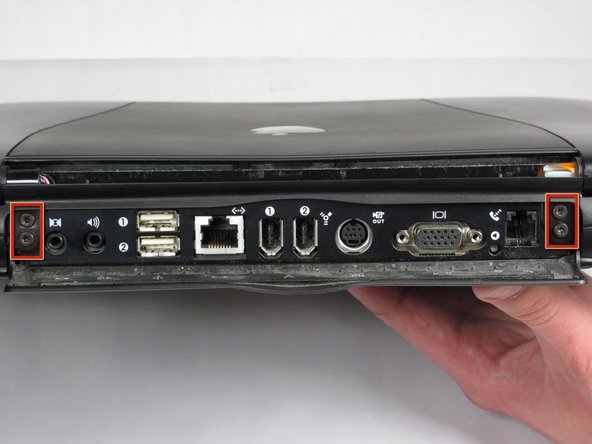
    • Turn the laptop around.

    • Open the port door.

    • Remove the four Torx screws.

    Add Comment

  24. Apple PowerBook G3 400 Sound Card Replacement: step 24, image 1 of 1
    • Turn the laptop so the front faces you.

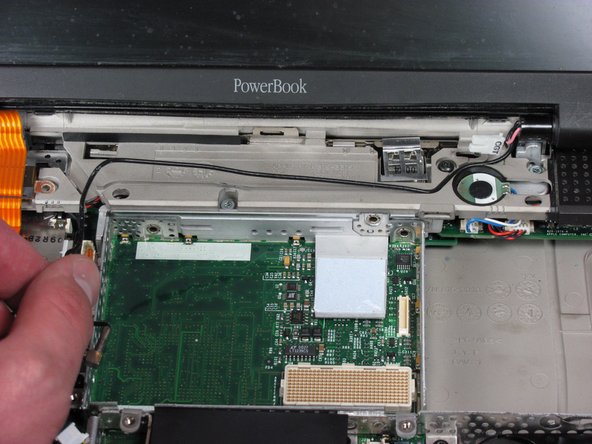
    • Pull the black Airport antenna up.

    Add Comment

  25. Apple PowerBook G3 400 Sound Card Replacement: step 25, image 1 of 1
    • Pull the display up as you hold it firmly with both hands.

    Add Comment

  26. Apple PowerBook G3 400 Sound Card Replacement: step 26, image 1 of 1
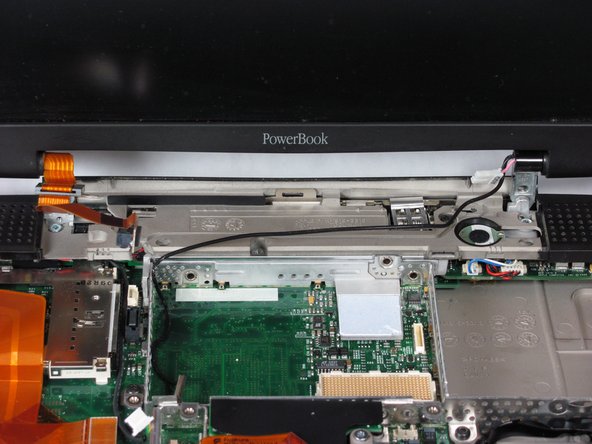
    • Your laptop should look something like this.

    Add Comment

  27. Apple PowerBook G3 400 Sound Card Replacement: step 27, image 1 of 1
    • Disconnect the large orange wire that is shown.

    Add Comment

  28. Apple PowerBook G3 400 Sound Card Replacement: step 28, image 1 of 1
    • Take out the one short black and three long silver Torx screws from casing.

    Add Comment

  29. Apple PowerBook G3 400 Sound Card Replacement: step 29, image 1 of 1
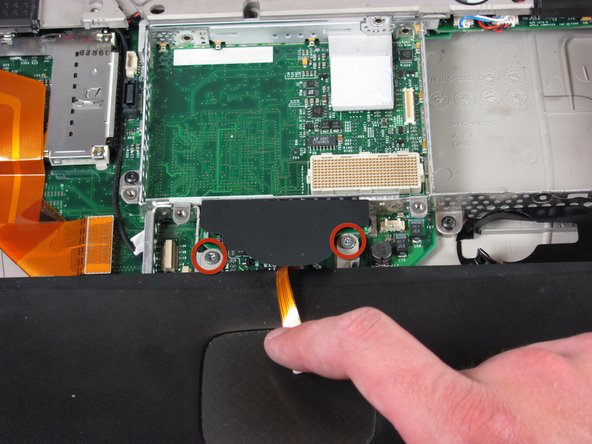
    • Slide the black plastic shield away from you and out from under the hard plastic casing.

    • Disconnect the orange cable from the logic board.

    • Take out the two long silver Torx screws.

    Add Comment

  30. Apple PowerBook G3 400 Sound Card Replacement: step 30, image 1 of 1
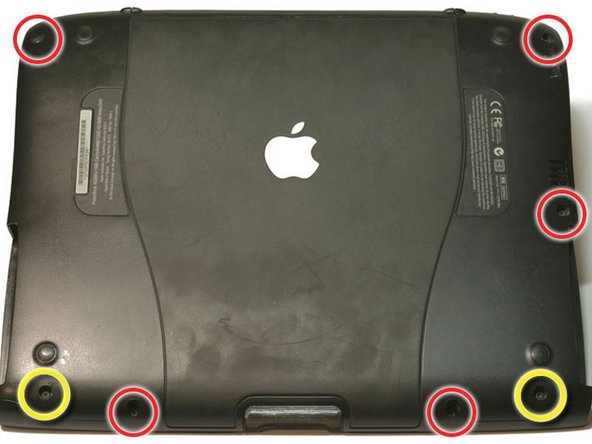
    • Turn your laptop over.

    • Take out the five small Torx screws from casing.

    • Remove the two long Torx screws and make sure these are put back in the right place when reassembling your device.

    Add Comment

  31. Apple PowerBook G3 400 Sound Card Replacement: step 31, image 1 of 1
    • Turn your laptop back over.

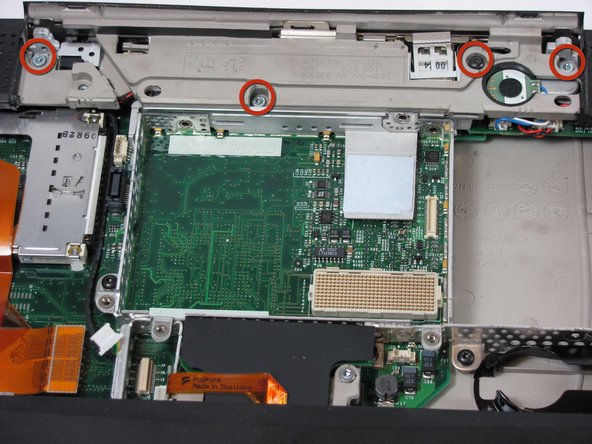
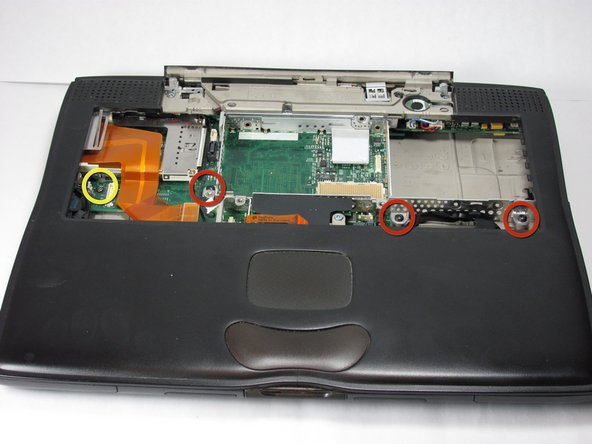
    • Remove the three small black Torx screws from the frame.

    • Remove the small Torx screw that holds the logic board to the casing on the left.

    Add Comment

  32. Apple PowerBook G3 400 Sound Card Replacement: step 32, image 1 of 1
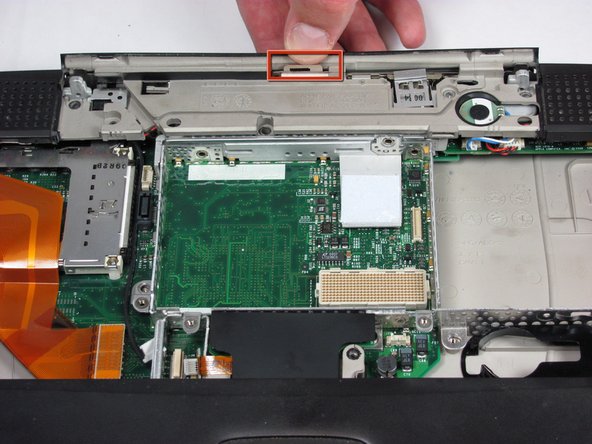
    • Hold the upper casing in the place shown and pull it back to release the lock. When the lock has released, pull up just enough to keep the case from locking again.

    Add Comment

  33. Apple PowerBook G3 400 Sound Card Replacement: step 33, image 1 of 1
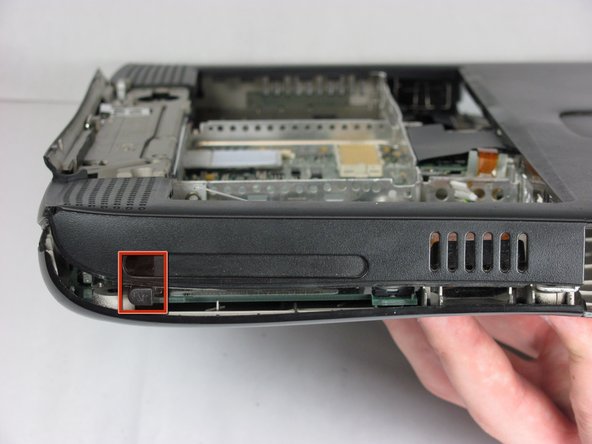
    • The eject button on the left side of the laptop keeps the upper casing from lifting up. To get around this, you must push the button in to the point that the upper casing can pass by the button and continue lifting up.

    Add Comment

  34. Apple PowerBook G3 400 Sound Card Replacement: step 34, image 1 of 1
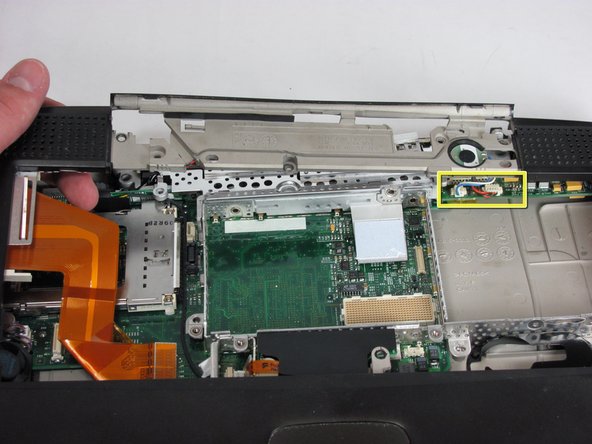
    • Lift up the left side of the upper case just enough so that the two audio cables connected to the sound card can be disconnected.

    • Do not lift the upper casing too far without disconnecting the audio cables otherwise there is a possibility of damaging the sound card.

    • After disconnecting the audio cables remove the upper casing.

    Add Comment

  35. Apple PowerBook G3 400 Sound Card Replacement: step 35, image 1 of 1
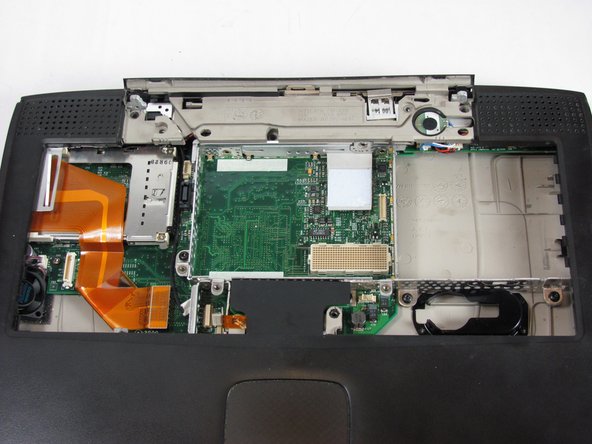
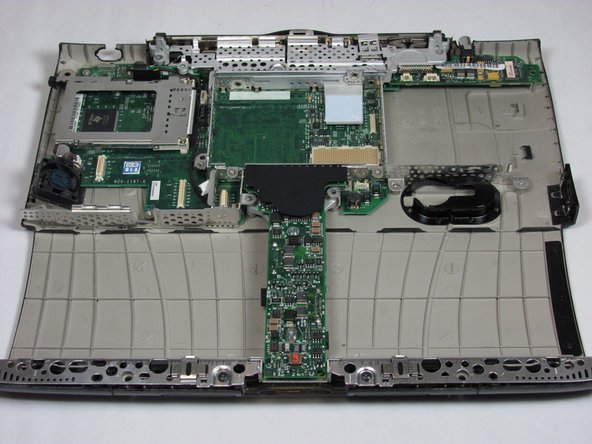
    • Your laptop should look something like this.

    Add Comment

  36. Apple PowerBook G3 400 Sound Card Replacement: step 36, image 1 of 1
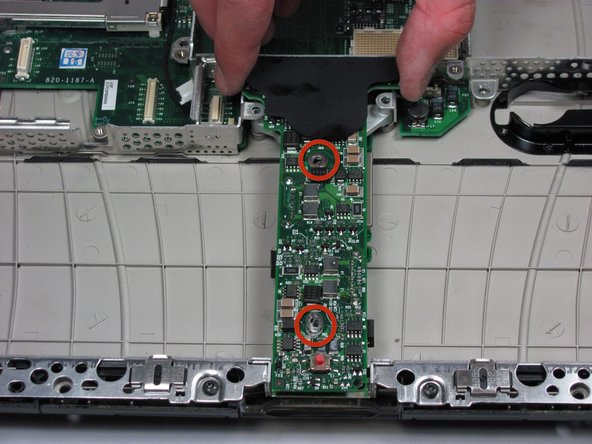
    • Take out the two long silver Torx screws from the power card.

    • Hold the power card near the black plastic shielding and lift up to remove power card.

    Add Comment

  37. Apple PowerBook G3 400 Sound Card Replacement: step 37, image 1 of 1
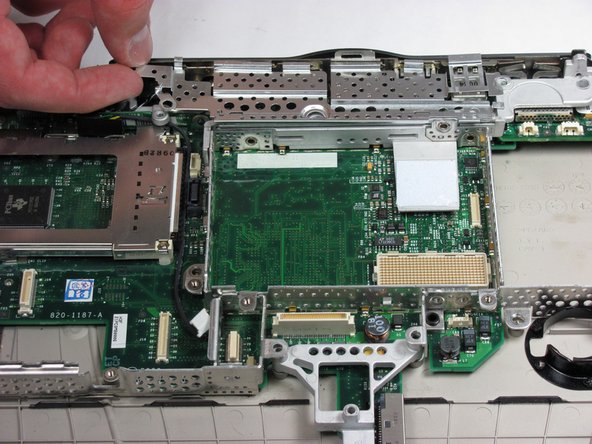
    • Lightly hold the metal shield on the left side of it and slowly pull up and toward the front of the laptop.

    • These clips will bend very easily and need to be handled with care when taking it out of the laptop.

    Add Comment

  38. Apple PowerBook G3 400 Sound Card Replacement: step 38, image 1 of 1
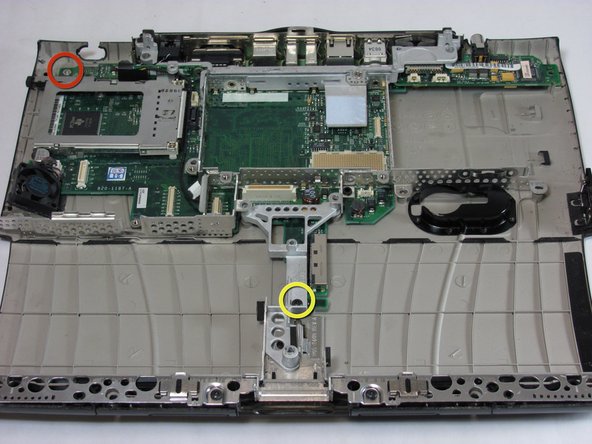
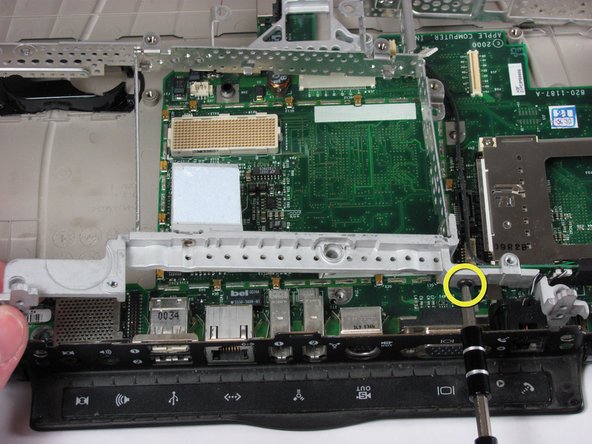
    • Remove the black Torx screw from the metal frame that it is holding it to the bottom casing.

    • Using a 5mm wrench or needle-nose pliers remove the small nut from the bolt.

    Add Comment

  39. Apple PowerBook G3 400 Sound Card Replacement: step 39, image 1 of 1
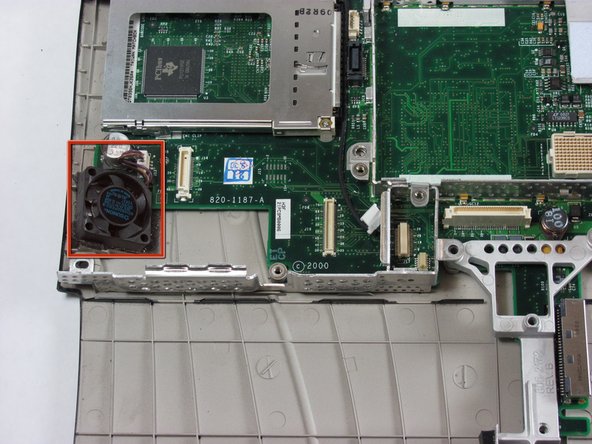
    • Disconnect the fan power cable on the left side of the laptop.

    Add Comment

  40. Apple PowerBook G3 400 Sound Card Replacement: step 40, image 1 of 1
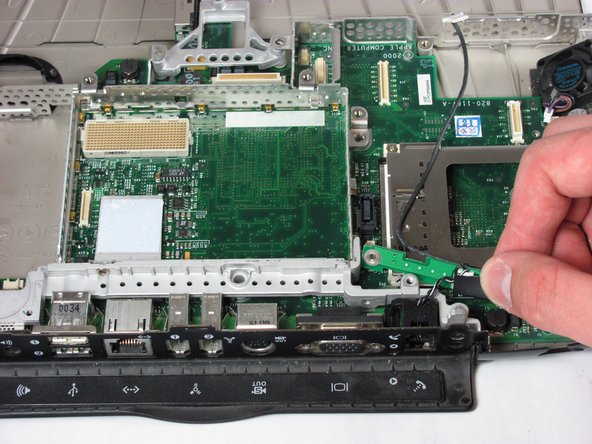
    • Rotate the laptop 180 degrees so that the back is facing you.

    • Lift up the left side of the metal frame and remove the one black Torx screw.

    Add Comment

  41. Apple PowerBook G3 400 Sound Card Replacement: step 41, image 1 of 1
    • Hold the filter by the black end and rotate the filter toward the front of the laptop. Then pull it up and above the frame.

    • Take out the metal frame.

    Add Comment

  42. Apple PowerBook G3 400 Sound Card Replacement: step 42, image 1 of 1
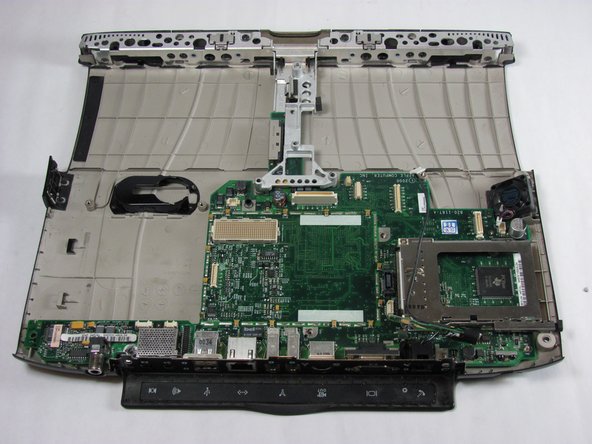
    • Your laptop should look something like this.

    Add Comment

  43. Apple PowerBook G3 400 Sound Card Replacement: step 43, image 1 of 1
    • Lift up on the sound card from both the left and the right sides and remove.

    Add Comment

Conclusion

To reassemble your device, follow these instructions in reverse order.

Cancel: I did not complete this guide.

System

Member since: 09/24/09

2,562 Guides authored

0 Guide Comments

Add Comment

View Statistics:

Past 24 Hours: 0

Past 7 Days: 0

Past 30 Days: 2

All Time: 25