

Canon Powershot S410 Memory Card Replacement

Last updated on Sep 17, 2016
Views: 33
View statistics:
- Past 24 Hours:
- 0
- Past 7 Days:
- 0
- Past 30 Days:
- 3
- All Time:
- 33
Comments: 0
No one has left comments on this guide. Will you be first?
Go to guide commentsCompleted: 0 1
No one has marked this guide "completed." Will you be the first?
1 person has marked this guide "completed." It's you — great job!
Favorites: 0 1
No one has favorited (and subscribed to) this guide. Will you be the first?
1 person has favorited (and subscribed to) this guide — and that's you!
Introduction
Go to step 1 ↓A simple guide for removing and replacing the memory card.
-
-
-
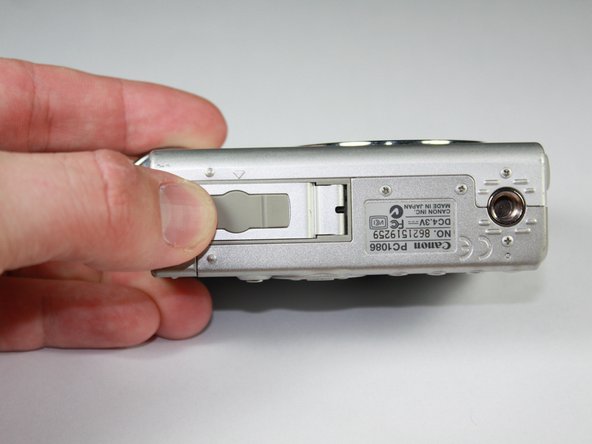
Locate the panel labeled "Batt. Open"
-
Place your finger on the panel and slide it in the direction of the arrow.
-
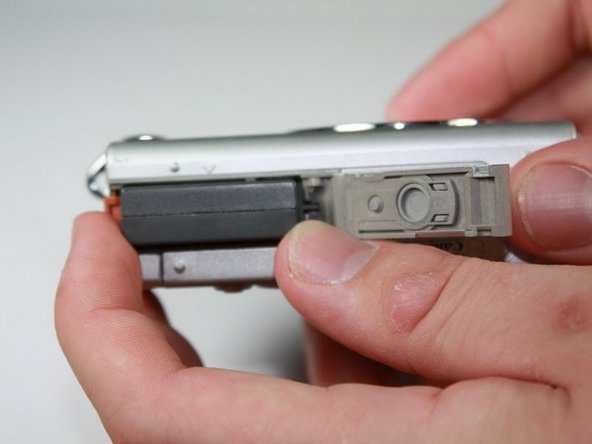
The slot will swing open revealing the battery pack.
-
-
-
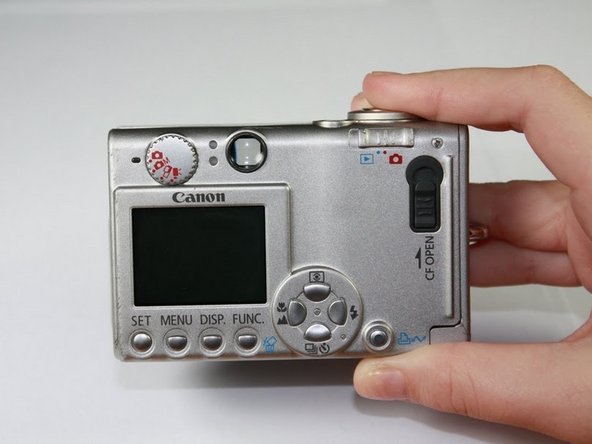
Locate the sliding button labeled "CF OPEN."
-
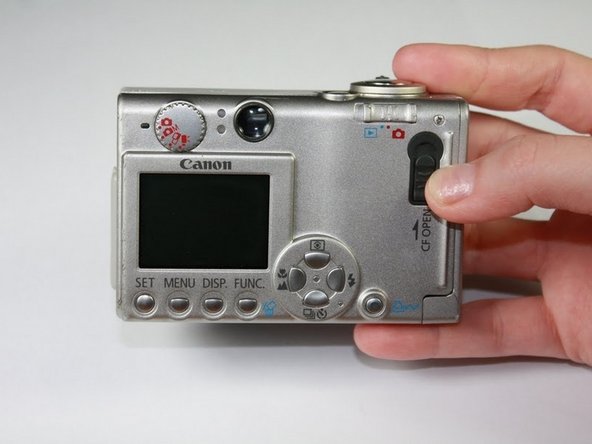
Place your finger on the button and slide it in the direction of the arrow.
-
The side panel will flip open revealing the compact flash memory card.
-
-
-
Locate the gray button at the bottom of the open slot.
-
Place your finger on the button and push it down.
-
The memory card will pop out slightly.
-
-



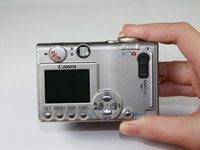
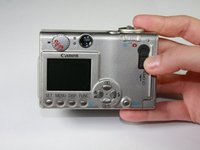
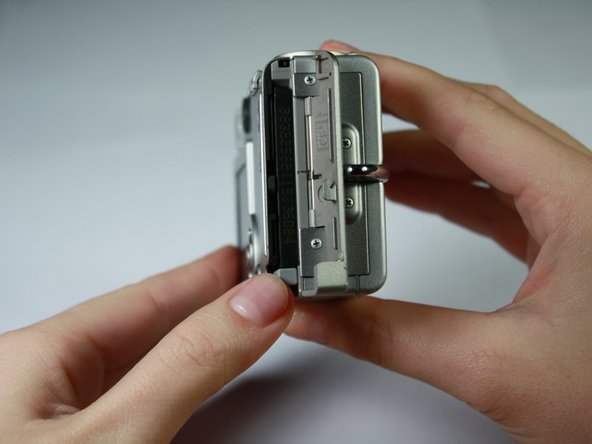
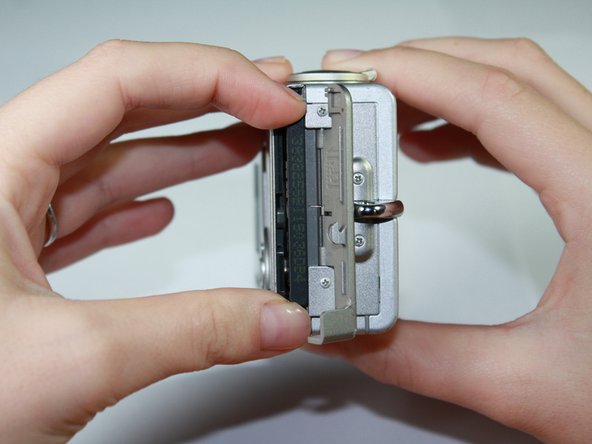
Once a new memory card has been inserted close the swinging door and you're done.

