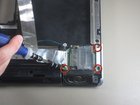
HP Pavilion ZD7000 Speakers Replacement

What you need

  1. HP Pavilion ZD7000 Speakers Replacement, HP Pavilion ZD7000 Speakers Replacement: step 1, image 1 of 1
    • Begin by turning the laptop over so that you can see the bottom of the computer.

    Add Comment

  2. HP Pavilion ZD7000 Speakers Replacement: step 2, image 1 of 1
    • Slide the battery release switch to the right while simultaneously lifting up the battery.

    Add Comment

  3. HP Pavilion ZD7000 Speakers Replacement: step 3, image 1 of 1
    • Loosen the 8 Phillips screws around the plate and remove the plate.

    Add Comment

  4. HP Pavilion ZD7000 Speakers Replacement: step 4, image 1 of 1
    • Remove the 9 Phillips screws from the plate covering the fans.

    • The 3 screws around the lower fan also hold the fan onto the metal plate.

    Add Comment

  5. HP Pavilion ZD7000 Speakers Replacement: step 5, image 1 of 1
    • Lift the plate and lower fan off the heat sink being careful not to damage the lower fan cable, which is attached to the motherboard.

    • Disconnect the lower fan connector from the motherboard.

    • Remove the metal plate and lower fan.

    • The lower fan will easily separate from the metal plate.

    Add Comment

  6. HP Pavilion ZD7000 Speakers Replacement: step 6, image 1 of 1
    • Disconnect the upper fan connector from the motherboard.

    • Remove the 4 spring loaded screws holding the heat sink assembly to the motherboard.

    • When reassembling, thread all screws in 1 - 1 1/2 turns then alternately tighten each screw 1 turn - starting top left, then bottom right, then bottom left, then top left again etc. until the heat sink assembly is firmly seated and all screws are tightened the same amount.

    Add Comment

  7. HP Pavilion ZD7000 Speakers Replacement: step 7, image 1 of 1
    • Slide the heat sink assembly including the upper fan out by pulling it down and left simultaneously.

    • When reinstalling heat sink, ensure it is thoroughly cleaned and the thermal paste (or pads ) are replaced to ensure proper thermal contact with the devices on the logic board to prevent thermal issues.

    Add Comment

  8. HP Pavilion ZD7000 Speakers Replacement: step 8, image 1 of 1
    • Remove the screws connecting the screen to the keyboard.

    Add Comment

  9. HP Pavilion ZD7000 Speakers Replacement: step 9, image 1 of 2 HP Pavilion ZD7000 Speakers Replacement: step 9, image 2 of 2
    • You can now carefully pry the keyboard off. However, do NOT do so yet. There are still wires connecting the 2 components together.

    Add Comment

  10. HP Pavilion ZD7000 Speakers Replacement: step 10, image 1 of 3 HP Pavilion ZD7000 Speakers Replacement: step 10, image 2 of 3 HP Pavilion ZD7000 Speakers Replacement: step 10, image 3 of 3
    • Disconnect the 3 ribbon cables attached to the motherboard.

    • The wire ribbons are removed by snapping out the small latches on the sides of the connection components. The ribbons should slide out with ease.

    • See images 2 and 3 for a closer look.

    Add Comment

  11. HP Pavilion ZD7000 Speakers Replacement: step 11, image 1 of 1
    • Remove the screws from the motherboard.

    • There are many different sizes and types of screws here. Make sure you are keeping track of where they all belong.

    Add Comment

  12. HP Pavilion ZD7000 Speakers Replacement: step 12, image 1 of 1
    • Disconnect the wires, belonging to the speakers, from the motherboard.

    Add Comment

  13. HP Pavilion ZD7000 Speakers Replacement: step 13, image 1 of 1
    • Remove CD-Rom By simply sliding it out.

    Add Comment

  14. HP Pavilion ZD7000 Speakers Replacement: step 14, image 1 of 2 HP Pavilion ZD7000 Speakers Replacement: step 14, image 2 of 2
    • Pry the frame off the laptop outwards while simultaneously lifting the motherboard out of it.

    • Go slowly on every side instead of focusing on only one corner.

    Add Comment

  15. HP Pavilion ZD7000 Speakers Replacement: step 15, image 1 of 1
    • You can now carefully remove the entire Motherboard.

    • Note: Unless you plan on replacing it, handle the motherboard with care. This is the heart of your computer. Any damage will cause a system failure.

    Add Comment

  16. HP Pavilion ZD7000 Speakers Replacement: step 16, image 1 of 1
    • Remove the 3 screws connecting the spearker.

    Add Comment

  17. HP Pavilion ZD7000 Speakers Replacement: step 17, image 1 of 1
    • Detach the plastic piece holding the speaker in.

    Add Comment

  18. HP Pavilion ZD7000 Speakers Replacement: step 18, image 1 of 1
    • To remove the second speaker simply lift it up and out.

    Add Comment

Conclusion

To reassemble your device, follow these instructions in reverse order.

Cancel: I did not complete this guide.

System

Member since: 09/24/09

2,562 Guides authored

0 Guide Comments

Add Comment

View Statistics:

Past 24 Hours: 0

Past 7 Days: 0

Past 30 Days: 0

All Time: 12