HP Pavilion zd8000 Screen Replacement

What you need

    1. HP Pavilion zd8000 Screen Replacement, HP Pavilion zd8000 Screen Replacement: step 1, image 1 of 1
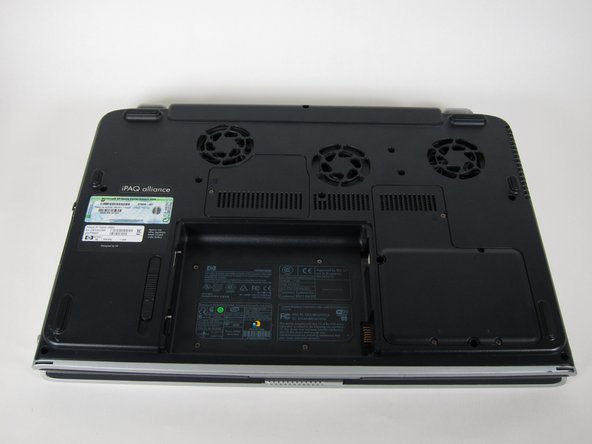
      • Slide the battery release latch towards you.

      Add Comment

    2. HP Pavilion zd8000 Screen Replacement: step 2, image 1 of 2 HP Pavilion zd8000 Screen Replacement: step 2, image 2 of 2
      • Pull up on the battery to remove it.

      Add Comment

    3. HP Pavilion zd8000 Screen Replacement: step 3, image 1 of 2 HP Pavilion zd8000 Screen Replacement: step 3, image 2 of 2
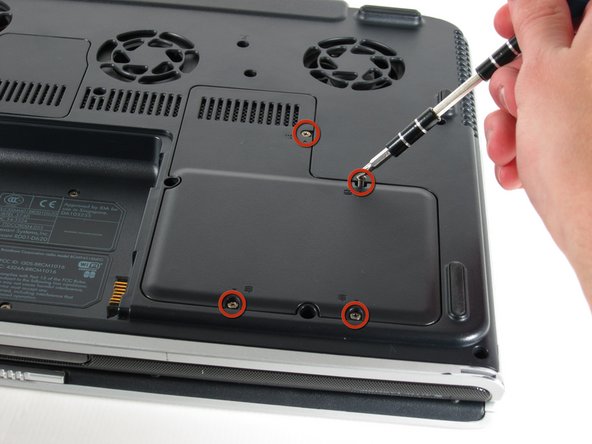
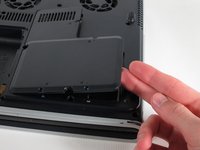
      • Unscrew the four 8mm Philips screws marked with an icon resembling a stacks of discs.

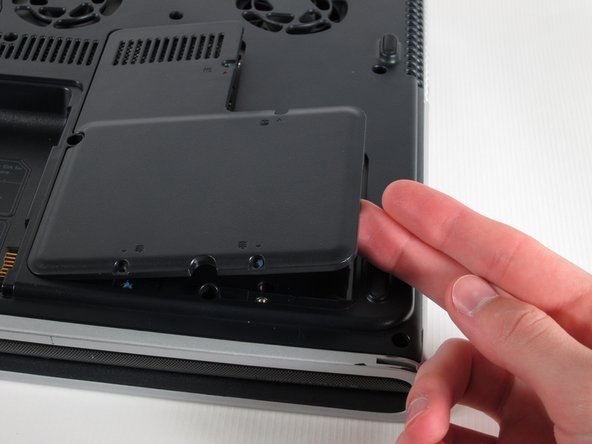
      • Lift the cover from the right to remove it.

      Add Comment

    4. HP Pavilion zd8000 Screen Replacement: step 4, image 1 of 2 HP Pavilion zd8000 Screen Replacement: step 4, image 2 of 2
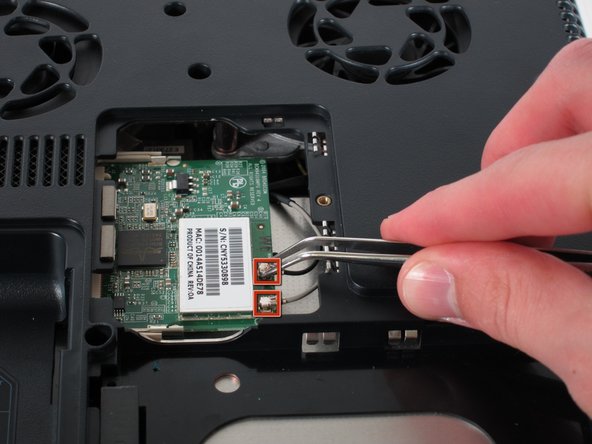
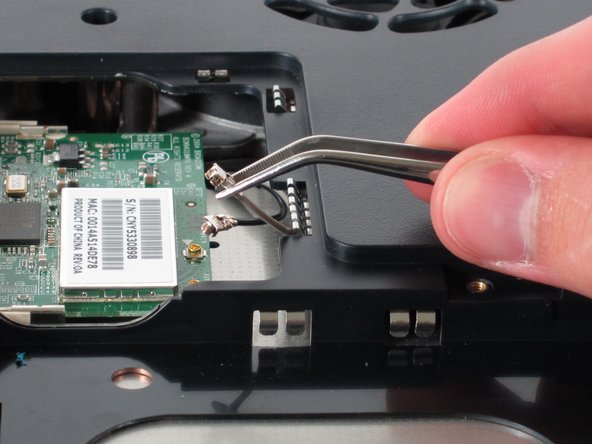
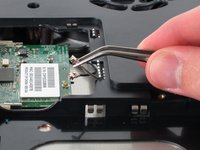
      • Use tweezers to detach the grey and black cables connected to the green WiFi card.

      Add Comment

    5. HP Pavilion zd8000 Screen Replacement: step 5, image 1 of 1
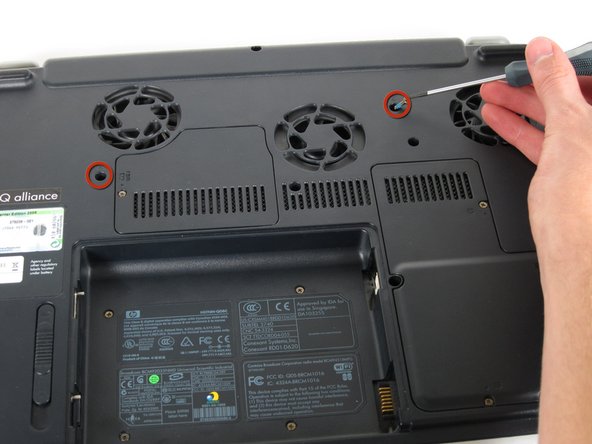
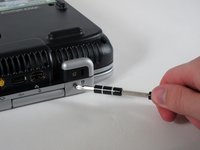
      • Remove the two 8mm Philips screws marked “K” on the bottom of the laptop.

      Add Comment

    6. HP Pavilion zd8000 Screen Replacement: step 6, image 1 of 2 HP Pavilion zd8000 Screen Replacement: step 6, image 2 of 2
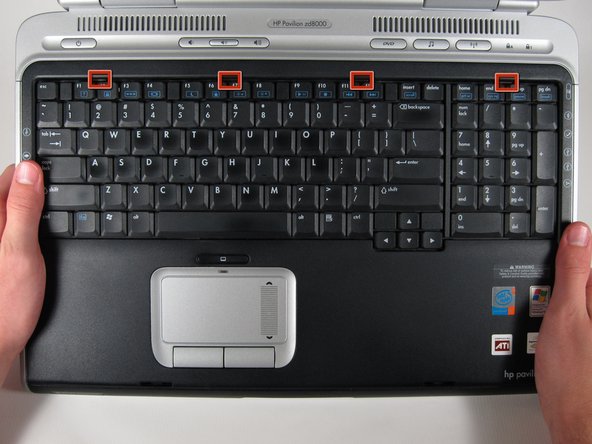
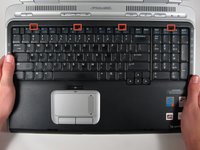
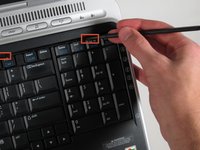
      • Flip the laptop over and open the screen.

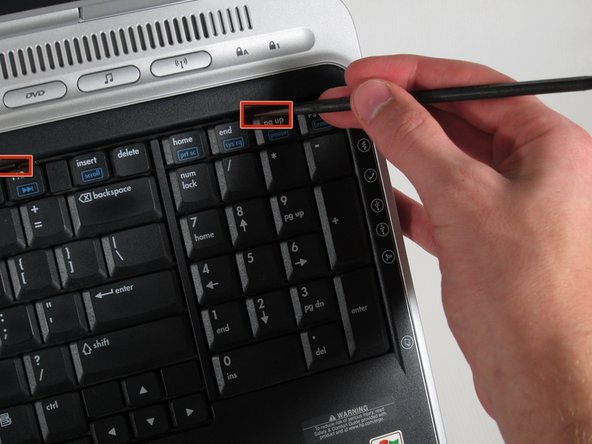
      • Push up on the four latches located at the top of the keyboard with the spudger to release them.

      Add Comment

    7. HP Pavilion zd8000 Screen Replacement: step 7, image 1 of 2 HP Pavilion zd8000 Screen Replacement: step 7, image 2 of 2
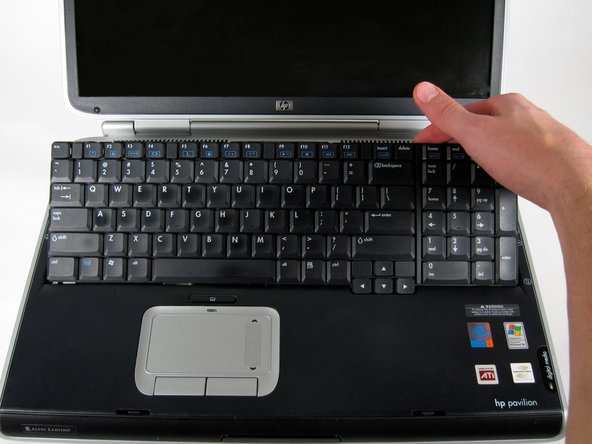
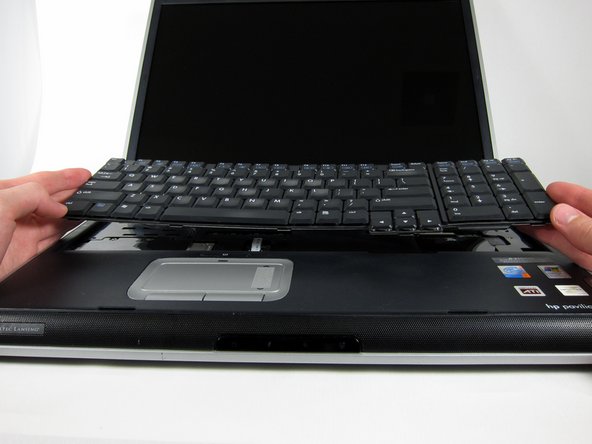
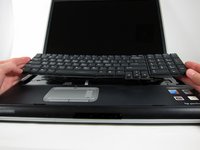
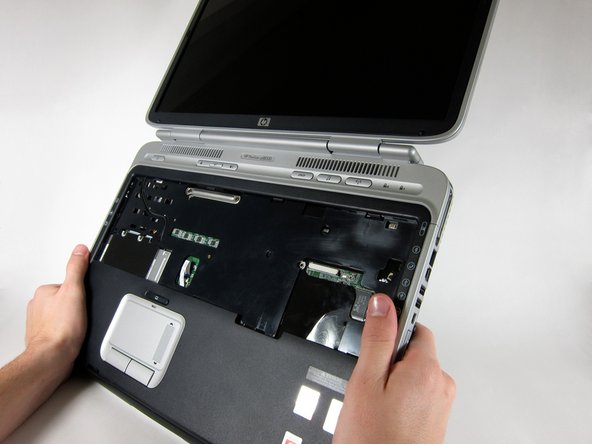
      • Lift the keyboard carefully because it is attached to the motherboard by a ribbon cable.

      • Lift the top of the keyboard towards you. Then, while keeping the keyboard at an angle, lift it towards the display.

      Add Comment

    8. HP Pavilion zd8000 Screen Replacement: step 8, image 1 of 2 HP Pavilion zd8000 Screen Replacement: step 8, image 2 of 2
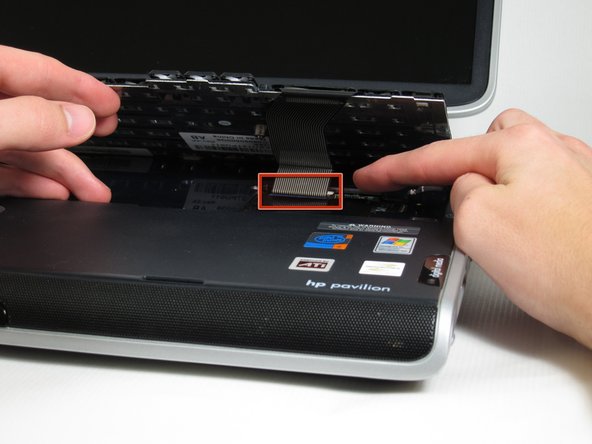
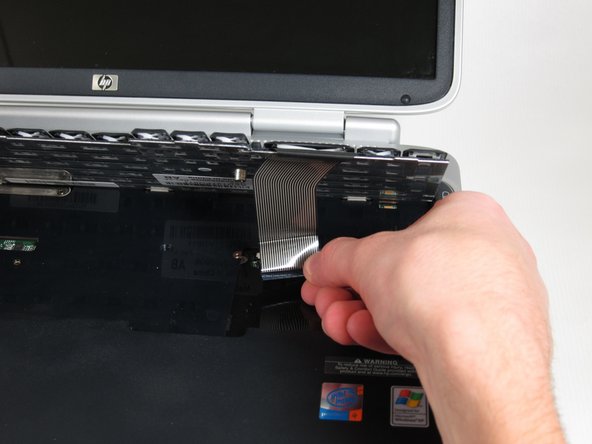
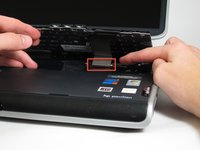
      • Rotate the keyboard so that the bottom is visible.

      • With the keyboard lifted, locate the blue-striped tab on the underside of the black ribbon cable.

      • Pull the tab towards you to release the keyboard from the laptop.

      Add Comment

    9. HP Pavilion zd8000 Screen Replacement: step 9, image 1 of 2 HP Pavilion zd8000 Screen Replacement: step 9, image 2 of 2
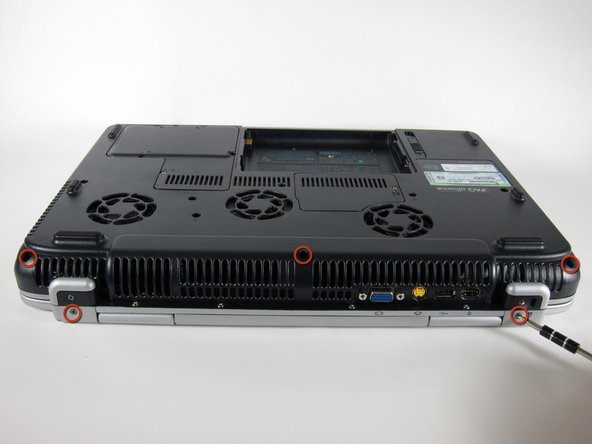
      • Place the laptop face-down and rotate it 180 degrees so the vents are facing you.

      • Remove the five 8mm Philips screws. Three are on the black base and two are near the hinges.

      Add Comment

    10. HP Pavilion zd8000 Screen Replacement: step 10, image 1 of 1
      • Flip the laptop over.

      • Fully open the laptop.

      Add Comment

    11. HP Pavilion zd8000 Screen Replacement: step 11, image 1 of 3 HP Pavilion zd8000 Screen Replacement: step 11, image 2 of 3 HP Pavilion zd8000 Screen Replacement: step 11, image 3 of 3
      • Rotate it so the display is on your right and the keyboard is on your left.

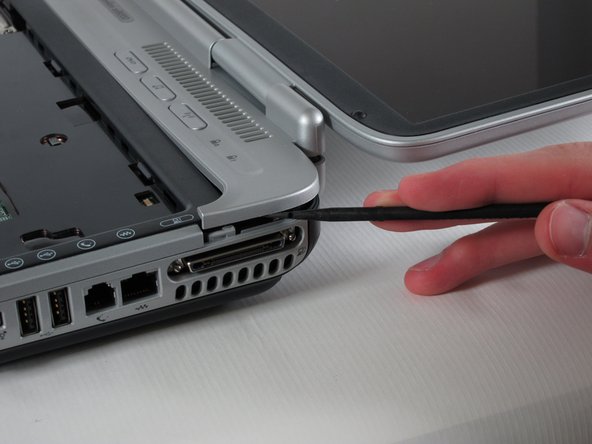
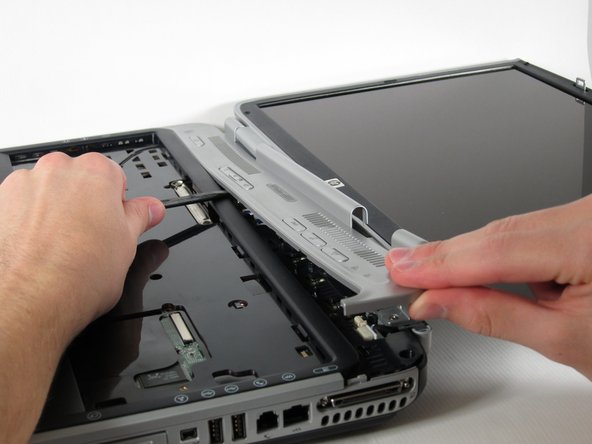
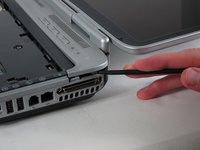
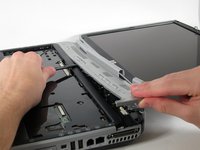
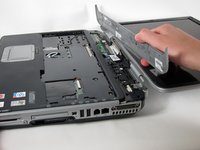
      • Lift the switch cover firmly but slowly so you do not snap it.

      • Lift the switch cover carefully from one end while sliding the spudger between the switch cover and the laptop to separate them.

      • The switch cover should easily separate from the laptop as you run the spudger through.

      Add Comment

    12. HP Pavilion zd8000 Screen Replacement: step 12, image 1 of 2 HP Pavilion zd8000 Screen Replacement: step 12, image 2 of 2
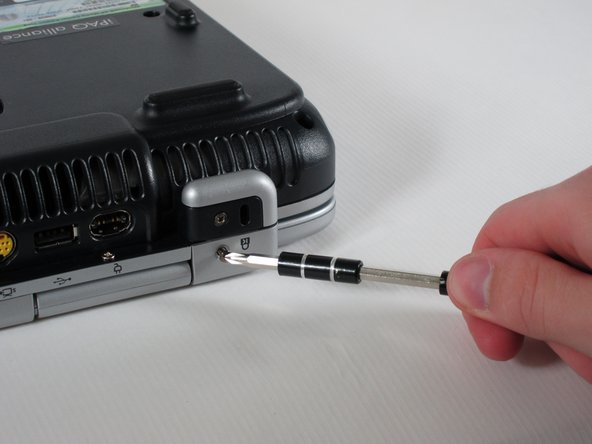
      • Close the lid and rotate the laptop so that the vents are facing you.

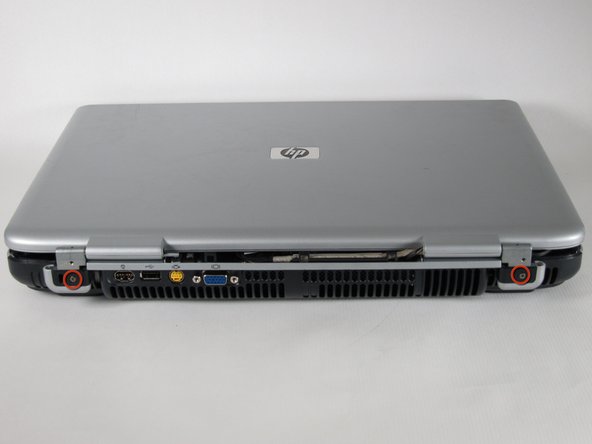
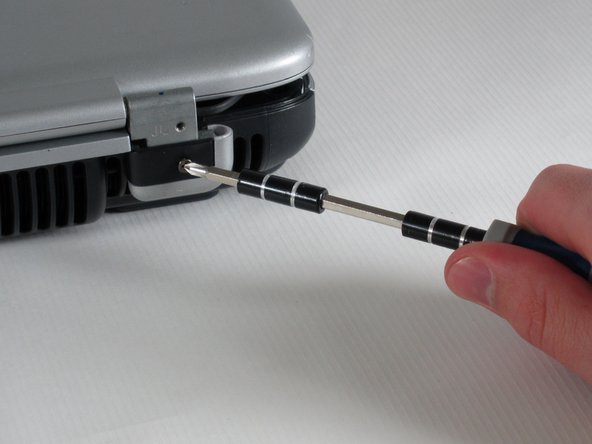
      • Unscrew the two 8mm Philips screws below the hinges.

      Add Comment

    13. HP Pavilion zd8000 Screen Replacement: step 13, image 1 of 2 HP Pavilion zd8000 Screen Replacement: step 13, image 2 of 2
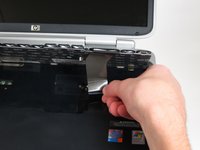
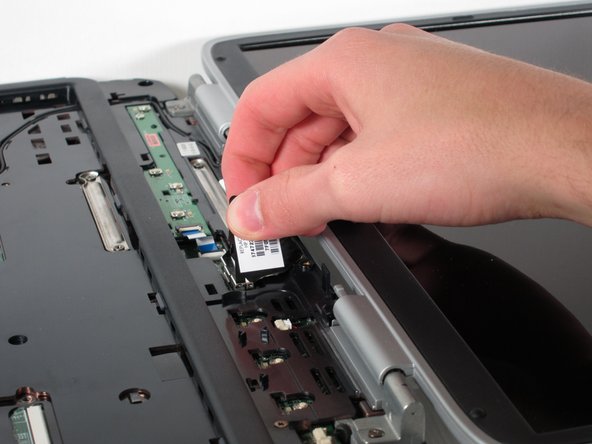
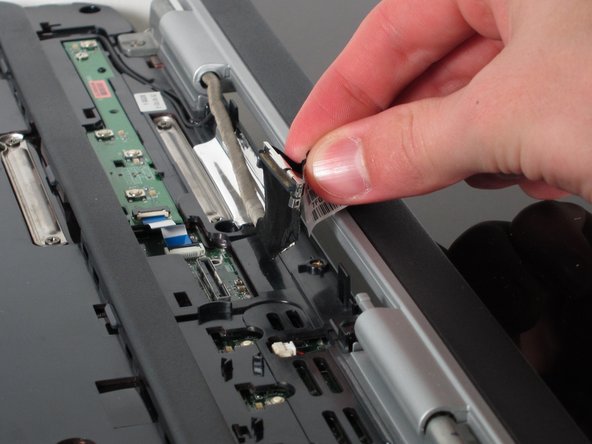
      • Carefully rotate the laptop 90 degrees counter-clockwise and open the screen.

      • Pull on the black tab with the HP service sticker to unplug the display from the motherboard.

      Add Comment

    14. HP Pavilion zd8000 Screen Replacement: step 14, image 1 of 2 HP Pavilion zd8000 Screen Replacement: step 14, image 2 of 2
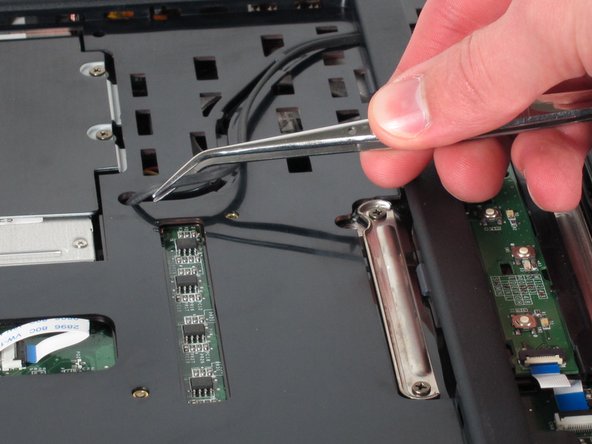
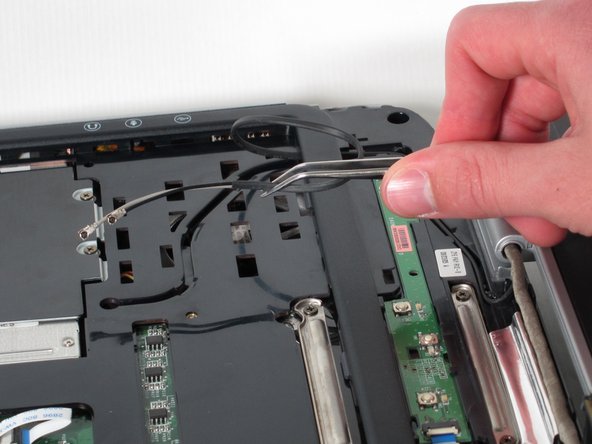
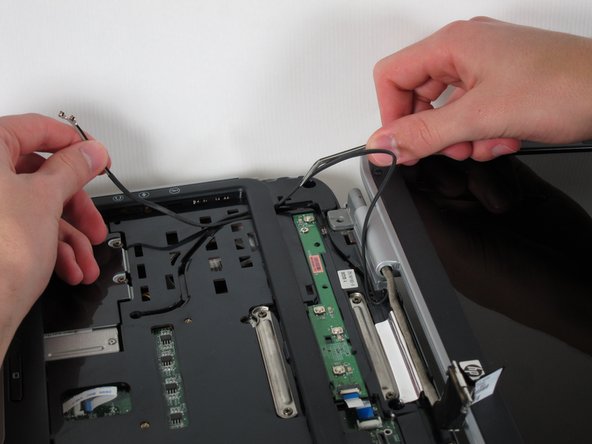
      • Using tweezers, remove the black cable from the hole leading to the WiFi enclosure.

      • Pull gently to remove the black and grey cables from the case.

      • Check the surface beneath the laptop to ensure the cables do not catch on anything when you flip the laptop over.

      Add Comment

    15. HP Pavilion zd8000 Screen Replacement: step 15, image 1 of 2 HP Pavilion zd8000 Screen Replacement: step 15, image 2 of 2
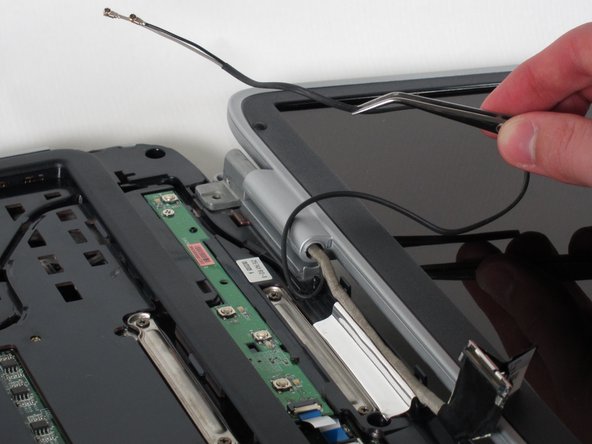
      • Using tweezers, pull the black cable towards the display and through the hole in the casing.

      Add Comment

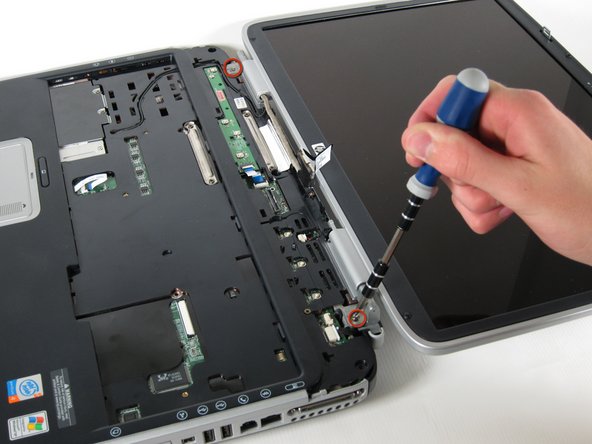
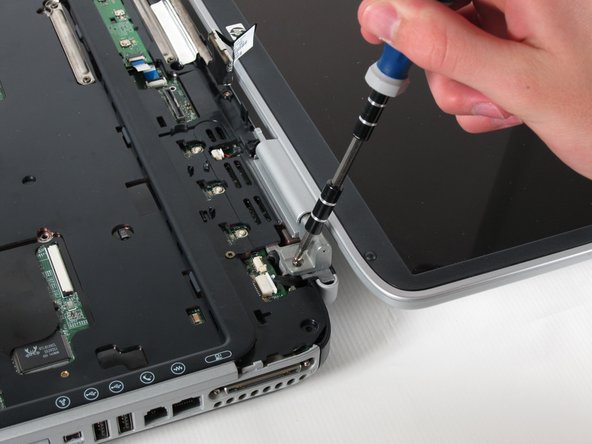
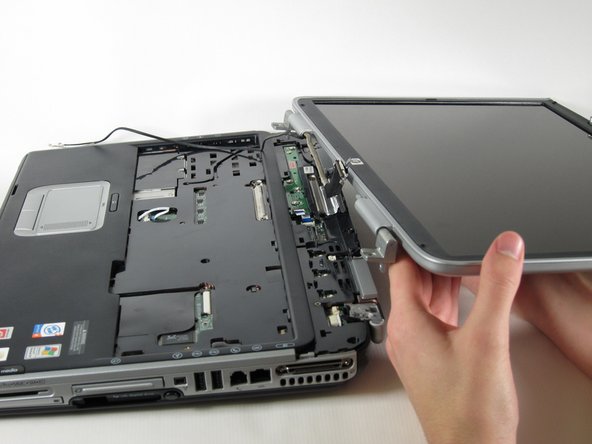
    16. HP Pavilion zd8000 Screen Replacement: step 16, image 1 of 3 HP Pavilion zd8000 Screen Replacement: step 16, image 2 of 3 HP Pavilion zd8000 Screen Replacement: step 16, image 3 of 3
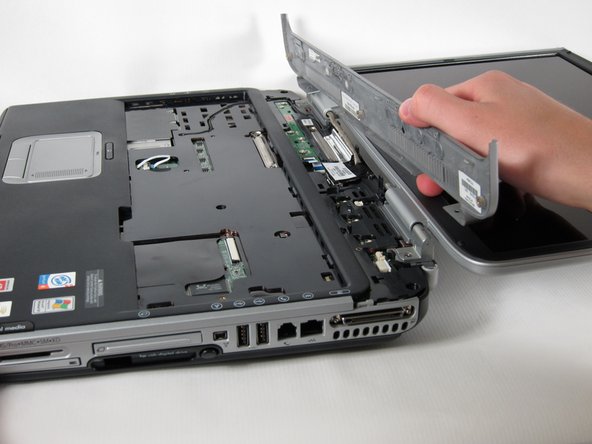
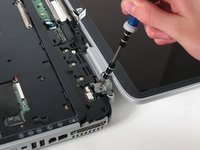
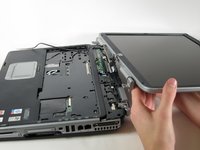
      • Unscrew the two 8mm Philips screws that attach the hinge to the laptop's display.

      • Lift the screen upwards to detach it from the laptop.

      Add Comment

Conclusion

To reassemble your device, follow these instructions in reverse order.

Cancel: I did not complete this guide.

System

Member since: 09/24/09

2,562 Guides authored

0 Guide Comments

Add Comment

View Statistics:

Past 24 Hours: 0

Past 7 Days: 0

Past 30 Days: 0

All Time: 23