HP TouchPad Motherboard Replacement

What you need

  1. HP TouchPad Motherboard Replacement, HP TouchPad Motherboard Replacement: step 1, image 1 of 1
    • In the following steps, you will use a metal spudger to lift the front panel out from the rear case of your TouchPad.

    • The front panel is held in by seven clips (boxed in red) that are lightly anchored to the rear case. When you remove the front panel assembly, you are bound to break either the clips or their supports attached to the rear case. We will update this guide as we find replacement parts or a better method to remove the panel.

    • As you remove the front panel assembly, also be careful not to damage the ambient light sensor (boxed in yellow) or the two antennas (boxed in orange).

    Add Comment

  2. HP TouchPad Motherboard Replacement: step 2, image 1 of 1
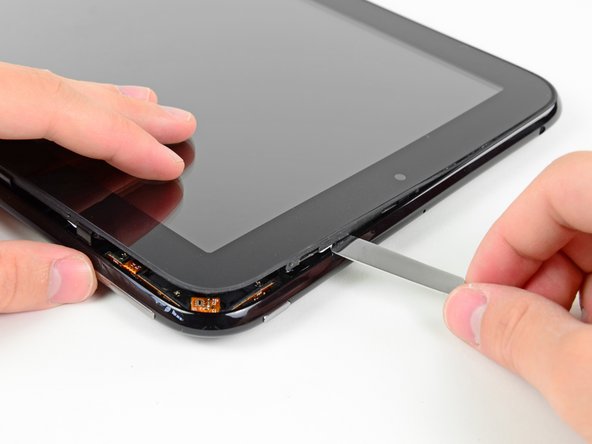
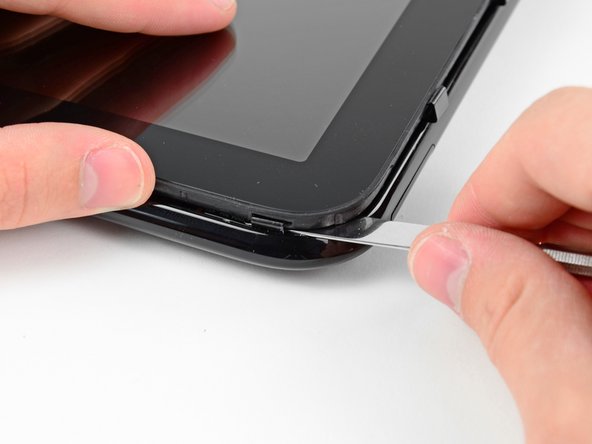
    • Insert a flat metal spudger in the gap between the rubber outer ring on the front panel assembly and the black plastic rear case near the USB connector.

    • Pry the front panel assembly up from the rear case, being careful not to damage the LCD or the glass panel.

    • As you work through the following steps, insert your metal spudger and pry the front panel up, but do not try to slide the spudger along the gap you're creating. Always remove your spudger, then insert it at another spot and pry upward.

    Add Comment

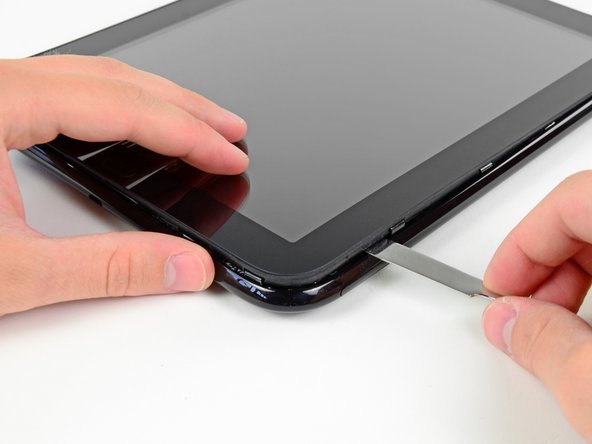
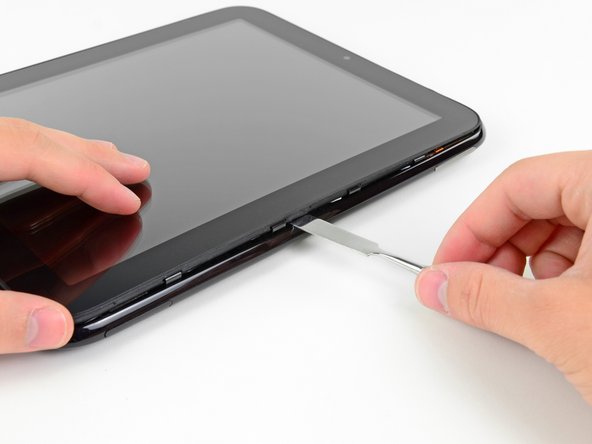
  3. HP TouchPad Motherboard Replacement: step 3, image 1 of 2 HP TouchPad Motherboard Replacement: step 3, image 2 of 2
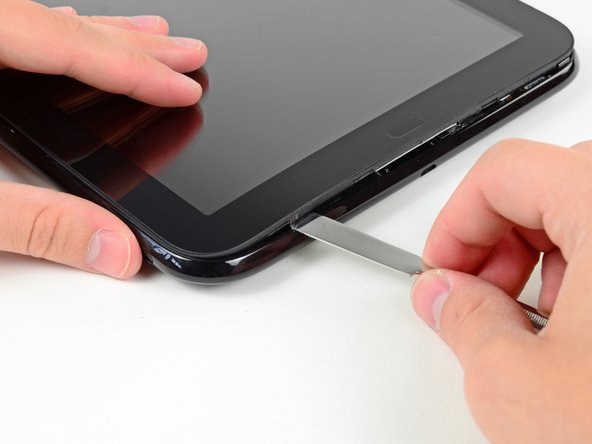
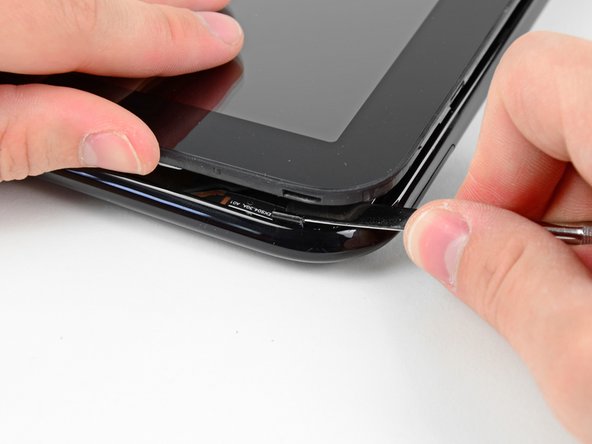
    • As in the previous step, use a spudger to pry the front panel up from the rear case along its long edge on the volume button side of the TouchPad.

    • Continue to pry the front panel assembly up along the volume button side of the TouchPad until there is a gap between it and the rear case.

    Add Comment

  4. HP TouchPad Motherboard Replacement: step 4, image 1 of 2 HP TouchPad Motherboard Replacement: step 4, image 2 of 2
    • Pry up the front panel assembly along the top edge of the TouchPad.

    • Be careful not to damage the ambient light sensor or the upper antenna.

    Add Comment

  5. HP TouchPad Motherboard Replacement: step 5, image 1 of 1
    • Pry up the front panel along the edge closest to the home screen button.

    Add Comment

  6. HP TouchPad Motherboard Replacement: step 6, image 1 of 2 HP TouchPad Motherboard Replacement: step 6, image 2 of 2
    • Before lifting the free side of the front panel up from the rear case, you may need to release it from the plastic retaining clips holding it down.

    • Use your metal spudger to pull the stuck retaining clips away from the edge of the front panel.

    Add Comment

  7. HP TouchPad Motherboard Replacement: step 7, image 1 of 1
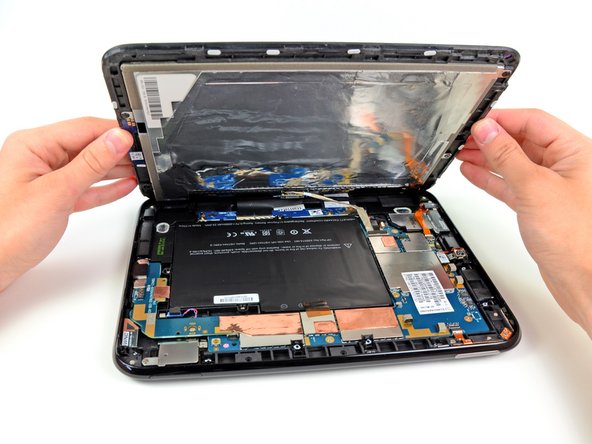
    • After freeing the retaining clips, lift the front panel assembly away from the rear case.

    • Do not try to remove the front panel assembly from the TouchPad just yet, as it is still connected to the motherboard.

    Add Comment

  8. HP TouchPad Motherboard Replacement: step 8, image 1 of 1
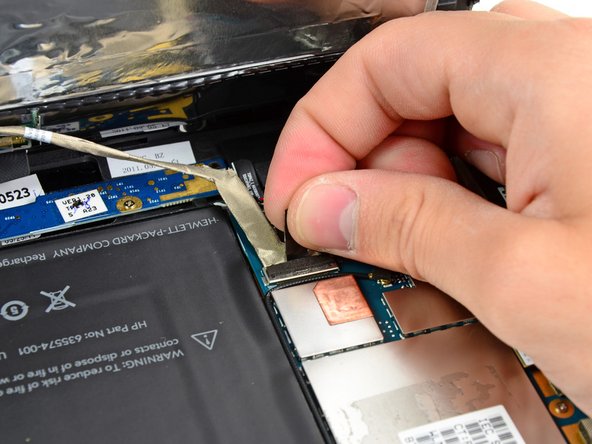
    • Use the attached black tab to pull the display data cable straight up and out of its socket on the motherboard.

    • Pull the cable upwards and not parallel to the face of the motherboard. Doing otherwise may damage the socket on the motherboard.

    • Take care not to pull on the ribbon that is stuck by adhesive to the bottom of cable you are detaching. It does not need to be disconnected.

    Add Comment

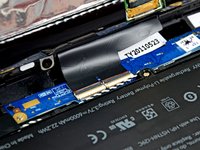
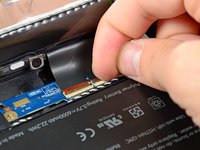
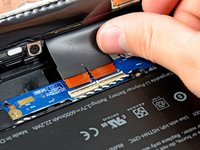
  9. HP TouchPad Motherboard Replacement: step 9, image 1 of 3 HP TouchPad Motherboard Replacement: step 9, image 2 of 3 HP TouchPad Motherboard Replacement: step 9, image 3 of 3
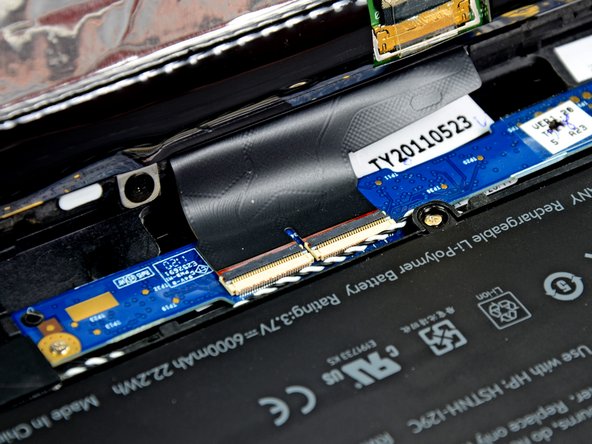
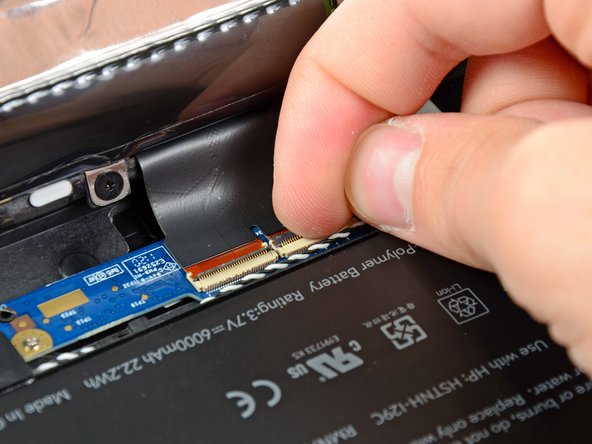
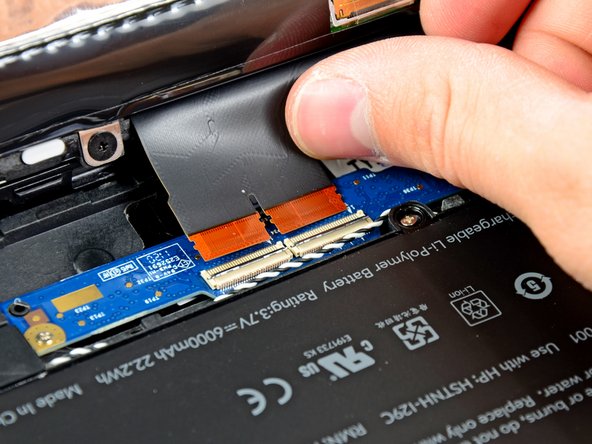
    • Use your fingernail to carefully flip up the retaining flaps on the two digitizer ribbon cable ZIF sockets.

    • Be sure you are prying up on the hinged retaining flaps, not the sockets themselves.

    • Pull the digitizer ribbon cable straight out of its two sockets on the motherboard.

    Add Comment

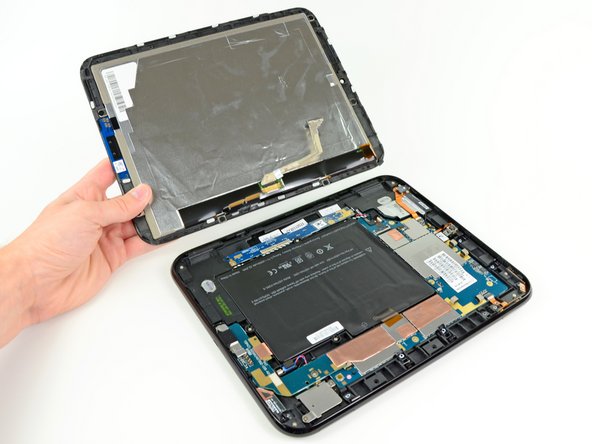
  10. HP TouchPad Motherboard Replacement: step 10, image 1 of 1
    • Remove the front panel assembly from the rear case assembly.

    Add Comment

  11. HP TouchPad Motherboard Replacement: step 11, image 1 of 2 HP TouchPad Motherboard Replacement: step 11, image 2 of 2
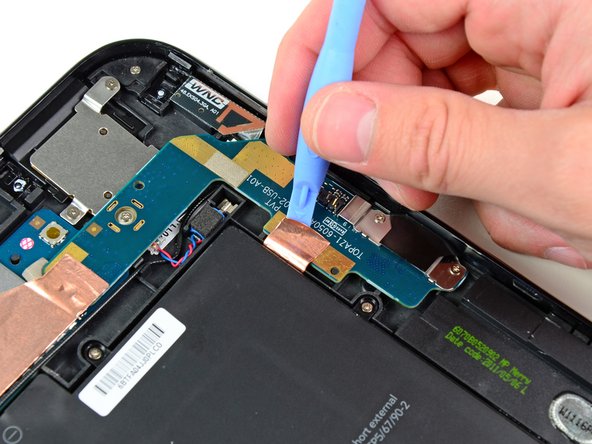
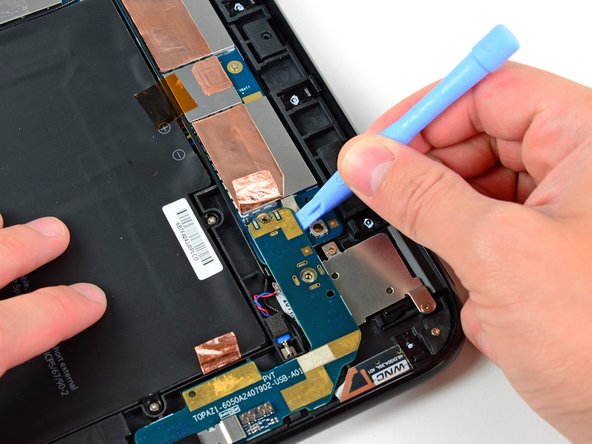
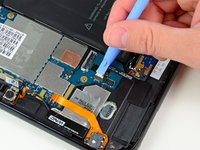
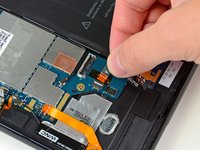
    • Use the edge of a plastic opening tool to peel up the two pieces of copper tape covering the USB connector board near the battery and the motherboard.

    Add Comment

  12. HP TouchPad Motherboard Replacement: step 12, image 1 of 1
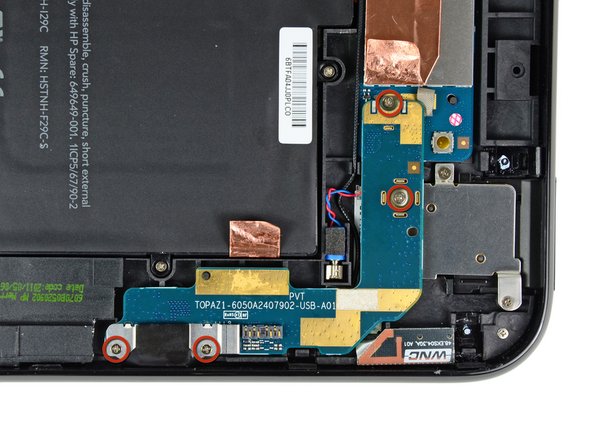
    • Remove the four 3.2 mm Phillips screws securing the USB connector board to the rear case.

    Add Comment

  13. HP TouchPad Motherboard Replacement: step 13, image 1 of 1
    • Pry the upper end of the USB connector board upwards to disconnect it from its socket on the logic board.

    Add Comment

  14. HP TouchPad Motherboard Replacement: step 14, image 1 of 1
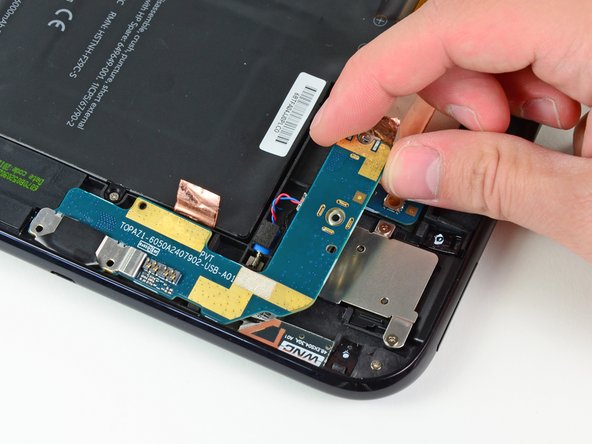
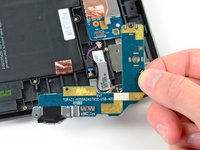
    • Pull the USB connector board away from the bottom edge of the rear case and lift, but do not remove it out of its housing.

    • The USB connector board is still attached to the vibrator motor. Do not completely remove the USB connector board just yet.

    Add Comment

  15. HP TouchPad Motherboard Replacement: step 15, image 1 of 3 HP TouchPad Motherboard Replacement: step 15, image 2 of 3 HP TouchPad Motherboard Replacement: step 15, image 3 of 3
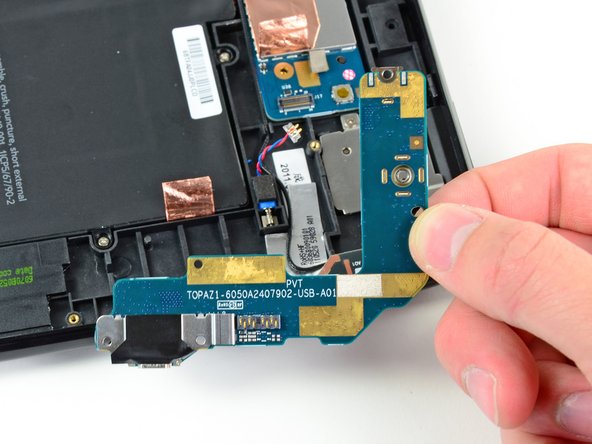
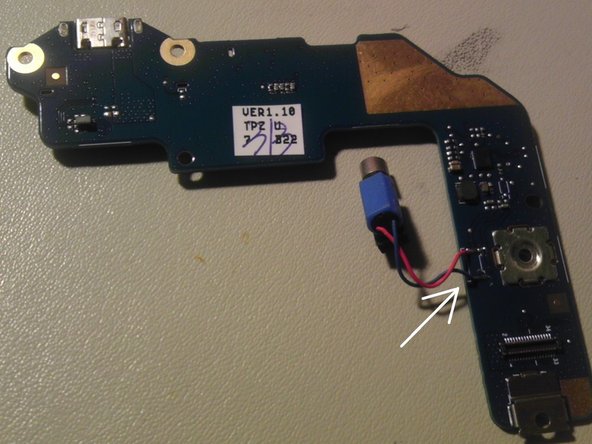
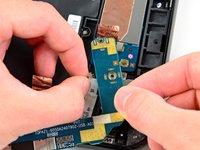
    • Pull the vibrator motor connector straight away from its socket on the USB connector board.

    • Remove the USB connector board from the TouchPad.

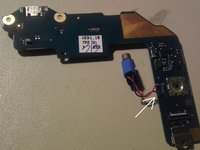
    • NOTE: First verify that there is a connector before pulling! The vibrator motor may be soldered directly to the USB Board requiring the motor to be pried up and removed together with the board.

    Add Comment

  16. HP TouchPad Motherboard Replacement: step 16, image 1 of 1
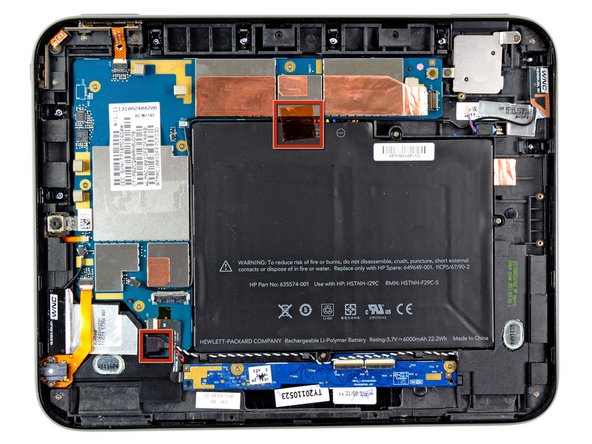
    • If present, remove the two pieces of tape boxed in red.

    Add Comment

  17. HP TouchPad Motherboard Replacement: step 17, image 1 of 2 HP TouchPad Motherboard Replacement: step 17, image 2 of 2
    • Use the edge of a plastic opening tool to flip up the retaining flap on the volume control/power button ribbon cable socket.

    • Be sure you are prying up on the hinged retaining flap, not the socket itself.

    • Pull the cable out of its socket.

    Add Comment

  18. HP TouchPad Motherboard Replacement: step 18, image 1 of 1
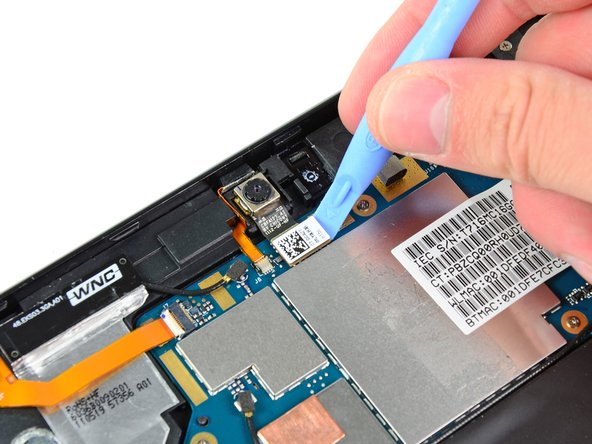
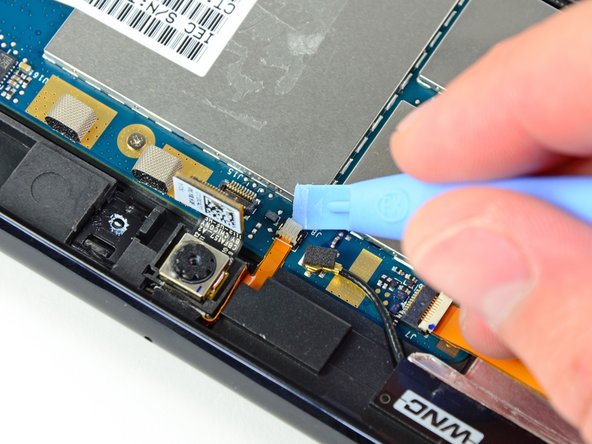
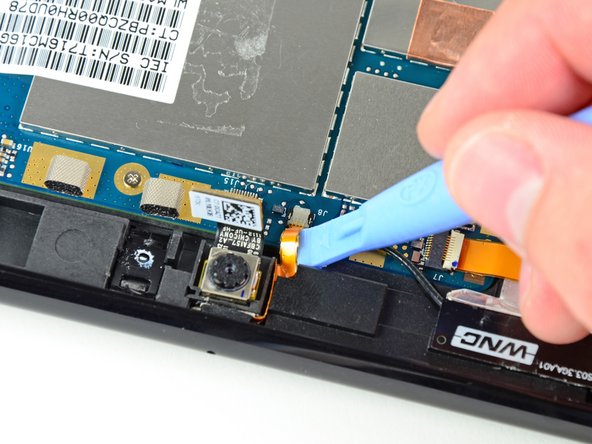
    • Use a plastic opening tool to lift the camera connector up and out of its socket on the motherboard.

    • Bend the camera cable away from the motherboard.

    Add Comment

  19. HP TouchPad Motherboard Replacement: step 19, image 1 of 2 HP TouchPad Motherboard Replacement: step 19, image 2 of 2
    • Carefully flip up the retaining flap on the microphone cable socket.

    • Be sure you are prying up on the hinged retaining flap.

    • Pull the microphone cable out of its socket.

    Add Comment

  20. HP TouchPad Motherboard Replacement: step 20, image 1 of 1
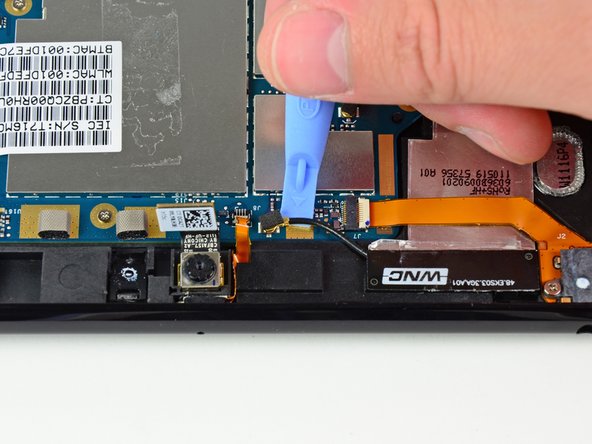
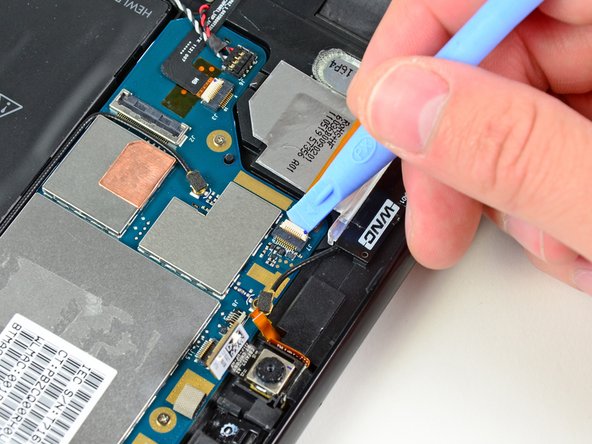
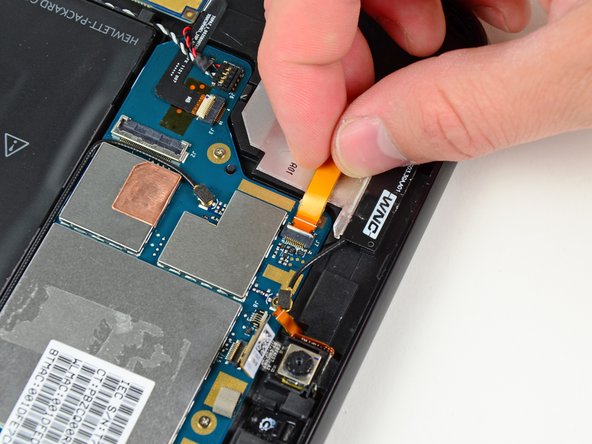
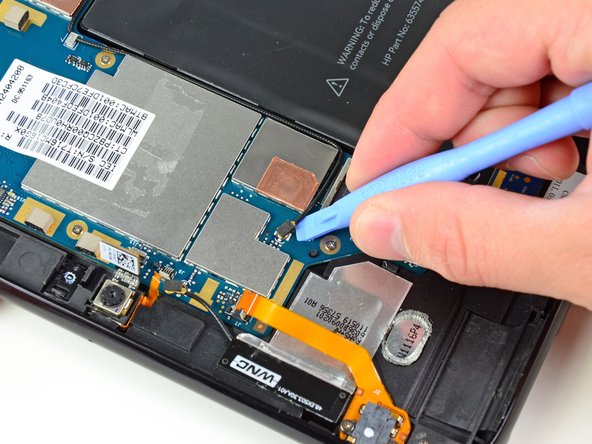
    • Use your plastic opening tool to pry the upper antenna connector up from its socket on the motherboard.

    Add Comment

  21. HP TouchPad Motherboard Replacement: step 21, image 1 of 2 HP TouchPad Motherboard Replacement: step 21, image 2 of 2
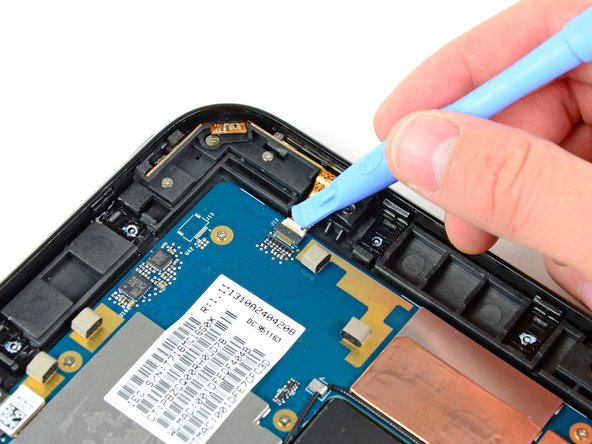
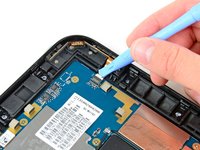
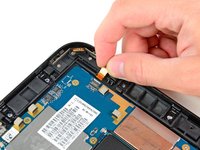
    • Pry up the retaining flap on the headphone jack ribbon cable socket.

    • Be sure you are prying up on the hinged retaining flap.

    • Pull the headphone jack ribbon cable out of its socket.

    Add Comment

  22. HP TouchPad Motherboard Replacement: step 22, image 1 of 1
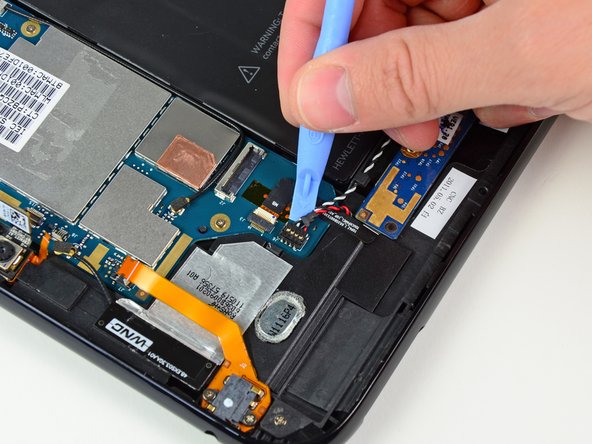
    • Pry the speaker cable connector up from its socket on the motherboard.

    • Pry up from beneath the wires.

    Add Comment

  23. HP TouchPad Motherboard Replacement: step 23, image 1 of 2 HP TouchPad Motherboard Replacement: step 23, image 2 of 2
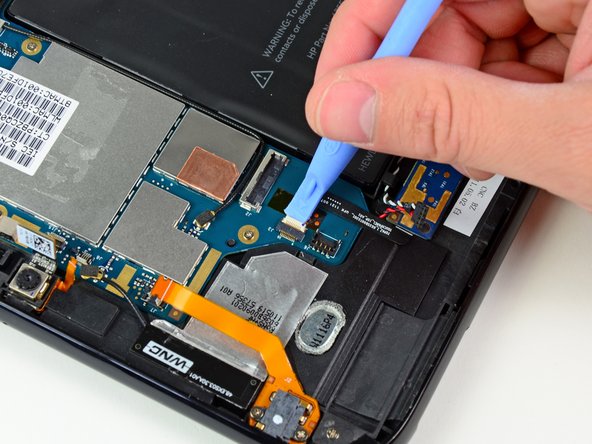
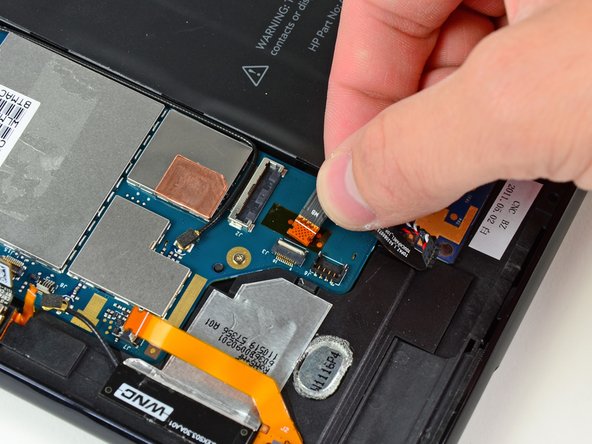
    • Use a plastic opening tool to flip up the retaining flap on the digitizer board ribbon cable socket.

    • Be sure you are prying up on the hinged retaining flap, not the socket itself.

    • Pull the digitizer ribbon cable out of its socket.

    Add Comment

  24. HP TouchPad Motherboard Replacement: step 24, image 1 of 1
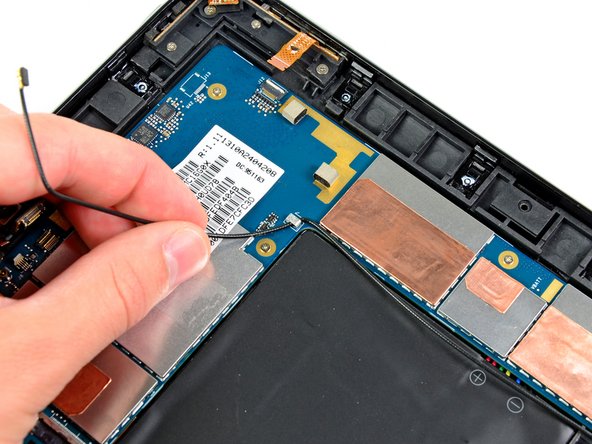
    • Pry up the lower antenna cable connector from its socket on the motherboard.

    Add Comment

  25. HP TouchPad Motherboard Replacement: step 25, image 1 of 1
    • De-route the lower antenna cable along the top edge of the battery and carefully pull it out from under its retaining clip near the top right corner of the battery.

    Add Comment

  26. HP TouchPad Motherboard Replacement: step 26, image 1 of 1
    • Remove the eight 3.2 mm Phillips screws securing both the battery and the motherboard to the rear case.

    Add Comment

  27. HP TouchPad Motherboard Replacement: step 27, image 1 of 2 HP TouchPad Motherboard Replacement: step 27, image 2 of 2
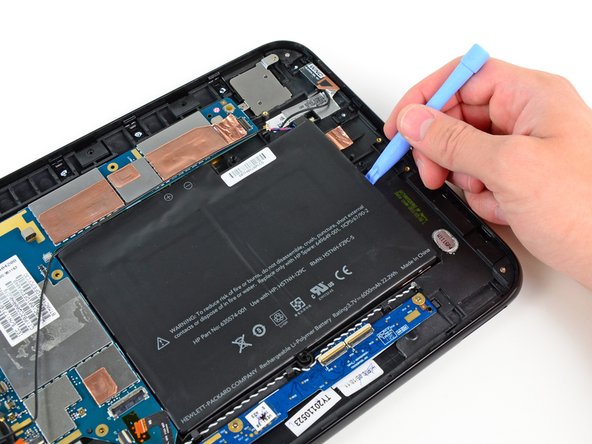
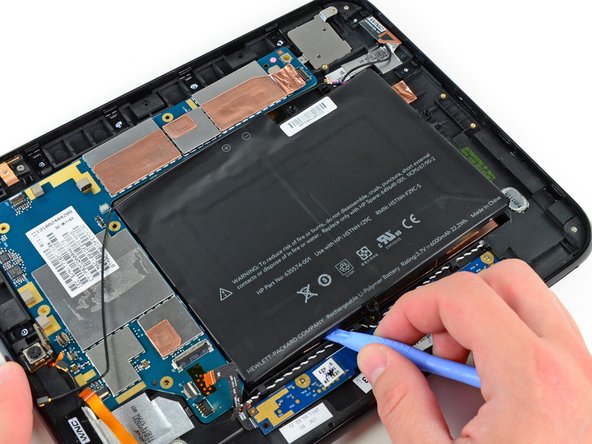
    • Use a plastic opening tool to pry the battery up from the tape securing it to the rear case.

    • It is easiest to pry up along the edges of the battery closest to the USB connector and the digitizer board.

    Add Comment

  28. HP TouchPad Motherboard Replacement: step 28, image 1 of 1
    • Lift the motherboard assembly out of the rear case, minding any cables that may get caught.

    Add Comment

  29. HP TouchPad Motherboard Replacement: step 29, image 1 of 2 HP TouchPad Motherboard Replacement: step 29, image 2 of 2
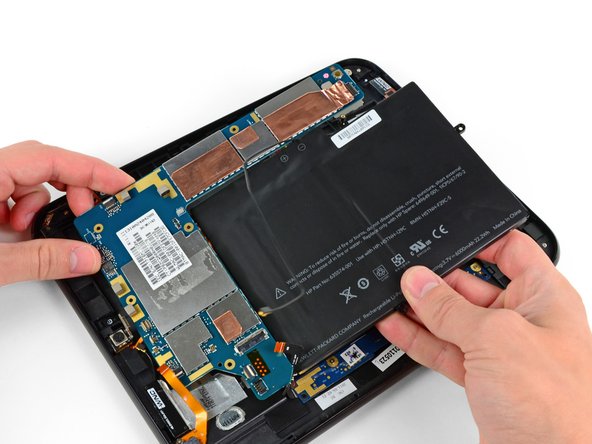
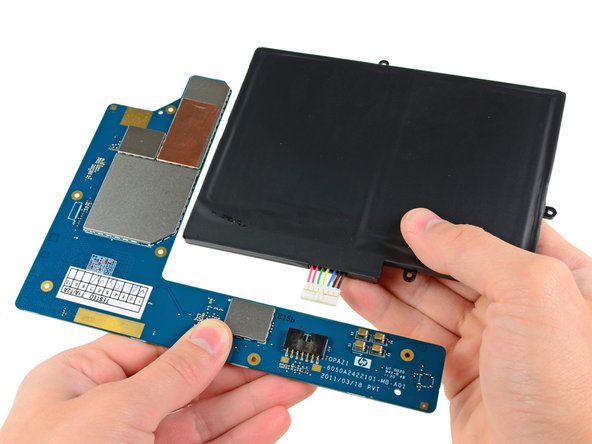
    • Carefully pull the battery away from the L-shaped motherboard to disconnect its cable.

    • Remove the battery from the motherboard.

    Add Comment

  30. HP TouchPad Motherboard Replacement: step 30, image 1 of 1
    • Motherboard remains.

    Add Comment

Conclusion

To reassemble your device, follow these instructions in reverse order.

Cancel: I did not complete this guide.

System

Member since: 09/24/09

2,562 Guides authored

0 Guide Comments

Add Comment

View Statistics:

Past 24 Hours: 0

Past 7 Days: 1

Past 30 Days: 3

All Time: 31