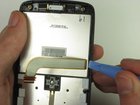
HTC Maple 100 LCD Screen Replacement

What you need

  1. HTC Maple 100 LCD Screen Replacement, HTC Maple 100 LCD Screen Replacement: step 1, image 1 of 1
    • First remove the back cover of your phone to expose the battery.

    Add Comment

  2. HTC Maple 100 LCD Screen Replacement: step 2, image 1 of 1
    • Turn the phone over and remove the battery by using your thumb to push forward on the battery and then lift it.

    Add Comment

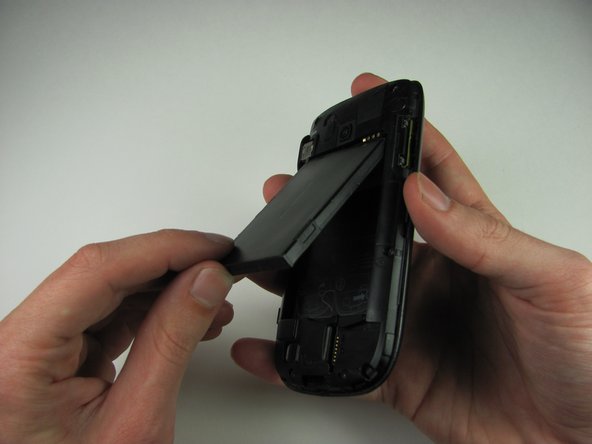
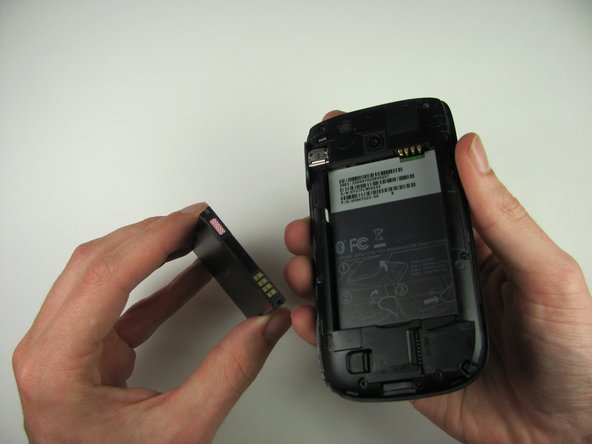
  3. HTC Maple 100 LCD Screen Replacement: step 3, image 1 of 2 HTC Maple 100 LCD Screen Replacement: step 3, image 2 of 2
    • Take the battery out

    • When reassembling, make sure that the battery contacts match up.

    Add Comment

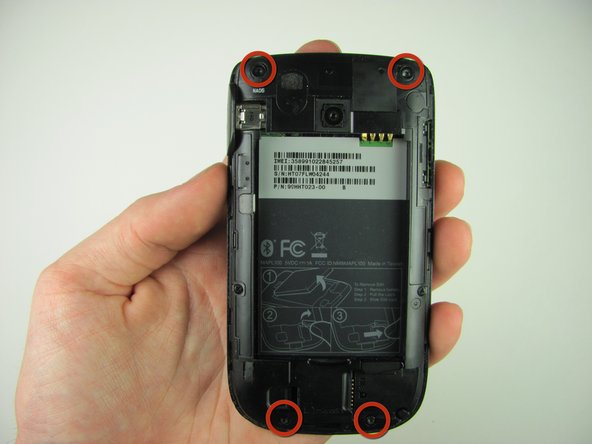
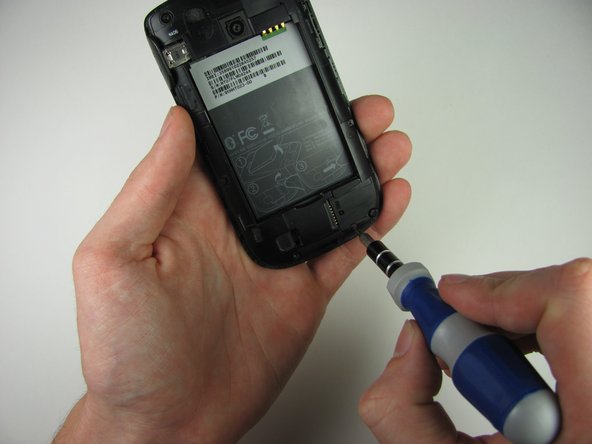
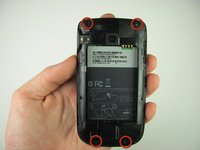
  4. HTC Maple 100 LCD Screen Replacement: step 4, image 1 of 2 HTC Maple 100 LCD Screen Replacement: step 4, image 2 of 2
    • Remove the four 4.9mm T6 Torx screws that secure the back panel to the rest of the phone

    Add Comment

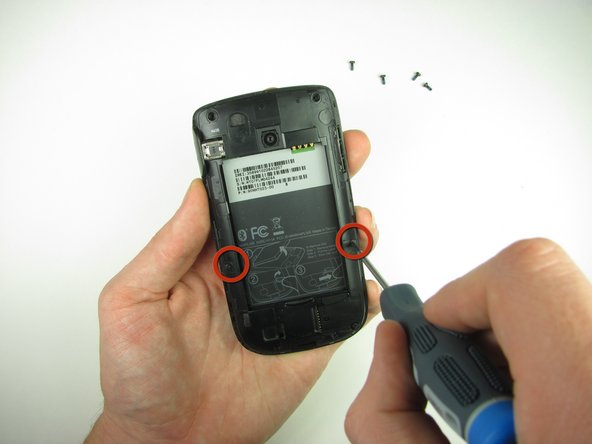
  5. HTC Maple 100 LCD Screen Replacement: step 5, image 1 of 1
    • Remove the two 4.3mm #00 Phillips screws that secure the back panel to the rest of the phone

    Add Comment

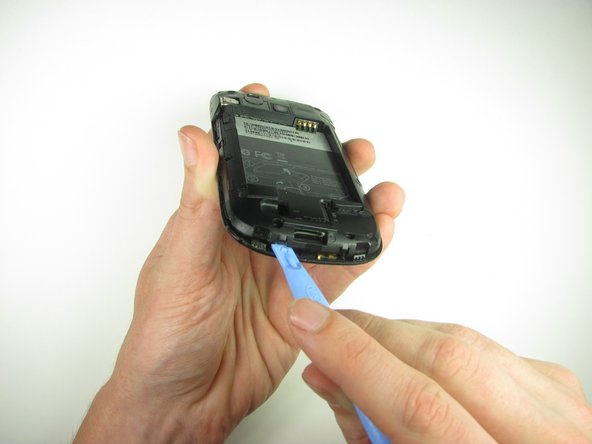
  6. HTC Maple 100 LCD Screen Replacement: step 6, image 1 of 3 HTC Maple 100 LCD Screen Replacement: step 6, image 2 of 3 HTC Maple 100 LCD Screen Replacement: step 6, image 3 of 3
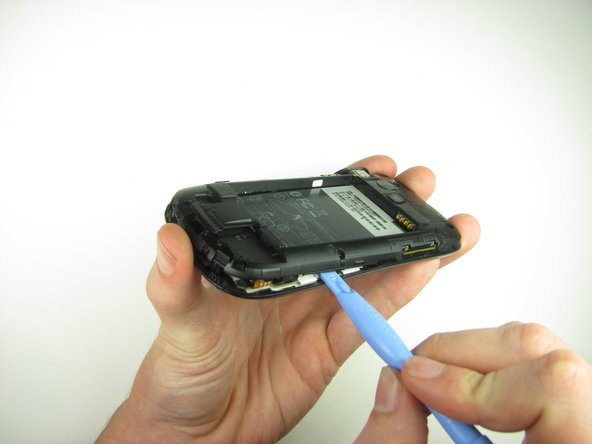
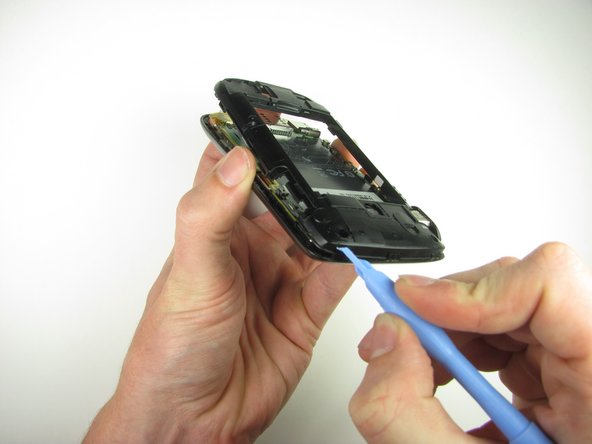
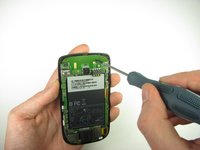
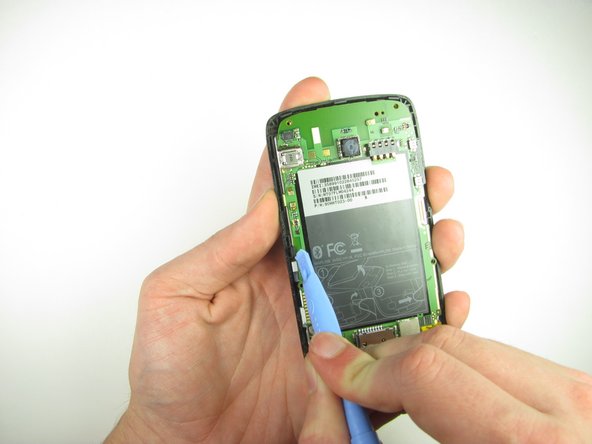
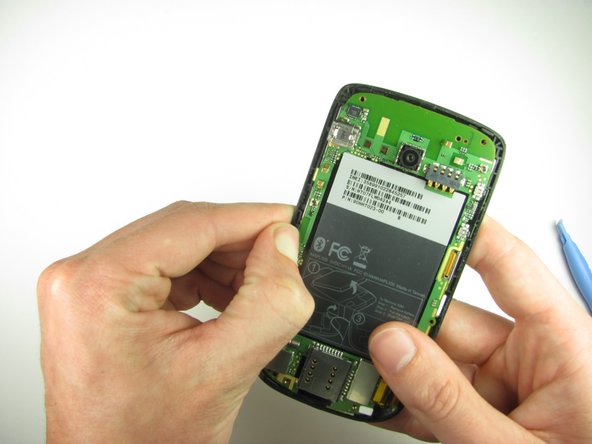
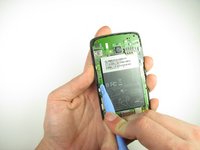
    • Use the plastic opening tool to pry the clips off

    • Insert the plastic opening tool along the seams at different points to it pry up

    • This may require a bit of force. The USB port cover may fall off in this step.

    Add Comment

  7. HTC Maple 100 LCD Screen Replacement: step 7, image 1 of 2 HTC Maple 100 LCD Screen Replacement: step 7, image 2 of 2
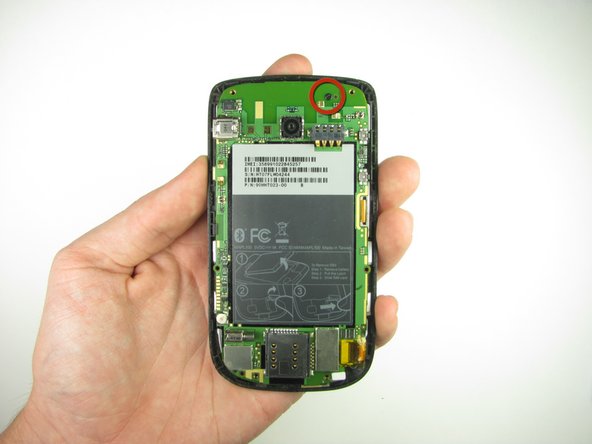
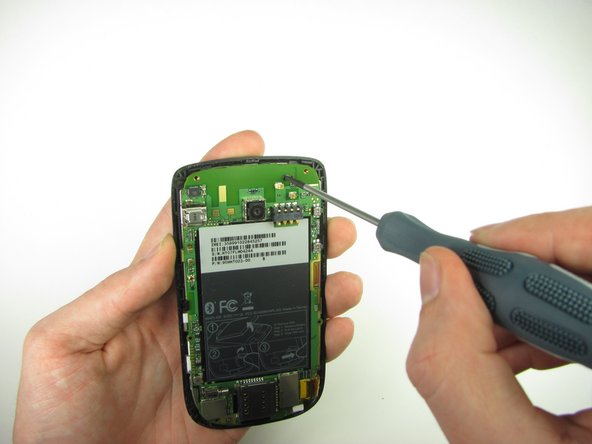
    • Remove the one 3.3mm #00 screw.

    Add Comment

  8. HTC Maple 100 LCD Screen Replacement: step 8, image 1 of 2 HTC Maple 100 LCD Screen Replacement: step 8, image 2 of 2
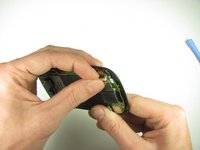
    • Use your finger or the plastic opening tool to unclip the board.

    • Be aware of the ribbon cable connected to the motherboard inside the phone.

    Add Comment

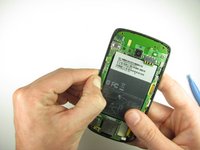
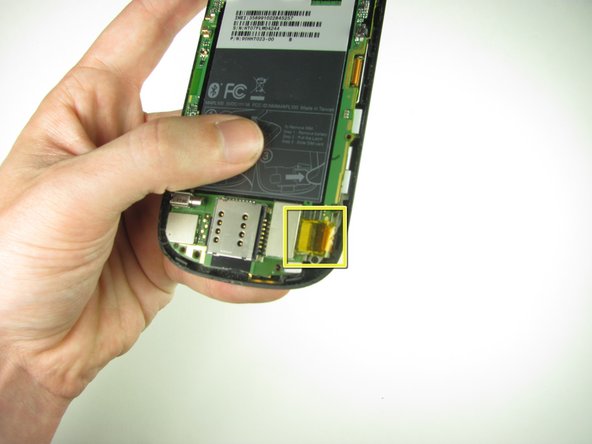
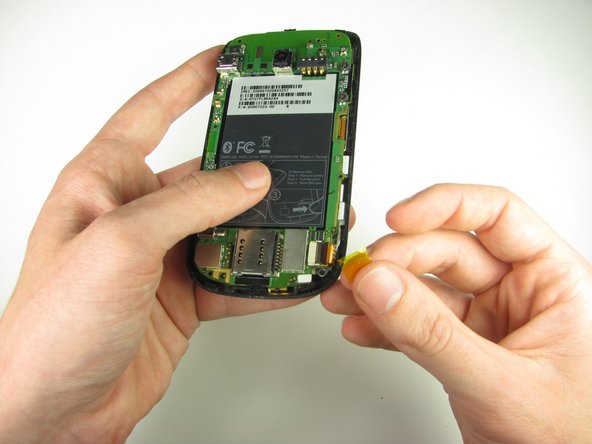
  9. HTC Maple 100 LCD Screen Replacement: step 9, image 1 of 2 HTC Maple 100 LCD Screen Replacement: step 9, image 2 of 2
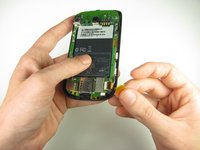
    • Peel off the yellow piece of tape from the phone

    Add Comment

  10. HTC Maple 100 LCD Screen Replacement: step 10, image 1 of 3 HTC Maple 100 LCD Screen Replacement: step 10, image 2 of 3 HTC Maple 100 LCD Screen Replacement: step 10, image 3 of 3
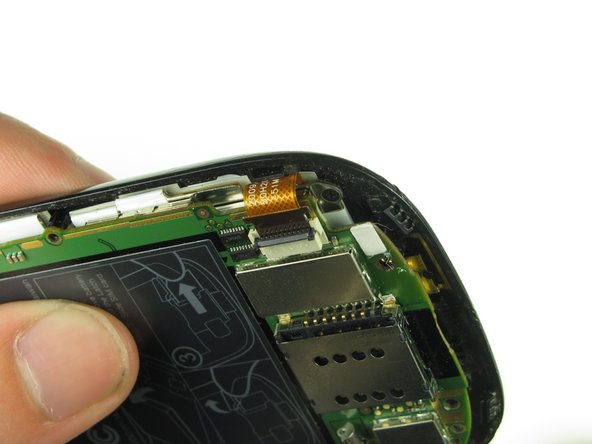
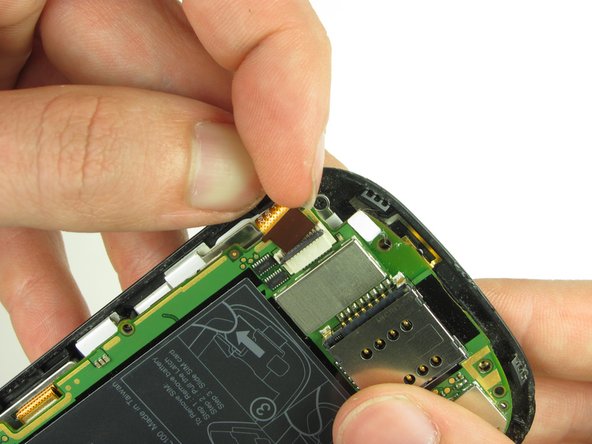
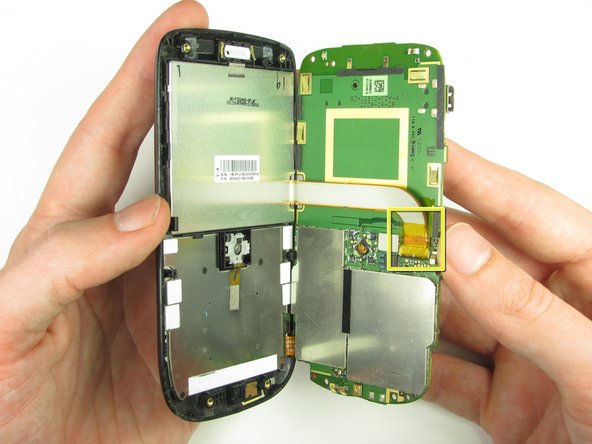
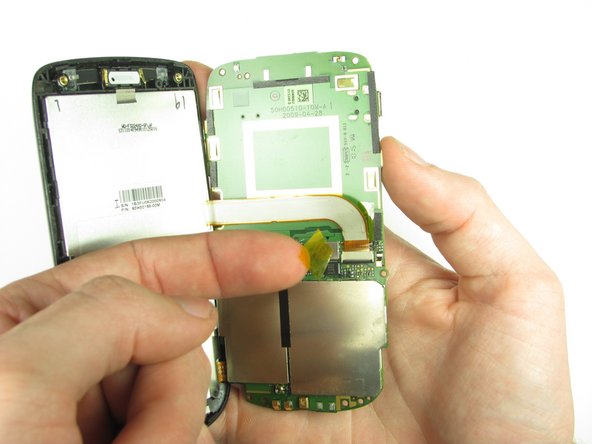
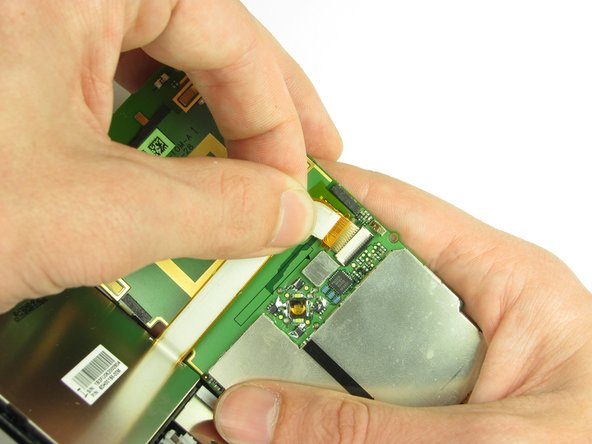
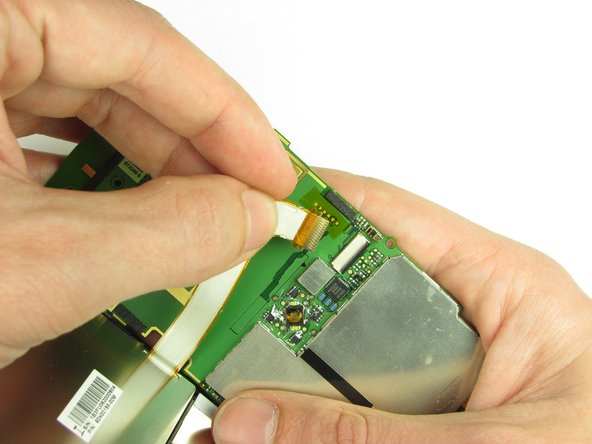
    • First flip up the retaining flap with your fingernail or a plastic opening tool.

    • Pull on the ribbon cable gently with your fingers

    Add Comment

  11. HTC Maple 100 LCD Screen Replacement: step 11, image 1 of 2 HTC Maple 100 LCD Screen Replacement: step 11, image 2 of 2
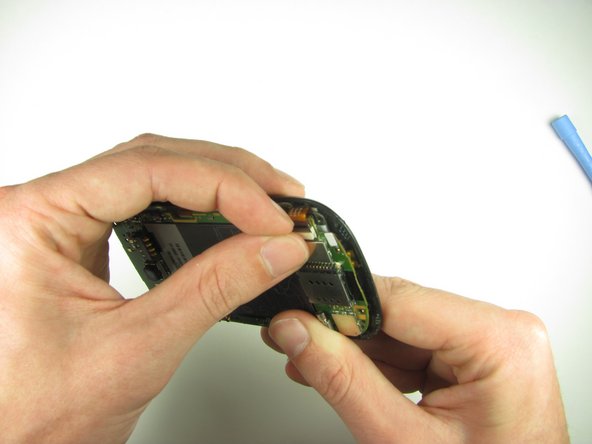
    • Split apart the motherboard and front panel. Remove the other yellow piece of tape off of the end of the ribbon cable.

    Add Comment

  12. HTC Maple 100 LCD Screen Replacement: step 12, image 1 of 2 HTC Maple 100 LCD Screen Replacement: step 12, image 2 of 2
    • Gently pull on the ribbon cable to separate the motherboard.

    Add Comment

  13. HTC Maple 100 LCD Screen Replacement: step 13, image 1 of 3 HTC Maple 100 LCD Screen Replacement: step 13, image 2 of 3 HTC Maple 100 LCD Screen Replacement: step 13, image 3 of 3
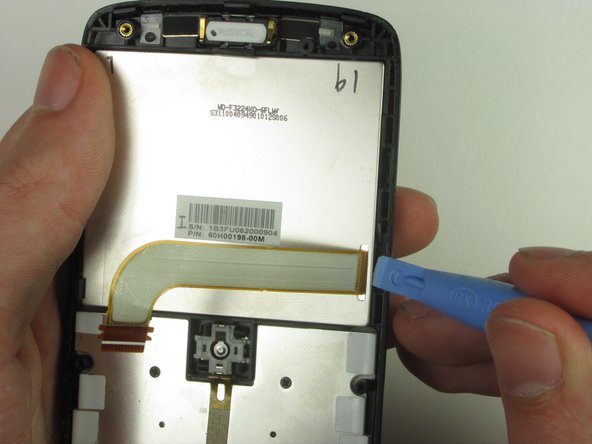
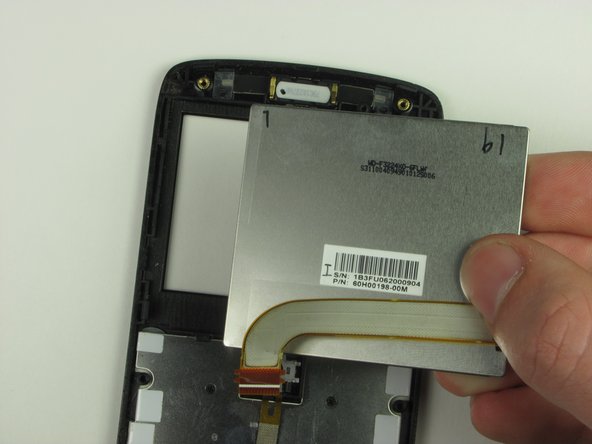
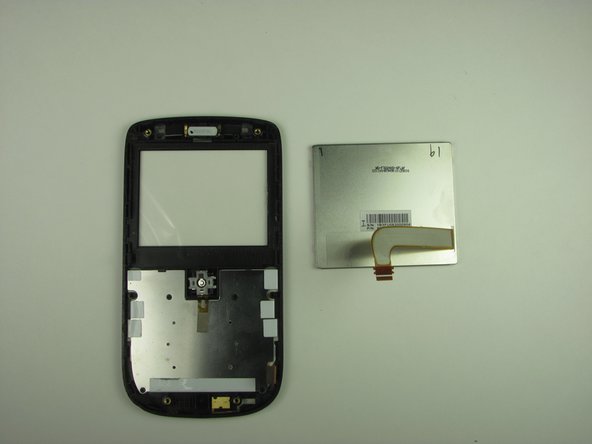
    • Pry the LCD screen out using the plastic opening tool and remove it using your fingers.

    Add Comment

Conclusion

To reassemble your device, follow these instructions in reverse order.

Cancel: I did not complete this guide.

System

Member since: 09/24/09

2,562 Guides authored

0 Guide Comments

Add Comment

View Statistics:

Past 24 Hours: 0

Past 7 Days: 0

Past 30 Days: 0

All Time: 10