HTC Maple 100 Trackball Replacement

What you need

    1. HTC Maple 100 Trackball Replacement, HTC Maple 100 Trackball Replacement: step 1, image 1 of 1
      • First remove the back cover of your phone to expose the battery.

      Add Comment

    2. HTC Maple 100 Trackball Replacement: step 2, image 1 of 1
      • Turn the phone over and remove the battery by using your thumb to push forward on the battery and then lift it.

      Add Comment

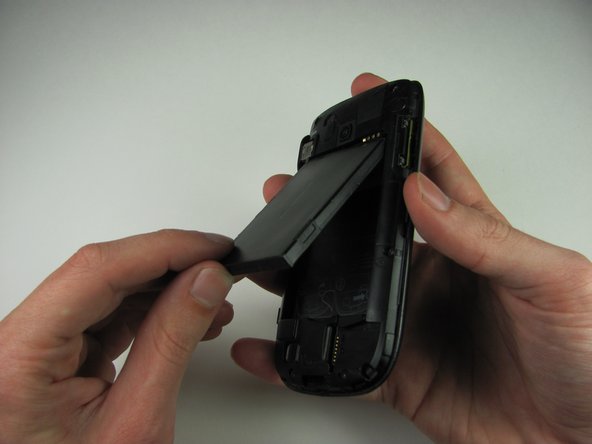
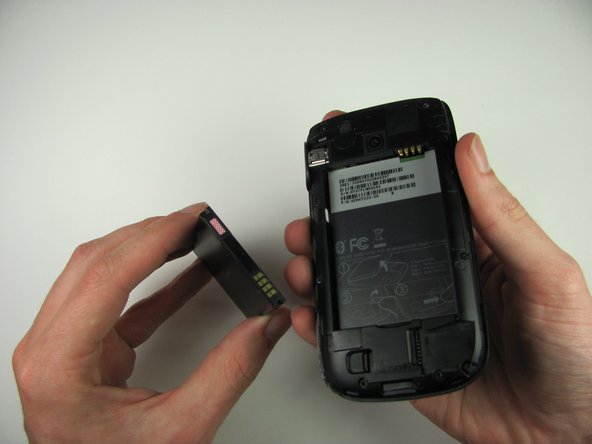
    3. HTC Maple 100 Trackball Replacement: step 3, image 1 of 2 HTC Maple 100 Trackball Replacement: step 3, image 2 of 2
      • Take the battery out

      • When reassembling, make sure that the battery contacts match up.

      Add Comment

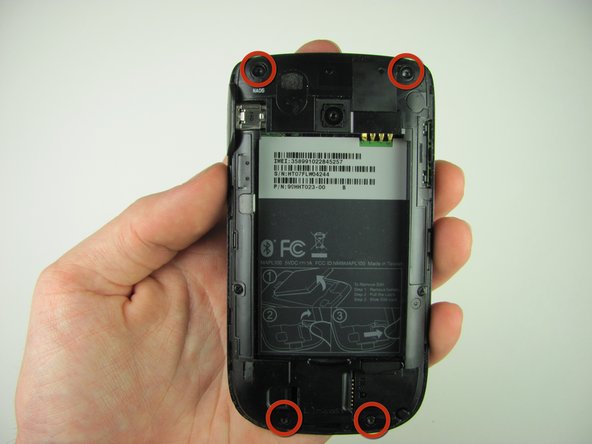
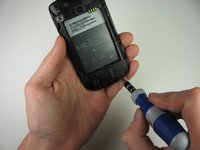
    4. HTC Maple 100 Trackball Replacement: step 4, image 1 of 2 HTC Maple 100 Trackball Replacement: step 4, image 2 of 2
      • Remove the four 4.9mm T6 Torx screws that secure the back panel to the rest of the phone

      Add Comment

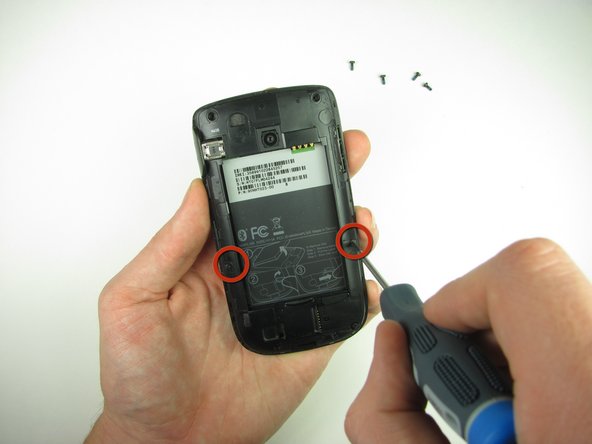
    5. HTC Maple 100 Trackball Replacement: step 5, image 1 of 1
      • Remove the two 4.3mm #00 Phillips screws that secure the back panel to the rest of the phone

      Add Comment

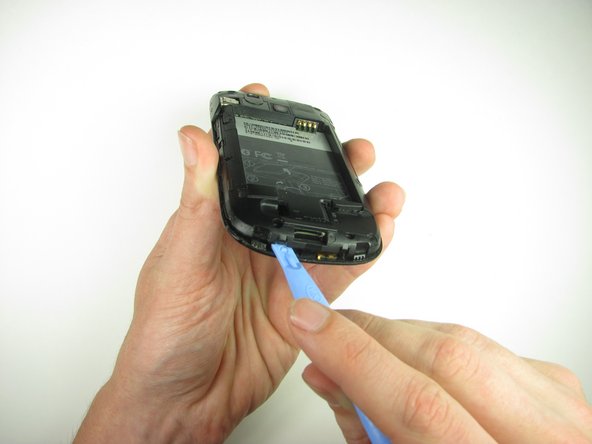
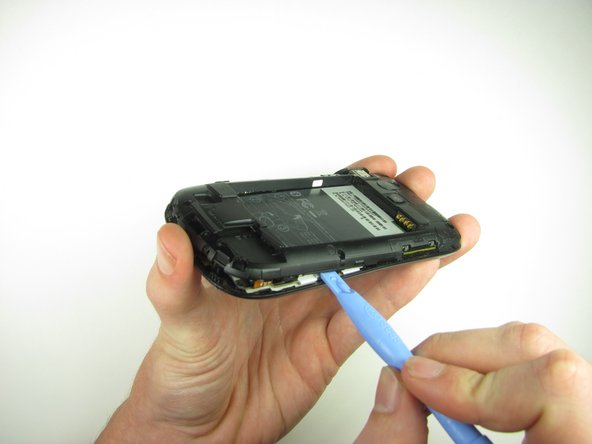
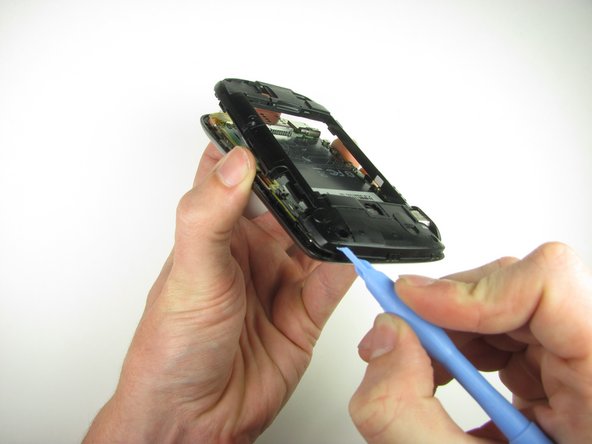
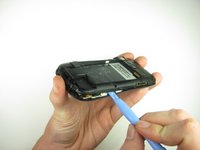
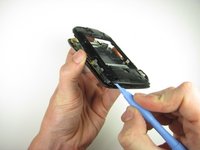
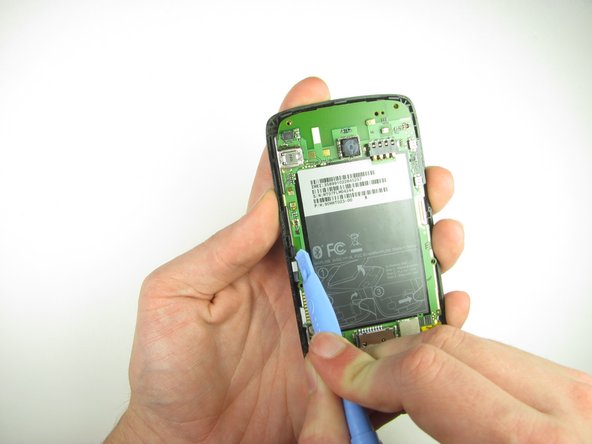
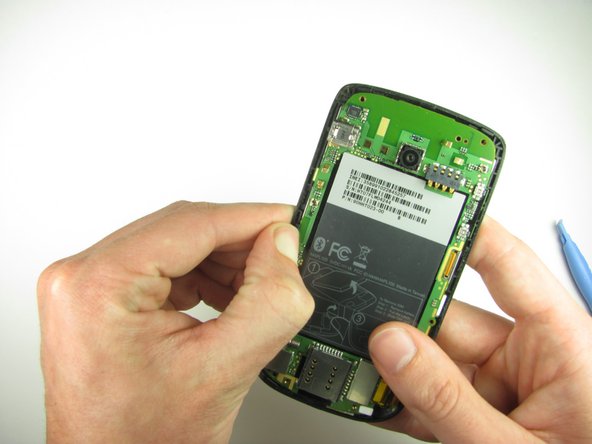
    6. HTC Maple 100 Trackball Replacement: step 6, image 1 of 3 HTC Maple 100 Trackball Replacement: step 6, image 2 of 3 HTC Maple 100 Trackball Replacement: step 6, image 3 of 3
      • Use the plastic opening tool to pry the clips off

      • Insert the plastic opening tool along the seams at different points to it pry up

      • This may require a bit of force. The USB port cover may fall off in this step.

      Add Comment

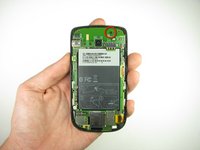
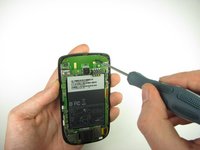
    7. HTC Maple 100 Trackball Replacement: step 7, image 1 of 2 HTC Maple 100 Trackball Replacement: step 7, image 2 of 2
      • Remove the one 3.3mm #00 screw.

      Add Comment

    8. HTC Maple 100 Trackball Replacement: step 8, image 1 of 2 HTC Maple 100 Trackball Replacement: step 8, image 2 of 2
      • Use your finger or the plastic opening tool to unclip the board.

      • Be aware of the ribbon cable connected to the motherboard inside the phone.

      Add Comment

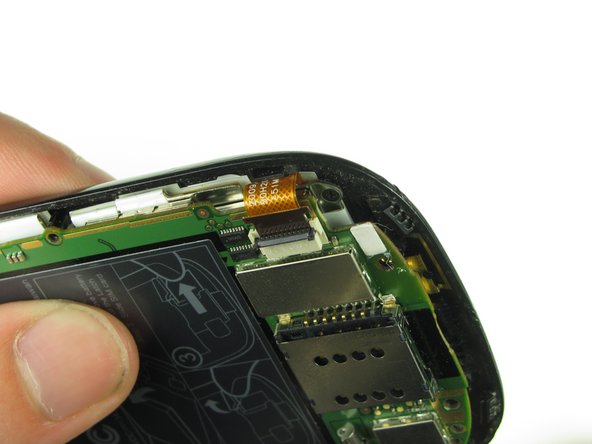
    9. HTC Maple 100 Trackball Replacement: step 9, image 1 of 2 HTC Maple 100 Trackball Replacement: step 9, image 2 of 2
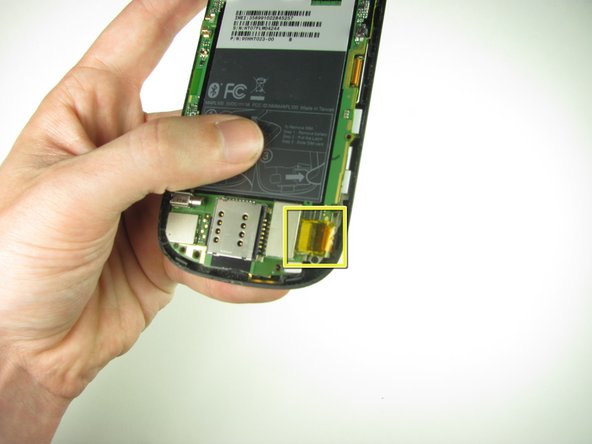
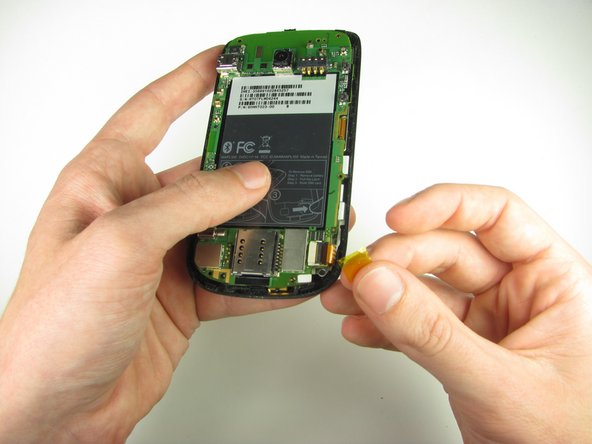
      • Peel off the yellow piece of tape from the phone

      Add Comment

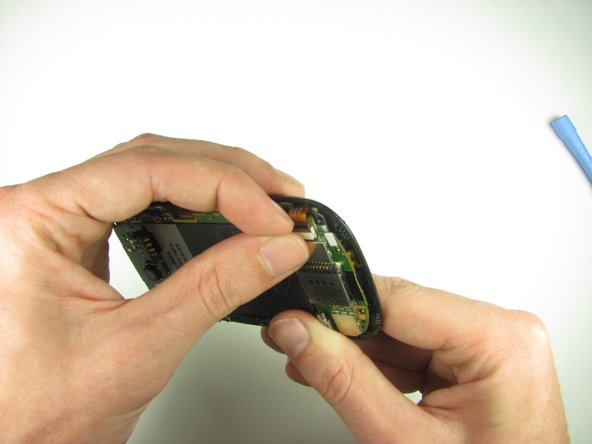
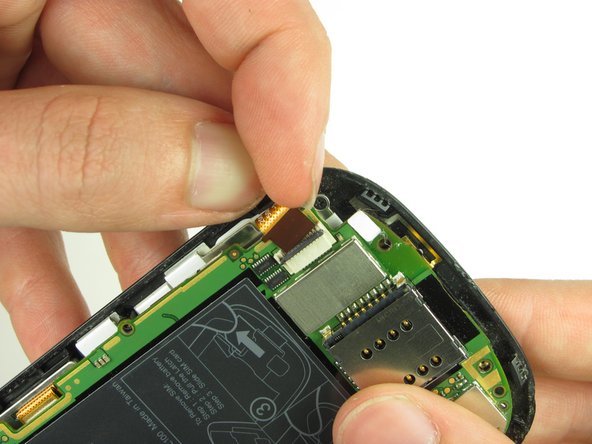
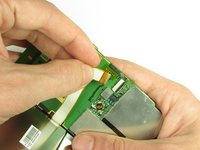
    10. HTC Maple 100 Trackball Replacement: step 10, image 1 of 3 HTC Maple 100 Trackball Replacement: step 10, image 2 of 3 HTC Maple 100 Trackball Replacement: step 10, image 3 of 3
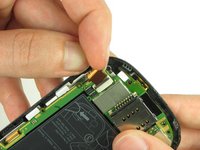
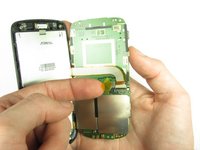
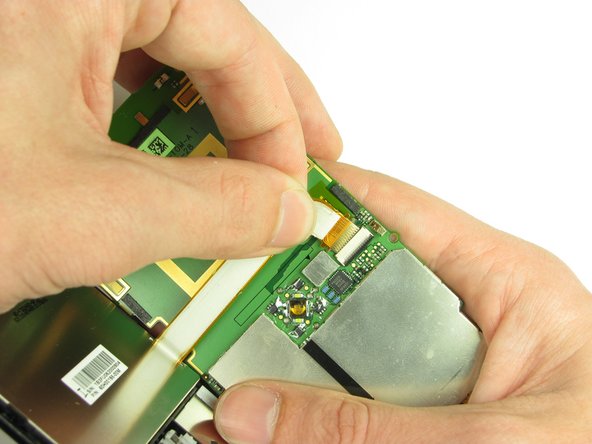
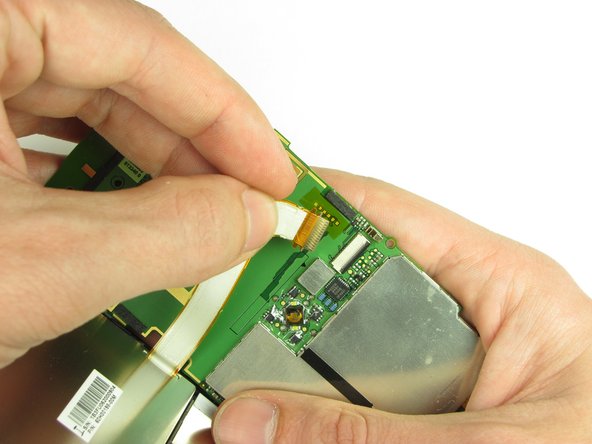
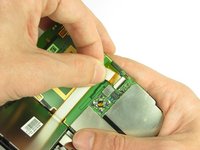
      • First flip up the retaining flap with your fingernail or a plastic opening tool.

      • Pull on the ribbon cable gently with your fingers

      Add Comment

    11. HTC Maple 100 Trackball Replacement: step 11, image 1 of 2 HTC Maple 100 Trackball Replacement: step 11, image 2 of 2
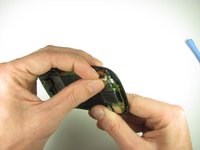
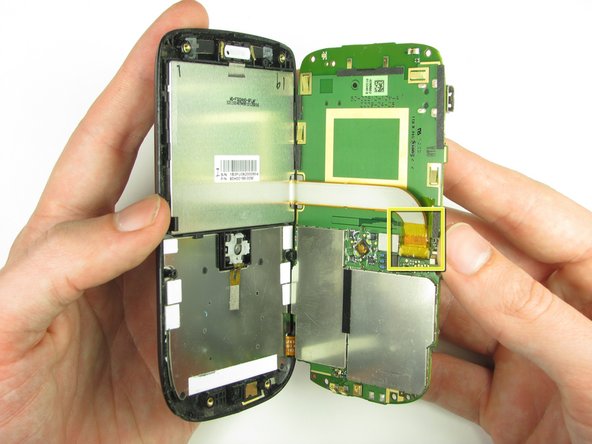
      • Split apart the motherboard and front panel. Remove the other yellow piece of tape off of the end of the ribbon cable.

      Add Comment

    12. HTC Maple 100 Trackball Replacement: step 12, image 1 of 2 HTC Maple 100 Trackball Replacement: step 12, image 2 of 2
      • Gently pull on the ribbon cable to separate the motherboard.

      Add Comment

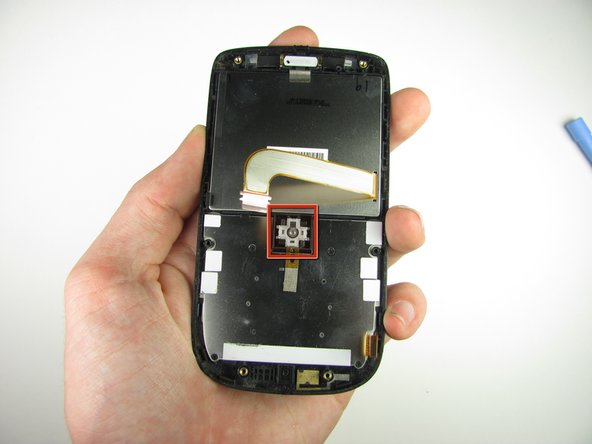
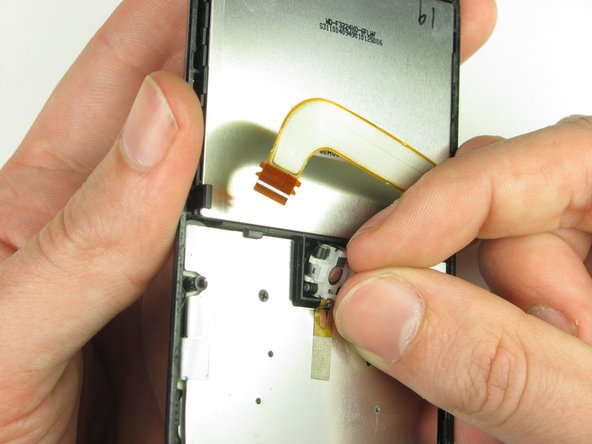
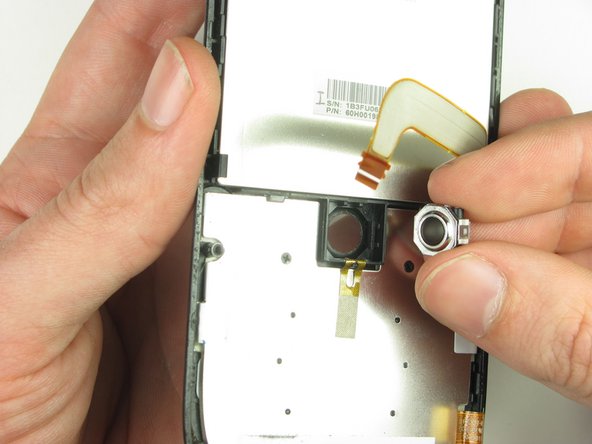
    13. HTC Maple 100 Trackball Replacement: step 13, image 1 of 3 HTC Maple 100 Trackball Replacement: step 13, image 2 of 3 HTC Maple 100 Trackball Replacement: step 13, image 3 of 3
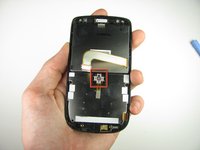
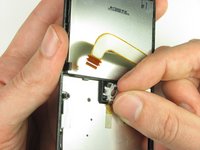
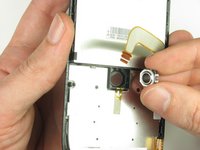
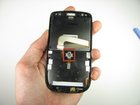
      • Using your fingers, gently pull the trackball out.

      Add Comment

Conclusion

To reassemble your device, follow these instructions in reverse order.

Cancel: I did not complete this guide.

System

Member since: 09/24/09

2,562 Guides authored

0 Guide Comments

Add Comment

View Statistics:

Past 24 Hours: 0

Past 7 Days: 0

Past 30 Days: 0

All Time: 10