HTC Wizard 100 Camera Replacement

Views: 17

View statistics:

Past 24 Hours:
0
Past 7 Days:
1
Past 30 Days:
2
All Time:
17
Comments: 0

No one has left comments on this guide. Will you be first?

Go to guide comments
Completed: 0

No one has marked this guide "completed." Will you be the first?

Favorites: 0

No one has favorited (and subscribed to) this guide. Will you be the first?

Time Required: No estimate
Difficulty: Moderate
HTC Wizard 100 Camera Replacement

Introduction

Go to step 1 ↓

By removing the back plate and disconnecting the bus for the camera, replacing it isn't difficult.

    1. HTC Wizard 100 Camera Replacement, HTC Wizard 100 Camera Replacement: step 1, image 1 of 2 HTC Wizard 100 Camera Replacement, HTC Wizard 100 Camera Replacement: step 1, image 2 of 2
      • Power the phone off.

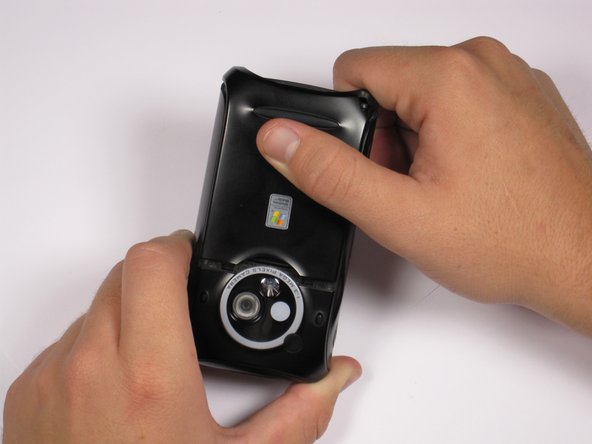
      • Use your thumb to gently press downward and away from the camera to remove the battery cover.

      Add Comment

    2. HTC Wizard 100 Camera Replacement: step 2, image 1 of 2 HTC Wizard 100 Camera Replacement: step 2, image 2 of 2
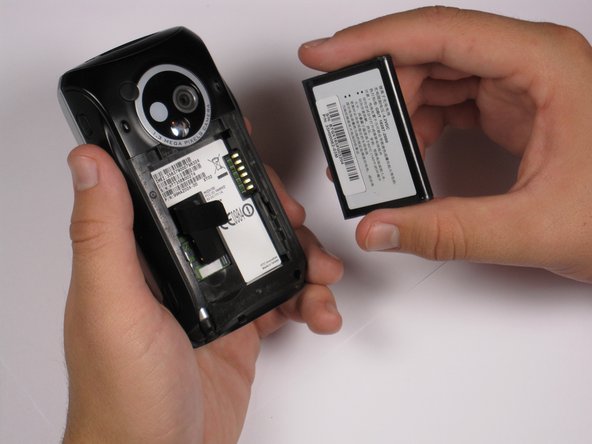
      • Pull on the plastic tab to release the battery.

      Add Comment

    3. HTC Wizard 100 Camera Replacement: step 3, image 1 of 2 HTC Wizard 100 Camera Replacement: step 3, image 2 of 2
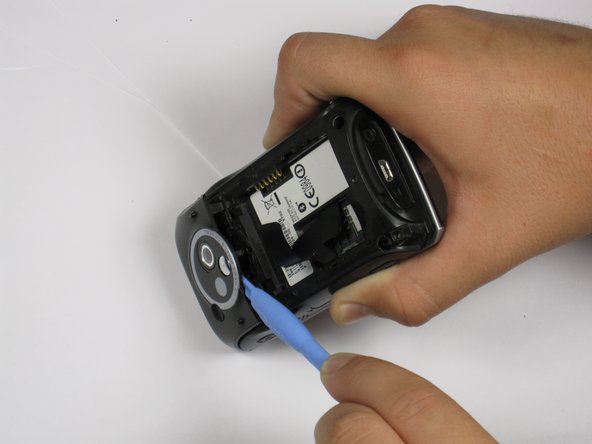
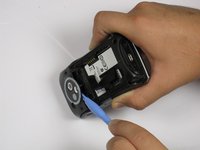
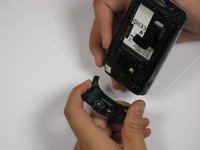
      • Use a plastic opening tool to remove the camera cover.

      • Work around the corners to avoid breaking the plastic clips that hold the camera cover on.

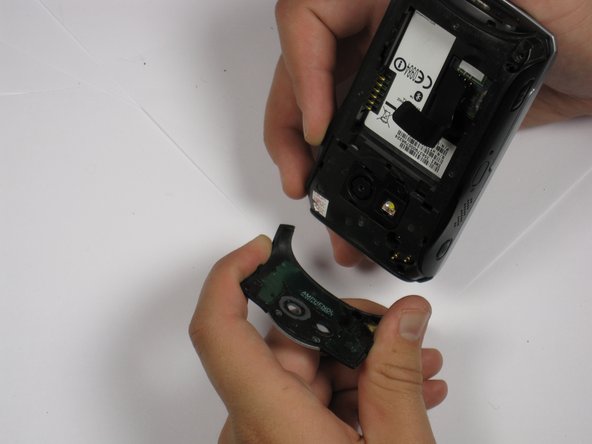
      • Lift the camera cover off of the phone.

      Add Comment

    4. HTC Wizard 100 Camera Replacement: step 4, image 1 of 1
      • Remove the stylus from the phone.

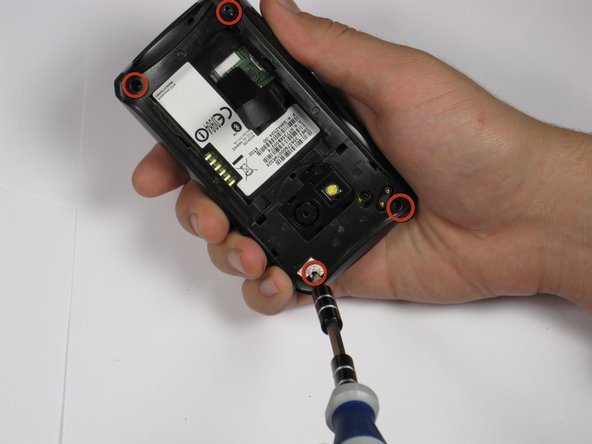
      • Remove the four 5.5 mm screws with the T6 Torx Screwdriver.

      • One of the screws might be under a sticker, which will void your warranty.

      Add Comment

    5. HTC Wizard 100 Camera Replacement: step 5, image 1 of 3 HTC Wizard 100 Camera Replacement: step 5, image 2 of 3 HTC Wizard 100 Camera Replacement: step 5, image 3 of 3
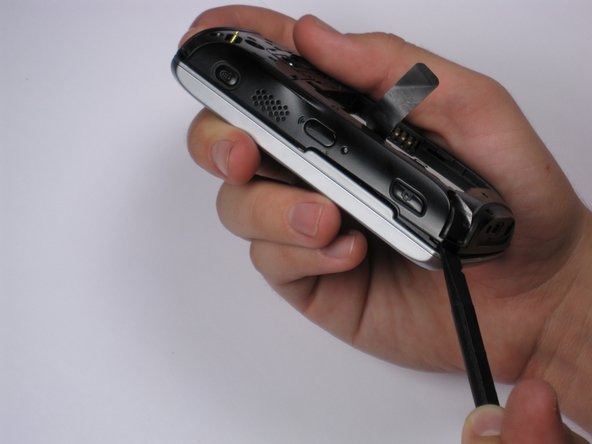
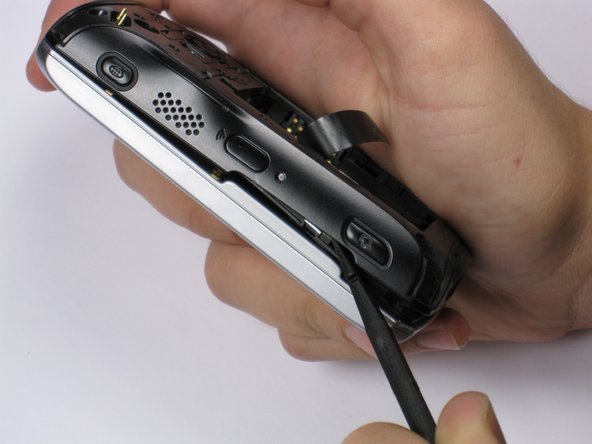
      • Be Careful! Do not insert the spudger in between the keyboard and screen. This could break the keyboard off the phone.

      • If your phone contains a memory card, you may want to remove it before proceeding with this step.

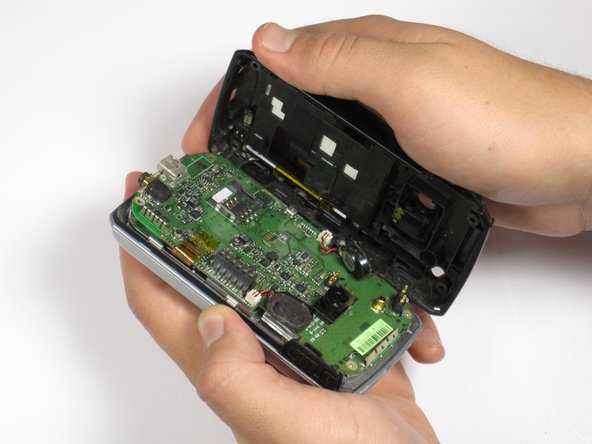
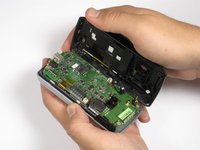
      • Insert spudger in the bottom corner as seen in the picture. Carefully slide the spudger from the bottom towards the top as seen in the second picture.

      • Lift the back case off completely.

      • The speakers might be dangling and unsecured.

      Add Comment

    6. HTC Wizard 100 Camera Replacement: step 6, image 1 of 1
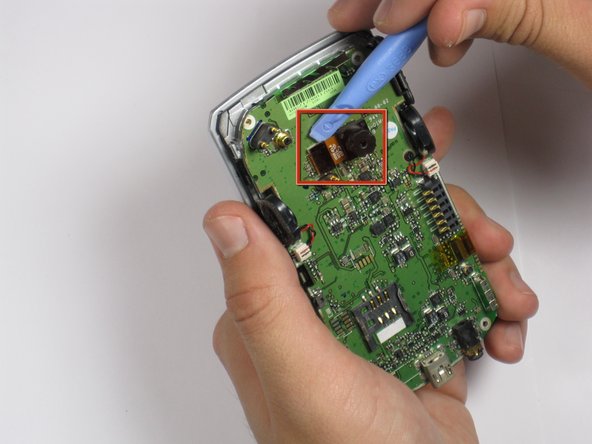
      • Locate the camera and pry off with the plastic opening tool or spudger.

      Add Comment

Conclusion

To reassemble your device, follow these instructions in reverse order.

Cancel: I did not complete this guide.

System

Member since: 09/24/09

2,562 Guides authored

0 Guide Comments

Add Comment

View Statistics:

Past 24 Hours: 0

Past 7 Days: 1

Past 30 Days: 2

All Time: 17