
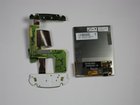
HTC Wizard 100 Screen Replacement

Last updated on Sep 17, 2016
Views: 26
View statistics:
- Past 24 Hours:
- 0
- Past 7 Days:
- 3
- Past 30 Days:
- 4
- All Time:
- 26
Comments: 0
No one has left comments on this guide. Will you be first?
Go to guide commentsCompleted: 0 1
No one has marked this guide "completed." Will you be the first?
1 person has marked this guide "completed." It's you — great job!
Favorites: 0 1
No one has favorited (and subscribed to) this guide. Will you be the first?
1 person has favorited (and subscribed to) this guide — and that's you!
Introduction
Go to step 1 ↓This guide will teach you how to take apart your phone so that you can remove/replace the screen.
-
-
-
Power the phone off.
-
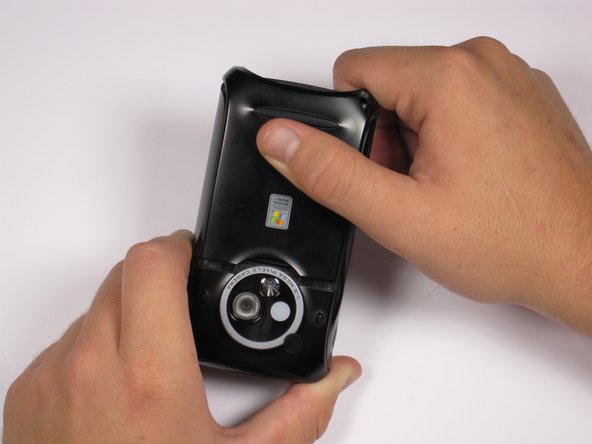
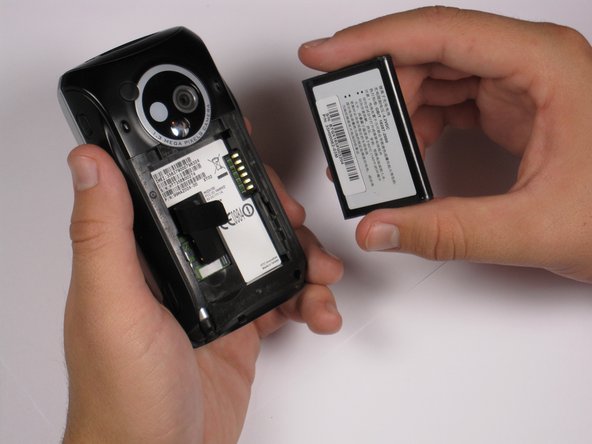
Use your thumb to gently press downward and away from the camera to remove the battery cover.
-
-
-
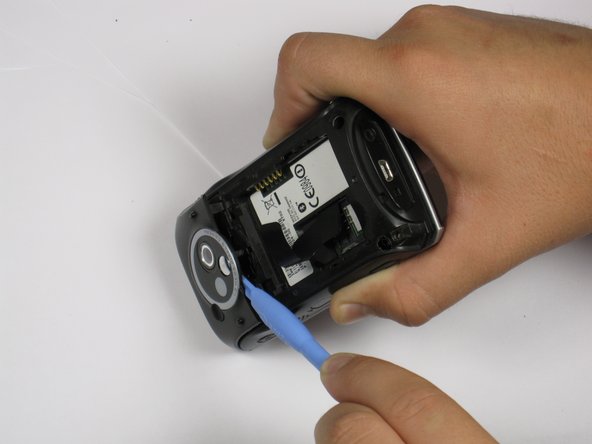
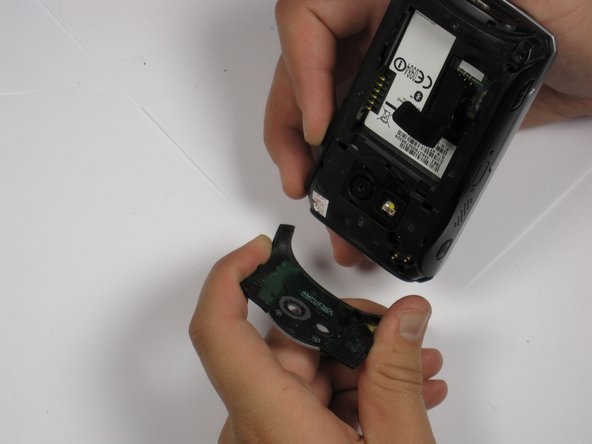
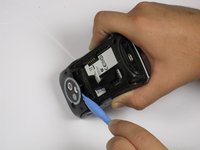
Use a plastic opening tool to remove the camera cover.
-
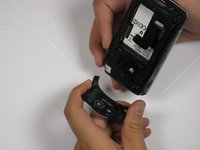
Lift the camera cover off of the phone.
-
-
-
Remove the stylus from the phone.
-
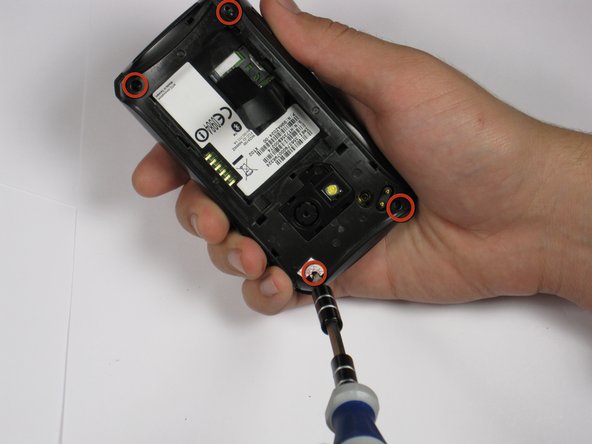
Remove the four 5.5 mm screws with the T6 Torx Screwdriver.
-
-
-
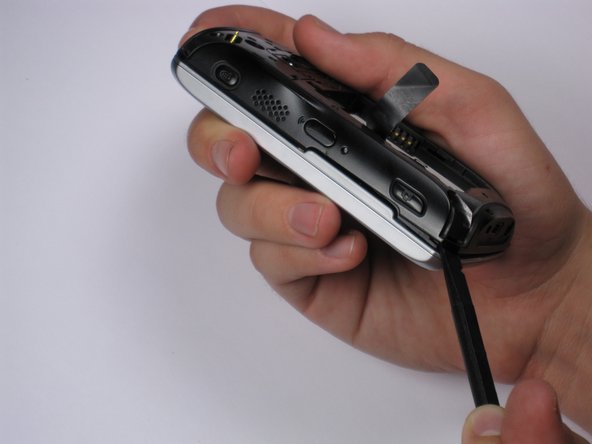
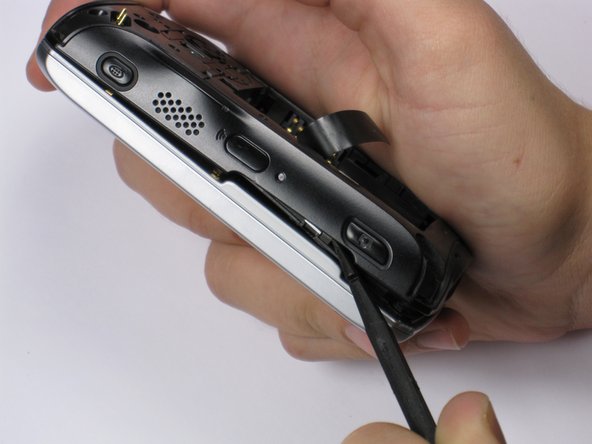
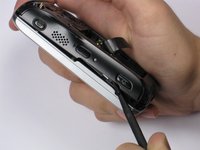
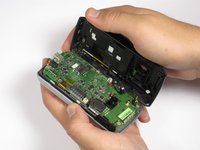
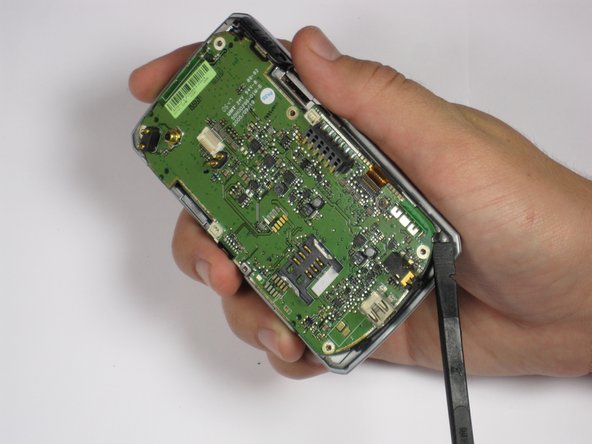
Insert spudger in the bottom corner as seen in the picture. Carefully slide the spudger from the bottom towards the top as seen in the second picture.
-
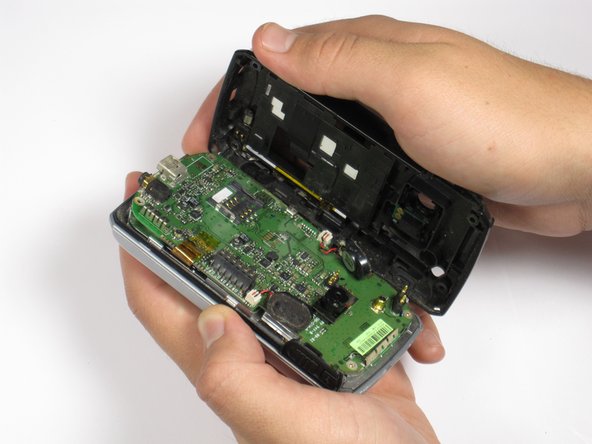
Lift the back case off completely.
-
-
-
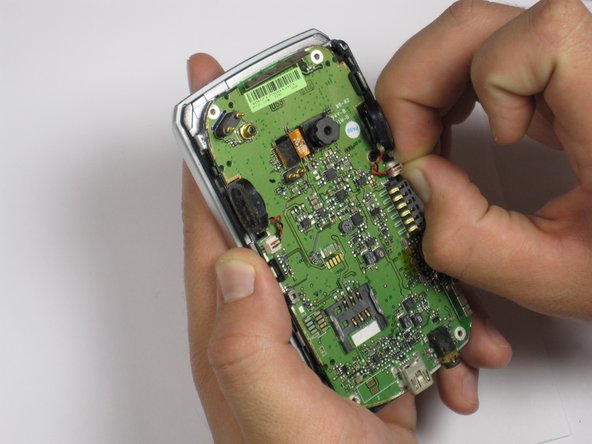
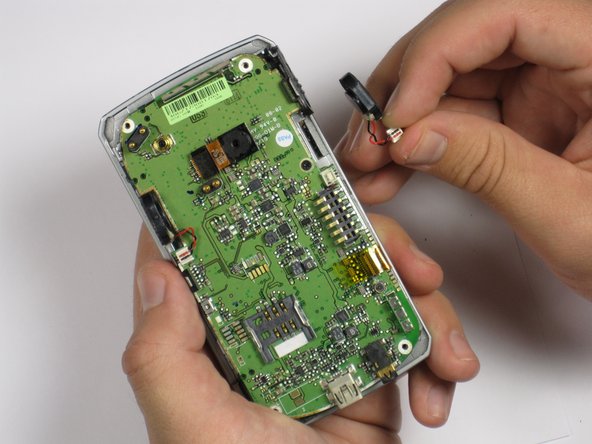
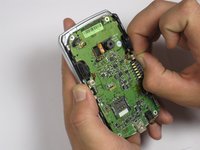
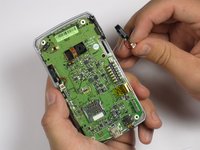
Grip the speaker connector with your thumb and finger and gently pull up.
-
Repeat for 2nd speaker.
-
-
-
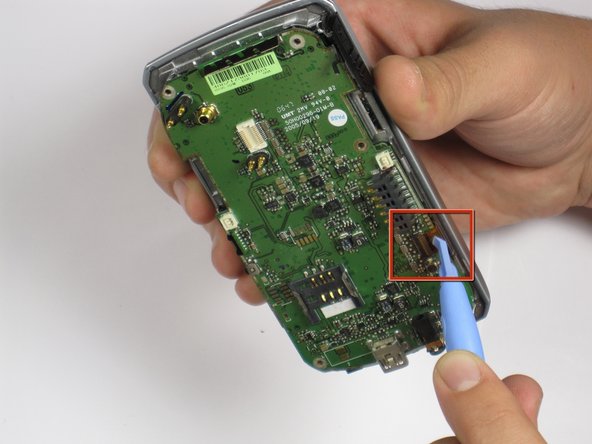
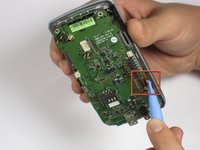
Remove the plastic tape to reveal the connector.
-
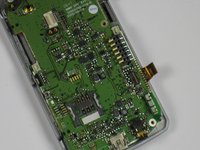
Use your finger or plastic opening tool to flip the connector and release the cable.
-
-
-
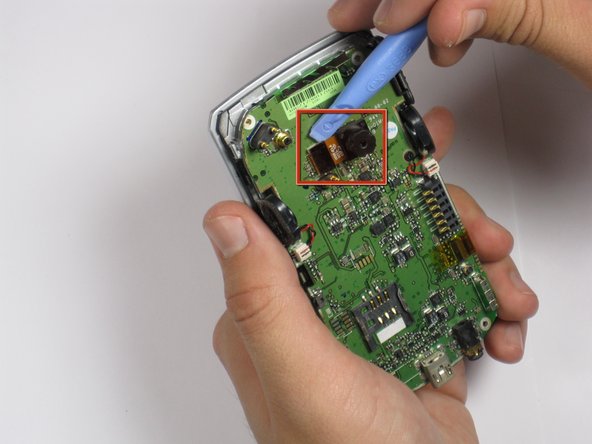
Use the plastic opening tool to carefully lift the motherboard off one corner at a time.
-
If the motherboard is not easily removed by pulling, then lift one side of the motherboard until you can see the attached cable. Then use the plastic opening tool to detach the cable from the motherboard.
-
-
-
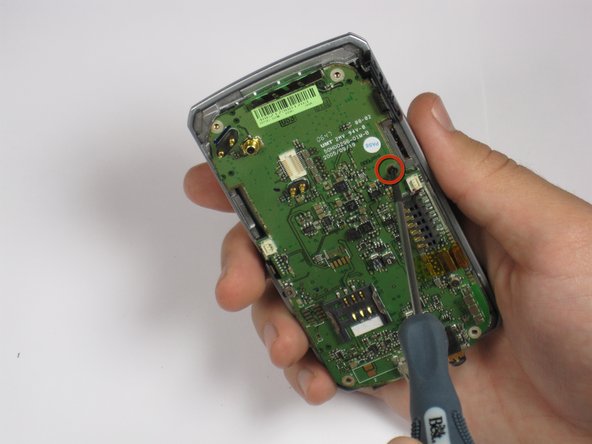
Using the Phillips Screwdriver #000 remove the four 3.3 mm screws.
-
Carefully lift the keyboard from the plastic plate by allowing the ribbon cable to slip through the opening of the plastic plate.
-
-
-
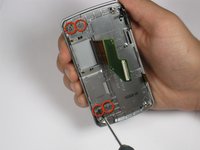
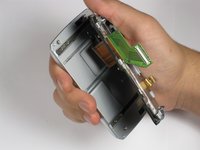
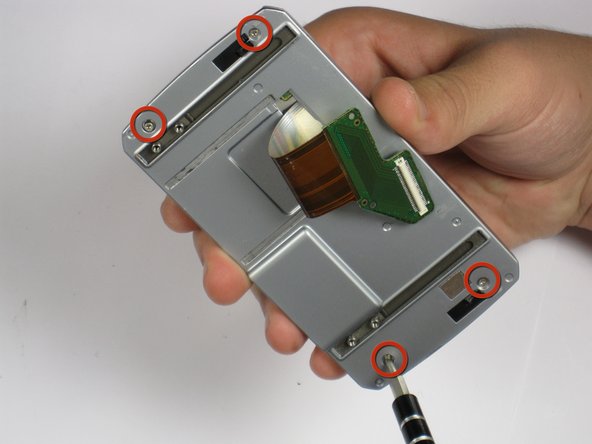
Use the Phillips Screwdriver #000 to remove the four 3.8 mm screws from the back of the screen.
-
-
-
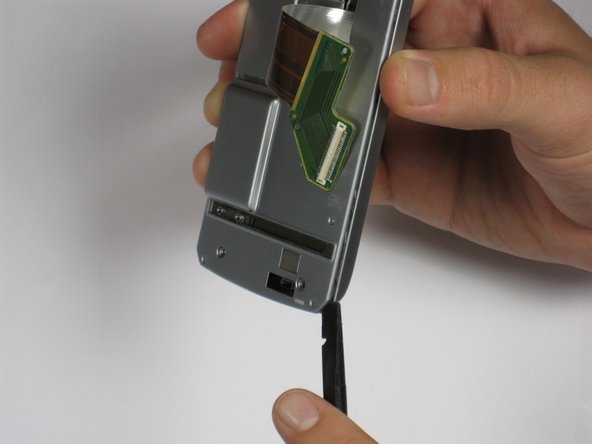
Insert the spudger between the panel and the case.
-
Gently pry off the panel by rotating or wiggling the spudger back and forth.
-
Lift the panel off while allowing the ribbon to slip through the opening.
-
-
-
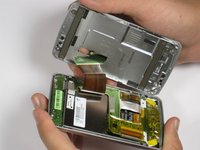
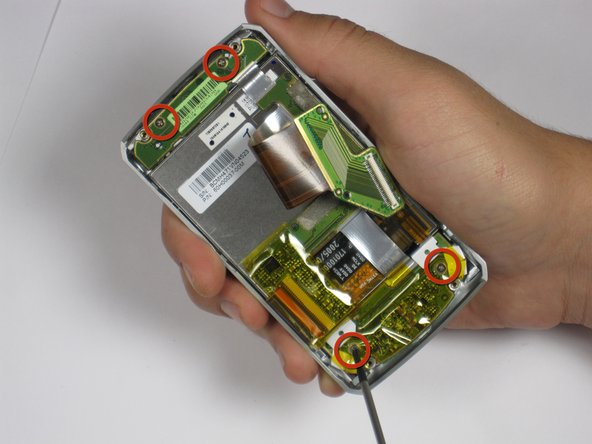
Remove the four 2.9 mm screws with the Phillips Screwdriver #000.
-
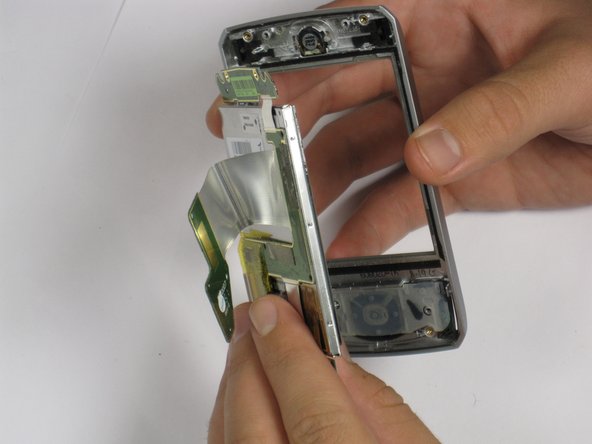
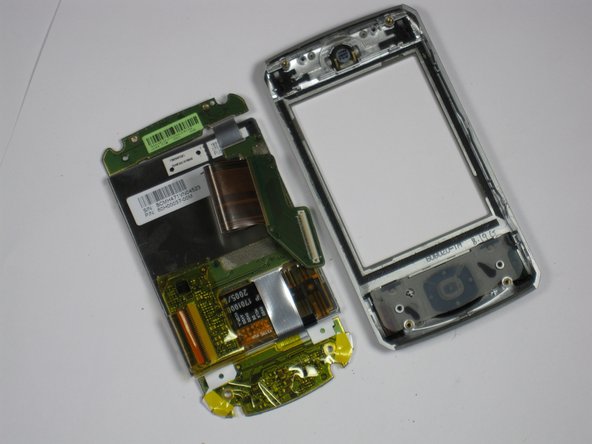
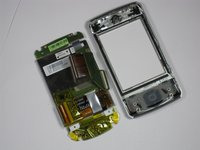
Use your fingers to separate the screen assembly from the front panel.
-
-
-
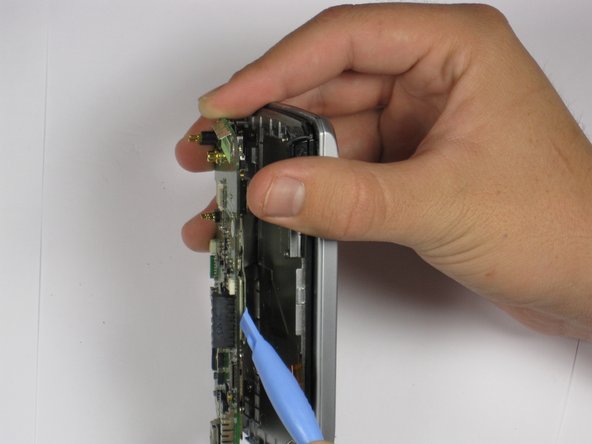
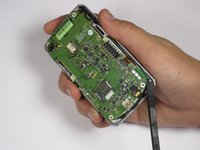
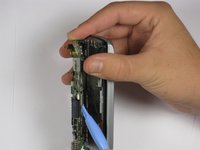
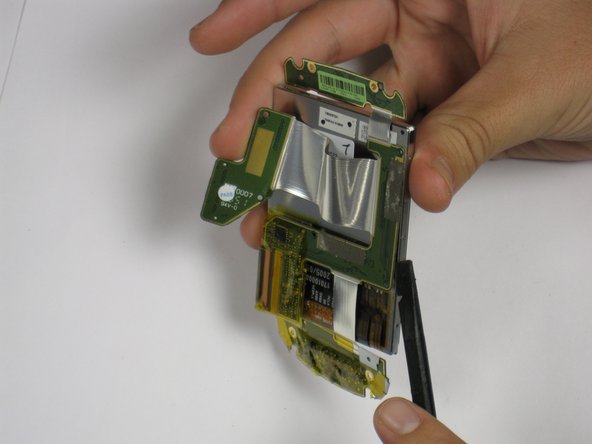
Insert the spudger between the green panel and the screen itself.
-
Gently wiggle the spudger to pry them apart.
-
-
-
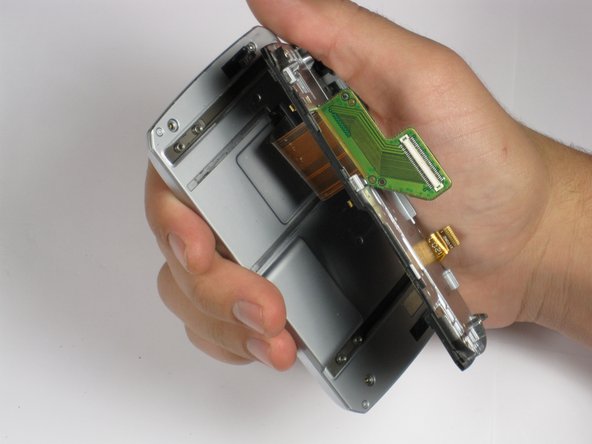
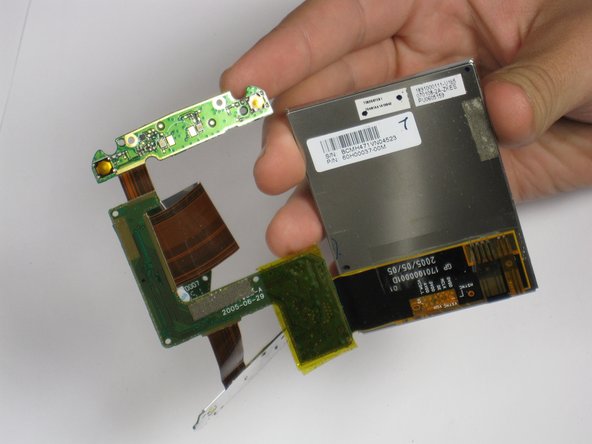
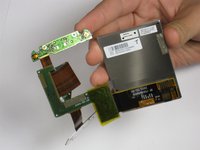
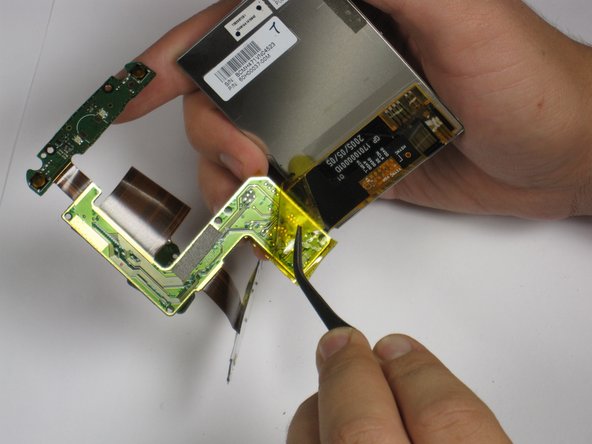
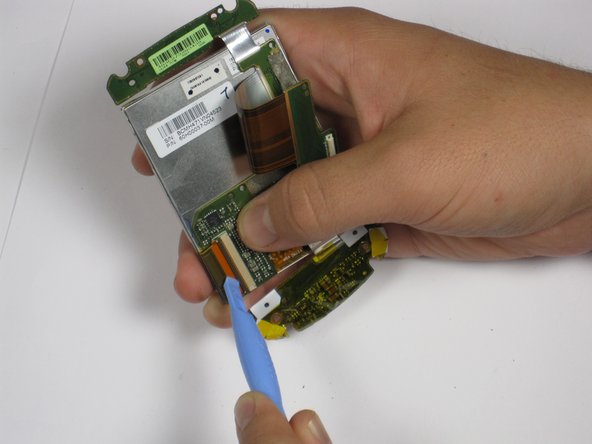
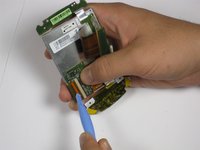
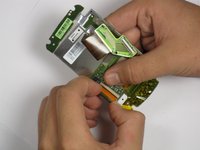
Remove the tape.
-
Locate the connecting ribbon.
-
Using the spudger or your thumb and finger, flip the switch up and disconnect the ribbon.
-
Lift off the panel from the screen.
-
-







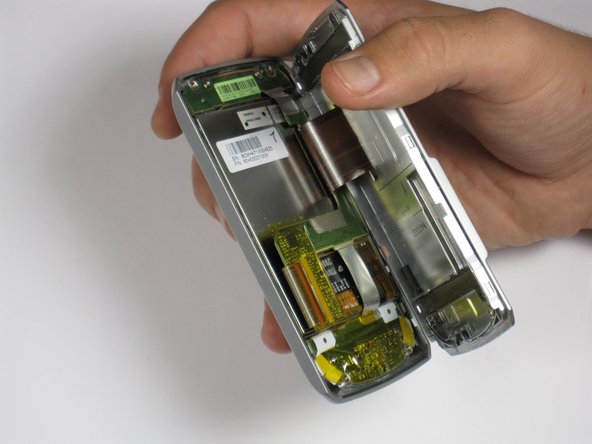
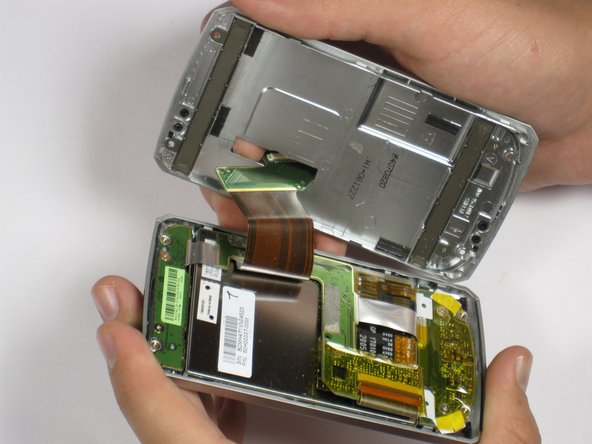



To reassemble your device, follow these instructions in reverse order.

