HTC Wizard 200 Receiver Replacement

What you need

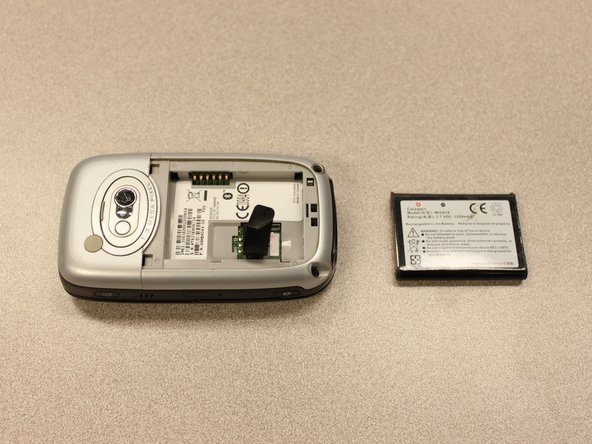
    1. HTC Wizard 200 Receiver Replacement, HTC Wizard 200 Receiver Replacement: step 1, image 1 of 2 HTC Wizard 200 Receiver Replacement, HTC Wizard 200 Receiver Replacement: step 1, image 2 of 2
      • Remove the back case with your fingernail to expose the battery. (Not shown in picture)

      • Pull the black tab to remove the battery.

      Add Comment

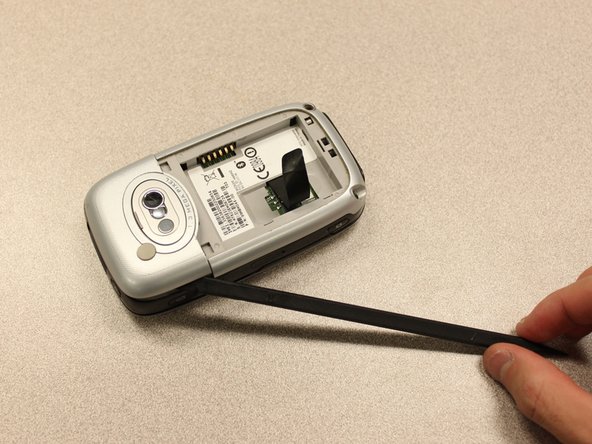
    2. HTC Wizard 200 Receiver Replacement: step 2, image 1 of 1
      • Use a spudger to begin removal of the camera cover by inserting the flat end into the two notches and gently pry them up one at a time.

      Add Comment

    3. HTC Wizard 200 Receiver Replacement: step 3, image 1 of 2 HTC Wizard 200 Receiver Replacement: step 3, image 2 of 2
      • Work the spudger around the edge of the camera cover to release the clips.

      Add Comment

    4. HTC Wizard 200 Receiver Replacement: step 4, image 1 of 2 HTC Wizard 200 Receiver Replacement: step 4, image 2 of 2
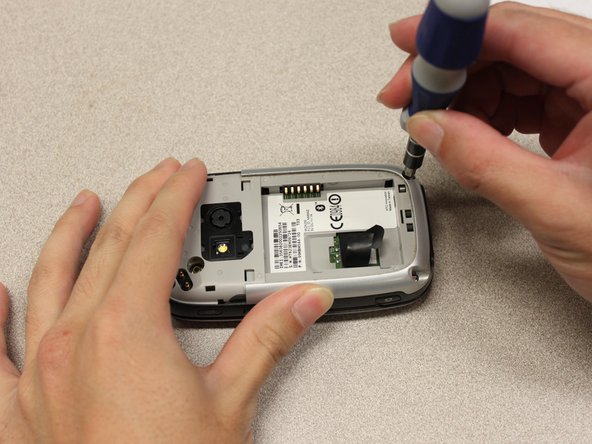
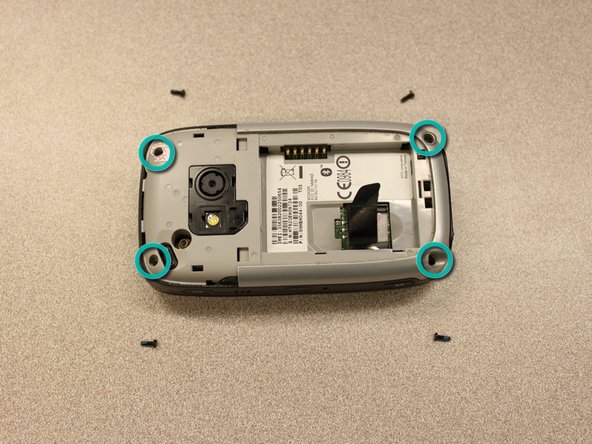
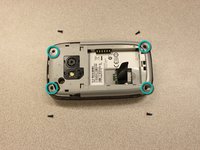
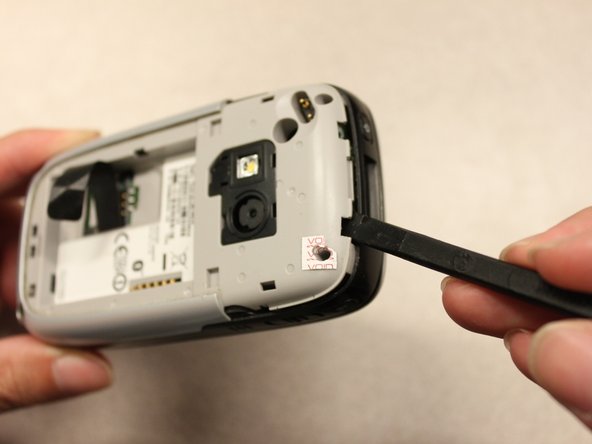
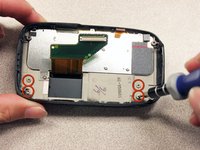
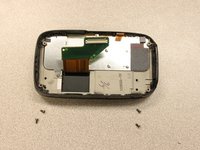
      • Use a to remove four 6mm screws that secure the back panel to the main body.

      • There is a screw under the "void" sticker.

      Add Comment

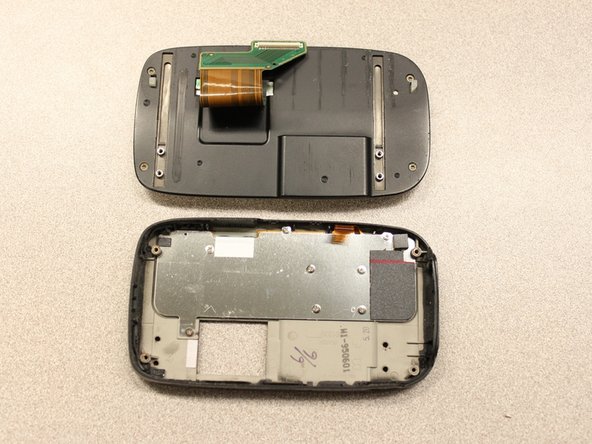
    5. HTC Wizard 200 Receiver Replacement: step 5, image 1 of 2 HTC Wizard 200 Receiver Replacement: step 5, image 2 of 2
      • Device rotated 180 degrees.

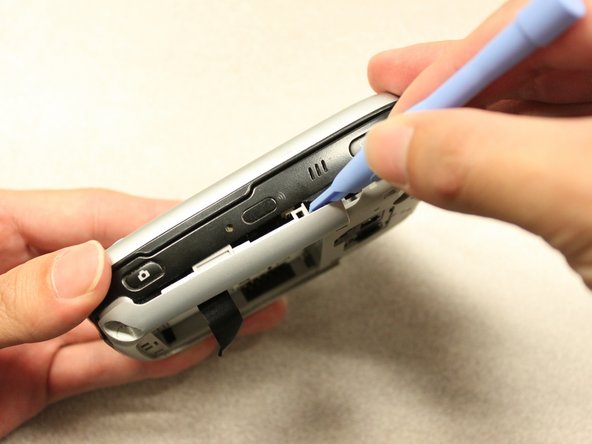
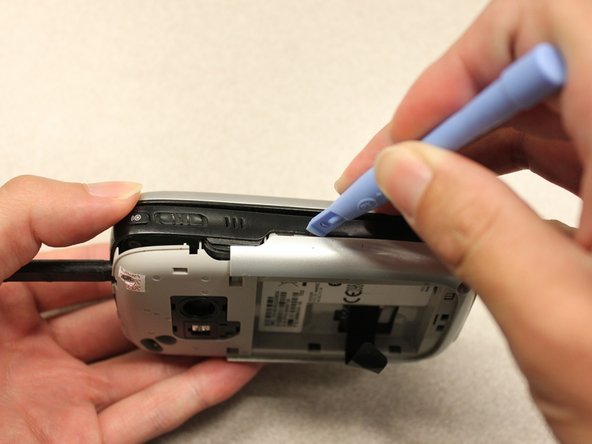
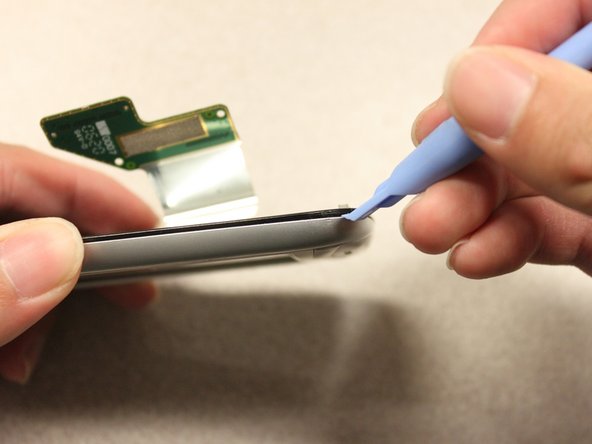
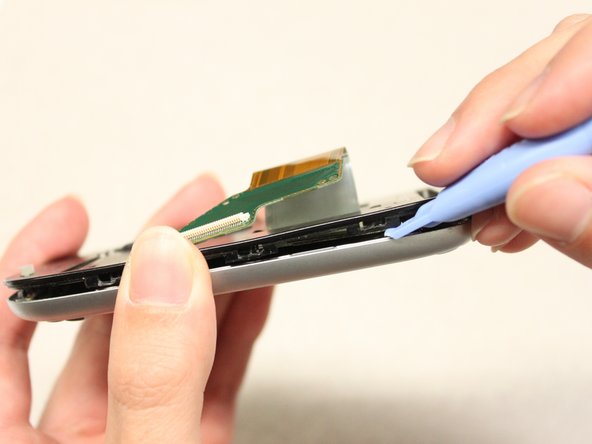
      • Insert the flat end of a spudger into the crack between the front and rear cover.

      • Once you have enough of a gap to fit a plastic opening tool into it, use the opening tool to release the clips.

      Add Comment

    6. HTC Wizard 200 Receiver Replacement: step 6, image 1 of 2 HTC Wizard 200 Receiver Replacement: step 6, image 2 of 2
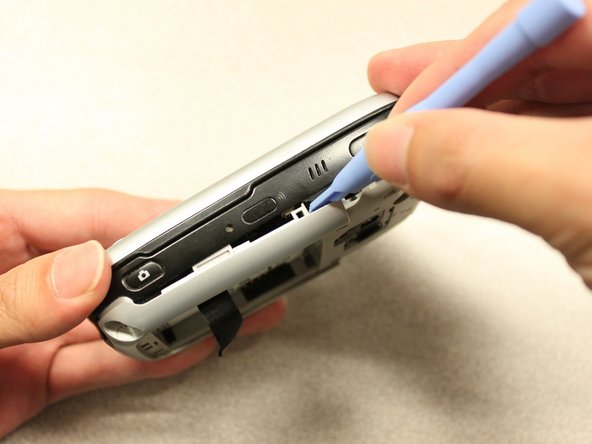
      • Use the plastic opening tool to continue releasing the clips until you have worked your way around the edge.

      Add Comment

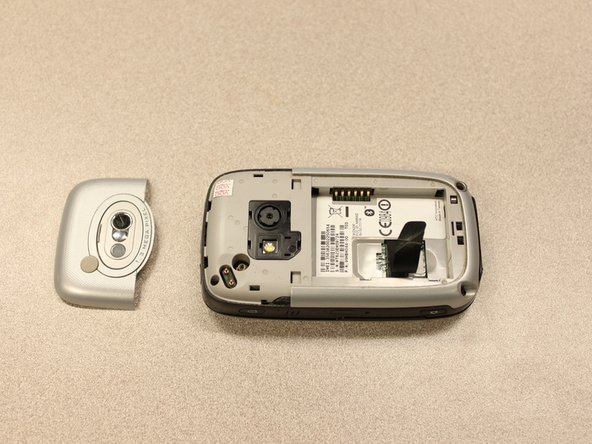
    7. HTC Wizard 200 Receiver Replacement: step 7, image 1 of 2 HTC Wizard 200 Receiver Replacement: step 7, image 2 of 2
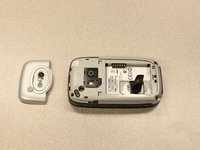
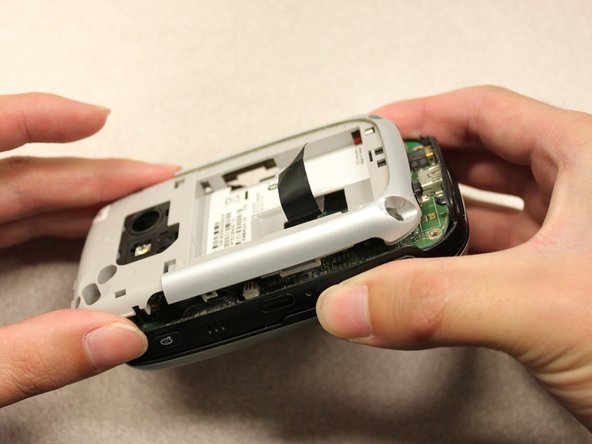
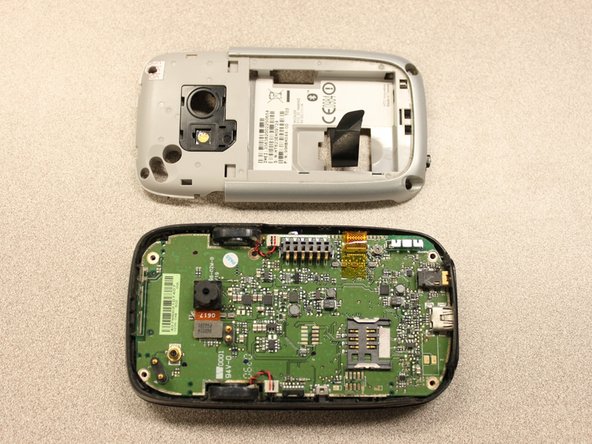
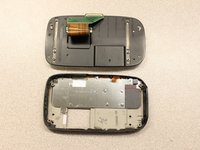
      • Pull off the back case panel.

      Add Comment

    8. HTC Wizard 200 Receiver Replacement: step 8, image 1 of 1
      • Device rotated 180 degrees.

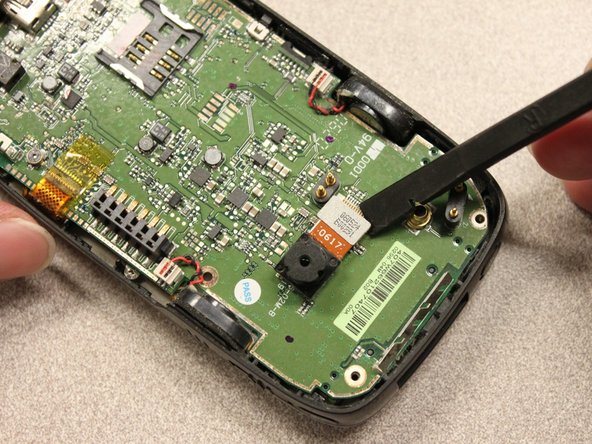
      • Use the spudger to pry off the camera.

      Add Comment

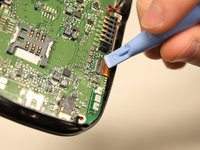
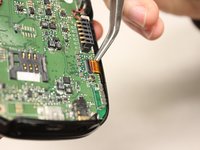
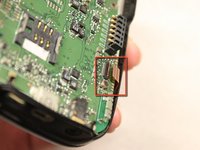
    9. HTC Wizard 200 Receiver Replacement: step 9, image 1 of 3 HTC Wizard 200 Receiver Replacement: step 9, image 2 of 3 HTC Wizard 200 Receiver Replacement: step 9, image 3 of 3
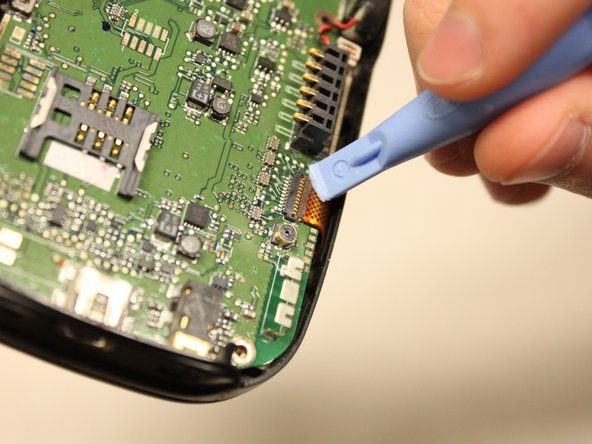
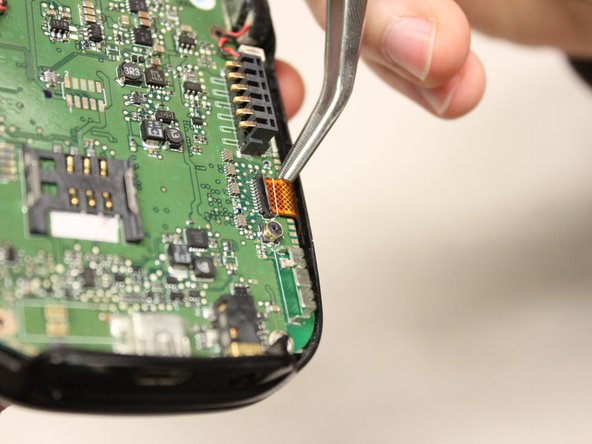
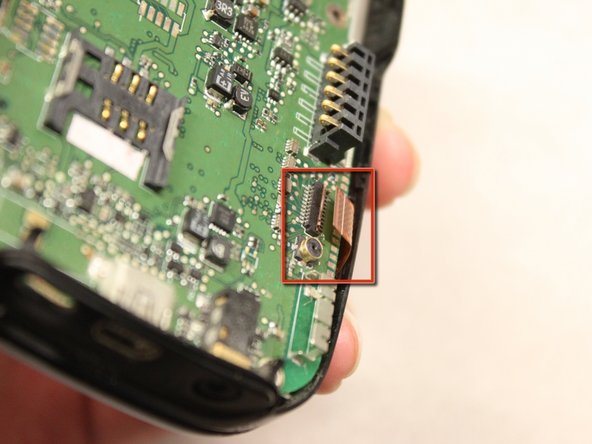
      • Device rotated 90 degrees CCW.

      • You may need to remove a strip of orange anti-static tape (not pictured).

      • Flip up the connector latch.

      • Use the tweezers to detatch the flexible connection.

      Add Comment

    10. HTC Wizard 200 Receiver Replacement: step 10, image 1 of 1
      • Device rotated 90 degrees CW.

      • Slide the screen slider into the open position.

      Add Comment

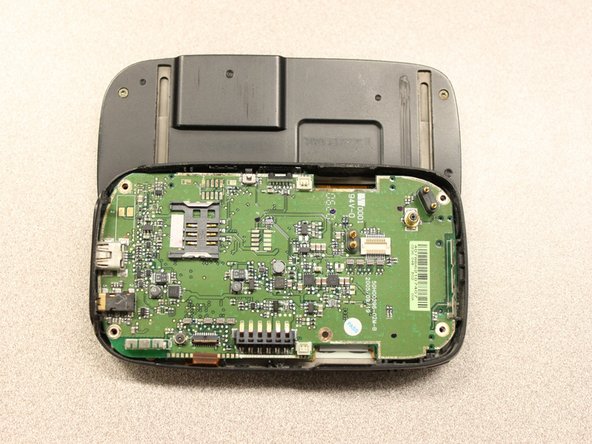
    11. HTC Wizard 200 Receiver Replacement: step 11, image 1 of 1
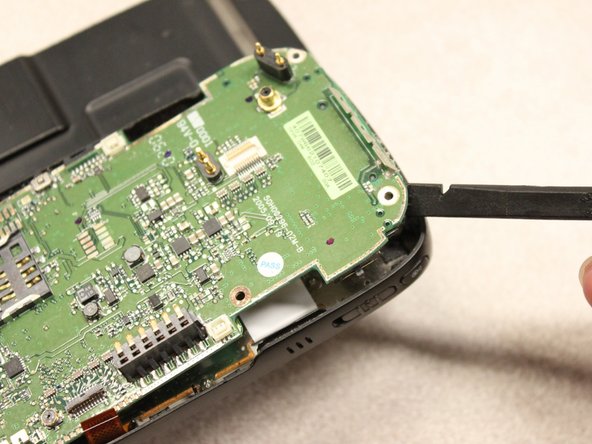
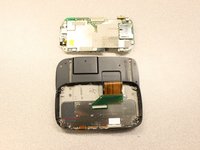
      • Use the spudger to push out the motherboard.

      Add Comment

    12. HTC Wizard 200 Receiver Replacement: step 12, image 1 of 3 HTC Wizard 200 Receiver Replacement: step 12, image 2 of 3 HTC Wizard 200 Receiver Replacement: step 12, image 3 of 3
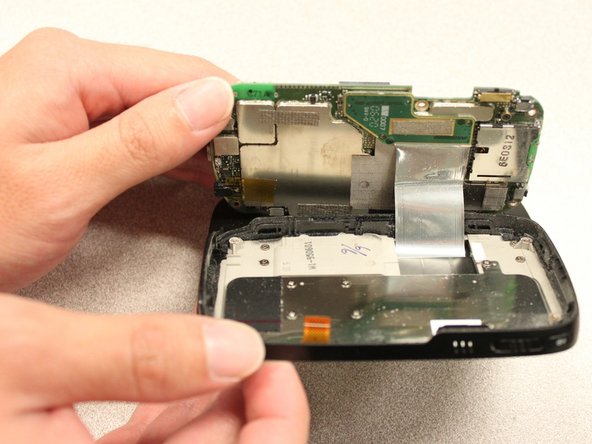
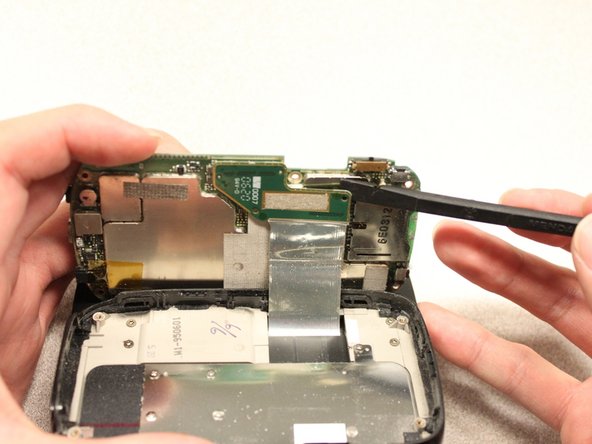
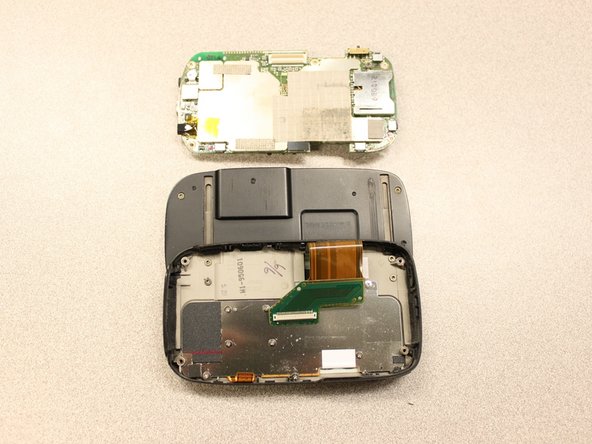
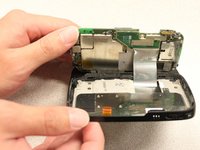
      • Use your hands to gently expose the underside of the motherboard.

      • Use the spudger to pull off the flexible connection.

      • Be careful not to pull apart the motherboard connection quickly, as the connection and cables could be damaged.

      Add Comment

    13. HTC Wizard 200 Receiver Replacement: step 13, image 1 of 3 HTC Wizard 200 Receiver Replacement: step 13, image 2 of 3 HTC Wizard 200 Receiver Replacement: step 13, image 3 of 3
      • Device rotated 180 degrees CW.

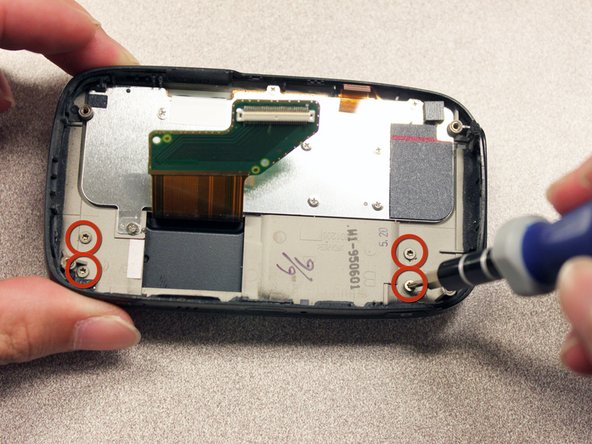
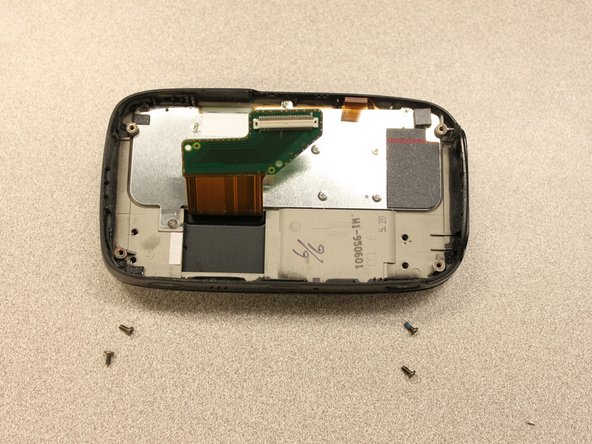
      • Use the T5 Torx screwdriver to remove four 5mm screws that secure the keyboard slider to the main body.

      Add Comment

    14. HTC Wizard 200 Receiver Replacement: step 14, image 1 of 2 HTC Wizard 200 Receiver Replacement: step 14, image 2 of 2
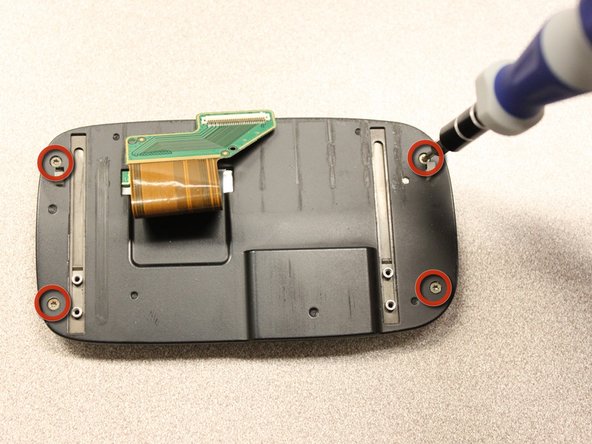
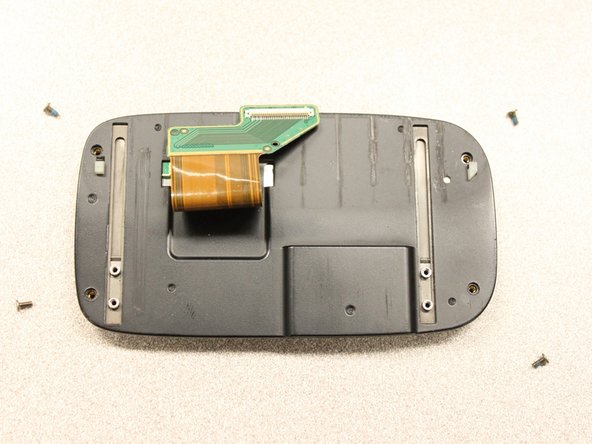
      • Use the T5 Torx screwdriver to remove four 5mm screws that secure the back of the screen casing.

      Add Comment

    15. HTC Wizard 200 Receiver Replacement: step 15, image 1 of 2 HTC Wizard 200 Receiver Replacement: step 15, image 2 of 2
      • Insert the plastic opening tool between the front panel and the rear panel and pry open to reach the screen.

      Add Comment

    16. HTC Wizard 200 Receiver Replacement: step 16, image 1 of 2 HTC Wizard 200 Receiver Replacement: step 16, image 2 of 2
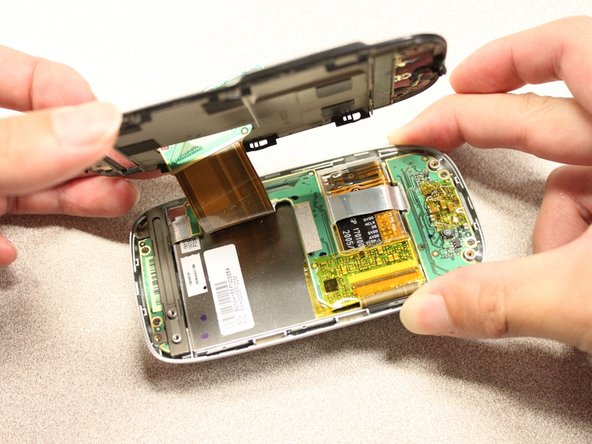
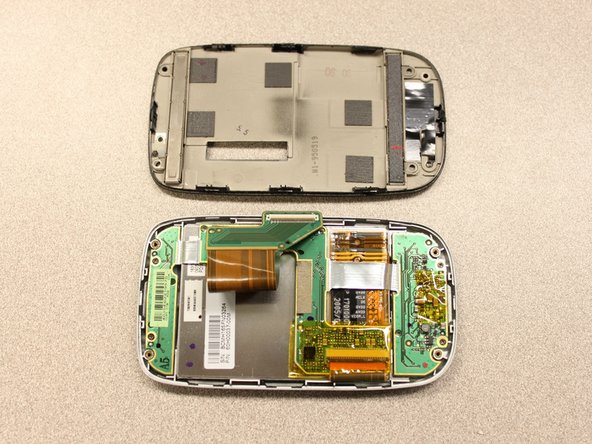
      • Once the rear panel is loose, lift it off of the front panel.

      • The flexible connection will pop loose.

      Add Comment

    17. HTC Wizard 200 Receiver Replacement: step 17, image 1 of 1
      • Device rotated 90 degrees CCW.

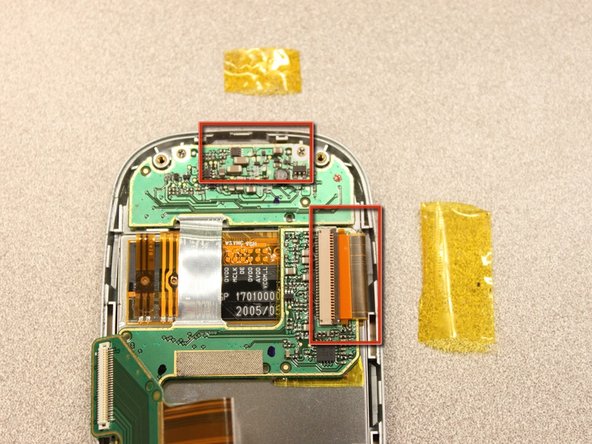
      • Remove the yellow anti-static tape.

      Add Comment

    18. HTC Wizard 200 Receiver Replacement: step 18, image 1 of 2 HTC Wizard 200 Receiver Replacement: step 18, image 2 of 2
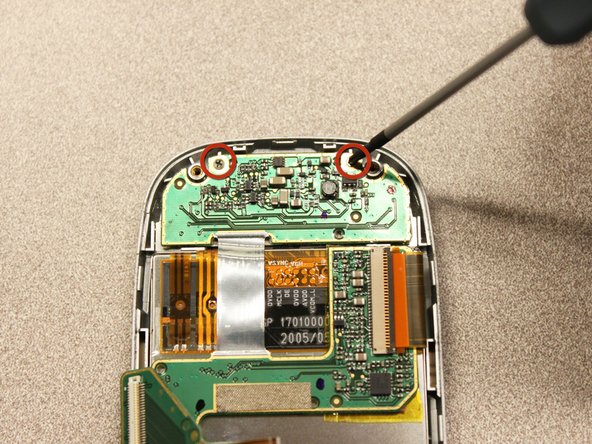
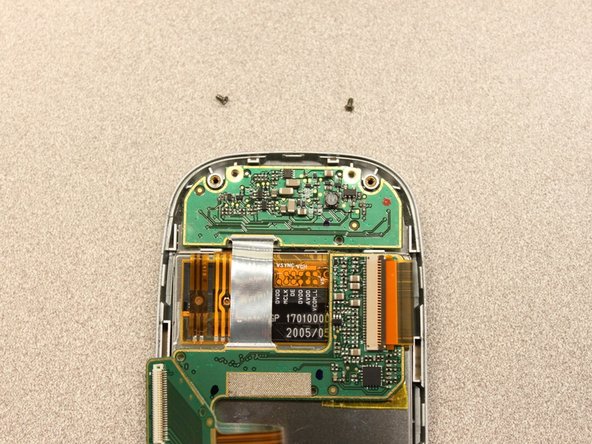
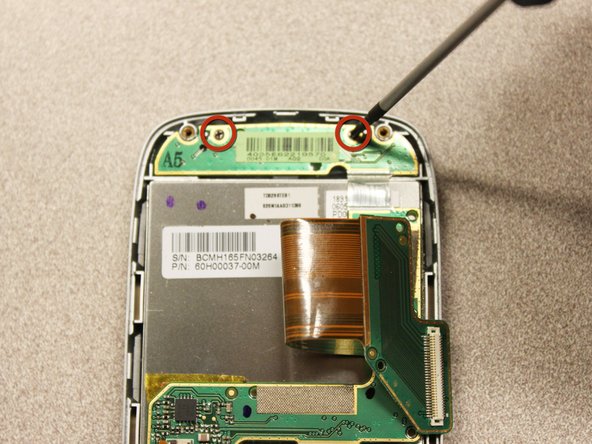
      • Unscrew the two 3mm phillips #0 screws from the bottom of the device that secure the rigid flex board to the screen panel.

      Add Comment

    19. HTC Wizard 200 Receiver Replacement: step 19, image 1 of 1
      • Device rotated 180 degrees CW.

      • Unscrew the two 3mm phillips #0 screws from the top of the device that secure the rigid flex board to the screen panel.

      Add Comment

    20. HTC Wizard 200 Receiver Replacement: step 20, image 1 of 1
      • Device rotated 90 degrees CCW.

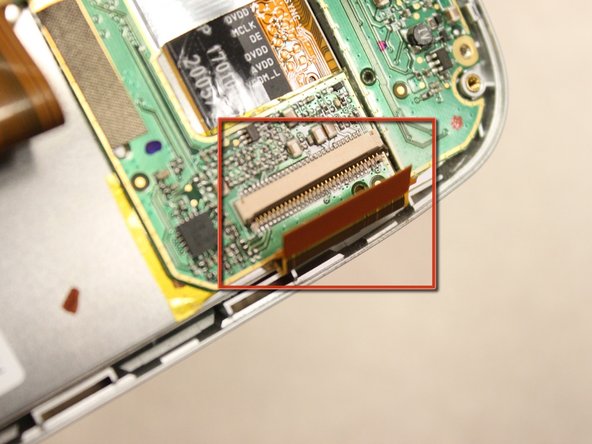
      • Unhinge the flexible connection and use the tweezers to disconnect.

      Add Comment

    21. HTC Wizard 200 Receiver Replacement: step 21, image 1 of 1
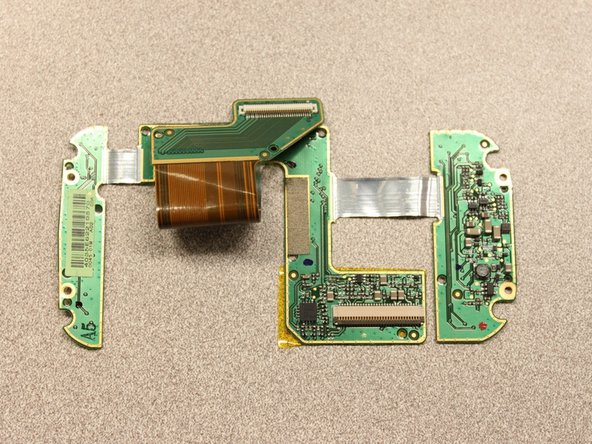
      • Now that the rigid flex board is loose, remove it from the screen.

      Add Comment

    22. HTC Wizard 200 Receiver Replacement: step 22, image 1 of 2 HTC Wizard 200 Receiver Replacement: step 22, image 2 of 2
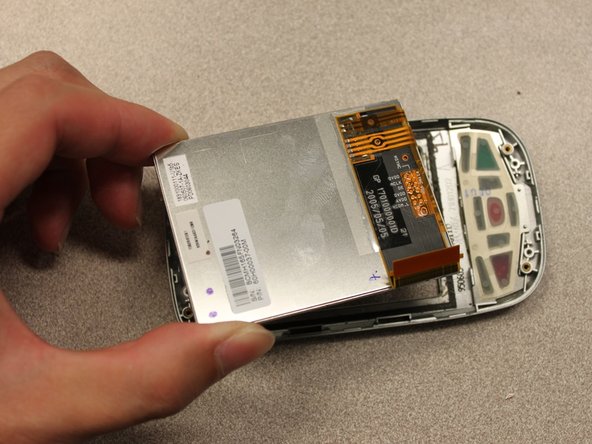
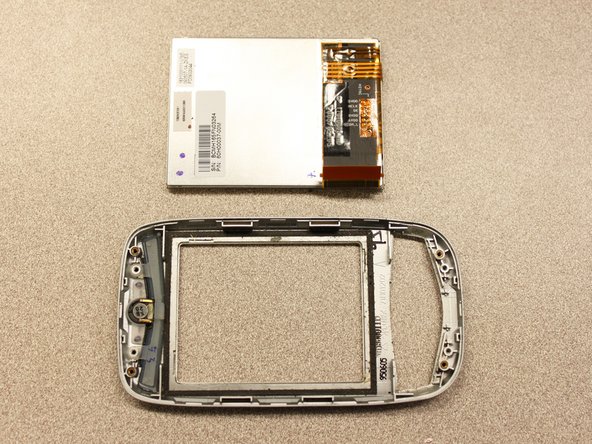
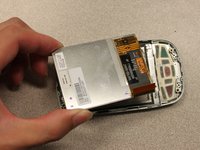
      • Simply pull out the loose screen.

      Add Comment

    23. HTC Wizard 200 Receiver Replacement: step 23, image 1 of 2 HTC Wizard 200 Receiver Replacement: step 23, image 2 of 2
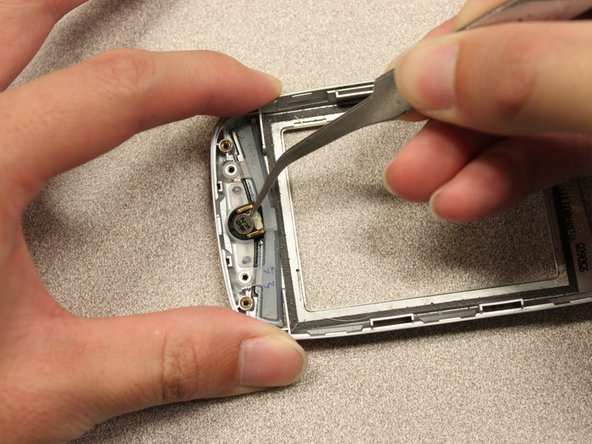
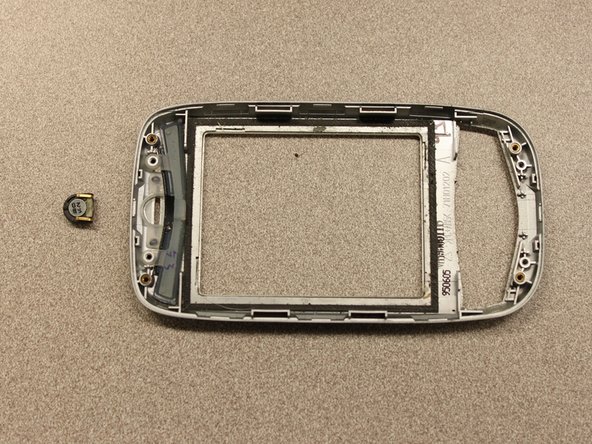
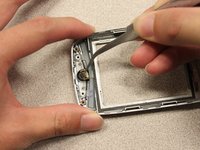
      • Use the tweezers to take out the receiver.

      Add Comment

Conclusion

To reassemble your device, follow these instructions in reverse order.

Cancel: I did not complete this guide.

System

Member since: 09/24/09

2,562 Guides authored

0 Guide Comments

Add Comment

View Statistics:

Past 24 Hours: 0

Past 7 Days: 0

Past 30 Days: 0

All Time: 13