

IBM ThinkPad T41 Keyboard Replacement

Last updated on Sep 17, 2016
Views: 46
View statistics:
- Past 24 Hours:
- 0
- Past 7 Days:
- 0
- Past 30 Days:
- 0
- All Time:
- 46
Comments: 0
No one has left comments on this guide. Will you be first?
Go to guide commentsCompleted: 0 1
No one has marked this guide "completed." Will you be the first?
1 person has marked this guide "completed." It's you — great job!
Favorites: 0 1
No one has favorited (and subscribed to) this guide. Will you be the first?
1 person has favorited (and subscribed to) this guide — and that's you!
Introduction
Go to step 1 ↓This simple repair guide will aid you in taking apart your IBM ThinkPad T41 laptop to reach and replace its keyboard.
What you need
-
-
-
Close the screen and turn the closed laptop over.
-
Remove all 17 screws on the bottom of the computer.
-
The yellow marker at the rear denotes the UltraBay device retaining screw. This screw is optional as the UltraBay mechanism will hold the drive or battery in place anyway. The yellow marker at the front denotes the hard disk caddy retaining screw.
-
-
-
Turn the laptop right side up and open the screen.
-
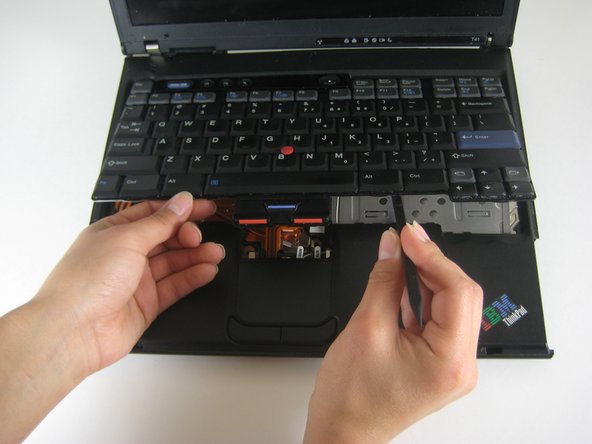
Lift the keyboard, using a spudger at the seam between the keyboard and trackpad.
-
-
-
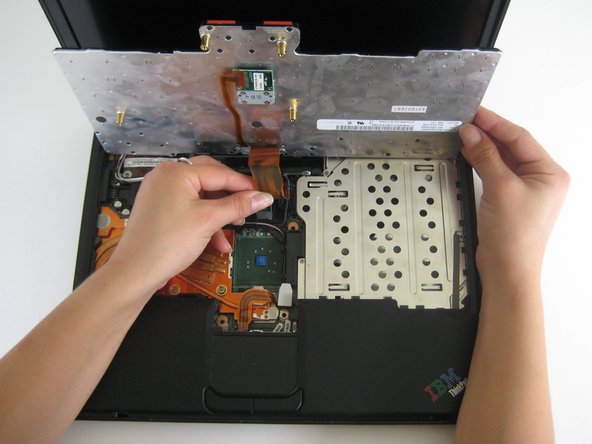
Unplug the keyboard’s ribbon cable, by lifting up the edges of the plug.
-
Remove the keyboard.
-
-


To reassemble your device, follow these instructions in reverse order.

