IBM ThinkPad T41 Motherboard Replacement

What you need

  1. IBM ThinkPad T41 Motherboard Replacement, IBM ThinkPad T41 Motherboard Replacement: step 1, image 1 of 1
    • Close the screen and turn the closed laptop over.

    • Remove all 17 screws on the bottom of the computer.

    • The multiple colors (turquoise, red, blue, orange, yellow, and purple) are for organizational purposes, indicating different screws.

    • The yellow marker at the rear denotes the UltraBay device retaining screw. This screw is optional as the UltraBay mechanism will hold the drive or battery in place anyway. The yellow marker at the front denotes the hard disk caddy retaining screw.

    Add Comment

  2. IBM ThinkPad T41 Motherboard Replacement: step 2, image 1 of 1
    • Remove the extra RAM cover, by lifting where the screw was and pulling out.

    Add Comment

  3. IBM ThinkPad T41 Motherboard Replacement: step 3, image 1 of 1
    • Turn the laptop right side up and open the screen.

    • Lift the keyboard, using a spudger at the seam between the keyboard and trackpad.

    • Careful of the ribbon cable underneath, which may tear if the keyboard is lifted too vigorously.

    Add Comment

  4. IBM ThinkPad T41 Motherboard Replacement: step 4, image 1 of 1
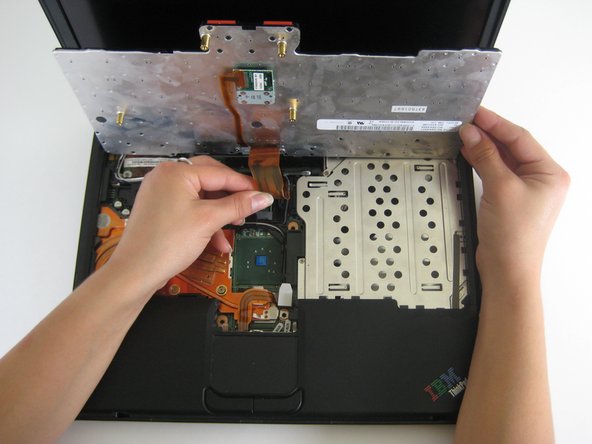
    • Unplug the keyboard’s ribbon cable, by lifting up the edges of the plug.

    • Remove the keyboard.

    Add Comment

  5. IBM ThinkPad T41 Motherboard Replacement: step 5, image 1 of 1
    • Close the laptop and turn it over.

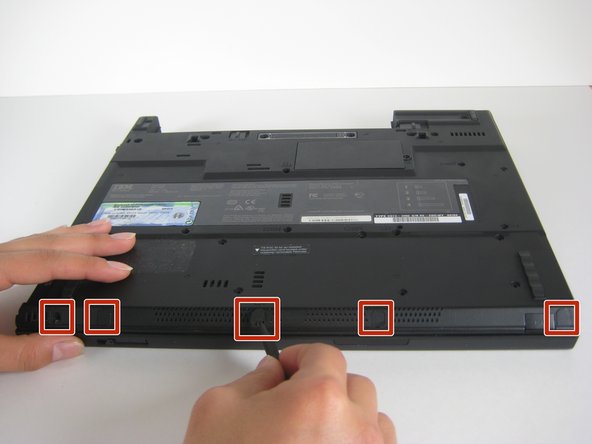
    • Remove the five plastic stickers covering the screws on the front edge of the case.

    • In order to reuse the stickers, remove them carefully.

    Add Comment

  6. IBM ThinkPad T41 Motherboard Replacement: step 6, image 1 of 1
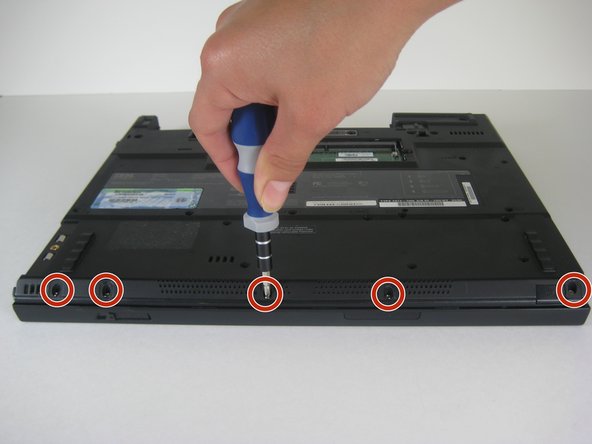
    • Unscrew the five screws that were hidden by the stickers.

    Add Comment

  7. IBM ThinkPad T41 Motherboard Replacement: step 7, image 1 of 1
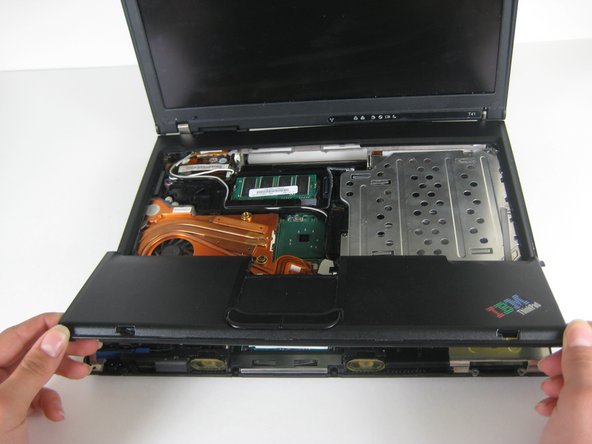
    • Turn the computer right side up and open the screen.

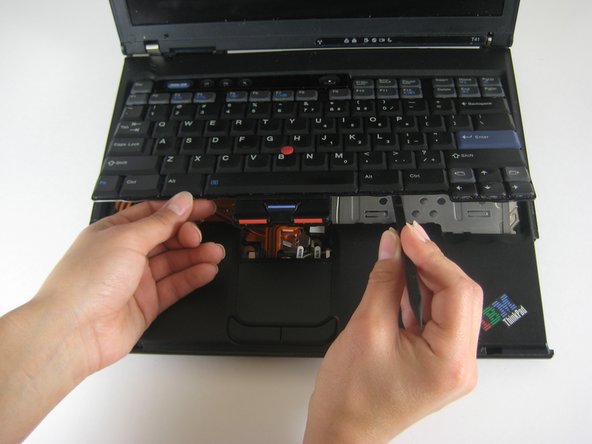
    • Lift the trackpad assembly by placing hands on both edges and then pull towards you till it is free of the case.

    • Be careful of the ribbon cable underneath. It may tear if the trackpad is pulled too vigorously.

    Add Comment

  8. IBM ThinkPad T41 Motherboard Replacement: step 8, image 1 of 1
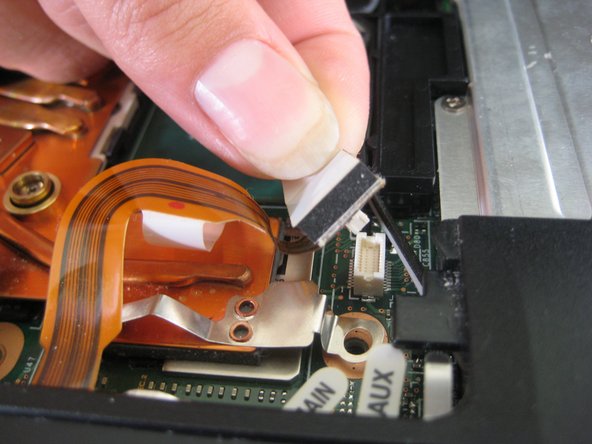
    • Unplug the trackpad’s ribbon cable by pulling on the white plastic tab.

    Add Comment

  9. IBM ThinkPad T41 Motherboard Replacement: step 9, image 1 of 1
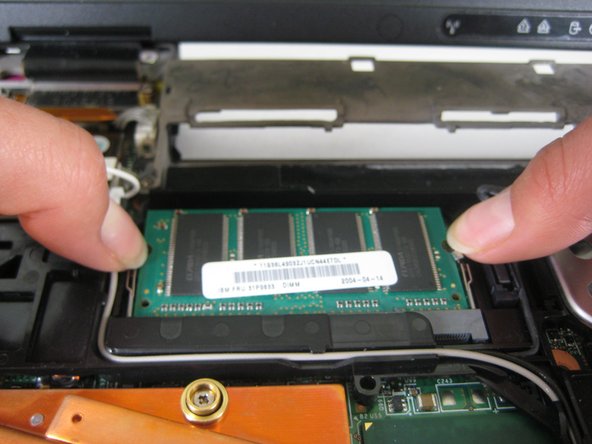
    • Push apart the retaining clips on the RAM.

    • Note: The RAM should pop up a little bit.

    Add Comment

  10. IBM ThinkPad T41 Motherboard Replacement: step 10, image 1 of 1
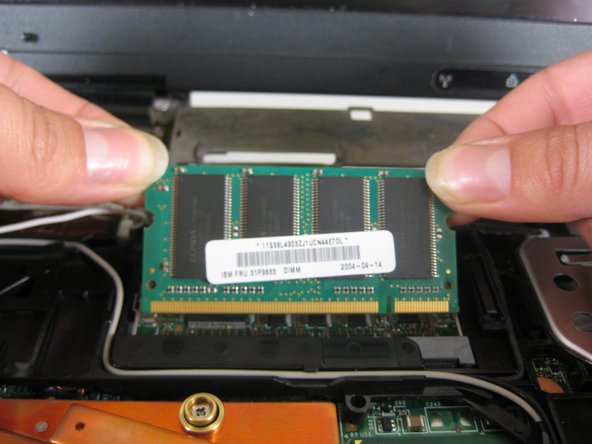
    • Lift out the RAM chip.

    Add Comment

  11. IBM ThinkPad T41 Motherboard Replacement: step 11, image 1 of 1
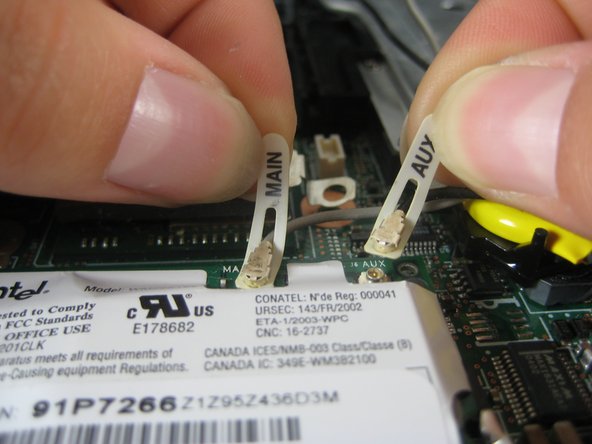
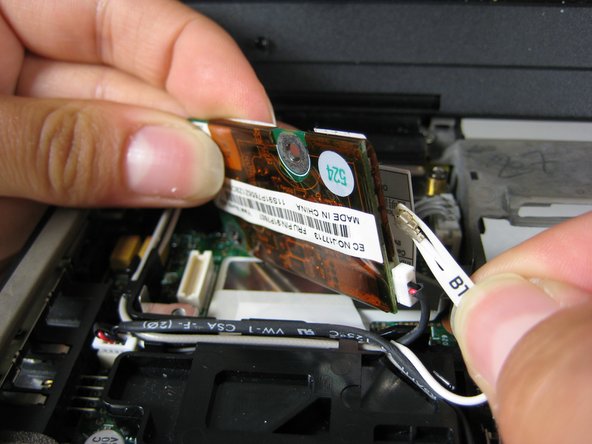
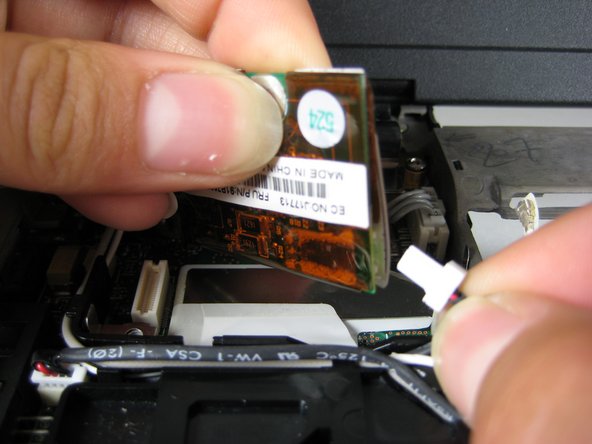
    • Pull off the one black and one white coaxial cables by lifting the tabs labeled main and aux (for auxiliary).

    Add Comment

  12. IBM ThinkPad T41 Motherboard Replacement: step 12, image 1 of 1
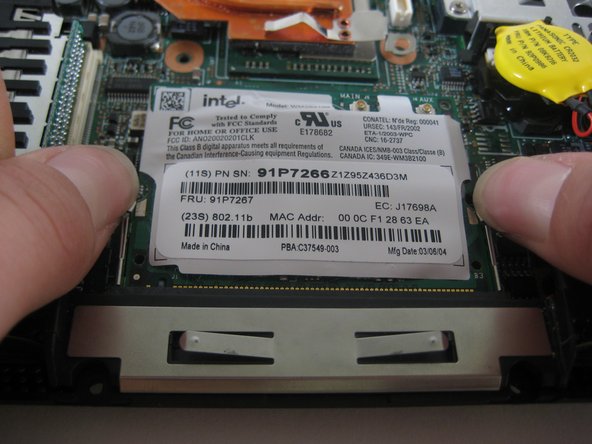
    • Push apart the retaining clips.

    • Note: The card should pop up a little bit.

    Add Comment

  13. IBM ThinkPad T41 Motherboard Replacement: step 13, image 1 of 1
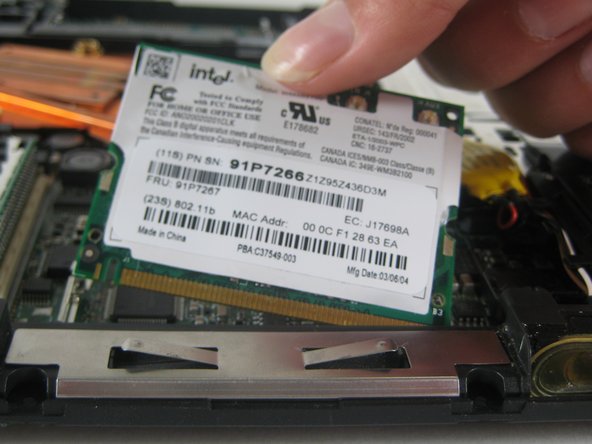
    • Pull the wireless network card out.

    Add Comment

  14. IBM ThinkPad T41 Motherboard Replacement: step 14, image 1 of 1
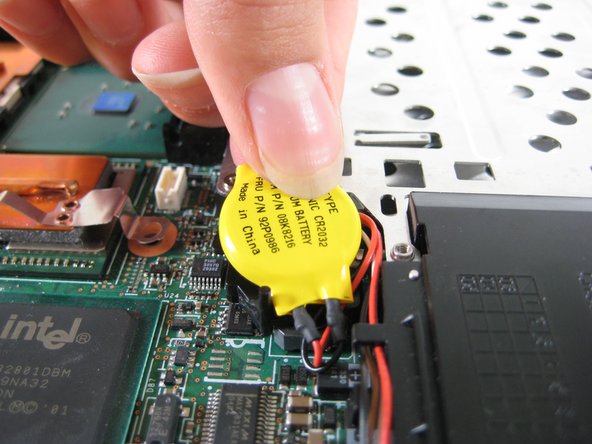
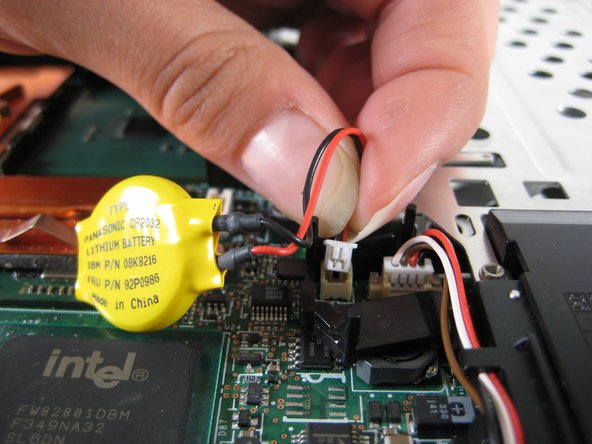
    • Lift the yellow plastic-covered battery up.

    Add Comment

  15. IBM ThinkPad T41 Motherboard Replacement: step 15, image 1 of 1
    • Unplug the battery connector.

    Add Comment

  16. IBM ThinkPad T41 Motherboard Replacement: step 16, image 1 of 1
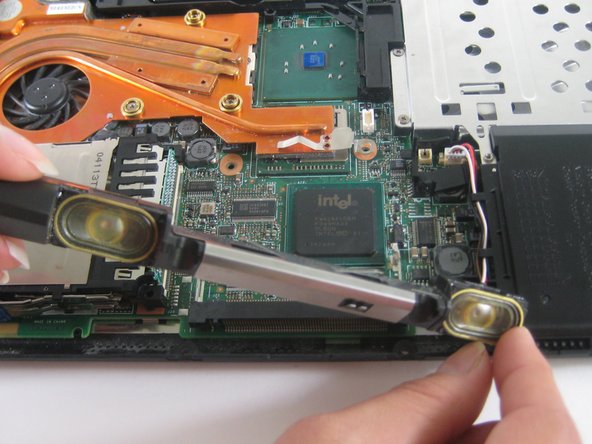
    • Lift the speakers out by starting with the left end and then unsnake the wires.

    Add Comment

  17. IBM ThinkPad T41 Motherboard Replacement: step 17, image 1 of 1
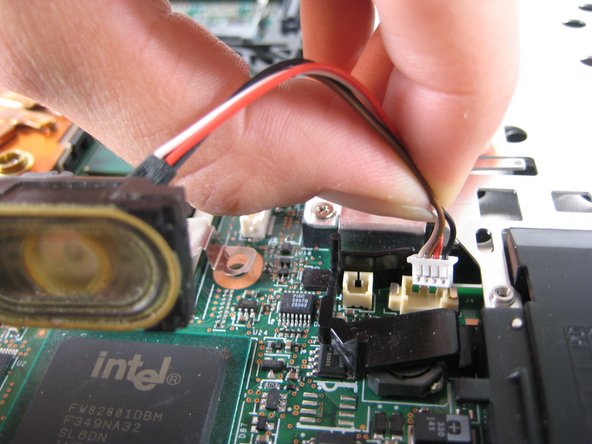
    • Unplug the wires from the motherboard.

    Add Comment

  18. IBM ThinkPad T41 Motherboard Replacement: step 18, image 1 of 1
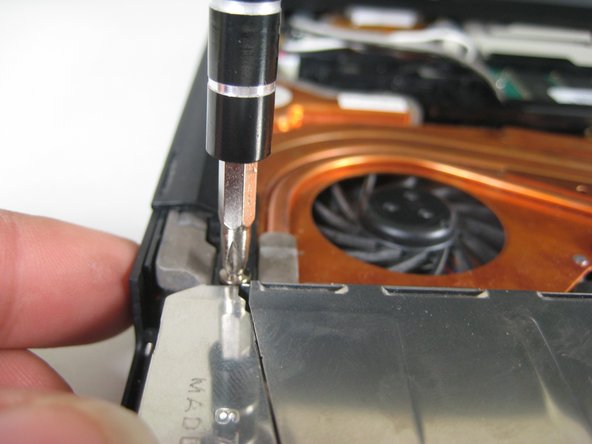
    • Remove the screw on the left hand side of the case, above the expansion slot.

    Add Comment

  19. IBM ThinkPad T41 Motherboard Replacement: step 19, image 1 of 2 IBM ThinkPad T41 Motherboard Replacement: step 19, image 2 of 2
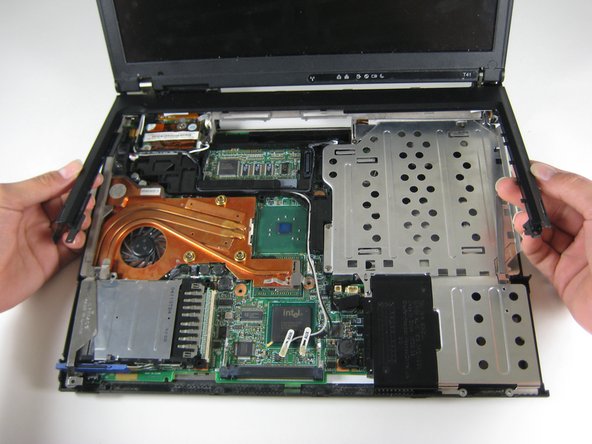
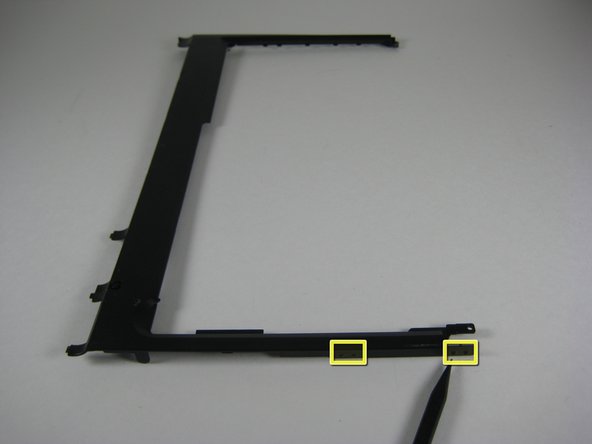
    • Lift the black plastic border by lifting on either side.

    • Once the sides are up, pull the border towards you and away from the screen.

    • When lifting up, there are two pairs of plastic clips hooking into the fan grill. If you pull hard enough the border will come away, but it's better to push the clips with the spudger.

    Add Comment

  20. IBM ThinkPad T41 Motherboard Replacement: step 20, image 1 of 1
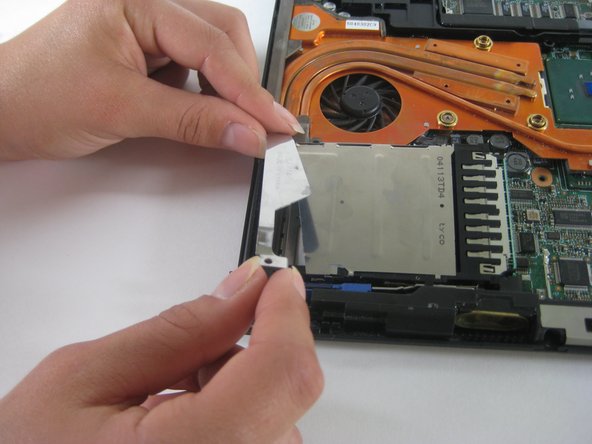
    • Pull the sheet metal cover away from slot.

    Add Comment

  21. IBM ThinkPad T41 Motherboard Replacement: step 21, image 1 of 1
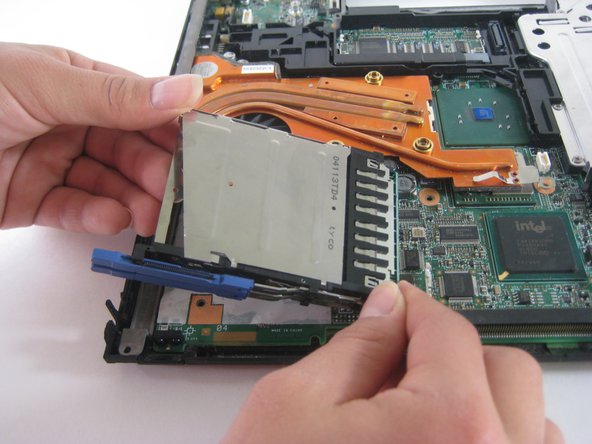
    • Lift out the expansion slot by starting at the entrance hole and pulling upward.

    • Note: Try wiggling the slot from side to side until it comes out all the way.

    Add Comment

  22. IBM ThinkPad T41 Motherboard Replacement: step 22, image 1 of 1
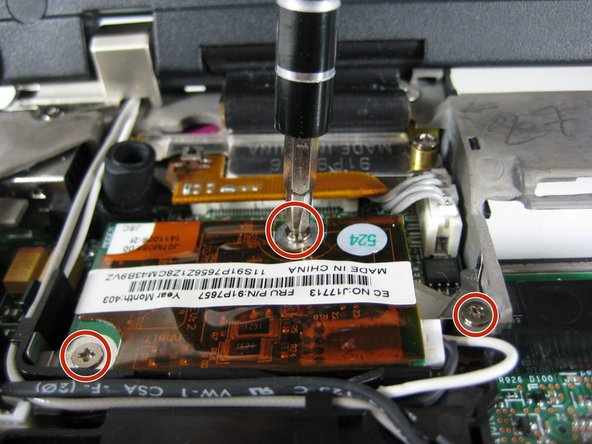
    • Remove the three screws holding down the modem in the upper left corner of the laptop.

    Add Comment

  23. IBM ThinkPad T41 Motherboard Replacement: step 23, image 1 of 1
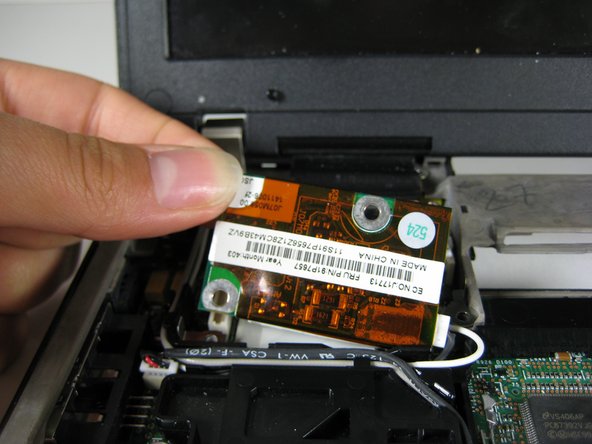
    • Lift the modem up, unplugging it from the motherboard as you lift.

    Add Comment

  24. IBM ThinkPad T41 Motherboard Replacement: step 24, image 1 of 2 IBM ThinkPad T41 Motherboard Replacement: step 24, image 2 of 2
    • Pull out the wire that connects the modem to the screen.

    • Unplug the other cable that attaches the modem to the motherboard

    Add Comment

  25. IBM ThinkPad T41 Motherboard Replacement: step 25, image 1 of 1
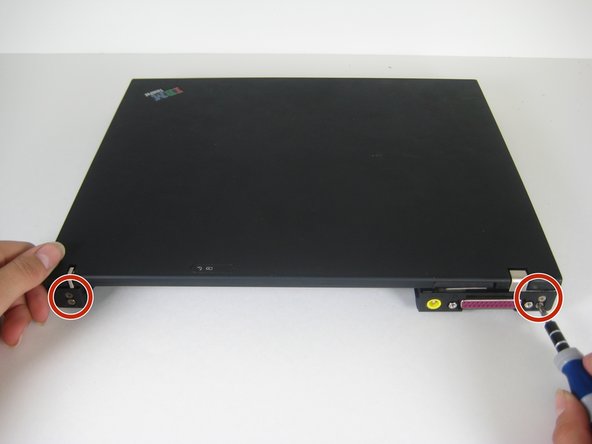
    • Close the computer screen.

    • Remove the four screws on the back of the laptop, near the right and left hinges.

    Add Comment

  26. IBM ThinkPad T41 Motherboard Replacement: step 26, image 1 of 1
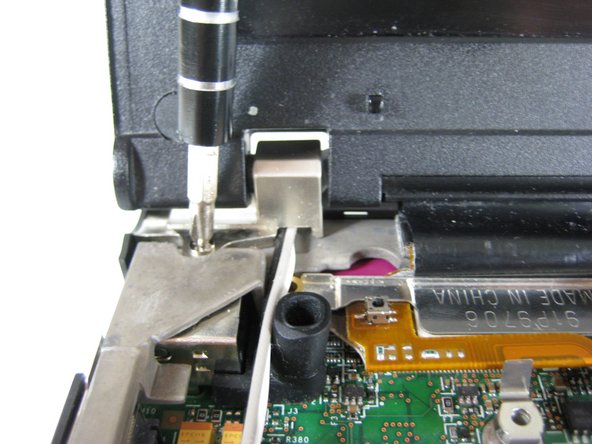
    • Open the laptop screen.

    • Remove the single screw that secures the left hinge to top of the computer.

    Add Comment

  27. IBM ThinkPad T41 Motherboard Replacement: step 27, image 1 of 1
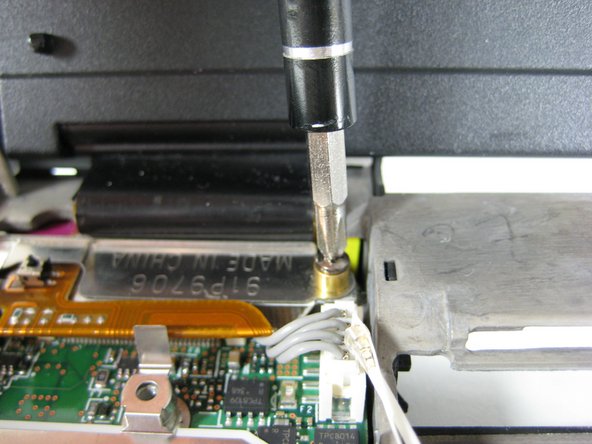
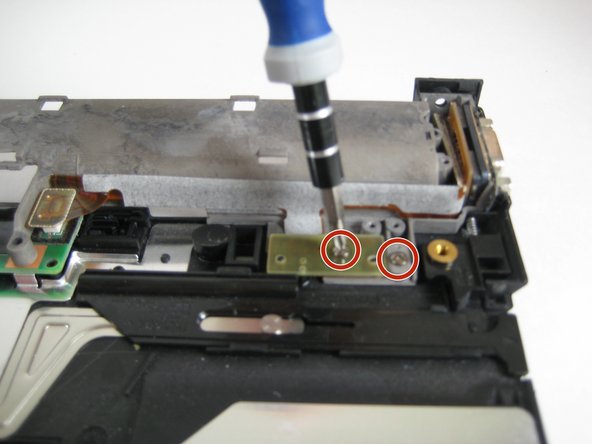
    • Remove a single screw from the metal plate that secures the display cable.

    Add Comment

  28. IBM ThinkPad T41 Motherboard Replacement: step 28, image 1 of 1
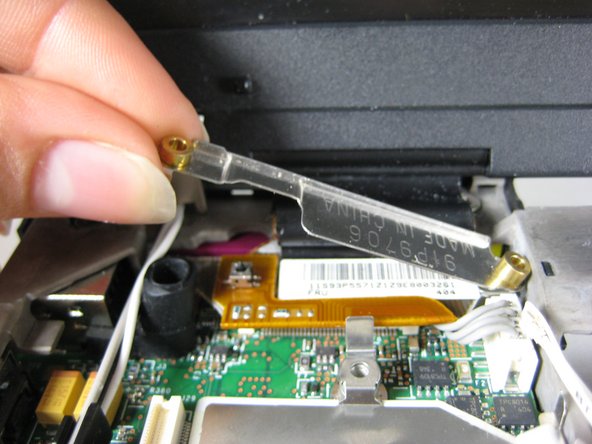
    • Pull the metal plate away from the display cable.

    Add Comment

  29. IBM ThinkPad T41 Motherboard Replacement: step 29, image 1 of 1
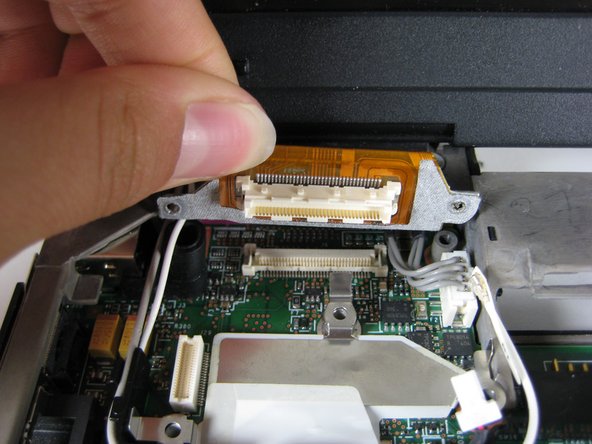
    • Disconnect the display cable.

    Add Comment

  30. IBM ThinkPad T41 Motherboard Replacement: step 30, image 1 of 1
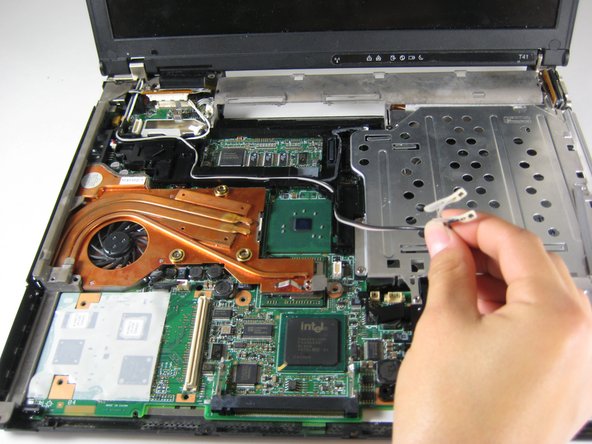
    • Carefully pull up the long antenna cables that were attached to the wireless network card.

    Add Comment

  31. IBM ThinkPad T41 Motherboard Replacement: step 31, image 1 of 1
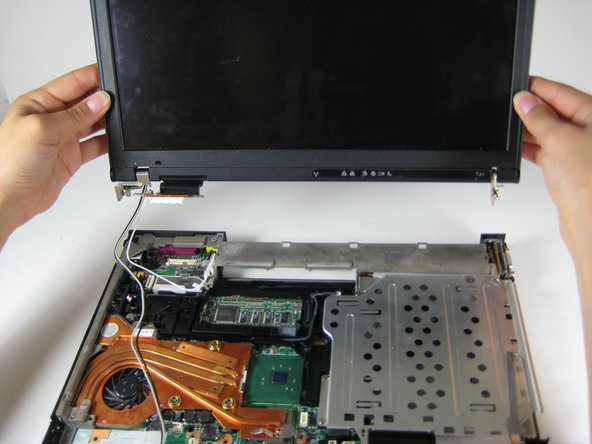
    • Lift out the screen.

    Add Comment

  32. IBM ThinkPad T41 Motherboard Replacement: step 32, image 1 of 1
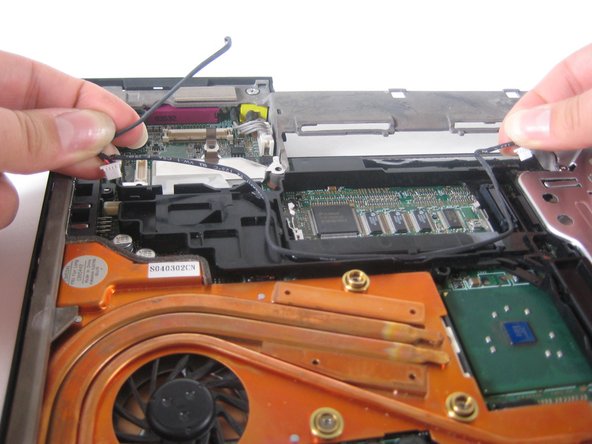
    • Unsnake the black cable from the black plastic frame.

    Add Comment

  33. IBM ThinkPad T41 Motherboard Replacement: step 33, image 1 of 1
    • Remove the sheet metal piece, which was underneath the modem.

    Add Comment

  34. IBM ThinkPad T41 Motherboard Replacement: step 34, image 1 of 1
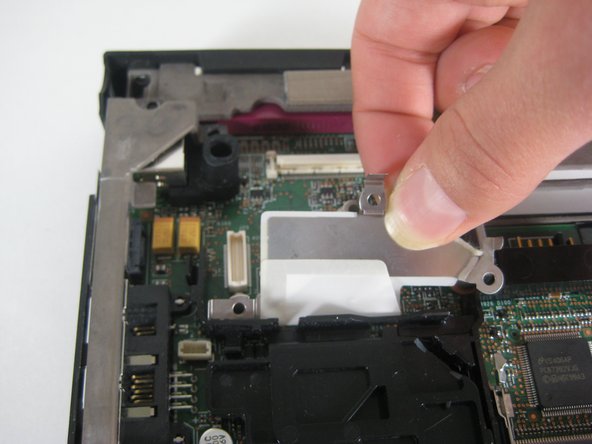
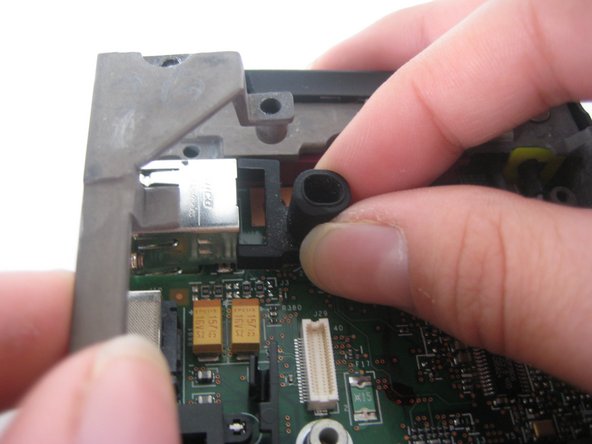
    • Remove the rubber microphone cover in the upper left hand corner by lifting up the gray metal frame.

    Add Comment

  35. IBM ThinkPad T41 Motherboard Replacement: step 35, image 1 of 1
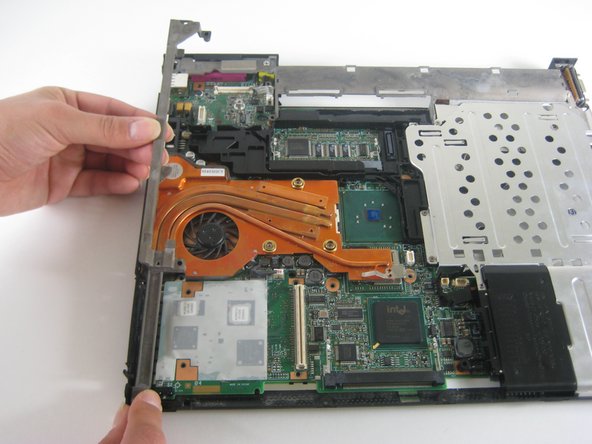
    • Lift away the gray metal frame.

    Add Comment

  36. IBM ThinkPad T41 Motherboard Replacement: step 36, image 1 of 1
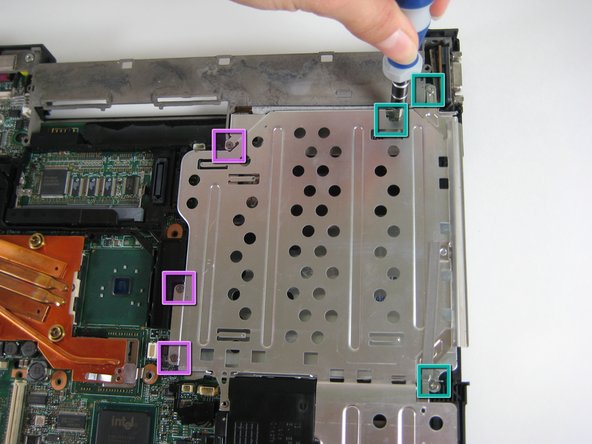
    • Remove three screws near the edge of the computer, holding the optical bay and HDD covers.

    • Remove three other screws on the other side of the covers.

    • You should have six screws in total, three of one size and three of another size.

    Add Comment

  37. IBM ThinkPad T41 Motherboard Replacement: step 37, image 1 of 1
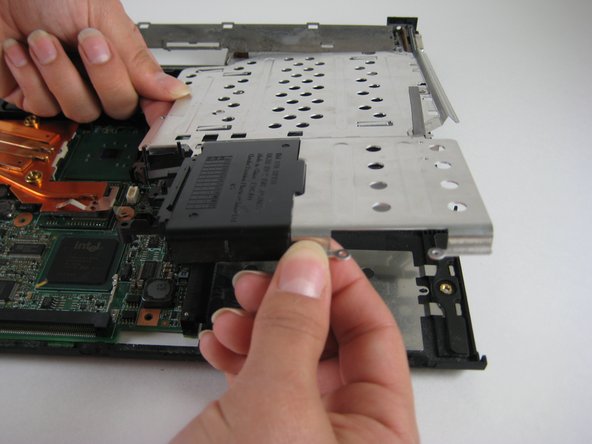
    • Lift out the optical bay and HDD covers.

    Add Comment

  38. IBM ThinkPad T41 Motherboard Replacement: step 38, image 1 of 1
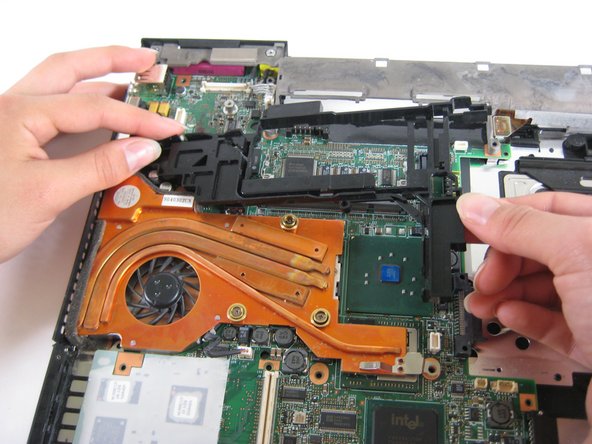
    • Lift out the black plastic frame.

    Add Comment

  39. IBM ThinkPad T41 Motherboard Replacement: step 39, image 1 of 1
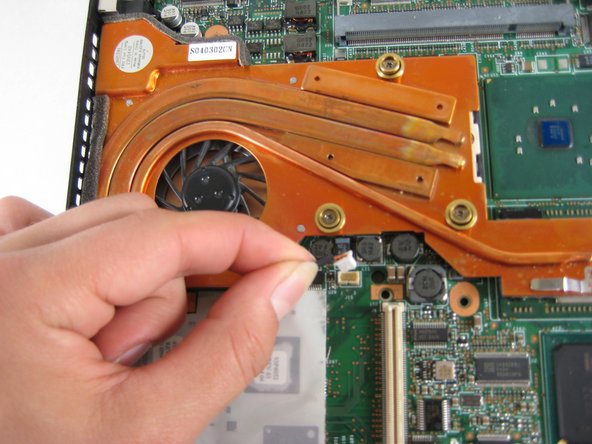
    • Unplug the fan from the motherboard.

    Add Comment

  40. IBM ThinkPad T41 Motherboard Replacement: step 40, image 1 of 1
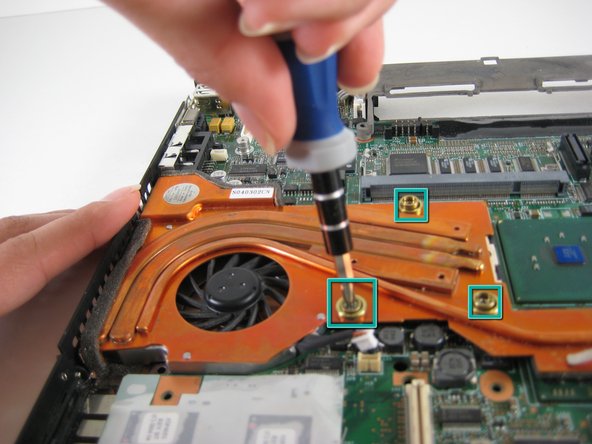
    • Remove the three screws on the fan.

    Add Comment

  41. IBM ThinkPad T41 Motherboard Replacement: step 41, image 1 of 1
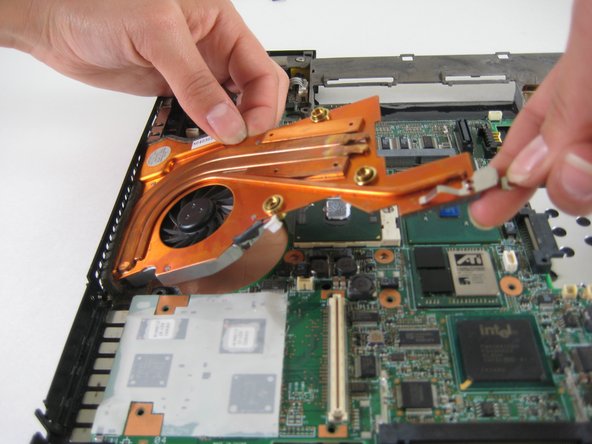
    • Lift the fan out.

    Add Comment

  42. IBM ThinkPad T41 Motherboard Replacement: step 42, image 1 of 1
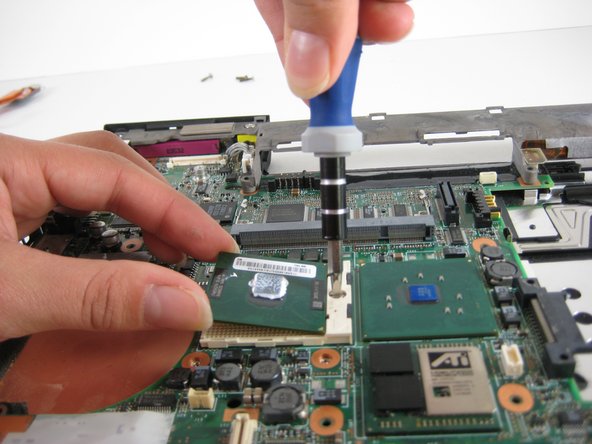
    • Turn the CPU retaining screw 90 degrees counterclockwise.

    • Carefully pull the CPU out of its socket.

    Add Comment

  43. IBM ThinkPad T41 Motherboard Replacement: step 43, image 1 of 1
    • Remove the two screws in the upper right corner that secure the gray metal frame.

    Add Comment

  44. IBM ThinkPad T41 Motherboard Replacement: step 44, image 1 of 1
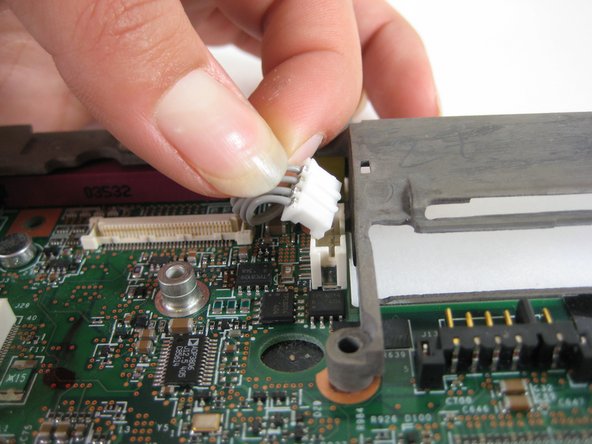
    • Unplug the small ribbon cable attached to the motherboard.

    Add Comment

  45. IBM ThinkPad T41 Motherboard Replacement: step 45, image 1 of 1
    • Remove the single screw located next to the USB slots.

    Add Comment

  46. IBM ThinkPad T41 Motherboard Replacement: step 46, image 1 of 1
    • Rotate the device so that the front faces you.

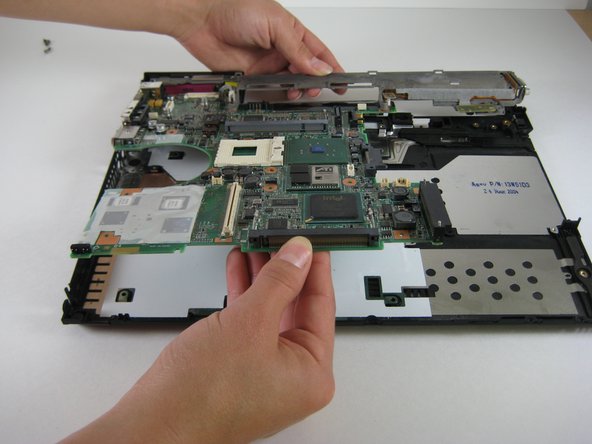
    • Lift the entire motherboard assembly out of the case.

    Add Comment

  47. IBM ThinkPad T41 Motherboard Replacement: step 47, image 1 of 1
    • Disconnect the power connector from the motherboard.

    Add Comment

  48. IBM ThinkPad T41 Motherboard Replacement: step 48, image 1 of 1
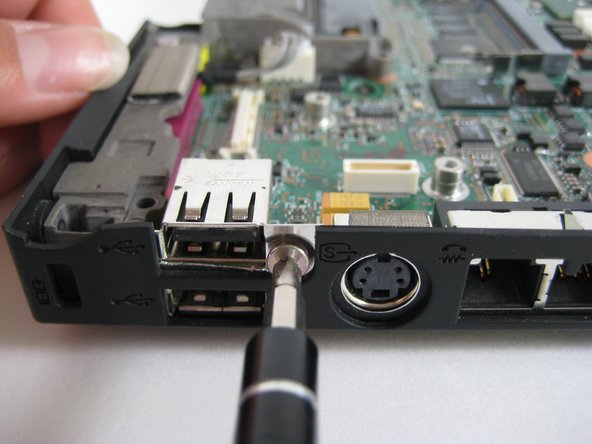
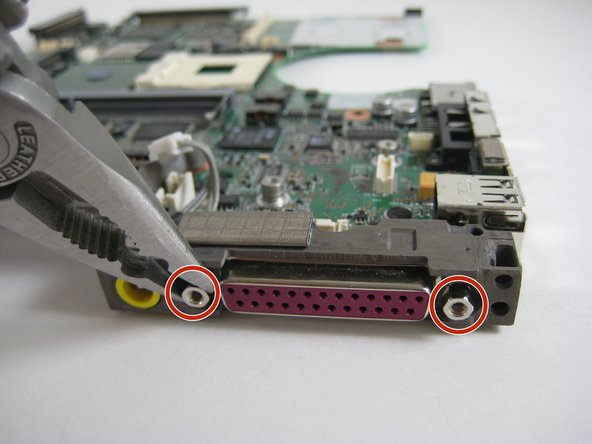
    • Using a nut driver or a pair of thin nose pliers, remove the two stand off screws next to the pink parallel port on the back of the computer.

    Add Comment

  49. IBM ThinkPad T41 Motherboard Replacement: step 49, image 1 of 1
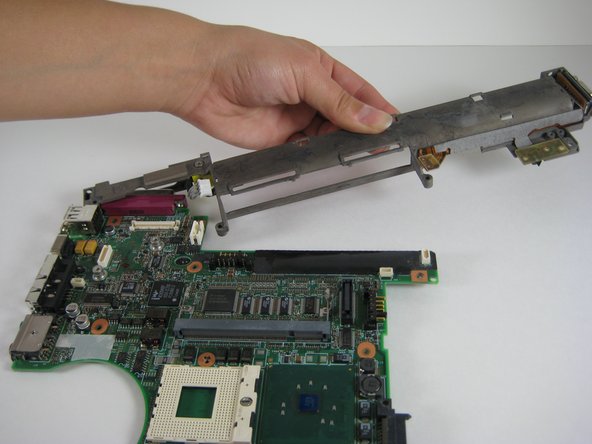
    • Lift up the outer end of the grey metal frame.

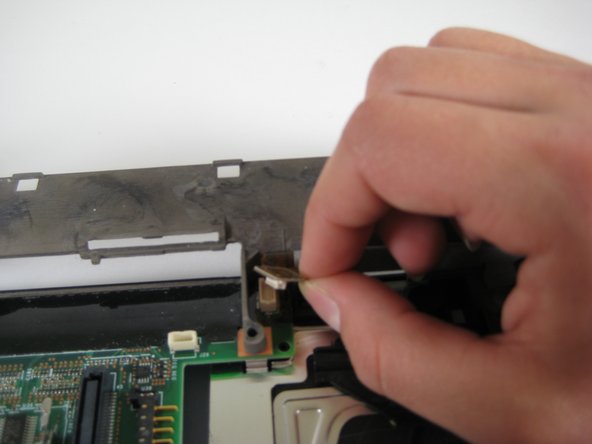
    • Carefully rotate the frame clockwise to release it from the motherboard.

    Add Comment

Conclusion

To reassemble your device, follow these instructions in reverse order.

Cancel: I did not complete this guide.

System

Member since: 09/24/09

2,562 Guides authored

0 Guide Comments

Add Comment

View Statistics:

Past 24 Hours: 0

Past 7 Days: 2

Past 30 Days: 4

All Time: 32