MacBook Air 13" Mid 2011 Left Speaker Replacement

What you need

  1. MacBook Air 13" Mid 2011 Left Speaker Replacement, MacBook Air 13" Mid 2011 Left Speaker Replacement: step 1, image 1 of 1
    • Before proceeding, power down your machine. Close the display and lay it on a soft surface top-side down.

    • Remove the following ten screws:

    • Two 9 mm P5 Pentalobe screws

    • Eight 2.6 mm P5 Pentalobe screws

    • The special screwdriver needed to remove the ten 5-point Pentalobe screws can be found .

  2. MacBook Air 13" Mid 2011 Left Speaker Replacement: step 2, image 1 of 1
    • Wedge your fingers between the display and the lower case and pull upward to pop the lower case off the Air.

    • Remove the lower case and set it aside.

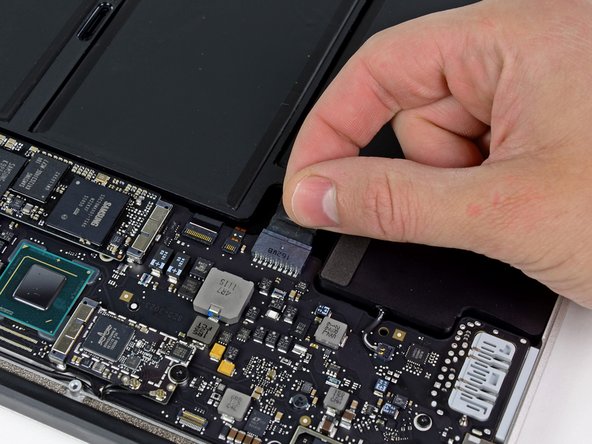
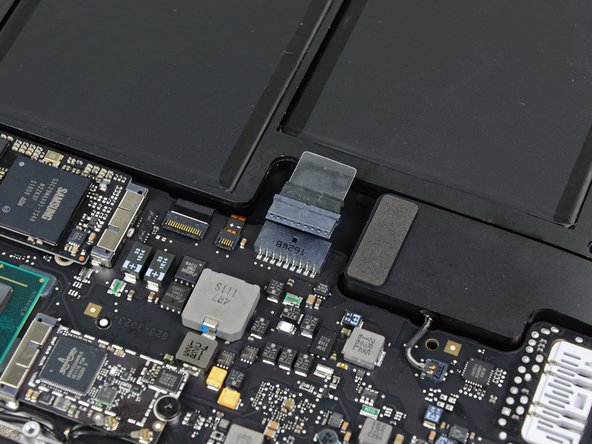
  3. MacBook Air 13" Mid 2011 Left Speaker Replacement: step 3, image 1 of 2 MacBook Air 13" Mid 2011 Left Speaker Replacement: step 3, image 2 of 2
    • Grab the clear plastic pull tab attached to the battery connector and pull it toward the front edge of the Air to disconnect the battery from the logic board.

    • Do not lift upward on the connector as you disconnect it.

  4. MacBook Air 13" Mid 2011 Left Speaker Replacement: step 4, image 1 of 1
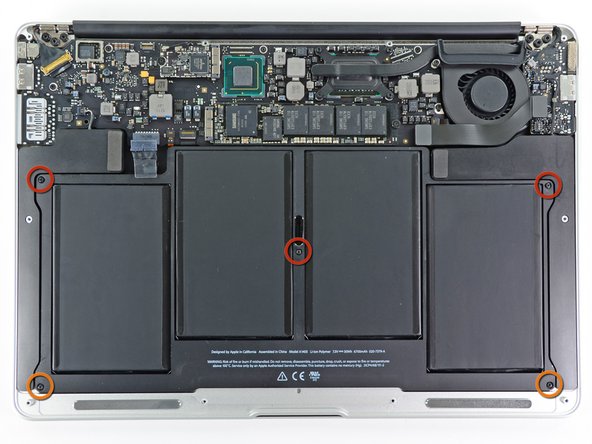
    • Remove the following five screws securing the battery to the upper case:

    • Three 6.3 mm T5 Torx screws

    • Two 2.4 mm T5 Torx screws

  5. MacBook Air 13" Mid 2011 Left Speaker Replacement: step 5, image 1 of 1
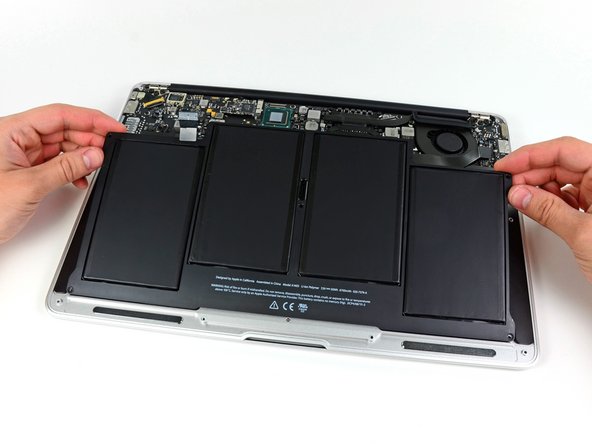
    • When handling the battery, avoid squeezing or touching the four exposed lithium polymer cells.

    • Lift the battery from its edge nearest the logic board and remove it from the upper case.

  6. MacBook Air 13" Mid 2011 Left Speaker Replacement: step 6, image 1 of 1
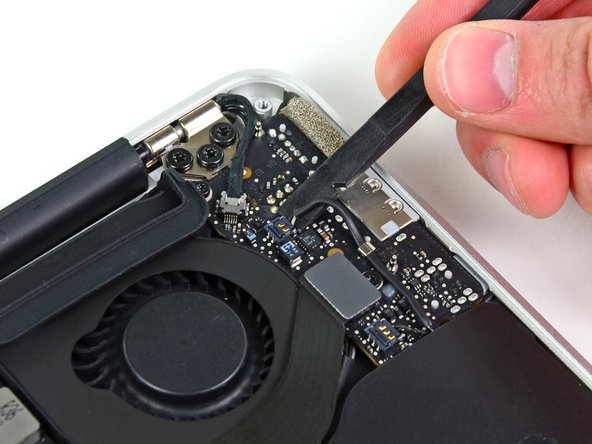
    • Use the flat end of a spudger to pry the left speaker cable connector up and out of its socket on the I/O board.

    • Pry up from beneath the wires.

  7. MacBook Air 13" Mid 2011 Left Speaker Replacement: step 7, image 1 of 1
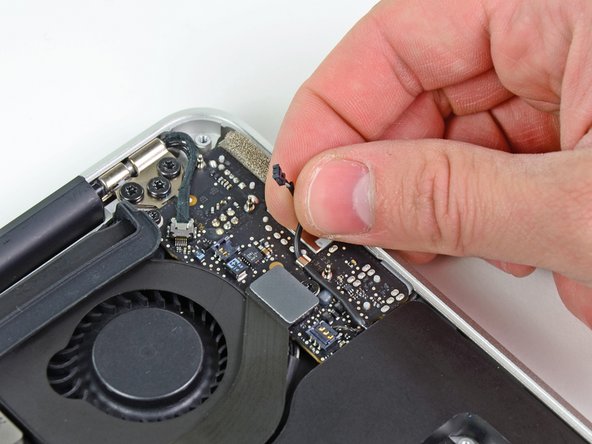
    • De-route the left speaker cable from its retaining clip on the I/O board.

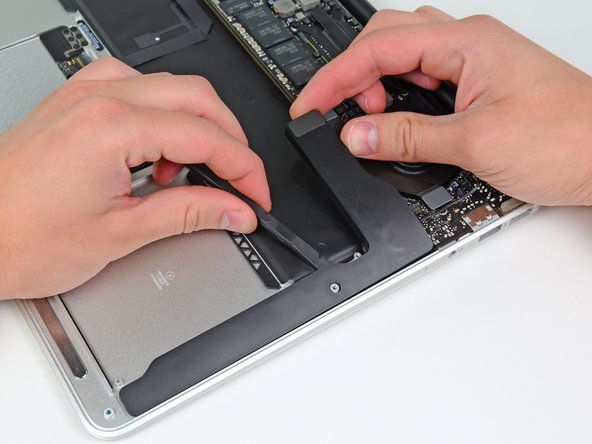
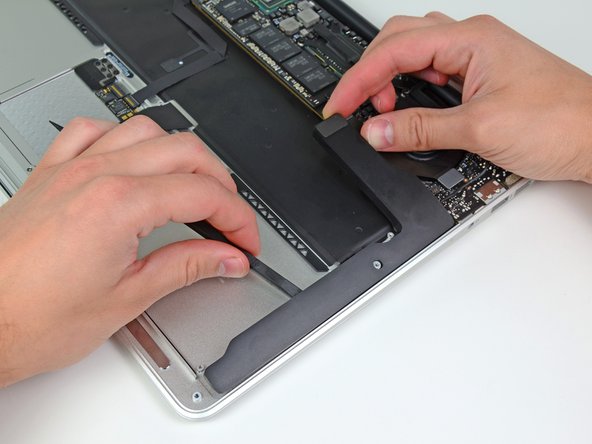
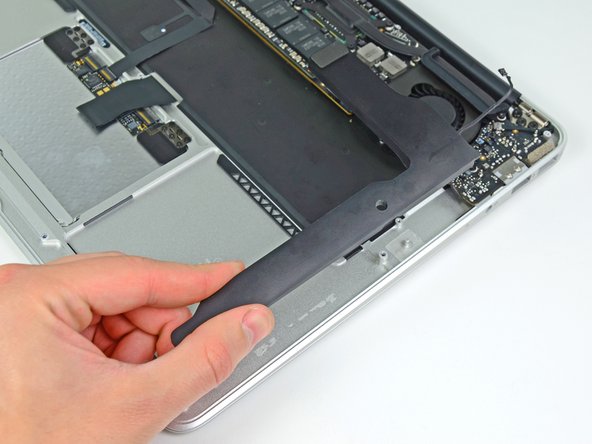
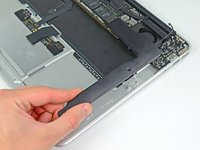
  8. MacBook Air 13" Mid 2011 Left Speaker Replacement: step 8, image 1 of 3 MacBook Air 13" Mid 2011 Left Speaker Replacement: step 8, image 2 of 3 MacBook Air 13" Mid 2011 Left Speaker Replacement: step 8, image 3 of 3
    • Use the flat end of a spudger to pry the left speaker off the adhesive securing it to the upper case.

    • Remove the left speaker from the upper case.

Finish Line

System

Member since: 09/24/09

2,562 Guides authored

0 Guide Comments

Add Comment

View Statistics:

Past 24 Hours: 0

Past 7 Days: 0

Past 30 Days: 0

All Time: 9