MacBook Core 2 Duo Lower Case Replacement

What you need

  1. MacBook Core 2 Duo Lower Case Replacement, MacBook Core 2 Duo Lower Case Replacement: step 1, image 1 of 1
    • Use a coin to rotate the battery-locking screw 90 degrees clockwise.

    Add Comment

  2. MacBook Core 2 Duo Lower Case Replacement: step 2, image 1 of 1
    • Lift the battery out of the computer.

    Add Comment

  3. MacBook Core 2 Duo Lower Case Replacement: step 3, image 1 of 1
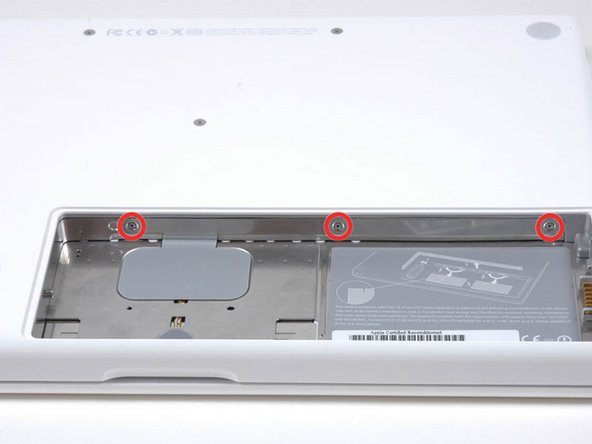
    • Unscrew the three evenly-spaced Phillips screws from along the rear wall of the battery compartment.

    • The screws are captive to the metal memory cover so you cannot lose them.

    Add Comment

  4. MacBook Core 2 Duo Lower Case Replacement: step 4, image 1 of 1
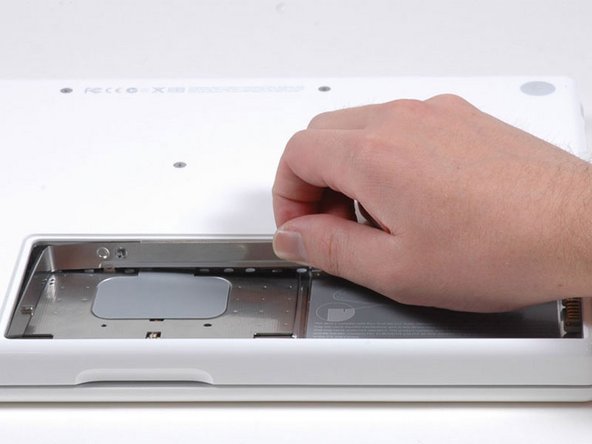
    • Rotate the L-shaped memory cover so it clears the battery compartment opening and lift it up and out of the computer.

    Add Comment

  5. MacBook Core 2 Duo Lower Case Replacement: step 5, image 1 of 1
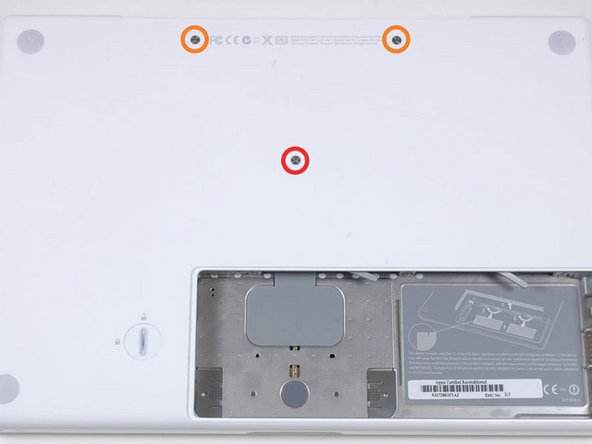
    • Remove the following 3 screws:

    • One 11 mm Phillips#00 in the middle of the case. (Head: 5mm dia. x .75mm thick)

    • Two 14.5 mm Phillips #00 (Head: 5mm dia. x .75mm thick)

    • If the screws stick in the case, you can use a magnetized screwdriver to draw them out.

    • The shorter of the three screws goes in the middle.

    Add Comment

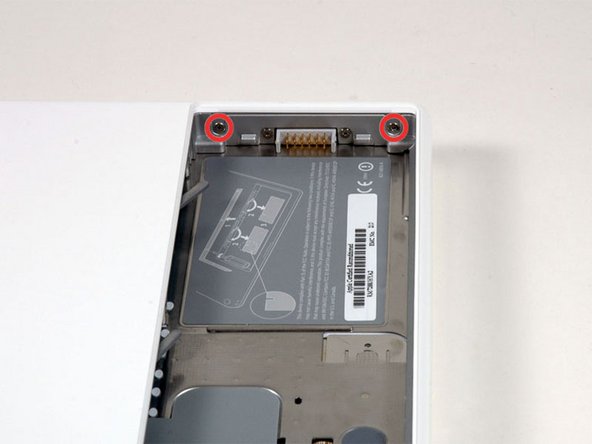
  6. MacBook Core 2 Duo Lower Case Replacement: step 6, image 1 of 1
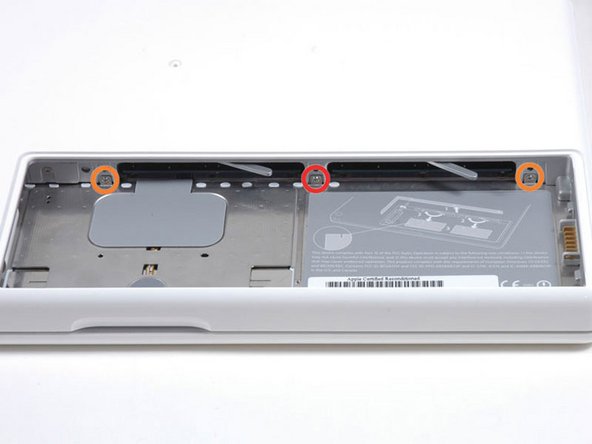
    • Remove the following 3 screws from the rear wall of the battery compartment:

    • One 3 mm Phillips #0. (Head: 2.75 mm. dia.)

    • Two 4 mm Phillips #0 on the either side. (Head: 2.75mm dia.)

    • Take extra caution with these screws as they can strip easily.

    Add Comment

  7. MacBook Core 2 Duo Lower Case Replacement: step 7, image 1 of 1
    • Remove the two Phillips screws from either side of the right wall of the battery compartment (not the ones closest to the battery connector).

    • Two 6.25 mm Phillips #000. (Head: 4 mm. dia. x .5mm thick)

    Add Comment

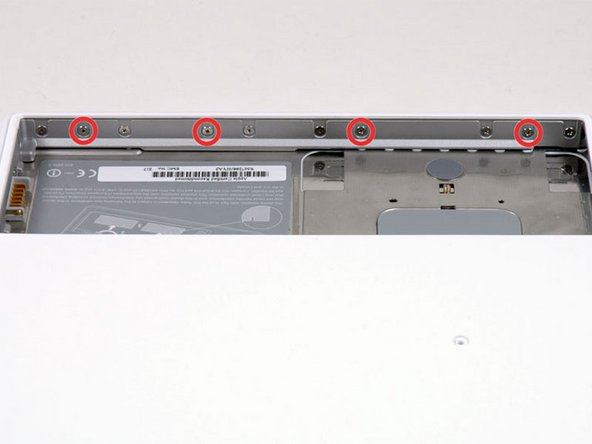
  8. MacBook Core 2 Duo Lower Case Replacement: step 8, image 1 of 1
    • Remove the four indicated Phillips screws from the front wall of the battery compartment. When working from the left, remove the 2nd, 4th, 7th and 9th screw.

    • Four 3.25 mm Phillips #000. (Head: 4 mm. dia. x 4mm thick)

    Add Comment

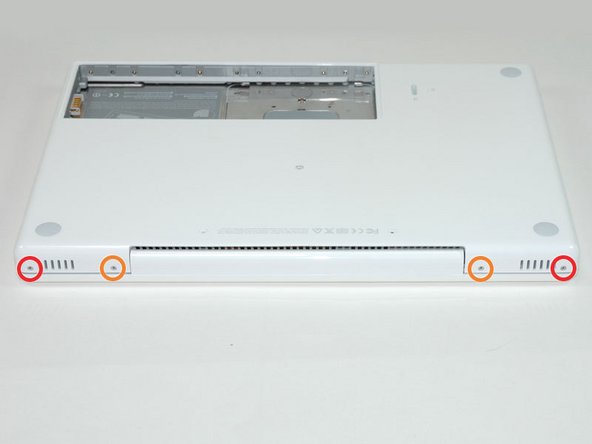
  9. MacBook Core 2 Duo Lower Case Replacement: step 9, image 1 of 1
    • Remove the following 4 screws from the back of the computer:

    • The longer screws go on the inside, shorter screws on the outside.

    • Two 11 mm Phillips #00, with Shank (2.2mm dia. x 2 mm len.) (Head: 3.2 mm. dia. x .5mm thick)

    • Two 7.25 mm Phillips #00, with Shank (2mm dia. x 3.75 mm len.) (Head: 3.2 mm. dia. x .5mm thick)

    Add Comment

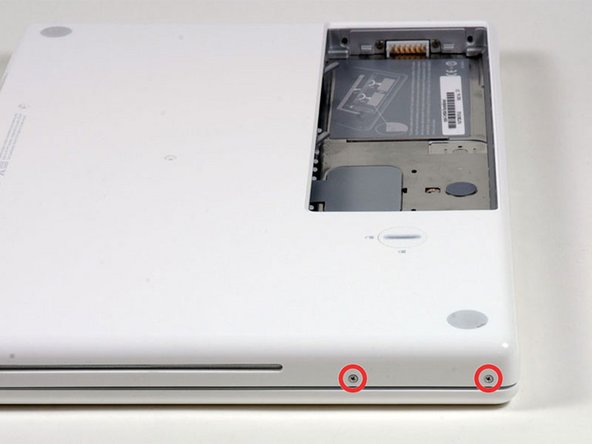
  10. MacBook Core 2 Duo Lower Case Replacement: step 10, image 1 of 1
    • Remove the two Phillips screws from the optical drive side of the computer.

    • Two 5.2 mm Phillips #00, with Shank (2.3mm dia. x 3.5 mm len.) (Head: 3.2 mm. dia. x .5mm thick)

    • It is not necessary to remove the similar screws on the other side of the computer.

    Add Comment

  11. MacBook Core 2 Duo Lower Case Replacement: step 11, image 1 of 1
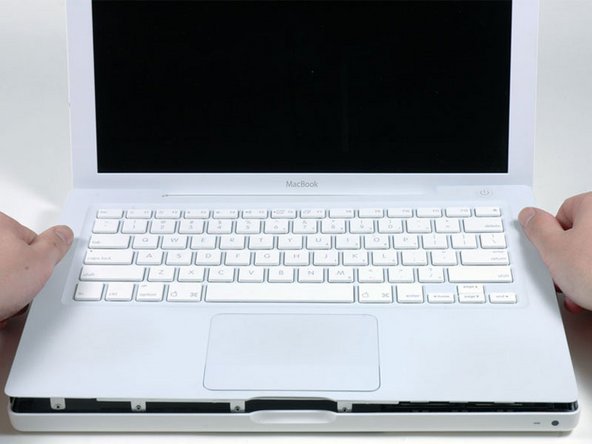
    • There's a trackpad and keyboard ribbon connecting the upper case to the logic board, so don't pull the upper case off entirely just yet.

    • Starting near the display and working around to the front of the computer, pry up on the upper case. A or a medium hard guitar pick may help you to do this.

    • The upper case is likely to stick at the connection above the optical drive. If this is the case, first free all other sides, then proceed to pull upward on the upper case from either side of the optical drive opening.

    • If you stand the base on end to get a better look you may displace the total of 4 grey plastic clips that hold the keyboard in place. Don't panic. They slide into slots at the top right-most edge near the CD drive.

    Add Comment

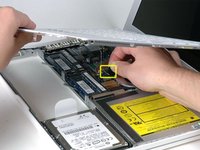
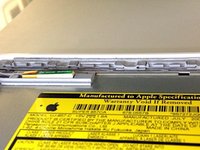
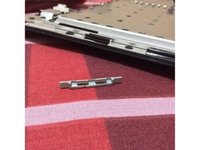
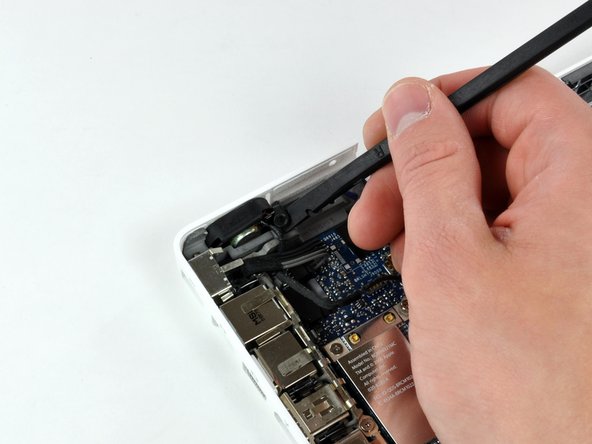
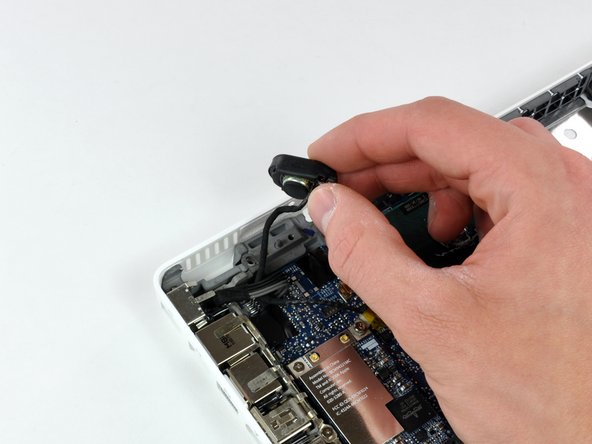
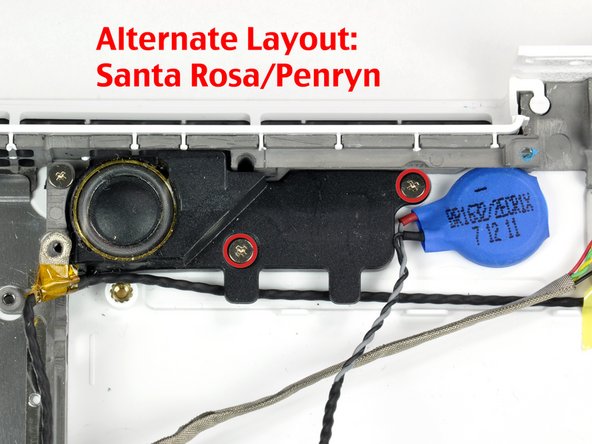
  12. MacBook Core 2 Duo Lower Case Replacement: step 12, image 1 of 3 MacBook Core 2 Duo Lower Case Replacement: step 12, image 2 of 3 MacBook Core 2 Duo Lower Case Replacement: step 12, image 3 of 3
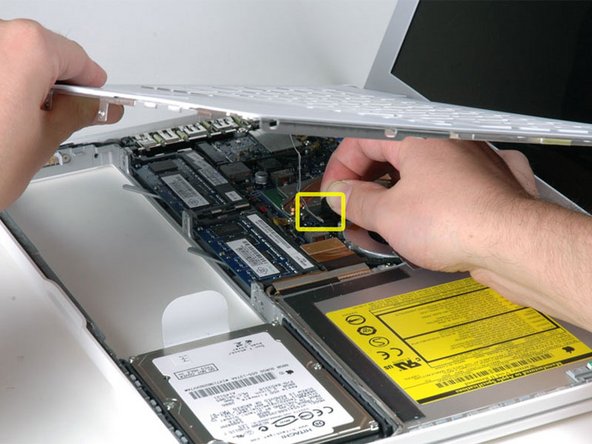
    • While holding up the upper case, pull up the black tab of the silver cable away from its connector.

    • If there is no black tab, you can also use a spudger to gently pry the connector from its housing. This connector is tall, so be sure to pry straight up.

    • If you happen to break your upper case cable when removing the upper case, we stock the individually and we have a [invalid guide link] that makes replacing it easy.

    • While you have the upper case removed, you may want to take the opportunity to remove dust, hair, etc. It's best to use a can of compressed air, though if you use a brush, make sure that its bristles are made of a material (usually animal hair) that doesn't generate static electricity, which can destroy electronics.

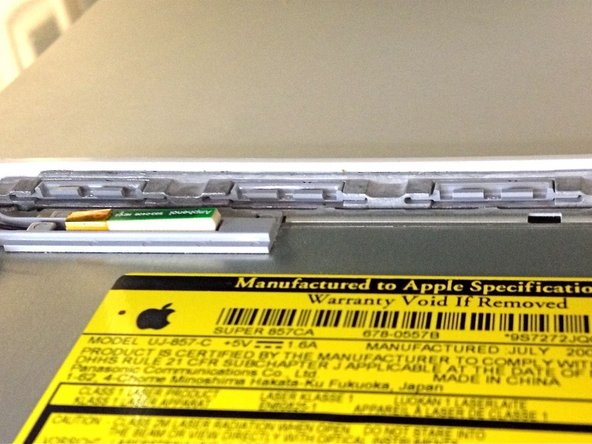
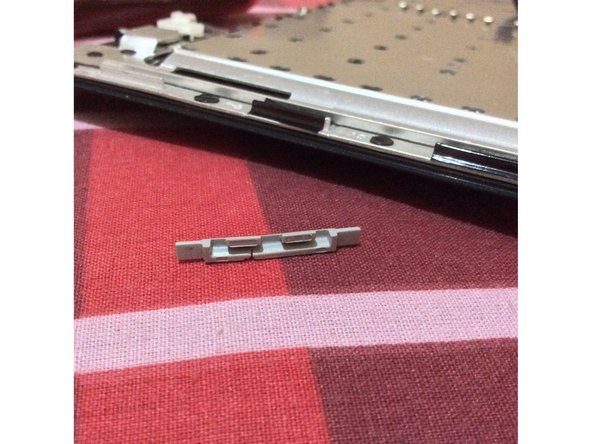
    • Upon reassembly, there are 4 grey plastic clips on the optical drive side of the keyboard (refer to second picture). They must be installed in their slots for the keyboard to snap in properly.

    • To make the reassamble process easier, it's better to pull out the clips first by pulling it straight up gently. Be careful not to put too much strength because it will break.

    Add Comment

  13. MacBook Core 2 Duo Lower Case Replacement: step 13, image 1 of 1
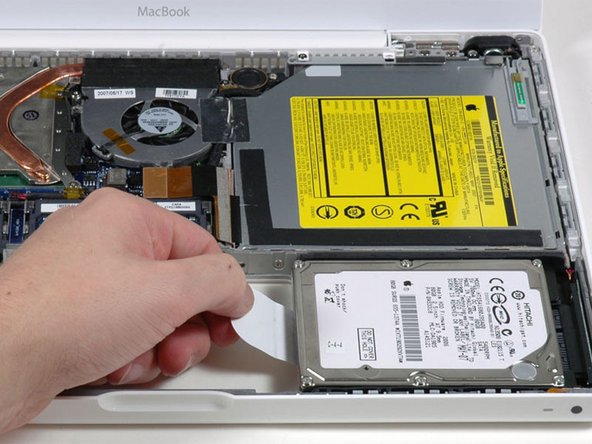
    • Grasp the white plastic tab attached to the hard drive and pull it to the left, removing the hard drive from the computer.

    Add Comment

  14. MacBook Core 2 Duo Lower Case Replacement: step 14, image 1 of 1
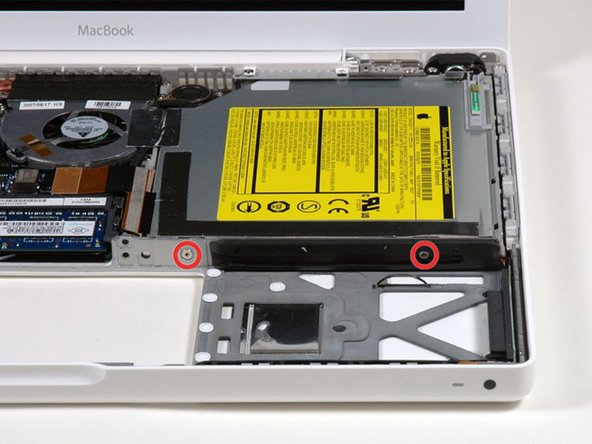
    • Remove the two Phillips screws from the front edge of the optical drive.

    • Two 3.25 mm Phillips #000, (Head: 4 mm. dia. x .3 mm thick)

    Add Comment

  15. MacBook Core 2 Duo Lower Case Replacement: step 15, image 1 of 1
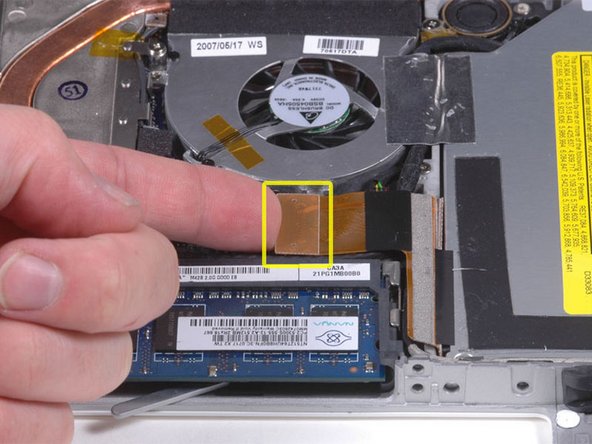
    • Disconnect the orange optical drive ribbon cable from the logic board. This cable can also be disconnected by prying straight up using a spudger.

    Add Comment

  16. MacBook Core 2 Duo Lower Case Replacement: step 16, image 1 of 1
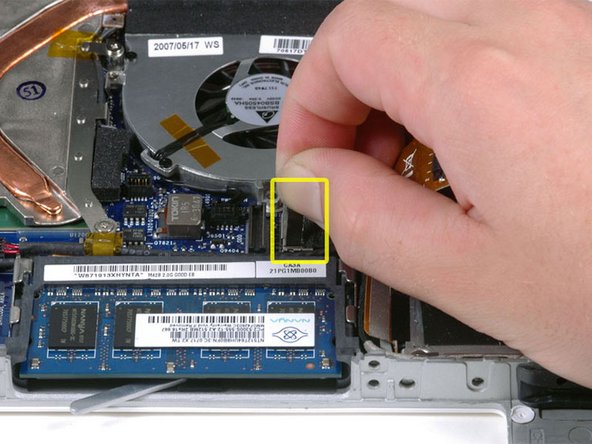
    • Disconnect the newly revealed display data cable. If there is no pull-tab on the top of the connector, it may be helpful to use a spudger to disconnect this connector.

    Add Comment

  17. MacBook Core 2 Duo Lower Case Replacement: step 17, image 1 of 1
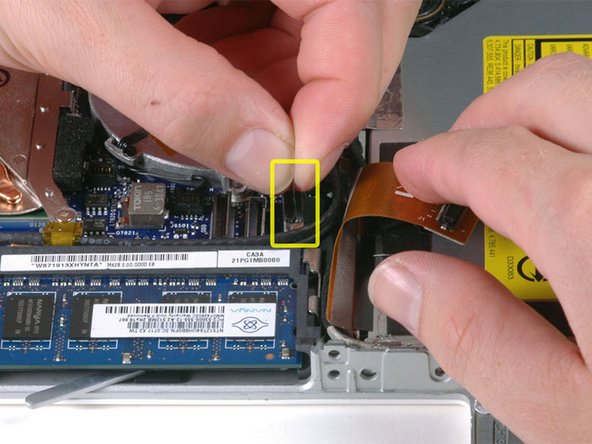
    • Disconnect the (once again) newly-revealed hard drive cable.

    Add Comment

  18. MacBook Core 2 Duo Lower Case Replacement: step 18, image 1 of 1
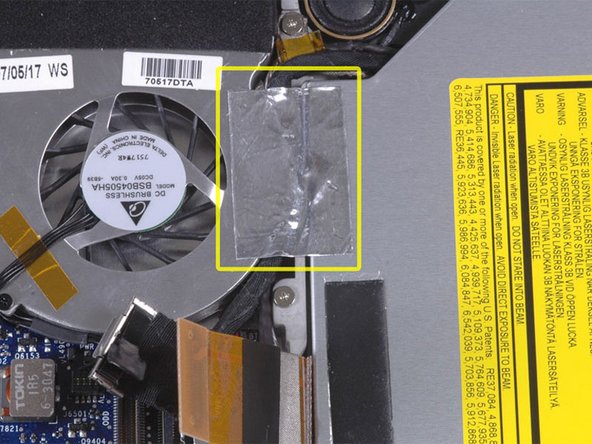
    • Peel up the foil tape between the fan and the optical drive. Lift the foil tape from the fan side, leaving it attached to the optical drive.

    • During reassembly, be sure to route the cables beneath the tape before reattaching it.

    Add Comment

  19. MacBook Core 2 Duo Lower Case Replacement: step 19, image 1 of 1
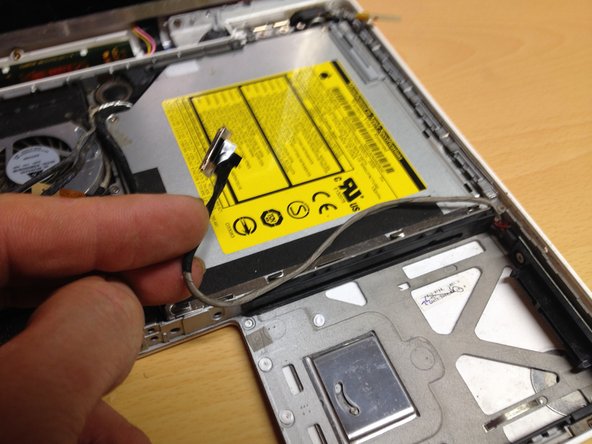
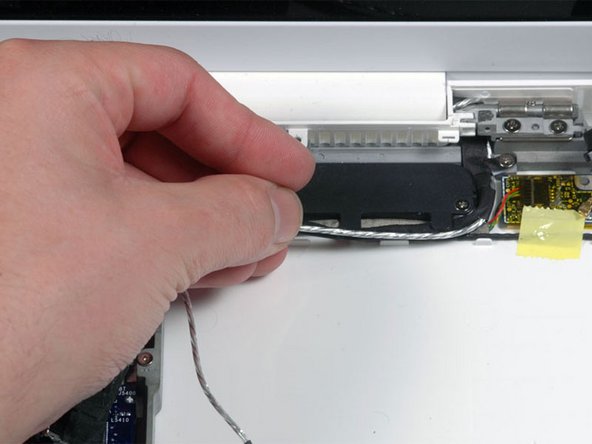
    • Pull up the display data cable from along the edge of the optical drive to reveal a silver Phillips screw.

    Add Comment

  20. MacBook Core 2 Duo Lower Case Replacement: step 20, image 1 of 1
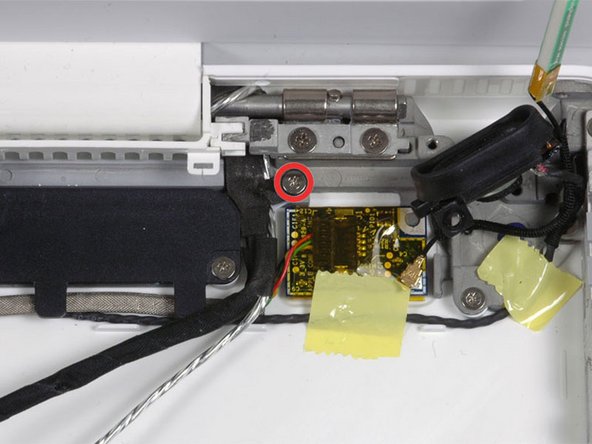
    • Remove the 2 mm Phillips #00 screw securing the optical drive.

    • The Bluetooth cable may be covering the screw. If so, carefully push it aside. You may need to unscrew the cable clip to free the cable enough.

    Add Comment

  21. MacBook Core 2 Duo Lower Case Replacement: step 21, image 1 of 1
    • Lift the Bluetooth antenna board from the right side of the optical drive.

    Add Comment

  22. MacBook Core 2 Duo Lower Case Replacement: step 22, image 1 of 1
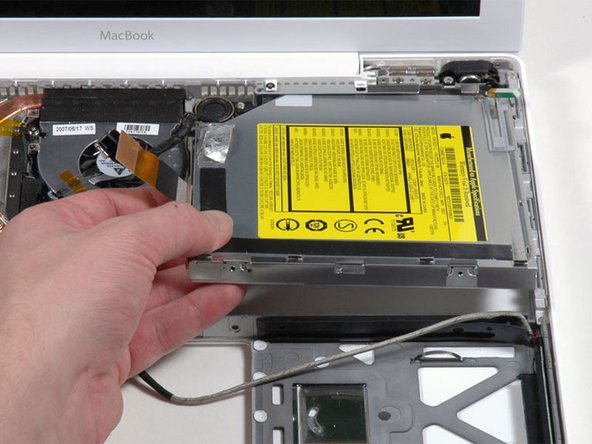
    • Deroute the hard drive cable from along the front of the optical drive.

    Add Comment

  23. MacBook Core 2 Duo Lower Case Replacement: step 23, image 1 of 1
    • Lift the front edge of the optical drive and slide it up and out of the computer.

    Add Comment

  24. MacBook Core 2 Duo Lower Case Replacement: step 24, image 1 of 1
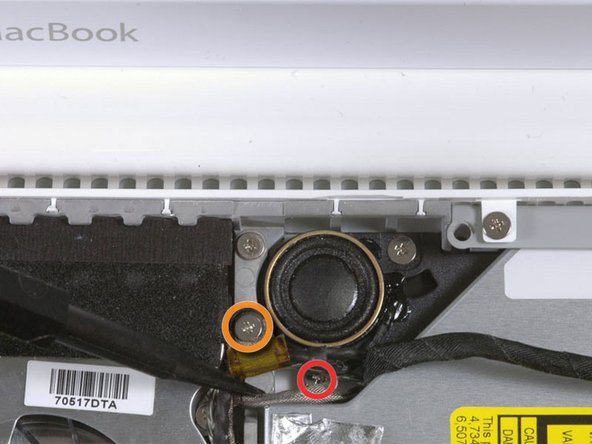
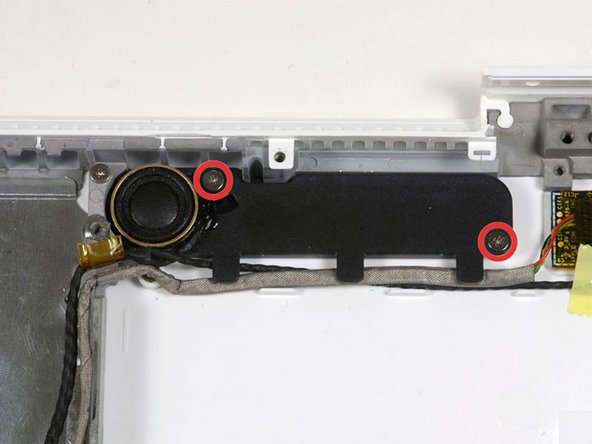
    • Remove the following 3 screws:

    • Two 3 mm Phillips near the right speaker.

    • One 6 mm Phillips threaded through a hole in a plastic finger above the subwoofer.

    • Be careful not to over-tighten the screw above the subwoofer too tight or the plastic could crack.

    • Santa Rosa and Penryn MacBooks do not have a c-channel. If you are disassembling either of these models, remove only the single 3 mm Phillips screw from the right speaker and skip step 26.

    Add Comment

  25. MacBook Core 2 Duo Lower Case Replacement: step 25, image 1 of 1
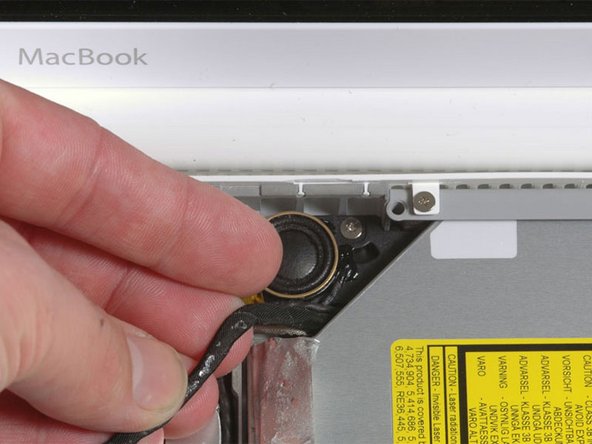
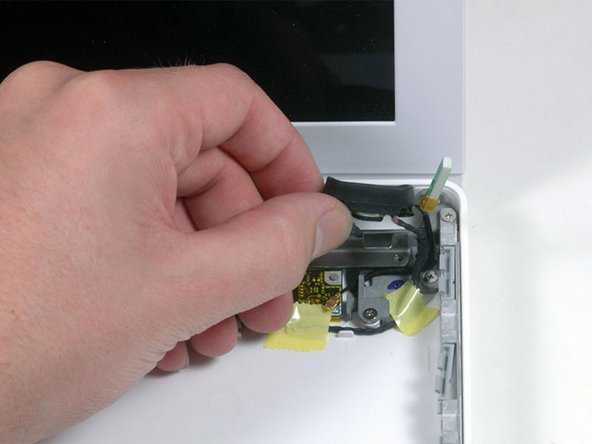
    • Lift the right speaker out of its housing and set it to the side.

    Add Comment

  26. MacBook Core 2 Duo Lower Case Replacement: step 26, image 1 of 1
    • If you have a Santa Rosa/Penryn model, skip this step.

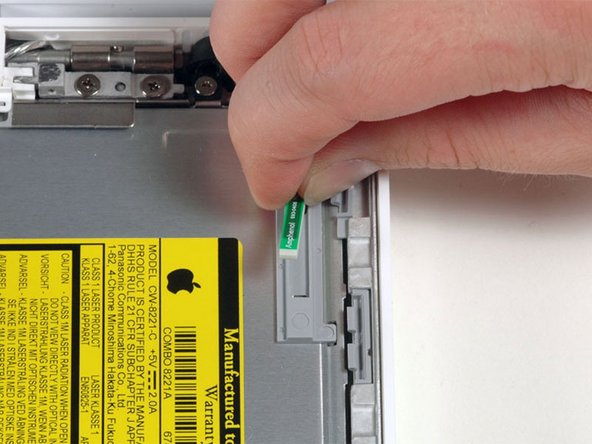
    • Using a spudger, gently pry up the white plastic slot and slide the metal c-channel to the right and away from the display.

    Add Comment

  27. MacBook Core 2 Duo Lower Case Replacement: step 27, image 1 of 1
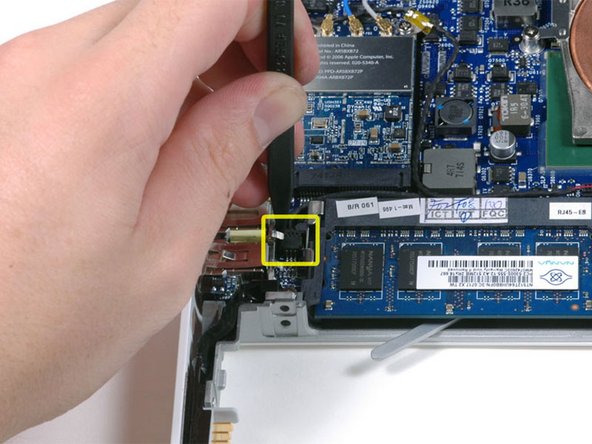
    • Use a spudger to carefully disconnect the microphone cable from the logic board. You'll want to work from side to side, and slowly wiggle the connector out of its socket.

    • Pulling on this connector vertically will break the socket off the logic board. This connector should be removed horizontally by gently pulling the microphone cable toward the screen while working a spudger between the connector and the socket.

    Add Comment

  28. MacBook Core 2 Duo Lower Case Replacement: step 28, image 1 of 1
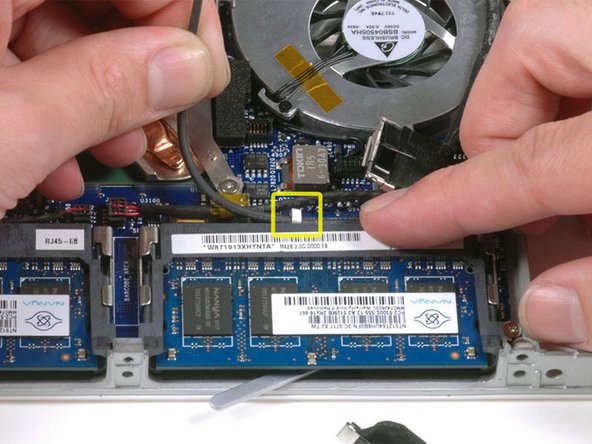
    • Lift up on the black right speaker cable with one hand, and deroute the microphone cable from the silver metal clip just above the right RAM slot.

    • This metal clip may not be present in all models. Be sure that the cable is free from any hold downs around this area before proceeding.

    Add Comment

  29. MacBook Core 2 Duo Lower Case Replacement: step 29, image 1 of 1
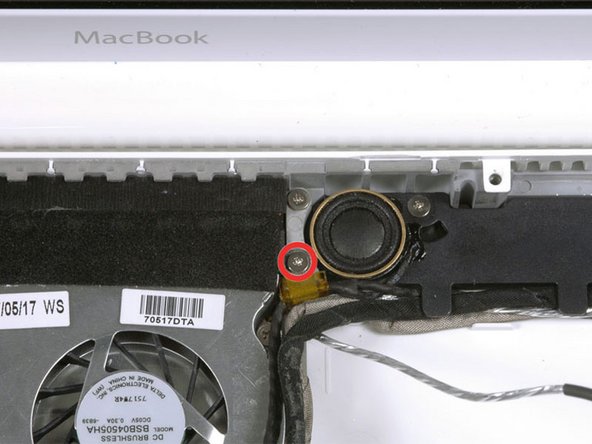
    • If you didn't remove the ground loop screw in step 20 above, remove it now. It's a 7 mm (may be 4.2 mm in Santa Rosa/Penryn models) Phillips screw securing the ground loop in the right speaker cable and microphone cable to the metal framework.

    Add Comment

  30. MacBook Core 2 Duo Lower Case Replacement: step 30, image 1 of 1
    • Deroute the microphone cable and the black display data cable from the tabs at the bottom of the subwoofer.

    Add Comment

  31. MacBook Core 2 Duo Lower Case Replacement: step 31, image 1 of 1
    • Remove the single 3 mm Phillips screw securing the ground loop in the display data cable located just above the Bluetooth board.

    Add Comment

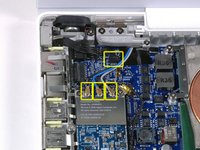
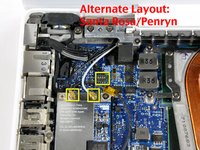
  32. MacBook Core 2 Duo Lower Case Replacement: step 32, image 1 of 2 MacBook Core 2 Duo Lower Case Replacement: step 32, image 2 of 2
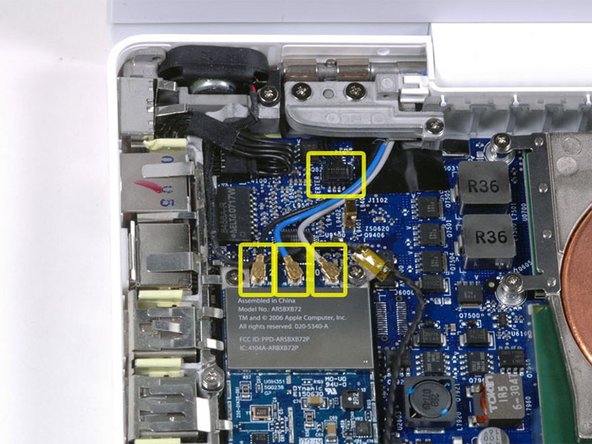
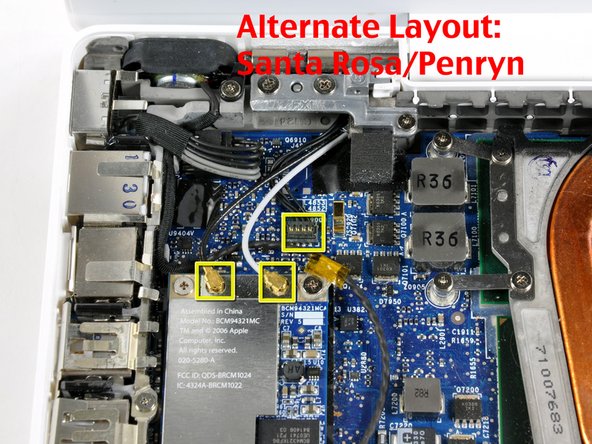
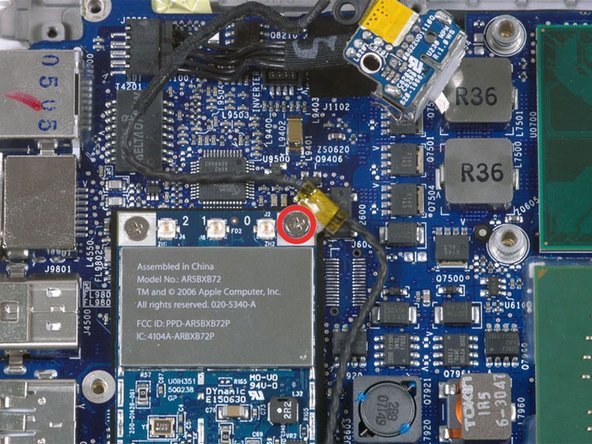
    • Disconnect the three antenna cables from the Airport card. There may be a square foam piece over the logic board connector.

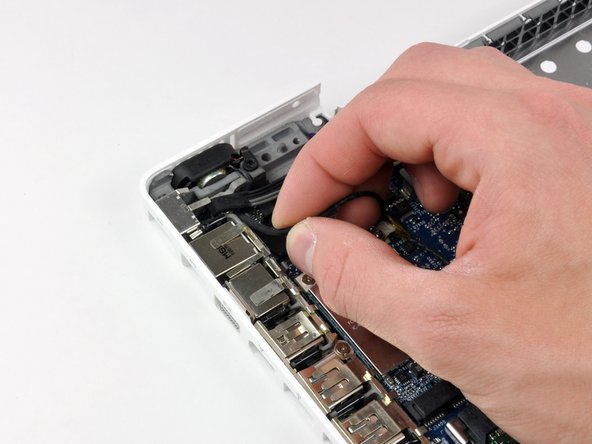
    • Disconnect the inverter cable from the socket by inserting the spudger between the right or left edge of the plug and the socket, and prying gently upward. (Do NOT pry the entire socket off the board... you must pull the plug from within the socket.) The inverter plug lifts vertically out of the socket. Do not pull it in the direction of the connecting wires or you will tear the socket off.

    • If you have a MacBook Core 2 Duo Santa Rosa/Penryn, there are only two antenna cables and the black inverter cable is in a different location.

    Add Comment

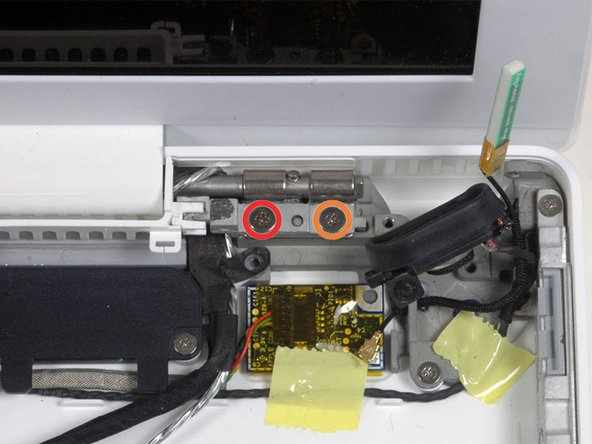
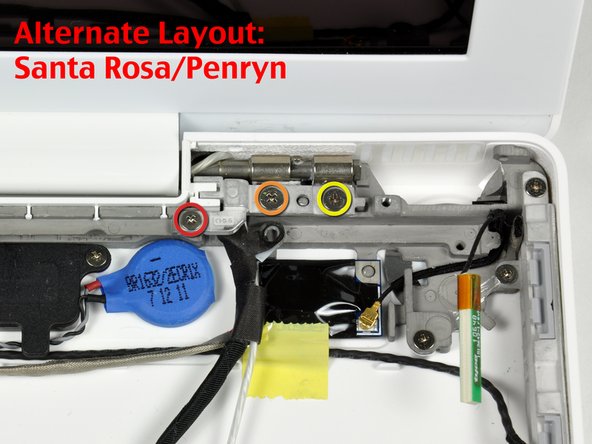
  33. MacBook Core 2 Duo Lower Case Replacement: step 33, image 1 of 2 MacBook Core 2 Duo Lower Case Replacement: step 33, image 2 of 2
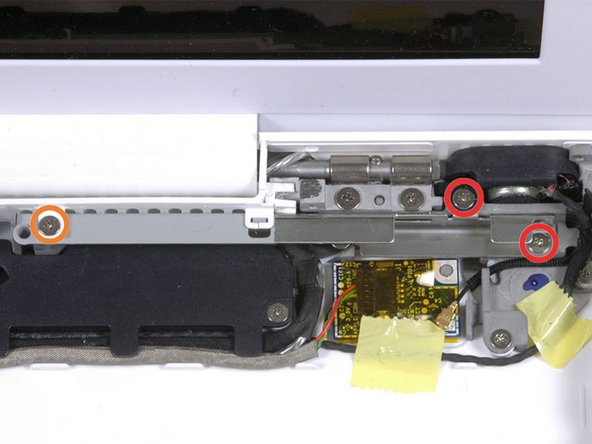
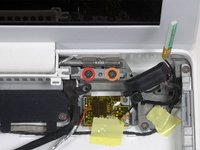
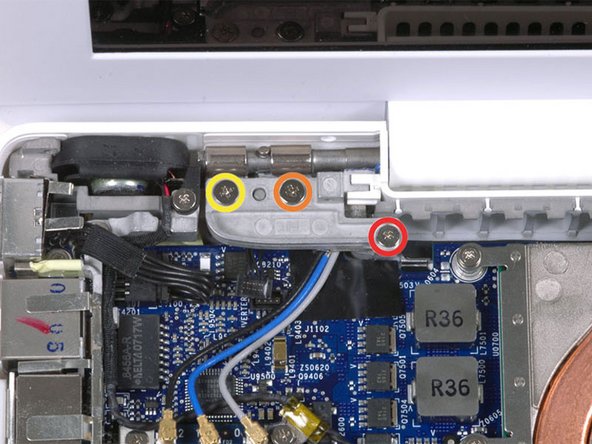
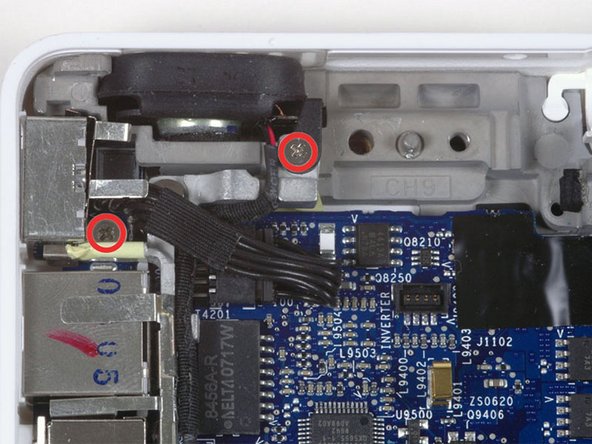
    • Remove the following 2 screws from the right hinge mount:

    • One 6 mm Phillips on the left side of the hinge mount.

    • One 10 mm Phillips on the right side of the hinge mount.

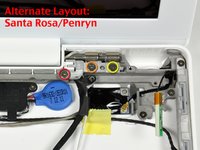
    • For Santa Rosa/Penryn models, see second picture and remove:

    • One 3 mm smalller diameter Phillips on the far left.

    • One 5.2 mm larger diameter 4.2 mm head Phillips in the middle.

    • One 10 mm Phillips from the far right.

    • Lift the right hinge mount with the small plastic piece out of the computer.

    Add Comment

  34. MacBook Core 2 Duo Lower Case Replacement: step 34, image 1 of 1
    • Hold the display with one hand while removing the screws from the left hinge mount.

    • Remove the following 3 screws from the left hinge mount:

    • One 7.2 mm smaller diameter Phillips from the right side.

    • One 5.2 mm larger diameter Phillips from the middle.

    • One 10 mm Phillips from the left side.

    • Lift the left hinge mount with plastic piece out of the computer.

    • Check that the cables on the right are not trapped under other cables.

    Add Comment

  35. MacBook Core 2 Duo Lower Case Replacement: step 35, image 1 of 1
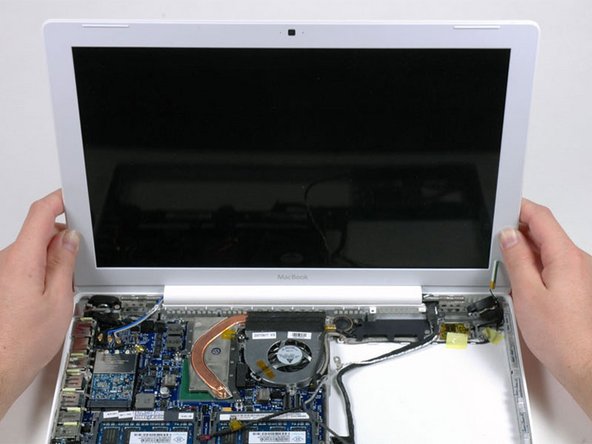
    • Grasp the display assembly on either side, and lift it up and out of the computer.

    Add Comment

  36. MacBook Core 2 Duo Lower Case Replacement: step 36, image 1 of 1
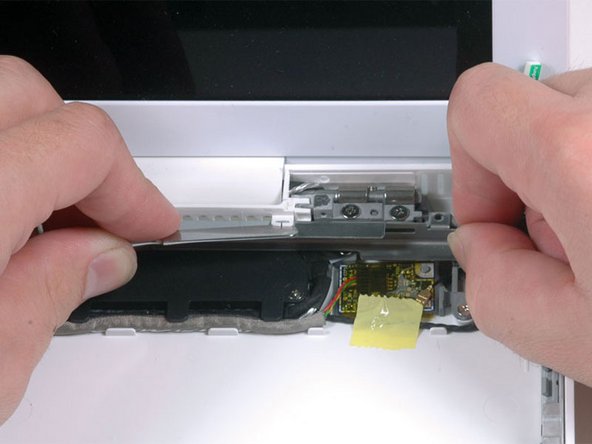
    • Peel up the small black rubber cover from the right side of the heat sink.

    • This cover may not be present on Santa Rosa/Penryn models.

    Add Comment

  37. MacBook Core 2 Duo Lower Case Replacement: step 37, image 1 of 2 MacBook Core 2 Duo Lower Case Replacement: step 37, image 2 of 2
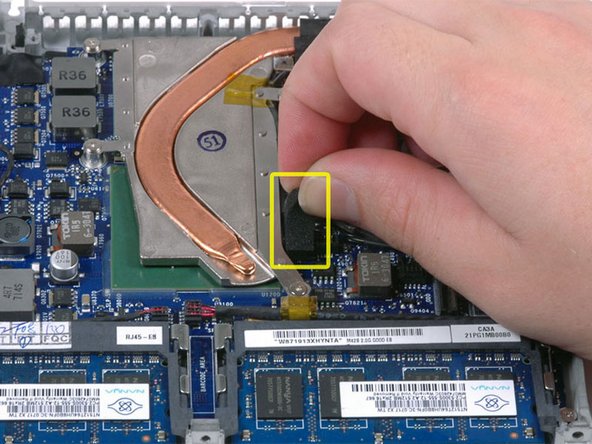
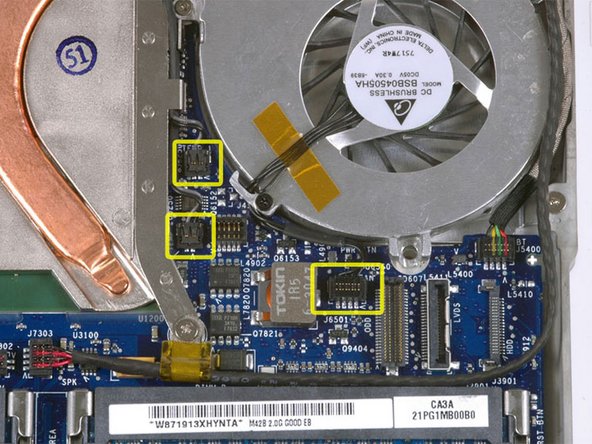
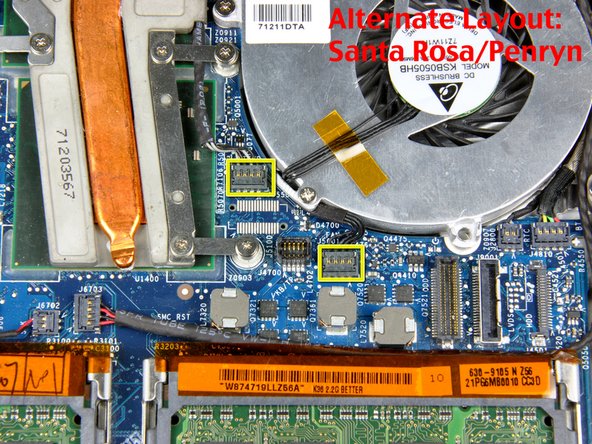
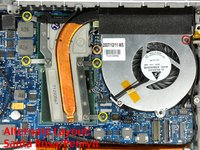
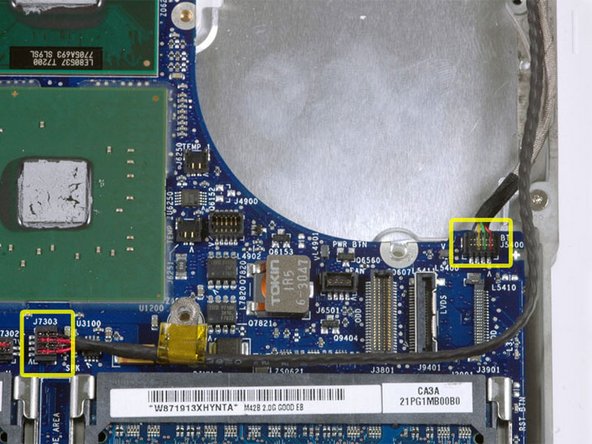
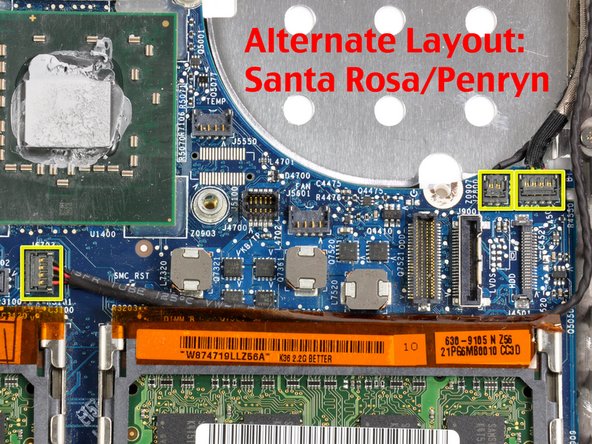
    • Disconnect the two newly-revealed temperature sensor connectors and the fan connector from the logic board. These connectors move up, not towards the rear of the case, and can be lifted with gentle pressure from under the cable.

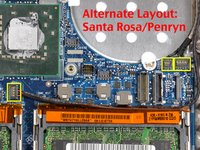
    • On Santa Rosa/Penryn models, there is only one temperature sensor connector containing all four leads. See second picture.

    Add Comment

  38. MacBook Core 2 Duo Lower Case Replacement: step 38, image 1 of 2 MacBook Core 2 Duo Lower Case Replacement: step 38, image 2 of 2
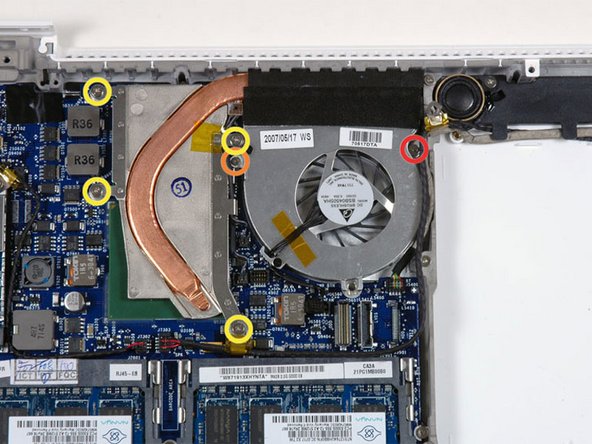
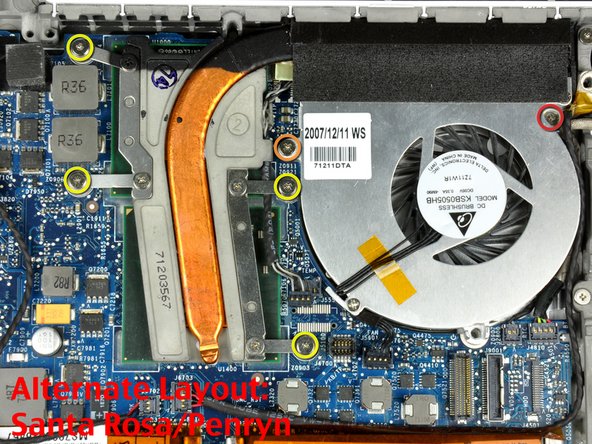
    • Remove the following 6 screws:

    • One 3 mm Phillips on the right side of the fan.

    • One 6 mm Phillips on the left side of the fan.

    • Four 9 mm Phillips securing the heat sink to the lower case.

    • On Santa Rosa/Penryn models, the heat sink has a slightly different bolt pattern. See second picture.

    Add Comment

  39. MacBook Core 2 Duo Lower Case Replacement: step 39, image 1 of 1
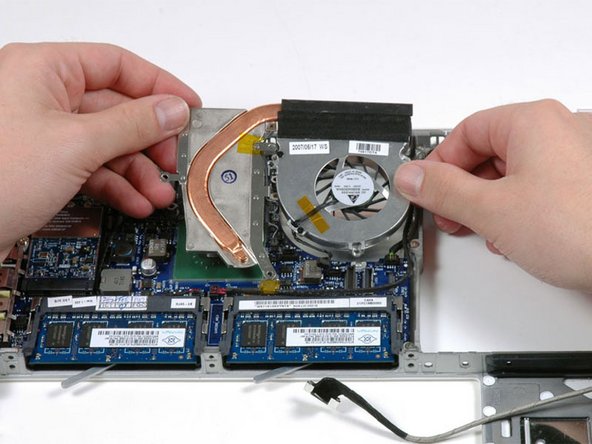
    • Hold the heat sink with one hand and the fan with your other hand, and lift the heat sink and fan assembly out of the computer. The fan is attached to the heat sink only with a strip of black felt tape, so be sure to remove both parts as a unit.

    • If you need to mount the heat sink back into the laptop, we have a thermal paste guide that makes replacing the thermal compound easy.

    Add Comment

  40. MacBook Core 2 Duo Lower Case Replacement: step 40, image 1 of 1
    • Remove the two Phillips screws securing the MagSafe board and the left speaker to the lower case.

    Add Comment

  41. MacBook Core 2 Duo Lower Case Replacement: step 41, image 1 of 1
    • De-route the left speaker cable from the two clips on the left I/O frame.

    Add Comment

  42. MacBook Core 2 Duo Lower Case Replacement: step 42, image 1 of 2 MacBook Core 2 Duo Lower Case Replacement: step 42, image 2 of 2
    • Use a spudger to lift the left speaker out of its housing. Grasp it with your fingers and set it aside.

    • The left speaker cable is still connected to the logic board.

    Add Comment

    • Disconnect the MagSafe board connector from the logic board.

    Add Comment

    • Use your left hand to move the MagSafe board cables enough to uncover the screw at the top end of the left I/O frame.

    • Remove the 7.5 mm Phillips screw from the top end of the left I/O frame.

    Add Comment

  43. MacBook Core 2 Duo Lower Case Replacement: step 45, image 1 of 1
    • Remove the following 2 screws:

    • One 7.5 mm Phillips from the bottom end of the left I/O frame.

    • One 9 mm Phillips from the middle of the left I/O frame.

    • If present, remove the black plastic spacer at the bottom of the left I/O frame.

    Add Comment

  44. MacBook Core 2 Duo Lower Case Replacement: step 46, image 1 of 1
    • Lift the left I/O frame up and out of the computer. Pay attention to the thin metal EMI fingers, as they may catch as you remove the left I/O frame.

    Add Comment

  45. MacBook Core 2 Duo Lower Case Replacement: step 47, image 1 of 1
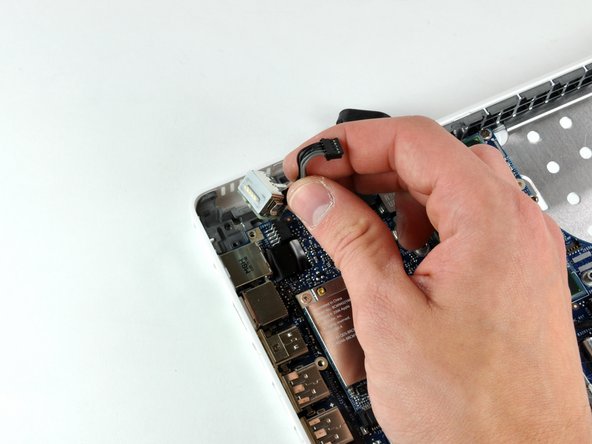
    • The MagSafe board is now free of all connections and can be deteached freely from the logic board.

    • Using your fingers, pull out the MagSafe board.

    Add Comment

  46. MacBook Core 2 Duo Lower Case Replacement: step 48, image 1 of 1
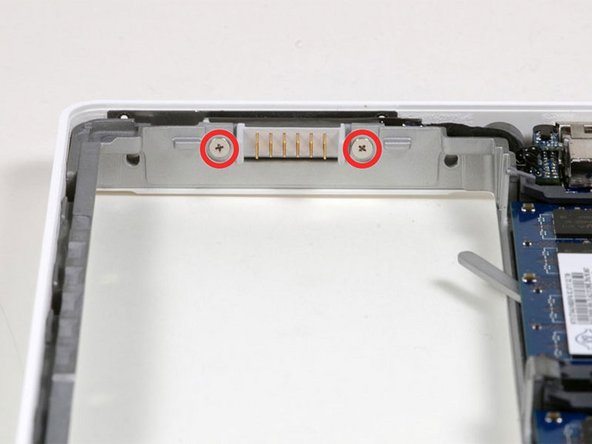
    • Remove the two Phillips screws attaching the battery connector to the lower case.

    Add Comment

  47. MacBook Core 2 Duo Lower Case Replacement: step 49, image 1 of 1
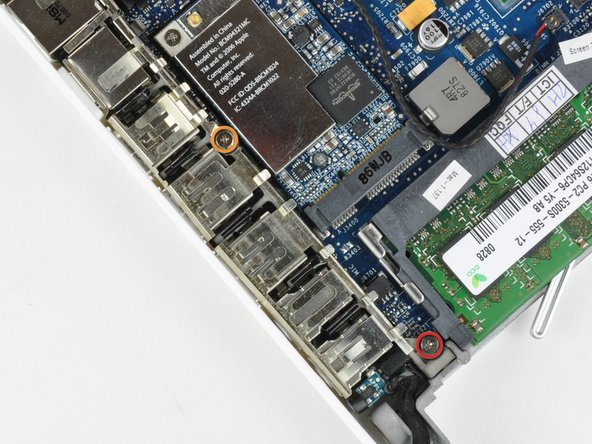
    • Remove the single Phillips screw in the upper right corner of the Airport card.

    Add Comment

  48. MacBook Core 2 Duo Lower Case Replacement: step 50, image 1 of 2 MacBook Core 2 Duo Lower Case Replacement: step 50, image 2 of 2
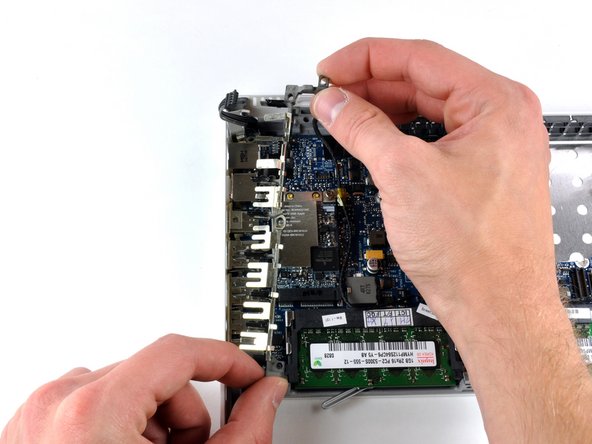
    • Use a spudger to disconnect the right speaker connector and Bluetooth connector from the logic board.

    • On Santa Rosa/Penryn models, the PRAM battery connector must also be removed. See second picture.

    Add Comment

  49. MacBook Core 2 Duo Lower Case Replacement: step 51, image 1 of 1
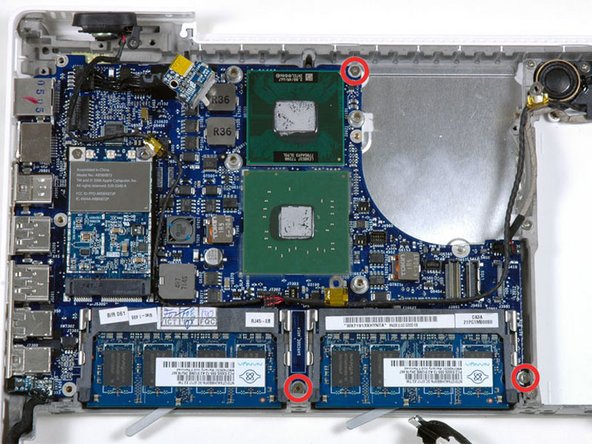
    • Remove the three Phillips screws securing the logic board to the lower case.

    Add Comment

  50. MacBook Core 2 Duo Lower Case Replacement: step 52, image 1 of 1
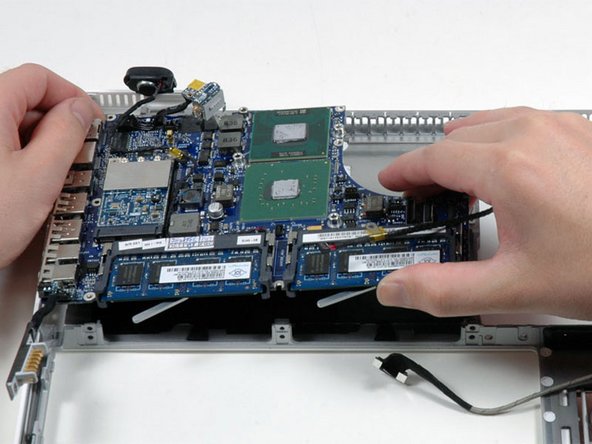
    • Lift the logic board up from the right side, and slide it up and out of the computer. Be careful that the right speaker, MagSafe board, and battery connector don't catch on the lower case.

    Add Comment

  51. MacBook Core 2 Duo Lower Case Replacement: step 53, image 1 of 2 MacBook Core 2 Duo Lower Case Replacement: step 53, image 2 of 2
    • Remove the two Phillips screws securing the subwoofer to the lower case.

    • On the Santa Rosa/Penryn models, the screw pattern is slightly different. See second picture.

    Add Comment

  52. MacBook Core 2 Duo Lower Case Replacement: step 54, image 1 of 1
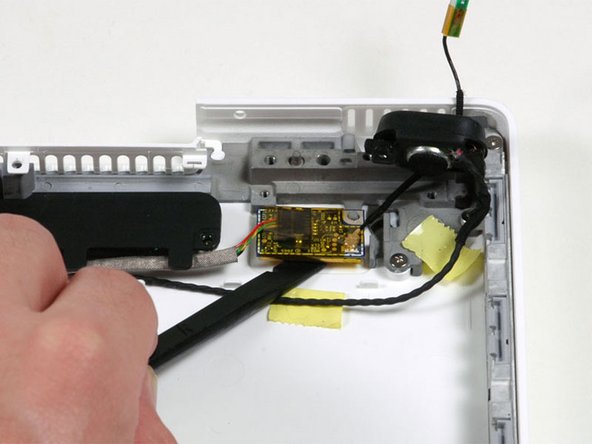
    • Deroute the right speaker and Bluetooth antenna cables from their slots in the lower case.

    Add Comment

  53. MacBook Core 2 Duo Lower Case Replacement: step 55, image 1 of 1
    • Pry the Bluetooth board up from the lower case.

    • Lift the subwoofer, right speaker, Bluetooth board, and attached cables out of the computer.

    Add Comment

  54. MacBook Core 2 Duo Lower Case Replacement: step 56, image 1 of 1
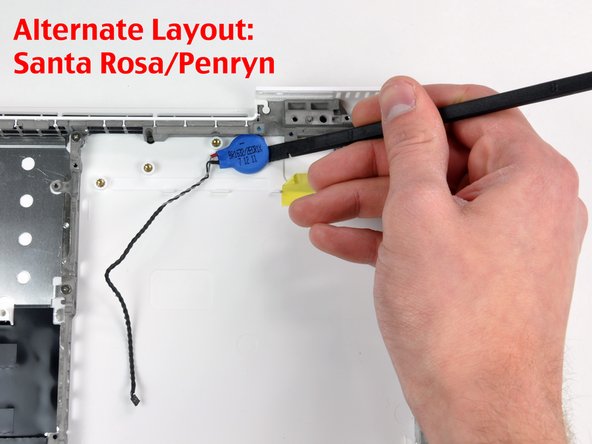
    • On Santa Rosa/Penryn models, use a spudger to pry up the PRAM battery and remove it from the lower case.

    • If you are not disassembling a Santa Rosa/Penryn, skip this step.

    Add Comment

  55. MacBook Core 2 Duo Lower Case Replacement: step 57, image 1 of 1
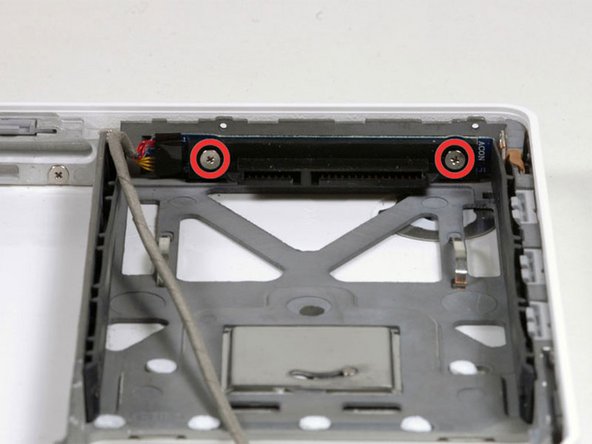
    • Remove the two Phillips screws securing the hard drive connector to the lower case.

    Add Comment

  56. MacBook Core 2 Duo Lower Case Replacement: step 58, image 1 of 1
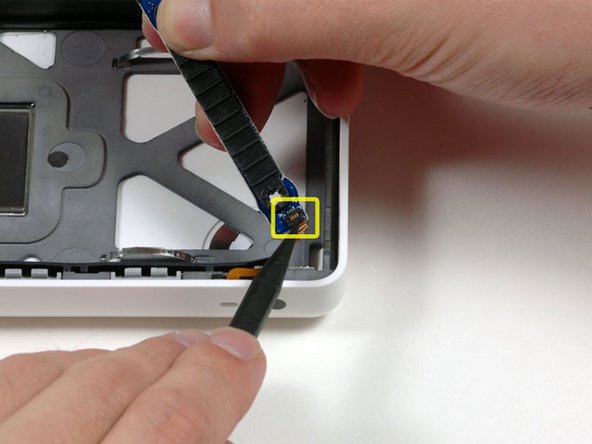
    • Carefully lift the hard drive connector out of the case slightly, and turn it over to reveal the IR sensor connector beneath. Use a spudger to flip up the tiny bar holding the cable in place.

    • Slide the orange IR sensor cable out of its connector, and lift the hard drive connector out of the computer.

    Add Comment

  57. MacBook Core 2 Duo Lower Case Replacement: step 59, image 1 of 1
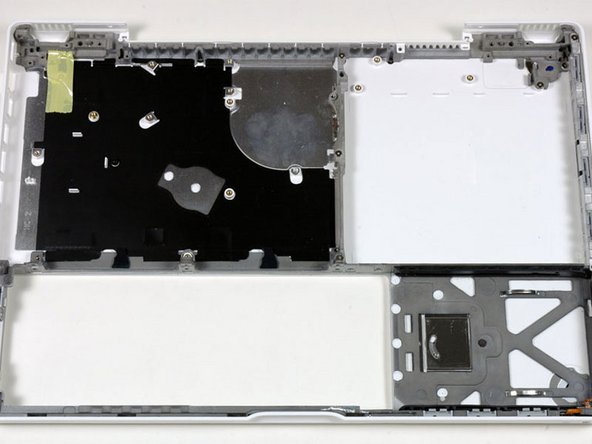
    • Lower case remains.

    Add Comment

Conclusion

To reassemble your device, follow these instructions in reverse order.

Cancel: I did not complete this guide.

System

Member since: 09/24/09

2,562 Guides authored

0 Guide Comments

Add Comment

View Statistics:

Past 24 Hours: 0

Past 7 Days: 0

Past 30 Days: 0

All Time: 25