MacBook Core Duo Optical Drive Bezel Replacement

What you need

  1. MacBook Core Duo Optical Drive Bezel Replacement, MacBook Core Duo Optical Drive Bezel Replacement: step 1, image 1 of 1
    • Use a coin to rotate the battery-locking screw 90 degrees clockwise.

    Add Comment

  2. MacBook Core Duo Optical Drive Bezel Replacement: step 2, image 1 of 1
    • Lift the battery out of the computer.

    Add Comment

  3. MacBook Core Duo Optical Drive Bezel Replacement: step 3, image 1 of 1
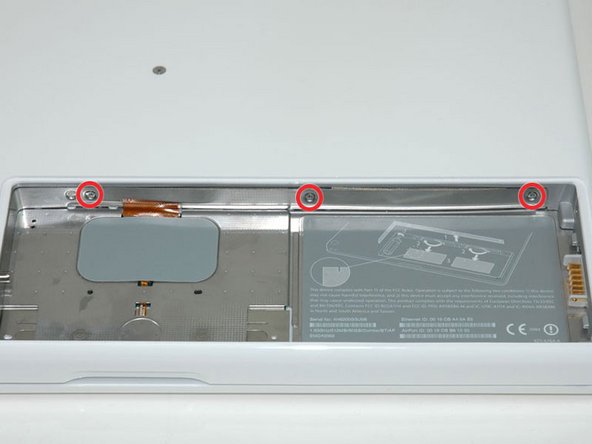
    • Remove the three evenly-spaced Phillips screws from along the rear wall of the battery compartment.

    • The screws are captive to the metal memory cover.

    • When replacing the battery casing, use a spudger to re-insert the foam cushioning behind the rear wall for propper battery spacing.

    Add Comment

  4. MacBook Core Duo Optical Drive Bezel Replacement: step 4, image 1 of 1
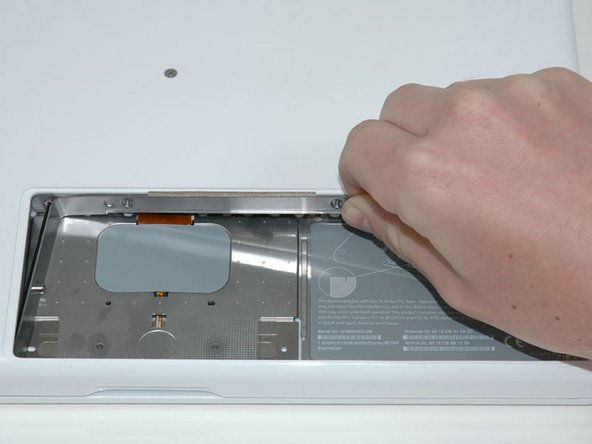
    • Lift up on L-shaped memory cover, slide it to the right, and lift it out of the computer.

    Add Comment

  5. MacBook Core Duo Optical Drive Bezel Replacement: step 5, image 1 of 1
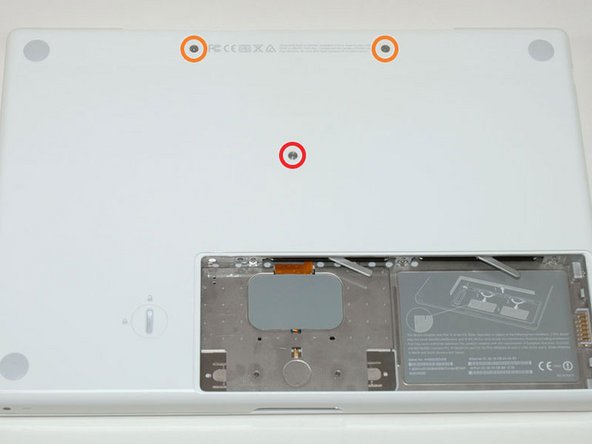
    • Remove the following 3 screws:

    • One 11 mm Phillips #00 in the middle of the case.

    • Two 14.5 mm Phillips #00.

    • If the screws stick in the case, you can use a magnetized screwdriver to draw them out.

    • The shorter of the three screws goes in the middle.

    Add Comment

  6. MacBook Core Duo Optical Drive Bezel Replacement: step 6, image 1 of 1
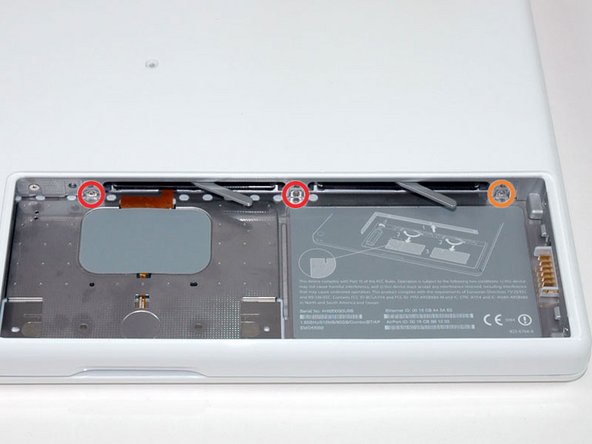
    • Remove the following 3 screws from the rear wall of the battery compartment:

    • Two 3 mm Phillips #00. (A1181 has three 3 mm screws and one 4 mm.)

    • One 4 mm Phillips #00 on the right side.

    • When reinstalling these screws, press gently on the lower case to line up the screw holes.

    Add Comment

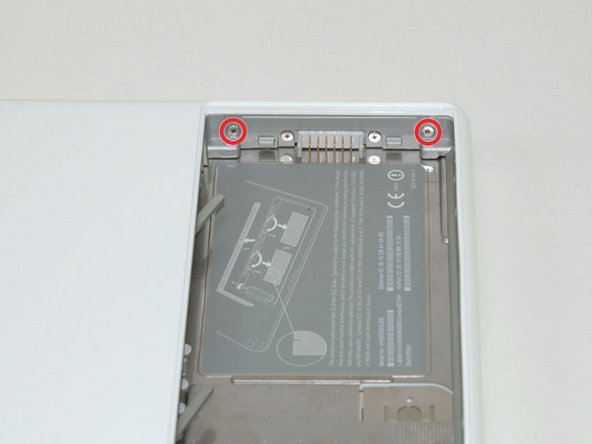
  7. MacBook Core Duo Optical Drive Bezel Replacement: step 7, image 1 of 1
    • Remove the two 6 mm Phillips #00 screws from either side of the right wall of the battery compartment (not the ones closest to the battery connector).

    Add Comment

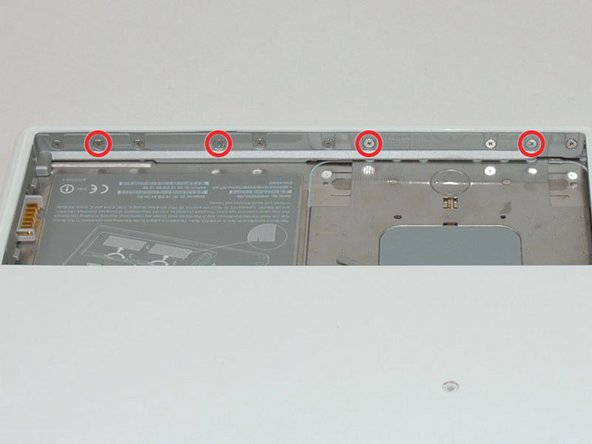
  8. MacBook Core Duo Optical Drive Bezel Replacement: step 8, image 1 of 1
    • Remove the four 3 mm indicated Phillips #00 screws from the front wall of the battery compartment. When working from the left, remove the 2nd, 4th, 7th and 9th screw.

    Add Comment

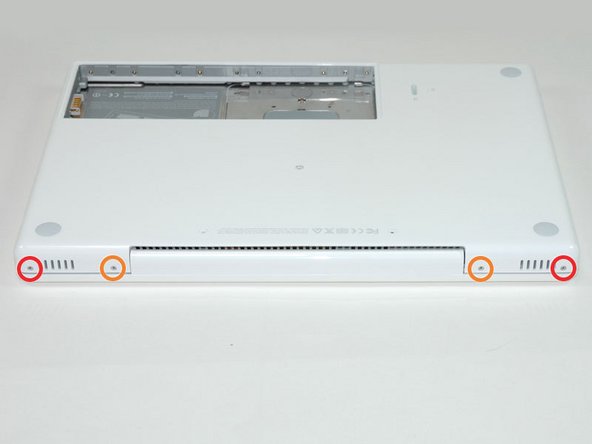
  9. MacBook Core Duo Optical Drive Bezel Replacement: step 9, image 1 of 1
    • Remove the following 4 screws from the back of the computer:

    • Two 7 mm shouldered Phillips on the far sides.

    • Two 10.5 mm Phillips toward the center.

    • Do not over-tighten these; you can cause the case to distort.

    Add Comment

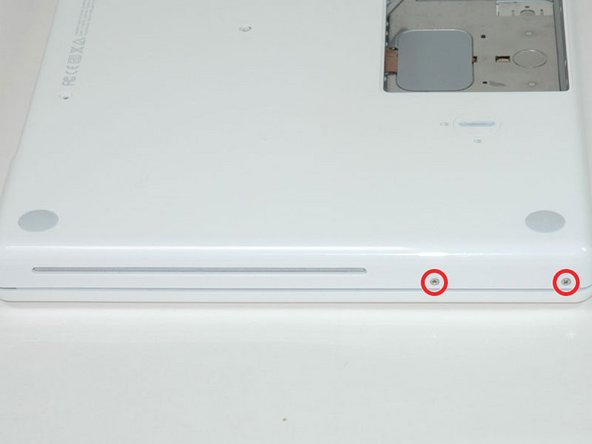
  10. MacBook Core Duo Optical Drive Bezel Replacement: step 10, image 1 of 1
    • Remove the two 5.2 mm shouldered Phillips #00 screws from the optical side of the computer.

    • It is not necessary to remove the similar screws on the other side of the computer.

    Add Comment

  11. MacBook Core Duo Optical Drive Bezel Replacement: step 11, image 1 of 1
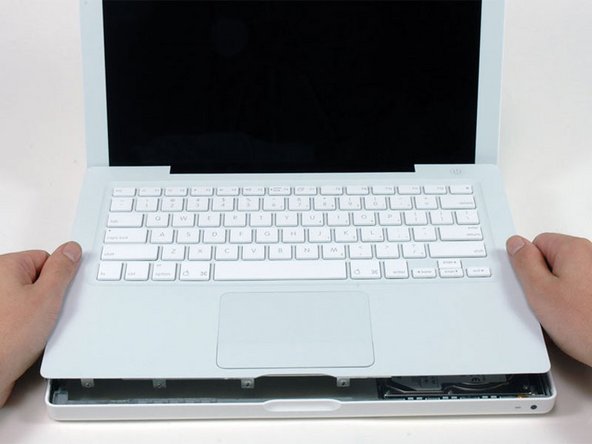
    • Starting near the display and working around to the front of the computer, pry up on the upper case. It is held with clips on the right above the optical drive. These will release with some firm lifting pressure.

    • Be careful when prying up the upper case. It's very easy to slice open a fingertip and thus provide the blood sacrifice the Mac gods sometimes require of those who insist on doing their own repairs.

    • There's a trackpad and keyboard ribbon connecting the upper case to the logic board, so don't pull the upper case off entirely just yet.

    • If you have trouble getting the clips to release, be careful that you are not prying the plastic top of the upper case away from its metal frame.

    Add Comment

  12. MacBook Core Duo Optical Drive Bezel Replacement: step 12, image 1 of 2 MacBook Core Duo Optical Drive Bezel Replacement: step 12, image 2 of 2
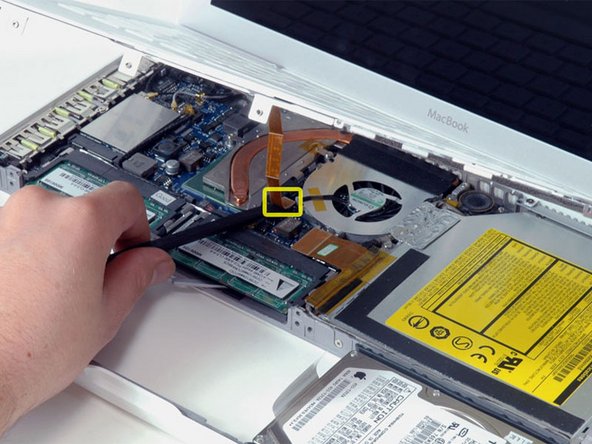
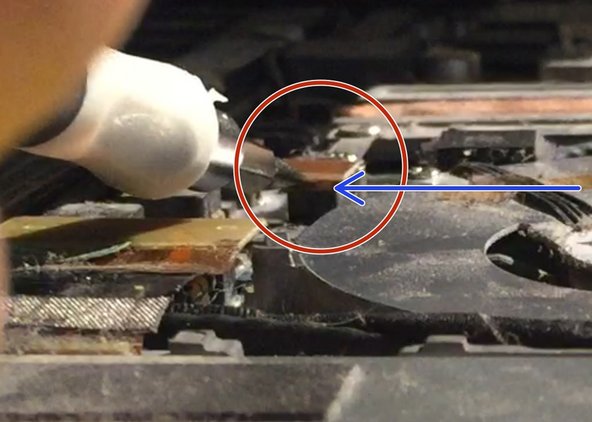
    • While holding up the upper case (from the bottom or the top), use a spudger to pry up the orange trackpad and keyboard cable from its connector.

    • Take care to pry between the black socket and the white connector. You might have to pry on both sides for it to release properly.

    • Do not pry from the bottom or the top, but from the sides.

    • If you happen to break your upper case cable when removing the upper case, we stock the individually and we have a [invalid guide link] that makes replacing it easy.

    Add Comment

  13. MacBook Core Duo Optical Drive Bezel Replacement: step 13, image 1 of 1
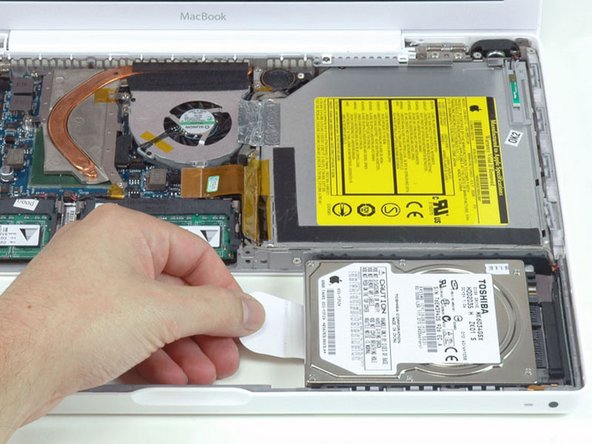
    • Grasp the white plastic tab attached to the hard drive and pull it to the left, removing the hard drive from the computer.

    Add Comment

  14. MacBook Core Duo Optical Drive Bezel Replacement: step 14, image 1 of 1
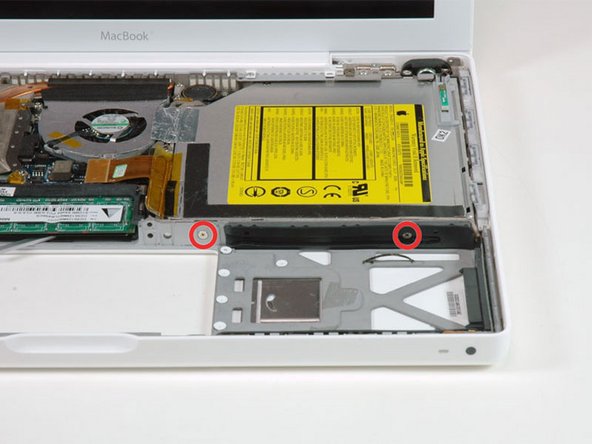
    • Remove the two Phillips screws from the front edge of the optical drive.

    • The shorter screw (3 mm) is recessed nearest the RAM modules. The other is 3.5 mm.

    Add Comment

  15. MacBook Core Duo Optical Drive Bezel Replacement: step 15, image 1 of 1
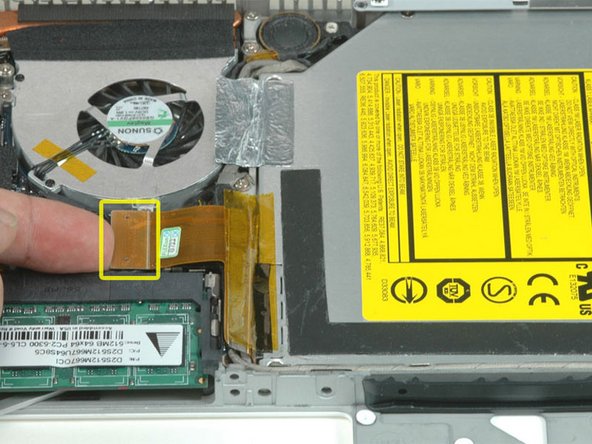
    • Disconnect the orange optical drive ribbon cable from the logic board.

    Add Comment

  16. MacBook Core Duo Optical Drive Bezel Replacement: step 16, image 1 of 1
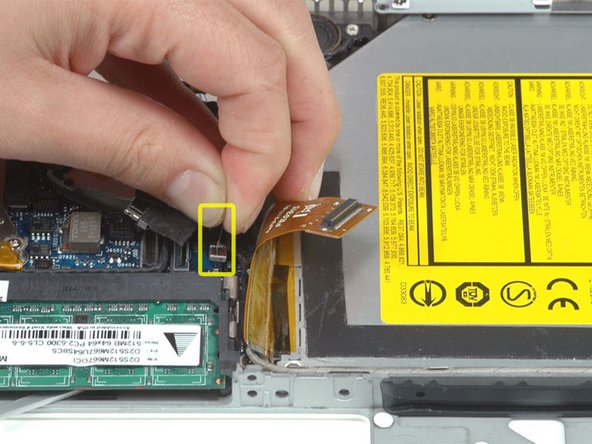
    • Disconnect the newly-revealed display data cable. If there is no pull-tab on the top of the connector, it may be helpful to use a spudger to disconnect this connector.

    Add Comment

  17. MacBook Core Duo Optical Drive Bezel Replacement: step 17, image 1 of 1
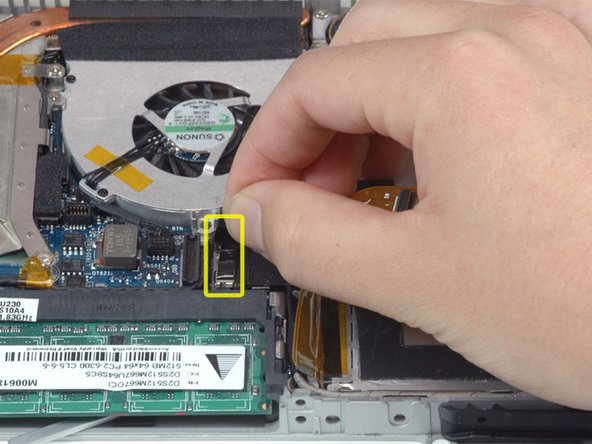
    • Disconnect the (once again) newly-revealed hard drive cable.

    Add Comment

  18. MacBook Core Duo Optical Drive Bezel Replacement: step 18, image 1 of 1
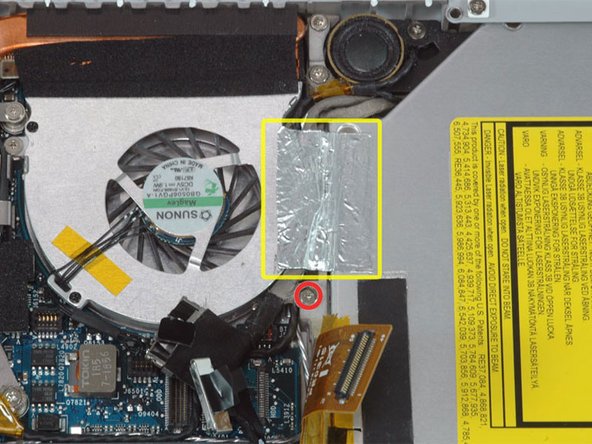
    • Peel up the foil tape between the fan and the optical drive.

    • Remove the 8.5 mm Phillips screw securing the display data cable to the metal framework.

    Add Comment

  19. MacBook Core Duo Optical Drive Bezel Replacement: step 19, image 1 of 1
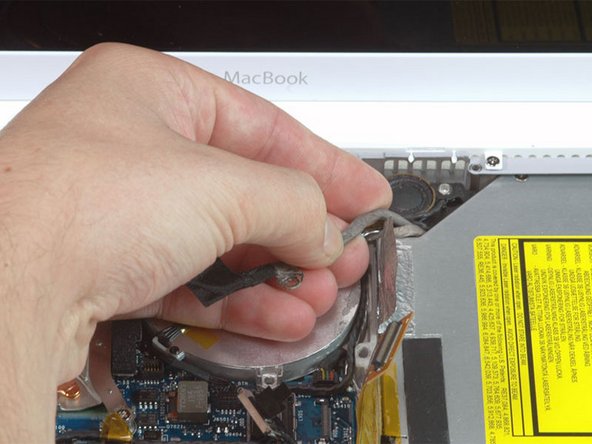
    • Pull up the display data cable from along the edge of the optical drive to reveal a silver Phillips screw.

    Add Comment

  20. MacBook Core Duo Optical Drive Bezel Replacement: step 20, image 1 of 1
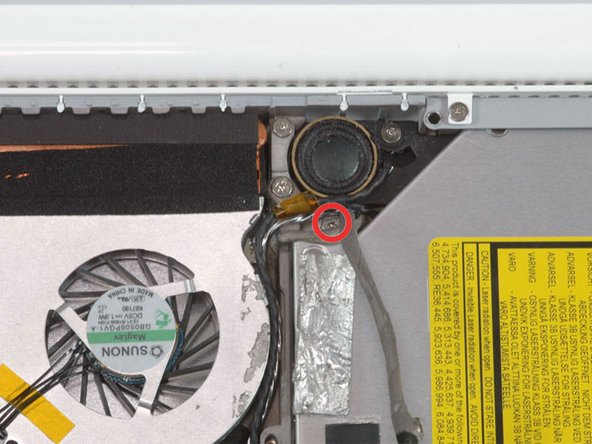
    • Remove the 2.8 mm Phillips screw securing the optical drive.

    • The Bluetooth cable may be covering the screw; carefully push it aside before removing the screw.

    • Do not over-tighten this screw when re-mounting. You could break the plastic enclosure.

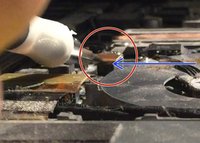
    • After removing the screw, push the metal tab backwards, towards the fan, to release the front of the optical drive.

    Add Comment

  21. MacBook Core Duo Optical Drive Bezel Replacement: step 21, image 1 of 1
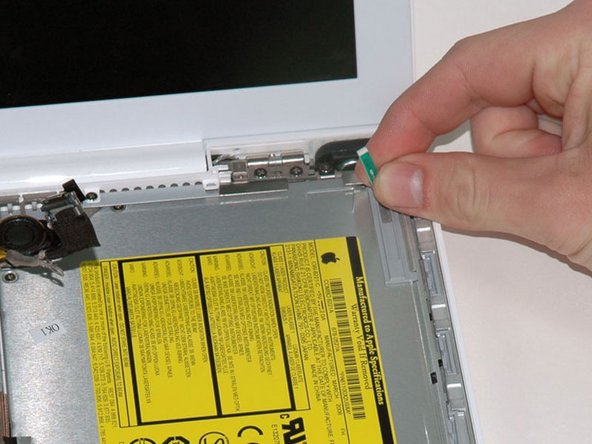
    • Lift the Bluetooth antenna board from the right side of the optical drive.

    Add Comment

    • Deroute the hard drive cable from along the front of the optical drive.

    Add Comment

  22. MacBook Core Duo Optical Drive Bezel Replacement: step 23, image 1 of 1
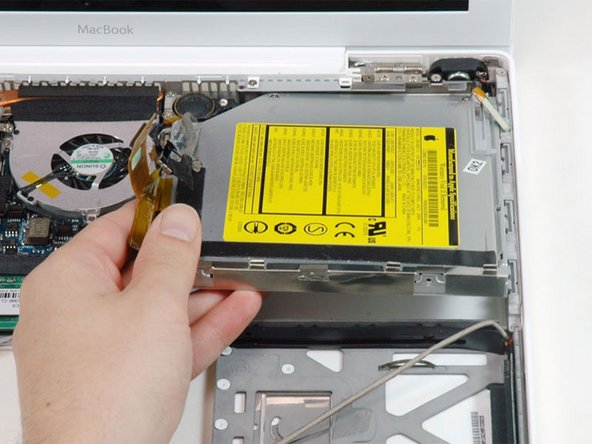
    • Lift the front edge of the optical drive and slide it up and out of the computer.

    Add Comment

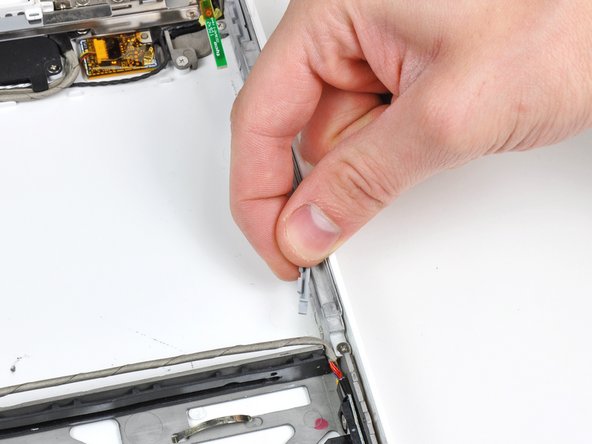
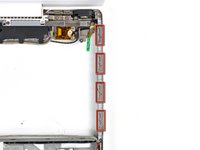
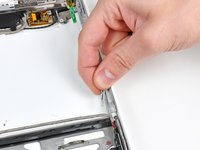
  23. MacBook Core Duo Optical Drive Bezel Replacement: step 24, image 1 of 2 MacBook Core Duo Optical Drive Bezel Replacement: step 24, image 2 of 2
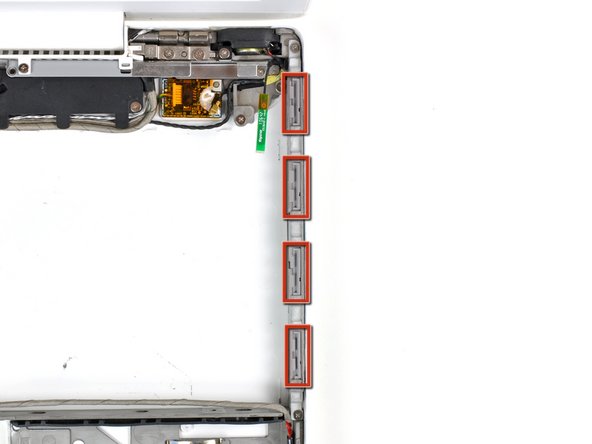
    • There are four plastic upper case clips installed in the aluminum framework above the optical drive opening. It is recommended to remove these clips before attempting to remove the optical drive bezel.

    • To remove the clips, simply slide them out of the aluminum framework away from the side of the lower case.

    Add Comment

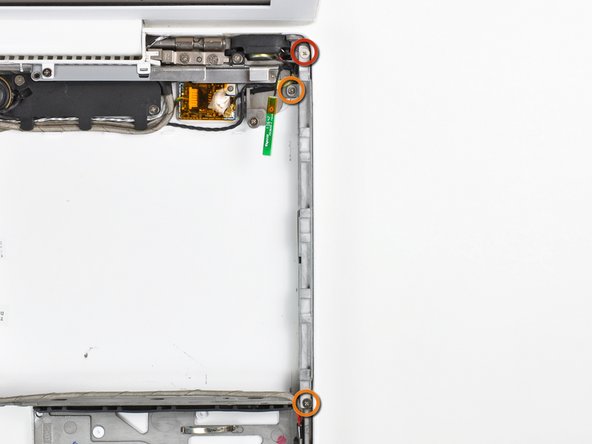
  24. MacBook Core Duo Optical Drive Bezel Replacement: step 25, image 1 of 1
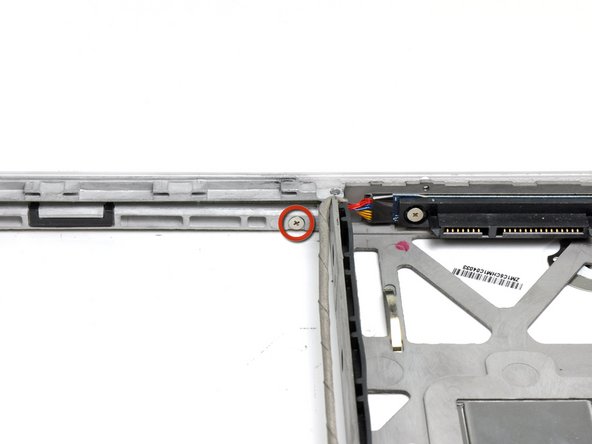
    • Remove the following three #00 screws:

    • One 5.7 mm Phillips screw

    • Two 3.1 mm Phillips screws

    Add Comment

  25. MacBook Core Duo Optical Drive Bezel Replacement: step 26, image 1 of 1
    • Remove the single 3.1 mm Phillips screw below the inside of the optical drive opening.

    Add Comment

  26. MacBook Core Duo Optical Drive Bezel Replacement: step 27, image 1 of 2 MacBook Core Duo Optical Drive Bezel Replacement: step 27, image 2 of 2
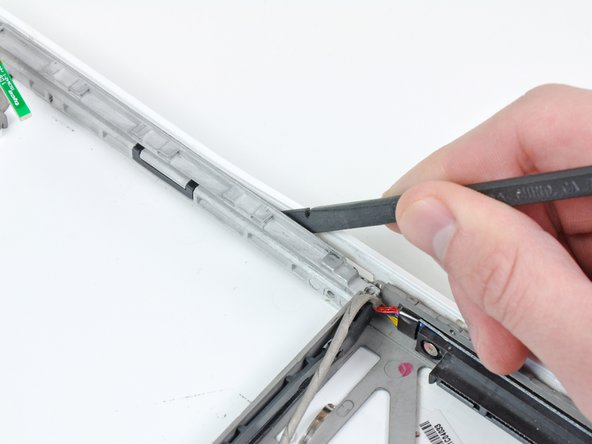
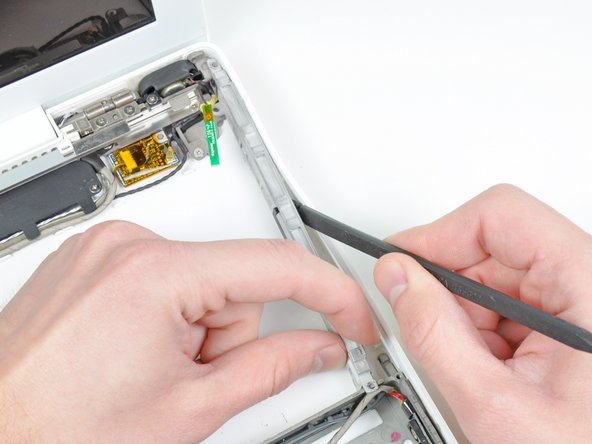
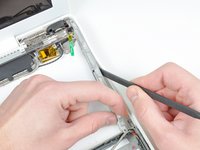
    • Insert the flat end of a spudger between the optical drive bezel and the plastic lower case.

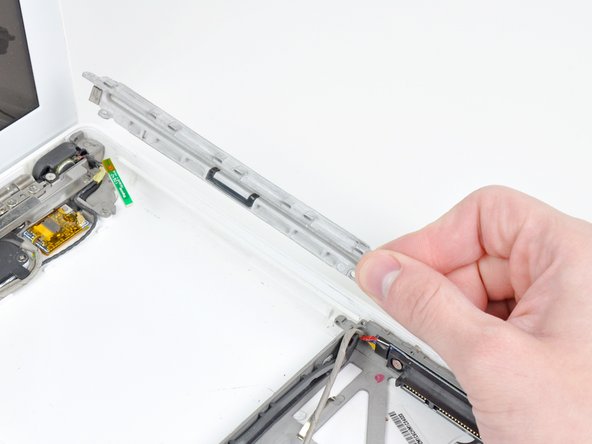
    • Gently pry the optical drive bezel away from the adhesive securing it to the lower case enough to lift the mounting ear near the hard drive connector above the metal framework.

    • Lift the optical drive bezel enough to clear the metal framework and continue separating it from the lower case with your spudger.

    Add Comment

  27. MacBook Core Duo Optical Drive Bezel Replacement: step 28, image 1 of 1
    • Remove the optical drive bezel from the lower case.

    Add Comment

Conclusion

To reassemble your device, follow these instructions in reverse order.

Cancel: I did not complete this guide.

System

Member since: 09/24/09

2,562 Guides authored

0 Guide Comments

Add Comment

View Statistics:

Past 24 Hours: 0

Past 7 Days: 0

Past 30 Days: 3

All Time: 18