MacBook Pro 13" Unibody Early 2011 Hard Drive Cable Replacement

What you need

  1. MacBook Pro 13" Unibody Early 2011 Hard Drive Cable Replacement, MacBook Pro 13" Unibody Early 2011 Hard Drive Cable Replacement: step 1, image 1 of 1
    • Remove the following ten screws:

    • Three 14.4 mm Phillips #00 screws

    • Three 3.5 mm Phillips #00 screws

    • Four 3.5 mm shouldered Phillips #00 screws

    Add Comment

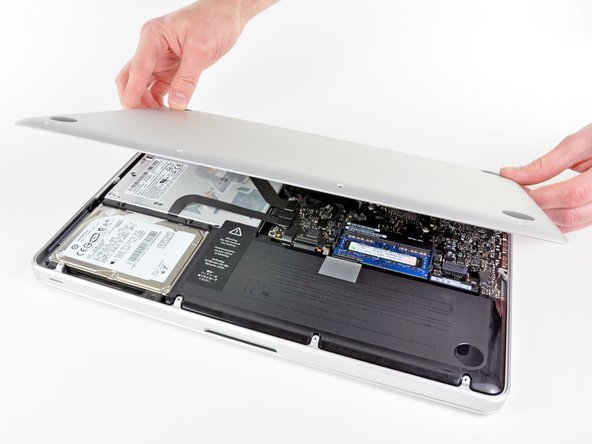
  2. MacBook Pro 13" Unibody Early 2011 Hard Drive Cable Replacement: step 2, image 1 of 2 MacBook Pro 13" Unibody Early 2011 Hard Drive Cable Replacement: step 2, image 2 of 2
    • Use your fingers to pry the lower case away from the body of the MacBook near the vent.

    • Remove the lower case.

    Add Comment

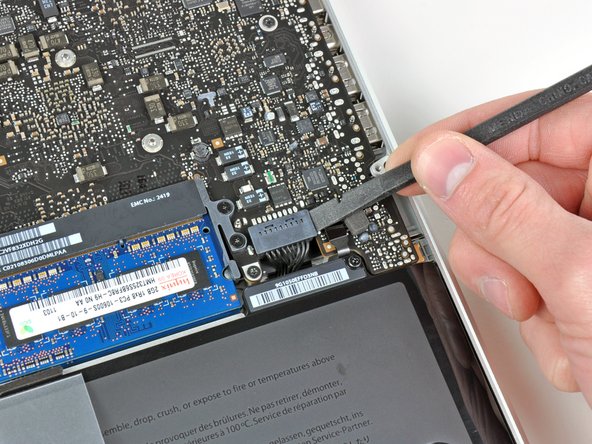
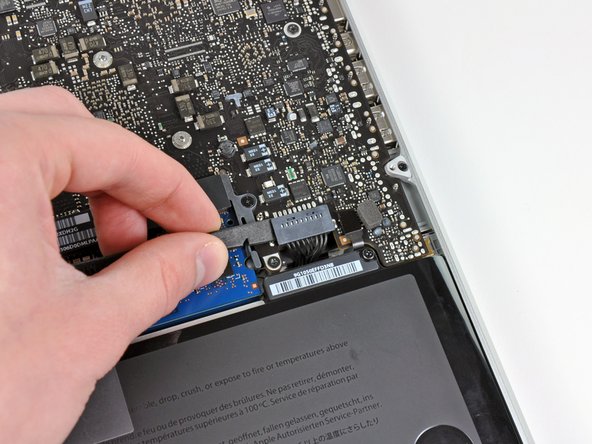
  3. MacBook Pro 13" Unibody Early 2011 Hard Drive Cable Replacement: step 3, image 1 of 2 MacBook Pro 13" Unibody Early 2011 Hard Drive Cable Replacement: step 3, image 2 of 2
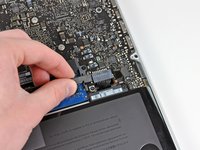
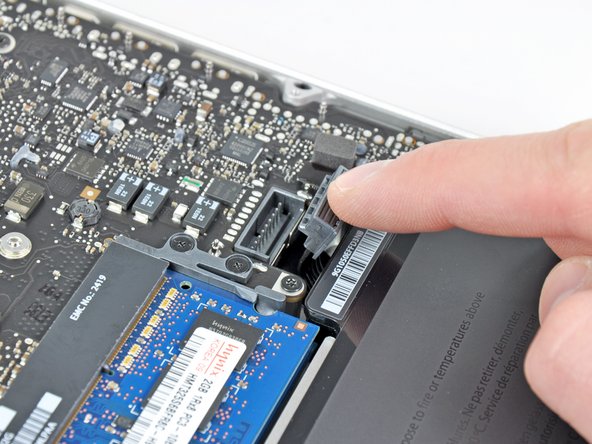
    • Use the edge of a spudger to pry the battery connector upwards from its socket on the logic board.

    • It is useful to pry upward on both short sides of the connector to "walk" it out of its socket. Be careful with the corners of the connectors, they can be easily broken off.

    Add Comment

  4. MacBook Pro 13" Unibody Early 2011 Hard Drive Cable Replacement: step 4, image 1 of 1
    • Bend the battery cable slightly away from its socket on the logic board so it does not accidentally connect itself while you work.

    Add Comment

  5. MacBook Pro 13" Unibody Early 2011 Hard Drive Cable Replacement: step 5, image 1 of 1
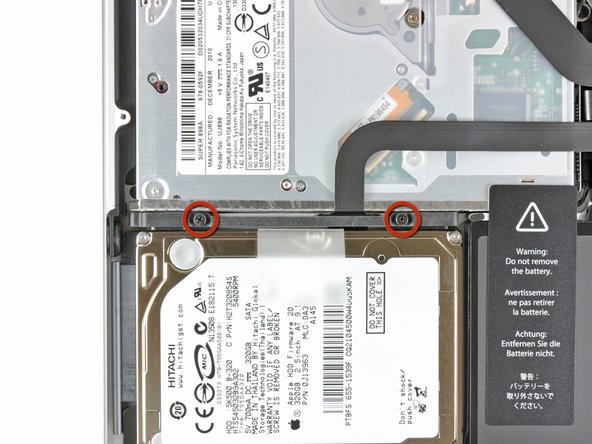
    • Remove the two Phillips screws securing the hard drive bracket to the upper case.

    • These screws will remain attached to the hard drive bracket.

    Add Comment

  6. MacBook Pro 13" Unibody Early 2011 Hard Drive Cable Replacement: step 6, image 1 of 1
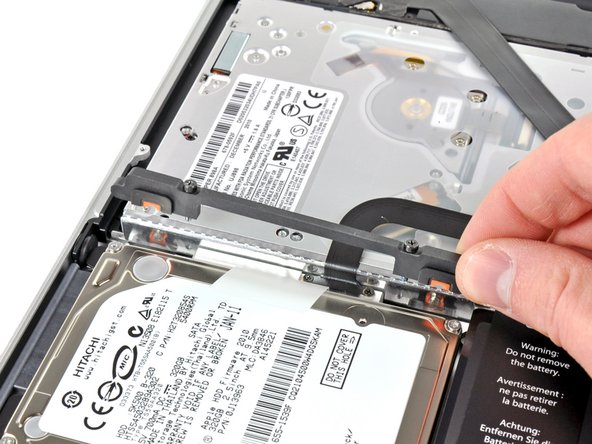
    • Remove the hard drive bracket.

    • The hard drive bracket may be firmly seated against the upper case.

    Add Comment

  7. MacBook Pro 13" Unibody Early 2011 Hard Drive Cable Replacement: step 7, image 1 of 1
    • Use the attached pull tab to lift the hard drive out of the upper case.

    • Don't try to completely remove the hard drive just yet. It is still attached to the hard drive cable.

    Add Comment

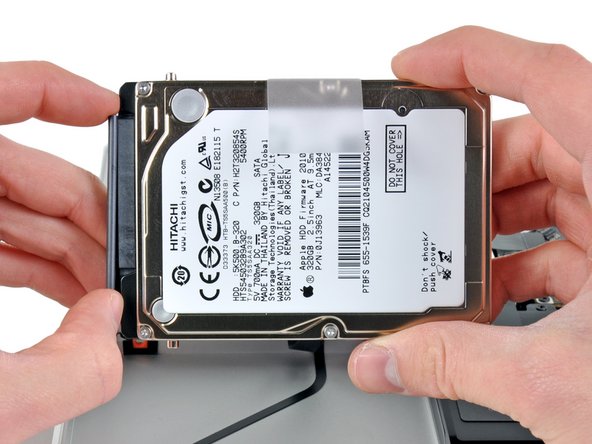
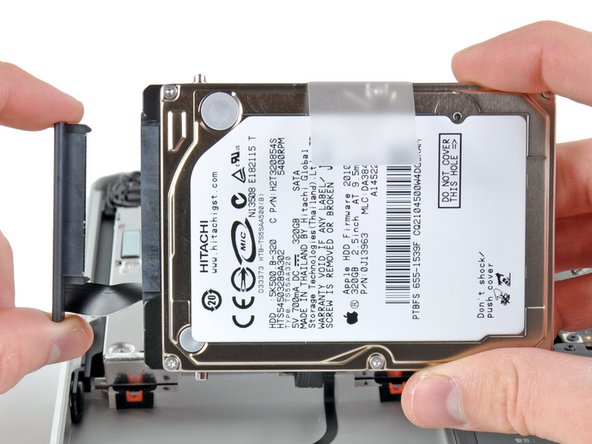
  8. MacBook Pro 13" Unibody Early 2011 Hard Drive Cable Replacement: step 8, image 1 of 2 MacBook Pro 13" Unibody Early 2011 Hard Drive Cable Replacement: step 8, image 2 of 2
    • Pull the hard drive cable away from the body of the hard drive.

    • Remove the hard drive.

    Add Comment

  9. MacBook Pro 13" Unibody Early 2011 Hard Drive Cable Replacement: step 9, image 1 of 1
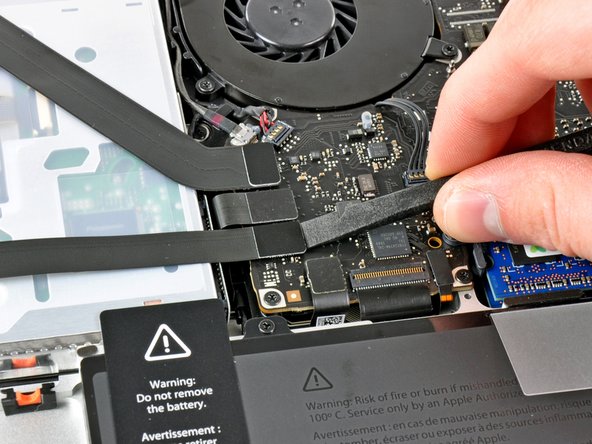
    • Use the flat end of a spudger to pry the hard drive cable connector up from its socket on the logic board.

    Add Comment

  10. MacBook Pro 13" Unibody Early 2011 Hard Drive Cable Replacement: step 10, image 1 of 1
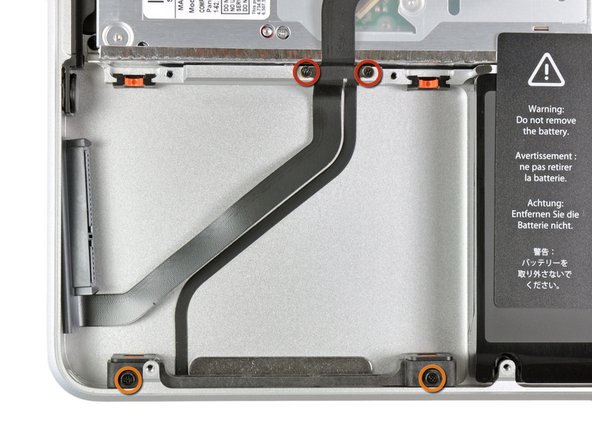
    • Remove the following four screws:

    • Two 3 mm Phillips screws

    • Two 9.7 mm Phillips screws

    Add Comment

  11. MacBook Pro 13" Unibody Early 2011 Hard Drive Cable Replacement: step 11, image 1 of 1
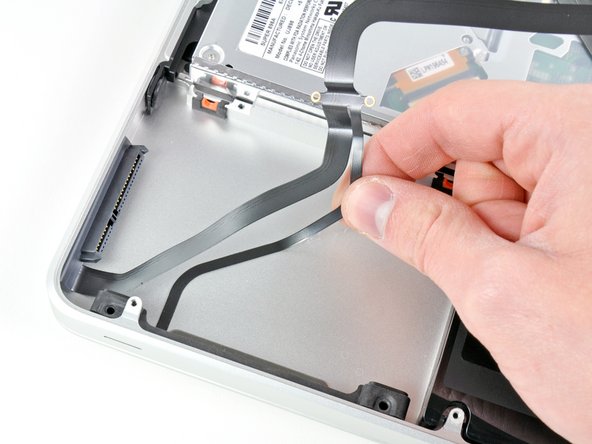
    • Carefully peel up the thin IR sensor/sleep LED ribbon cable from the adhesive securing it to the upper case.

    Add Comment

  12. MacBook Pro 13" Unibody Early 2011 Hard Drive Cable Replacement: step 12, image 1 of 1
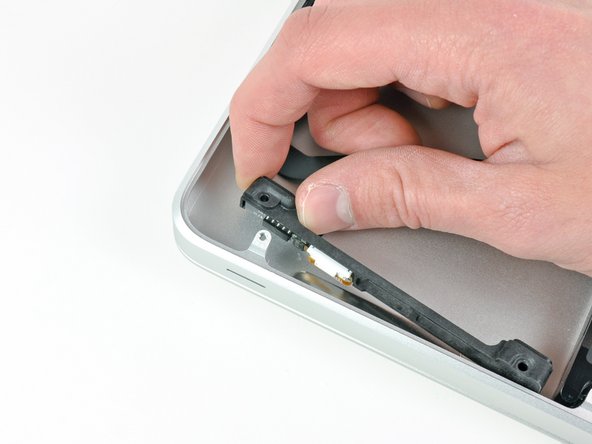
    • Pull the front hard drive bracket containing the IR sensor/sleep LED away from the front edge of the upper case.

    Add Comment

  13. MacBook Pro 13" Unibody Early 2011 Hard Drive Cable Replacement: step 13, image 1 of 1
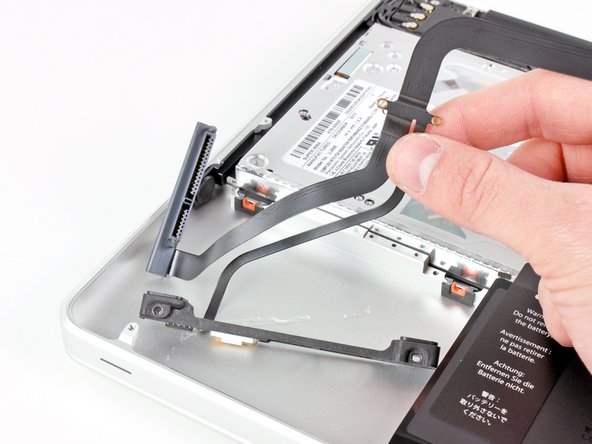
    • Remove the hard drive cable.

    • Your replacement part may come with several adhesive foam bumpers. These are to ensure a snug fit of both bracket and hard drive. Apply only as needed.

    Add Comment

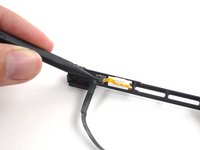
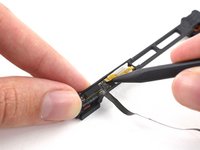
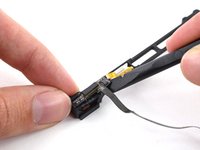
  14. MacBook Pro 13" Unibody Early 2011 Hard Drive Cable Replacement: step 14, image 1 of 3 MacBook Pro 13" Unibody Early 2011 Hard Drive Cable Replacement: step 14, image 2 of 3 MacBook Pro 13" Unibody Early 2011 Hard Drive Cable Replacement: step 14, image 3 of 3
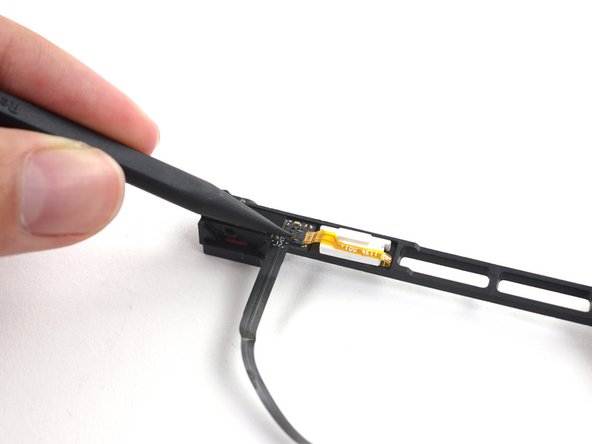
    • Your replacement part may or may not come with the front (sensor) bracket. If it does not, you'll need to transfer it to your new cable.

    • Use the tip of a spudger to flip the ZIF connector on the hard drive cable.

    • Gently pull the sensor bracket cable out of the ZIF connector.

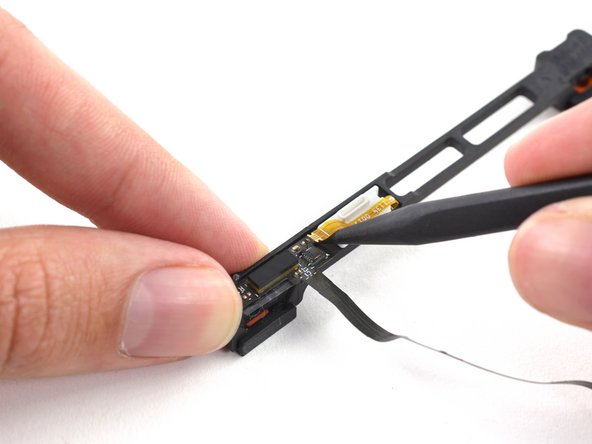
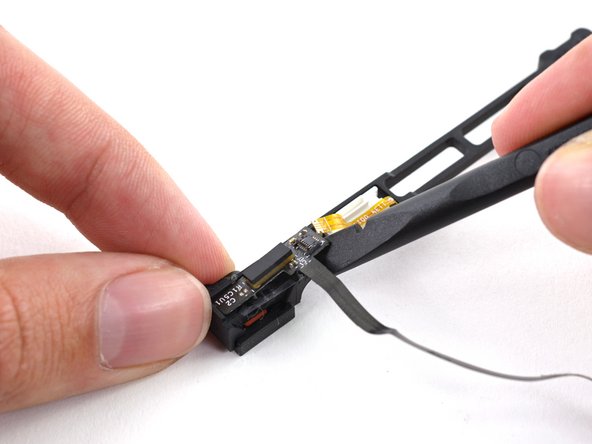
    • Use the flat end of a spudger to pry the hard drive cable up off the sensor bracket.

    • Remove the adhesive backing from your new hard drive cable, stick it onto the sensor bracket, and connect the sensor bracket cable.

    Add Comment

Conclusion

To reassemble your device, follow these instructions in reverse order.

Cancel: I did not complete this guide.

System

Member since: 09/24/09

2,562 Guides authored

0 Guide Comments

Add Comment

View Statistics:

Past 24 Hours: 0

Past 7 Days: 0

Past 30 Days: 0

All Time: 24