MacBook Pro 15" Core Duo Model A1150 Speakers Replacement

What you need

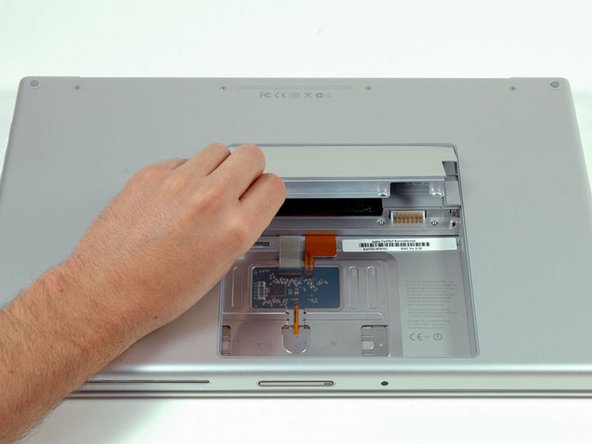
  1. MacBook Pro 15" Core Duo Model A1150 Speakers Replacement, MacBook Pro 15" Core Duo Model A1150 Speakers Replacement: step 1, image 1 of 1
    • Use your fingers to push both battery release tabs away from the battery, and lift the battery out of the computer.

    Add Comment

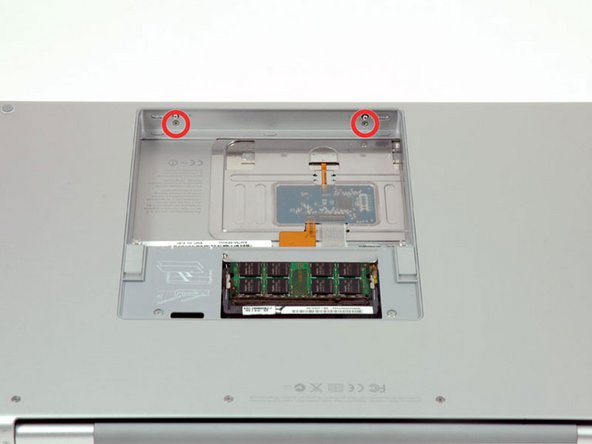
  2. MacBook Pro 15" Core Duo Model A1150 Speakers Replacement: step 2, image 1 of 1
    • Remove the three identical Phillips screws from the memory door.

    • Make sure to record which sets of screws came from where. This will help when re-assembling.

    Add Comment

  3. MacBook Pro 15" Core Duo Model A1150 Speakers Replacement: step 3, image 1 of 1
    • Lift the memory door up enough to get a grip on it, and slide it toward you, pulling it away from the casing.

    Add Comment

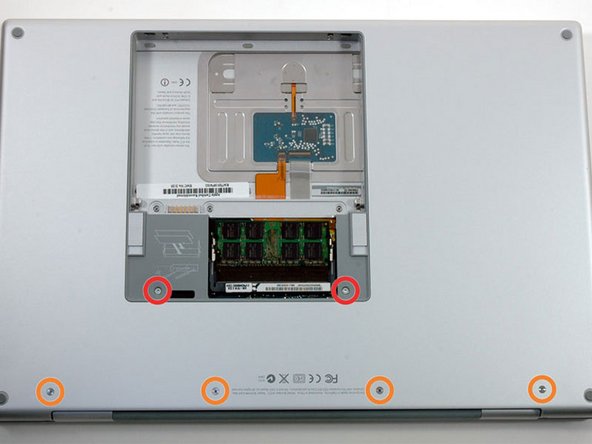
  4. MacBook Pro 15" Core Duo Model A1150 Speakers Replacement: step 4, image 1 of 1
    • Remove the two Phillips screws in the battery compartment near the latch.

    Add Comment

  5. MacBook Pro 15" Core Duo Model A1150 Speakers Replacement: step 5, image 1 of 1
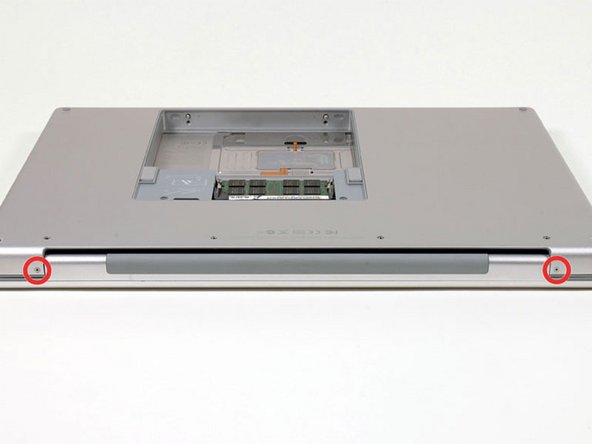
    • Remove the following 6 screws:

    • Two 10 mm T6 Torx screws on either side of the RAM slot.

    • Four 14.5 mm Phillips screws along the hinge.

    Add Comment

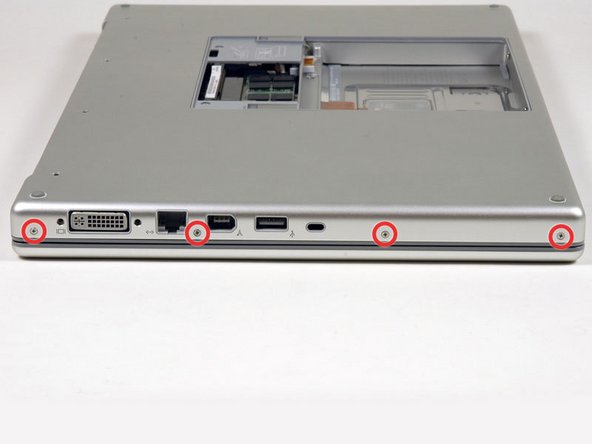
  6. MacBook Pro 15" Core Duo Model A1150 Speakers Replacement: step 6, image 1 of 1
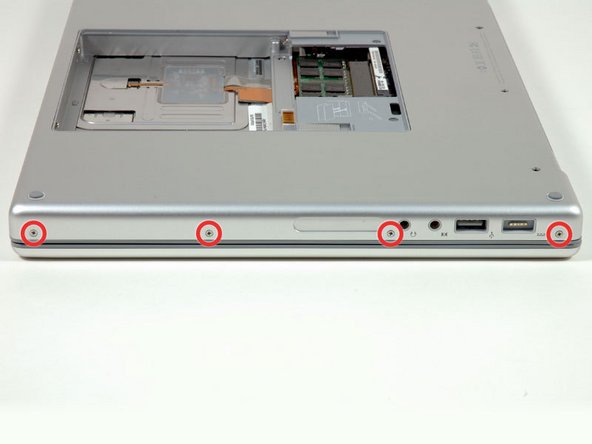
    • Remove the four Phillips screws on the port side of the computer.

    Add Comment

  7. MacBook Pro 15" Core Duo Model A1150 Speakers Replacement: step 7, image 1 of 1
    • Rotate the computer 90 degrees and remove the two Phillips screws from the rear of the computer.

    Add Comment

  8. MacBook Pro 15" Core Duo Model A1150 Speakers Replacement: step 8, image 1 of 1
    • Rotate the computer 90 degrees again and remove the four Phillips screws from the side of the computer.

    Add Comment

  9. MacBook Pro 15" Core Duo Model A1150 Speakers Replacement: step 9, image 1 of 1
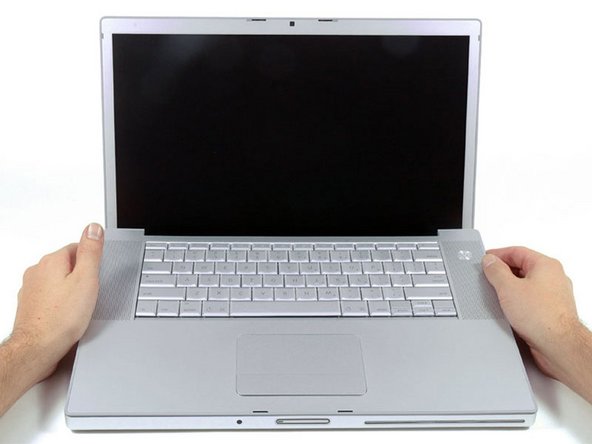
    • Do not yank the upper case off quickly. The case is attached to the logic board via a ribbon cable.

    • Lift up at the rear of the case and work your fingers along the sides, freeing the case as you go. Once you have freed the sides, you may need to rock the case up and down to free the front of the upper case. This stage can be quite tricky. Over the DVD reader are 4 tabs set back which pull out vertically.

    • Note that the two small tongues on the left hand front of the upper case may bend while you remove the upper case. When re-installing, you may need to bend them back to fit in the grooves in the lower case.

    Add Comment

  10. MacBook Pro 15" Core Duo Model A1150 Speakers Replacement: step 10, image 1 of 1
    • Disconnect the trackpad and keyboard ribbon cable from the logic board, removing tape as necessary.

    • Remove the upper case.

    Add Comment

  11. MacBook Pro 15" Core Duo Model A1150 Speakers Replacement: step 11, image 1 of 1
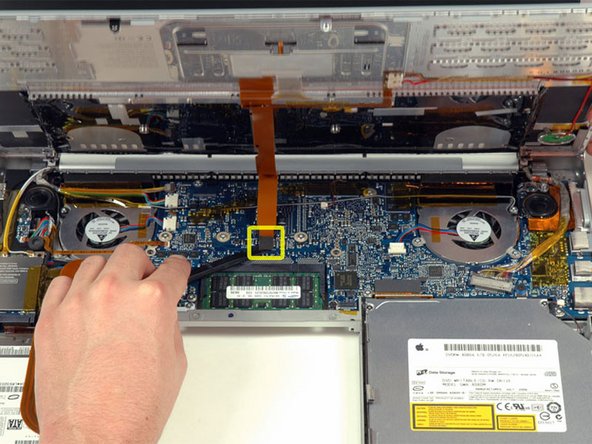
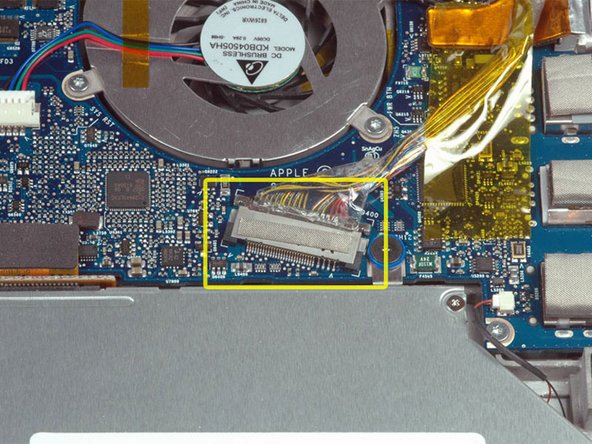
    • Disconnect the display data cable from the logic board.

    Add Comment

  12. MacBook Pro 15" Core Duo Model A1150 Speakers Replacement: step 12, image 1 of 1
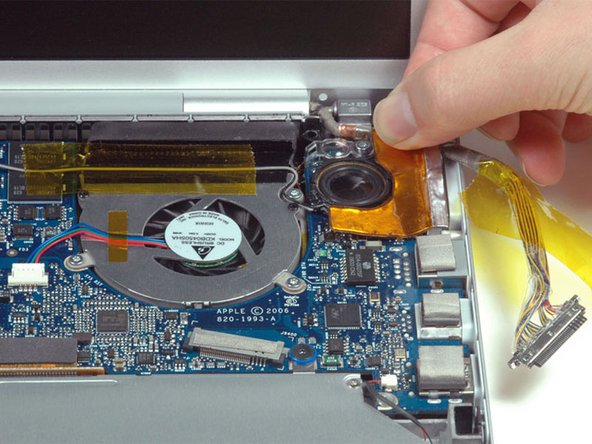
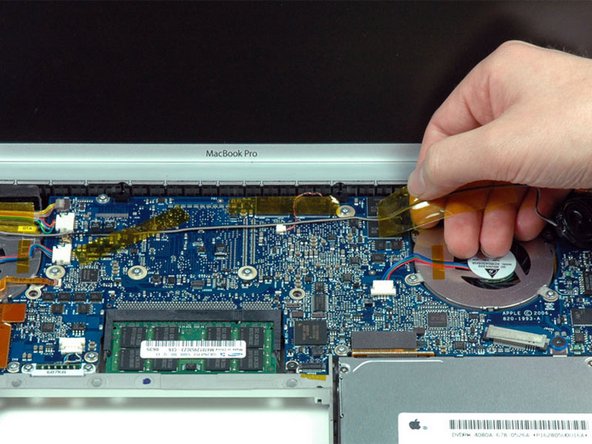
    • Peel up and remove the orange foil shield near the right speaker.

    Add Comment

  13. MacBook Pro 15" Core Duo Model A1150 Speakers Replacement: step 13, image 1 of 1
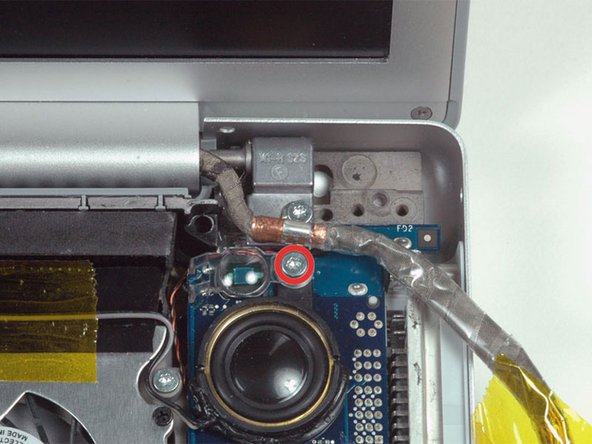
    • Remove the silver T6 Torx securing the ground loop in the display data cable to the casing.

    Add Comment

  14. MacBook Pro 15" Core Duo Model A1150 Speakers Replacement: step 14, image 1 of 1
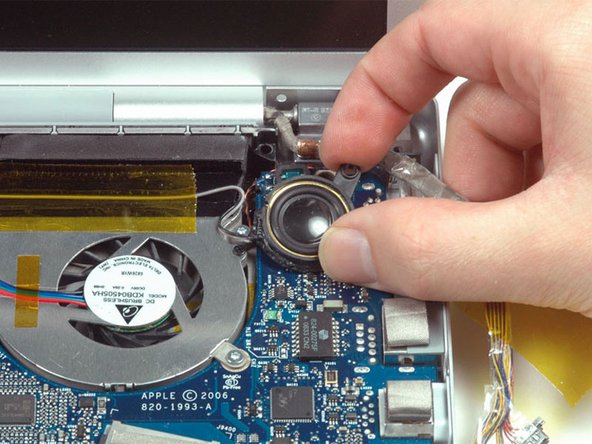
    • Rotate the speaker clockwise approximately 30 degrees until it comes free from the logic board.

    Add Comment

  15. MacBook Pro 15" Core Duo Model A1150 Speakers Replacement: step 15, image 1 of 1
    • Peel up the gray and black speaker wires from the top of the logic board, removing tape as necessary.

    Add Comment

  16. MacBook Pro 15" Core Duo Model A1150 Speakers Replacement: step 16, image 1 of 1
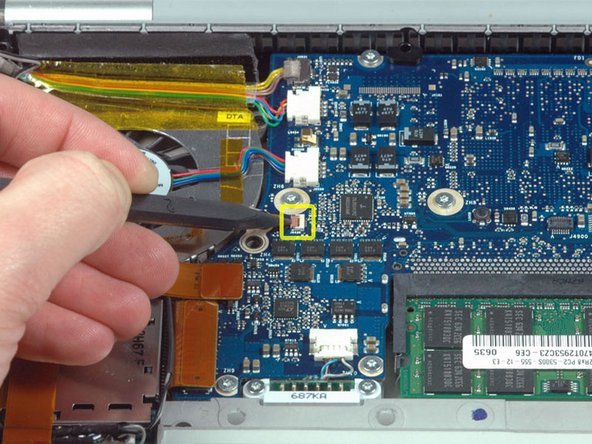
    • Use a spudger to flip up the brown plastic flap securing the left ambient light sensor cable to the logic board.

    • Slide the left ambient light sensor cable to the left and out of its connector.

    Add Comment

  17. MacBook Pro 15" Core Duo Model A1150 Speakers Replacement: step 17, image 1 of 1
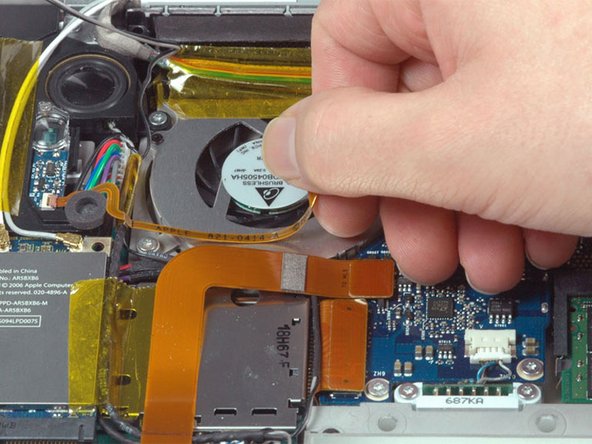
    • Peel up the left ambient light sensor cable from above the left fan.

    Add Comment

  18. MacBook Pro 15" Core Duo Model A1150 Speakers Replacement: step 18, image 1 of 1
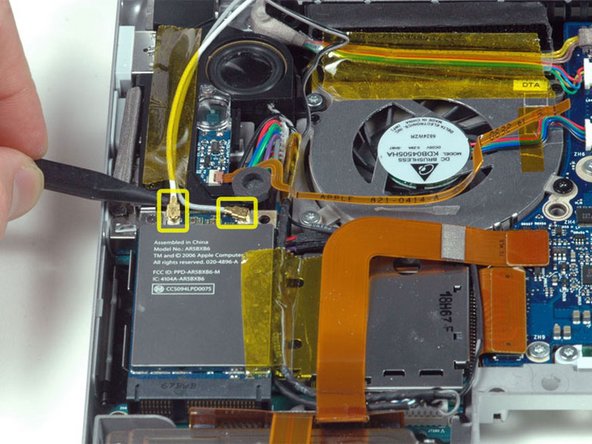
    • Disconnect the two antenna cables attached to the Airport Extreme card.

    • The white antenna cable connects to the left side of the Airport Extreme card.

    Add Comment

  19. MacBook Pro 15" Core Duo Model A1150 Speakers Replacement: step 19, image 1 of 1
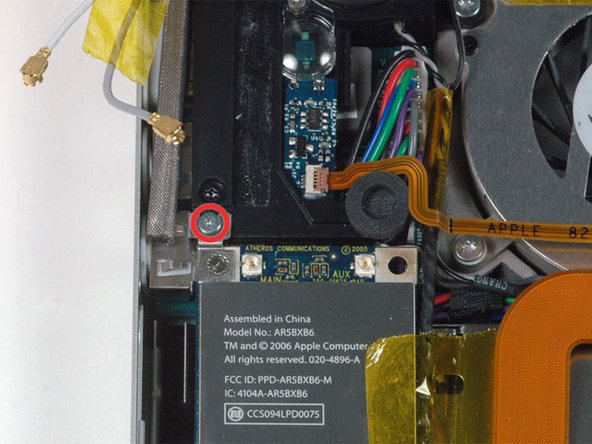
    • Remove the single silver Phillips screw located just above the Airport Extreme card.

    • Lift the small silver metal retaining bracket up and out of the computer.

    Add Comment

  20. MacBook Pro 15" Core Duo Model A1150 Speakers Replacement: step 20, image 1 of 1
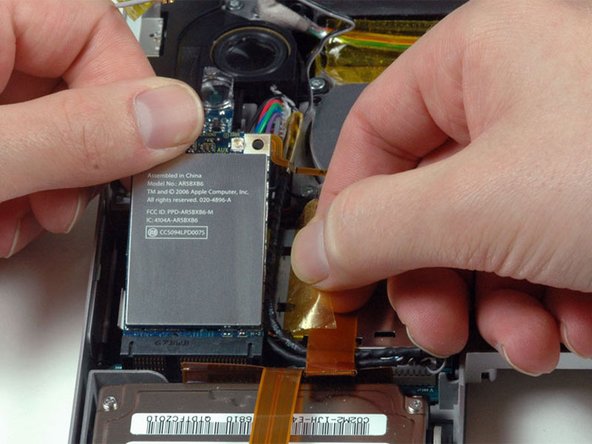
    • Peel back the orange tape on the right side of the Airport Extreme card.

    • Lift the Airport Extreme card up and slide it out of its connector.

    Add Comment

  21. MacBook Pro 15" Core Duo Model A1150 Speakers Replacement: step 21, image 1 of 1
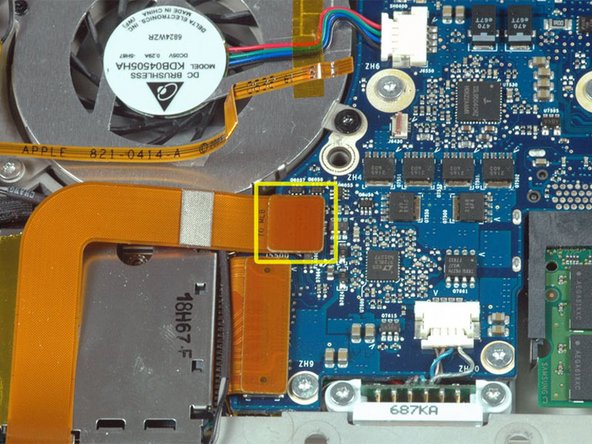
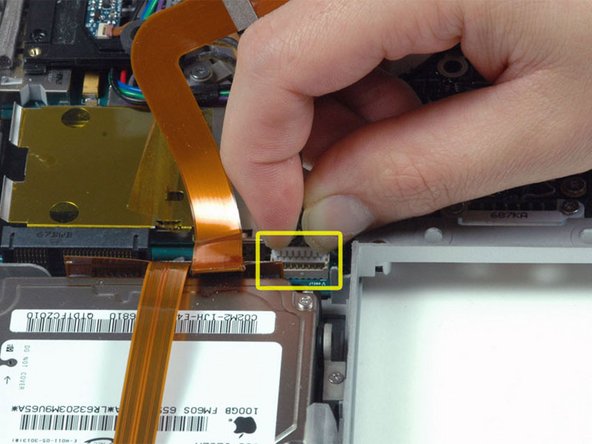
    • Disconnect the orange hard drive ribbon cable from the logic board.

    Add Comment

  22. MacBook Pro 15" Core Duo Model A1150 Speakers Replacement: step 22, image 1 of 1
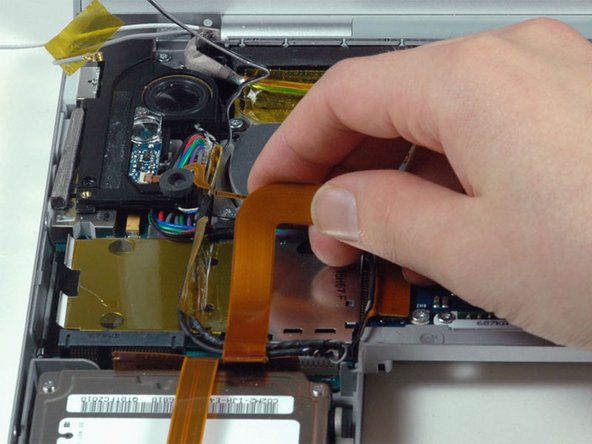
    • Peel up the orange hard drive ribbon from above the ExpressCard cage.

    Add Comment

  23. MacBook Pro 15" Core Duo Model A1150 Speakers Replacement: step 23, image 1 of 1
    • Disconnect the speaker cable from the front right corner of the left I/O board.

    Add Comment

  24. MacBook Pro 15" Core Duo Model A1150 Speakers Replacement: step 24, image 1 of 1
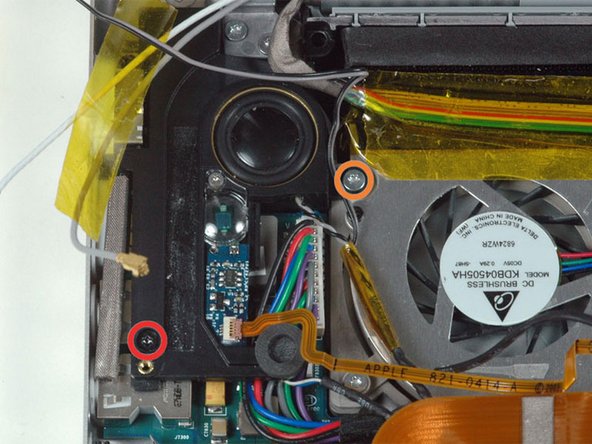
    • Remove the following 2 screws:

    • One 4.3 mm black T6 Torx screw on the left side of the speaker.

    • One 9.4 mm silver T6 Torx screw on the right side of the speaker.

    Add Comment

  25. MacBook Pro 15" Core Duo Model A1150 Speakers Replacement: step 25, image 1 of 1
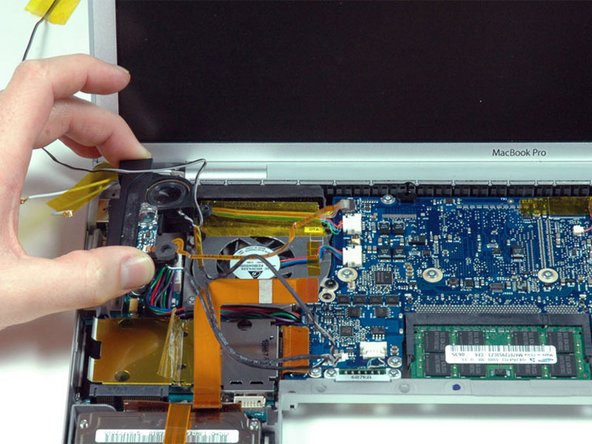
    • Lift the left and right speakers out of the computer.

    Add Comment

  26. MacBook Pro 15" Core Duo Model A1150 Speakers Replacement: step 26, image 1 of 1
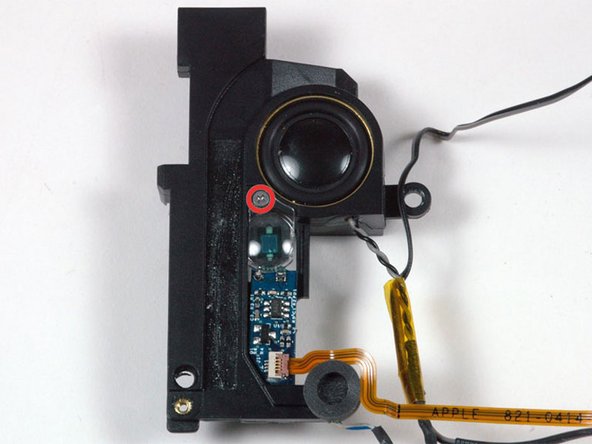
    • Remove the single silver Phillips screw securing the left ambient light sensor cover to the speaker.

    • Remove the clear plastic ambient light sensor cover.

    Add Comment

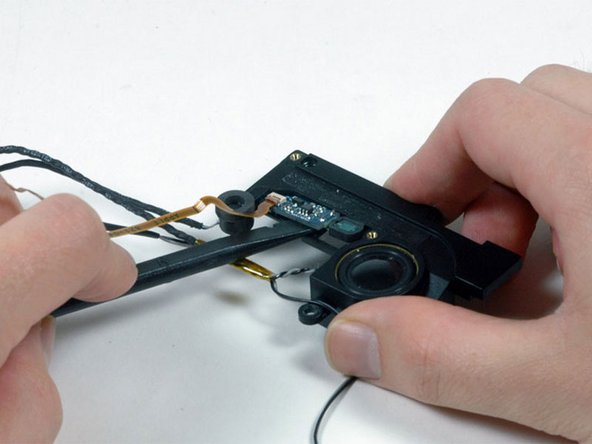
  27. MacBook Pro 15" Core Duo Model A1150 Speakers Replacement: step 27, image 1 of 1
    • Use a spudger to pry the left ambient light sensor board out of its housing on the left speaker.

    Add Comment

Conclusion

To reassemble your device, follow these instructions in reverse order.

Cancel: I did not complete this guide.

System

Member since: 09/24/09

2,562 Guides authored

0 Guide Comments

Add Comment

View Statistics:

Past 24 Hours: 0

Past 7 Days: 1

Past 30 Days: 4

All Time: 29