MacBook Unibody Model A1278 Subwoofer & Right Speaker Replacement

What you need

  1. MacBook Unibody Model A1278 Subwoofer & Right Speaker Replacement, MacBook Unibody Model A1278 Subwoofer & Right Speaker Replacement: step 1, image 1 of 1
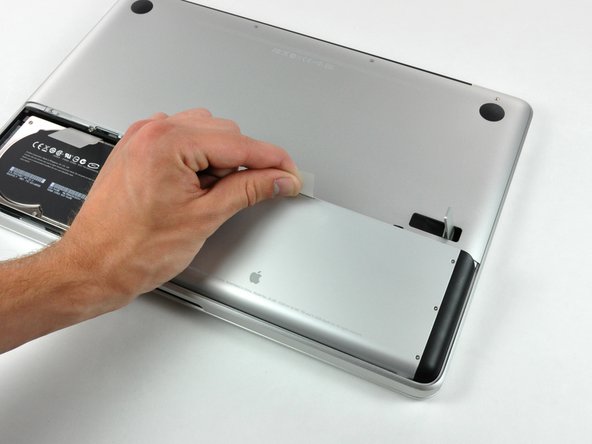
    • With the case closed, place the Unibody top-side down on a flat surface.

    • Depress the grooved side of the access door release latch enough to grab the free end. Lift the release latch until it is vertical.

    Add Comment

  2. MacBook Unibody Model A1278 Subwoofer & Right Speaker Replacement: step 2, image 1 of 1
    • The access door should now be raised enough to lift it up and out of the Unibody.

    Add Comment

  3. MacBook Unibody Model A1278 Subwoofer & Right Speaker Replacement: step 3, image 1 of 1
    • Be sure the access door release latch is vertical before proceeding.

    • Grab the white plastic tab and pull the battery up and out of the Unibody.

    Add Comment

  4. MacBook Unibody Model A1278 Subwoofer & Right Speaker Replacement: step 4, image 1 of 1
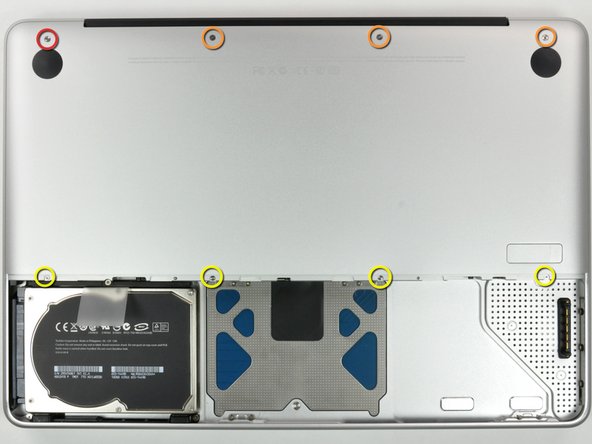
    • Remove the following eight screws securing the lower case to the chassis:

    • One 3 mm Phillips screw.

    • Three 13.5 mm Phillips screws.

    • Four 3.5 mm Phillips screws.

    Add Comment

  5. MacBook Unibody Model A1278 Subwoofer & Right Speaker Replacement: step 5, image 1 of 1
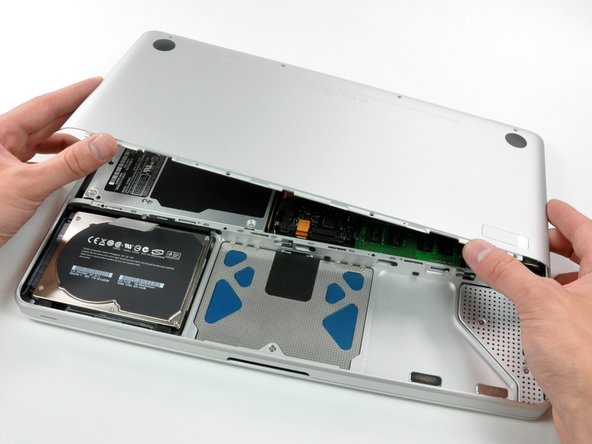
    • Using both hands, lift and remove the lower case off the upper case.

    Add Comment

  6. MacBook Unibody Model A1278 Subwoofer & Right Speaker Replacement: step 6, image 1 of 1
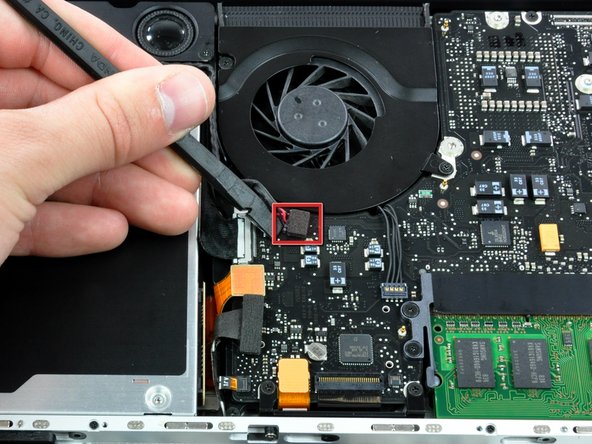
    • Using the flat end of a spudger, pry the subwoofer connector straight up off the logic board.

    Add Comment

  7. MacBook Unibody Model A1278 Subwoofer & Right Speaker Replacement: step 7, image 1 of 1
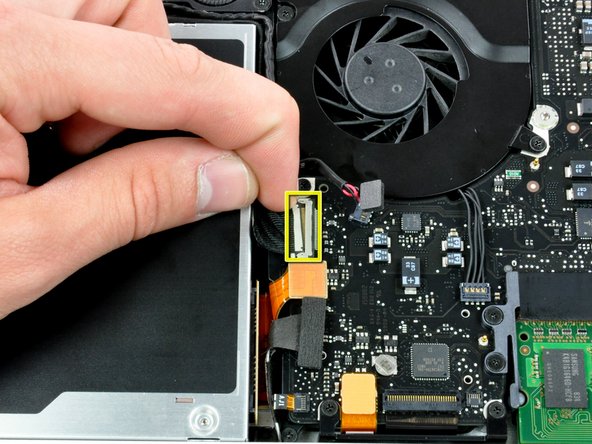
    • Disconnect the camera cable by pulling the male end straight away from its socket.

    Add Comment

  8. MacBook Unibody Model A1278 Subwoofer & Right Speaker Replacement: step 8, image 1 of 1
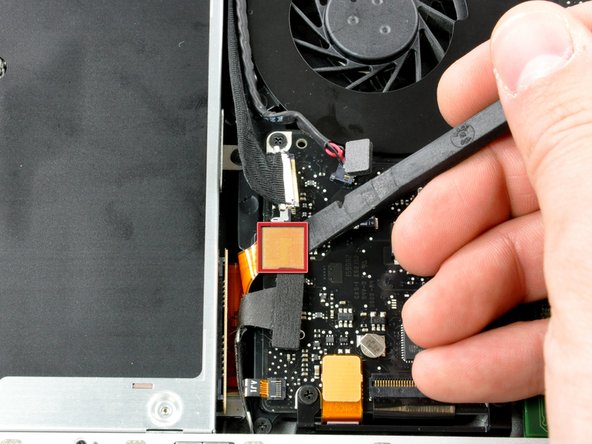
    • Use a spudger to pry the optical drive connector straight up off the logic board.

    Add Comment

  9. MacBook Unibody Model A1278 Subwoofer & Right Speaker Replacement: step 9, image 1 of 1
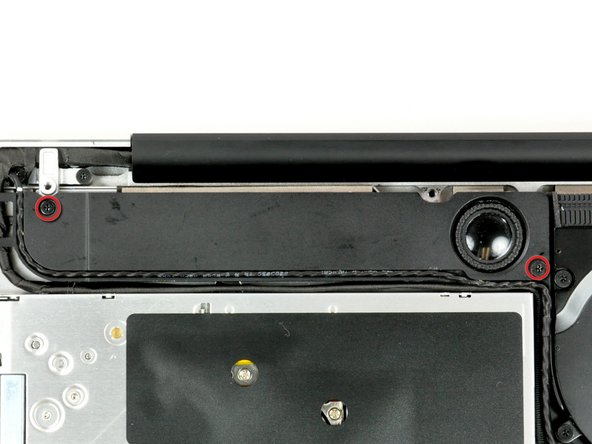
    • Remove the two Phillips screws securing the subwoofer to the upper case.

    • The longer of the two screws is on the right.

    Add Comment

  10. MacBook Unibody Model A1278 Subwoofer & Right Speaker Replacement: step 10, image 1 of 1
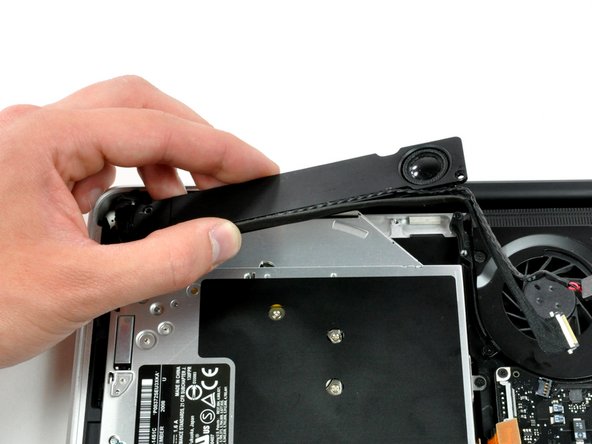
    • The subwoofer is still connected to the right speaker, so don't completely remove it just yet.

    • Lift the subwoofer off the optical drive, and set it above the computer.

    Add Comment

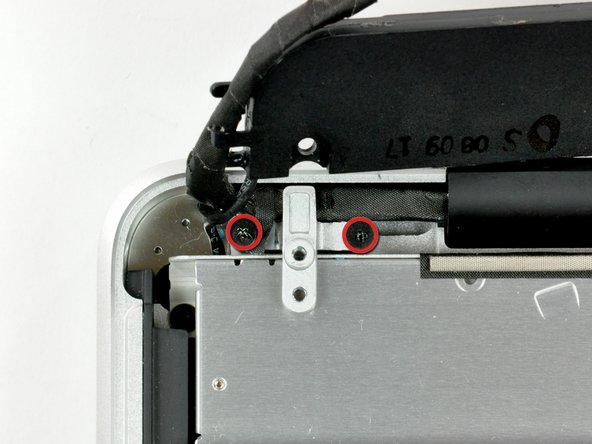
  11. MacBook Unibody Model A1278 Subwoofer & Right Speaker Replacement: step 11, image 1 of 1
    • Remove the two Phillips screws securing the camera cable bracket to the upper case.

    • The leftmost screw may remain captive in the camera cable.

    Add Comment

  12. MacBook Unibody Model A1278 Subwoofer & Right Speaker Replacement: step 12, image 1 of 1
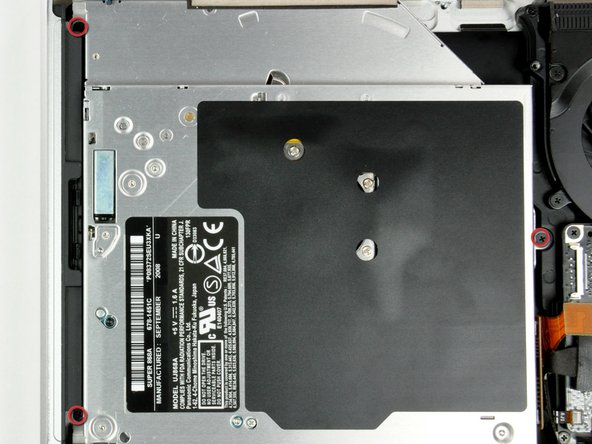
    • Remove the three 2.5 mm Phillips screws securing the optical drive to the upper case.

    Add Comment

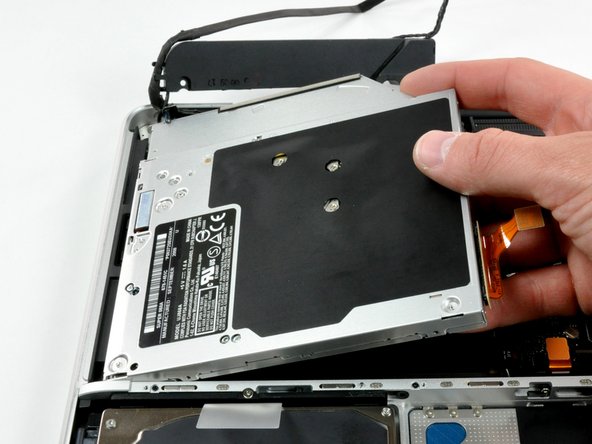
  13. MacBook Unibody Model A1278 Subwoofer & Right Speaker Replacement: step 13, image 1 of 1
    • Lift the optical drive from its right edge and pull it out of the computer.

    • The hard drive cable may become disconnected from the logic board when removing the optical drive. Ensure it is connected during reassembly.

    Add Comment

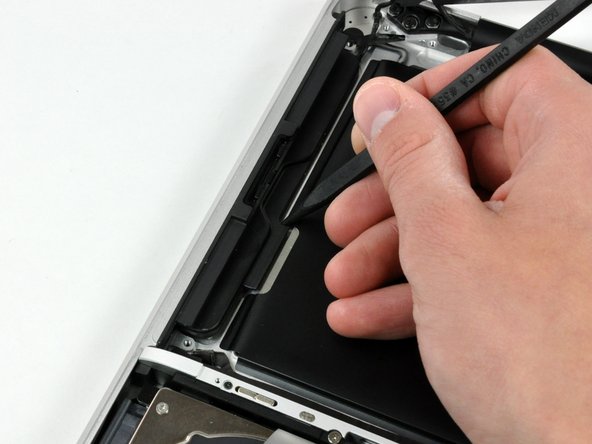
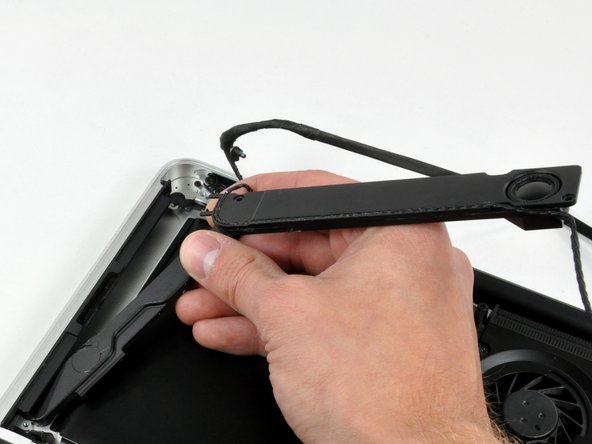
  14. MacBook Unibody Model A1278 Subwoofer & Right Speaker Replacement: step 14, image 1 of 3 MacBook Unibody Model A1278 Subwoofer & Right Speaker Replacement: step 14, image 2 of 3 MacBook Unibody Model A1278 Subwoofer & Right Speaker Replacement: step 14, image 3 of 3
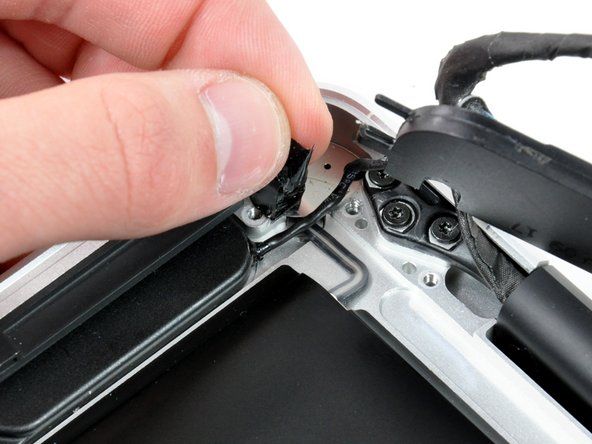
    • Peel back the small piece of black tape covering the right speaker cable.

    • Use the tip of a spudger to pry the right speaker up off the adhesive securing it to the upper case.

    • Lift the subwoofer and right speaker assembly out of the upper case.

    Add Comment

Conclusion

To reassemble your device, follow these instructions in reverse order.

Cancel: I did not complete this guide.

System

Member since: 09/24/09

2,562 Guides authored

0 Guide Comments

Add Comment

View Statistics:

Past 24 Hours: 0

Past 7 Days: 0

Past 30 Days: 0

All Time: 15