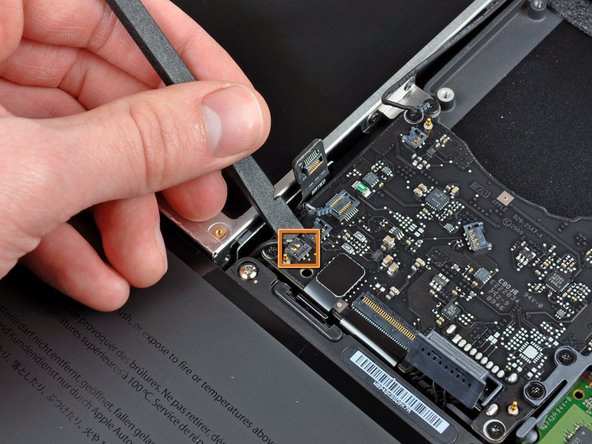
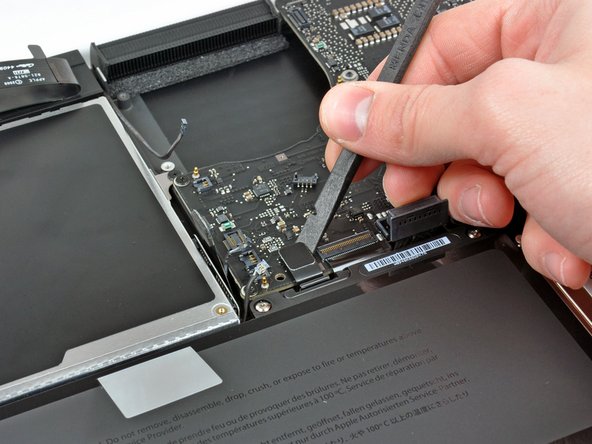
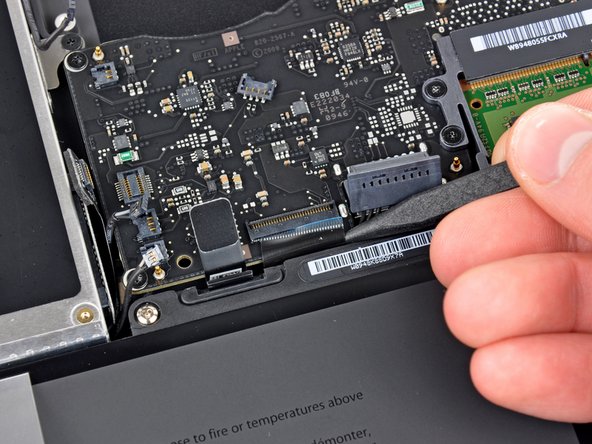
MacBook Unibody Model A1342 Logic Board Replacement

What you need

  1. MacBook Unibody Model A1342 Logic Board Replacement, MacBook Unibody Model A1342 Logic Board Replacement: step 1, image 1 of 1
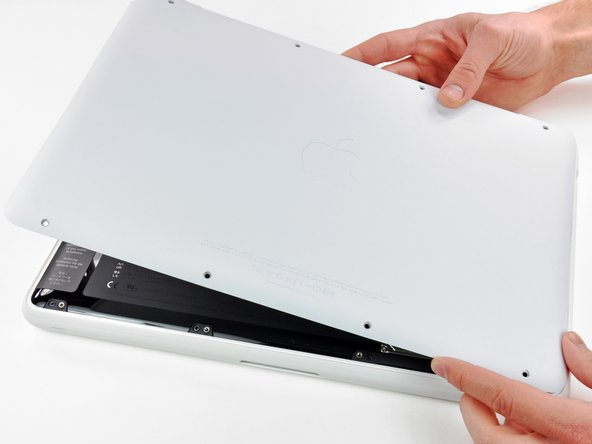
    • Remove the eight 4 mm Phillips screws securing the lower case to the MacBook.

    Add Comment

  2. MacBook Unibody Model A1342 Logic Board Replacement: step 2, image 1 of 3 MacBook Unibody Model A1342 Logic Board Replacement: step 2, image 2 of 3 MacBook Unibody Model A1342 Logic Board Replacement: step 2, image 3 of 3
    • The lower case is constructed of rubber-coated aluminum. Do not excessively bend the aluminum during removal, as any permanent deformation will cause tolerance issues after reassembly.

    • Slightly lift the lower case near the vent opening.

    • Continue running your fingers between the lower and upper cases until the upper case pops off its retaining clips.

    • The location of these three clips is shown in the third picture.

    Add Comment

  3. MacBook Unibody Model A1342 Logic Board Replacement: step 3, image 1 of 1
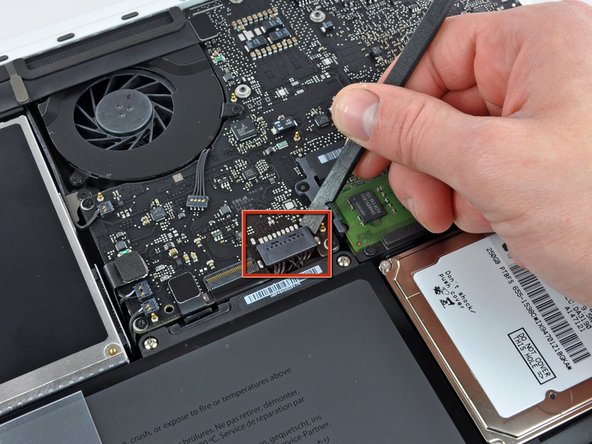
    • For precautionary purposes, we advise that you disconnect the battery connector from the logic board to avoid any electrical discharge. This step is optional and is not required.

    • Use the flat end of a spudger to lift the battery connector up out of its socket on the logic board.

    • It may be easier to use your fingernails to lift up on both sides of the connector.

    Add Comment

  4. MacBook Unibody Model A1342 Logic Board Replacement: step 4, image 1 of 1
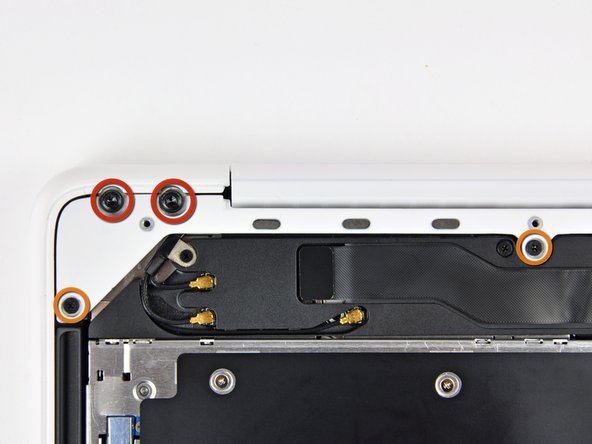
    • Remove the following screws from the optical drive side of the rear vent:

    • Two 10 mm T8 Torx

    • Two 5.2 mm Phillips

    Add Comment

  5. MacBook Unibody Model A1342 Logic Board Replacement: step 5, image 1 of 1
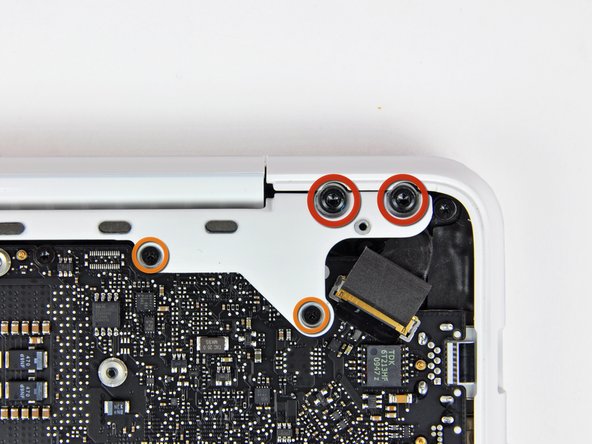
    • Remove the following screws from the port side of rear vent:

    • Two 10 mm T8 Torx

    • Two 5.2 mm Phillips

    Add Comment

  6. MacBook Unibody Model A1342 Logic Board Replacement: step 6, image 1 of 1
    • Carefully lift the rear vent out of the upper case.

    Add Comment

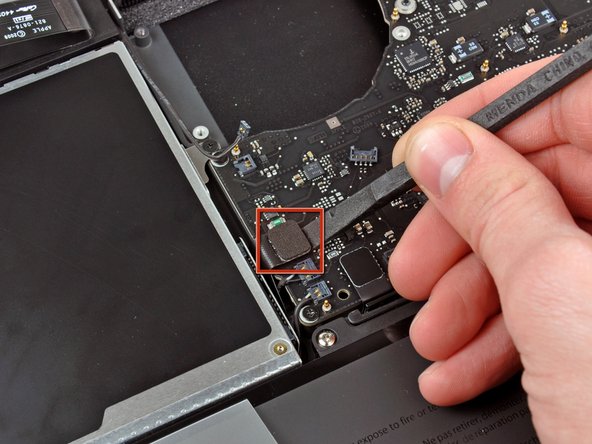
  7. MacBook Unibody Model A1342 Logic Board Replacement: step 7, image 1 of 1
    • Use the flat end of a spudger to pry the AirPort/Bluetooth ribbon cable up off the logic board.

    Add Comment

  8. MacBook Unibody Model A1342 Logic Board Replacement: step 8, image 1 of 3 MacBook Unibody Model A1342 Logic Board Replacement: step 8, image 2 of 3 MacBook Unibody Model A1342 Logic Board Replacement: step 8, image 3 of 3
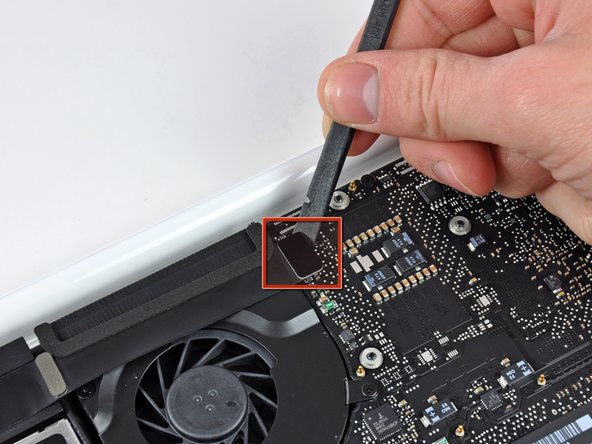
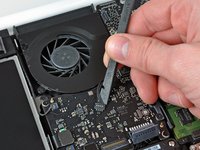
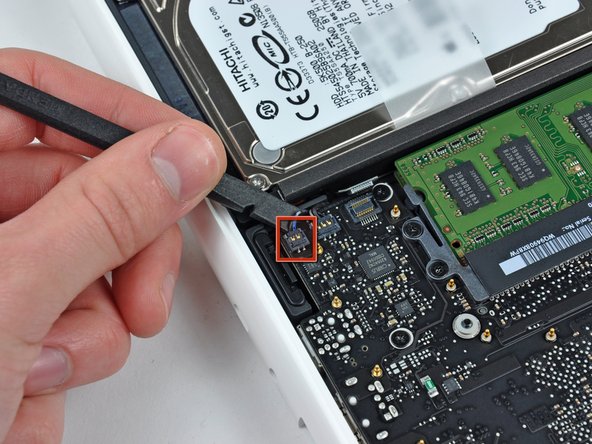
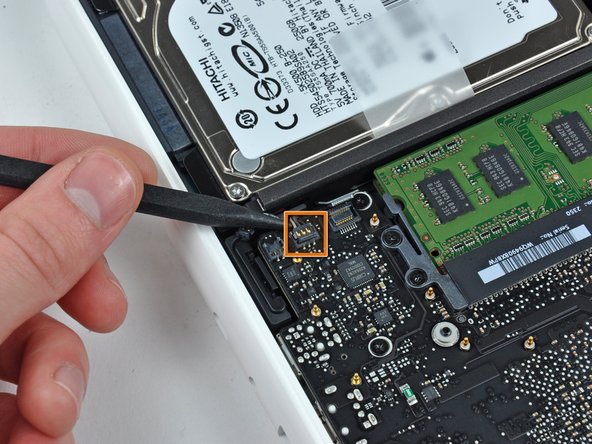
    • Use a spudger to pry the fan connector straight up and out of its socket on the logic board.

    • It is useful to twist the spudger axially from beneath the fan cable wires to release the connector.

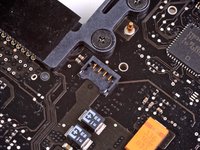
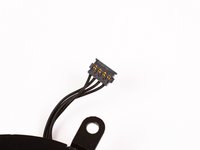
    • The fan socket and the fan connector can be seen in the second and third pictures. Be careful not to break the plastic fan socket off the logic board as you use your spudger to lift the fan connector straight up and out of its socket. The layout of the logic board shown in the second picture may look slightly different than your machine but the fan socket is the same.

    Add Comment

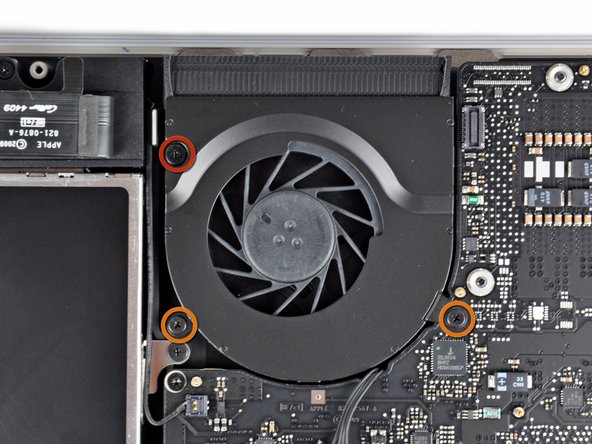
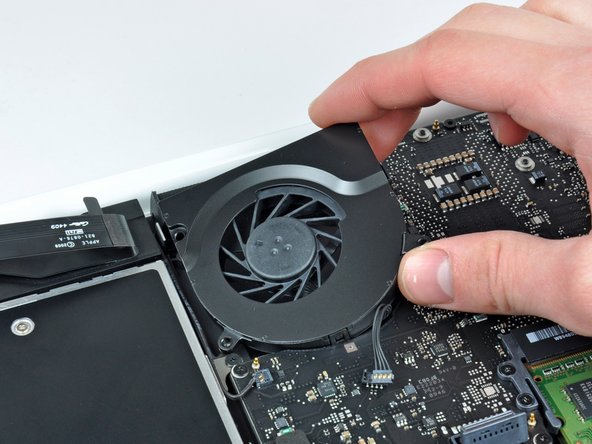
  9. MacBook Unibody Model A1342 Logic Board Replacement: step 9, image 1 of 2 MacBook Unibody Model A1342 Logic Board Replacement: step 9, image 2 of 2
    • Remove the following three screws securing the fan to the upper case:

    • One 7.1 mm Phillips screw.

    • Two 5 mm Phillips screws.

    • Lift the fan out of the upper case.

    Add Comment

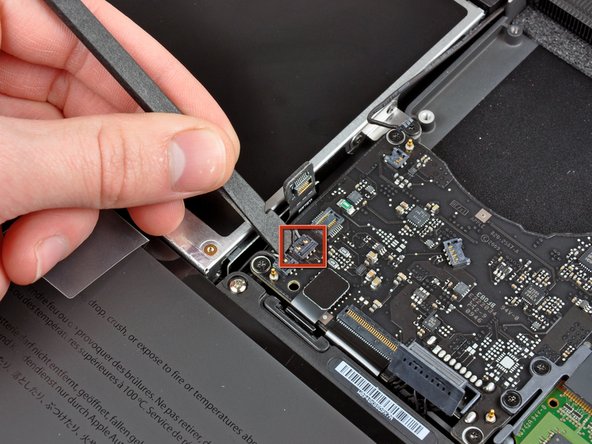
  10. MacBook Unibody Model A1342 Logic Board Replacement: step 10, image 1 of 1
    • Carefully pry the delicate rear speaker connector up off the logic board. These small L/R speaker connectors are quite easily broken.

    • Use extreme caution; this connector is easily destroyed.

    Add Comment

  11. MacBook Unibody Model A1342 Logic Board Replacement: step 11, image 1 of 1
    • Use the flat end of a spudger to pry the optical drive connector up off the logic board.

    Add Comment

  12. MacBook Unibody Model A1342 Logic Board Replacement: step 12, image 1 of 2 MacBook Unibody Model A1342 Logic Board Replacement: step 12, image 2 of 2
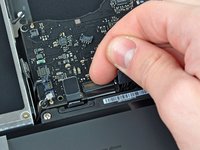
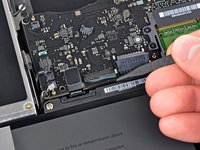
    • Use a spudger to pry the right speaker connector and sleep LED connector up off the logic board.

    • These connectors are very delicate and easily broken.

    Add Comment

  13. MacBook Unibody Model A1342 Logic Board Replacement: step 13, image 1 of 1
    • Use the flat end of a spudger to pry the trackpad ribbon cable connector up off the logic board.

    Add Comment

  14. MacBook Unibody Model A1342 Logic Board Replacement: step 14, image 1 of 2 MacBook Unibody Model A1342 Logic Board Replacement: step 14, image 2 of 2
    • Use your fingernail to flip up the locking flap on the ZIF socket for the keyboard ribbon cable.

    • Use the tip of a spudger to slide the keyboard ribbon cable out of its socket.

    Add Comment

  15. MacBook Unibody Model A1342 Logic Board Replacement: step 15, image 1 of 1
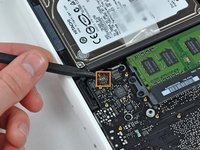
    • Use the flat end of a spudger to pry the hard drive cable connector up off the logic board.

    Add Comment

  16. MacBook Unibody Model A1342 Logic Board Replacement: step 16, image 1 of 2 MacBook Unibody Model A1342 Logic Board Replacement: step 16, image 2 of 2
    • Use a spudger to pry the left speaker connector and microphone connector up off the logic board.

    • These connectors are very delicate and easily broken.

    Add Comment

  17. MacBook Unibody Model A1342 Logic Board Replacement: step 17, image 1 of 2 MacBook Unibody Model A1342 Logic Board Replacement: step 17, image 2 of 2
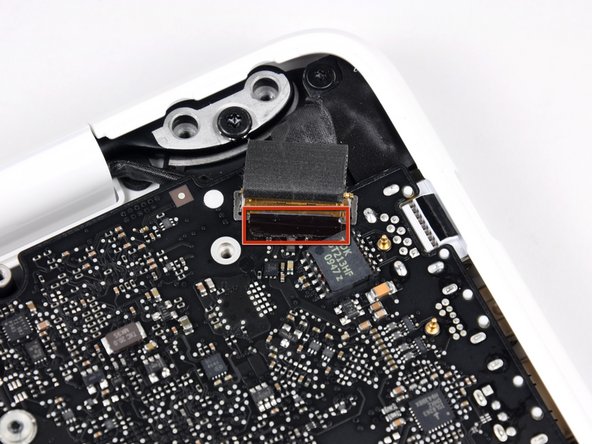
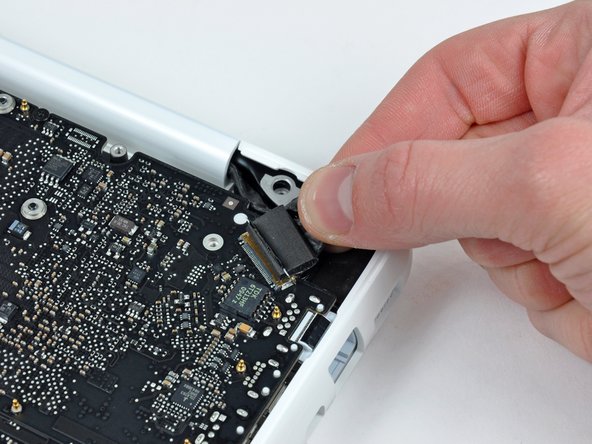
    • Grab the plastic pull tab secured to the display data cable lock and rotate it toward the DC-In side of the computer.

    Add Comment

  18. MacBook Unibody Model A1342 Logic Board Replacement: step 18, image 1 of 2 MacBook Unibody Model A1342 Logic Board Replacement: step 18, image 2 of 2
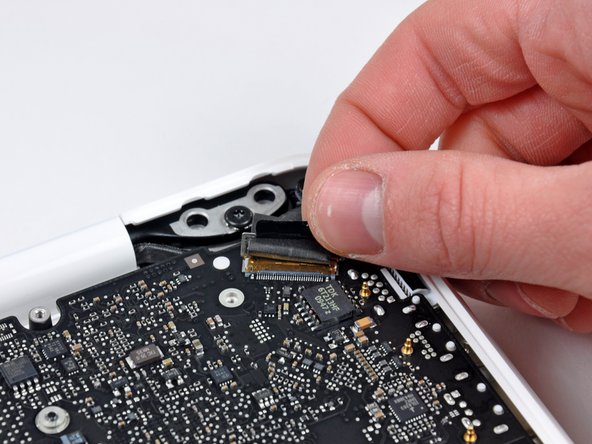
    • Gently pull the display data cable connector away from its socket on the logic board.

    • Pull the socket parallel to the face of the logic board.

    • The display data cable socket is made of very thin metal and is easily bent. Be sure to pull the connector straight away from its socket.

    Add Comment

  19. MacBook Unibody Model A1342 Logic Board Replacement: step 19, image 1 of 1
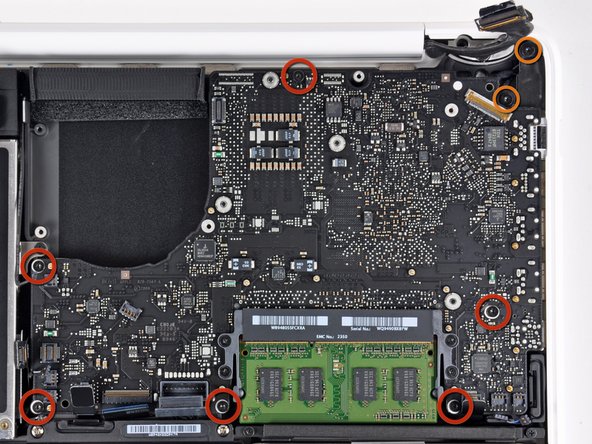
    • Remove the six 4.1 to 4.4 mm T6 Torx screws securing the logic board to the upper case.

    • Remove the two 4.1 to 4.5 mm T6 Torx screws securing the MagSafe board to the upper case.

    • On some models, these screws may be T7. Be careful not to strip away the head with a smaller bit.

    Add Comment

  20. MacBook Unibody Model A1342 Logic Board Replacement: step 20, image 1 of 3 MacBook Unibody Model A1342 Logic Board Replacement: step 20, image 2 of 3 MacBook Unibody Model A1342 Logic Board Replacement: step 20, image 3 of 3
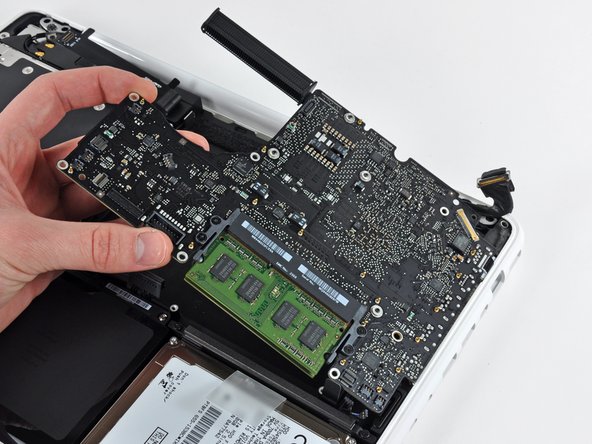
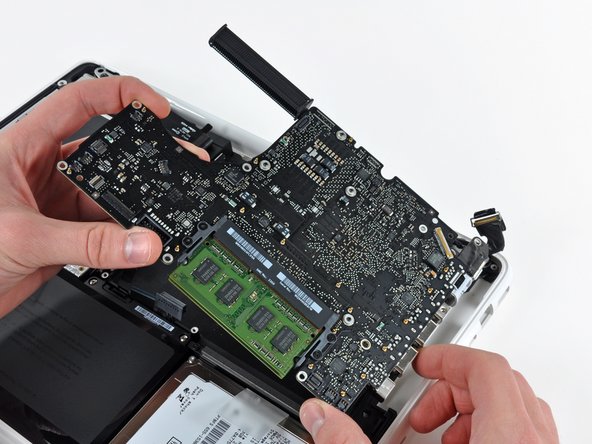
    • Lift the side of the logic board opposite the ports out of the upper case.

    • Rotate the logic board away from the upper case until the ports clear the lip molded in the upper case.

    • Pull the logic board and MagSafe board away from the edge of the upper case as one piece.

    • The MagSafe board may get accidentally disconnected during this process. As a precaution, be sure the MagSafe board connector is securely seated in its socket before lowering the logic board back into the upper case.

    • Before lowering the logic board back into the upper case, be sure the left speaker and microphone cables are seated in their channels cut into the upper case (as seen in the third picture).

    Add Comment

  21. MacBook Unibody Model A1342 Logic Board Replacement: step 21, image 1 of 1
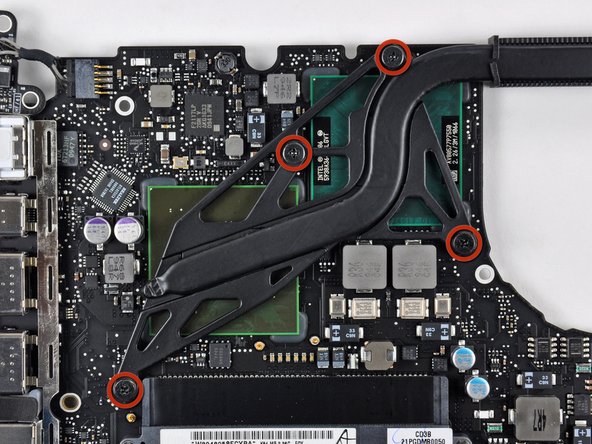
    • Remove the four 8.3 mm shouldered Phillips screws securing the heat sink to the logic board.

    • Keep track of the springs under each of the screws.

    Add Comment

  22. MacBook Unibody Model A1342 Logic Board Replacement: step 22, image 1 of 1
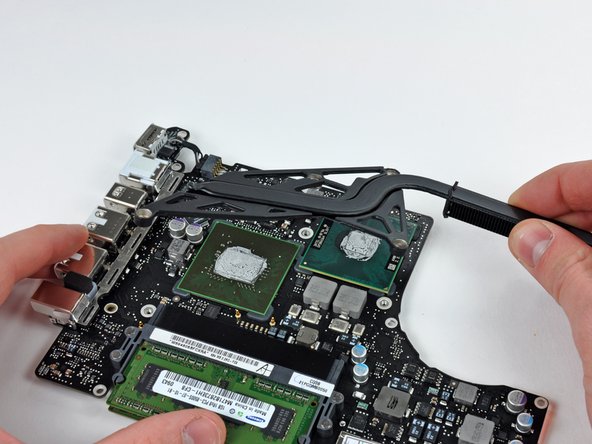
    • Lift the heat sink off the logic board.

    • If you need to mount the heat sink back into the laptop, we have a thermal paste guide that makes replacing the thermal compound easy.

    Add Comment

  23. MacBook Unibody Model A1342 Logic Board Replacement: step 23, image 1 of 1
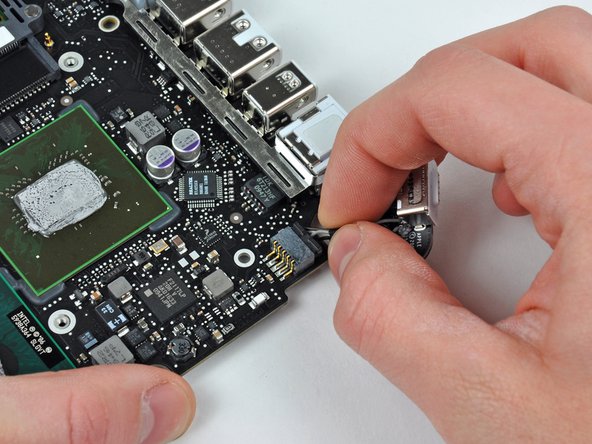
    • Pull the DC-in board connector away from its socket on the logic board.

    • Pull the connector parallel to the face of the logic board.

    Add Comment

  24. MacBook Unibody Model A1342 Logic Board Replacement: step 24, image 1 of 1
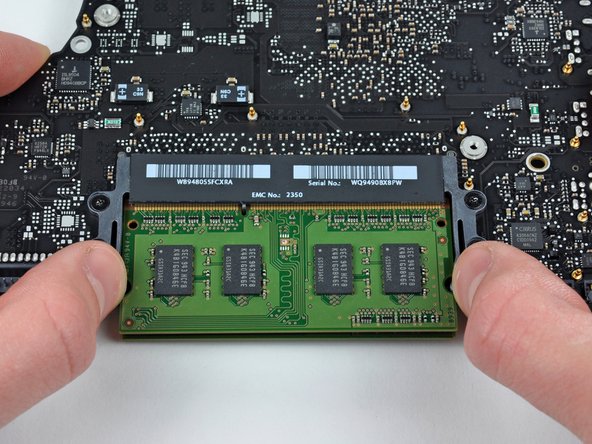
    • Carefully flip the logic board over.

    • Release the tabs on each side of the chip by simultaneously pushing each tab away from the RAM.

    • These tabs lock the chip in place and releasing them will cause the chip to "pop" up.

    Add Comment

  25. MacBook Unibody Model A1342 Logic Board Replacement: step 25, image 1 of 1
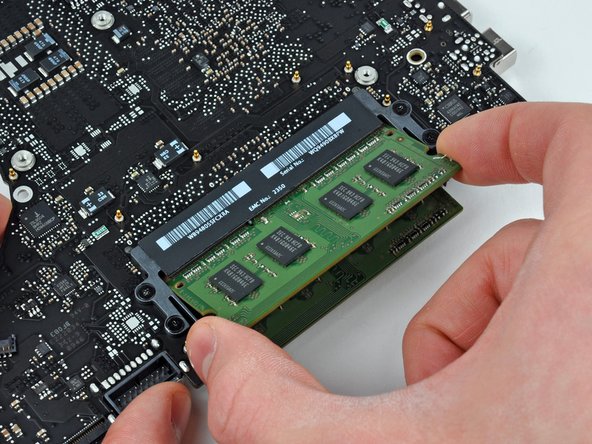
    • After the RAM chip has popped up, pull it straight out of its socket.

    • Repeat this process if a second RAM chip is installed.

    Add Comment

Conclusion

To reassemble your device, follow these instructions in reverse order.

Cancel: I did not complete this guide.

System

Member since: 09/24/09

2,562 Guides authored

0 Guide Comments

Add Comment

View Statistics:

Past 24 Hours: 0

Past 7 Days: 2

Past 30 Days: 7

All Time: 33