Motorola Droid LCD Replacement

What you need

  1. Motorola Droid LCD Replacement, Motorola Droid LCD Replacement: step 1, image 1 of 3 Motorola Droid LCD Replacement, Motorola Droid LCD Replacement: step 1, image 2 of 3 Motorola Droid LCD Replacement, Motorola Droid LCD Replacement: step 1, image 3 of 3
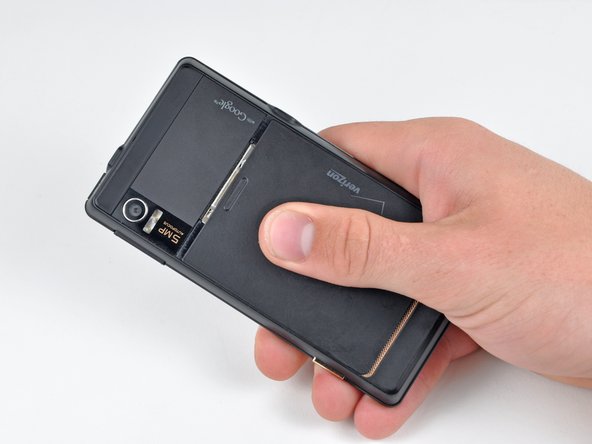
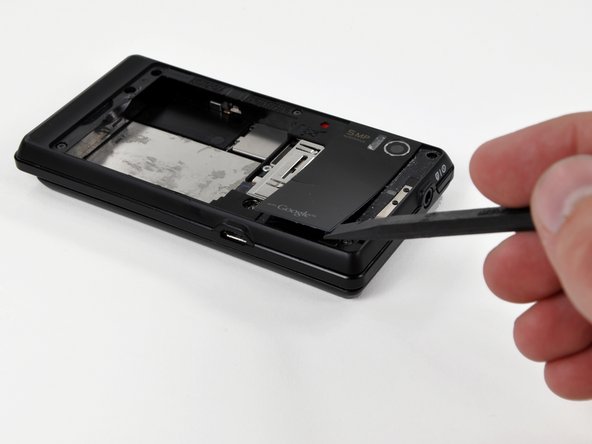
    • Slide the battery cover downwards while applying pressure to the center of the battery cover with your thumb.

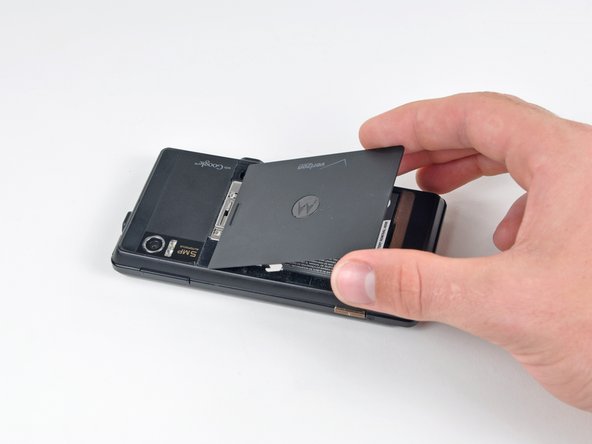
    • Lift and remove the battery cover out from the phone.

    Add Comment

  2. Motorola Droid LCD Replacement: step 2, image 1 of 1
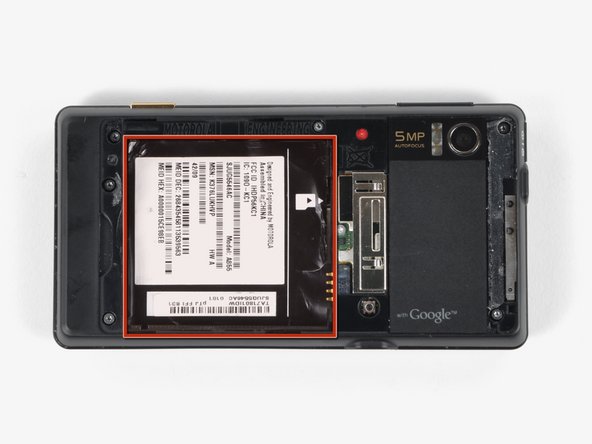
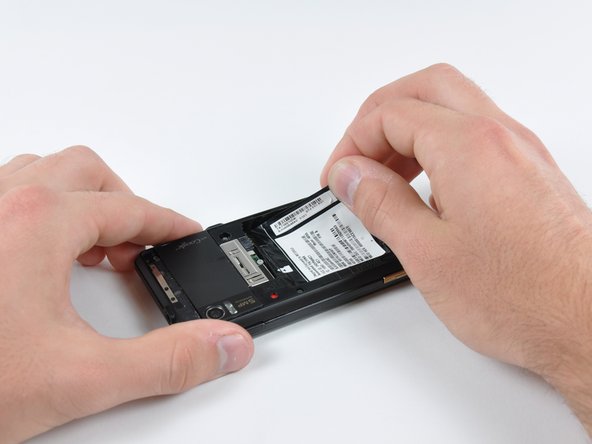
    • Grasp the upper left corner of the battery and lift it out of its housing.

    Add Comment

  3. Motorola Droid LCD Replacement: step 3, image 1 of 1
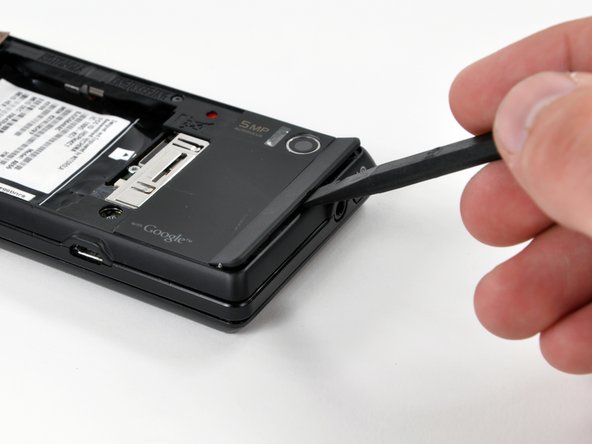
    • Use a spudger to lift and remove the black plastic screw cover at the top of the phone near the camera.

    • The cover is attached by adhesive, so some force may be required.

    Add Comment

  4. Motorola Droid LCD Replacement: step 4, image 1 of 2 Motorola Droid LCD Replacement: step 4, image 2 of 2
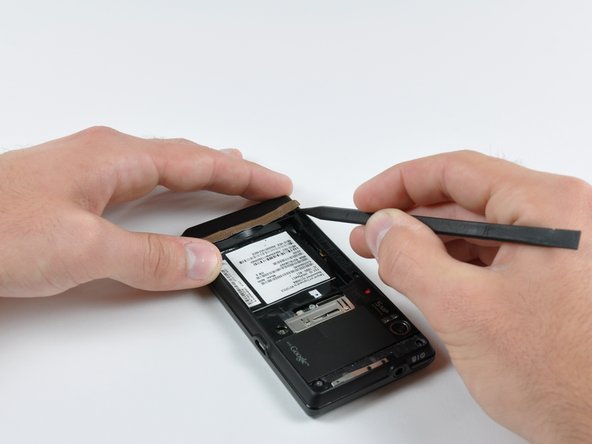
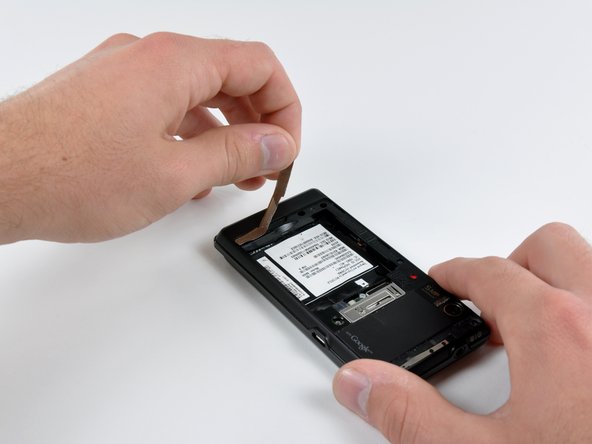
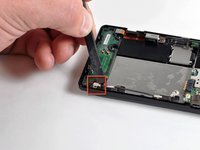
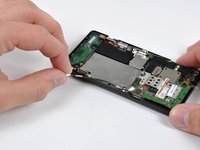
    • Using the tip of a spudger, peel up one corner of the gold ribbon beneath the battery compartment.

    • Peel the ribbon up off the phone.

    Add Comment

  5. Motorola Droid LCD Replacement: step 5, image 1 of 2 Motorola Droid LCD Replacement: step 5, image 2 of 2
    • Carefully peel the device information label that covers the motherboard EMI shields.

    • This label contains important information specific to the phone. Remove it with care and keep it in a safe place.

    Add Comment

  6. Motorola Droid LCD Replacement: step 6, image 1 of 1
    • Insert the flat end of a spudger and pry the plastic camera cover up off the phone.

    • The thin plastic cover is attached to the phone with an adhesive. Work slowly and carefully.

    Add Comment

  7. Motorola Droid LCD Replacement: step 7, image 1 of 1
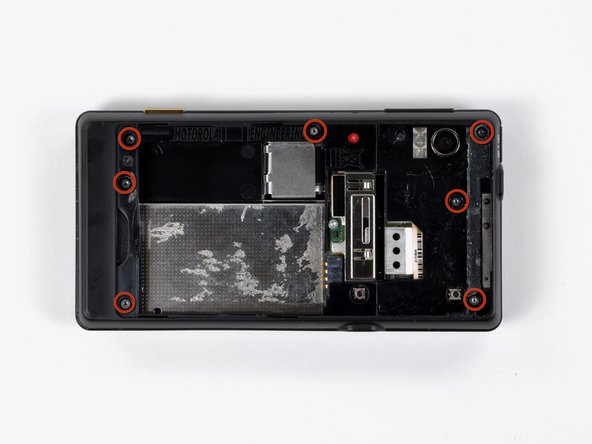
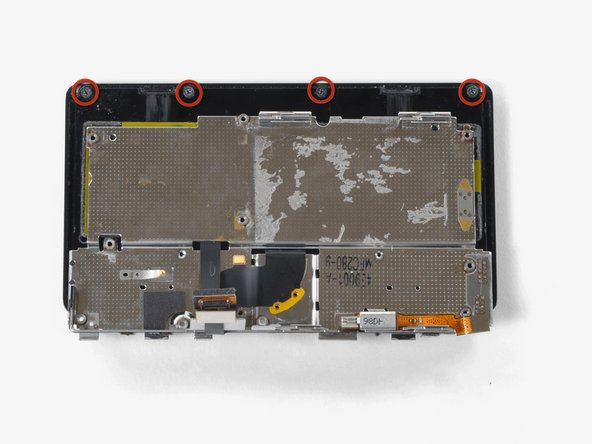
    • Remove the seven 5.5 mm T5 Torx screws securing the rear case to the inner case.

    Add Comment

  8. Motorola Droid LCD Replacement: step 8, image 1 of 1
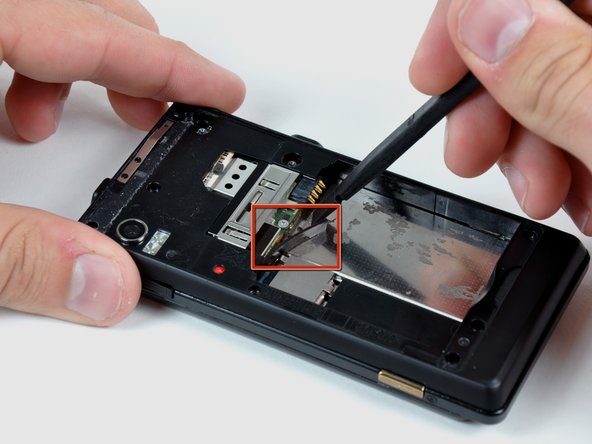
    • Insert the flat end of a spudger and pry downwards to release the plastic tab holding the rear case to the motherboard screw.

    Add Comment

  9. Motorola Droid LCD Replacement: step 9, image 1 of 1
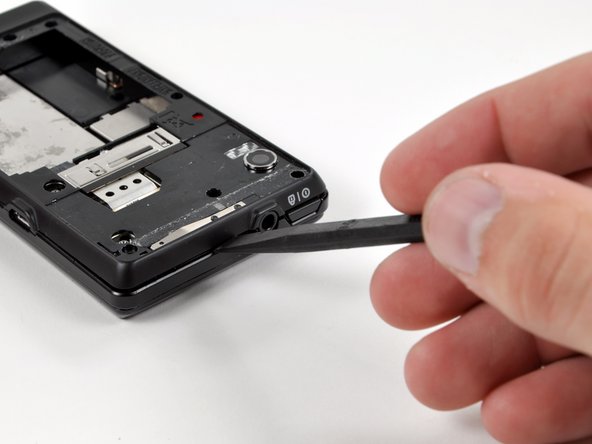
    • Gently insert a spudger between the rear case and front case at the top of the phone, near the audio jack.

    • Carefully pry the top edge of the rear case up from the rest of the phone.

    Add Comment

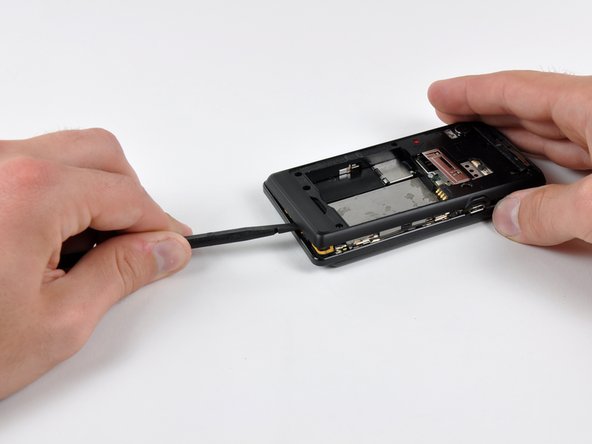
  10. Motorola Droid LCD Replacement: step 10, image 1 of 2 Motorola Droid LCD Replacement: step 10, image 2 of 2
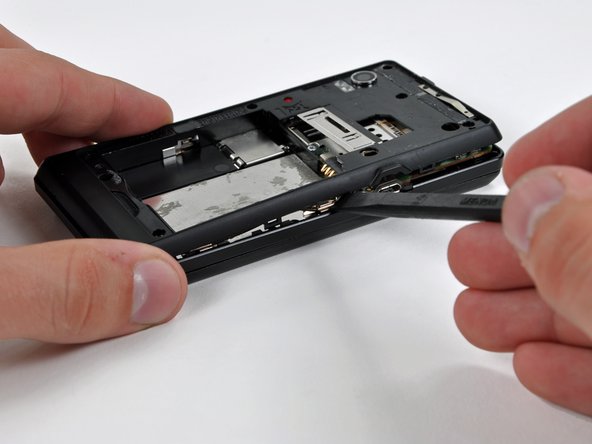
    • With the spudger still inserted between the rear case and front case, slide the spudger along the right edge of the device, moving toward the bottom, prying as you go.

    • Continue prying along the bottom edge of the device from right to left, freeing it from the front panel.

    Add Comment

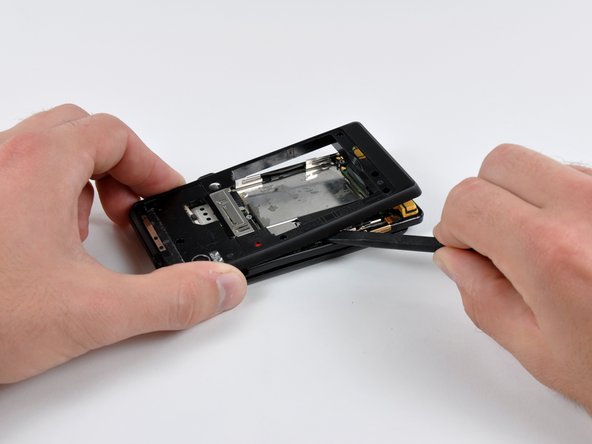
  11. Motorola Droid LCD Replacement: step 11, image 1 of 2 Motorola Droid LCD Replacement: step 11, image 2 of 2
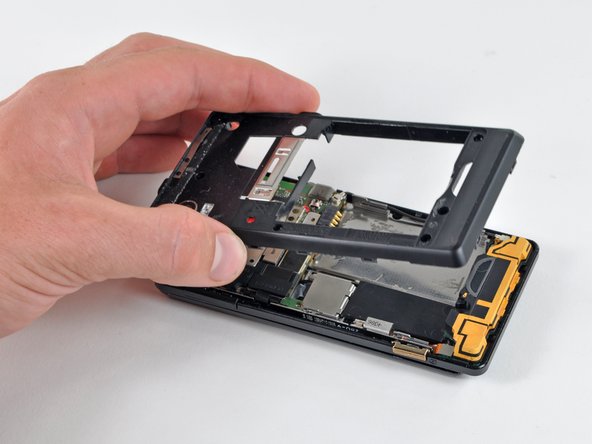
    • Continue prying the rear case from the front case along the left side, moving from bottom to top.

    • Lift the rear case up out of the phone.

    Add Comment

  12. Motorola Droid LCD Replacement: step 12, image 1 of 1
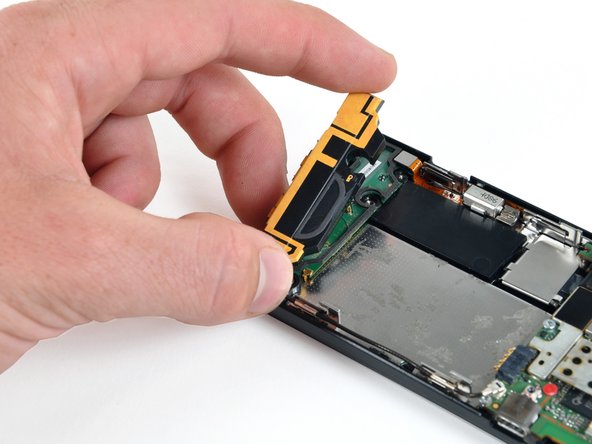
    • Carefully lift and remove the speaker assembly up out of the phone.

    Add Comment

  13. Motorola Droid LCD Replacement: step 13, image 1 of 3 Motorola Droid LCD Replacement: step 13, image 2 of 3 Motorola Droid LCD Replacement: step 13, image 3 of 3
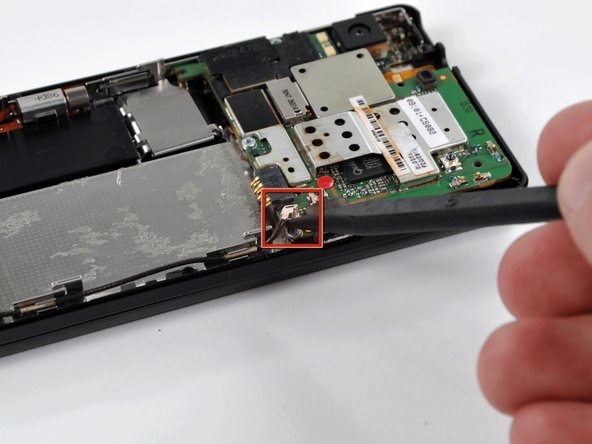
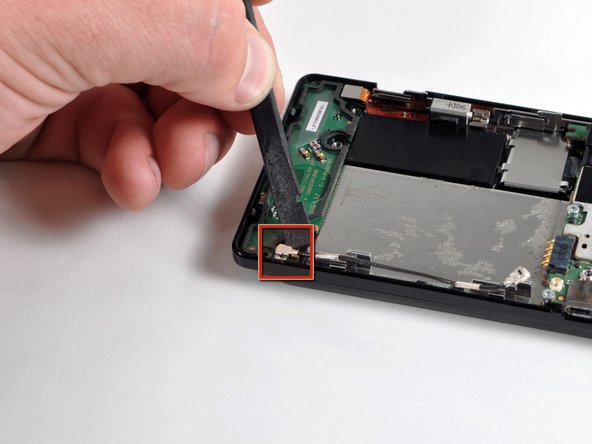
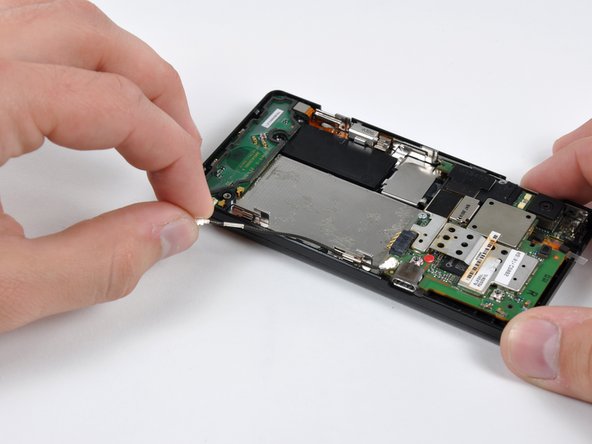
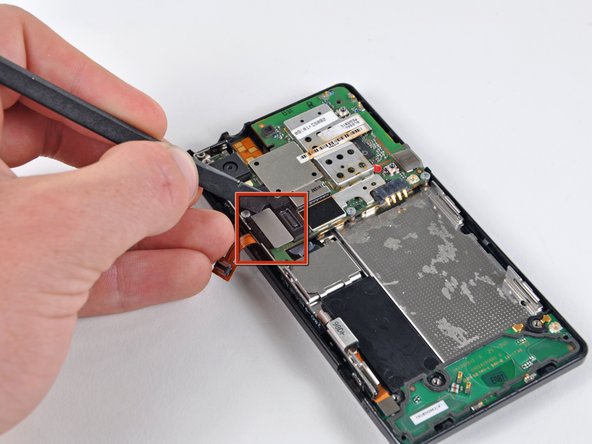
    • Use a spudger to pry the antenna cable connectors from their respective sockets on the motherboard and the speaker/antenna board.

    • De-route the antenna cable by pulling it out of the metal clips along the side of the front case.

    Add Comment

  14. Motorola Droid LCD Replacement: step 14, image 1 of 1
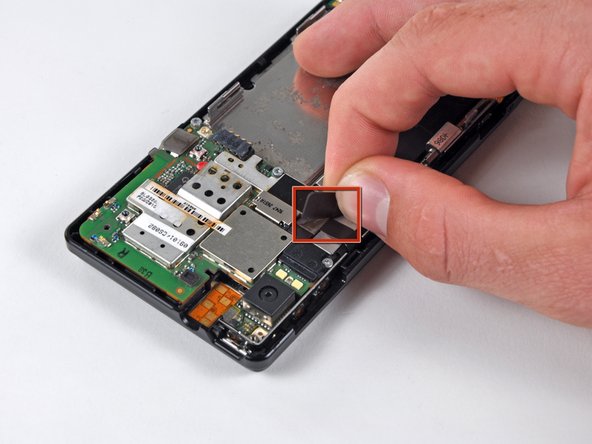
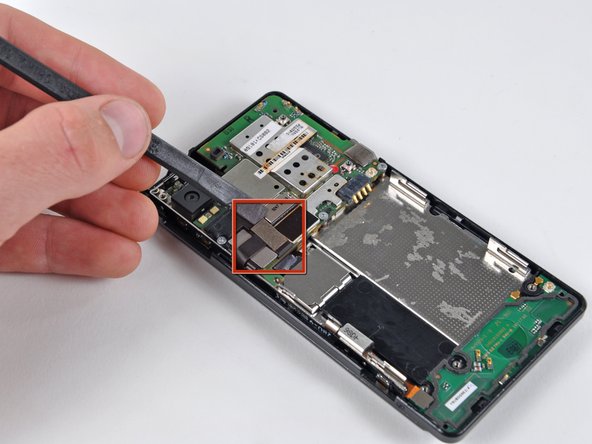
    • Peel the black tape covering the side button and display ribbon connectors on the motherboard.

    Add Comment

  15. Motorola Droid LCD Replacement: step 15, image 1 of 1
    • Disconnect the power button/volume button connector from its socket on the motherboard using the flat end of a spudger.

    Add Comment

  16. Motorola Droid LCD Replacement: step 16, image 1 of 1
    • Disconnect the display ribbon connector from its socket on the motherboard using the flat end of a spudger.

    Add Comment

  17. Motorola Droid LCD Replacement: step 17, image 1 of 1
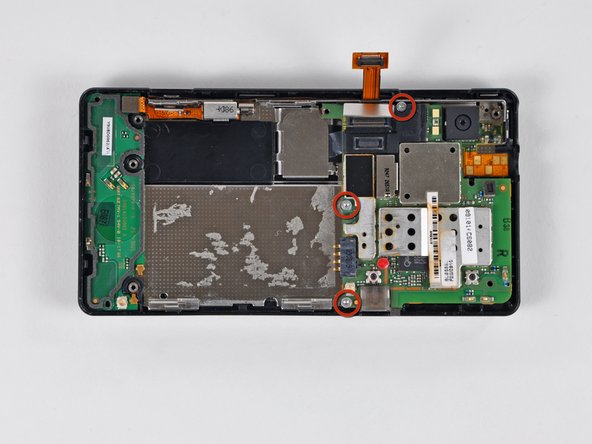
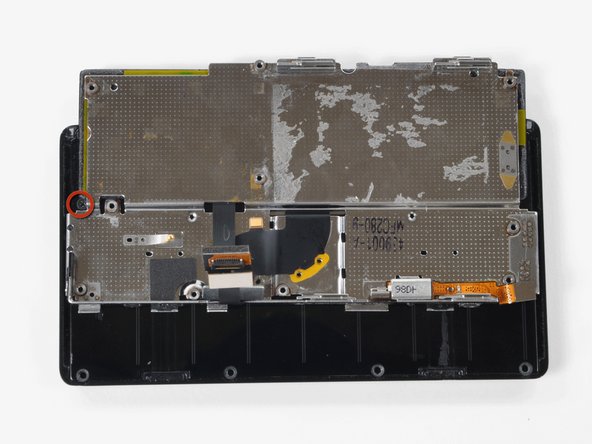
    • Remove three 3.8 mm T5 Torx screws securing the motherboard to the front case.

    • Don't attempt to remove the motherboard yet, it is still attached by the keypad ribbon connector.

    Add Comment

  18. Motorola Droid LCD Replacement: step 18, image 1 of 2 Motorola Droid LCD Replacement: step 18, image 2 of 2
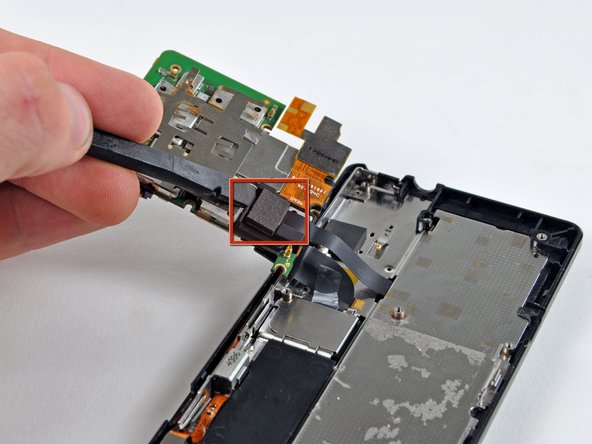
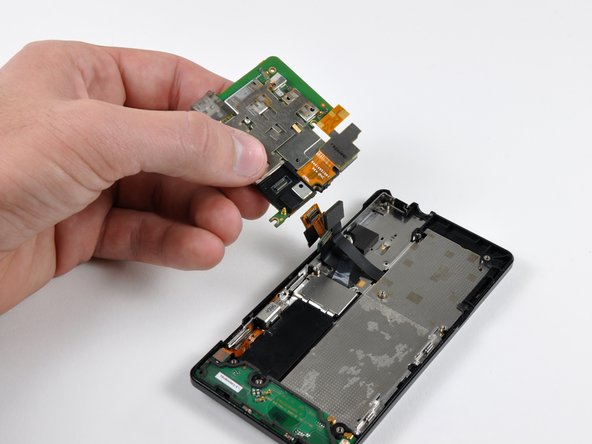
    • Carefully lift the motherboard from the front case and lay it next to the Droid, minding the keypad connector that is still attached.

    • Disconnect the keypad connector by prying it straight up off its socket on the motherboard.

    • Remove the motherboard from the phone.

    Add Comment

  19. Motorola Droid LCD Replacement: step 19, image 1 of 1
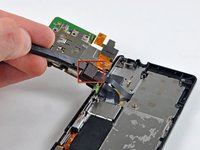
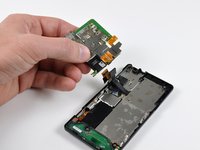
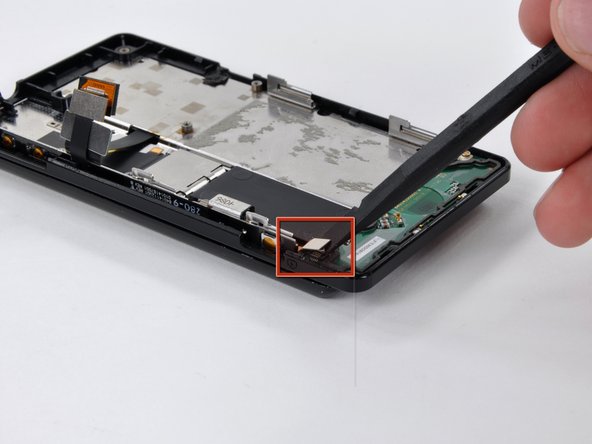
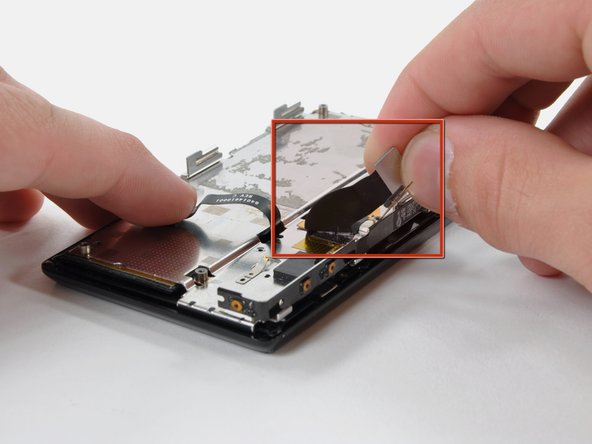
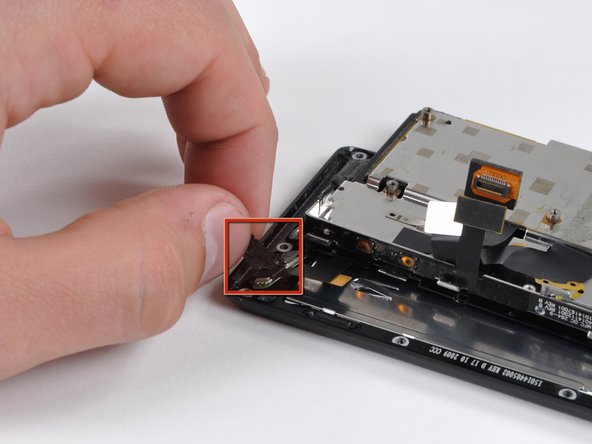
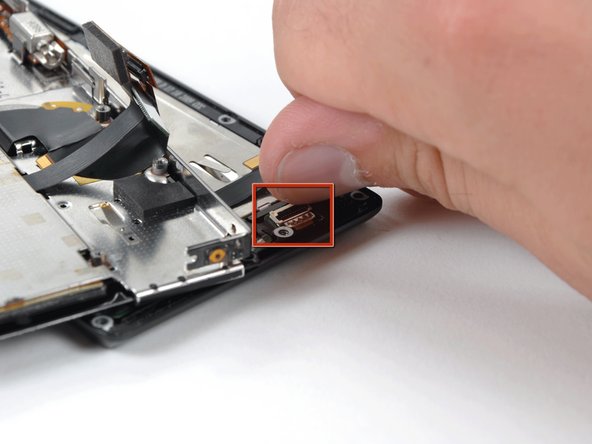
    • Disconnect the camera button/vibrator connector by prying it straight up off its socket on the speaker board with a spudger.

    Add Comment

  20. Motorola Droid LCD Replacement: step 20, image 1 of 2 Motorola Droid LCD Replacement: step 20, image 2 of 2
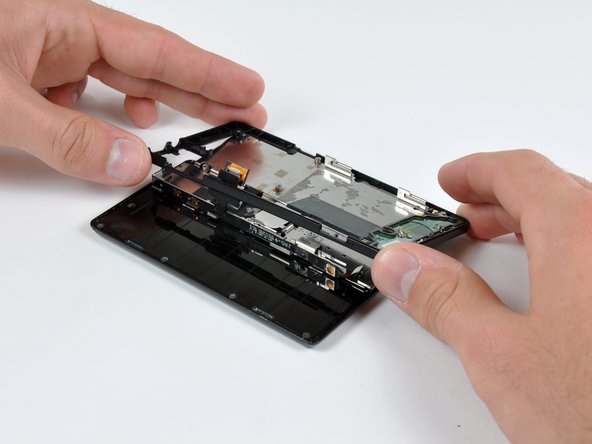
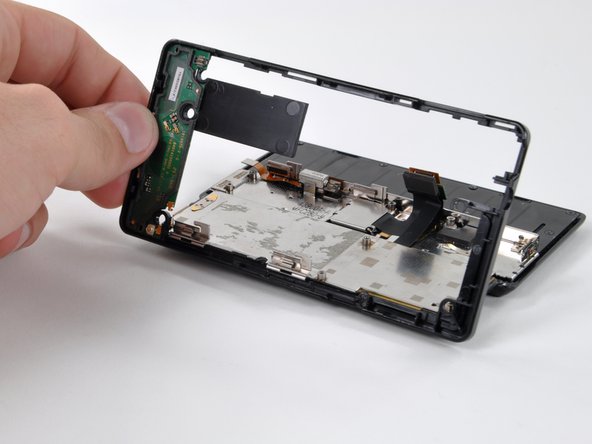
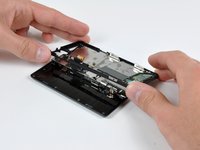
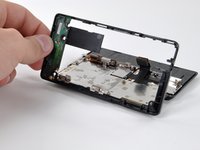
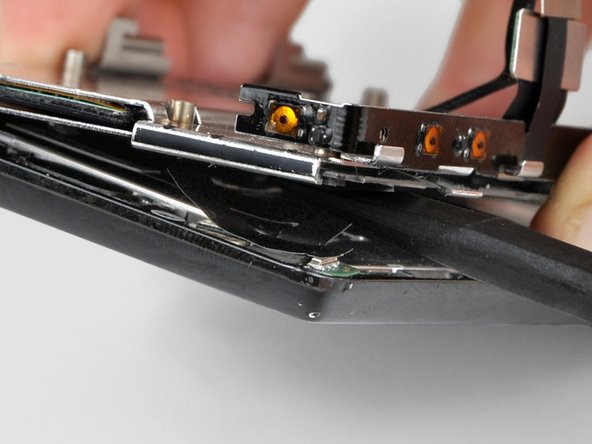
    • Slide the phone open.

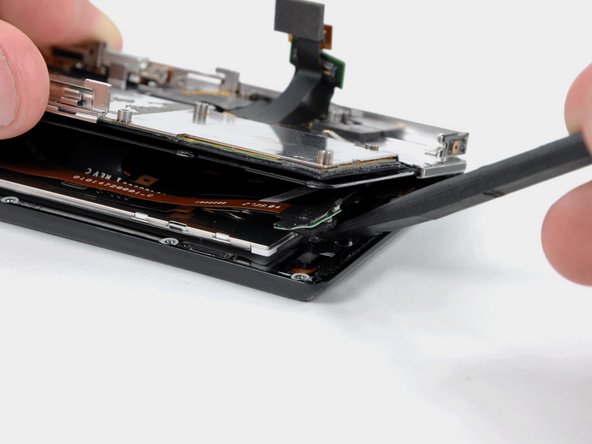
    • Lift up the edge of the black plastic rim that includes the speaker board from the side closest to the keypad.

    • Continue lifting the side of the rim until it is almost vertical, and wiggle it free from the back of the LCD assembly.

    Add Comment

  21. Motorola Droid LCD Replacement: step 21, image 1 of 1
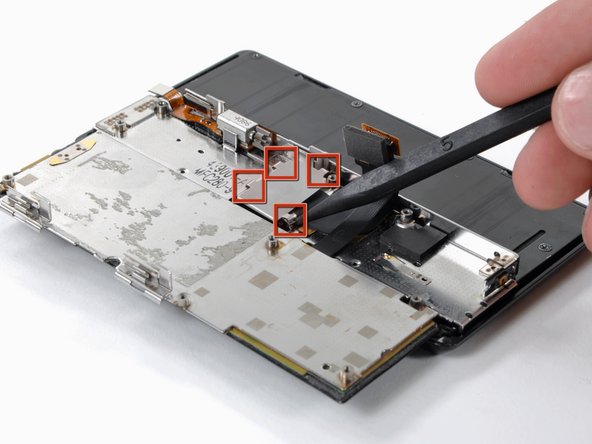
    • Remove the EMI shield by releasing the clips shown with the tip of a spudger.

    Add Comment

  22. Motorola Droid LCD Replacement: step 22, image 1 of 1
    • Remove the five 2.5 mm Phillips screws.

    • It's either a 2.5 MM Phillips or a T4 Torx. Motorola changed it on later models of the A956.

    Add Comment

  23. Motorola Droid LCD Replacement: step 23, image 1 of 1
    • Slide the phone until a sixth screw is visible, as shown.

    • Remove the single 2.5 mm Phillips screw.

    Add Comment

  24. Motorola Droid LCD Replacement: step 24, image 1 of 1
    • Continue sliding the phone in the same direction, past its "closed" position, until four more screws are revealed. You will need to lift the slider slightly to get it passed the "closed" position.

    • Remove the four 2.5 mm Phillips screws.

    Add Comment

  25. Motorola Droid LCD Replacement: step 25, image 1 of 1
    • Return the phone to its normal "closed" position.

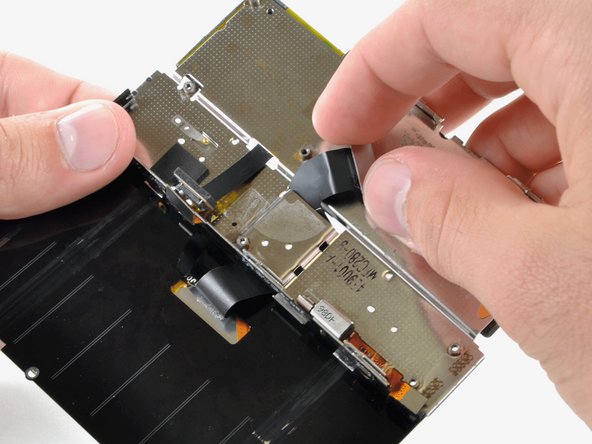
    • Peel the display ribbon up from the keypad's metal backing.

    • The ribbon cannot be completely removed yet, because it is attached to the back of the LCD.

    Add Comment

  26. Motorola Droid LCD Replacement: step 26, image 1 of 2 Motorola Droid LCD Replacement: step 26, image 2 of 2
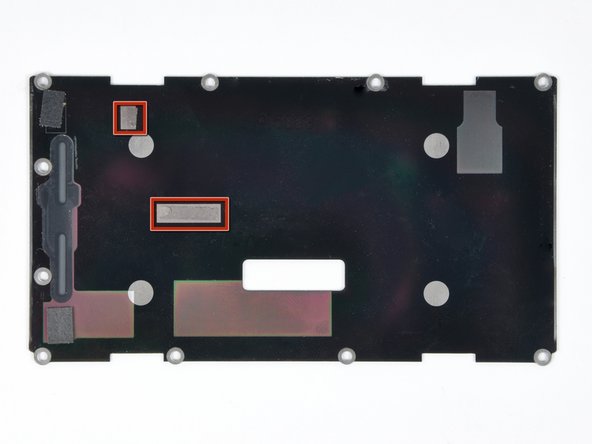
    • Insert a spudger between the back and front case of the display assembly, and peel the two ribbon cables off the two adhesive pads along the back case of the display assembly.

    • The location of the pads on the back case is shown. The top left corner of the case is the corner of the phone shown in the first picture.

    Add Comment

  27. Motorola Droid LCD Replacement: step 27, image 1 of 1
    • Use the flat end of a spudger to lift the board that contains the ambient light sensor and display data cable connector out of the screen housing.

    Add Comment

  28. Motorola Droid LCD Replacement: step 28, image 1 of 2 Motorola Droid LCD Replacement: step 28, image 2 of 2
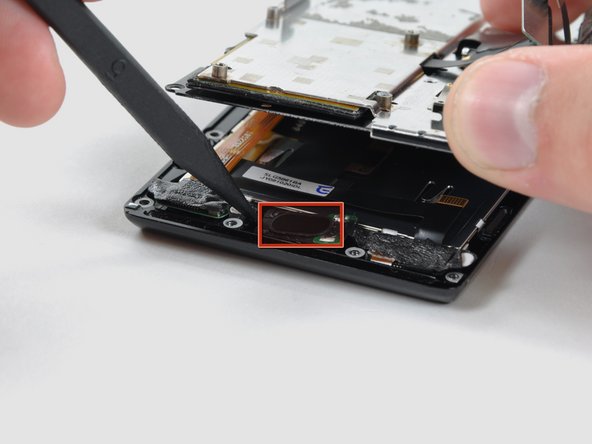
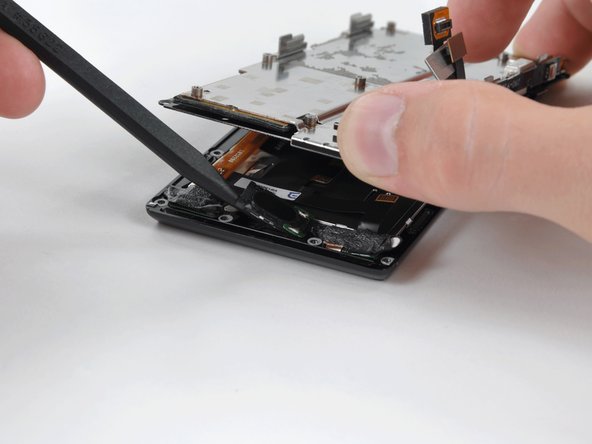
    • Use the tip of a spudger to lift the speaker out of the screen housing.

    Add Comment

  29. Motorola Droid LCD Replacement: step 29, image 1 of 1
    • Peel off the black tape to reveal the front panel connector.

    Add Comment

  30. Motorola Droid LCD Replacement: step 30, image 1 of 1
    • Use the flat end of a spudger or your fingernail to flip up the retaining flap on the front panel ribbon cable ZIF socket.

    • Be sure you are prying up on the hinged retaining flap, not the socket itself.

    • Disconnect the front panel ribbon cable.

    Add Comment

  31. Motorola Droid LCD Replacement: step 31, image 1 of 1
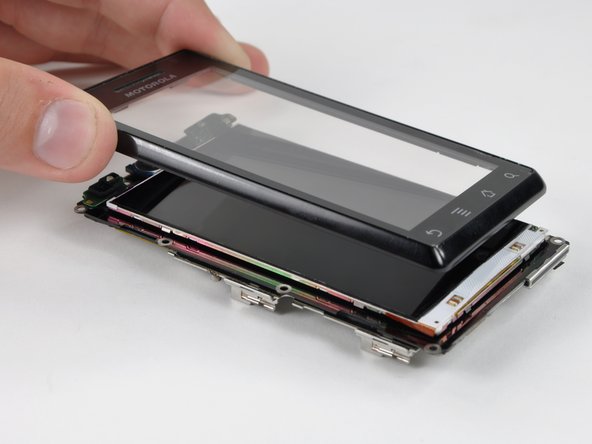
    • Flip the phone over and remove the front panel.

    Add Comment

  32. Motorola Droid LCD Replacement: step 32, image 1 of 2 Motorola Droid LCD Replacement: step 32, image 2 of 2
    • Slide the phone open.

    • While feeding the display ribbon cable through the slot in the metal keypad backing, slowly continue to slide the phone open past its normal allowed point.

    • Continue feeding the display ribbon cable through and sliding the phone until the LCD assembly is separated from the keypad.

    Add Comment

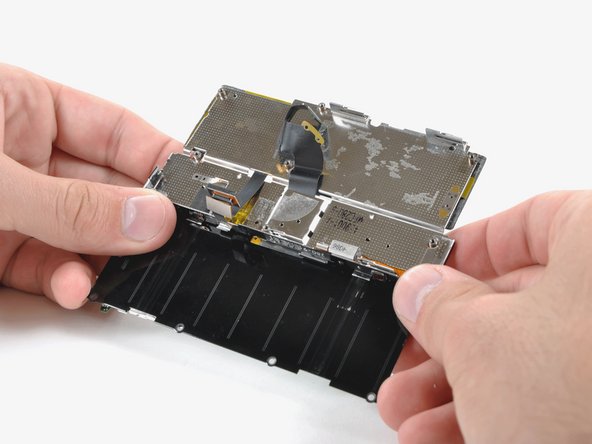
  33. Motorola Droid LCD Replacement: step 33, image 1 of 1
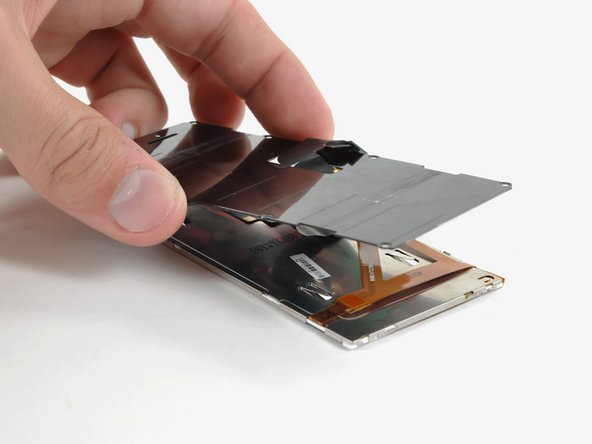
    • Lift the back cover off the display assembly, feeding the ribbon cable through the slit as you go.

    Add Comment

  34. Motorola Droid LCD Replacement: step 34, image 1 of 1
    • Peel away the black tape to reveal the display data cable connector.

    Add Comment

  35. Motorola Droid LCD Replacement: step 35, image 1 of 2 Motorola Droid LCD Replacement: step 35, image 2 of 2
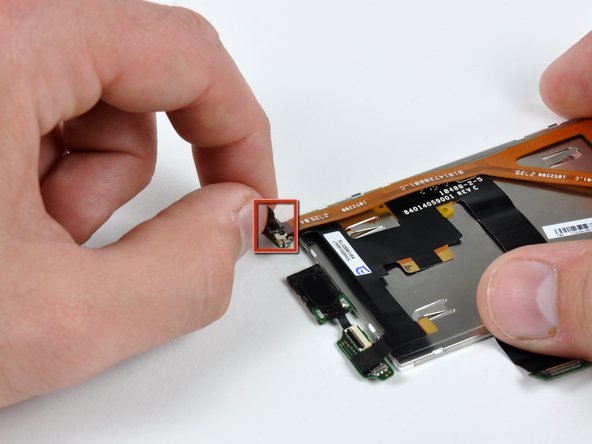
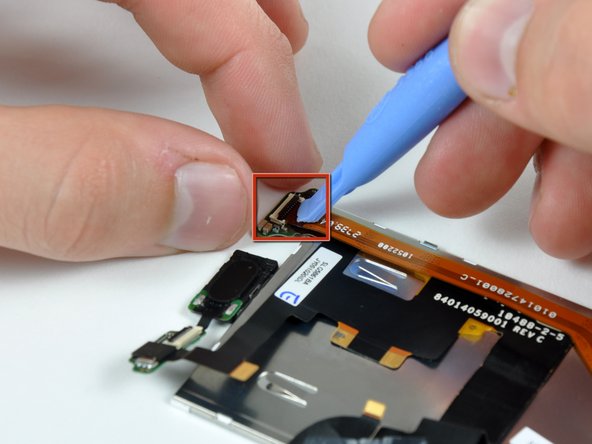
    • Use an iPod opening tool or fingernail to flip up the black lever on the ZIF connector.

    • Pull the orange display data cable from the ZIF connector.

    Add Comment

  36. Motorola Droid LCD Replacement: step 36, image 1 of 2 Motorola Droid LCD Replacement: step 36, image 2 of 2
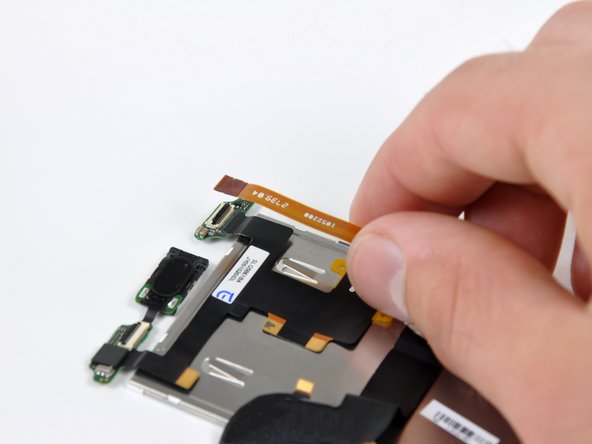
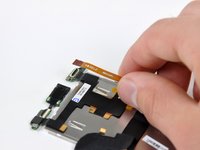
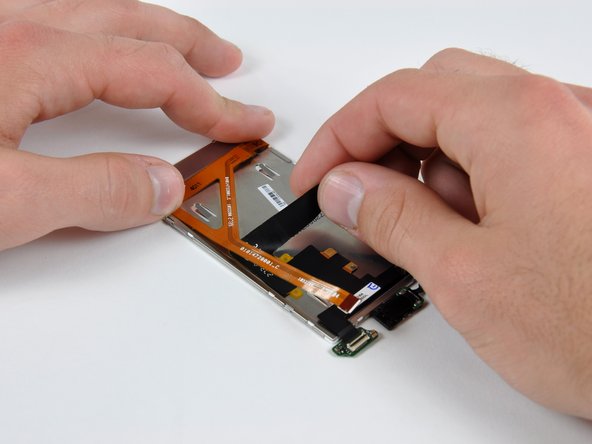
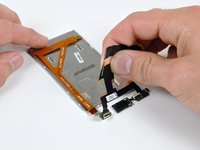
    • Peel the display ribbon cable from the back of the LCD. The ribbon cable is attached with adhesive, so work slowly to avoid damaging it.

    • Remove the display ribbon from the back of the LCD.

    Add Comment

Conclusion

To reassemble your device, follow these instructions in reverse order.

Cancel: I did not complete this guide.

System

Member since: 09/24/09

2,562 Guides authored

0 Guide Comments

Add Comment

View Statistics:

Past 24 Hours: 0

Past 7 Days: 0

Past 30 Days: 0

All Time: 9