Nintendo 3DS Cameras Replacement

What you need

  1. Nintendo 3DS Cameras Replacement, Nintendo 3DS Cameras Replacement: step 1, image 1 of 1
    • Unscrew the four Phillips #00 screws along the top of the back cover.

    • The screws are held in place by locking washers, and will not come out of the back cover.

    • The comments section is full of unlucky souls who will tell you that the screws here through step 4 will strip incredibly easily. Press down fairly hard, and go slow.

    Add Comment

  2. Nintendo 3DS Cameras Replacement: step 2, image 1 of 2 Nintendo 3DS Cameras Replacement: step 2, image 2 of 2
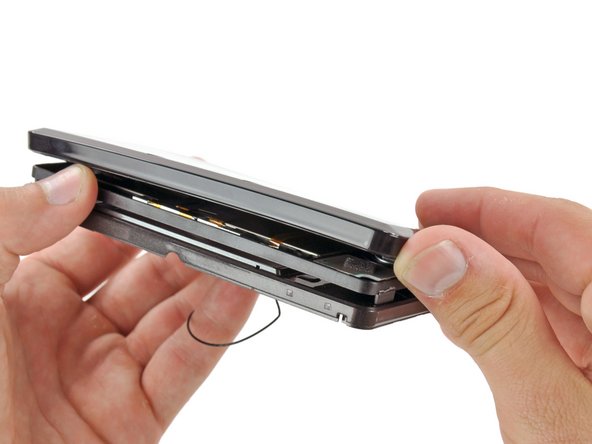
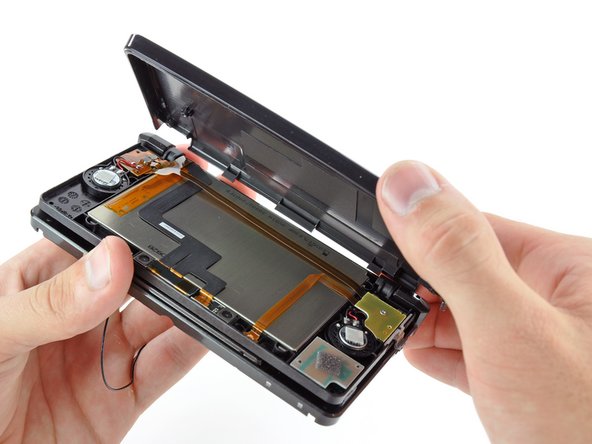
    • Hold the device in one hand and turn it over.

    • Grab the top edge of the back cover with your opposite hand so that the cover does not fall back into place.

    • Flip the 3DS over again so that the back cover is facing up.

    • Pull the back cover up and away from the rest of the device to remove it.

    Add Comment

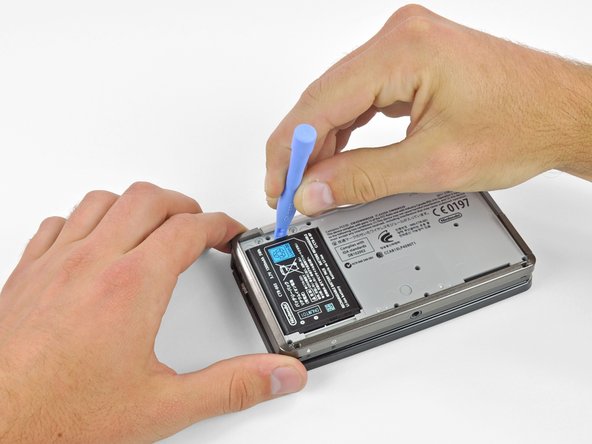
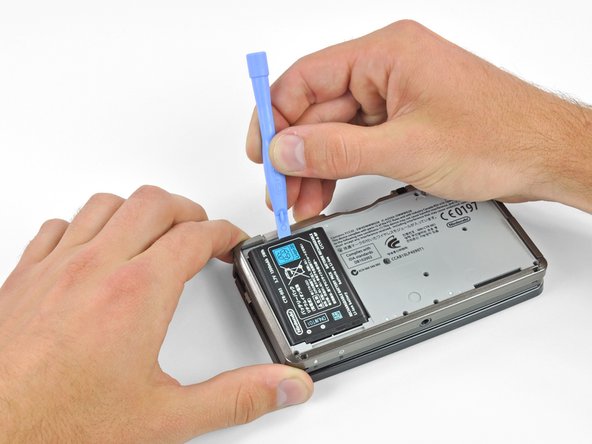
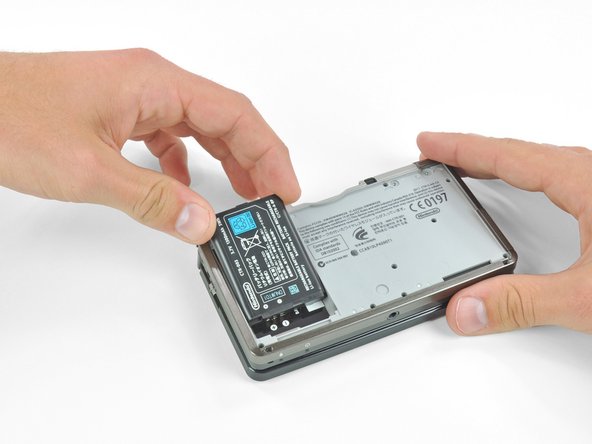
  3. Nintendo 3DS Cameras Replacement: step 3, image 1 of 3 Nintendo 3DS Cameras Replacement: step 3, image 2 of 3 Nintendo 3DS Cameras Replacement: step 3, image 3 of 3
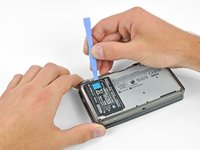
    • Insert a plastic opening tool into the notch in the lower case above the battery.

    • Pry the battery up with the plastic opening tool.

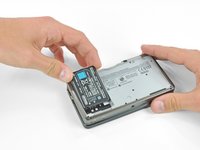
    • Grab the top edge of the battery and lift it out of the lower case.

    Add Comment

  4. Nintendo 3DS Cameras Replacement: step 4, image 1 of 1
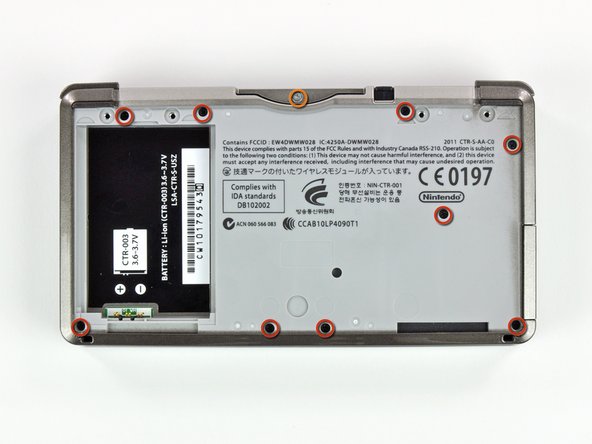
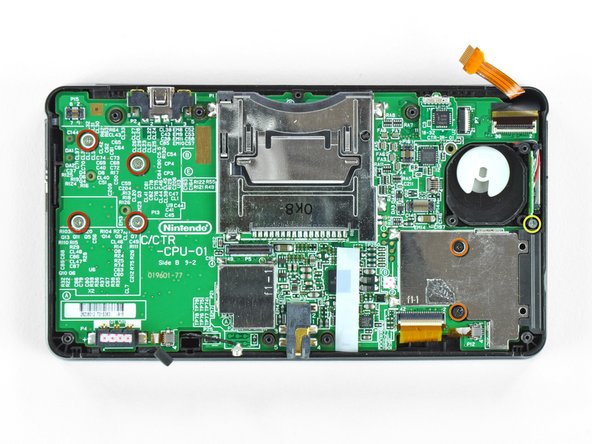
    • Remove the nine 6.3 mm black Phillips screws from the lower case.

    • Remove the 2.4 mm silver Phillips screw above the game cartridge slot.

    Add Comment

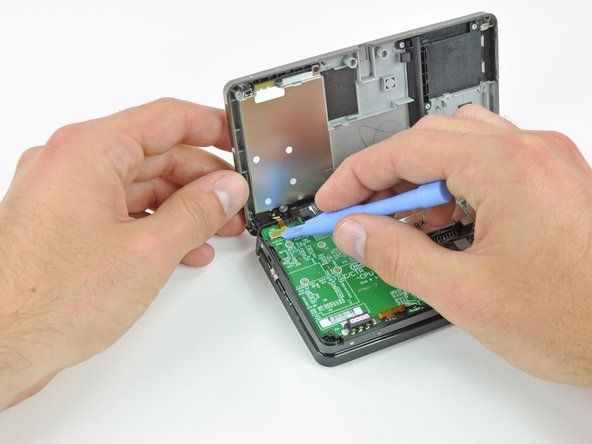
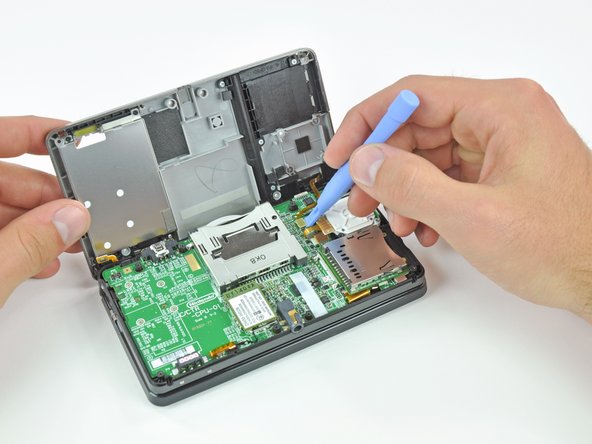
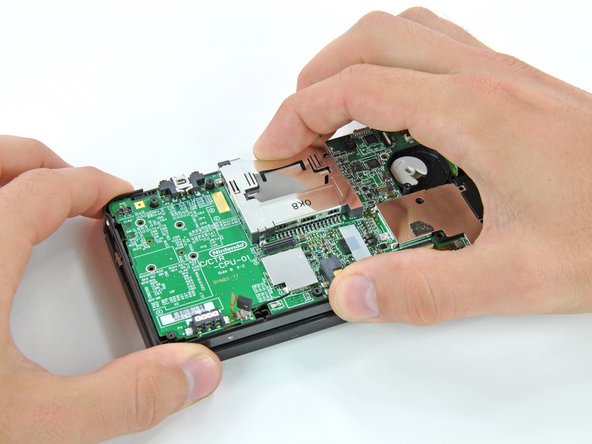
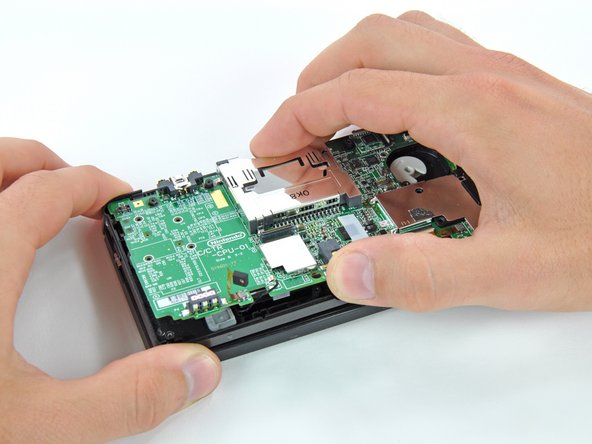
  5. Nintendo 3DS Cameras Replacement: step 5, image 1 of 3 Nintendo 3DS Cameras Replacement: step 5, image 2 of 3 Nintendo 3DS Cameras Replacement: step 5, image 3 of 3
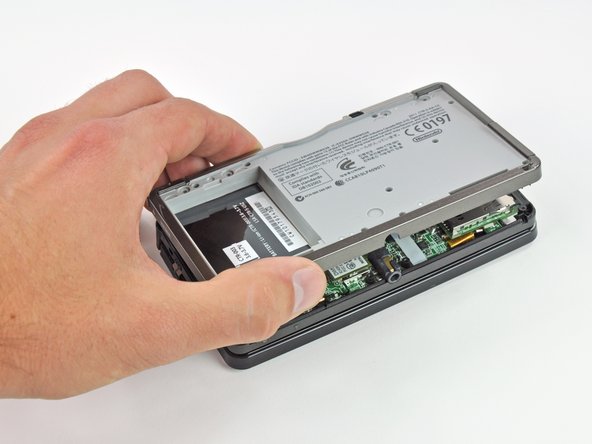
    • Lift the bottom edge of the lower case off the rest of the 3DS.

    • There are still two ribbon cables connecting the mother board to the case, so be sure not to pull the lower case all the way off.

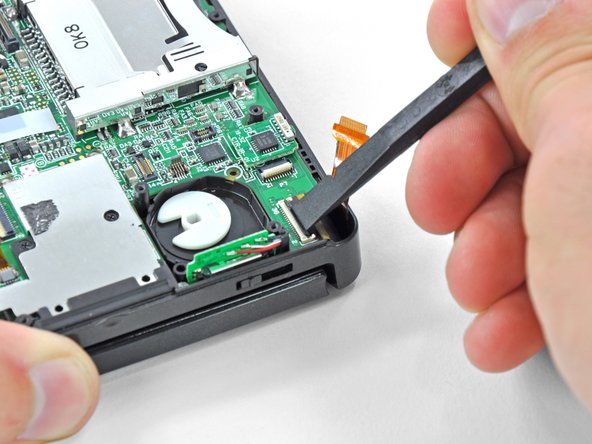
    • Use a plastic opening tool to pry the shoulder button ribbon cables off their sockets on the motherboard.

    • Remove the lower case from the device.

    Add Comment

  6. Nintendo 3DS Cameras Replacement: step 6, image 1 of 1
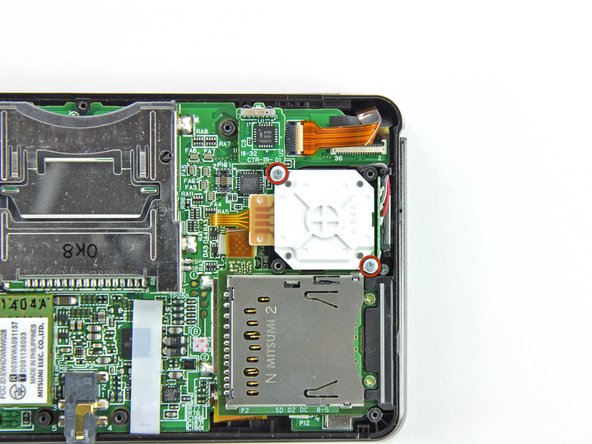
    • Remove the two 7.7 mm Phillips screws securing the back of the Circle Pad to the motherboard.

    Add Comment

  7. Nintendo 3DS Cameras Replacement: step 7, image 1 of 3 Nintendo 3DS Cameras Replacement: step 7, image 2 of 3 Nintendo 3DS Cameras Replacement: step 7, image 3 of 3
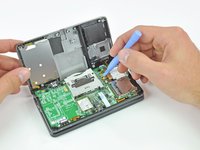
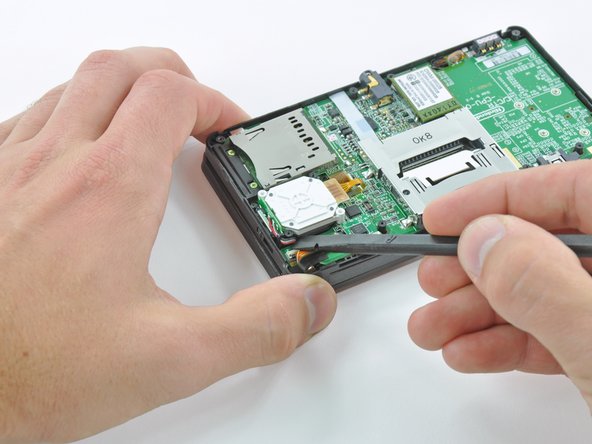
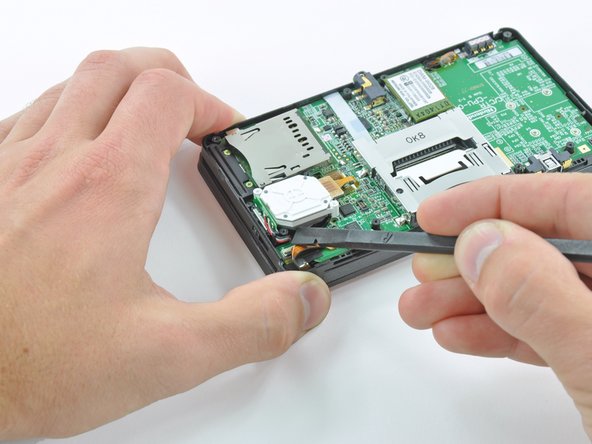
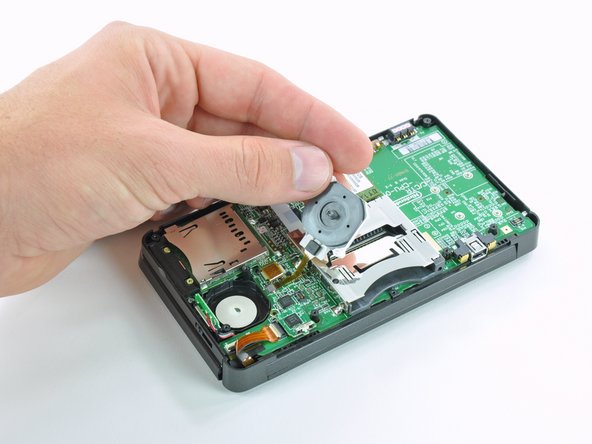
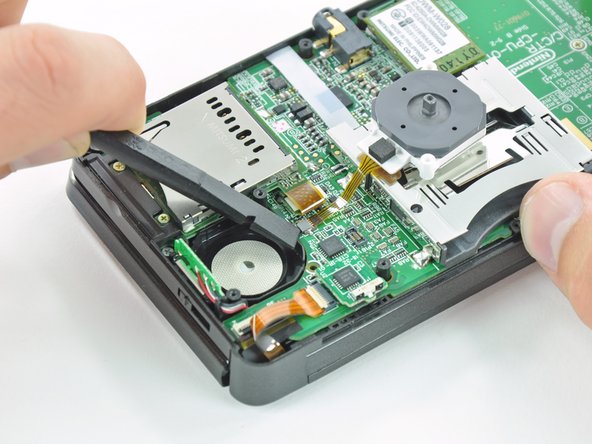
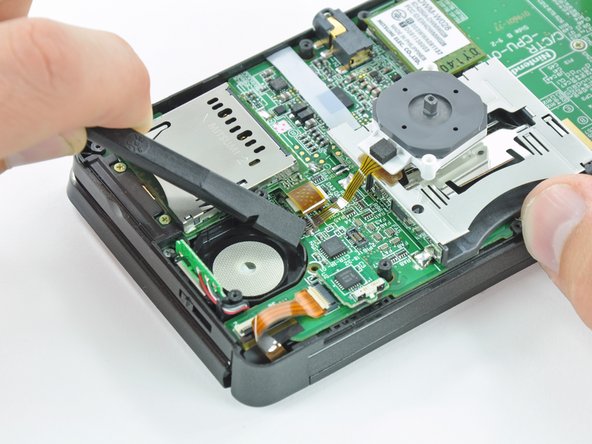
    • Use the flat end of a spudger to pry the back of the Circle Pad off the motherboard.

    • Lift the Circle Pad joystick off the motherboard and lay it on its back so that the ribbon cable connector is accessible.

    Add Comment

  8. Nintendo 3DS Cameras Replacement: step 8, image 1 of 3 Nintendo 3DS Cameras Replacement: step 8, image 2 of 3 Nintendo 3DS Cameras Replacement: step 8, image 3 of 3
    • Use the flat end of a spudger or your fingernail to flip up the retaining flap on the Circle Pad ribbon cable ZIF socket.

    • Be sure you are prying up on the hinged retaining flap, not the socket itself.

    • Lift the Circle Pad joystick off the motherboard.

    Add Comment

  9. Nintendo 3DS Cameras Replacement: step 9, image 1 of 2 Nintendo 3DS Cameras Replacement: step 9, image 2 of 2
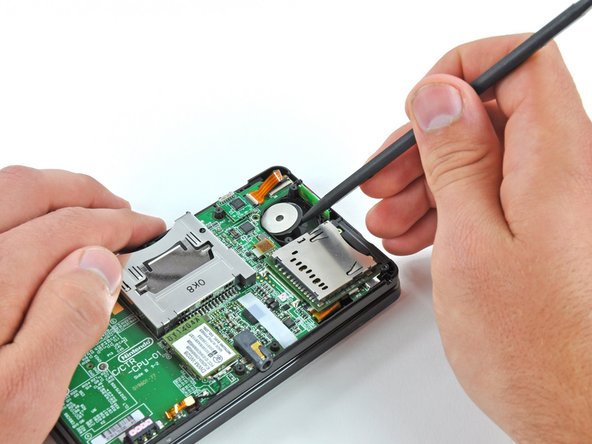
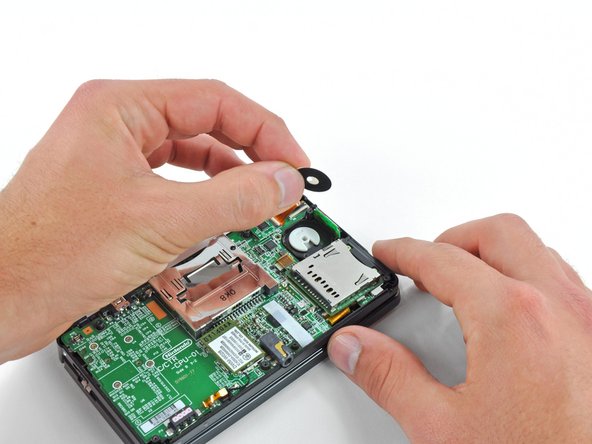
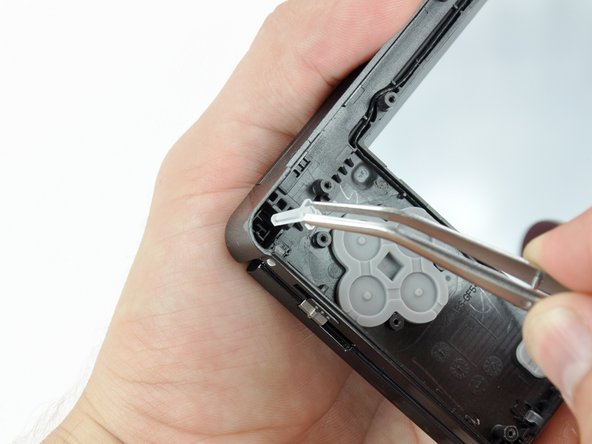
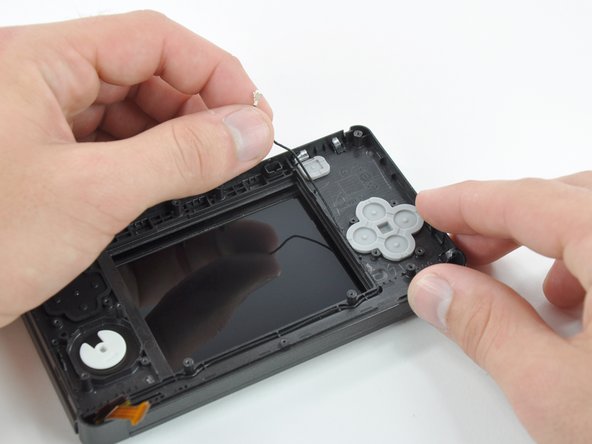
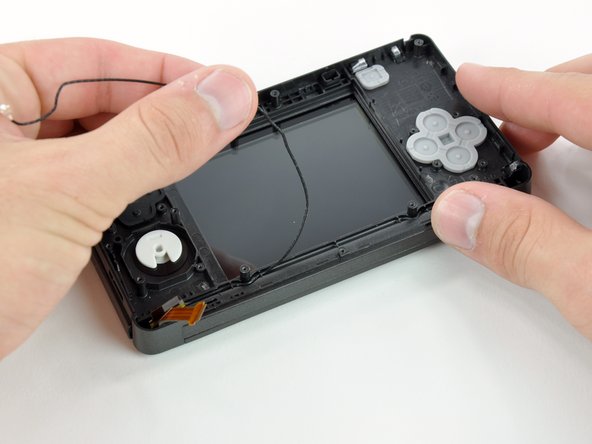
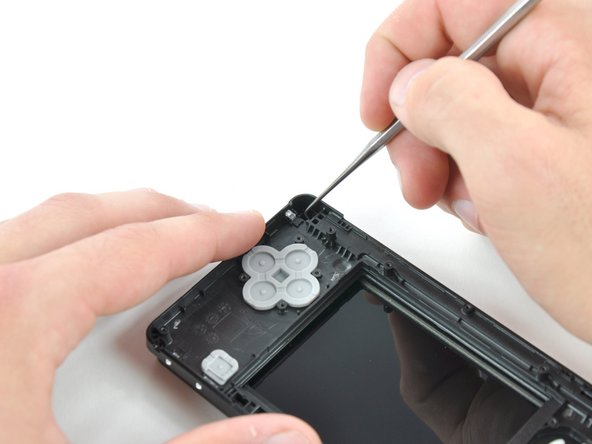
    • To decrease the chance of losing it during repairs, you may want to remove the two thin pads underneath the Circle Pad joystick.

    • Use a spudger or screwdriver to lift the pads up and remove them from the device.

    Add Comment

  10. Nintendo 3DS Cameras Replacement: step 10, image 1 of 1
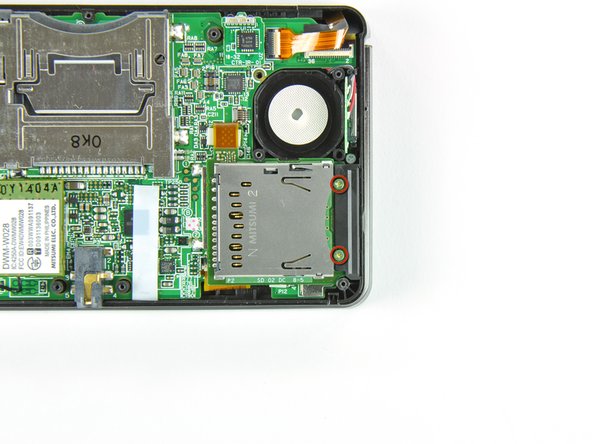
    • Remove the two 4.5 mm Phillips screws securing the SD board to the motherboard.

    Add Comment

  11. Nintendo 3DS Cameras Replacement: step 11, image 1 of 2 Nintendo 3DS Cameras Replacement: step 11, image 2 of 2
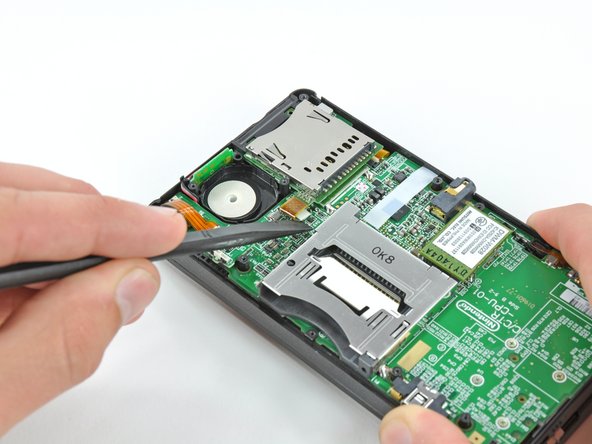
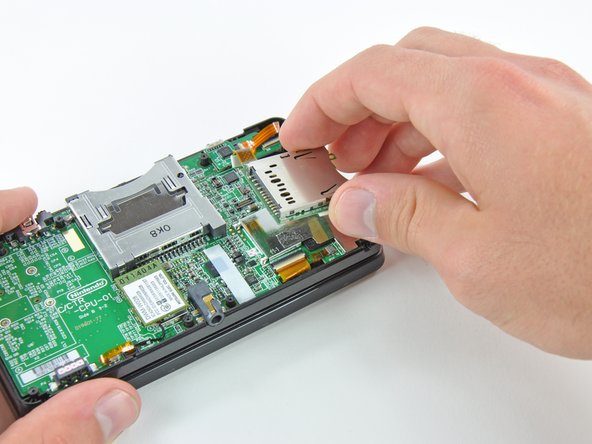
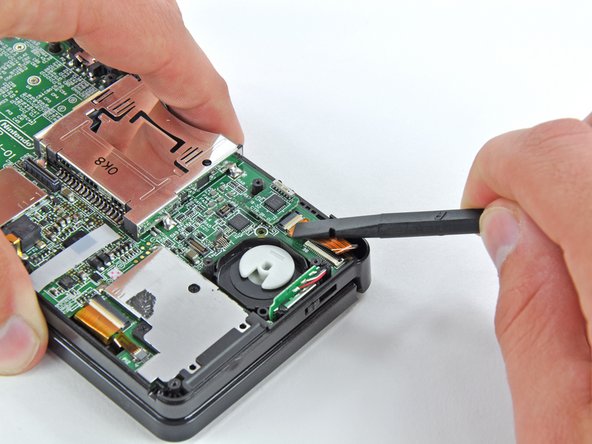
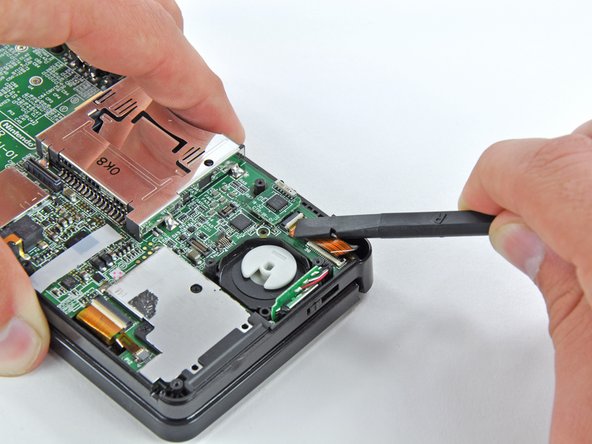
    • Use the flat end of a spudger to pry the SD board ribbon cable connector off its socket on the motherboard.

    Add Comment

  12. Nintendo 3DS Cameras Replacement: step 12, image 1 of 3 Nintendo 3DS Cameras Replacement: step 12, image 2 of 3 Nintendo 3DS Cameras Replacement: step 12, image 3 of 3
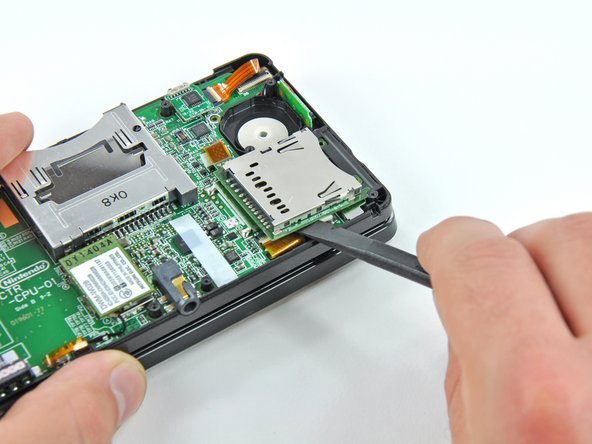
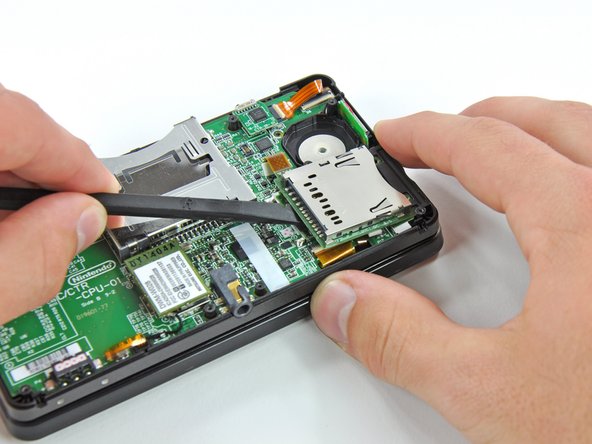
    • Insert the flat end of a spudger between the SD board and the motherboard.

    • Run the spudger along the sides of the SD board to free it from the adhesive pad holding it in place.

    • Once completely freed, lift the SD board straight off the motherboard.

    Add Comment

  13. Nintendo 3DS Cameras Replacement: step 13, image 1 of 2 Nintendo 3DS Cameras Replacement: step 13, image 2 of 2
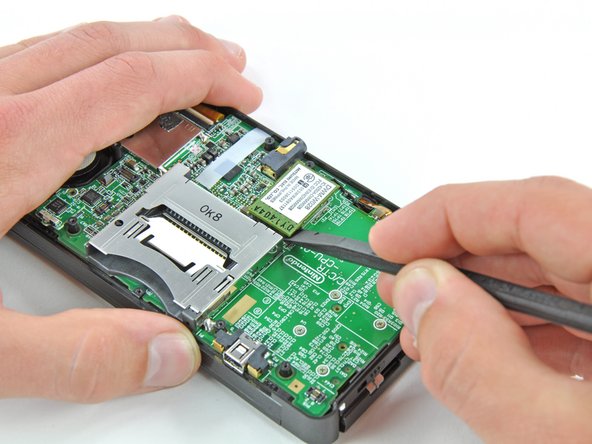
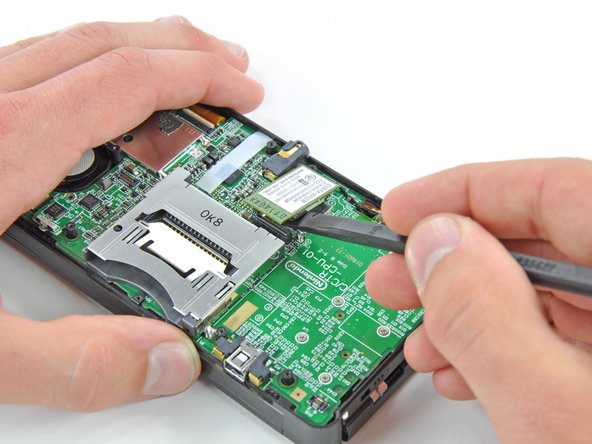
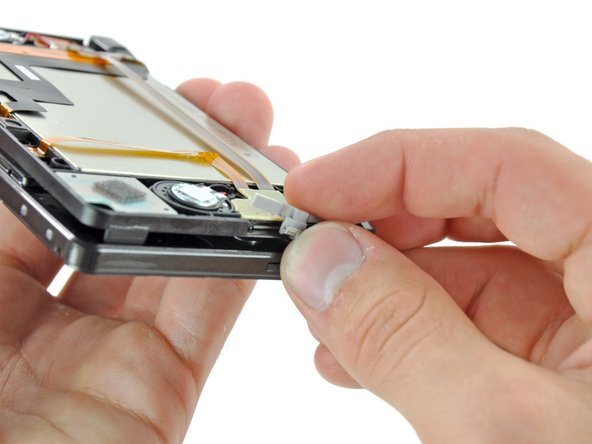
    • Slide the flat end of a spudger under the corner of the Wi-Fi board, and lift it away from the motherboard.

    • The Wi-Fi antenna cable is still connected to the Wi-Fi board, so you cannot completely remove the Wi-Fi board yet.

    Add Comment

  14. Nintendo 3DS Cameras Replacement: step 14, image 1 of 3 Nintendo 3DS Cameras Replacement: step 14, image 2 of 3 Nintendo 3DS Cameras Replacement: step 14, image 3 of 3
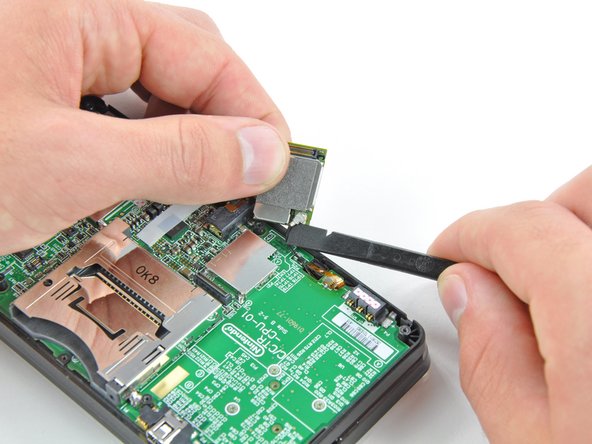
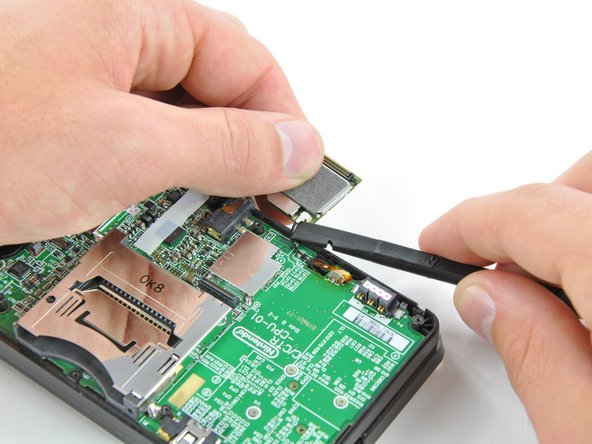
    • Lift the Wi-Fi board off the motherboard and rotate it so that the bottom side is facing up.

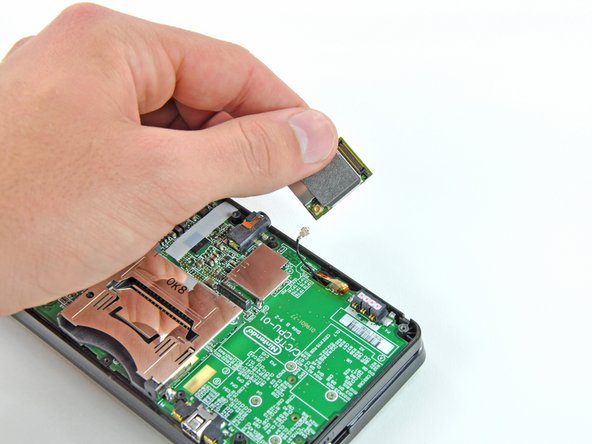
    • Use the flat end of a spudger to pry the Wi-Fi antenna cable connector off its socket on the Wi-Fi board.

    • Remove the Wi-Fi board from the device.

    Add Comment

  15. Nintendo 3DS Cameras Replacement: step 15, image 1 of 2 Nintendo 3DS Cameras Replacement: step 15, image 2 of 2
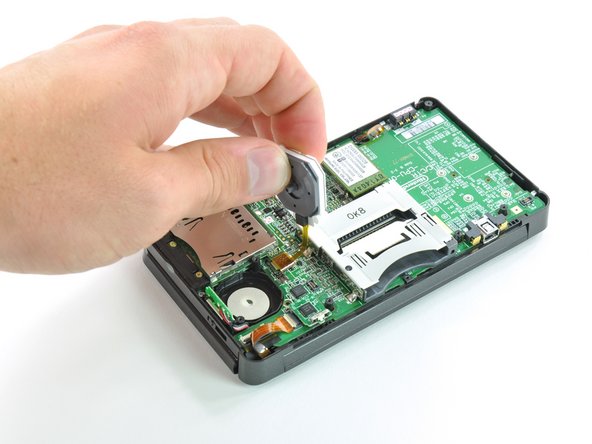
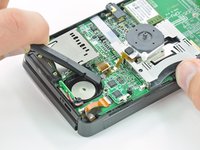
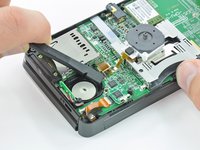
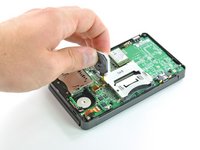
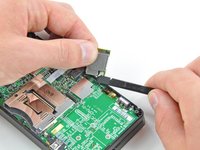
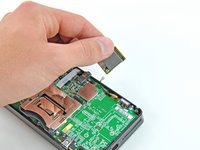
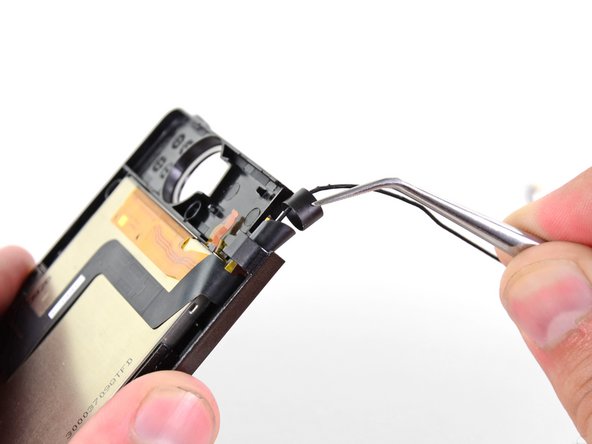
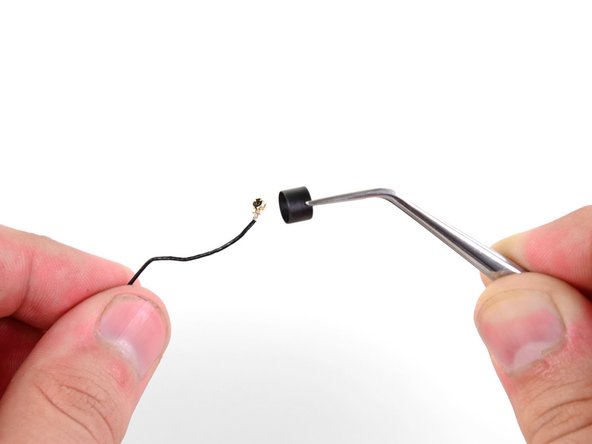
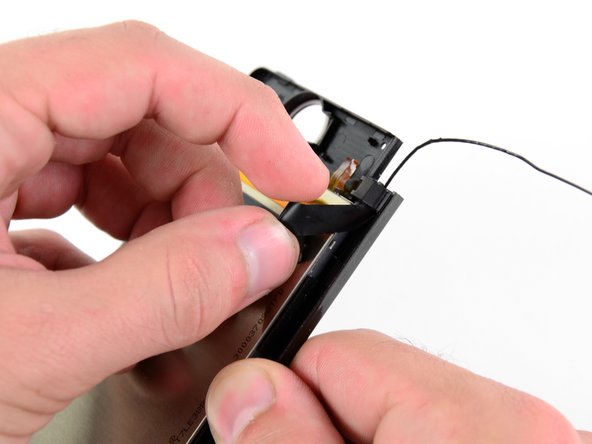
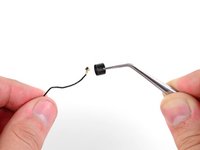
    • Grasp the microphone ribbon cable near the microphone with a pair of tweezers.

    • Pull the microphone straight up out of the upper case.

    Add Comment

  16. Nintendo 3DS Cameras Replacement: step 16, image 1 of 3 Nintendo 3DS Cameras Replacement: step 16, image 2 of 3 Nintendo 3DS Cameras Replacement: step 16, image 3 of 3
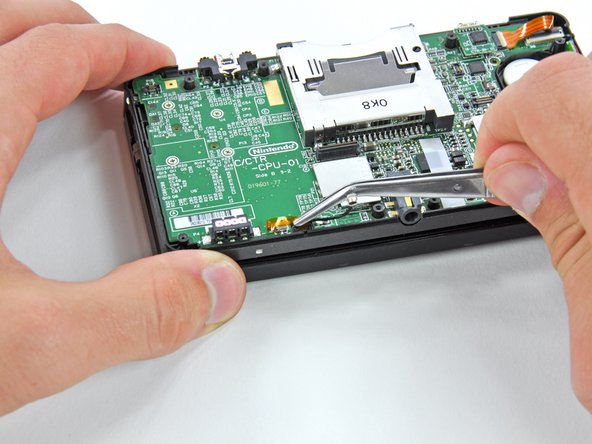
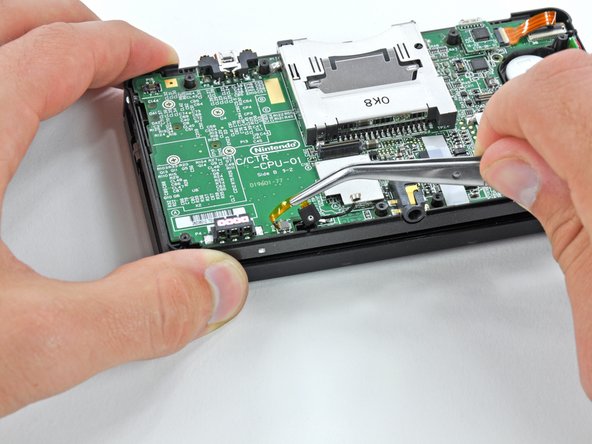
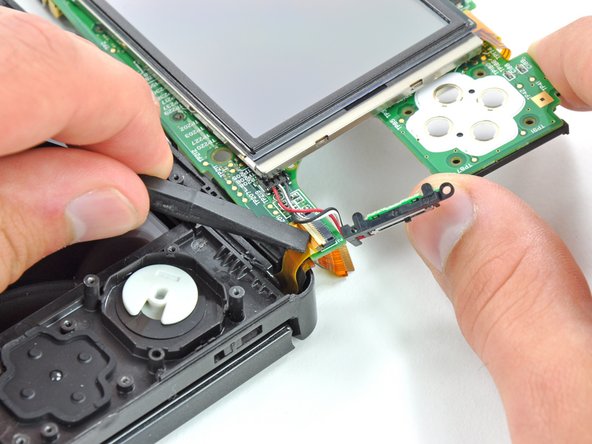
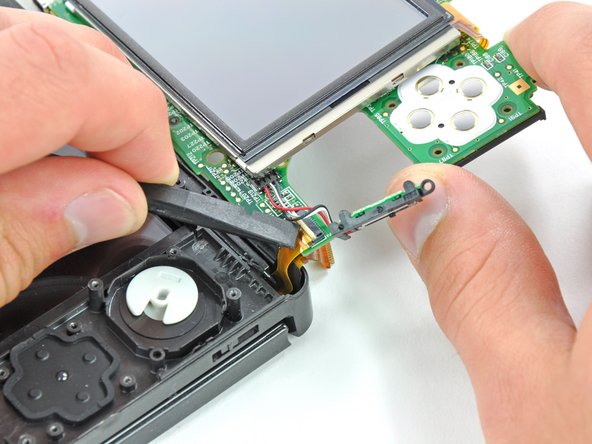
    • Use the flat end of a spudger or your fingernail to flip up the retaining flap on the speaker assembly ribbon cable ZIF socket.

    • Be sure you are prying up on the hinged retaining flap, NOT the socket itself. Damaging the socket or cable will result in a 3DS that will blink its power LED when you press the power button - and do nothing else.
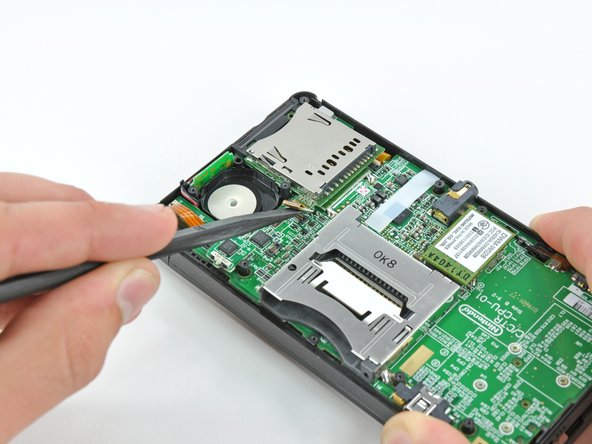
    • Disconnect the speaker assembly ribbon cable with a pair of tweezers.

    Add Comment

  17. Nintendo 3DS Cameras Replacement: step 17, image 1 of 2 Nintendo 3DS Cameras Replacement: step 17, image 2 of 2
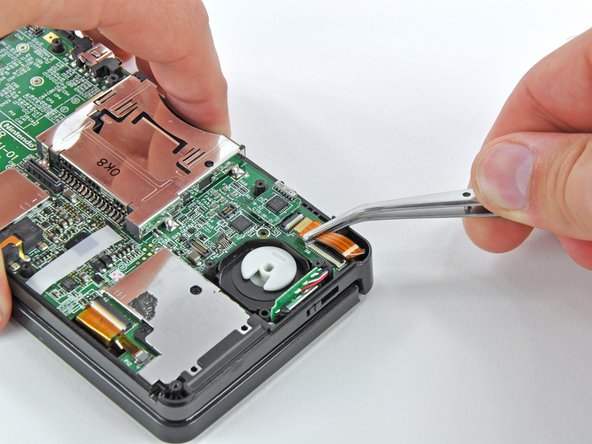
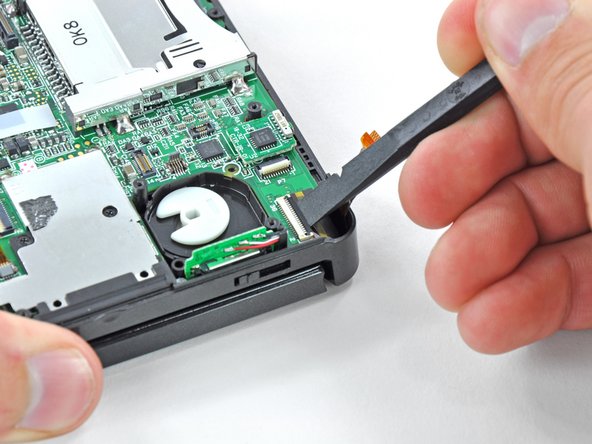
    • Use the flat end of a spudger or your fingernail to flip up the retaining flap on the camera ribbon cable ZIF socket.

    • Be sure you are prying up on the hinged retaining flap, not the socket itself.

    • When reassembling, note that the gold contacts face toward the motherboard (as opposed to the camera cable's gold contacts facing away).

    Add Comment

  18. Nintendo 3DS Cameras Replacement: step 18, image 1 of 3 Nintendo 3DS Cameras Replacement: step 18, image 2 of 3 Nintendo 3DS Cameras Replacement: step 18, image 3 of 3
    • Remove seven Phillips screws securing the motherboard to the upper case:

    • Four 2.5 mm gold screws

    • Two 3.5 mm black screws

    • One 2.5 mm silver screw

    • Lift the side of the motherboard that sits along the bottom edge of the 3DS.

    Add Comment

  19. Nintendo 3DS Cameras Replacement: step 19, image 1 of 3 Nintendo 3DS Cameras Replacement: step 19, image 2 of 3 Nintendo 3DS Cameras Replacement: step 19, image 3 of 3
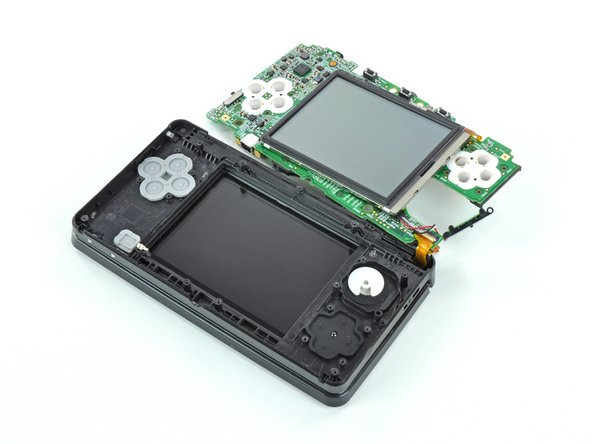
    • Continue lifting the motherboard assembly and rotate it until it is resting next to the rest of the device.

    • Use the flat end of a spudger or your fingernail to flip up the retaining flap on the LCD ribbon cable ZIF socket.

    • Be sure you are prying up on the hinged retaining flap, not the socket itself.

    Add Comment

  20. Nintendo 3DS Cameras Replacement: step 20, image 1 of 1
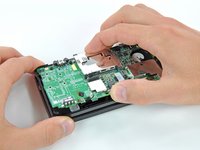
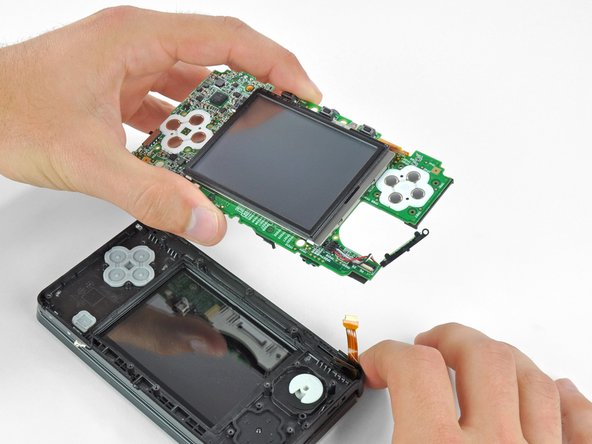
    • Remove the motherboard assembly from the rest of the device.

    Add Comment

  21. Nintendo 3DS Cameras Replacement: step 21, image 1 of 1
    • Before continuing with disassembly, use a pair of tweezers to remove the clear plastic diffuser for the wireless notification LED. The small piece is likely to fall out on its own, and may be difficult to find if it lands on the floor.

    Add Comment

  22. Nintendo 3DS Cameras Replacement: step 22, image 1 of 2 Nintendo 3DS Cameras Replacement: step 22, image 2 of 2
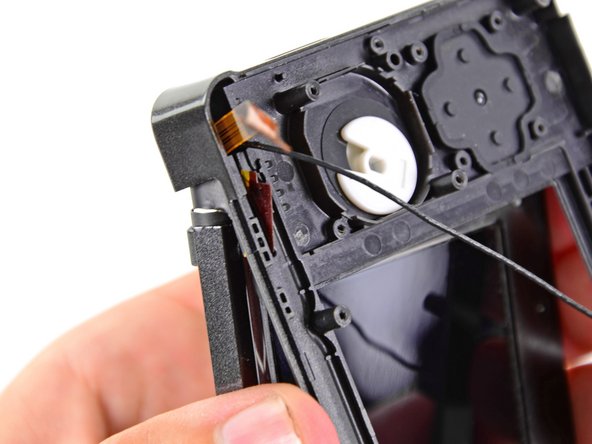
    • De-route the Wi-Fi antenna cable from the bottom of the upper case.

    • This step is not necessary if you are only replacing the front panel; however, the replacement of the upper screen, speakers, cameras, and Wi-Fi antenna require it.

    Add Comment

  23. Nintendo 3DS Cameras Replacement: step 23, image 1 of 2 Nintendo 3DS Cameras Replacement: step 23, image 2 of 2
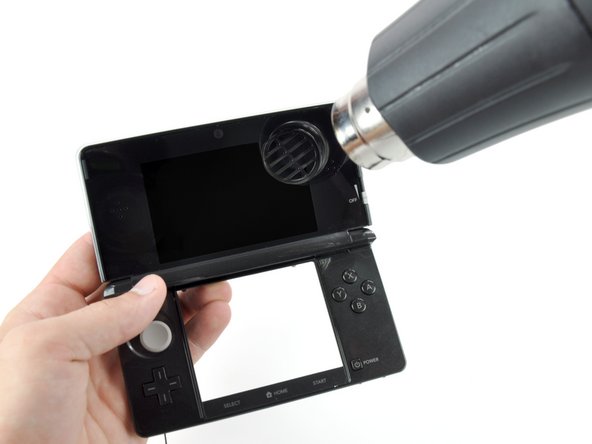
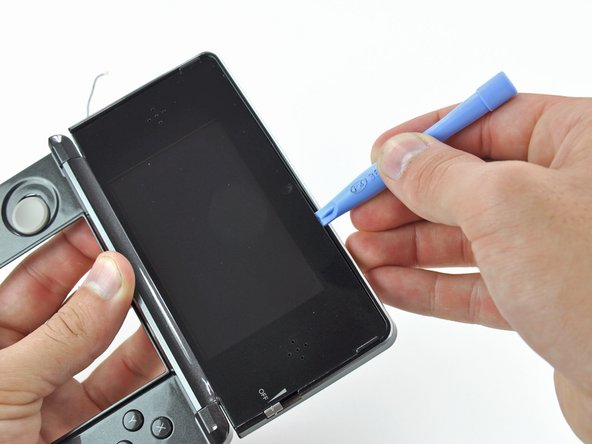
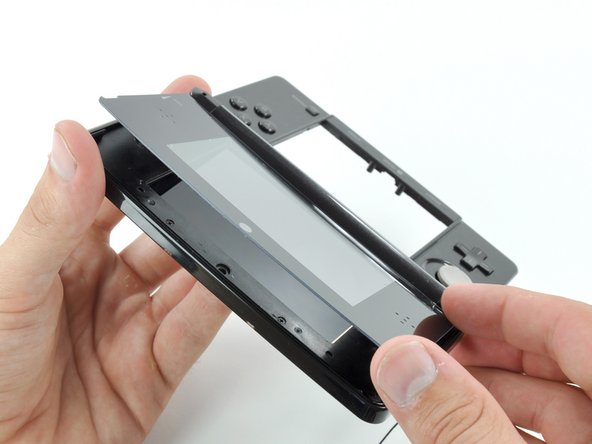
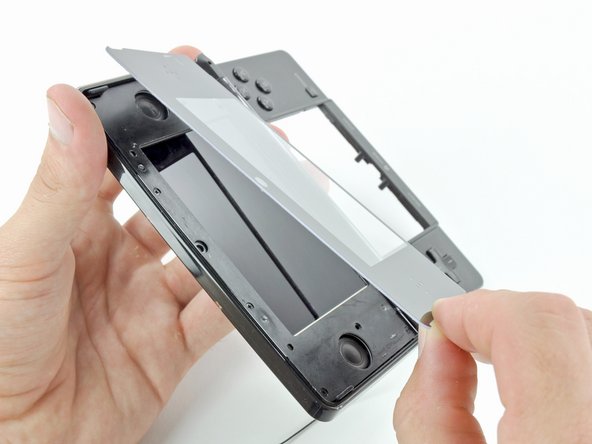
    • Heat the edges of the upper display front panel with a hair dryer or heat gun to soften the adhesive holding it to the display bezel.

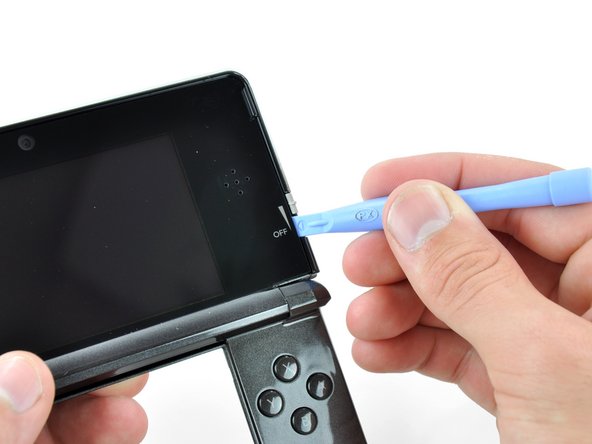
    • Begin prying the edges of the front panel off with a plastic opening tool.

    • If it is difficult to pry the front panel off, reheat the area you are working on with the heat gun, and then return to prying. Applying excessive force could crack the front panel.

    Add Comment

  24. Nintendo 3DS Cameras Replacement: step 24, image 1 of 2 Nintendo 3DS Cameras Replacement: step 24, image 2 of 2
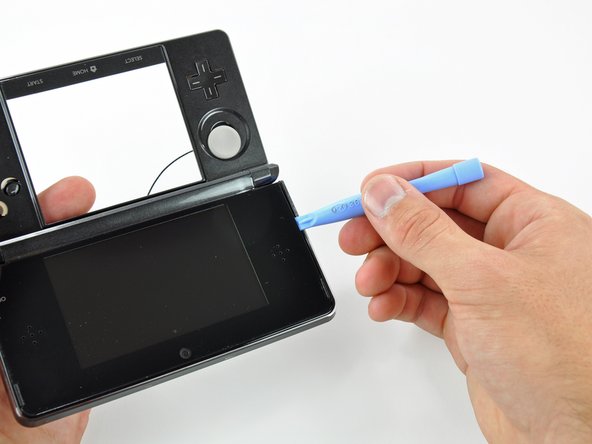
    • Continue prying the remaining sides of the front panel by sliding the plastic opening tool down each edge.

    • Too little heat will result in excessive bending/breaking of the front panel, and too much will melt and destroy the LCD underneath. Take your time.

    Add Comment

  25. Nintendo 3DS Cameras Replacement: step 25, image 1 of 2 Nintendo 3DS Cameras Replacement: step 25, image 2 of 2
    • With all of the sides free, lift the upper display front panel off the display bezel.

    Add Comment

  26. Nintendo 3DS Cameras Replacement: step 26, image 1 of 1
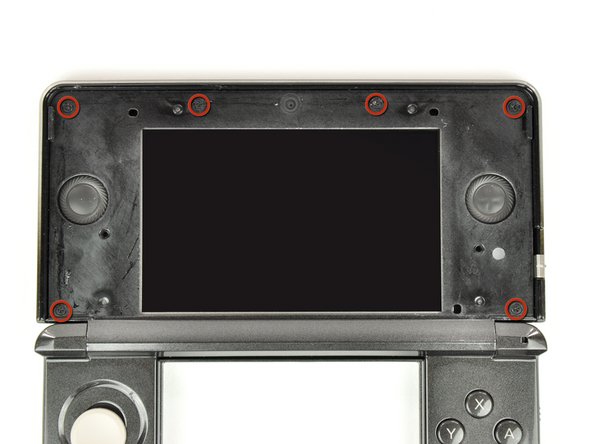
    • Remove the six 3.6 mm Phillips screws securing the rear display bezel to the front display bezel.

    Add Comment

  27. Nintendo 3DS Cameras Replacement: step 27, image 1 of 2 Nintendo 3DS Cameras Replacement: step 27, image 2 of 2
    • Flip the device over so that the rear display bezel is on top and the hinge is on the side opposite from you.

    • Lift the edge of the rear display bezel closest to you and rotate it towards the hinge.

    • Continue to lift the rear display bezel off the rest of the device until it is free.

    • There are clips toward the bottom of the rear display bezel holding it in place. Use enough force to disengage the clips, but be careful not to break them.

    Add Comment

  28. Nintendo 3DS Cameras Replacement: step 28, image 1 of 1
    • Remove the 3D adjustment switch from the front display bezel.

    • This step is not necessary for disassembly, but the switch is likely to fall out on its own. By removing it yourself, you reduce the chance of losing it.

    Add Comment

  29. Nintendo 3DS Cameras Replacement: step 29, image 1 of 3 Nintendo 3DS Cameras Replacement: step 29, image 2 of 3 Nintendo 3DS Cameras Replacement: step 29, image 3 of 3
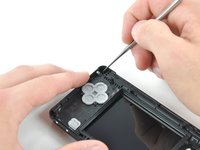
    • Insert a metal probe into the space above the ABXY buttons with the point touching the metal hinge.

    • Push the hinge towards the center of the upper case. This will require a fair amount of force.

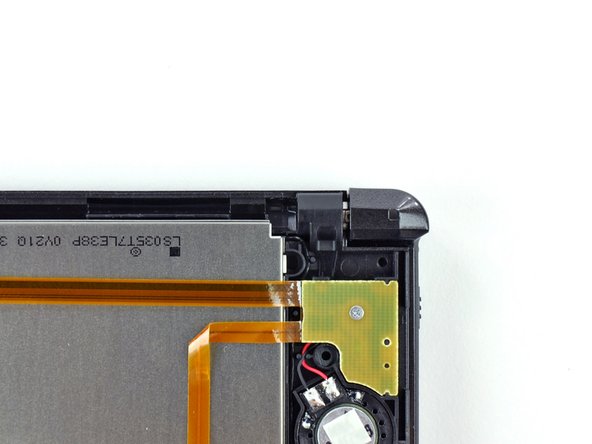
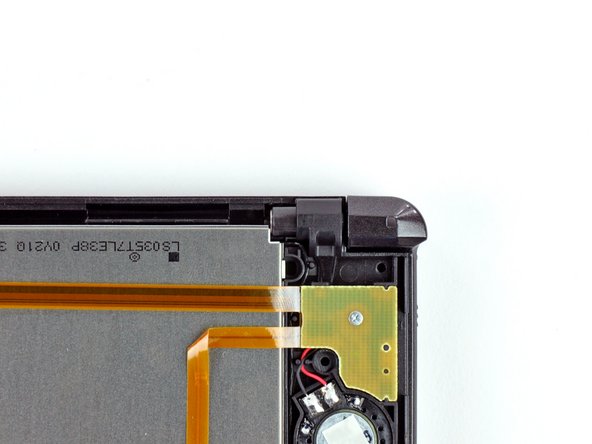
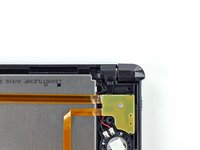
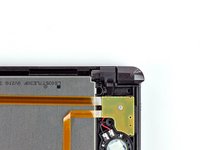
    • Before and after images of the hinge location when looking at the back of the upper display are shown.

    Add Comment

  30. Nintendo 3DS Cameras Replacement: step 30, image 1 of 3 Nintendo 3DS Cameras Replacement: step 30, image 2 of 3 Nintendo 3DS Cameras Replacement: step 30, image 3 of 3
    • Before proceeding, note how the 3 ribbon cables are oriented (what direction the gold contacts face) and layered together (which cable is on top of which). The cables are too short to reach if they are threaded through in any other orientation.

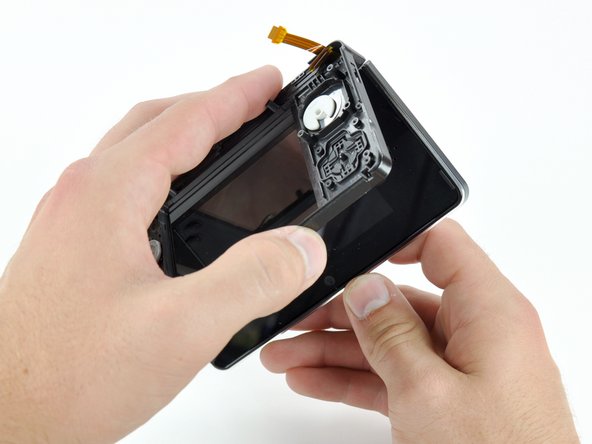
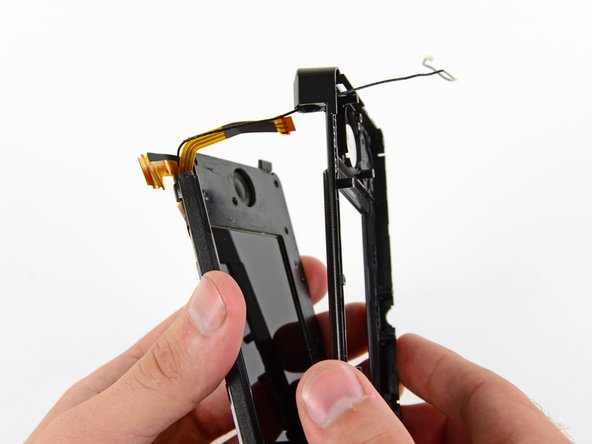
    • Slowly pull the upper display assembly away from the upper case.

    • Make sure that the various ribbon cables are being fed through the slit in the upper case.

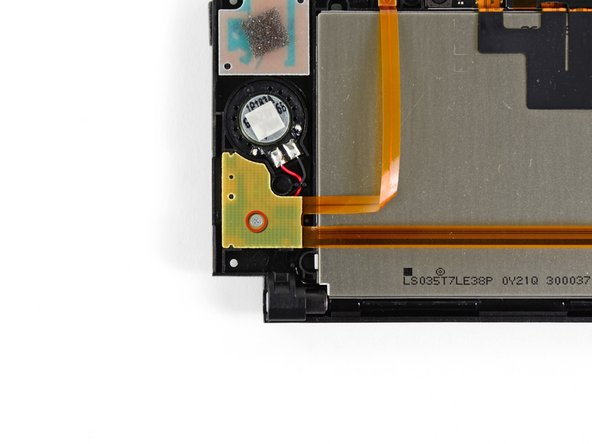
    • Separate the upper display assembly from the upper case.

    Add Comment

  31. Nintendo 3DS Cameras Replacement: step 31, image 1 of 2 Nintendo 3DS Cameras Replacement: step 31, image 2 of 2
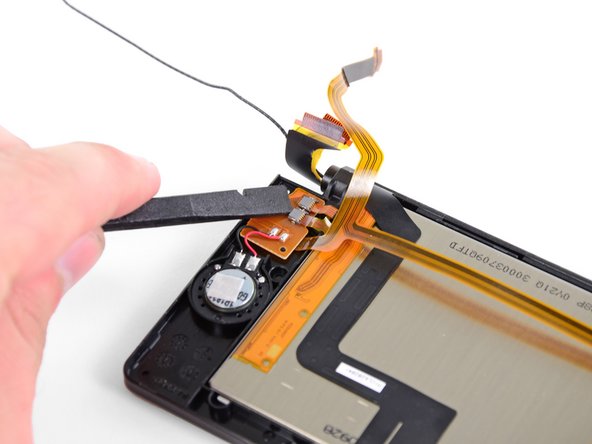
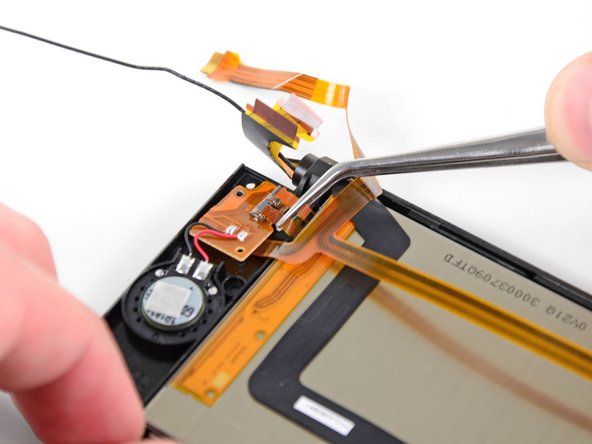
    • Carefully feed the speaker assembly ribbon cable through the hole in the upper display bezel.

    • You must gently coil the ribbon cables (similar to an ice-cream cone) to allow them to fit - the cables are wider than the hole.
    Add Comment

  32. Nintendo 3DS Cameras Replacement: step 32, image 1 of 1
    • Remove the 2.5 mm Phillips screw securing the right speaker board to the upper display bezel.

    Add Comment

  33. Nintendo 3DS Cameras Replacement: step 33, image 1 of 3 Nintendo 3DS Cameras Replacement: step 33, image 2 of 3 Nintendo 3DS Cameras Replacement: step 33, image 3 of 3
    • Use the flat end of a spudger or your fingernail to flip up the retaining flaps on the parallax barrier ribbon cable ZIF sockets.

    • Be sure you are prying up on the hinged retaining flap, not the socket itself.

    • Use a pair of metal tweezers to disconnect the two ribbon cables.

    Add Comment

  34. Nintendo 3DS Cameras Replacement: step 34, image 1 of 3 Nintendo 3DS Cameras Replacement: step 34, image 2 of 3 Nintendo 3DS Cameras Replacement: step 34, image 3 of 3
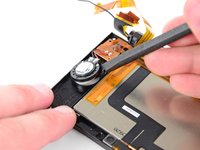
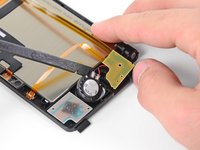
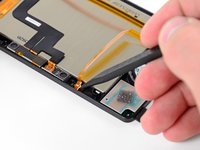
    • Use the flat end of a spudger to pry the left and right speakers out of their places in the upper display bezel.

    • Pry the camera status LED out of the upper display bezel with the tip of a spudger.

    Add Comment

  35. Nintendo 3DS Cameras Replacement: step 35, image 1 of 1
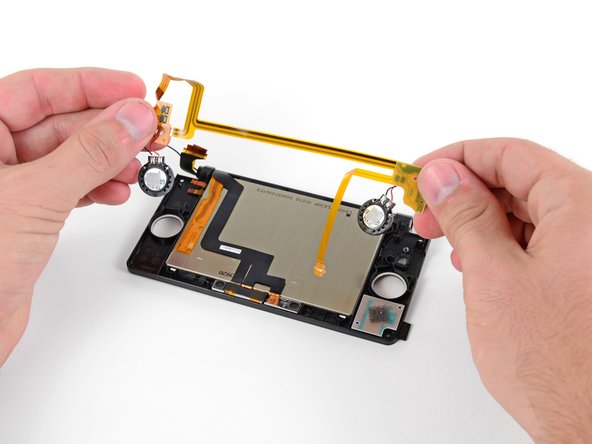
    • Remove the speaker assembly from the rest of the display assembly.

    Add Comment

  36. Nintendo 3DS Cameras Replacement: step 36, image 1 of 2 Nintendo 3DS Cameras Replacement: step 36, image 2 of 2
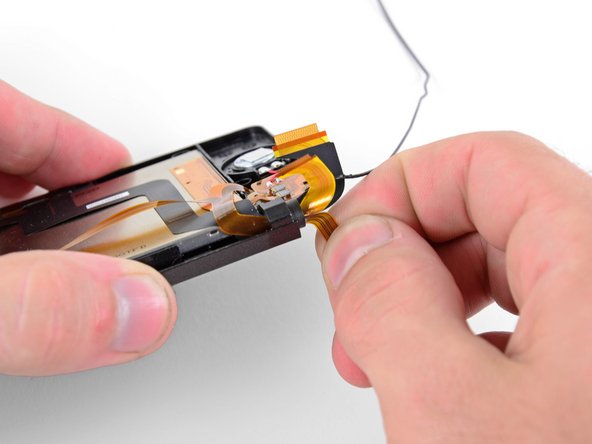
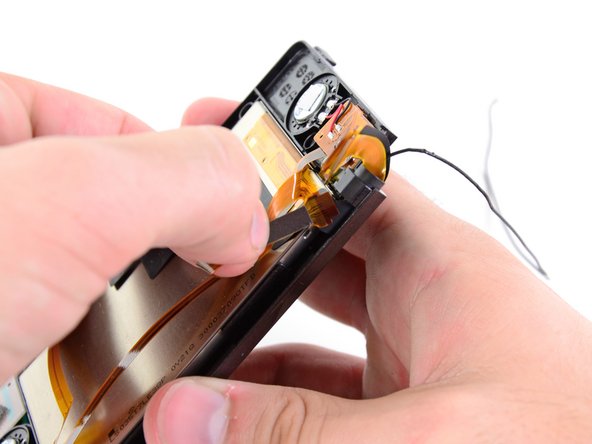
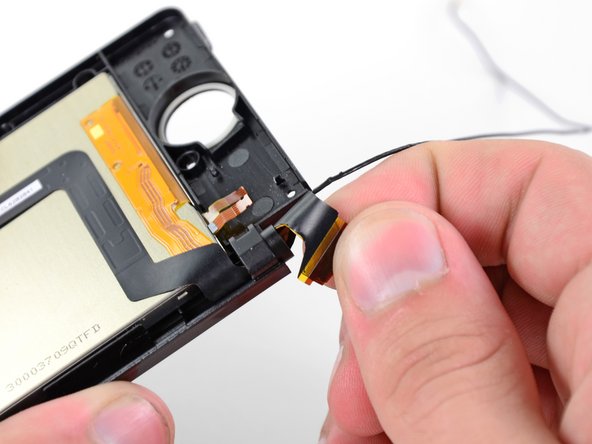
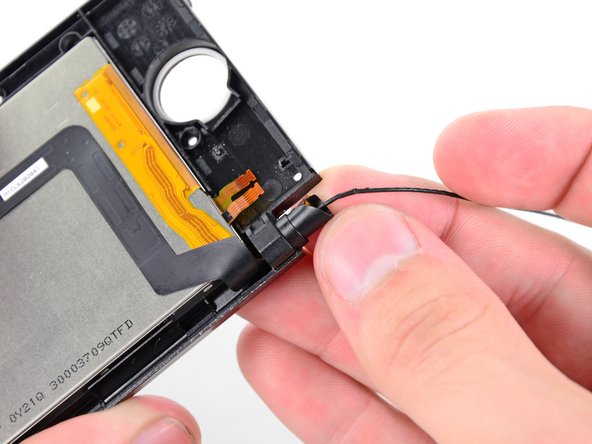
    • Gently roll the upper LCD ribbon cable and camera ribbon cable together and insert them into the hinge opening.

    Add Comment

  37. Nintendo 3DS Cameras Replacement: step 37, image 1 of 3 Nintendo 3DS Cameras Replacement: step 37, image 2 of 3 Nintendo 3DS Cameras Replacement: step 37, image 3 of 3
    • Use a pair of metal tweezers to remove the black metal hinge ring from the upper display bezel.

    • Carefully pull the camera and upper LCD ribbon cables through their hole in the upper display bezel.

    Add Comment

  38. Nintendo 3DS Cameras Replacement: step 38, image 1 of 2 Nintendo 3DS Cameras Replacement: step 38, image 2 of 2
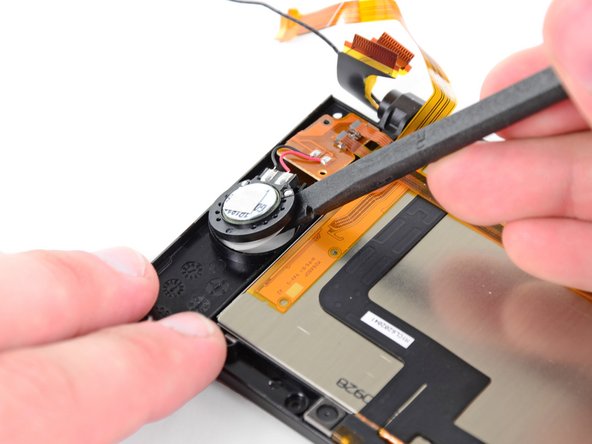
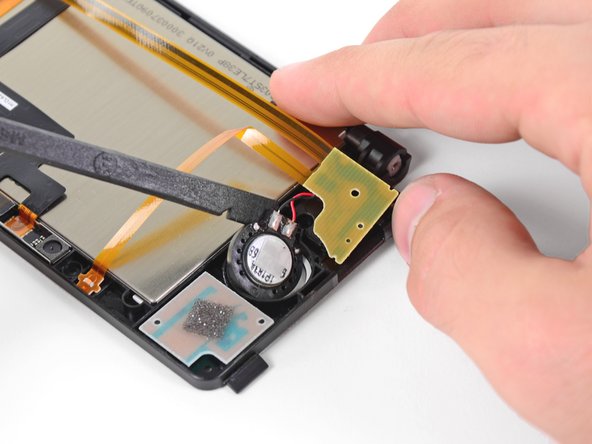
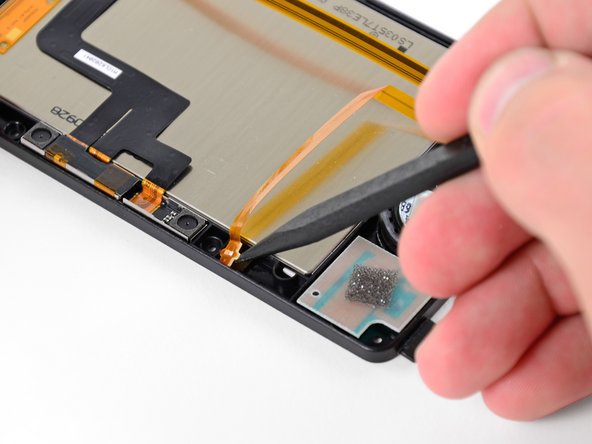
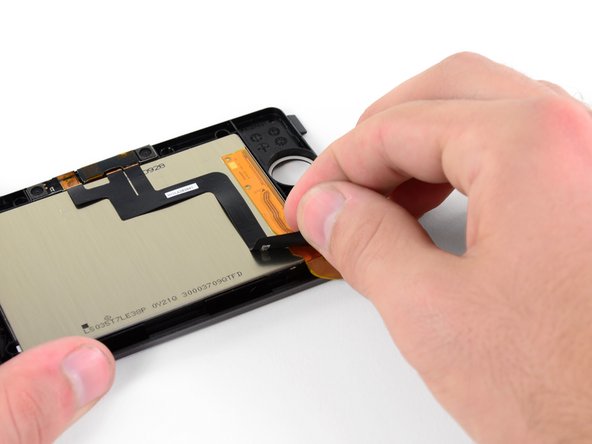
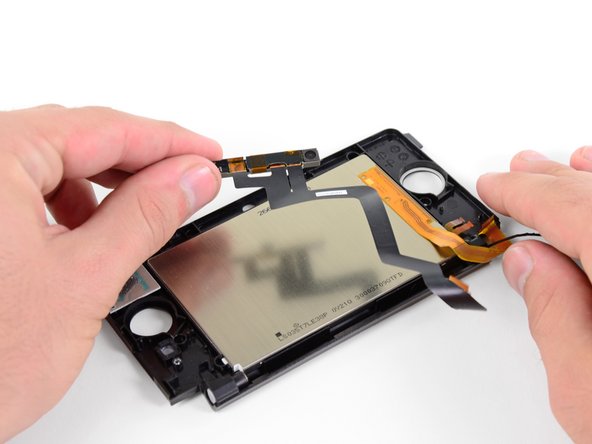
    • Peel the camera ribbon cable off the back of the upper LCD.

    • The ribbon cable is held to the back of the LCD housing by an adhesive, so pull on it gently to avoid tearing the ribbon cable.

    • Remove the camera ribbon cable assembly.

    Add Comment

Conclusion

To reassemble your device, follow these instructions in reverse order.

Cancel: I did not complete this guide.

System

Member since: 09/24/09

2,562 Guides authored

0 Guide Comments

Add Comment

View Statistics:

Past 24 Hours: 0

Past 7 Days: 0

Past 30 Days: 8

All Time: 45