Panasonic Toughbook CF-29 Trackpad Board Replacement

What you need

    1. Panasonic Toughbook CF-29 Trackpad Board Replacement, Panasonic Toughbook CF-29 Trackpad Board Replacement: step 1, image 1 of 1
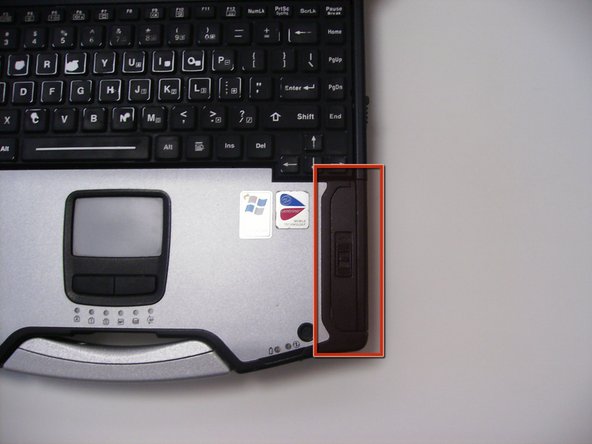
      • Locate the bay door for the battery on the left side of the laptop.

      Add Comment

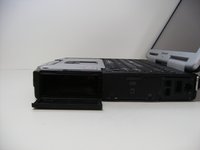
    2. Panasonic Toughbook CF-29 Trackpad Board Replacement: step 2, image 1 of 2 Panasonic Toughbook CF-29 Trackpad Board Replacement: step 2, image 2 of 2
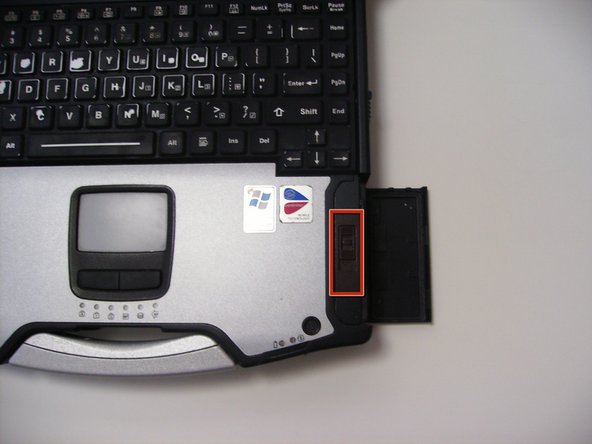
      • Slide the latch to the right and then down to unlock it.

      • Pull out the battery.

      Add Comment

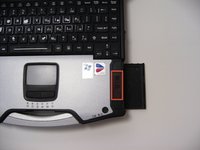
    3. Panasonic Toughbook CF-29 Trackpad Board Replacement: step 3, image 1 of 1
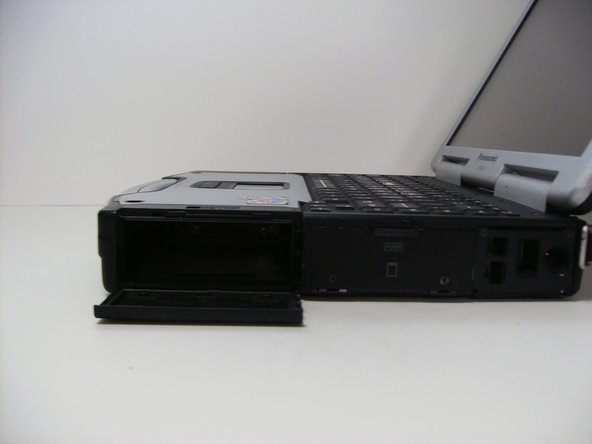
      • Locate the door for the hard drive on the right side of the laptop

      Add Comment

    4. Panasonic Toughbook CF-29 Trackpad Board Replacement: step 4, image 1 of 2 Panasonic Toughbook CF-29 Trackpad Board Replacement: step 4, image 2 of 2
      • Push and slide the latch up to open the hard drive door.

      • Pull out the hard drive.

      Add Comment

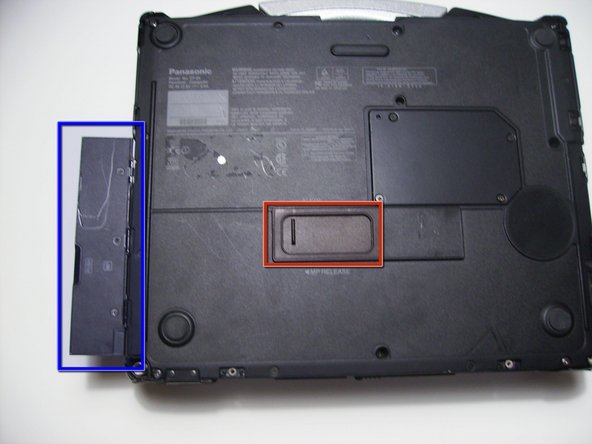
    5. Panasonic Toughbook CF-29 Trackpad Board Replacement: step 5, image 1 of 1
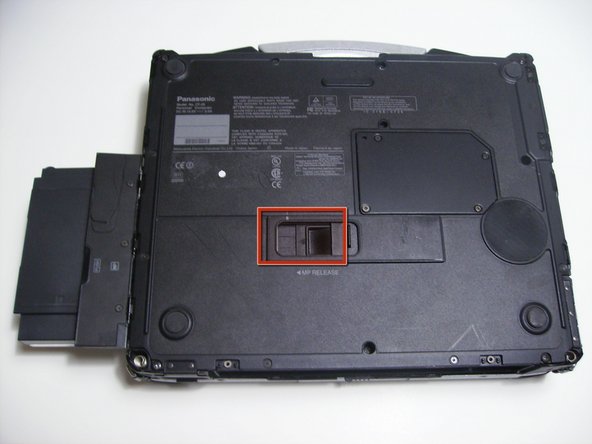
      • Flip the device upside down with the handle facing away from you.

      • Open the optical drive bay by sliding its latch to the right.

      • Locate optical drive release mechanism on the bottom of the laptop.

      Add Comment

    6. Panasonic Toughbook CF-29 Trackpad Board Replacement: step 6, image 1 of 1
      • Slide the latch cover to the right.

      Add Comment

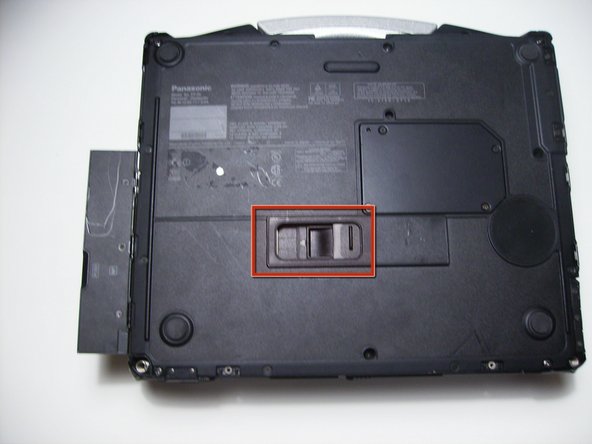
    7. Panasonic Toughbook CF-29 Trackpad Board Replacement: step 7, image 1 of 2 Panasonic Toughbook CF-29 Trackpad Board Replacement: step 7, image 2 of 2
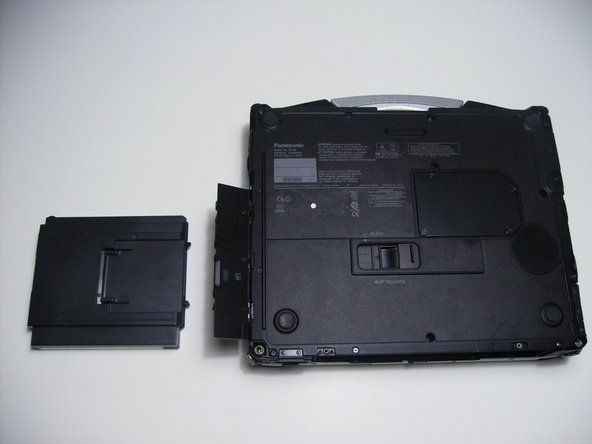
      • Push the exposed switch to the left to eject the optical drive.

      Add Comment

    8. Panasonic Toughbook CF-29 Trackpad Board Replacement: step 8, image 1 of 1
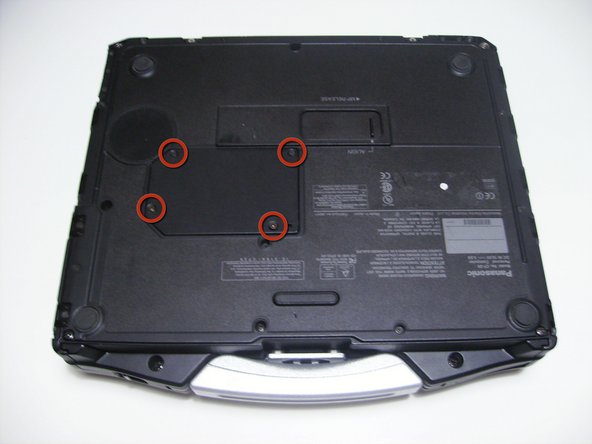
      • Begin by turning the laptop upside down with the handle towards you.

      • Use a Phillips size 0 screwdriver to remove the 4 screws holding down the ram cover.

      Add Comment

    9. Panasonic Toughbook CF-29 Trackpad Board Replacement: step 9, image 1 of 1
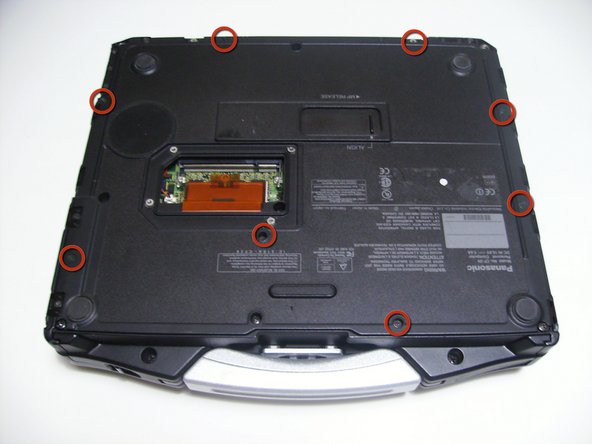
      • Remove the panel and set it aside.

      • Use a Phillips size 0 screwdriver to remove these 8 small screws.

      Add Comment

    10. Panasonic Toughbook CF-29 Trackpad Board Replacement: step 10, image 1 of 1
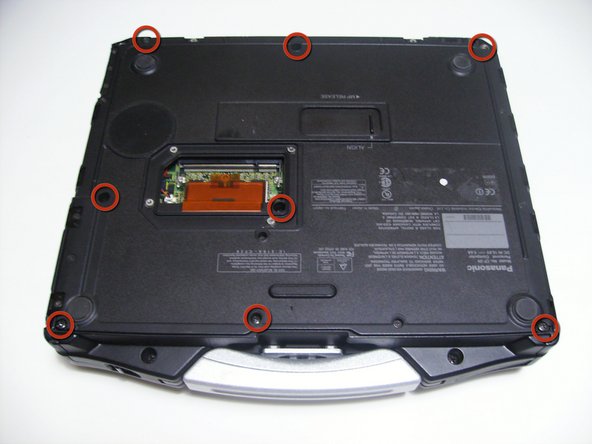
      • Use a Phillips size 1 screwdriver to remove the remaining 8 screws.

      Add Comment

    11. Panasonic Toughbook CF-29 Trackpad Board Replacement: step 11, image 1 of 2 Panasonic Toughbook CF-29 Trackpad Board Replacement: step 11, image 2 of 2
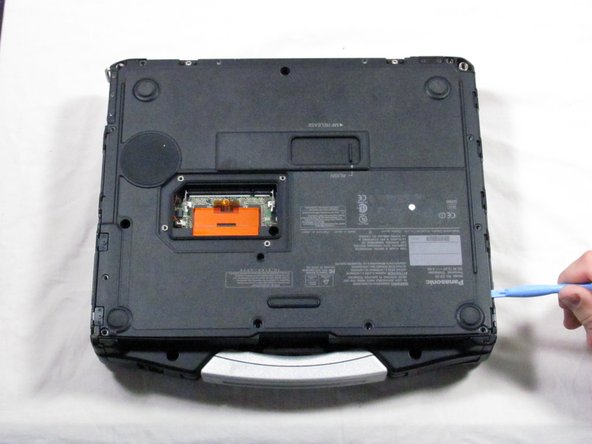
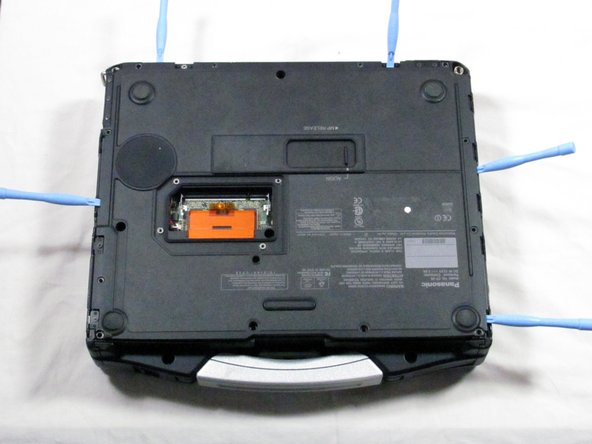
      • Use a plastic opening tool to release, but NOT remove, the back cover because it is sealed with adhesive.

      Add Comment

    12. Panasonic Toughbook CF-29 Trackpad Board Replacement: step 12, image 1 of 1
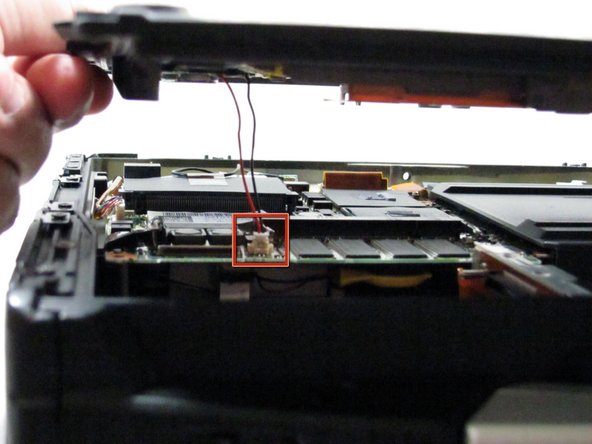
      • Be careful when lifting the cover as you may damage some connections.

      • Slowly lift the cover so that you can disconnect the red and white wires connecting the speaker to the sound card.

      Add Comment

    13. Panasonic Toughbook CF-29 Trackpad Board Replacement: step 13, image 1 of 1
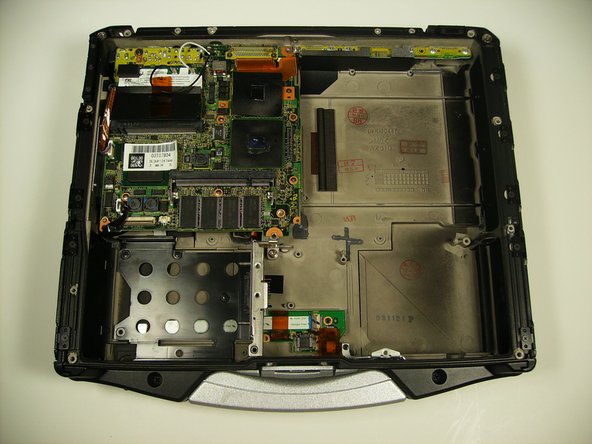
      • Now the back cover should be off and you can access the inside of the casing.

      Add Comment

    14. Panasonic Toughbook CF-29 Trackpad Board Replacement: step 14, image 1 of 1
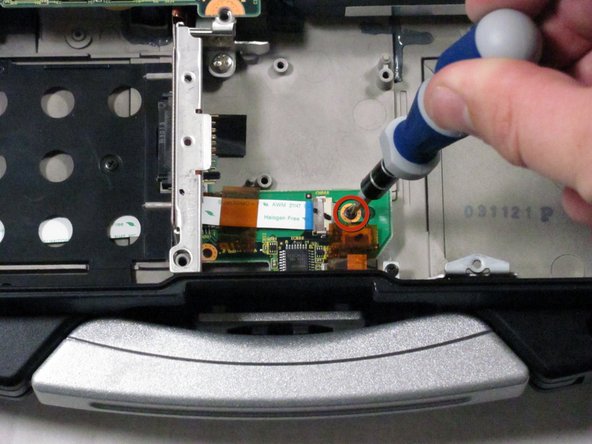
      • Locate the track pad chip near the handle.

      • Remove the upper right screw.

      Add Comment

    15. Panasonic Toughbook CF-29 Trackpad Board Replacement: step 15, image 1 of 1
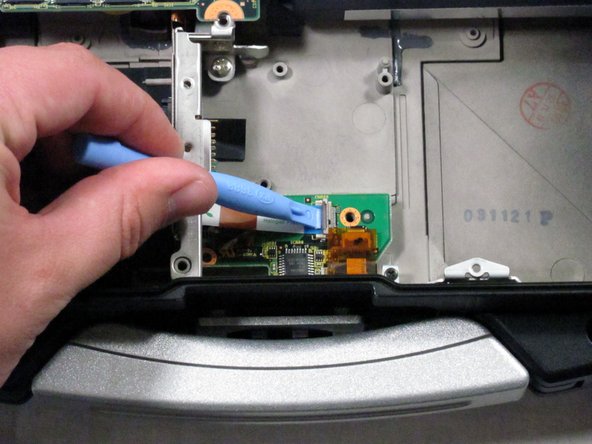
      • Use a pry bar to detach the white ribbon cable shown.

      • Push the brown tab to release the cable

      Add Comment

    16. Panasonic Toughbook CF-29 Trackpad Board Replacement: step 16, image 1 of 1
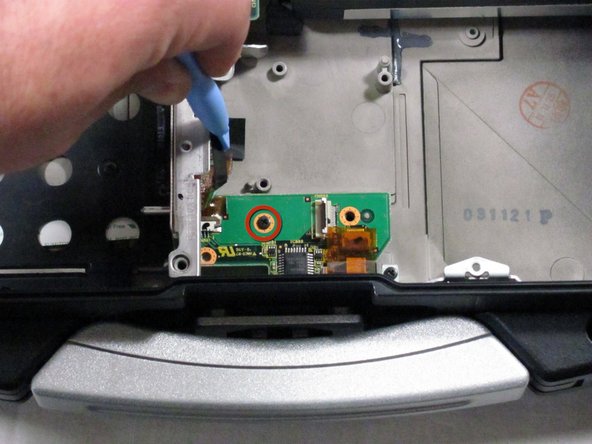
      • Remove the screw that was previously concealed under the now removed ribbon cable.

      Add Comment

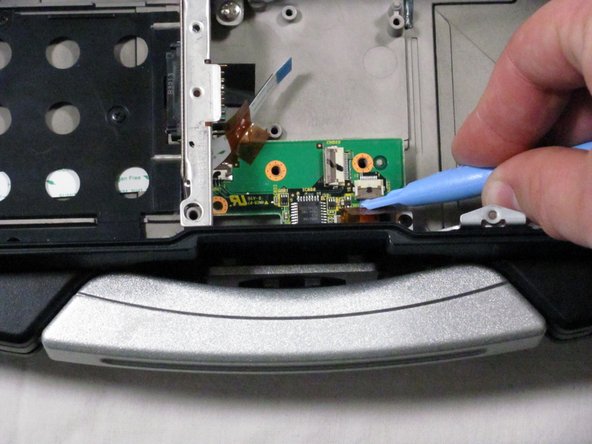
    17. Panasonic Toughbook CF-29 Trackpad Board Replacement: step 17, image 1 of 1
      • Remove the rightmost ribbon cable

      • Pry up the brown clip

      • Tug the cable out

      Add Comment

    18. Panasonic Toughbook CF-29 Trackpad Board Replacement: step 18, image 1 of 1
      • Pull the track pad slightly up and to the right.

      • Do not completely remove the circuit board because it is still attached.

      Add Comment

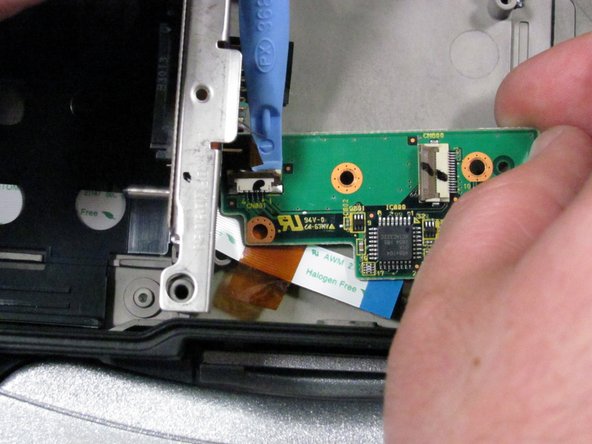
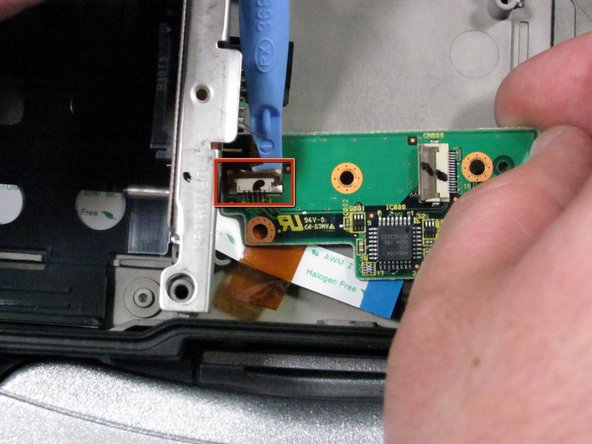
    19. Panasonic Toughbook CF-29 Trackpad Board Replacement: step 19, image 1 of 1
      • Remove the last ribbon cable.

      • Pry up on the brown part to release the ribbon cable.

      Add Comment

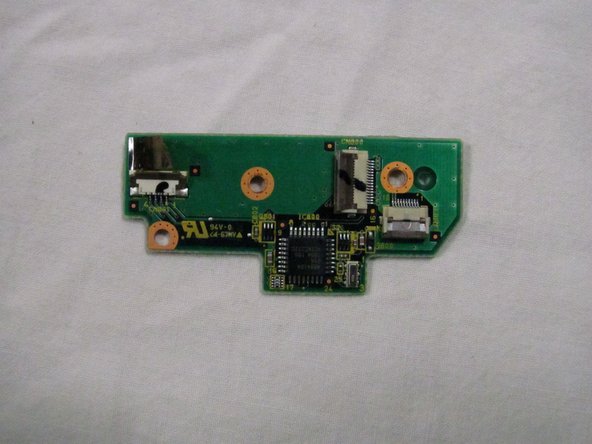
    20. Panasonic Toughbook CF-29 Trackpad Board Replacement: step 20, image 1 of 1
      • You have successfully removed the track pad board.

      Add Comment

Conclusion

To reassemble your device, follow these instructions in reverse order.

Cancel: I did not complete this guide.

System

Member since: 09/24/09

2,562 Guides authored

0 Guide Comments

Add Comment

View Statistics:

Past 24 Hours: 0

Past 7 Days: 0

Past 30 Days: 0

All Time: 17