Power Mac G4 MDD Hard Drives Replacement

Views: 95

View statistics:

Past 24 Hours:
0
Past 7 Days:
0
Past 30 Days:
4
All Time:
95
Comments: 0

No one has left comments on this guide. Will you be first?

Go to guide comments
Completed: 0

No one has marked this guide "completed." Will you be the first?

Favorites: 0

No one has favorited (and subscribed to) this guide. Will you be the first?

Time Required: No estimate
Difficulty: Easy
Power Mac G4 MDD Hard Drives Replacement

Introduction

Go to step 1 ↓

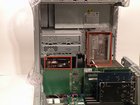
The Power Mac G4 MDD Supports four IDE hard drives in two separate drive cages on two different IDE channels (the computer has three IDE channels for six IDE drives total).

What you need

    1. Power Mac G4 MDD Hard Drives Replacement, Power Mac G4 MDD Hard Drives Replacement: step 1, image 1 of 2 Power Mac G4 MDD Hard Drives Replacement, Power Mac G4 MDD Hard Drives Replacement: step 1, image 2 of 2
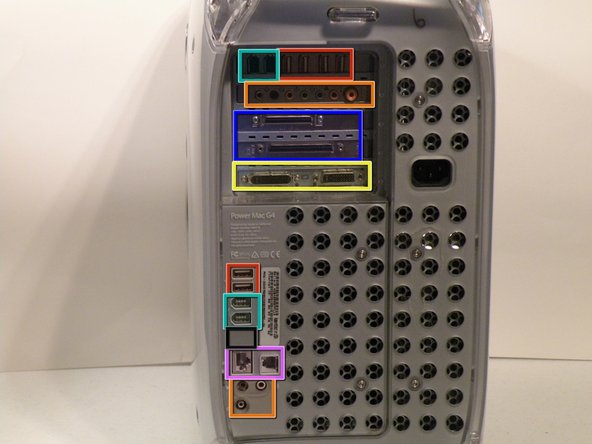
      • The Power Mac G4 MDD: the last, and the fastest G4-based Mac. This computer boasted up to a Dual 1.42GHz PowerPC G4 CPU (though I have a single 1.25GHz).

      • Six USB ports.

      • Four FireWire ports.

      • Assorted SCSI (SCSI50/SCSI68)

      • Assorted Audio

      • Video (ADC & DVI)

      • Networking (RJ-45 Ethernet/56k Modem)

      • Some later model MDD's (such as the dual 1.42GHz) Have a FireWire 800 Port Here:

      Add Comment

    2. Power Mac G4 MDD Hard Drives Replacement: step 2, image 1 of 3 Power Mac G4 MDD Hard Drives Replacement: step 2, image 2 of 3 Power Mac G4 MDD Hard Drives Replacement: step 2, image 3 of 3
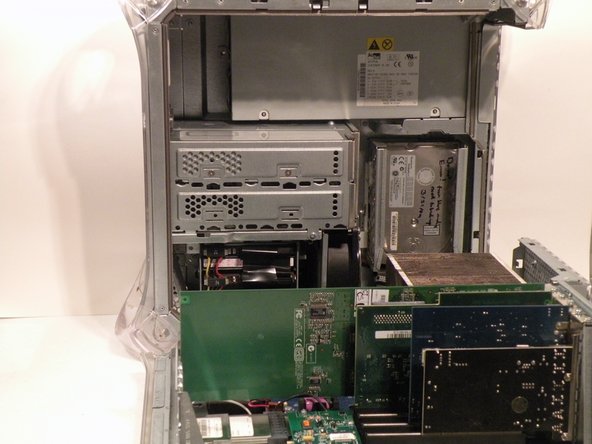
      • Pull on the side lever and lower the side of the case.

      Add Comment

    3. Power Mac G4 MDD Hard Drives Replacement: step 3, image 1 of 1
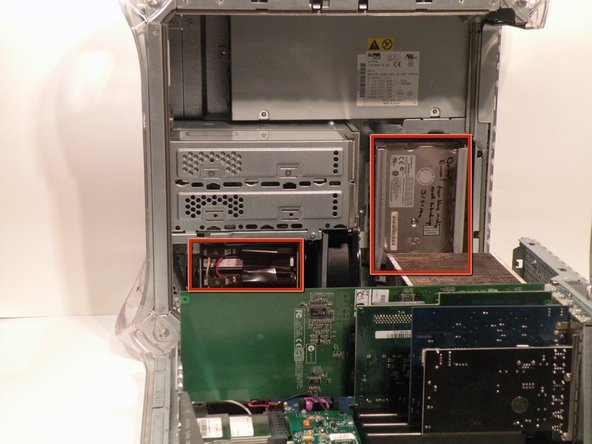
      • The hard drive cages are located here.

      Add Comment

    4. Power Mac G4 MDD Hard Drives Replacement: step 4, image 1 of 3 Power Mac G4 MDD Hard Drives Replacement: step 4, image 2 of 3 Power Mac G4 MDD Hard Drives Replacement: step 4, image 3 of 3
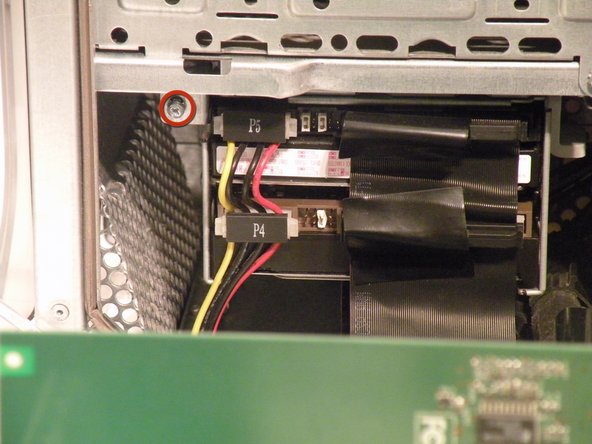
      • Cage 1

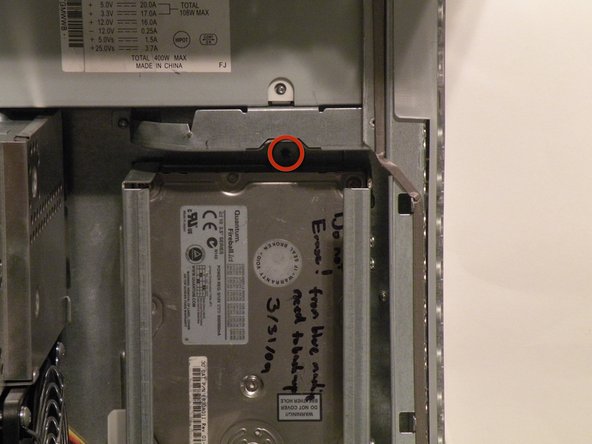
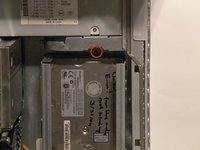
      • Start by removing this screw.

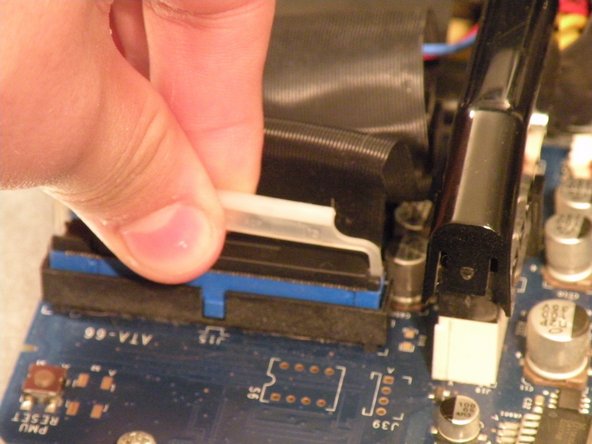
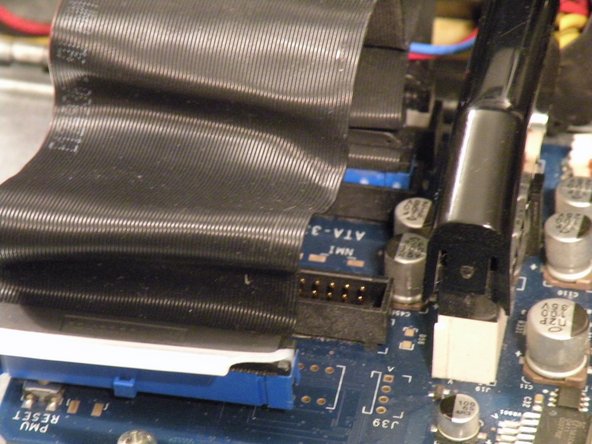
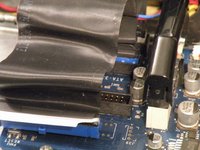
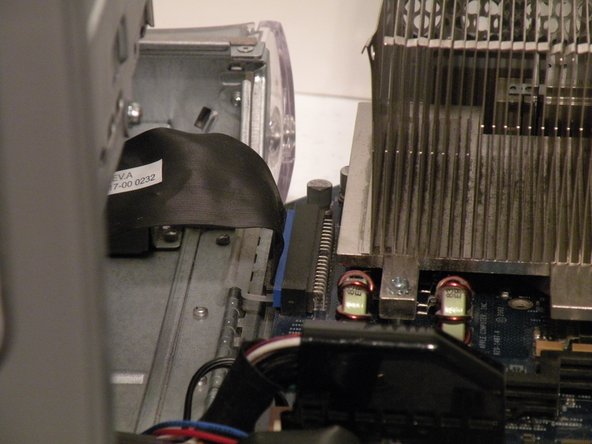
      • Remove the IDE ribbon cable from the motherboard.

      Add Comment

    5. Power Mac G4 MDD Hard Drives Replacement: step 5, image 1 of 2 Power Mac G4 MDD Hard Drives Replacement: step 5, image 2 of 2
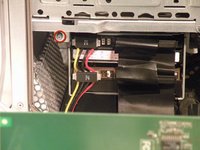
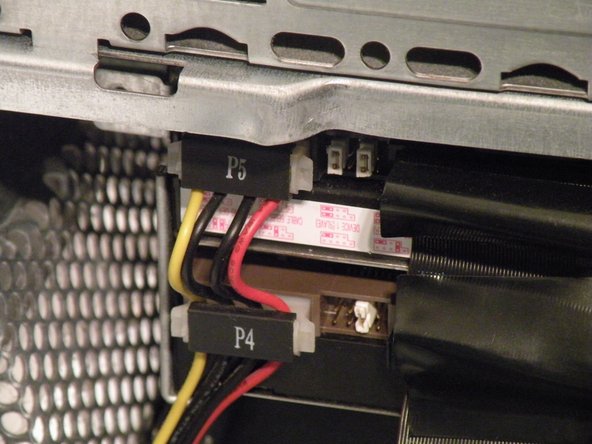
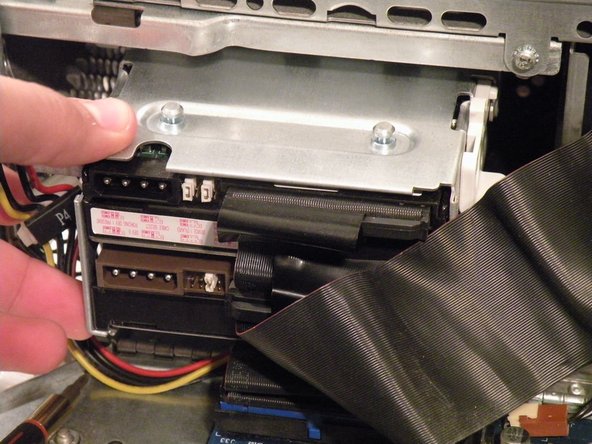
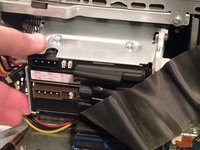
      • Now, remove the power connecton from the drives.

      Add Comment

    6. Power Mac G4 MDD Hard Drives Replacement: step 6, image 1 of 3 Power Mac G4 MDD Hard Drives Replacement: step 6, image 2 of 3 Power Mac G4 MDD Hard Drives Replacement: step 6, image 3 of 3
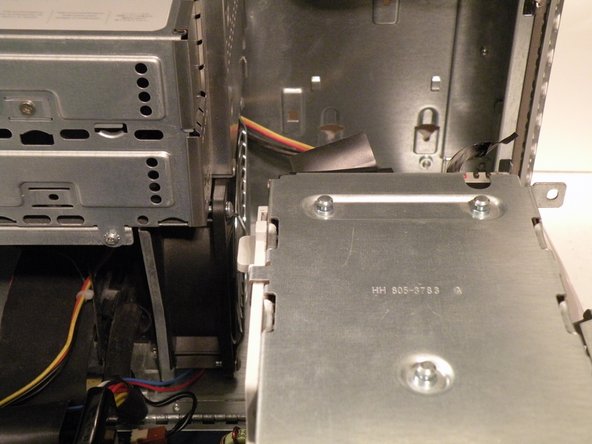
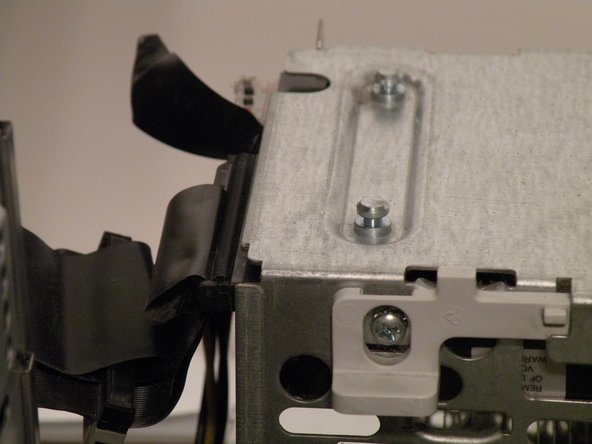
      • Now, push this tab down, and pull the cage towared you.

      • Now, you can set cage 1 aside.

      Add Comment

    7. Power Mac G4 MDD Hard Drives Replacement: step 7, image 1 of 2 Power Mac G4 MDD Hard Drives Replacement: step 7, image 2 of 2
      • Cage 2:

      • Remove this Phillips screw:

      • Disconnect this IDE ribbon cable from the logic board.

      Add Comment

    8. Power Mac G4 MDD Hard Drives Replacement: step 8, image 1 of 2 Power Mac G4 MDD Hard Drives Replacement: step 8, image 2 of 2
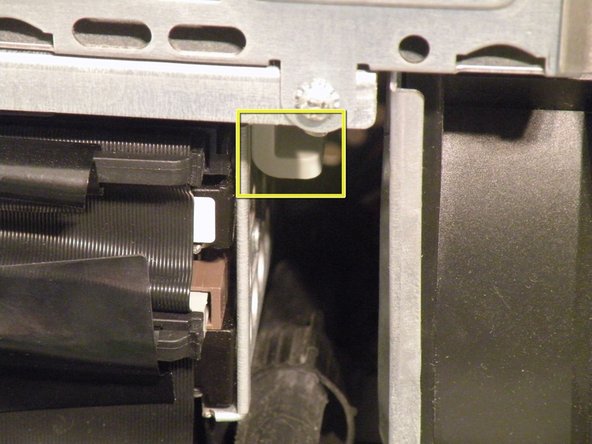
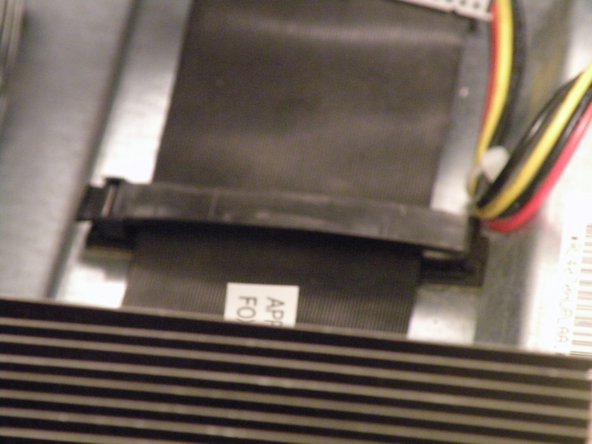
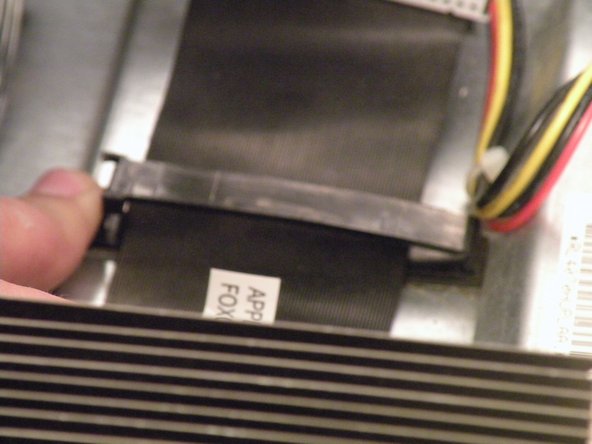
      • It's likely that there is a cable clip holding the ribbon cable to the case.

      • To remove it, push the end, and it should pop up.

      Add Comment

    9. Power Mac G4 MDD Hard Drives Replacement: step 9, image 1 of 3 Power Mac G4 MDD Hard Drives Replacement: step 9, image 2 of 3 Power Mac G4 MDD Hard Drives Replacement: step 9, image 3 of 3
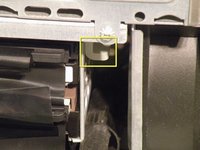
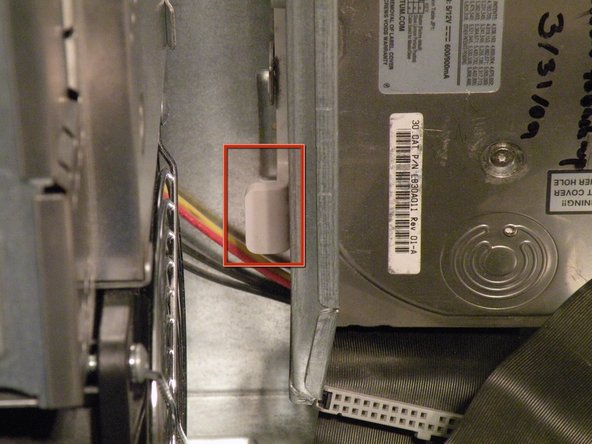
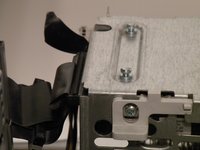
      • With the clip free, pull on this tab, lift the cage up, until it clicks, and pull it away.

      • Now, set the cage on top of the CPU, and remove the power connectors.

      Add Comment

    10. Power Mac G4 MDD Hard Drives Replacement: step 10, image 1 of 2 Power Mac G4 MDD Hard Drives Replacement: step 10, image 2 of 2
      • Once the cables are free, set the drive cage aside.

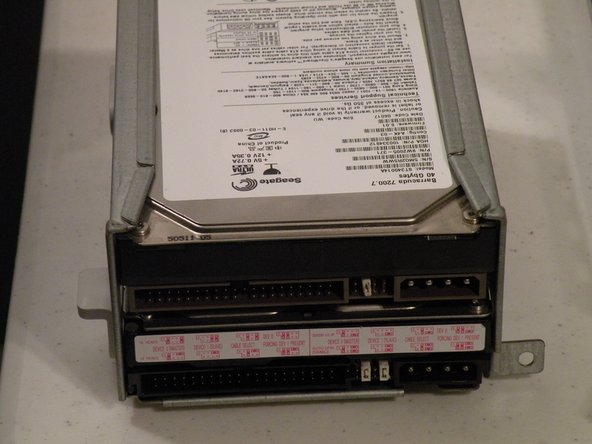
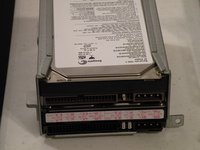
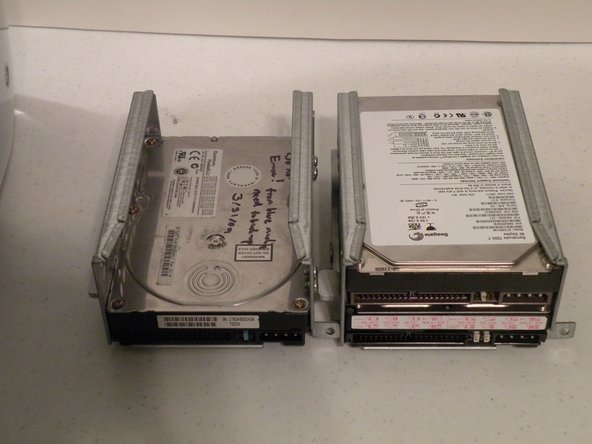
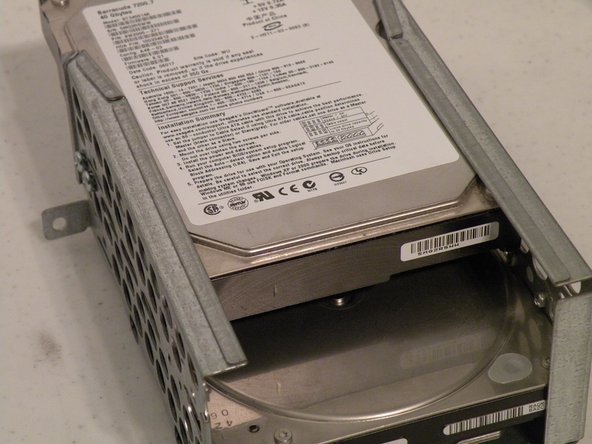
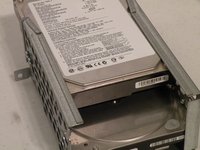
      • To remove the hard drives from the cages, remove the four screws on the sides of the cage that are connected to the drives, than slide the drives out.

      • The two cages are cross compatible and can be put in either rack.

      • The MDD does not have a 128GB drive limit like older macs, My MDD has 3 Drives (A 400GB Hitatchi Deskstar, 40GB Seagate Baracuda 7200.7, and a 30GB Quantum Fireball LCT).

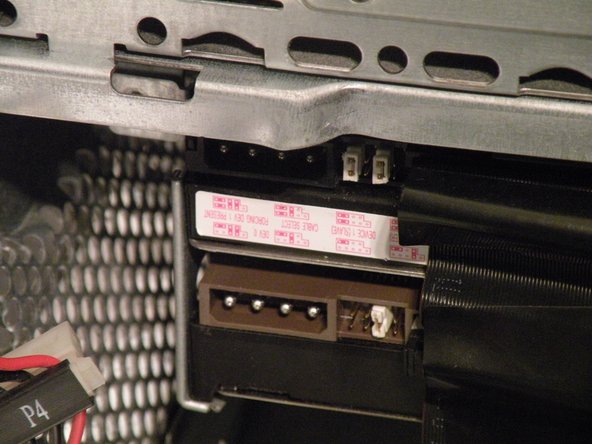
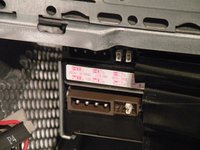
      • Note the ID jumpers on the two drive set. One is set to Master, the other to slave. A single drive can be set to Cable Select.

      Add Comment

Conclusion

To reassemble your device, follow these instructions in reverse order.

Cancel: I did not complete this guide.

System

Member since: 09/24/09

2,562 Guides authored

0 Guide Comments

Add Comment

View Statistics:

Past 24 Hours: 0

Past 7 Days: 0

Past 30 Days: 4

All Time: 95