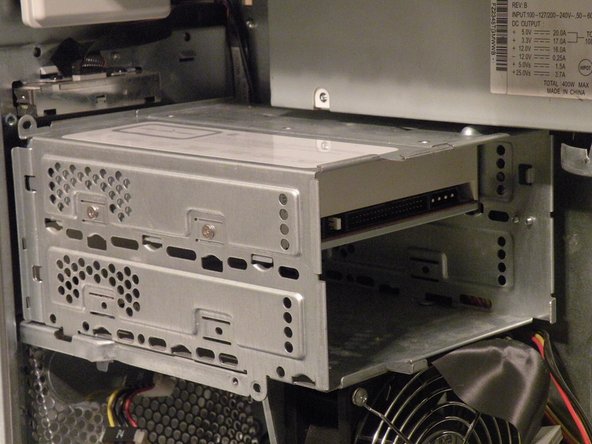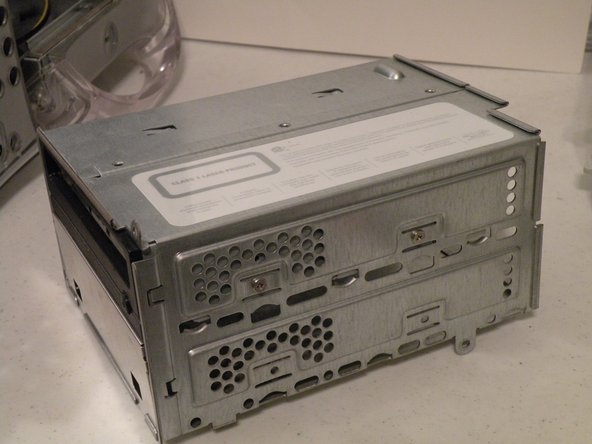
Power Mac G4 MDD Optical Drive Cage Replacement

What you need

  1. Power Mac G4 MDD Optical Drive Cage Replacement, Power Mac G4 MDD Optical Drive Cage Replacement: step 1, image 1 of 2 Power Mac G4 MDD Optical Drive Cage Replacement, Power Mac G4 MDD Optical Drive Cage Replacement: step 1, image 2 of 2
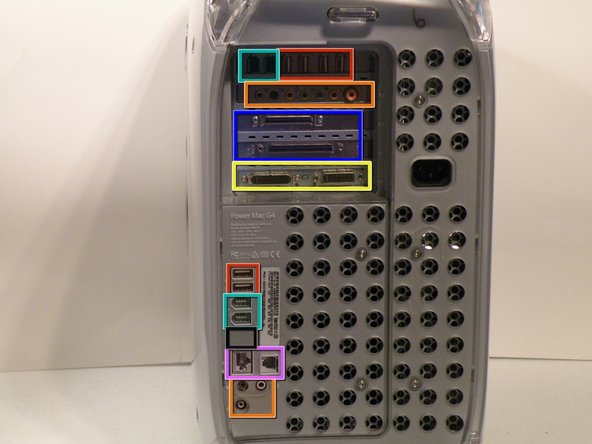
    • The Power Mac G4 MDD: the last, and the fastest G4-based Mac. This computer boasted up to a Dual 1.42GHz PowerPC G4 CPU (though I have a single 1.25GHz).

    • Six USB ports.

    • Four FireWire ports.

    • Assorted SCSI (SCSI50/SCSI68)

    • Assorted Audio

    • Video (ADC & DVI)

    • Networking (RJ-45 Ethernet/56k Modem)

    • Some later model MDD's (such as the dual 1.42GHz) Have a FireWire 800 Port Here:

    Add Comment

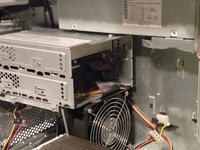
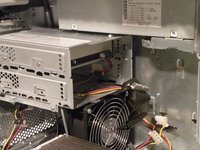
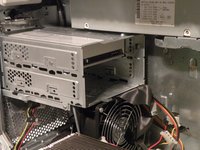
  2. Power Mac G4 MDD Optical Drive Cage Replacement: step 2, image 1 of 3 Power Mac G4 MDD Optical Drive Cage Replacement: step 2, image 2 of 3 Power Mac G4 MDD Optical Drive Cage Replacement: step 2, image 3 of 3
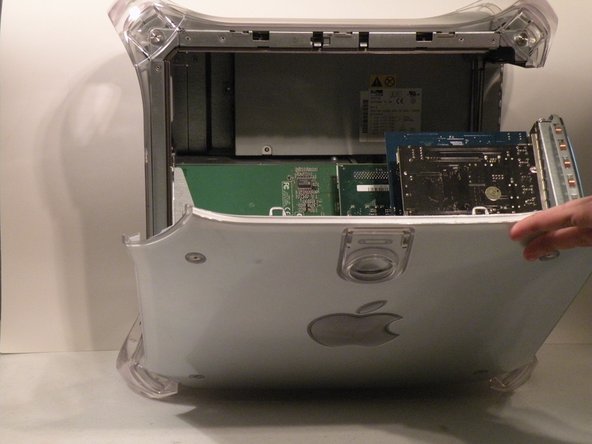
    • Pull on the side lever and lower the side of the case.

    Add Comment

  3. Power Mac G4 MDD Optical Drive Cage Replacement: step 3, image 1 of 1
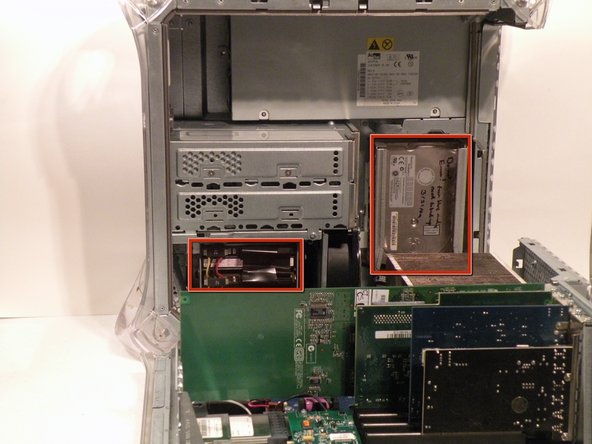
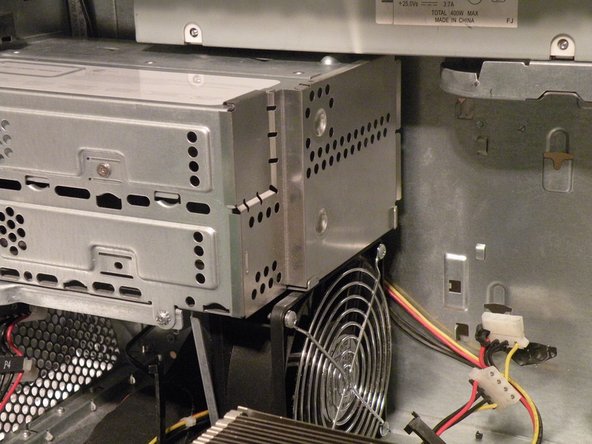
    • The hard drive cages are located here.

    Add Comment

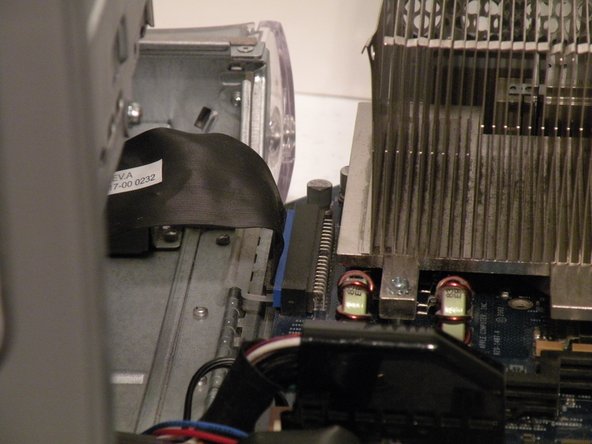
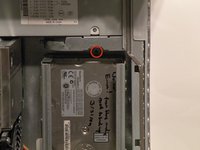
  4. Power Mac G4 MDD Optical Drive Cage Replacement: step 4, image 1 of 3 Power Mac G4 MDD Optical Drive Cage Replacement: step 4, image 2 of 3 Power Mac G4 MDD Optical Drive Cage Replacement: step 4, image 3 of 3
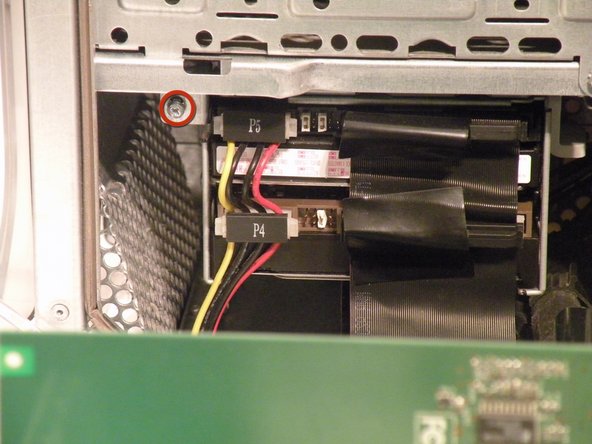
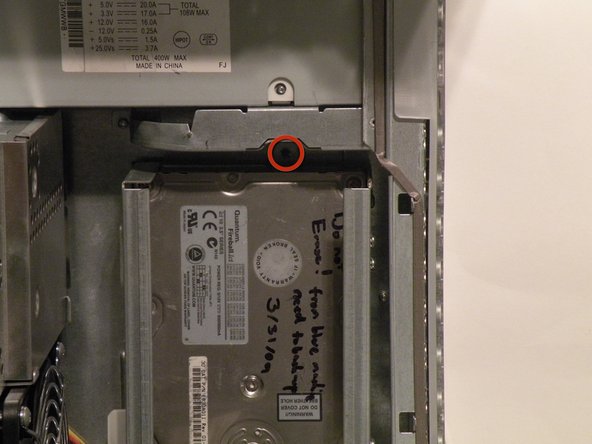
    • Cage 1

    • Start by removing this screw.

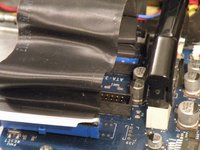
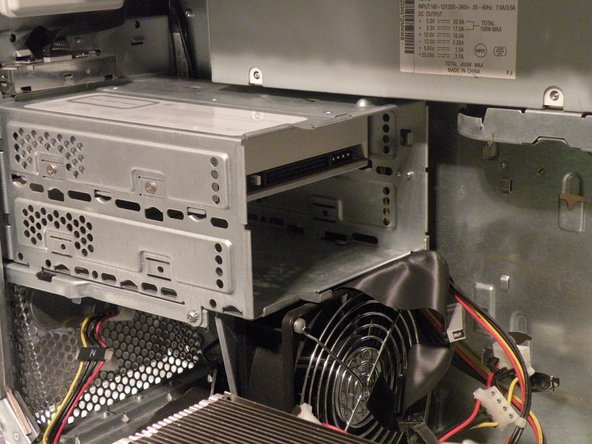
    • Remove the IDE ribbon cable from the motherboard.

    Add Comment

  5. Power Mac G4 MDD Optical Drive Cage Replacement: step 5, image 1 of 2 Power Mac G4 MDD Optical Drive Cage Replacement: step 5, image 2 of 2
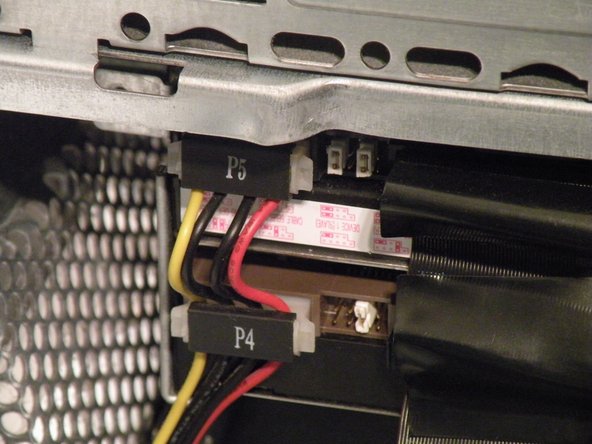
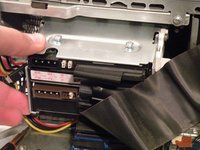
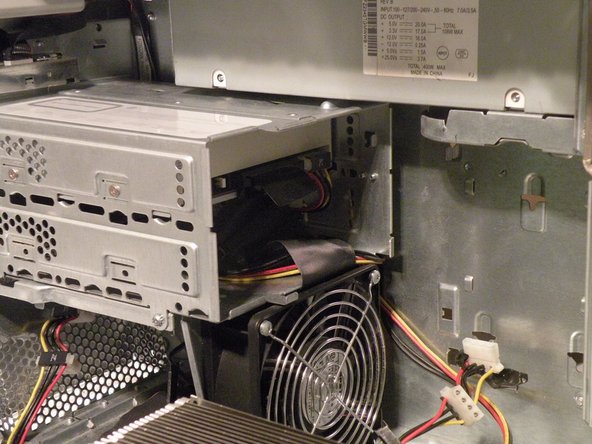
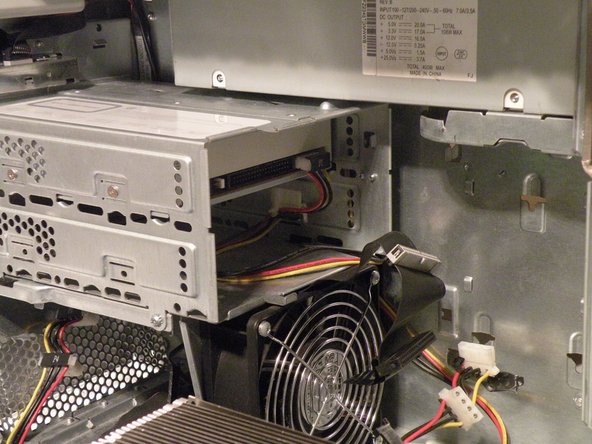
    • Now, remove the power connecton from the drives.

    Add Comment

  6. Power Mac G4 MDD Optical Drive Cage Replacement: step 6, image 1 of 3 Power Mac G4 MDD Optical Drive Cage Replacement: step 6, image 2 of 3 Power Mac G4 MDD Optical Drive Cage Replacement: step 6, image 3 of 3
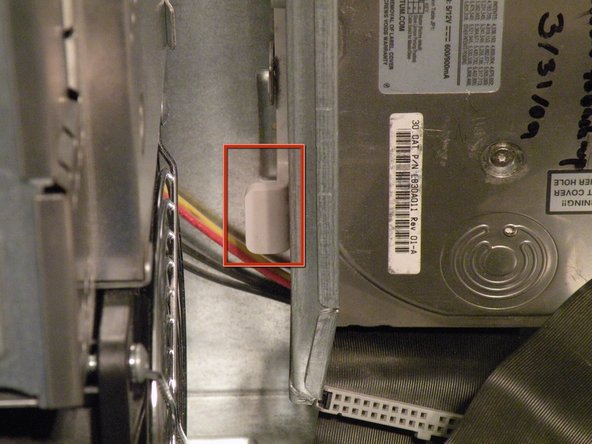
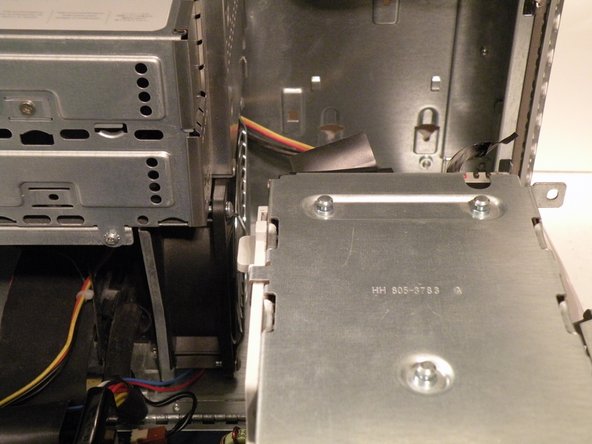
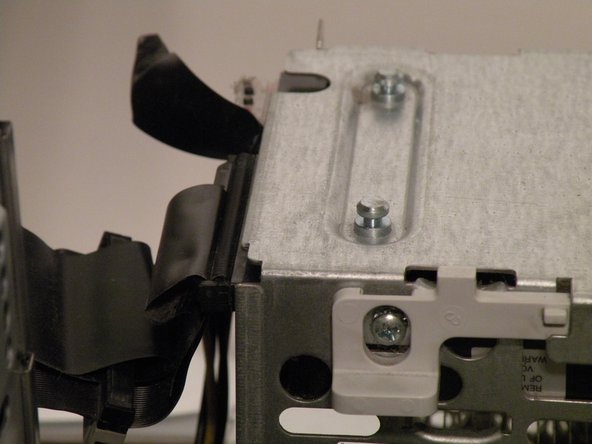
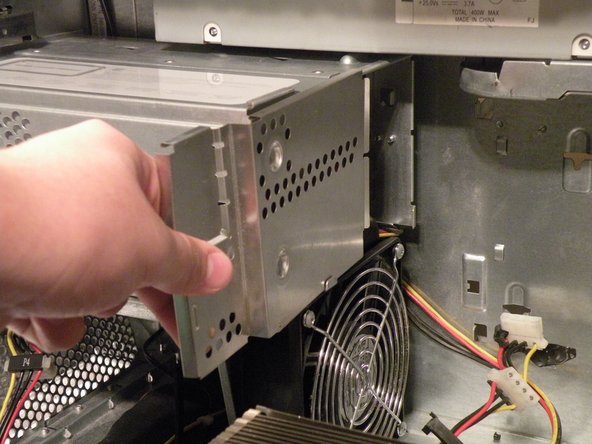
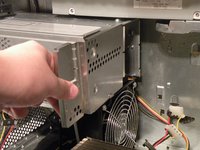
    • Now, push this tab down, and pull the cage towared you.

    • Now, you can set cage 1 aside.

    Add Comment

  7. Power Mac G4 MDD Optical Drive Cage Replacement: step 7, image 1 of 2 Power Mac G4 MDD Optical Drive Cage Replacement: step 7, image 2 of 2
    • Cage 2:

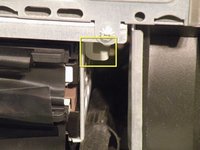
    • Remove this Phillips screw:

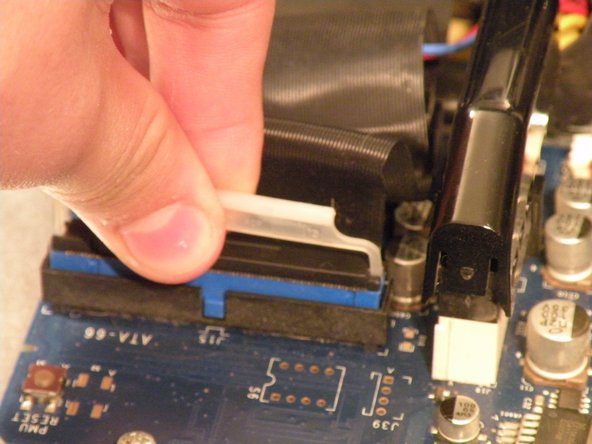
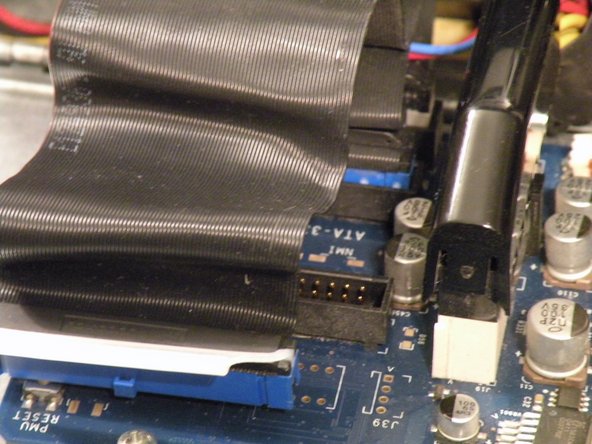
    • Disconnect this IDE ribbon cable from the logic board.

    Add Comment

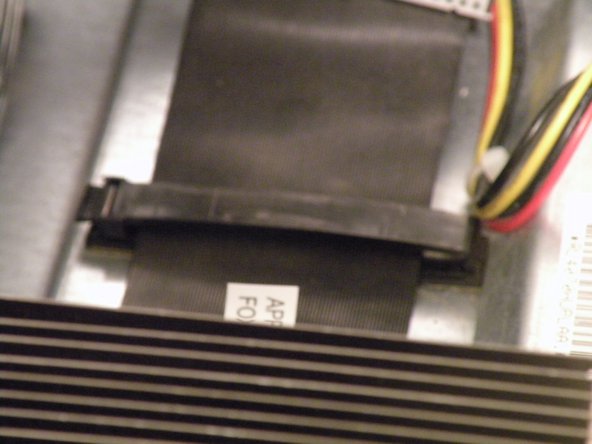
  8. Power Mac G4 MDD Optical Drive Cage Replacement: step 8, image 1 of 2 Power Mac G4 MDD Optical Drive Cage Replacement: step 8, image 2 of 2
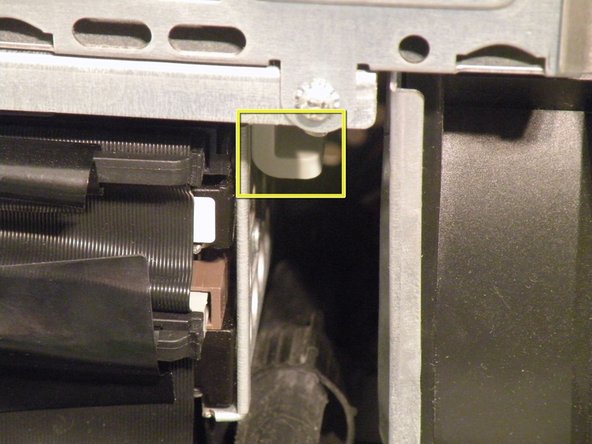
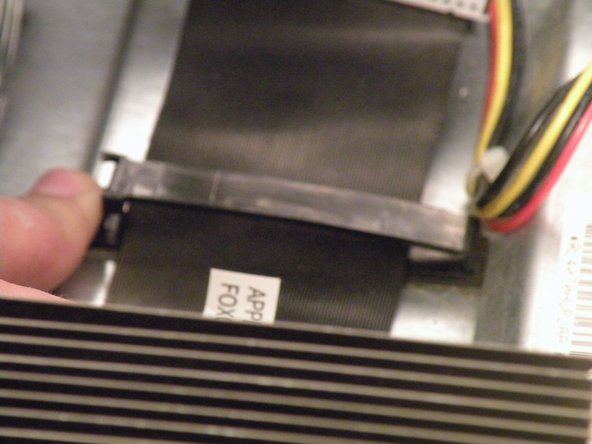
    • It's likely that there is a cable clip holding the ribbon cable to the case.

    • To remove it, push the end, and it should pop up.

    Add Comment

  9. Power Mac G4 MDD Optical Drive Cage Replacement: step 9, image 1 of 3 Power Mac G4 MDD Optical Drive Cage Replacement: step 9, image 2 of 3 Power Mac G4 MDD Optical Drive Cage Replacement: step 9, image 3 of 3
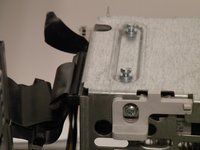
    • With the clip free, pull on this tab, lift the cage up, until it clicks, and pull it away.

    • Now, set the cage on top of the CPU, and remove the power connectors.

    Add Comment

  10. Power Mac G4 MDD Optical Drive Cage Replacement: step 10, image 1 of 2 Power Mac G4 MDD Optical Drive Cage Replacement: step 10, image 2 of 2
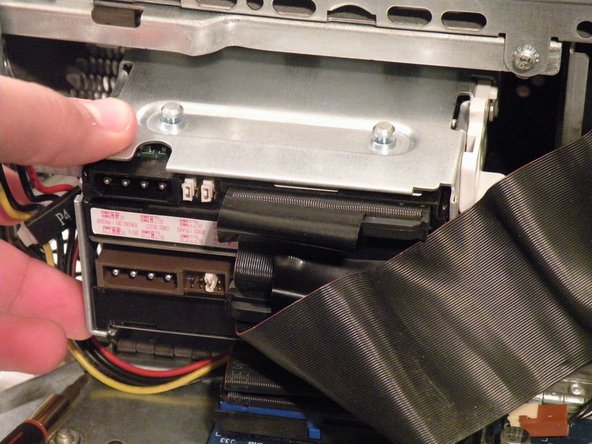
    • Once the cables are free, set the drive cage aside.

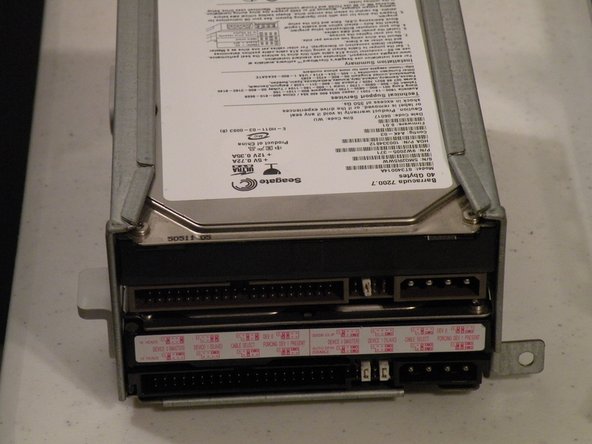
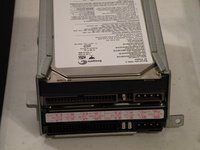
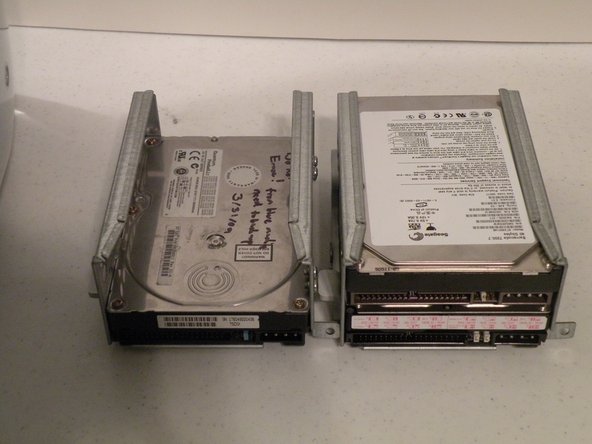
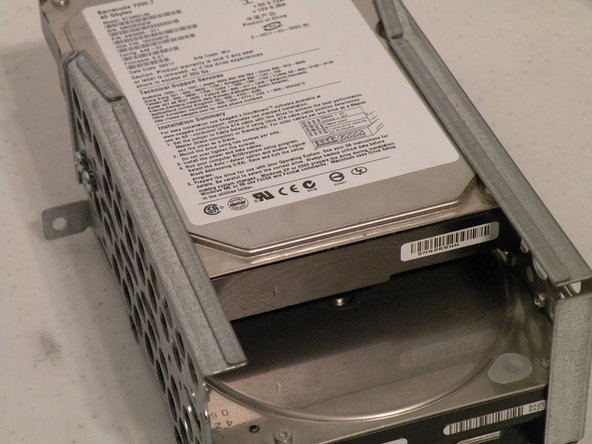
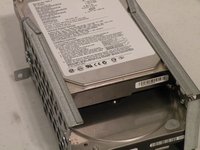
    • To remove the hard drives from the cages, remove the four screws on the sides of the cage that are connected to the drives, than slide the drives out.

    • The two cages are cross compatible and can be put in either rack.

    • The MDD does not have a 128GB drive limit like older macs, My MDD has 3 Drives (A 400GB Hitatchi Deskstar, 40GB Seagate Baracuda 7200.7, and a 30GB Quantum Fireball LCT).

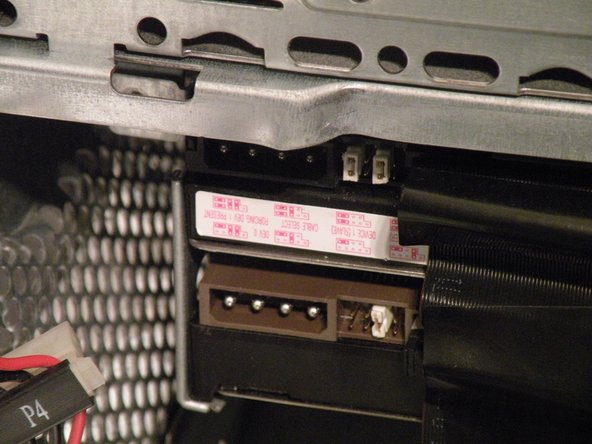
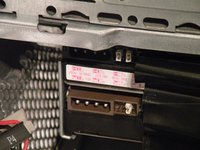
    • Note the ID jumpers on the two drive set. One is set to Master, the other to slave. A single drive can be set to Cable Select.

    Add Comment

  11. Power Mac G4 MDD Optical Drive Cage Replacement: step 11, image 1 of 2 Power Mac G4 MDD Optical Drive Cage Replacement: step 11, image 2 of 2
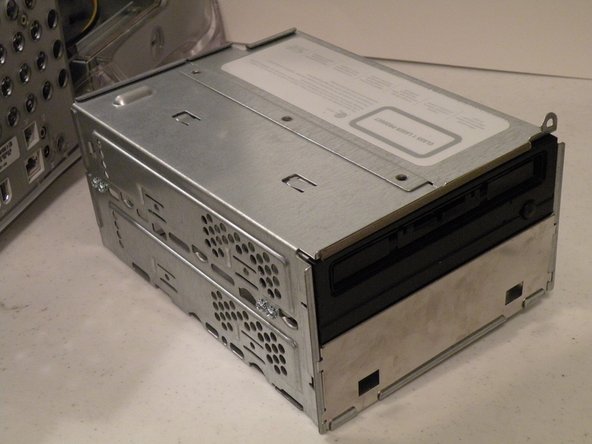
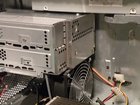
    • Start removing the optical drive cage by removing the back cover.

    Add Comment

  12. Power Mac G4 MDD Optical Drive Cage Replacement: step 12, image 1 of 3 Power Mac G4 MDD Optical Drive Cage Replacement: step 12, image 2 of 3 Power Mac G4 MDD Optical Drive Cage Replacement: step 12, image 3 of 3
    • Now, remove the IDE and power cables.

    Add Comment

  13. Power Mac G4 MDD Optical Drive Cage Replacement: step 13, image 1 of 3 Power Mac G4 MDD Optical Drive Cage Replacement: step 13, image 2 of 3 Power Mac G4 MDD Optical Drive Cage Replacement: step 13, image 3 of 3
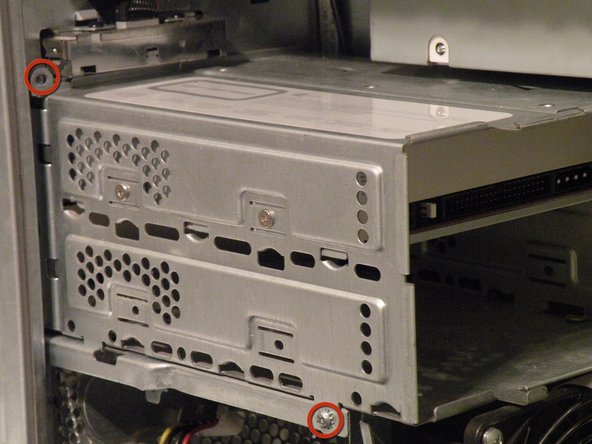
    • Remove these two Phillips screws:

    • Now, pull the cage away from the front until it is free.

    • Now, lift the cage out.

    Add Comment

  14. Power Mac G4 MDD Optical Drive Cage Replacement: step 14, image 1 of 2 Power Mac G4 MDD Optical Drive Cage Replacement: step 14, image 2 of 2
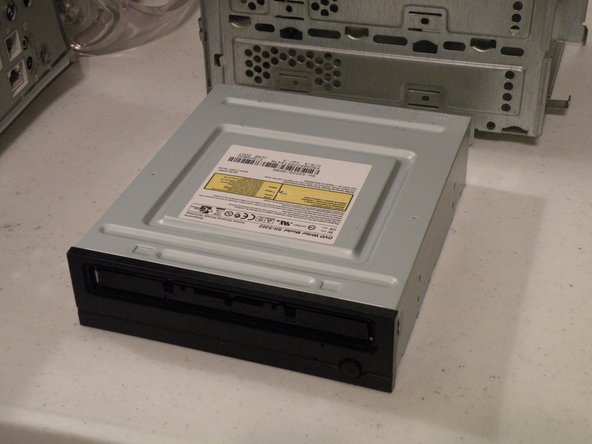
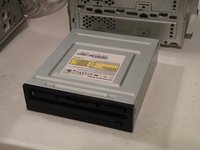
    • To remove the drive from the cage, remove the four screws on the side of the drive, and pull the drive out of the cage.

    • My MDD has a 3rd Party 22X SuperDrive, for burning DVD's in Leopard (Thank You Generic Drive Support!)

    Add Comment

Conclusion

To reassemble your device, follow these instructions in reverse order.

Cancel: I did not complete this guide.

System

Member since: 09/24/09

2,562 Guides authored

0 Guide Comments

Add Comment

View Statistics:

Past 24 Hours: 0

Past 7 Days: 1

Past 30 Days: 1

All Time: 17