Power Mac G4 Quicksilver Central Processing Unit Replacement

What you need

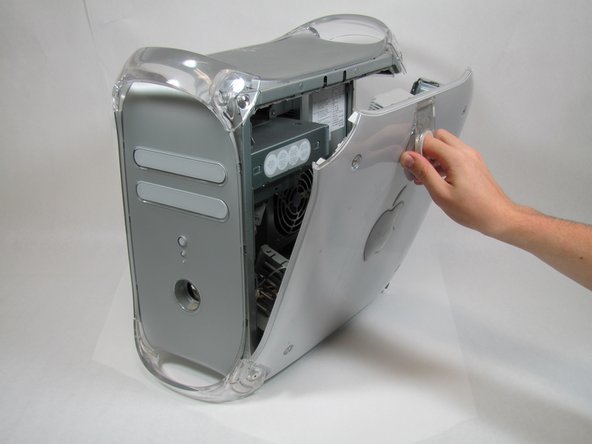
  1. Power Mac G4 Quicksilver Central Processing Unit Replacement, Power Mac G4 Quicksilver Central Processing Unit Replacement: step 1, image 1 of 1
    • The handle to open your computer is located on top of the right side panel.

    Add Comment

  2. Power Mac G4 Quicksilver Central Processing Unit Replacement: step 2, image 1 of 2 Power Mac G4 Quicksilver Central Processing Unit Replacement: step 2, image 2 of 2
    • Grab the circular handle and pull outward.

    Add Comment

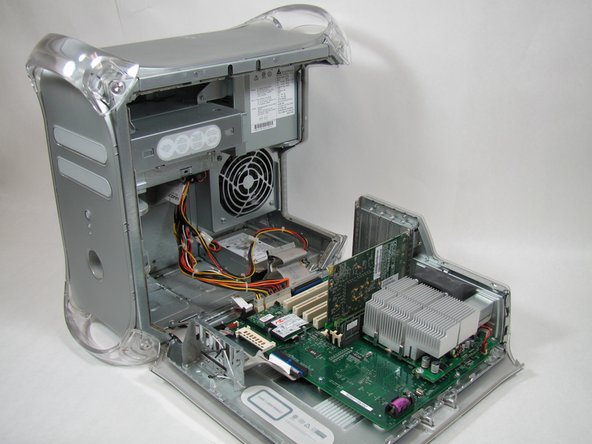
  3. Power Mac G4 Quicksilver Central Processing Unit Replacement: step 3, image 1 of 1
    • Your computer is now open and ready for repair.

    Add Comment

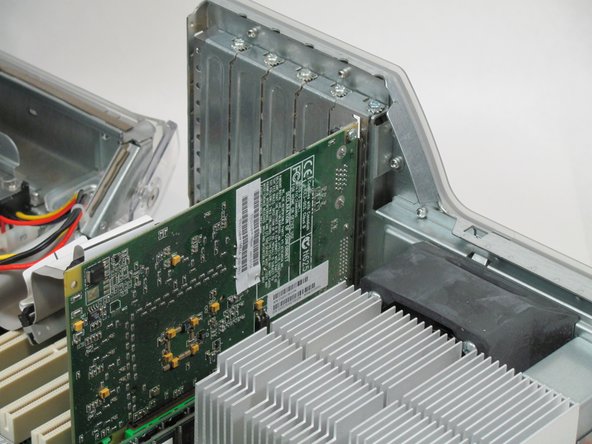
  4. Power Mac G4 Quicksilver Central Processing Unit Replacement: step 4, image 1 of 1
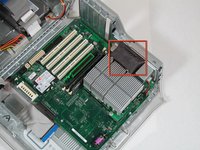
    • This is your Power Mac G4's video adapter.

    Add Comment

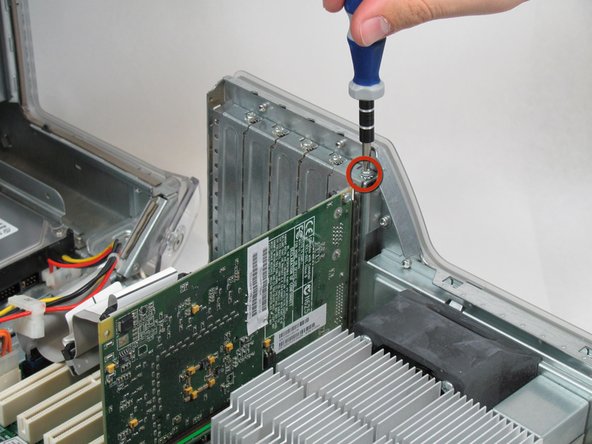
  5. Power Mac G4 Quicksilver Central Processing Unit Replacement: step 5, image 1 of 1
    • Start by removing the screw holding the card to the chassis as shown.

    Add Comment

  6. Power Mac G4 Quicksilver Central Processing Unit Replacement: step 6, image 1 of 1
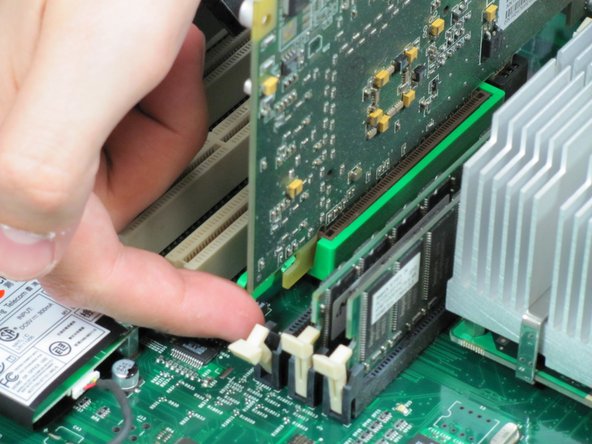
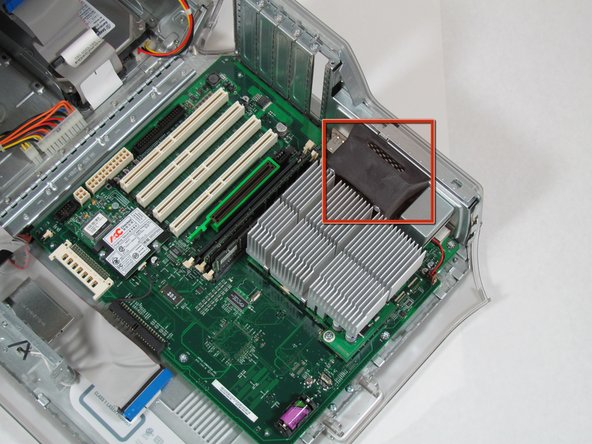
    • Before lifting the card out, this small plastic tab needs to be pulled back there by releasing it entirely.

    Add Comment

  7. Power Mac G4 Quicksilver Central Processing Unit Replacement: step 7, image 1 of 2 Power Mac G4 Quicksilver Central Processing Unit Replacement: step 7, image 2 of 2
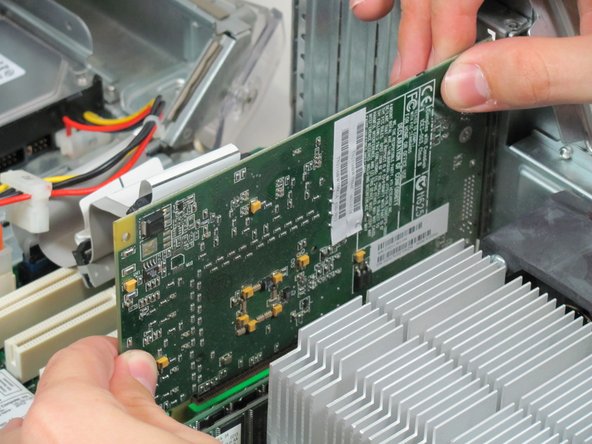
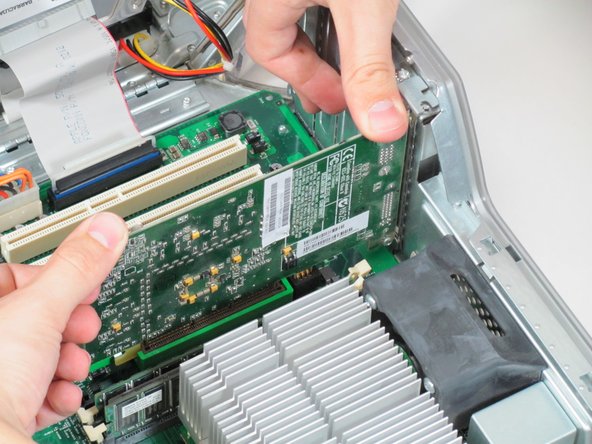
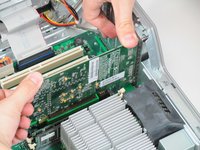
    • With the tab and screw removed, lift the card straight out.

    • When putting the card back in, take care to apply even pressure across the top with your thumbs. This will avoid damaging the card.

    Add Comment

  8. Power Mac G4 Quicksilver Central Processing Unit Replacement: step 8, image 1 of 1
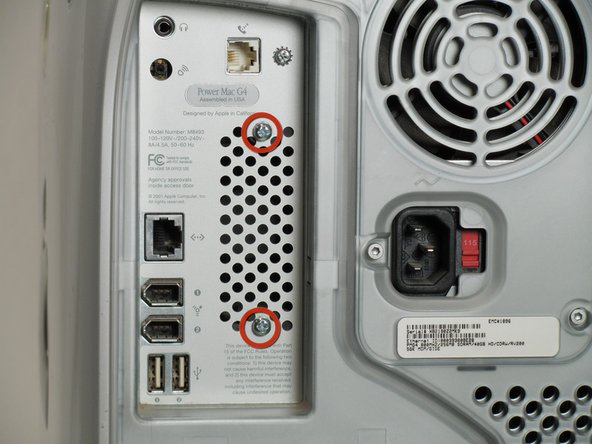
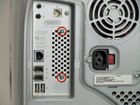
    • First you want to remove the fan. Remove the two screws on the back of the computer in the upper left hand corner.

    Add Comment

  9. Power Mac G4 Quicksilver Central Processing Unit Replacement: step 9, image 1 of 2 Power Mac G4 Quicksilver Central Processing Unit Replacement: step 9, image 2 of 2
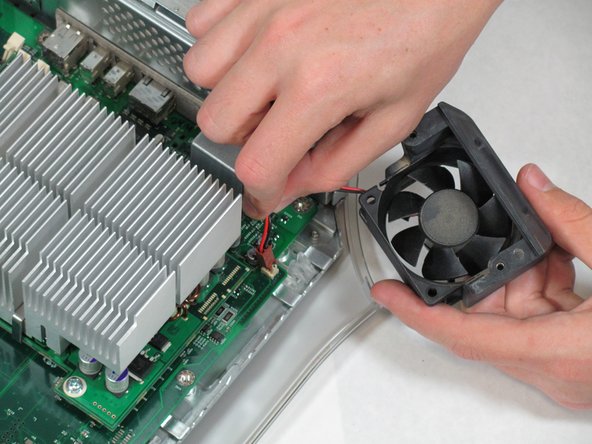
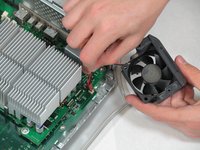
    • Remove the fan unit by pulling straight up and out.

    • Be carful not to rip out the cord still attached to the motherboard. Remove it gently.

    Add Comment

  10. Power Mac G4 Quicksilver Central Processing Unit Replacement: step 10, image 1 of 2 Power Mac G4 Quicksilver Central Processing Unit Replacement: step 10, image 2 of 2
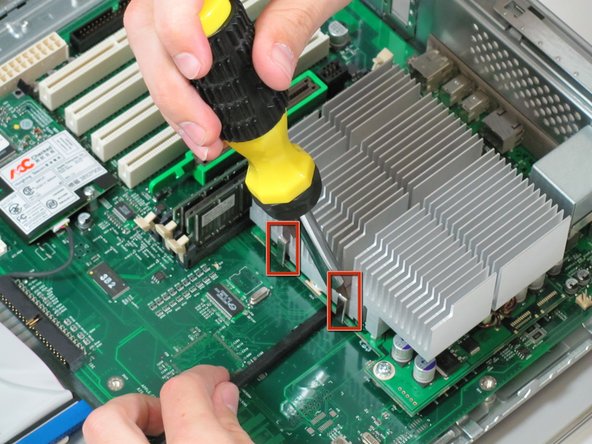
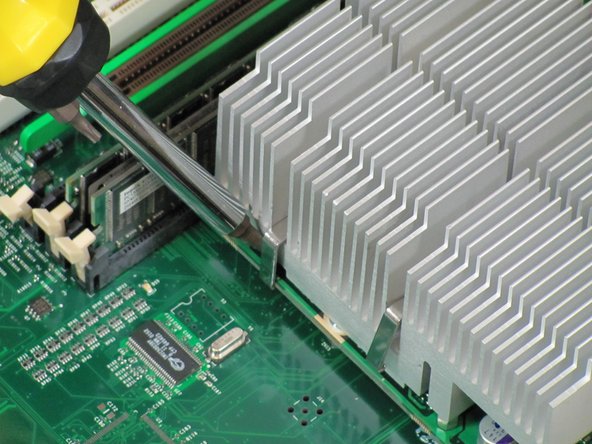
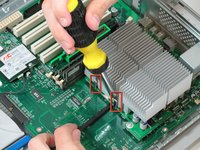
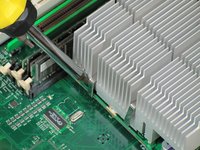
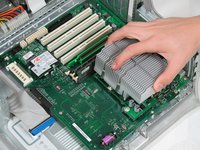
    • You need detach the heat sink from the CPU. Locate the four clamps holding it down, two on each side.

    • Taking off the clamps can be difficult. Use a screwdriver to push down on the top of the clip. Then insert a spudger below the heat sink to pull it away from the board, releasing the heat sink.

    Add Comment

  11. Power Mac G4 Quicksilver Central Processing Unit Replacement: step 11, image 1 of 2 Power Mac G4 Quicksilver Central Processing Unit Replacement: step 11, image 2 of 2
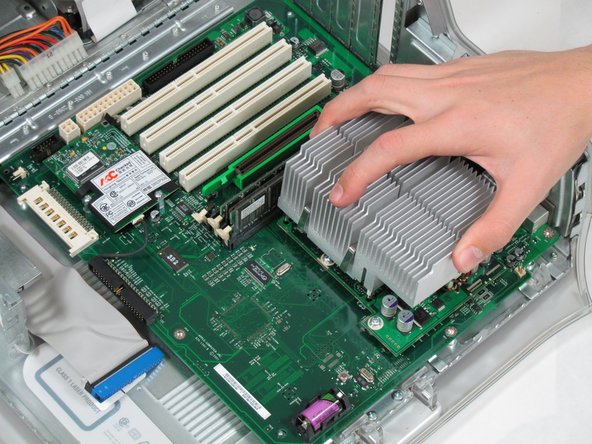
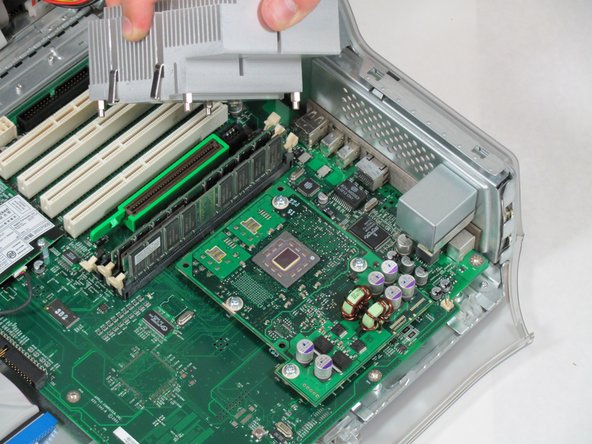
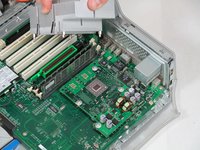
    • Pull the heat sink up and off of the CPU.

    Add Comment

  12. Power Mac G4 Quicksilver Central Processing Unit Replacement: step 12, image 1 of 1
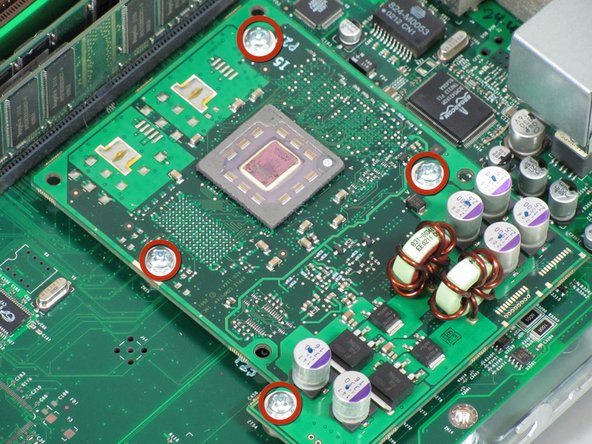
    • Remove the four screws holding the CPU to the motherboard.

    Add Comment

  13. Power Mac G4 Quicksilver Central Processing Unit Replacement: step 13, image 1 of 2 Power Mac G4 Quicksilver Central Processing Unit Replacement: step 13, image 2 of 2
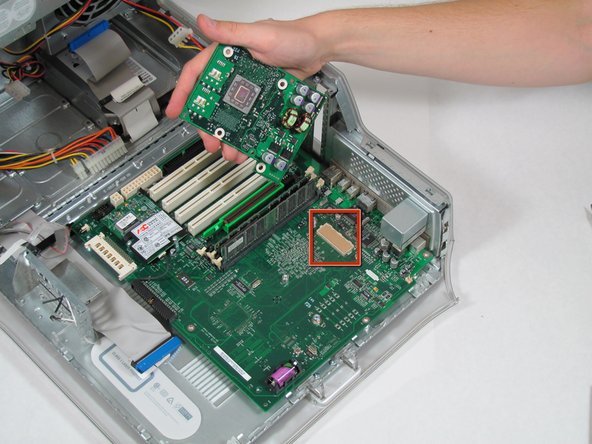
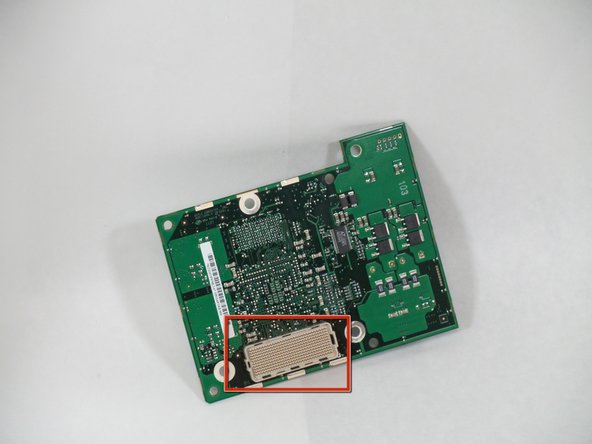
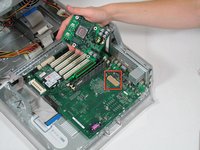
    • Now you can remove the CPU by pulling it straight up from the motherboard.

    • Be very careful when you detach the CPU. There is a connector that has hundreds of little prongs. You must not bend or break any of them! Be extremely careful.

    Add Comment

  14. Power Mac G4 Quicksilver Central Processing Unit Replacement: step 14, image 1 of 1
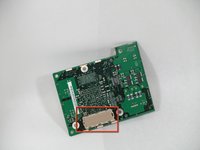
    • You can now replace the CPU.

    Add Comment

Conclusion

To reassemble your device, follow these instructions in reverse order.

Cancel: I did not complete this guide.

System

Member since: 09/24/09

2,562 Guides authored

0 Guide Comments

Add Comment

View Statistics:

Past 24 Hours: 0

Past 7 Days: 2

Past 30 Days: 3

All Time: 21