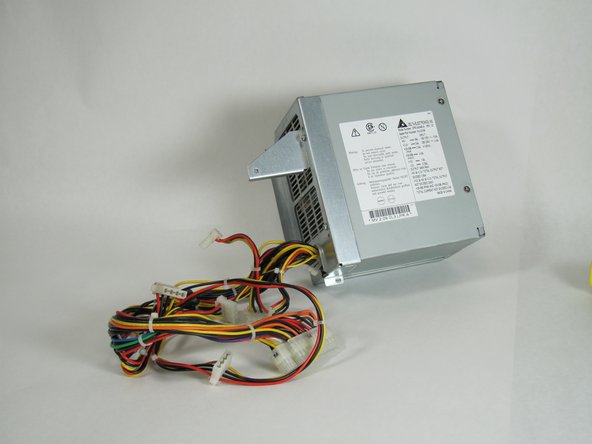
Power Mac G4 Quicksilver Power Supply Replacement

What you need

  1. Power Mac G4 Quicksilver Power Supply Replacement, Power Mac G4 Quicksilver Power Supply Replacement: step 1, image 1 of 1
    • The handle to open your computer is located on top of the right side panel.

    Add Comment

  2. Power Mac G4 Quicksilver Power Supply Replacement: step 2, image 1 of 2 Power Mac G4 Quicksilver Power Supply Replacement: step 2, image 2 of 2
    • Grab the circular handle and pull outward.

    Add Comment

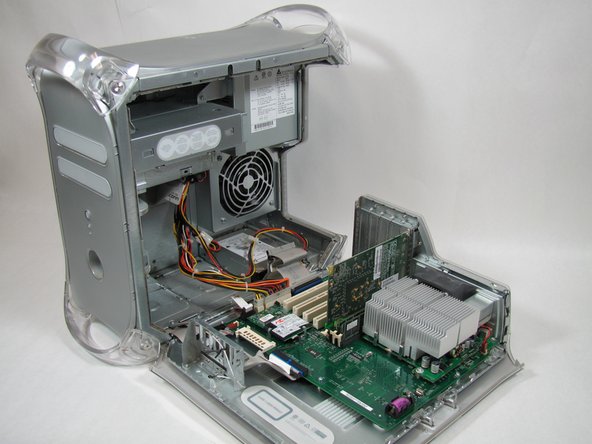
  3. Power Mac G4 Quicksilver Power Supply Replacement: step 3, image 1 of 1
    • Your computer is now open and ready for repair.

    Add Comment

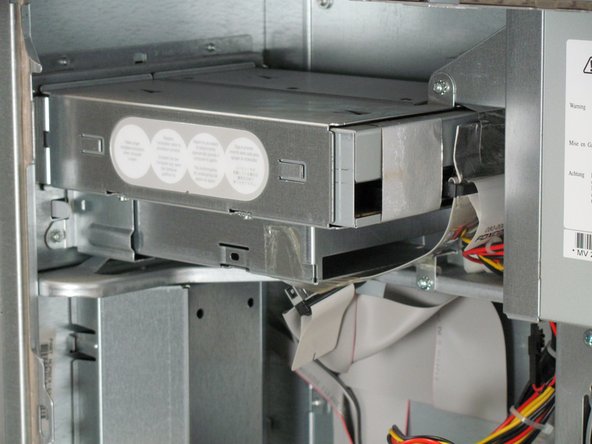
  4. Power Mac G4 Quicksilver Power Supply Replacement: step 4, image 1 of 1
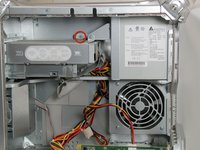
    • The optical drive is in the top left corner of the case.

    Add Comment

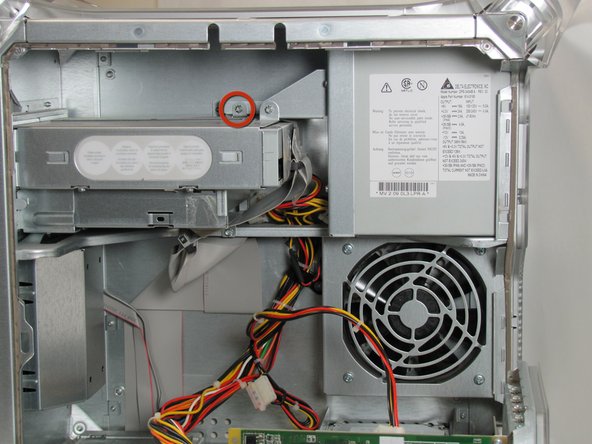
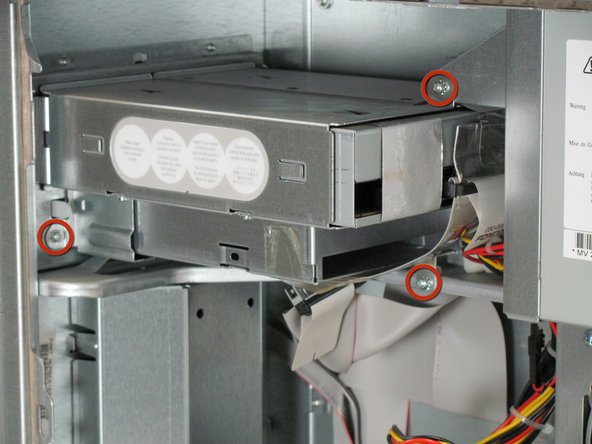
  5. Power Mac G4 Quicksilver Power Supply Replacement: step 5, image 1 of 2 Power Mac G4 Quicksilver Power Supply Replacement: step 5, image 2 of 2
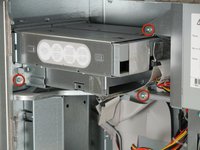
    • There are four screws to be removed.

    • The first screw can be seen in the first picture.

    • The remaining three screws can be seen in the second picture.

    Add Comment

  6. Power Mac G4 Quicksilver Power Supply Replacement: step 6, image 1 of 1
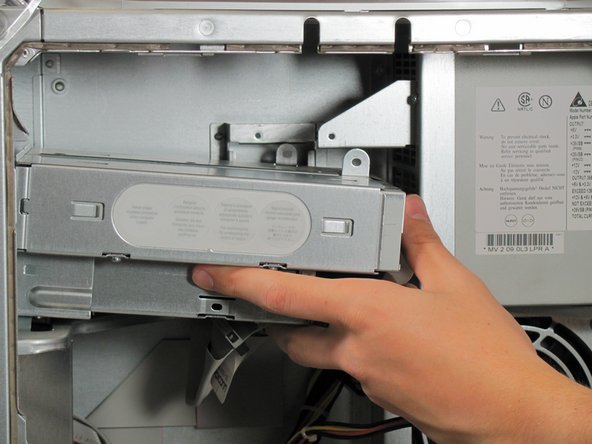
    • Remove the optical drive by pulling the drive away from the front of the computer and out.

    Add Comment

  7. Power Mac G4 Quicksilver Power Supply Replacement: step 7, image 1 of 1
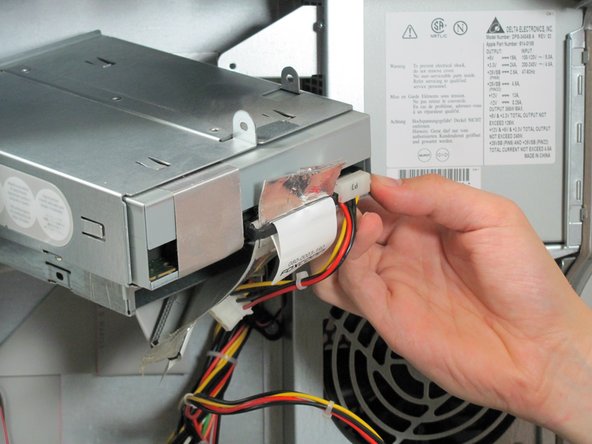
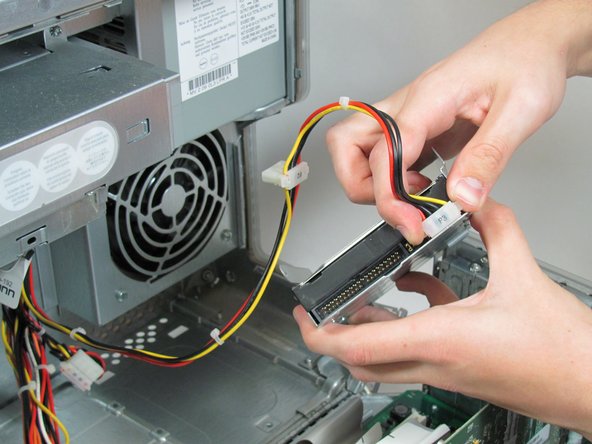
    • Detach the two cables attached to the back of the drive.

    • The flat ribbon cable can be detached by pulling the silver tab. The multicolored cable can be removed by grasping the plastic connector on either side and pulling with substantial force.

    Add Comment

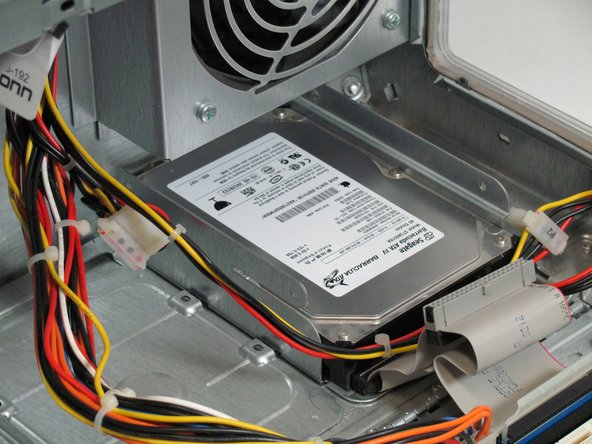
  8. Power Mac G4 Quicksilver Power Supply Replacement: step 8, image 1 of 1
    • The hard drive is located in the back right corner of the case.

    Add Comment

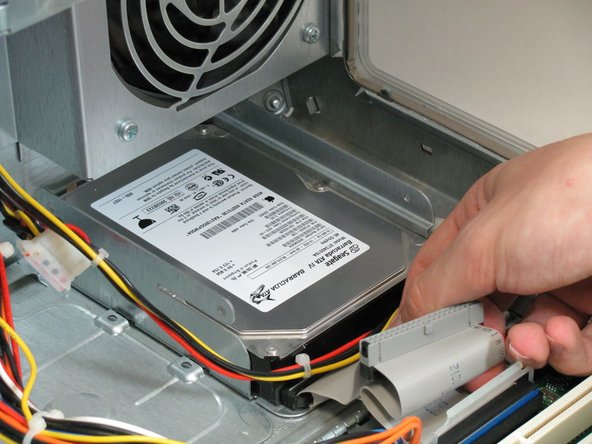
  9. Power Mac G4 Quicksilver Power Supply Replacement: step 9, image 1 of 1
    • Remove the flat ribbon cable by pulling with substantial force.

    Add Comment

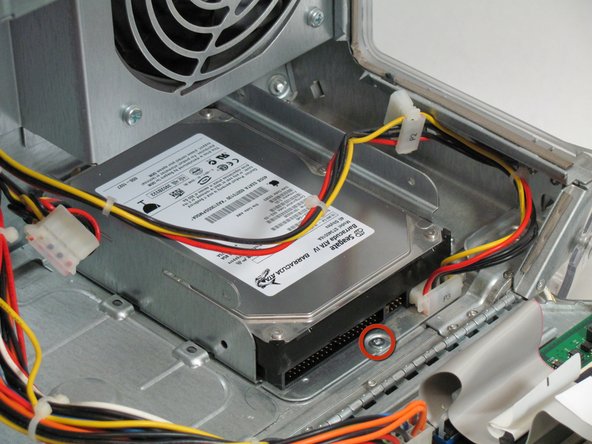
  10. Power Mac G4 Quicksilver Power Supply Replacement: step 10, image 1 of 1
    • Remove the screw holding the hard drive to the computer.

    Add Comment

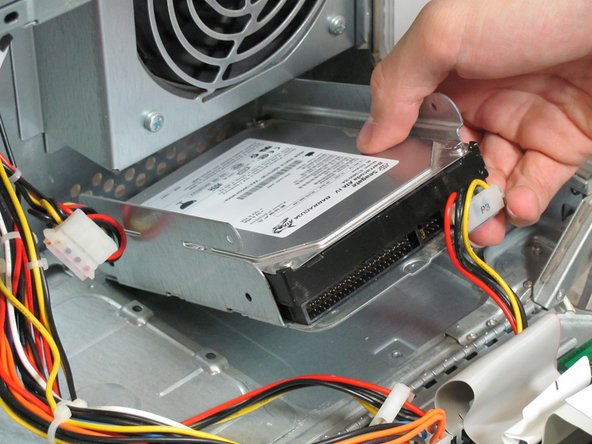
  11. Power Mac G4 Quicksilver Power Supply Replacement: step 11, image 1 of 1
    • Pull the drive up and out of the computer.

    Add Comment

  12. Power Mac G4 Quicksilver Power Supply Replacement: step 12, image 1 of 1
    • Remove the multicolored cable by grasping the plastic connector on either side and pulling with substantial force.

    Add Comment

  13. Power Mac G4 Quicksilver Power Supply Replacement: step 13, image 1 of 1
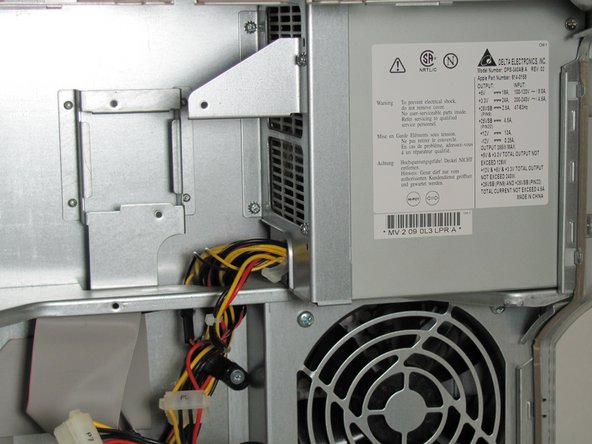
    • The power supply is in the upper right corner of the case.

    Add Comment

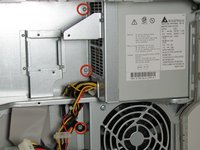
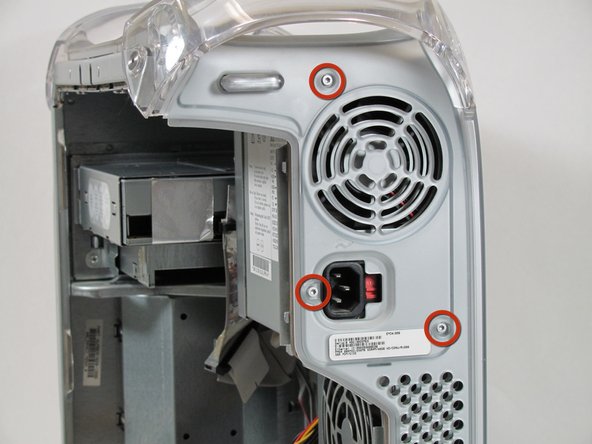
  14. Power Mac G4 Quicksilver Power Supply Replacement: step 14, image 1 of 2 Power Mac G4 Quicksilver Power Supply Replacement: step 14, image 2 of 2
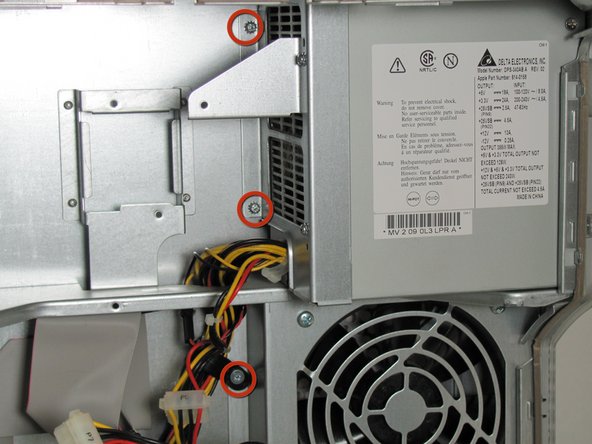
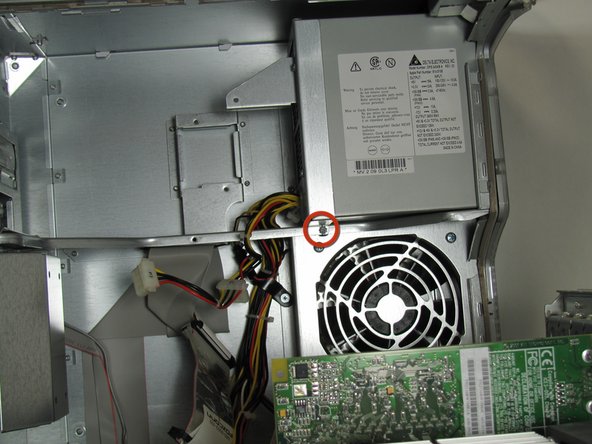
    • There is a total of four screws to be removed.

    • The first three can be seen in the first picture.

    • The final screw can be seen in the second picture.

    Add Comment

  15. Power Mac G4 Quicksilver Power Supply Replacement: step 15, image 1 of 1
    • There are three 2.5mm hex bolts located in the back of the computer that also need to be removed.

    • A 3/32" Hex Key or Hex Driver is a bit small but may also work if gentle.

    Add Comment

  16. Power Mac G4 Quicksilver Power Supply Replacement: step 16, image 1 of 1
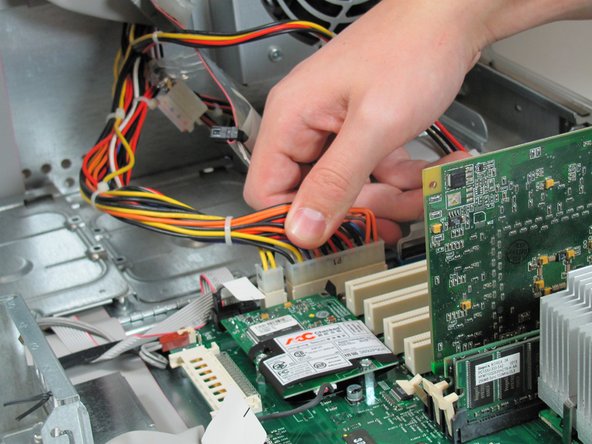
    • Disconnect the power supply cables from the mother board by pressing in the tab on the back of the connector as shown.

    Add Comment

  17. Power Mac G4 Quicksilver Power Supply Replacement: step 17, image 1 of 1
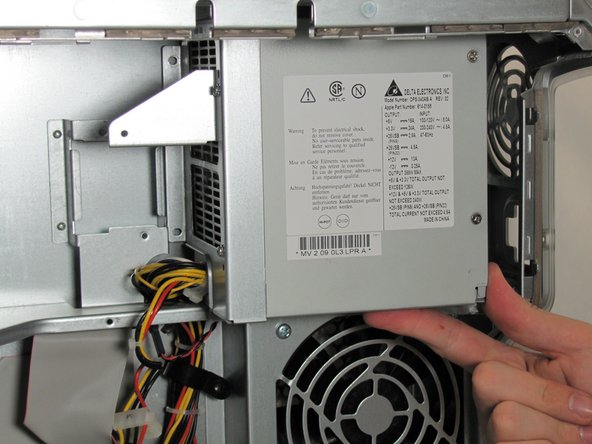
    • Before sliding out the power supply make sure to disconnect the cable to the big fan by pressing in the small black tab on the back of the black connector!

    • Slide the power supply away from the back of the computer and pull it out carefully stringing the cables through the hole in the metal support.

    Add Comment

  18. Power Mac G4 Quicksilver Power Supply Replacement: step 18, image 1 of 1
    • Your power supply is now free from the enclosure and is ready to be replaced.

    Add Comment

Conclusion

To reassemble your device, follow these instructions in reverse order.

Cancel: I did not complete this guide.

System

Member since: 09/24/09

2,562 Guides authored

0 Guide Comments

Add Comment

View Statistics:

Past 24 Hours: 0

Past 7 Days: 0

Past 30 Days: 2

All Time: 23