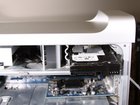
Power Mac G5 Hard Drive Replacement

Views: 17

View statistics:

Past 24 Hours:
0
Past 7 Days:
0
Past 30 Days:
2
All Time:
17
Comments: 0

No one has left comments on this guide. Will you be first?

Go to guide comments
Completed: 0

No one has marked this guide "completed." Will you be the first?

Favorites: 0

No one has favorited (and subscribed to) this guide. Will you be the first?

Time Required: No estimate
Difficulty: Very easy
Power Mac G5 Hard Drive Replacement

Introduction

Go to step 1 ↓

These steps will show you how to properly replace your hard drive on your Apple G5 Desktop.

    1. Power Mac G5 Hard Drive Replacement, Power Mac G5 Hard Drive Replacement: step 1, image 1 of 1
      • To avoid electrocution, shut down the computer. Do not open the computer or attempt to install any items inside it while the computer is on.

      • To avoid being shocked, wait at least 10 minutes to allow the computer's internal components to cool.

      Add Comment

    2. Power Mac G5 Hard Drive Replacement: step 2, image 1 of 1
      • Remove all the cables, including the power cables before opening the unit.

      Add Comment

    3. Power Mac G5 Hard Drive Replacement: step 3, image 1 of 2 Power Mac G5 Hard Drive Replacement: step 3, image 2 of 2
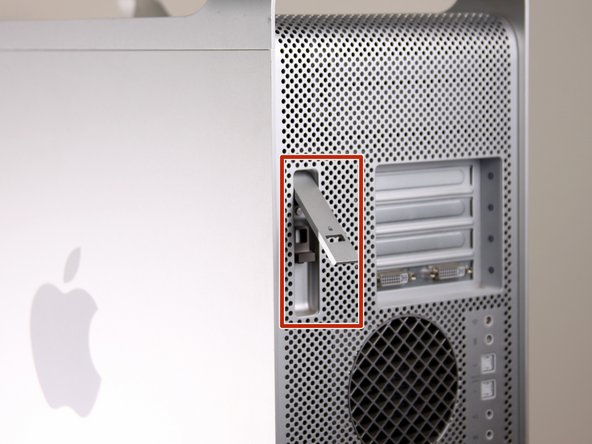
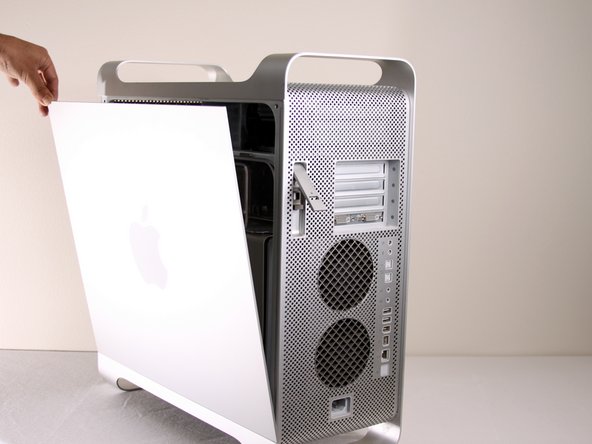
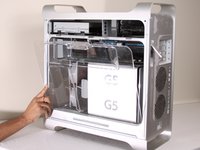
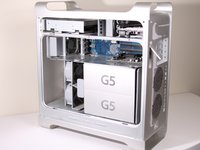
      • Lift the tab to unlock the side panel.

      • The panel should fall out. If the panel does not fall out by itself pull a little from the edges.

      Add Comment

    4. Power Mac G5 Hard Drive Replacement: step 4, image 1 of 3 Power Mac G5 Hard Drive Replacement: step 4, image 2 of 3 Power Mac G5 Hard Drive Replacement: step 4, image 3 of 3
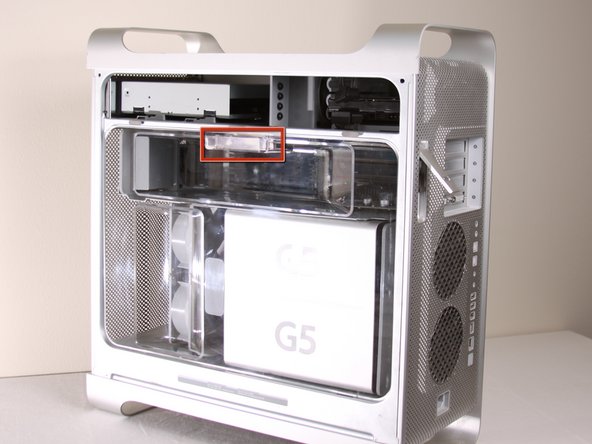
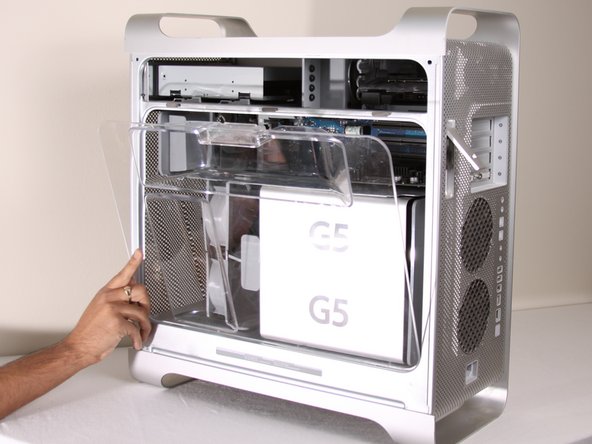
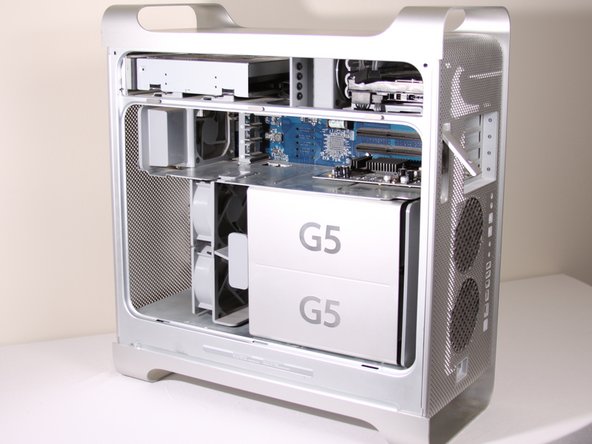
      • Remove the air deflector (the clear plastic cover) by pulling on the handle.

      Add Comment

    5. Power Mac G5 Hard Drive Replacement: step 5, image 1 of 1
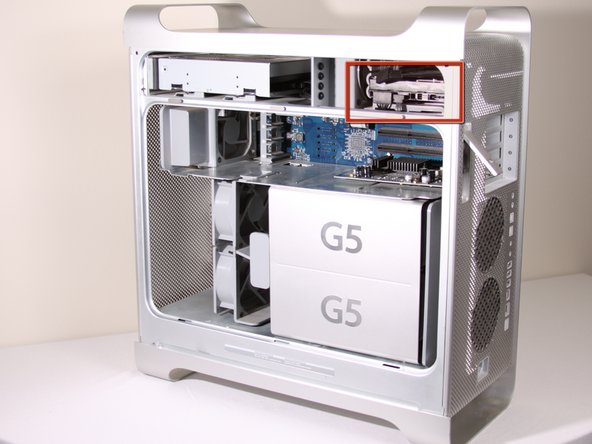
      • Locate hard drive on the top right-hand corner of the desktop.

      Add Comment

    6. Power Mac G5 Hard Drive Replacement: step 6, image 1 of 2 Power Mac G5 Hard Drive Replacement: step 6, image 2 of 2
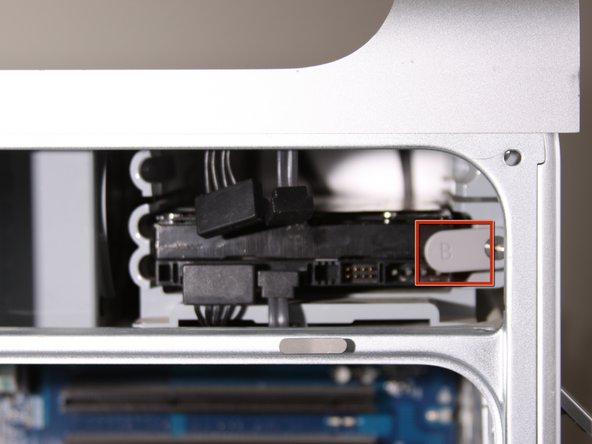
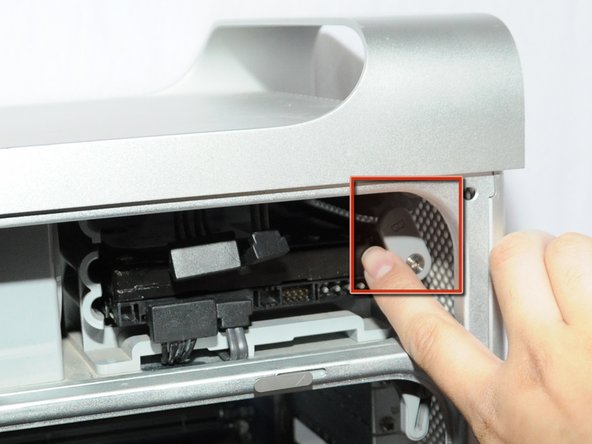
      • Rotate up plastic tab labeled "B" on the right hand side of hard drive.

      Add Comment

    7. Power Mac G5 Hard Drive Replacement: step 7, image 1 of 2 Power Mac G5 Hard Drive Replacement: step 7, image 2 of 2
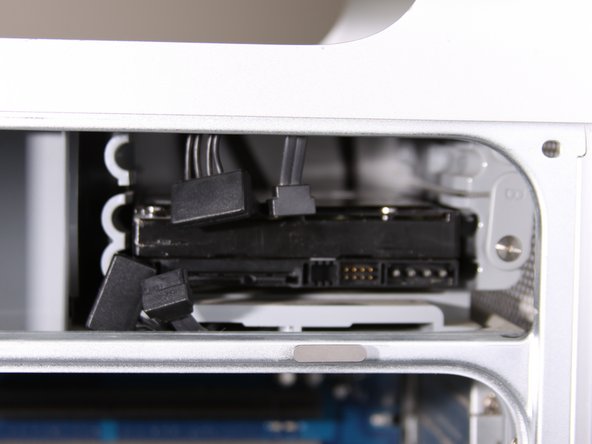
      • Detach both cables from the hard drive.

      Add Comment

    8. Power Mac G5 Hard Drive Replacement: step 8, image 1 of 2 Power Mac G5 Hard Drive Replacement: step 8, image 2 of 2
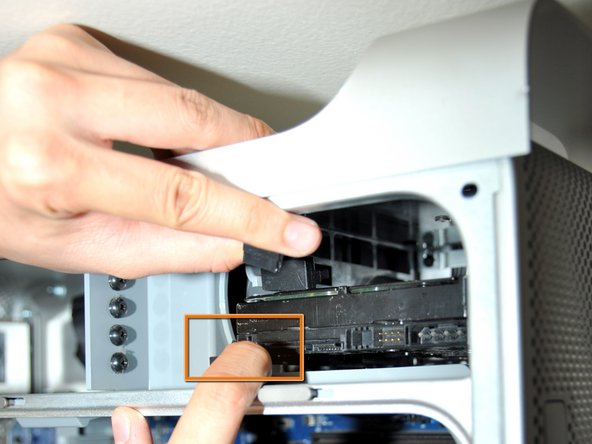
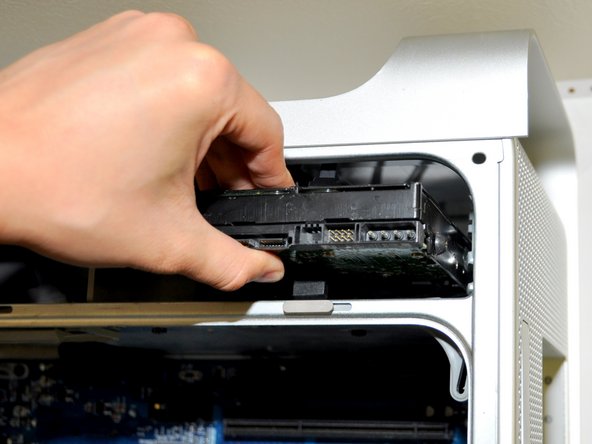
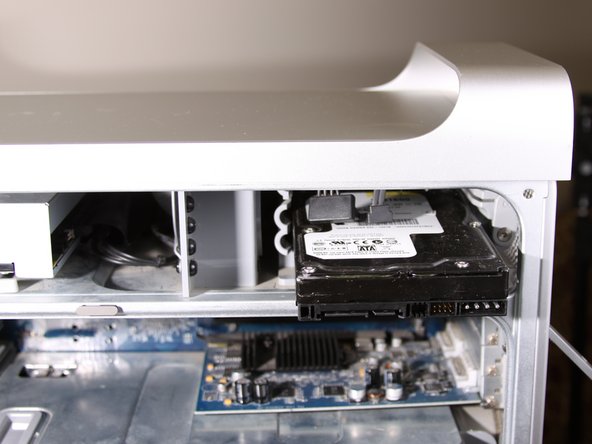
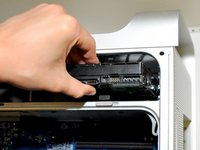
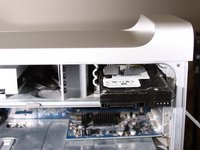
      • Pull out the hard drive out.

      Add Comment

    9. Power Mac G5 Hard Drive Replacement: step 9, image 1 of 1
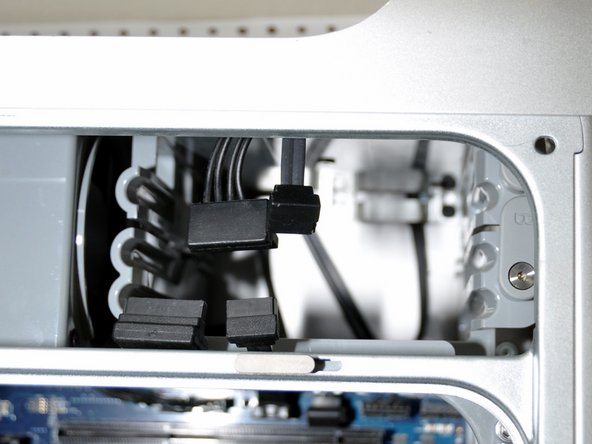
      • After hard drive is out, the space should look like this.

      Add Comment

Conclusion

To reassemble your device, follow these instructions in reverse order.

Cancel: I did not complete this guide.

System

Member since: 09/24/09

2,562 Guides authored

0 Guide Comments

Add Comment

View Statistics:

Past 24 Hours: 0

Past 7 Days: 0

Past 30 Days: 2

All Time: 17