PowerBook G3 Lombard Processor Replacement

What you need

    1. PowerBook G3 Lombard Processor Replacement, PowerBook G3 Lombard Processor Replacement: step 1, image 1 of 1
      • Turn the computer so that the ports are facing you.

      • If the keyboard is locked, open the port cover and turn the keyboard locking screw until the keyboard is unlocked.

      Add Comment

    2. PowerBook G3 Lombard Processor Replacement: step 2, image 1 of 1
      • Pull the keyboard release tabs toward you and lift up on the keyboard until it pops free.

      • Make sure you have removed the laptop battery and CD/DVD module from the expansion bays before proceeding.

      Add Comment

    3. PowerBook G3 Lombard Processor Replacement: step 3, image 1 of 1
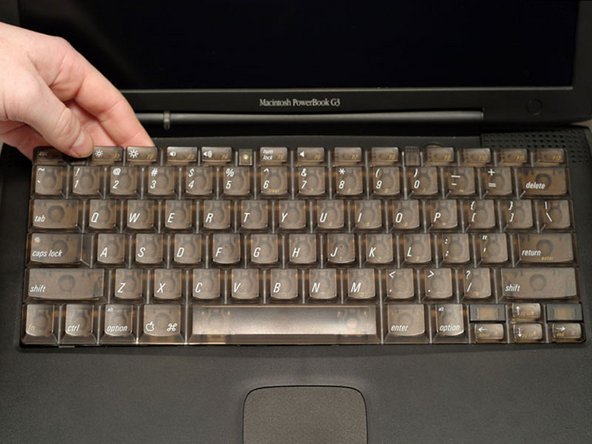
      • Lift the keyboard out by pulling it up and away from you. Rest the keyboard, face down, on top of the trackpad.

      • In order to replace the keyboard, you must first remove the modem.

      Add Comment

    4. PowerBook G3 Lombard Processor Replacement: step 4, image 1 of 1
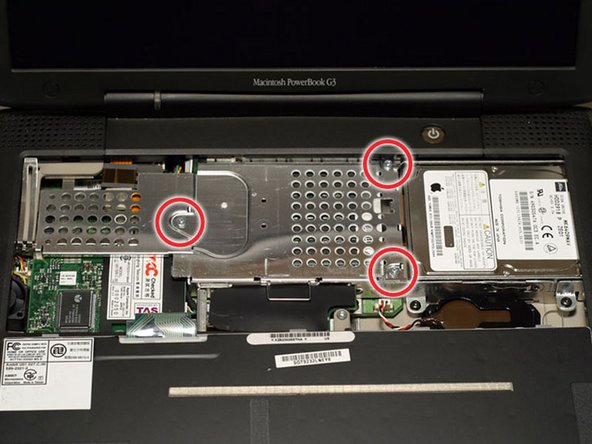
      • Remove the three silver Phillips screws that attach the heat shield to the internal metal framework.

      Add Comment

    5. PowerBook G3 Lombard Processor Replacement: step 5, image 1 of 1
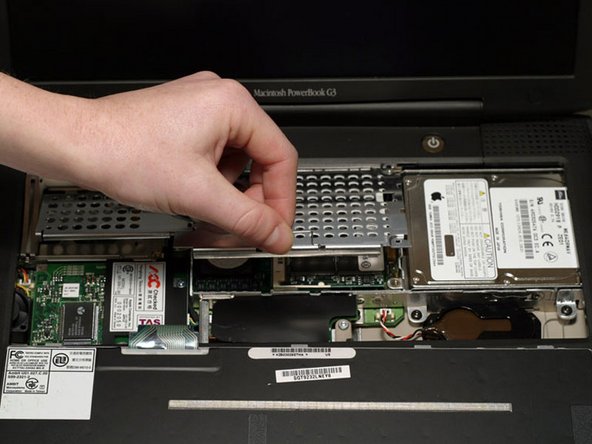
      • Lift the heat shield up and pull it toward you.

      Add Comment

    6. PowerBook G3 Lombard Processor Replacement: step 6, image 1 of 1
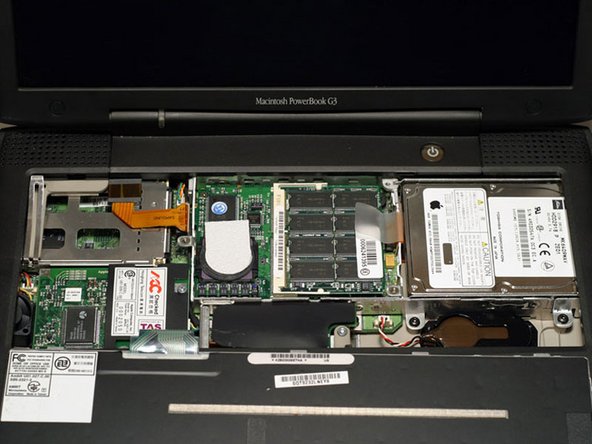
      • Your laptop should look approximately like this.

      Add Comment

    7. PowerBook G3 Lombard Processor Replacement: step 7, image 1 of 1
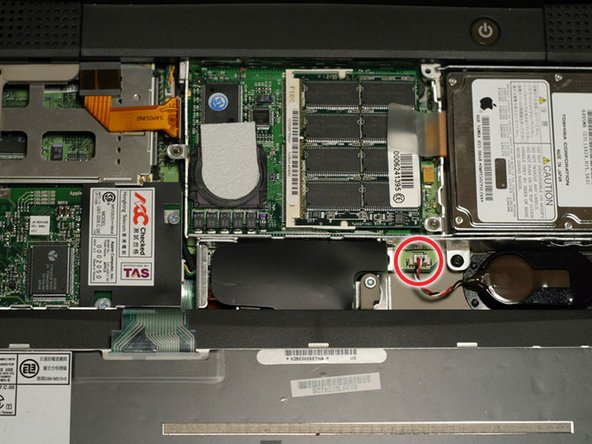
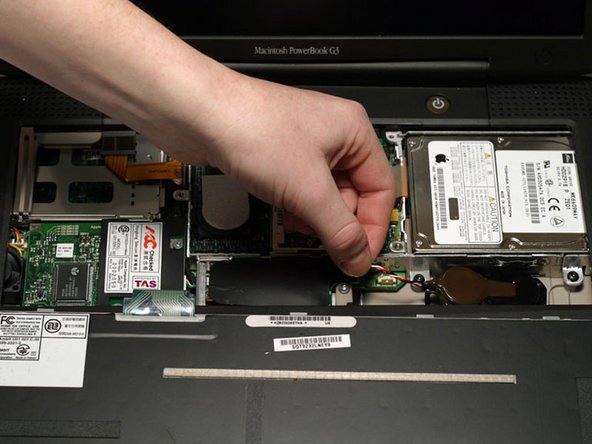
      • Pull the battery cable directly up from the logic board.

      Add Comment

    8. PowerBook G3 Lombard Processor Replacement: step 8, image 1 of 1
      • Remove the battery from its holder by pulling up and to the left.

      Add Comment

    9. PowerBook G3 Lombard Processor Replacement: step 9, image 1 of 1
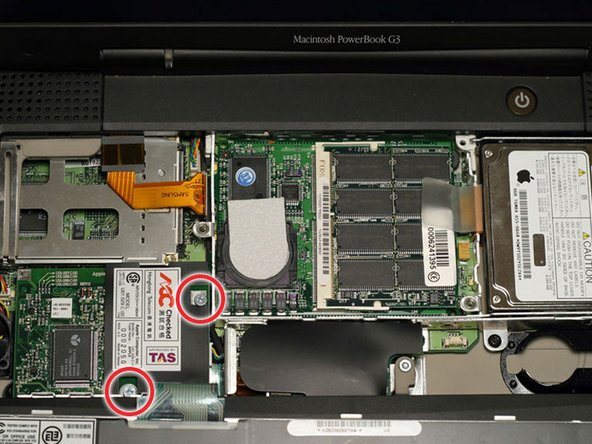
      • Remove the two silver Phillips screws from the modem.

      Add Comment

    10. PowerBook G3 Lombard Processor Replacement: step 10, image 1 of 1
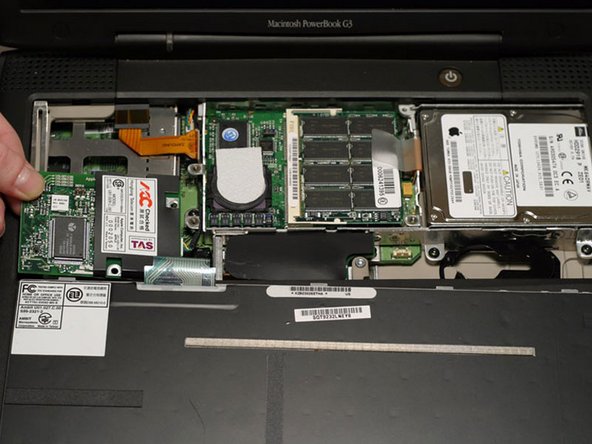
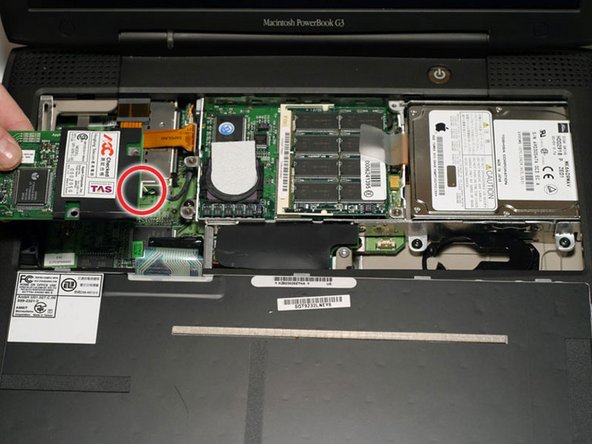
      • Use a spudger, the tips of your fingers, or a flat non-metal tool to get under the modem's edge and pry it up from its socket as shown in the picture.

      Add Comment

    11. PowerBook G3 Lombard Processor Replacement: step 11, image 1 of 1
      • Disconnect the cable from the right side of the modem.

      Add Comment

    12. PowerBook G3 Lombard Processor Replacement: step 12, image 1 of 1
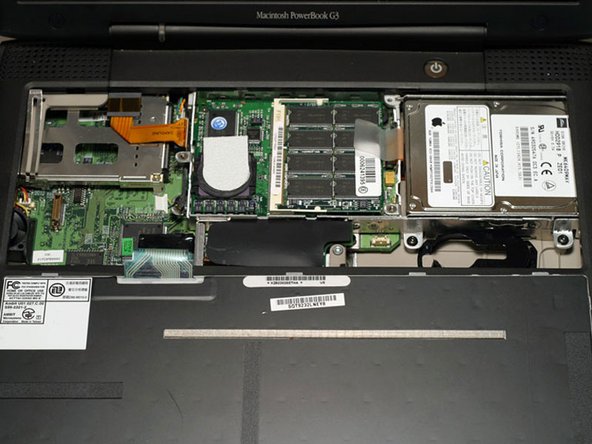
      • Your laptop should look approximately like this.

      Add Comment

    13. PowerBook G3 Lombard Processor Replacement: step 13, image 1 of 1
      • Use a spudger, the tips of your fingers, or a flat non-metal tool to pry up the processor's right side.

      Add Comment

    14. PowerBook G3 Lombard Processor Replacement: step 14, image 1 of 1
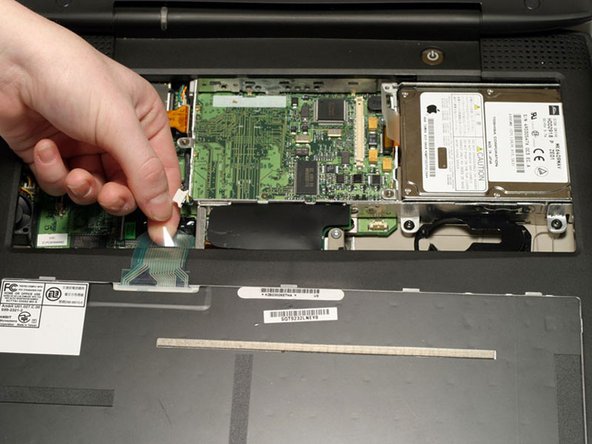
      • Disconnect the keyboard cable from the logic board by pulling directly up on the clear plastic loop.

      • This step is out of sequence with the keyboard because in order to remove the keyboard you must first remove the modem.

      Add Comment

    15. PowerBook G3 Lombard Processor Replacement: step 15, image 1 of 1
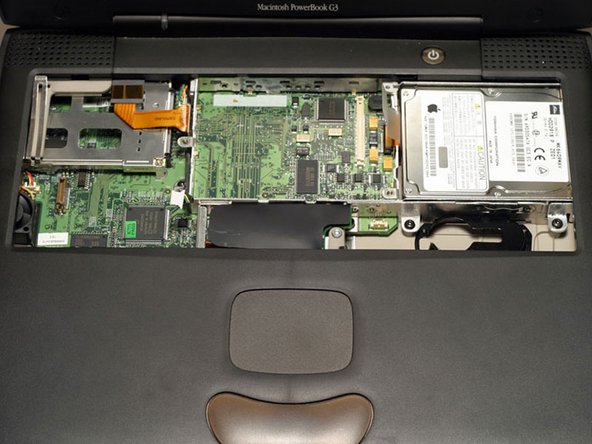
      • Your laptop should look approximately like this.

      Add Comment

Conclusion

To reassemble your device, follow these instructions in reverse order.

Cancel: I did not complete this guide.

System

Member since: 09/24/09

2,562 Guides authored

0 Guide Comments

Add Comment

View Statistics:

Past 24 Hours: 1

Past 7 Days: 1

Past 30 Days: 1

All Time: 19