
PowerBook G4 Aluminum 12" 867 MHz Airport Extreme Card Replacement

Last updated on Sep 18, 2016
Views: 52
View statistics:
- Past 24 Hours:
- 0
- Past 7 Days:
- 0
- Past 30 Days:
- 0
- All Time:
- 52
Comments: 0
No one has left comments on this guide. Will you be first?
Go to guide commentsCompleted: 0 1
No one has marked this guide "completed." Will you be the first?
1 person has marked this guide "completed." It's you — great job!
Favorites: 0 1
No one has favorited (and subscribed to) this guide. Will you be the first?
1 person has favorited (and subscribed to) this guide — and that's you!
Time Required: No estimate
Difficulty: Easy
Introduction
Go to step 1 ↓Install an Airport Extreme 802.11g card internally.
What you need
-
-
-
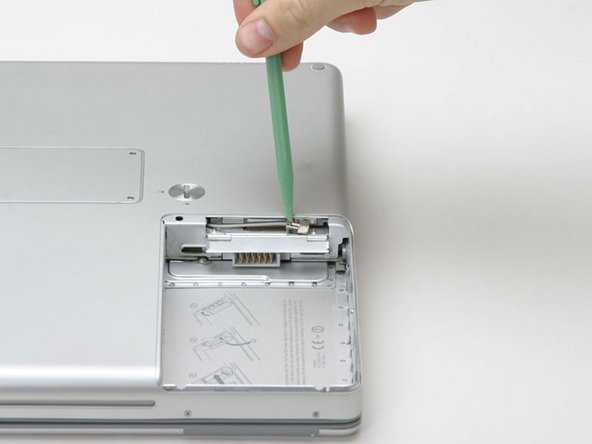
Use a coin to turn the battery locking screw 90 degrees to the right.
-
Lift the battery out of the computer.
-
-



Conclusion
To reassemble your device, follow these instructions in reverse order.

