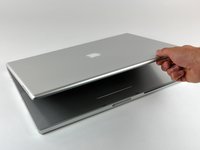
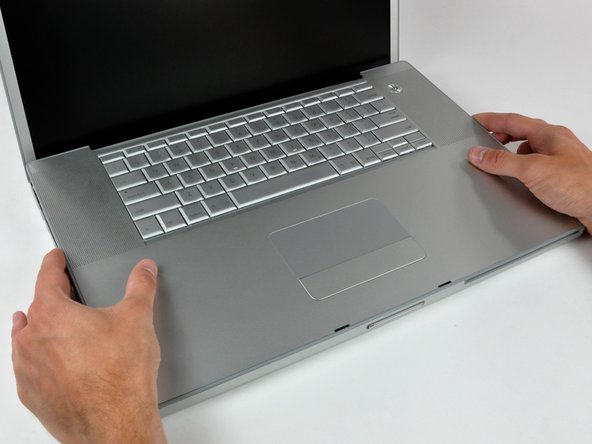
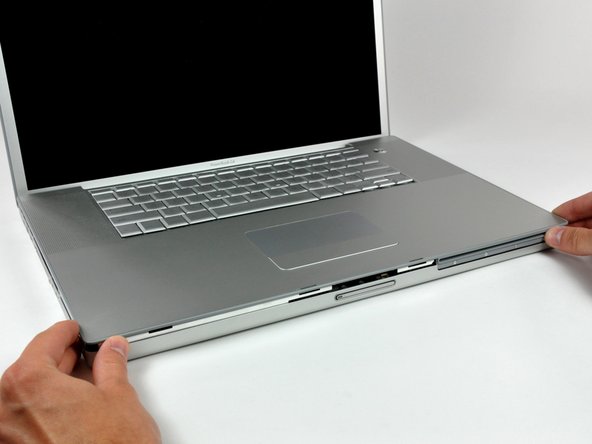
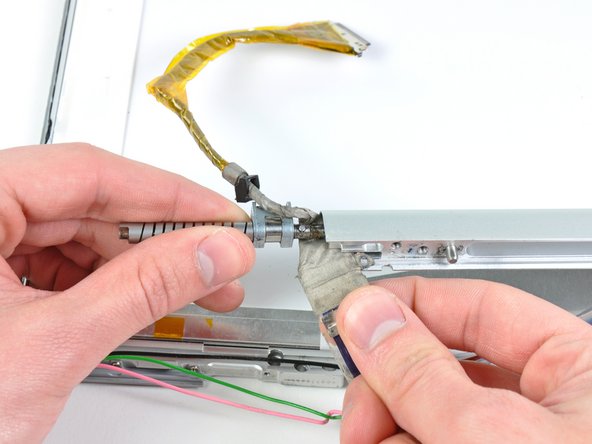
PowerBook G4 Aluminum 17" 1.67 GHz (High-Res) Clutch Hinges Replacement

What you need

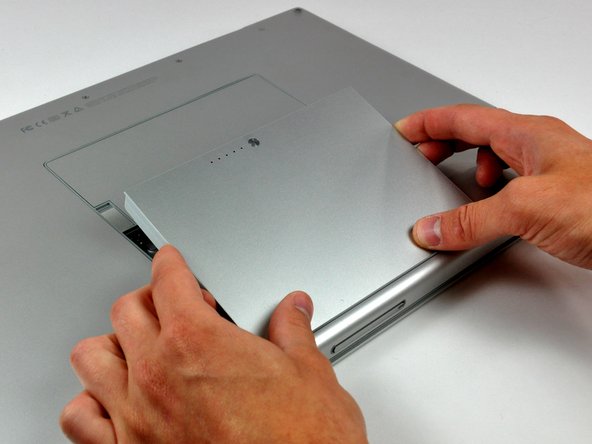
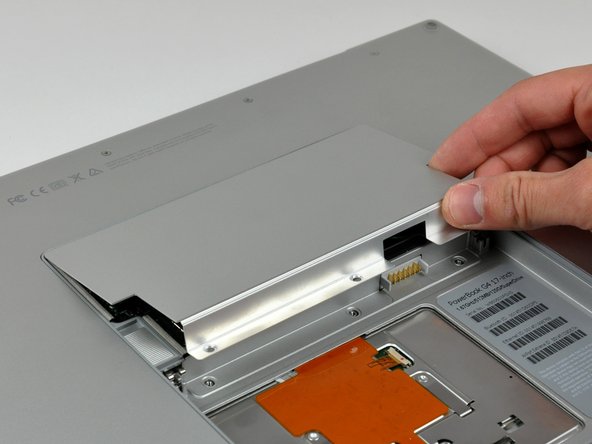
  1. PowerBook G4 Aluminum 17" 1.67 GHz (High-Res) Clutch Hinges Replacement, PowerBook G4 Aluminum 17" 1.67 GHz (High-Res) Clutch Hinges Replacement: step 1, image 1 of 2 PowerBook G4 Aluminum 17" 1.67 GHz (High-Res) Clutch Hinges Replacement, PowerBook G4 Aluminum 17" 1.67 GHz (High-Res) Clutch Hinges Replacement: step 1, image 2 of 2
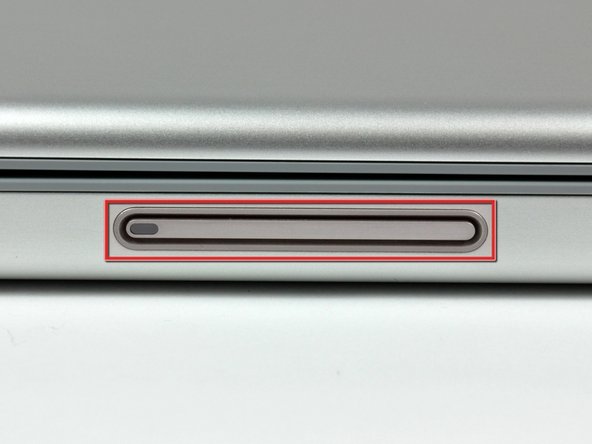
    • Use your thumbs to push the two battery retaining tabs away from the battery.

    • The battery should pop up enough to rotate it toward yourself and lift it out of the lower case.

    Add Comment

  2. PowerBook G4 Aluminum 17" 1.67 GHz (High-Res) Clutch Hinges Replacement: step 2, image 1 of 1
    • Remove the three 2.3 mm Phillips screws securing the memory cover to the lower case.

    Add Comment

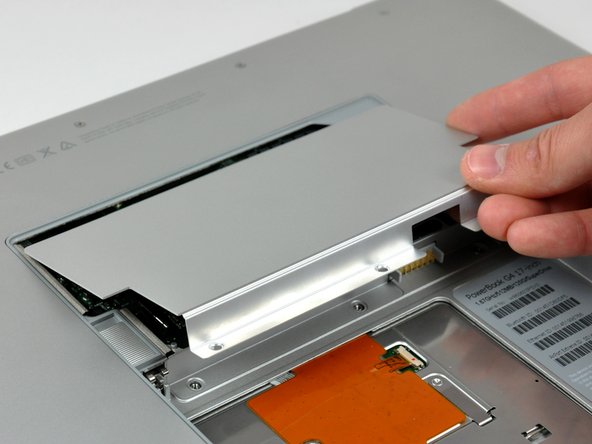
  3. PowerBook G4 Aluminum 17" 1.67 GHz (High-Res) Clutch Hinges Replacement: step 3, image 1 of 2 PowerBook G4 Aluminum 17" 1.67 GHz (High-Res) Clutch Hinges Replacement: step 3, image 2 of 2
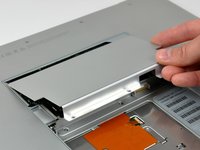
    • Lift the memory cover slightly and pull it toward yourself to remove it from the lower case.

    Add Comment

  4. PowerBook G4 Aluminum 17" 1.67 GHz (High-Res) Clutch Hinges Replacement: step 4, image 1 of 1
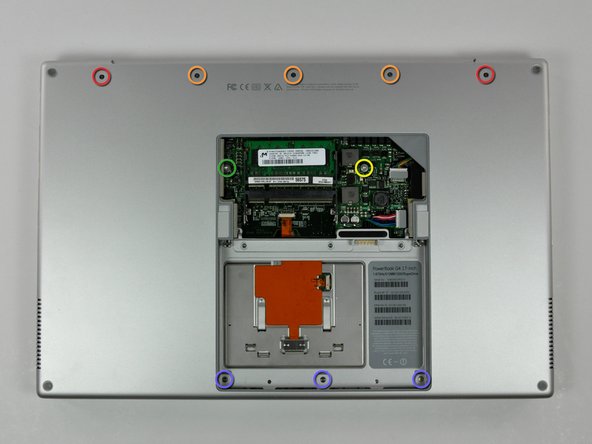
    • Remove the following ten screws:

    • Two 14.7 mm shouldered Phillips.

    • Three 12.3 mm Phillips.

    • One 3.8 mm T8 Torx.

    • One 6.8 mm T8 Torx.

    • Three 1.3 mm Phillips.

    Add Comment

  5. PowerBook G4 Aluminum 17" 1.67 GHz (High-Res) Clutch Hinges Replacement: step 5, image 1 of 2 PowerBook G4 Aluminum 17" 1.67 GHz (High-Res) Clutch Hinges Replacement: step 5, image 2 of 2
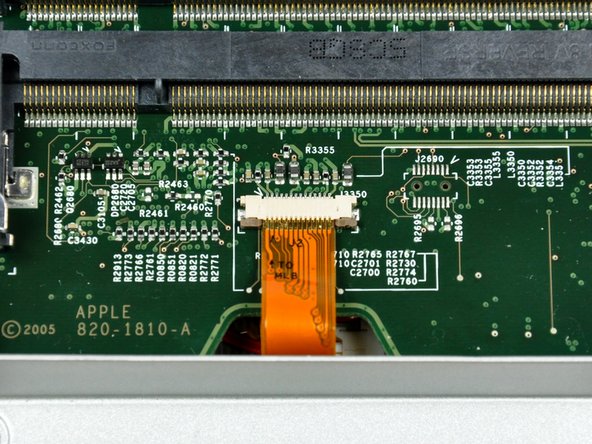
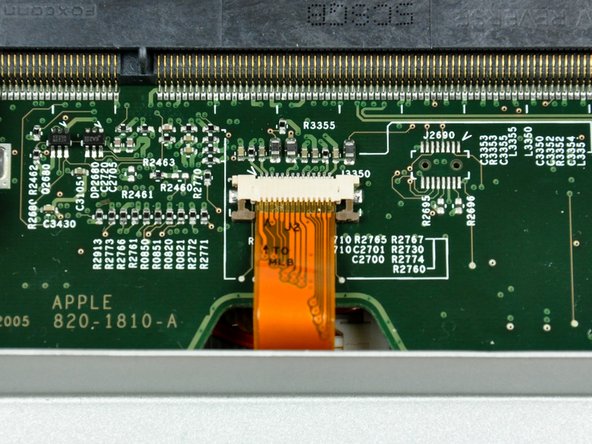
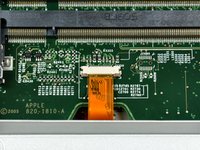
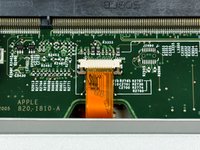
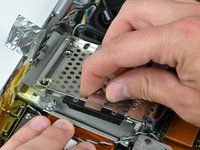
    • The ZIF cable is located underneath the bottom RAM slot. If your PowerBook has both RAM slots occupied, make sure to remove the RAM chip.

    • Use your fingernails to separate the ZIF cable lock away from its socket. (Move the two brown bits down 1mm)

    • The ZIF cable lock will move about a millimeter away from the socket before it stops (see picture 2). Do not try to remove the ZIF cable lock.

    Add Comment

  6. PowerBook G4 Aluminum 17" 1.67 GHz (High-Res) Clutch Hinges Replacement: step 6, image 1 of 1
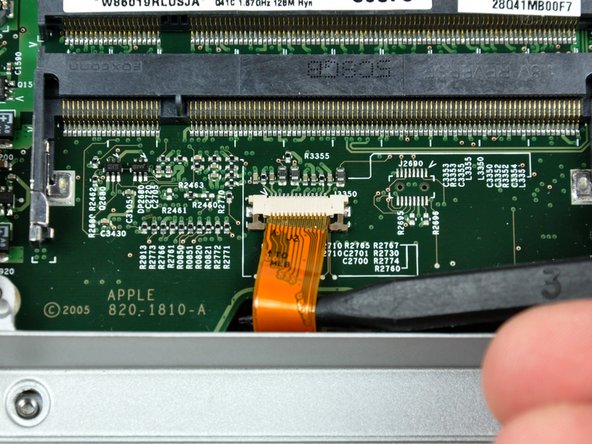
    • Use the tip of a spudger to slide the trackpad ribbon cable out of its socket.

    Add Comment

  7. PowerBook G4 Aluminum 17" 1.67 GHz (High-Res) Clutch Hinges Replacement: step 7, image 1 of 1
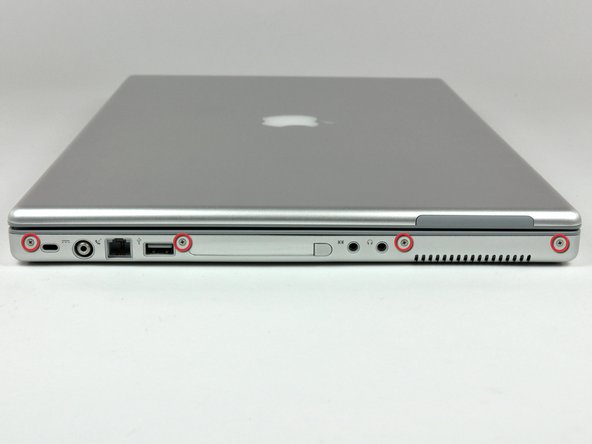
    • Remove the four 3.4 mm Phillips screws from the PC card side of the PowerBook.

    • When replacing these screws, you must reinstall each screw in the correct order. Begin by installing the screw closest to the display hinge, and go out from there.

    Add Comment

  8. PowerBook G4 Aluminum 17" 1.67 GHz (High-Res) Clutch Hinges Replacement: step 8, image 1 of 1
    • Remove the four 3.4 mm Phillips screws from the DVI connector side of the PowerBook.

    • When replacing these screws, you must reinstall each screw in the correct order. Begin by installing the screw closest to the display hinge, and go out from there.

    • During reassembly, make sure to reinstall the two screws on the right into their appropriate locations, and not the DVI port anchor holes.

    Add Comment

  9. PowerBook G4 Aluminum 17" 1.67 GHz (High-Res) Clutch Hinges Replacement: step 9, image 1 of 2 PowerBook G4 Aluminum 17" 1.67 GHz (High-Res) Clutch Hinges Replacement: step 9, image 2 of 2
    • Depress the display latch release button and open your display.

    Add Comment

  10. PowerBook G4 Aluminum 17" 1.67 GHz (High-Res) Clutch Hinges Replacement: step 10, image 1 of 2 PowerBook G4 Aluminum 17" 1.67 GHz (High-Res) Clutch Hinges Replacement: step 10, image 2 of 2
    • Starting near the display, lift the upper case straight up off the lower case, minding any cables that may get caught.

    Add Comment

  11. PowerBook G4 Aluminum 17" 1.67 GHz (High-Res) Clutch Hinges Replacement: step 11, image 1 of 1
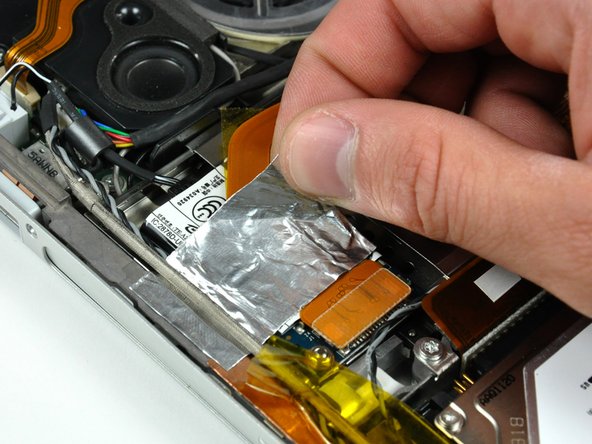
    • If necessary, peel back the strip of aluminum tape covering the modem cable.

    Add Comment

  12. PowerBook G4 Aluminum 17" 1.67 GHz (High-Res) Clutch Hinges Replacement: step 12, image 1 of 1
    • Use the flat end of a spudger to pry the modem cable connector up off the modem.

    Add Comment

  13. PowerBook G4 Aluminum 17" 1.67 GHz (High-Res) Clutch Hinges Replacement: step 13, image 1 of 1
    • Disconnect the RJ-11 cable from the modem.

    Add Comment

  14. PowerBook G4 Aluminum 17" 1.67 GHz (High-Res) Clutch Hinges Replacement: step 14, image 1 of 1
    • Use a 4 mm nut driver to remove the two nuts securing the modem to the PC card cage.

    Add Comment

  15. PowerBook G4 Aluminum 17" 1.67 GHz (High-Res) Clutch Hinges Replacement: step 15, image 1 of 1
    • Lift the modem straight up off the studs on the PC card cage.

    Add Comment

  16. PowerBook G4 Aluminum 17" 1.67 GHz (High-Res) Clutch Hinges Replacement: step 16, image 1 of 1
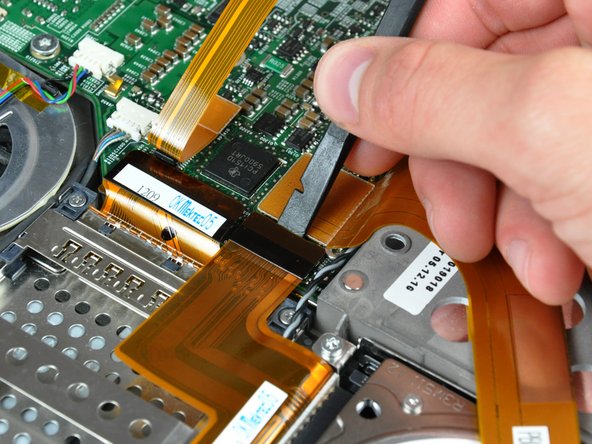
    • Use the flat end of a spudger to pry the hard drive cable connector up off the logic board.

    • Bend the hard drive cable away from the PC card cage, giving yourself room to remove it.

    Add Comment

  17. PowerBook G4 Aluminum 17" 1.67 GHz (High-Res) Clutch Hinges Replacement: step 17, image 1 of 1
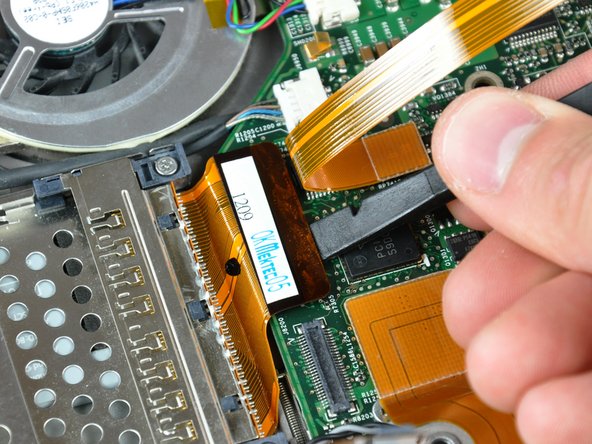
    • Use the flat end of a spudger to pry the PC card cage connector up off the logic board.

    Add Comment

  18. PowerBook G4 Aluminum 17" 1.67 GHz (High-Res) Clutch Hinges Replacement: step 18, image 1 of 1
    • Use the tip of a spudger to peel back the small strip of copper tape off the edge of the PC card cage near the side of the lower case.

    Add Comment

  19. PowerBook G4 Aluminum 17" 1.67 GHz (High-Res) Clutch Hinges Replacement: step 19, image 1 of 1
    • Remove the four Phillips screws (2- 4 mm & 2 -6.8 mm ) securing the PC card cage to the lower case.
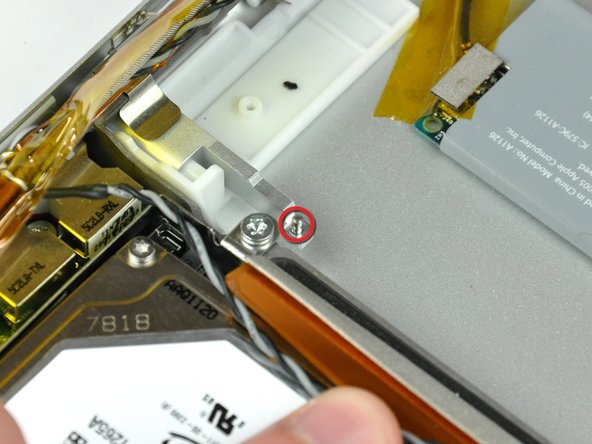
    • The two longer 6.8 mm shouldered screws belong in the end of the PC card cage closest to the logic board.

    Add Comment

  20. PowerBook G4 Aluminum 17" 1.67 GHz (High-Res) Clutch Hinges Replacement: step 20, image 1 of 2 PowerBook G4 Aluminum 17" 1.67 GHz (High-Res) Clutch Hinges Replacement: step 20, image 2 of 2
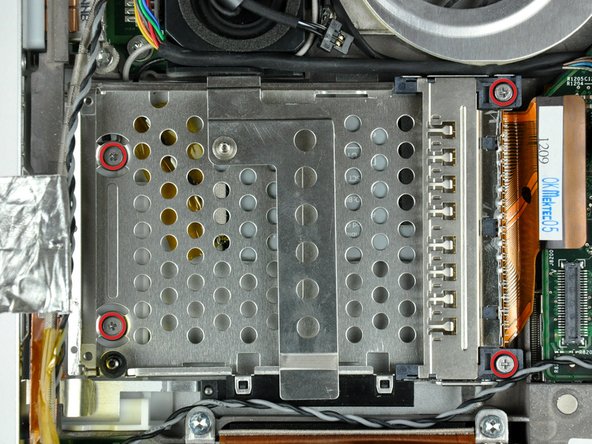
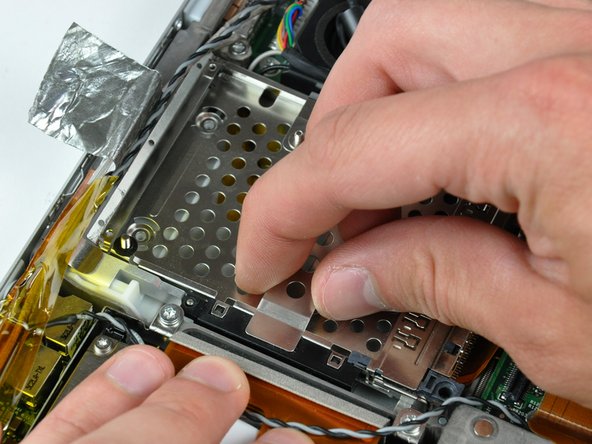
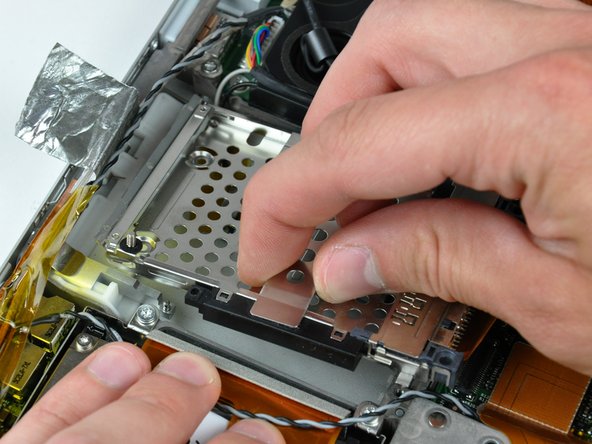
    • Lift the PC card cage by its center piece and maneuver it out of the lower case.

    Add Comment

  21. PowerBook G4 Aluminum 17" 1.67 GHz (High-Res) Clutch Hinges Replacement: step 21, image 1 of 2 PowerBook G4 Aluminum 17" 1.67 GHz (High-Res) Clutch Hinges Replacement: step 21, image 2 of 2
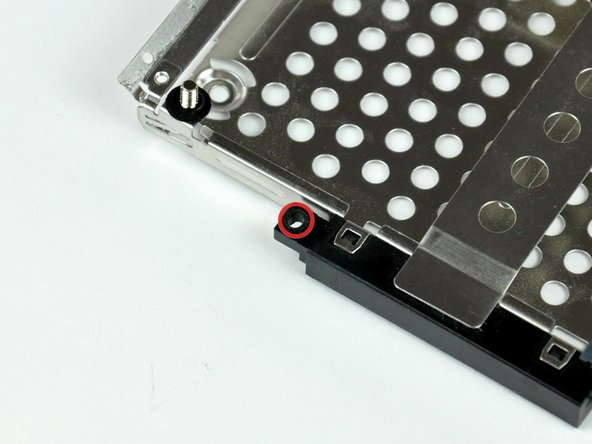
    • When reinstalling your PC card cage, be sure to insert the post sticking up from the PC card release button into the hole in the black plastic release mechanism on the PC card cage.

    Add Comment

  22. PowerBook G4 Aluminum 17" 1.67 GHz (High-Res) Clutch Hinges Replacement: step 22, image 1 of 1
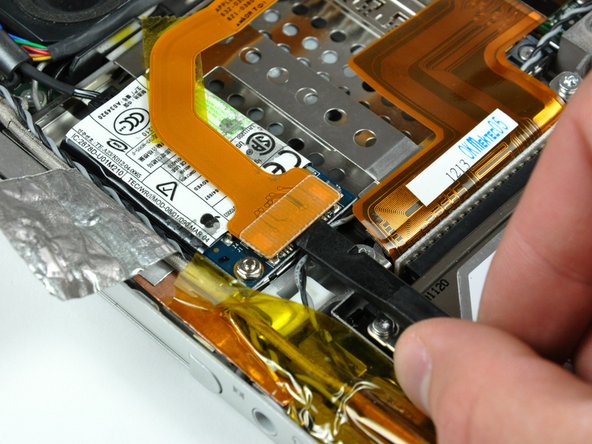
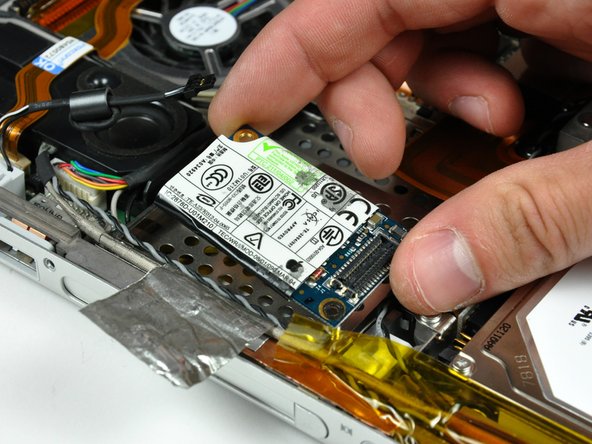
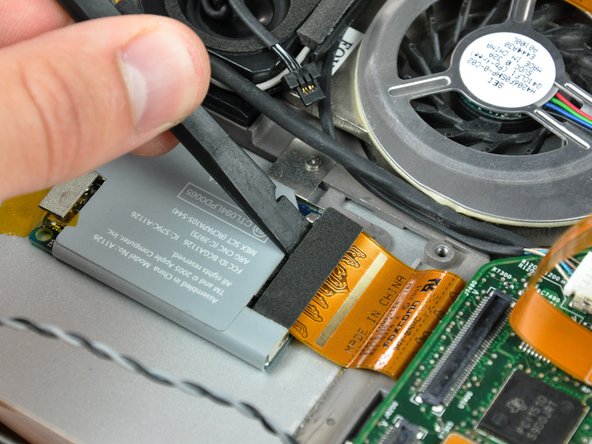
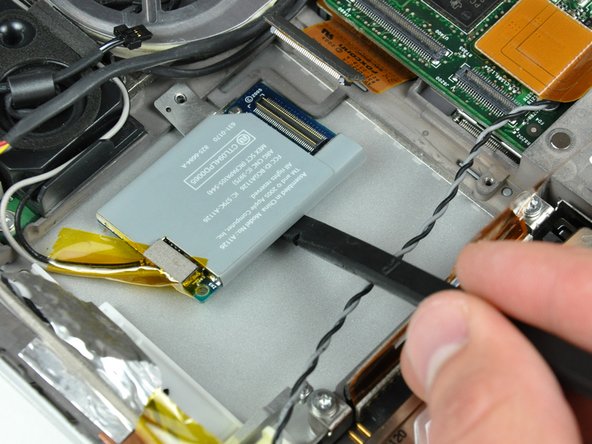
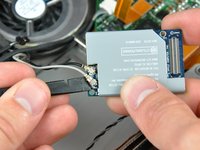
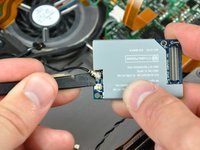
    • Use the flat end of a spudger to pry the ribbon cable connector up off the AirPort/Bluetooth board.

    Add Comment

  23. PowerBook G4 Aluminum 17" 1.67 GHz (High-Res) Clutch Hinges Replacement: step 23, image 1 of 1
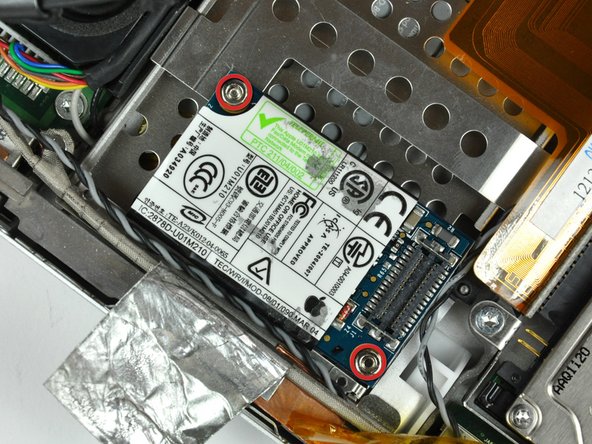
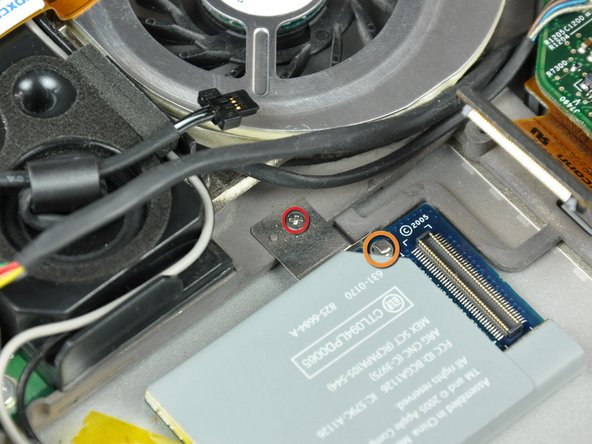
    • Remove the single 2.1 mm Phillips screw securing the AirPort/Bluetooth bracket to the lower case.

    • It is possible to remove the AirPort/Bluetooth board without removing this screw. Alternatively use the sharp end of a spudger to press the metal pressure connector (shown in orange) down through the hole in the AirPort/Bluetooth board, being careful to not break it off when prying the board up in the next step.

    Add Comment

  24. PowerBook G4 Aluminum 17" 1.67 GHz (High-Res) Clutch Hinges Replacement: step 24, image 1 of 1
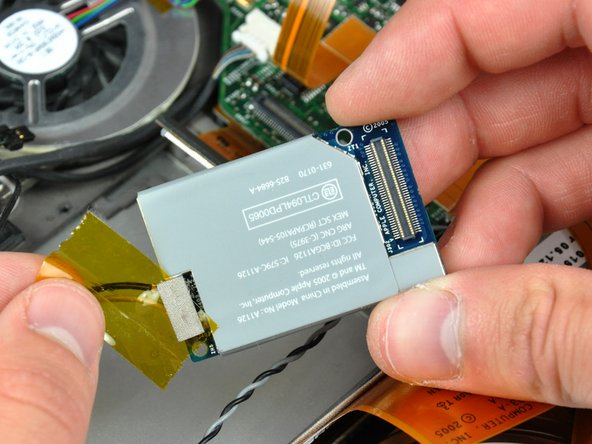
    • Use the flat end of a spudger to pry the AirPort/Bluetooth board up off the adhesive securing it to the lower case.

    Add Comment

  25. PowerBook G4 Aluminum 17" 1.67 GHz (High-Res) Clutch Hinges Replacement: step 25, image 1 of 1
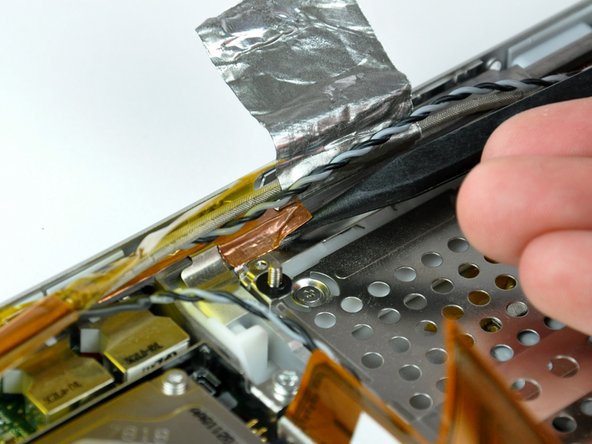
    • If necessary, remove the piece of tape and EMI foam covering the AirPort/Bluetooth antennas.

    • Don't forget to reapply this piece of tape during reassembly. It insulates the bare antenna connectors from the metal PC card cage.

    Add Comment

  26. PowerBook G4 Aluminum 17" 1.67 GHz (High-Res) Clutch Hinges Replacement: step 26, image 1 of 2 PowerBook G4 Aluminum 17" 1.67 GHz (High-Res) Clutch Hinges Replacement: step 26, image 2 of 2
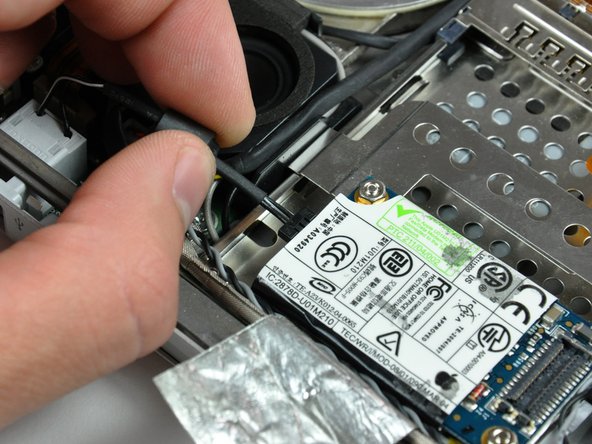
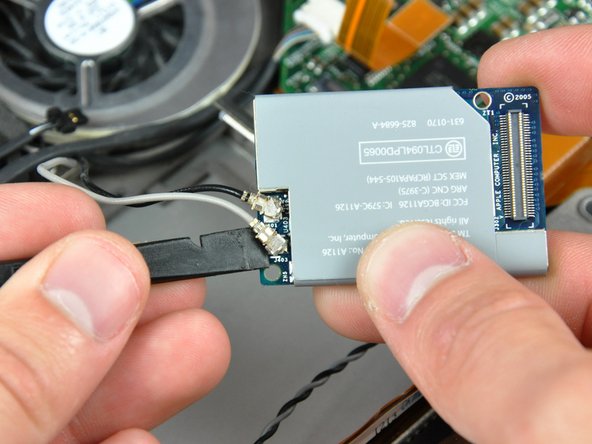
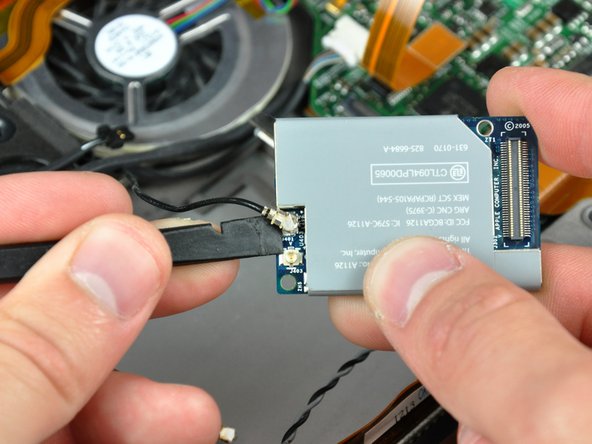
    • Use the flat end of a spudger to pry both antenna connectors up off the AirPort/Bluetooth board.

    Add Comment

  27. PowerBook G4 Aluminum 17" 1.67 GHz (High-Res) Clutch Hinges Replacement: step 27, image 1 of 1
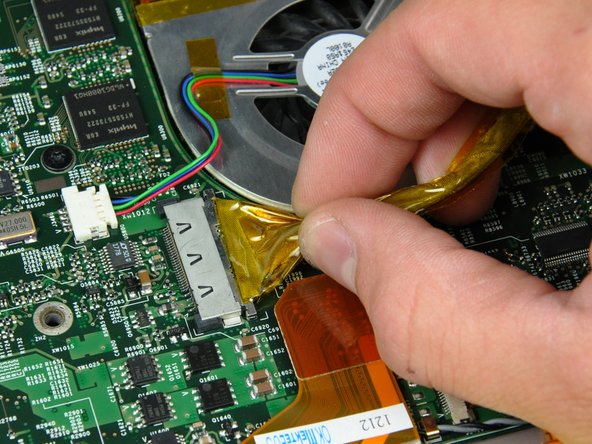
    • Pull the display data cable away from its socket to disconnect it from the logic board.

    • Be sure to pull only parallel to the face of the logic board, as pulling up on the socket will break it off the logic board.

    Add Comment

  28. PowerBook G4 Aluminum 17" 1.67 GHz (High-Res) Clutch Hinges Replacement: step 28, image 1 of 1
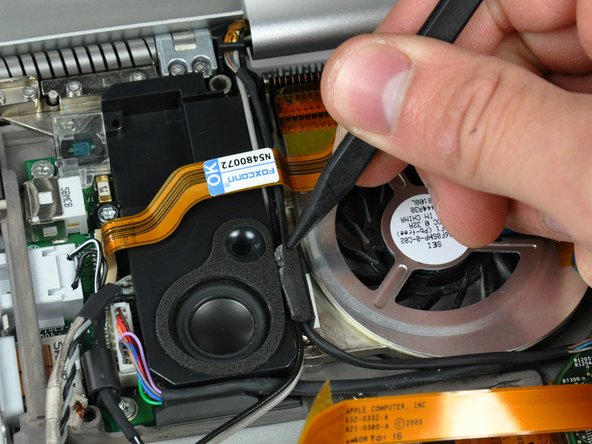
    • If necessary, use the tip of a spudger to remove the small piece of foam tape from the side of the left speaker.

    Add Comment

  29. PowerBook G4 Aluminum 17" 1.67 GHz (High-Res) Clutch Hinges Replacement: step 29, image 1 of 1
    • Disconnect the inverter cable from the logic board.

    • Be sure to pull only parallel to the face of the logic board, as pulling up on the socket will break it off the logic board.

    • When pulling this connector away from its socket, it is helpful to use your fingernails to pull on the ears at each side of the connector.

    Add Comment

  30. PowerBook G4 Aluminum 17" 1.67 GHz (High-Res) Clutch Hinges Replacement: step 30, image 1 of 1
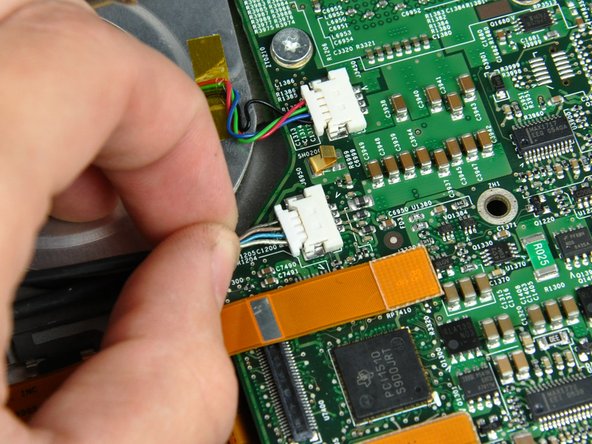
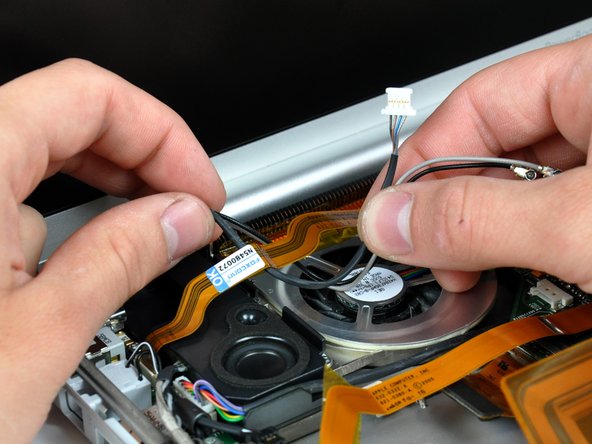
    • De-route both AirPort/Bluetooth antennas and the inverter cable from underneath the DC-in board ribbon cable.

    • It is not necessary to remove the DC-in board cable.

    Add Comment

  31. PowerBook G4 Aluminum 17" 1.67 GHz (High-Res) Clutch Hinges Replacement: step 31, image 1 of 1
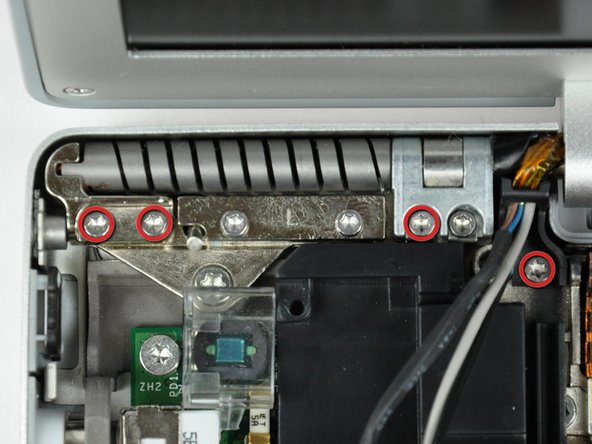
    • Before proceeding, be sure your display is perpendicular to the lower case.

    • Remove four T6 Torx screws from the left display hinge. 2- 8 mm and 1 -10 mm and one 6 mm left to right.

    • We intentionally have you leave one screw in the left display hinge to aid in disassembly.

    • The screw holding the plastic display cable bracket to the lower case is shorter than the rest.

    Add Comment

  32. PowerBook G4 Aluminum 17" 1.67 GHz (High-Res) Clutch Hinges Replacement: step 32, image 1 of 1
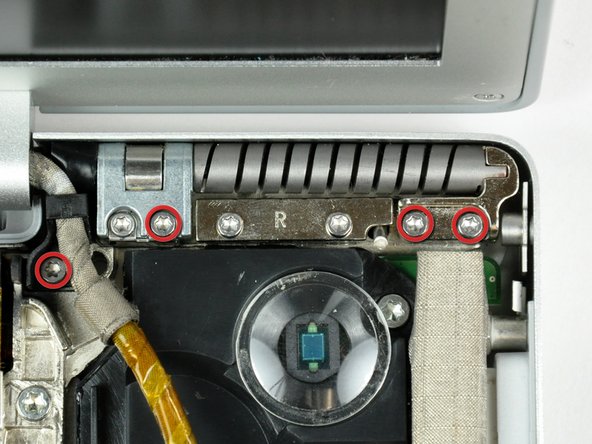
    • Remove four T6 Torx screws from the right display hinge. 2- 8 mm and 1 -10 mm and one 6 mm right to left.

    • We intentionally have you leave one screw in the right display hinge to aid in disassembly.

    • The screw holding the plastic display cable bracket to the lower case is shorter than the rest.

    Add Comment

  33. PowerBook G4 Aluminum 17" 1.67 GHz (High-Res) Clutch Hinges Replacement: step 33, image 1 of 1
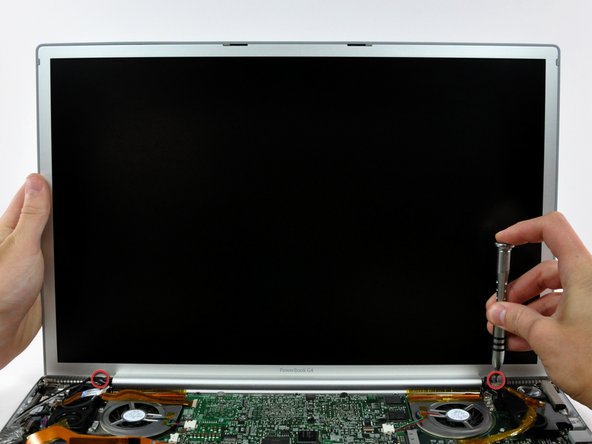
    • While supporting the display with one hand, remove the one remaining T6 10 mm Torx screw from each display bracket (two screws total).

    Add Comment

  34. PowerBook G4 Aluminum 17" 1.67 GHz (High-Res) Clutch Hinges Replacement: step 34, image 1 of 1
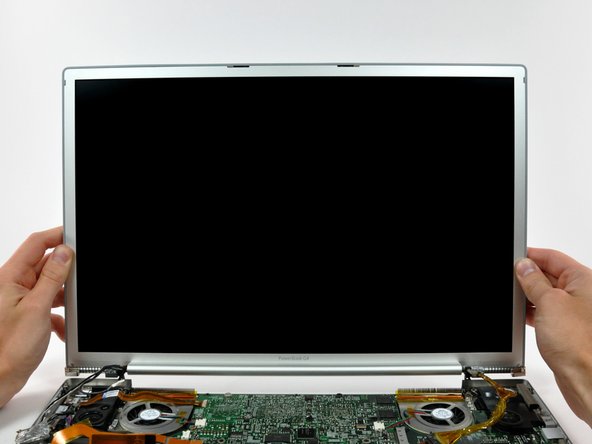
    • Lift the display straight up from the lower case, minding any cables that may get caught.

    Add Comment

  35. PowerBook G4 Aluminum 17" 1.67 GHz (High-Res) Clutch Hinges Replacement: step 35, image 1 of 3 PowerBook G4 Aluminum 17" 1.67 GHz (High-Res) Clutch Hinges Replacement: step 35, image 2 of 3 PowerBook G4 Aluminum 17" 1.67 GHz (High-Res) Clutch Hinges Replacement: step 35, image 3 of 3
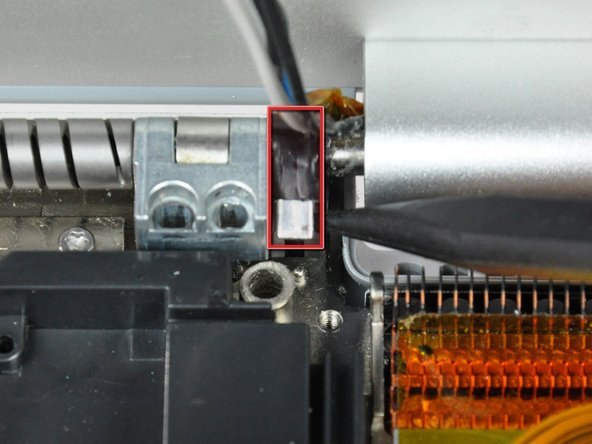
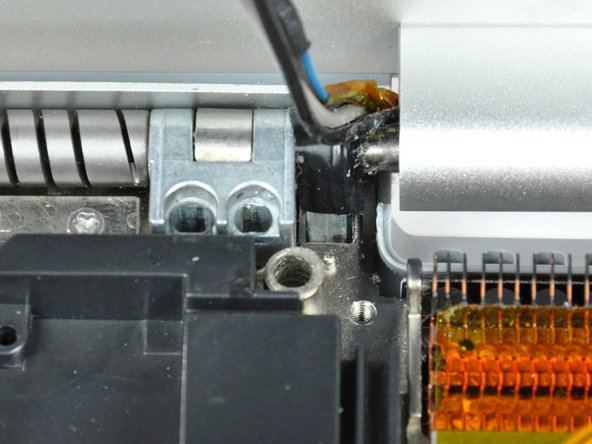
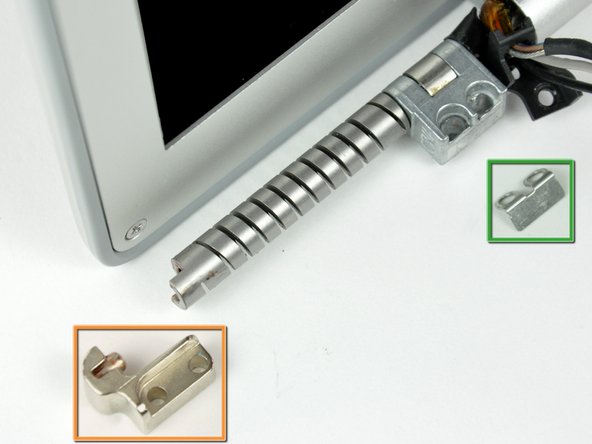
    • Here are a few tips for reassembling the display. These apply to both the left and right display brackets:

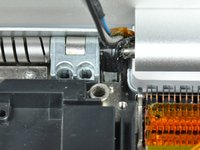
    • A small bracket (shown in red) near either side of the clutch cover is free to rotate about the display hinge and must be inserted behind the heat sink framework for the display to seat properly.

    • Before completely lowering the display onto the lower case, use a spudger to rotate the bracket toward the rear edge of your PowerBook, and insert the bracket between the heat sink framework and the adjacent spring. The second picture shows the bracket correctly installed.

    • When removing the display screws, keep track of the thin metal bracket (shown in green) under the screws on the inner display bracket.

    • The outer display bracket (shown in orange) simply slides onto the spiral display spring. Be sure to press it on before installing your display into the lower case.

    Add Comment

  36. PowerBook G4 Aluminum 17" 1.67 GHz (High-Res) Clutch Hinges Replacement: step 36, image 1 of 2 PowerBook G4 Aluminum 17" 1.67 GHz (High-Res) Clutch Hinges Replacement: step 36, image 2 of 2
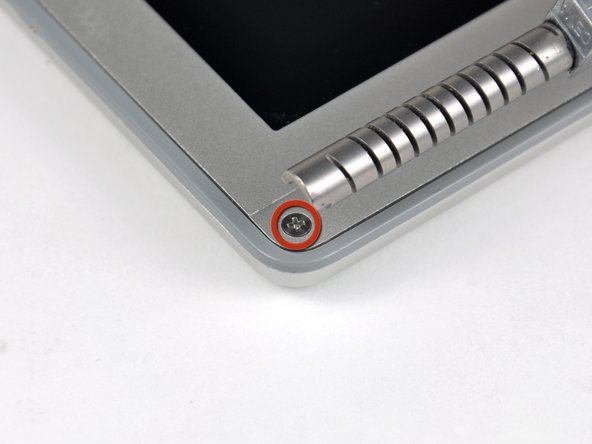
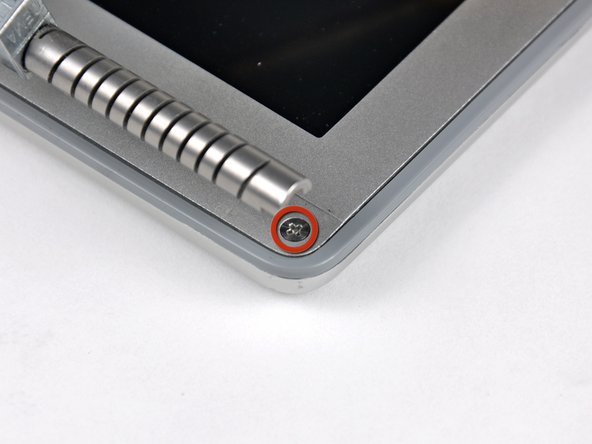
    • Remove the single Phillips screw from the lower left and right corners of the display.

    Add Comment

  37. PowerBook G4 Aluminum 17" 1.67 GHz (High-Res) Clutch Hinges Replacement: step 37, image 1 of 1
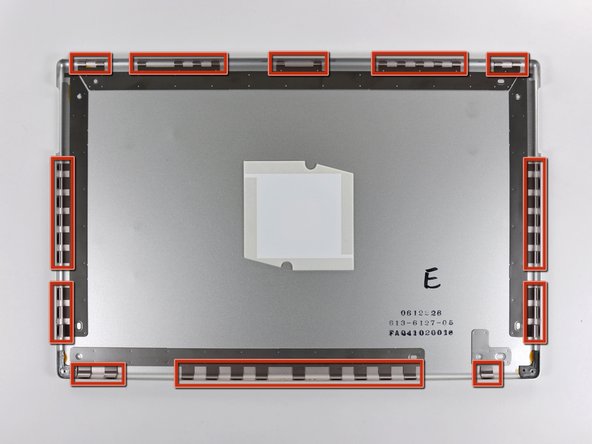
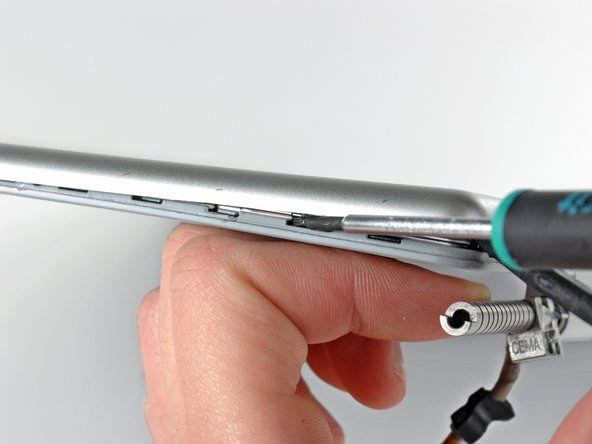
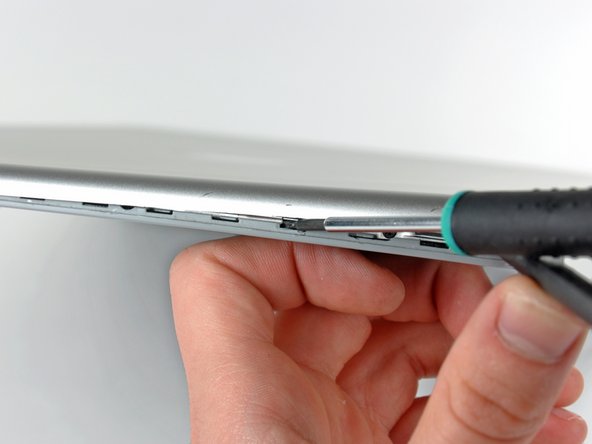
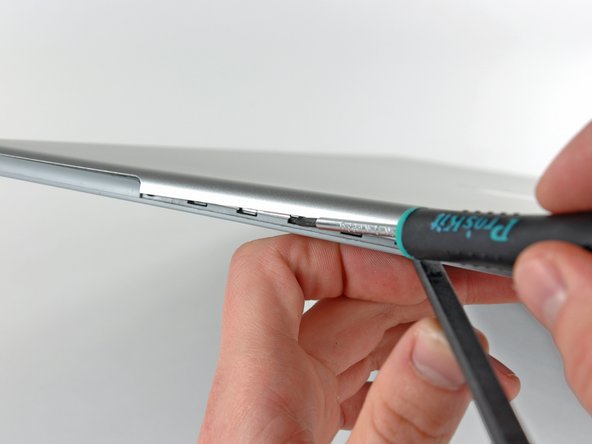
    • The picture at left (rear panel already removed) shows the locations of the metal clips (shown in red) that snap on to the front display bezel. In the next few steps, you will use a small flathead screwdriver to release these clips from a ridge around the perimeter of the front display bezel.

    • When prying in the following steps, be sure not to damage the antenna cables that run around the perimeter of the front display bezel.

    Add Comment

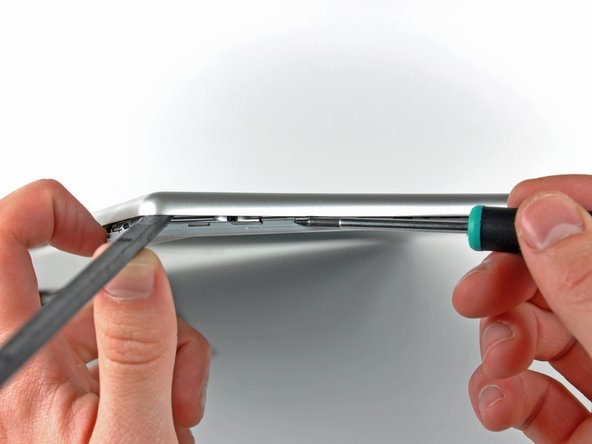
  38. PowerBook G4 Aluminum 17" 1.67 GHz (High-Res) Clutch Hinges Replacement: step 38, image 1 of 3 PowerBook G4 Aluminum 17" 1.67 GHz (High-Res) Clutch Hinges Replacement: step 38, image 2 of 3 PowerBook G4 Aluminum 17" 1.67 GHz (High-Res) Clutch Hinges Replacement: step 38, image 3 of 3
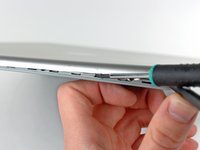
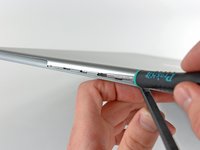
    • Insert the flat end of a spudger between the front display bezel and the plastic rim attached to the rear bezel near the lower right corner of the display.

    • Do not try to insert the spudger between the front display bezel and its plastic surround.

    • While carefully prying the rear display bezel away from the display assembly, use a small flathead screwdriver to pry the small steel clip nearest the bottom right corner of the display away from the edge of the front display bezel.

    • Repeat the above procedure until you've released all the clips along the right side of the display.

    Add Comment

  39. PowerBook G4 Aluminum 17" 1.67 GHz (High-Res) Clutch Hinges Replacement: step 39, image 1 of 1
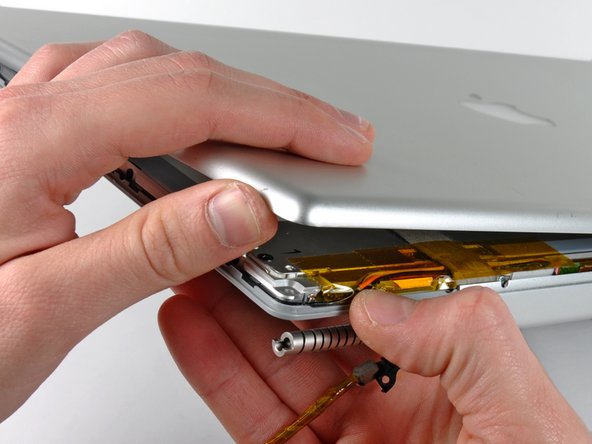
    • Slightly lift the recently-freed corner of the rear display bezel to separate the clips along the span of the clutch hinges.

    Add Comment

  40. PowerBook G4 Aluminum 17" 1.67 GHz (High-Res) Clutch Hinges Replacement: step 40, image 1 of 1
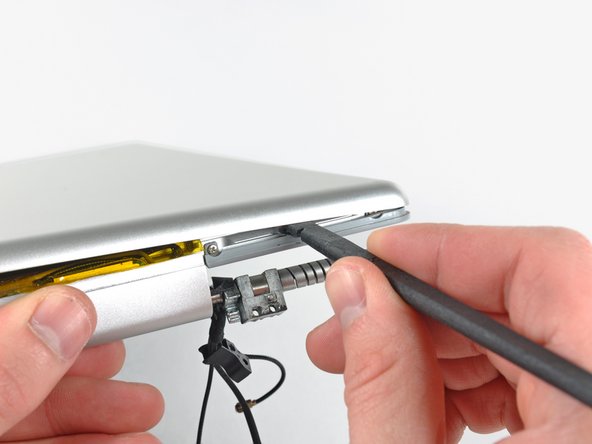
    • Insert the flat end of a spudger between the rear display bezel and the plastic surround of the front display bezel near the lower left corner of the display.

    • Carefully pry the rear display bezel away from the front display bezel to release a metal clip.

    Add Comment

  41. PowerBook G4 Aluminum 17" 1.67 GHz (High-Res) Clutch Hinges Replacement: step 41, image 1 of 1
    • Repeat the previous procedure to release the clips along the left side of the rear display bezel.

    Add Comment

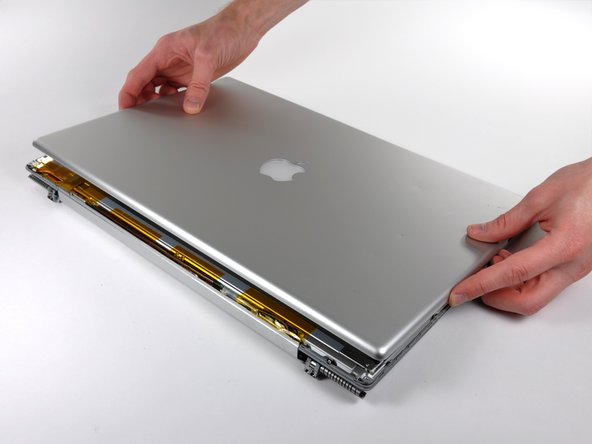
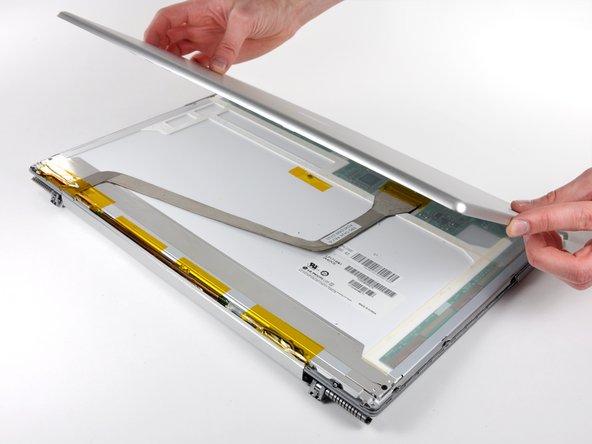
  42. PowerBook G4 Aluminum 17" 1.67 GHz (High-Res) Clutch Hinges Replacement: step 42, image 1 of 2 PowerBook G4 Aluminum 17" 1.67 GHz (High-Res) Clutch Hinges Replacement: step 42, image 2 of 2
    • Slightly lift the lower edge of the rear display bezel and push it toward the top edge of the display, releasing the clips along the top edge of the rear display bezel.

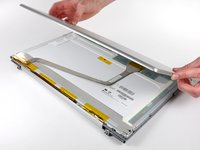
    • Remove the rear display bezel and set it aside.

    Add Comment

  43. PowerBook G4 Aluminum 17" 1.67 GHz (High-Res) Clutch Hinges Replacement: step 43, image 1 of 1
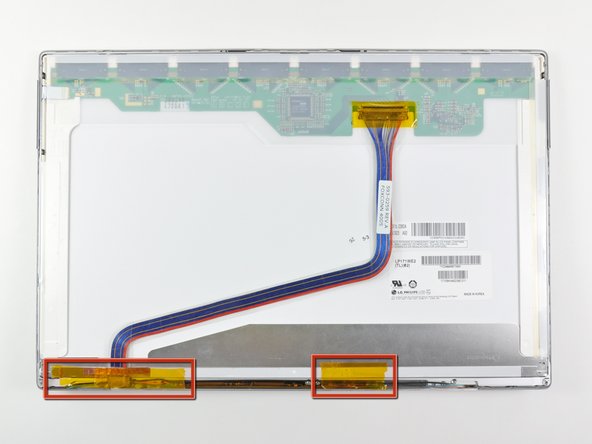
    • If present, remove the pieces of tape along the bottom edge of the LCD.

    Add Comment

  44. PowerBook G4 Aluminum 17" 1.67 GHz (High-Res) Clutch Hinges Replacement: step 44, image 1 of 2 PowerBook G4 Aluminum 17" 1.67 GHz (High-Res) Clutch Hinges Replacement: step 44, image 2 of 2
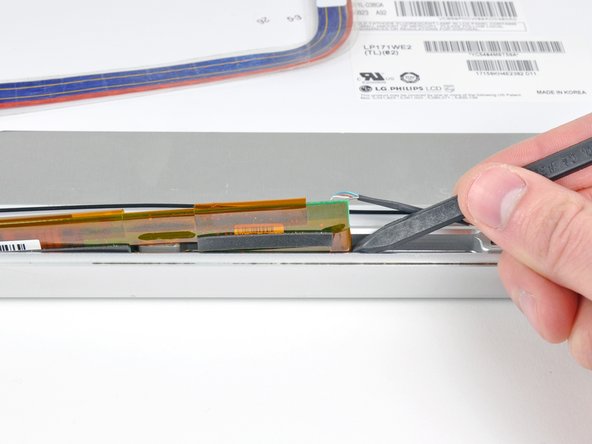
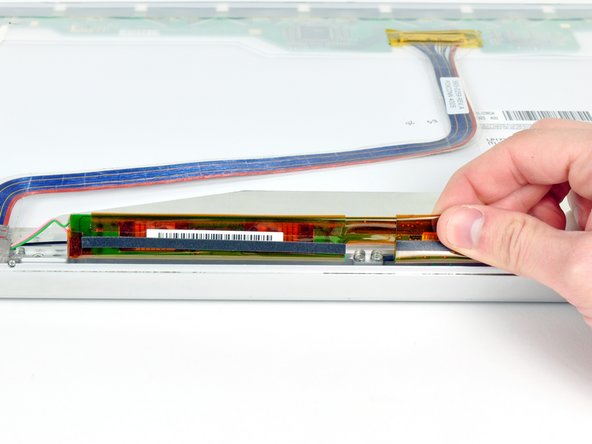
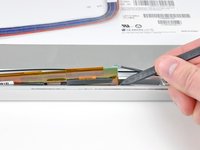
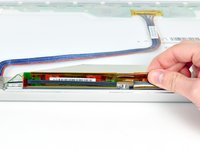
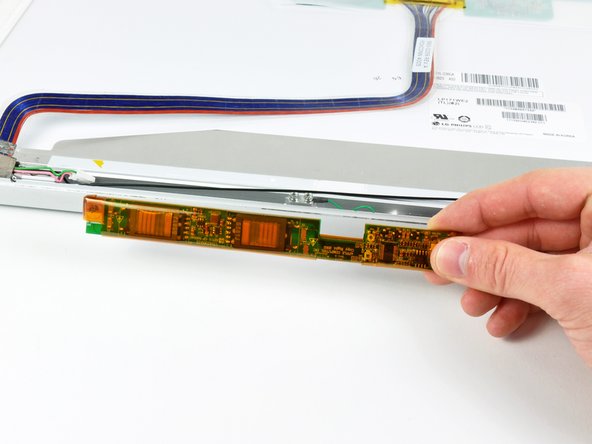
    • Use the tip of a spudger to lift the display inverter enough to grab it with your fingers.

    • Lift the display inverter out of the clutch hinges enough to access both of its connectors.

    Add Comment

  45. PowerBook G4 Aluminum 17" 1.67 GHz (High-Res) Clutch Hinges Replacement: step 45, image 1 of 1
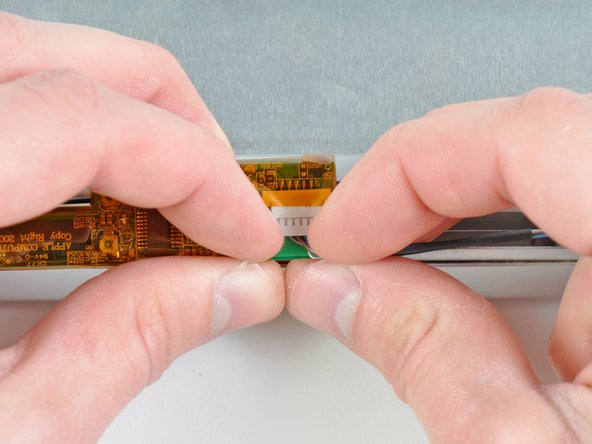
    • Disconnect the inverter cable from its socket on the display inverter.

    Add Comment

  46. PowerBook G4 Aluminum 17" 1.67 GHz (High-Res) Clutch Hinges Replacement: step 46, image 1 of 1
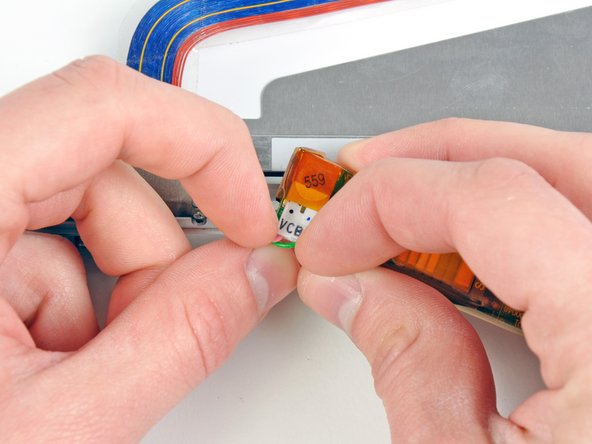
    • Disconnect the backlight cable from its socket on the display inverter.

    Add Comment

  47. PowerBook G4 Aluminum 17" 1.67 GHz (High-Res) Clutch Hinges Replacement: step 47, image 1 of 1
    • Remove the inverter from the display.

    Add Comment

  48. PowerBook G4 Aluminum 17" 1.67 GHz (High-Res) Clutch Hinges Replacement: step 48, image 1 of 1
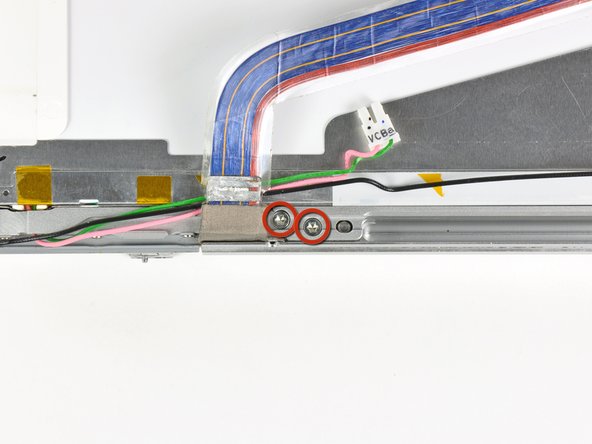
    • Remove the two 10.3 mm T8 Torx screws securing the clutch hinges near the display data cable.

    Add Comment

  49. PowerBook G4 Aluminum 17" 1.67 GHz (High-Res) Clutch Hinges Replacement: step 49, image 1 of 1
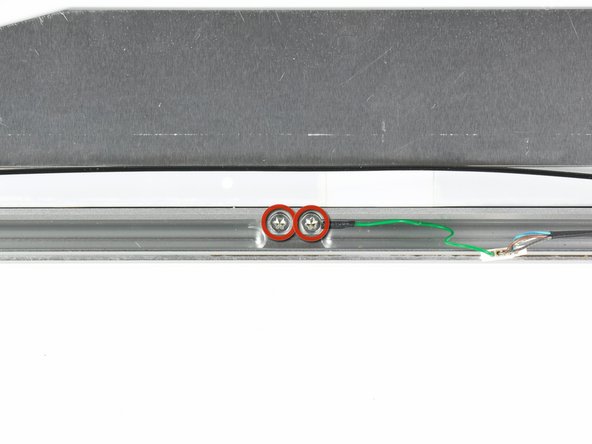
    • Remove the two 10.3 mm T8 Torx screws securing the center of the clutch hinges.

    Add Comment

  50. PowerBook G4 Aluminum 17" 1.67 GHz (High-Res) Clutch Hinges Replacement: step 50, image 1 of 1
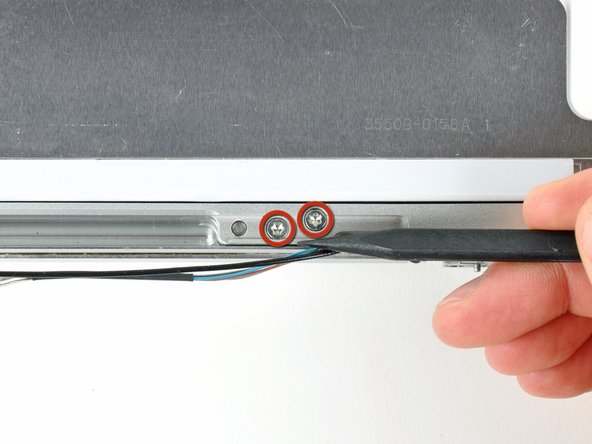
    • Remove the last pair of 10.3 mm T8 Torx screws securing the clutch hinges to the front display bezel.

    Add Comment

  51. PowerBook G4 Aluminum 17" 1.67 GHz (High-Res) Clutch Hinges Replacement: step 51, image 1 of 1
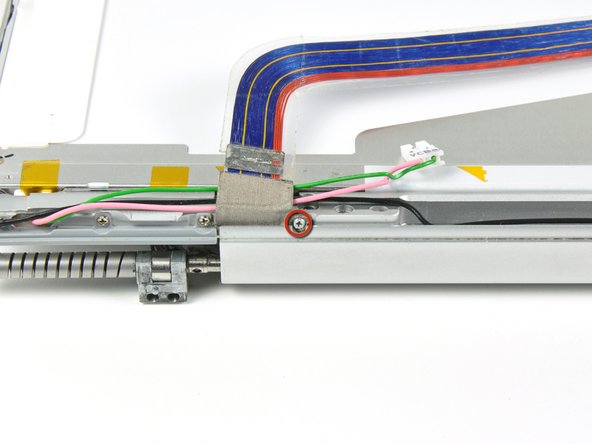
    • Remove the 2.7 mm Phillips screw securing the display data cable ground loop to the front display bezel.

    Add Comment

  52. PowerBook G4 Aluminum 17" 1.67 GHz (High-Res) Clutch Hinges Replacement: step 52, image 1 of 1
    • Pull the clutch hinges away from the front display bezel.

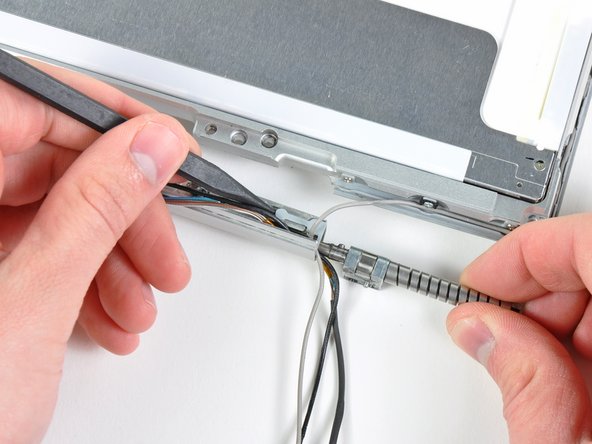
    • Use the tip of a spudger to remove the gray plastic end cap from the inverter cable side of the clutch hinges.

    Add Comment

  53. PowerBook G4 Aluminum 17" 1.67 GHz (High-Res) Clutch Hinges Replacement: step 53, image 1 of 1
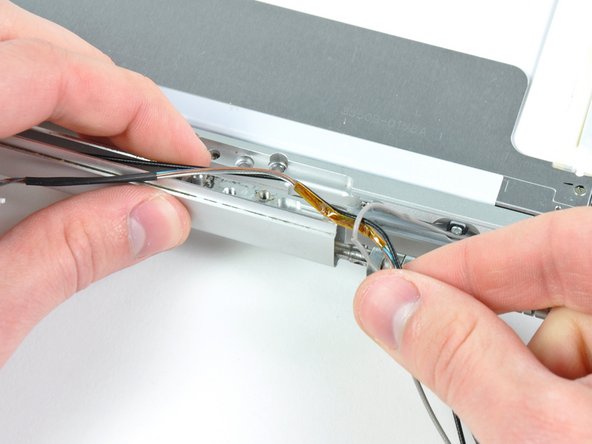
    • Pull the inverter and antenna cables out of their slot in the clutch hinges.

    Add Comment

  54. PowerBook G4 Aluminum 17" 1.67 GHz (High-Res) Clutch Hinges Replacement: step 54, image 1 of 1
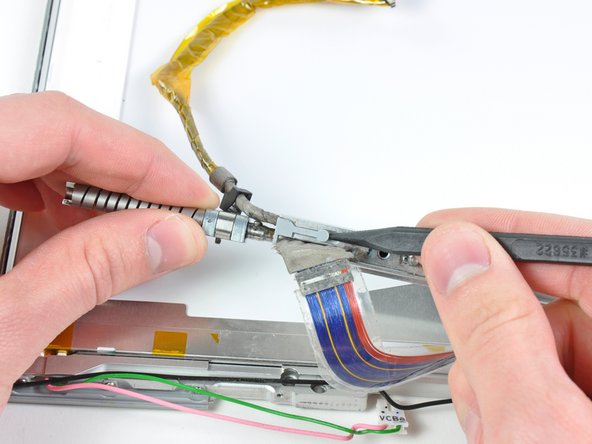
    • Use the tip of a spudger to remove the gray plastic end cap from the display data cable side of the clutch hinges.

    Add Comment

  55. PowerBook G4 Aluminum 17" 1.67 GHz (High-Res) Clutch Hinges Replacement: step 55, image 1 of 1
    • Slide the display data cable out of its slot in the clutch hinges.

    • Remove the clutch hinges from the display.

    Add Comment

Conclusion

To reassemble your device, follow these instructions in reverse order.

Cancel: I did not complete this guide.

System

Member since: 09/24/09

2,562 Guides authored

0 Guide Comments

Add Comment

View Statistics:

Past 24 Hours: 0

Past 7 Days: 0

Past 30 Days: 1

All Time: 18