PowerBook G4 Aluminum 17" 1.67 GHz (High-Res) DC-In Board Replacement Replacement

What you need

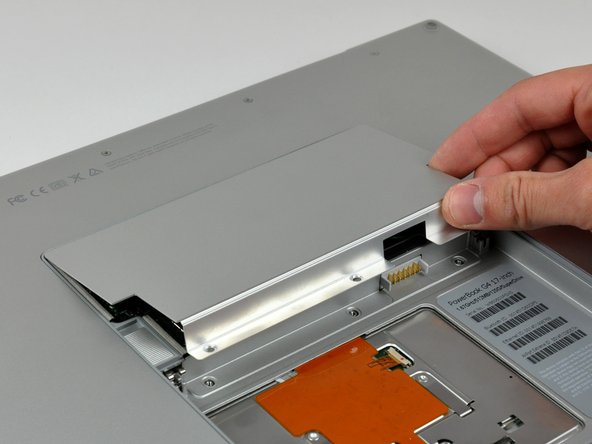
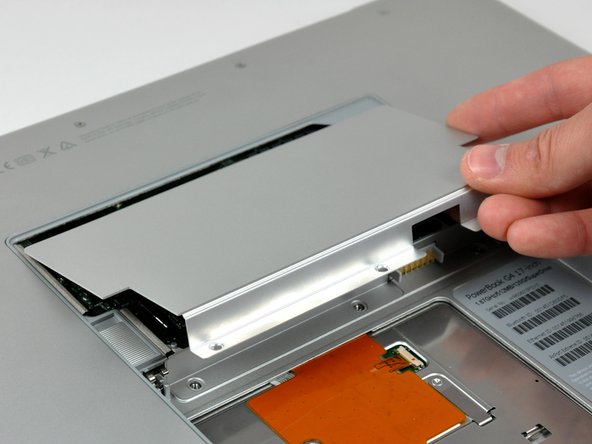
  1. PowerBook G4 Aluminum 17" 1.67 GHz (High-Res) DC-In Board Replacement Replacement, PowerBook G4 Aluminum 17" 1.67 GHz (High-Res) DC-In Board Replacement Replacement: step 1, image 1 of 2 PowerBook G4 Aluminum 17" 1.67 GHz (High-Res) DC-In Board Replacement Replacement, PowerBook G4 Aluminum 17" 1.67 GHz (High-Res) DC-In Board Replacement Replacement: step 1, image 2 of 2
    • Use your thumbs to push the two battery retaining tabs away from the battery.

    • The battery should pop up enough to rotate it toward yourself and lift it out of the lower case.

    Add Comment

  2. PowerBook G4 Aluminum 17" 1.67 GHz (High-Res) DC-In Board Replacement Replacement: step 2, image 1 of 1
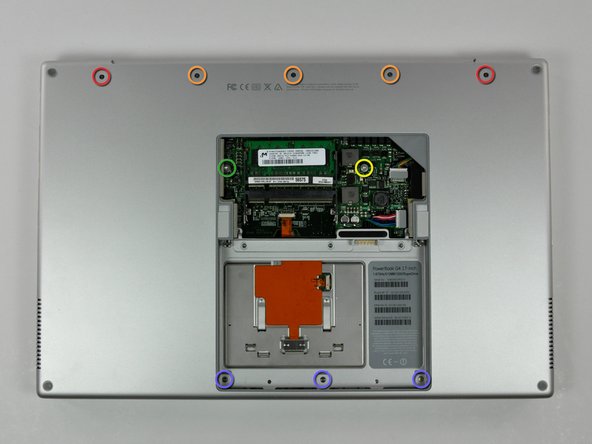
    • Remove the three 2.3 mm Phillips screws securing the memory cover to the lower case.

    Add Comment

  3. PowerBook G4 Aluminum 17" 1.67 GHz (High-Res) DC-In Board Replacement Replacement: step 3, image 1 of 2 PowerBook G4 Aluminum 17" 1.67 GHz (High-Res) DC-In Board Replacement Replacement: step 3, image 2 of 2
    • Lift the memory cover slightly and pull it toward yourself to remove it from the lower case.

    Add Comment

  4. PowerBook G4 Aluminum 17" 1.67 GHz (High-Res) DC-In Board Replacement Replacement: step 4, image 1 of 1
    • Remove the following ten screws:

    • Two 14.7 mm shouldered Phillips.

    • Three 12.3 mm Phillips.

    • One 3.8 mm T8 Torx.

    • One 6.8 mm T8 Torx.

    • Three 1.3 mm Phillips.

    Add Comment

  5. PowerBook G4 Aluminum 17" 1.67 GHz (High-Res) DC-In Board Replacement Replacement: step 5, image 1 of 2 PowerBook G4 Aluminum 17" 1.67 GHz (High-Res) DC-In Board Replacement Replacement: step 5, image 2 of 2
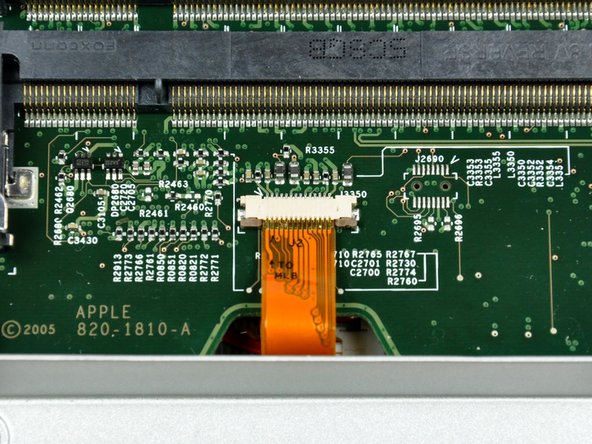
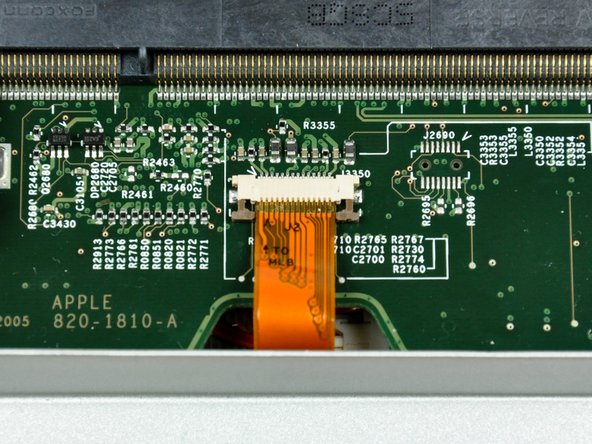
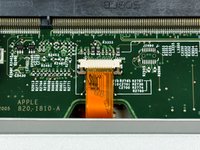
    • The ZIF cable is located underneath the bottom RAM slot. If your PowerBook has both RAM slots occupied, make sure to remove the RAM chip.

    • Use your fingernails to separate the ZIF cable lock away from its socket. (Move the two brown bits down 1mm)

    • The ZIF cable lock will move about a millimeter away from the socket before it stops (see picture 2). Do not try to remove the ZIF cable lock.

    Add Comment

  6. PowerBook G4 Aluminum 17" 1.67 GHz (High-Res) DC-In Board Replacement Replacement: step 6, image 1 of 1
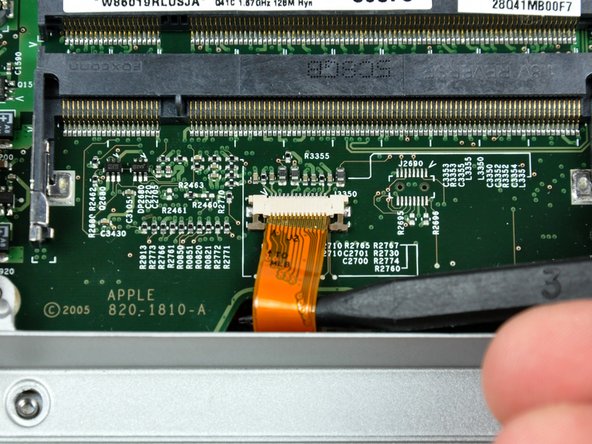
    • Use the tip of a spudger to slide the trackpad ribbon cable out of its socket.

    Add Comment

  7. PowerBook G4 Aluminum 17" 1.67 GHz (High-Res) DC-In Board Replacement Replacement: step 7, image 1 of 1
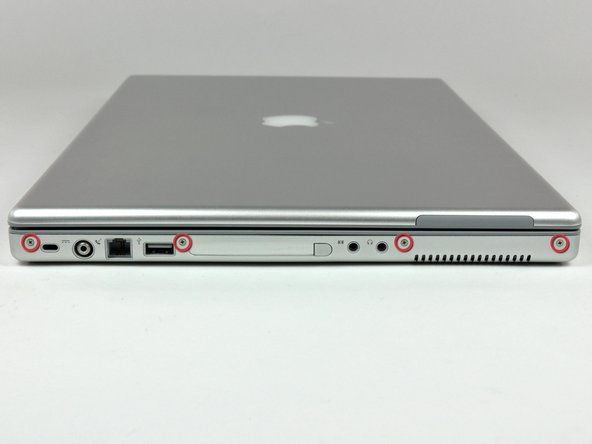
    • Remove the four 3.4 mm Phillips screws from the PC card side of the PowerBook.

    • When replacing these screws, you must reinstall each screw in the correct order. Begin by installing the screw closest to the display hinge, and go out from there.

    Add Comment

  8. PowerBook G4 Aluminum 17" 1.67 GHz (High-Res) DC-In Board Replacement Replacement: step 8, image 1 of 1
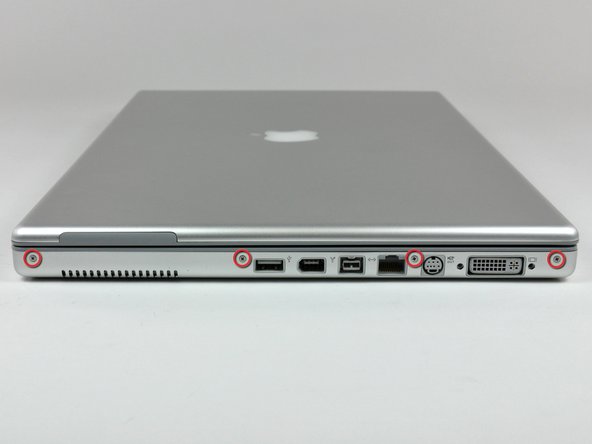
    • Remove the four 3.4 mm Phillips screws from the DVI connector side of the PowerBook.

    • When replacing these screws, you must reinstall each screw in the correct order. Begin by installing the screw closest to the display hinge, and go out from there.

    • During reassembly, make sure to reinstall the two screws on the right into their appropriate locations, and not the DVI port anchor holes.

    Add Comment

  9. PowerBook G4 Aluminum 17" 1.67 GHz (High-Res) DC-In Board Replacement Replacement: step 9, image 1 of 2 PowerBook G4 Aluminum 17" 1.67 GHz (High-Res) DC-In Board Replacement Replacement: step 9, image 2 of 2
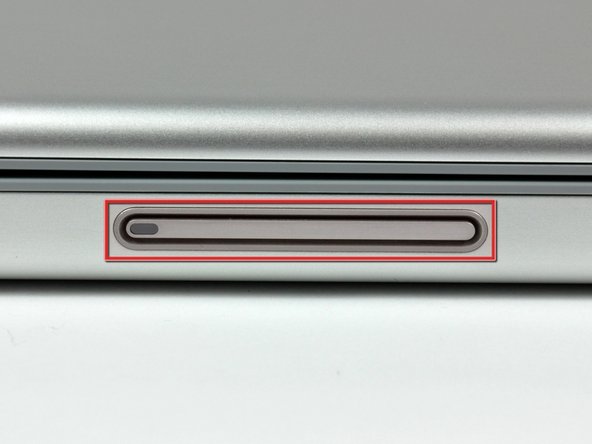
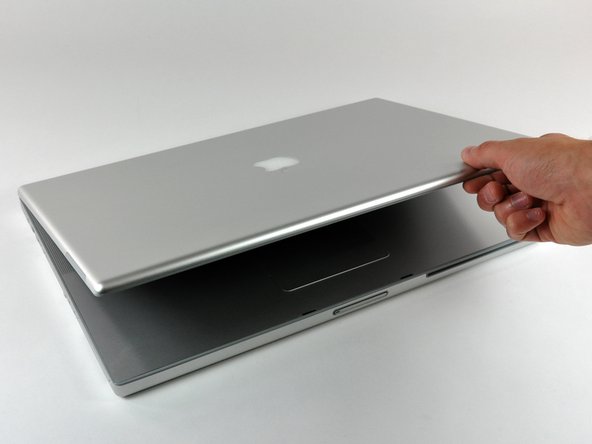
    • Depress the display latch release button and open your display.

    Add Comment

  10. PowerBook G4 Aluminum 17" 1.67 GHz (High-Res) DC-In Board Replacement Replacement: step 10, image 1 of 2 PowerBook G4 Aluminum 17" 1.67 GHz (High-Res) DC-In Board Replacement Replacement: step 10, image 2 of 2
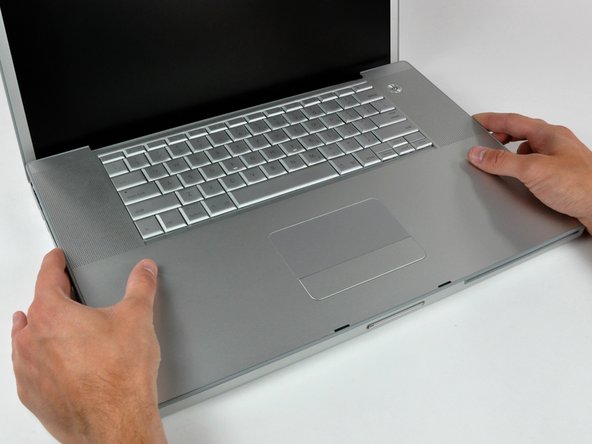
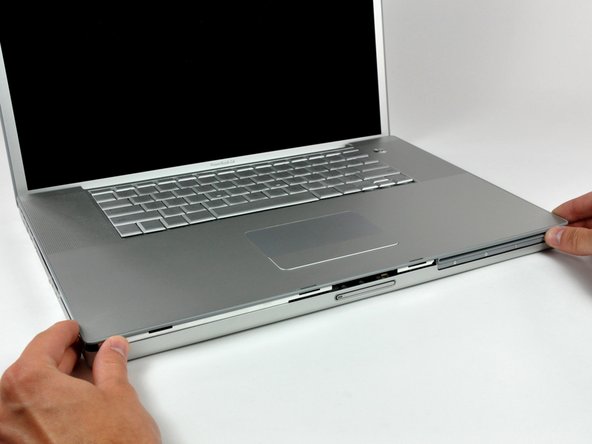
    • Starting near the display, lift the upper case straight up off the lower case, minding any cables that may get caught.

    Add Comment

  11. PowerBook G4 Aluminum 17" 1.67 GHz (High-Res) DC-In Board Replacement Replacement: step 11, image 1 of 1
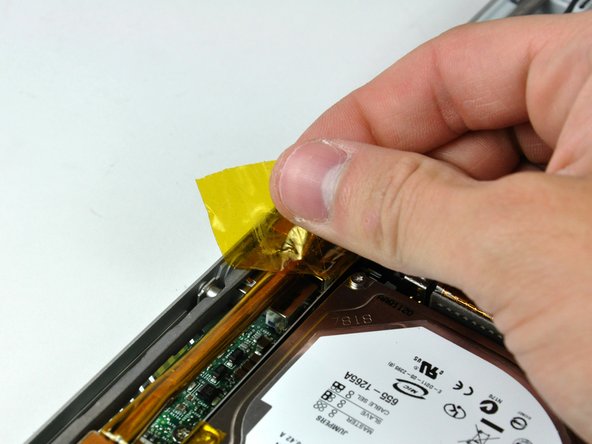
    • Remove the strip of tape covering the speaker cables.

    Add Comment

  12. PowerBook G4 Aluminum 17" 1.67 GHz (High-Res) DC-In Board Replacement Replacement: step 12, image 1 of 1
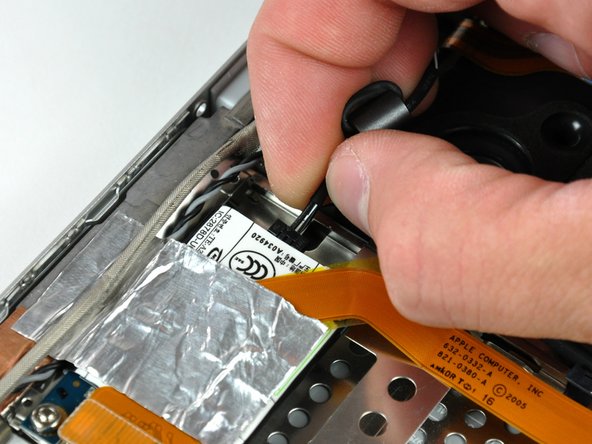
    • Disconnect the RJ-11 cable from the modem.

    Add Comment

  13. PowerBook G4 Aluminum 17" 1.67 GHz (High-Res) DC-In Board Replacement Replacement: step 13, image 1 of 2 PowerBook G4 Aluminum 17" 1.67 GHz (High-Res) DC-In Board Replacement Replacement: step 13, image 2 of 2
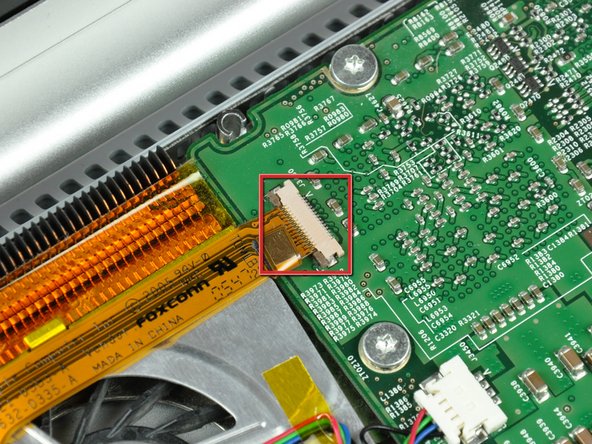
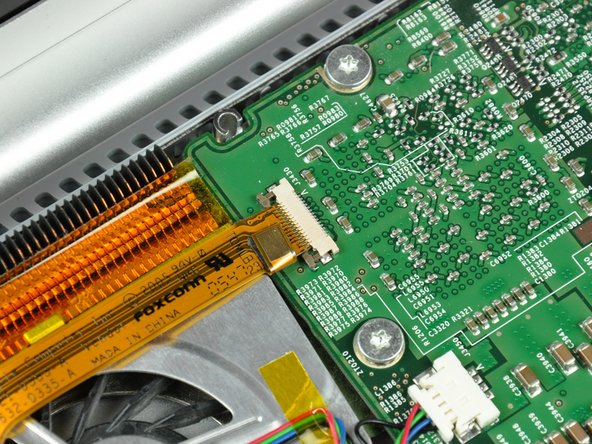
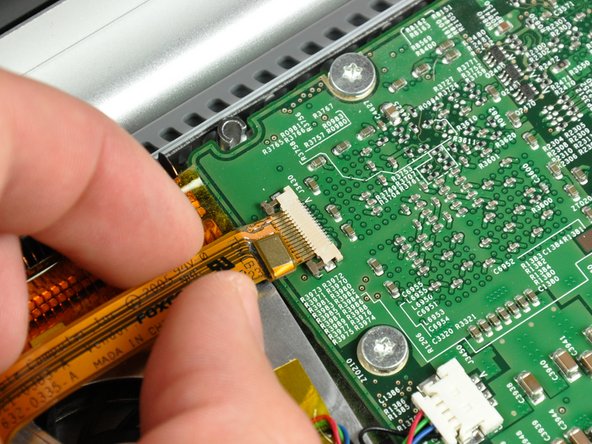
    • Use your fingernails or the tip of a spudger to separate the ZIF cable lock from its socket.

    • The ZIF cable lock will move about 1 mm and stop. Do not attempt to completely remove the ZIF cable lock.

    Add Comment

  14. PowerBook G4 Aluminum 17" 1.67 GHz (High-Res) DC-In Board Replacement Replacement: step 14, image 1 of 1
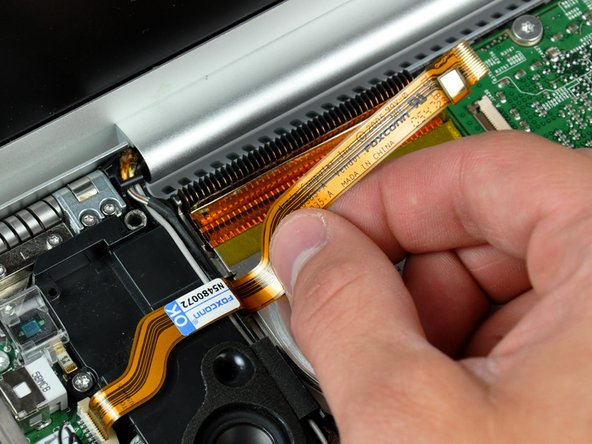
    • Pull the DC-in cable out of its socket.

    Add Comment

  15. PowerBook G4 Aluminum 17" 1.67 GHz (High-Res) DC-In Board Replacement Replacement: step 15, image 1 of 1
    • Peel the DC-in cable off the adhesive securing it to the lower case.

    Add Comment

  16. PowerBook G4 Aluminum 17" 1.67 GHz (High-Res) DC-In Board Replacement Replacement: step 16, image 1 of 2 PowerBook G4 Aluminum 17" 1.67 GHz (High-Res) DC-In Board Replacement Replacement: step 16, image 2 of 2
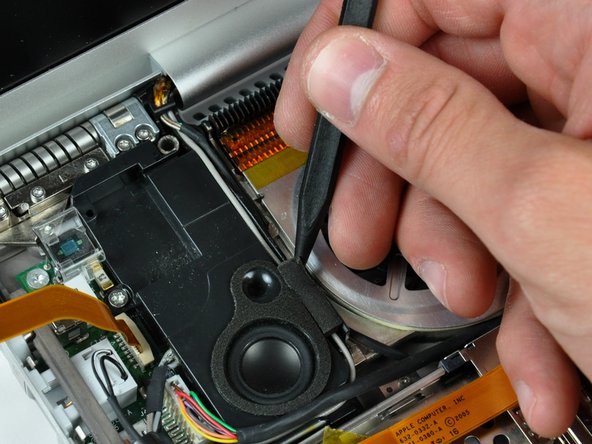
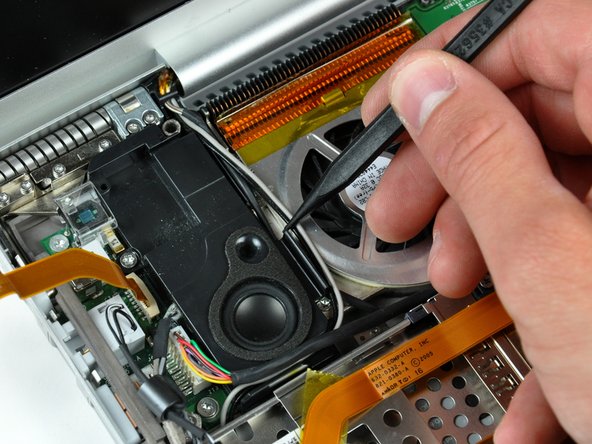
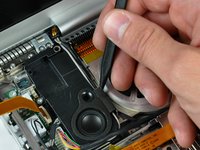
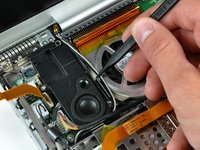
    • Use the tip of a spudger to remove the piece of foam tape from the channel on the side of the left speaker.

    • De-route the cables from the channel in the left speaker.

    Add Comment

  17. PowerBook G4 Aluminum 17" 1.67 GHz (High-Res) DC-In Board Replacement Replacement: step 17, image 1 of 3 PowerBook G4 Aluminum 17" 1.67 GHz (High-Res) DC-In Board Replacement Replacement: step 17, image 2 of 3 PowerBook G4 Aluminum 17" 1.67 GHz (High-Res) DC-In Board Replacement Replacement: step 17, image 3 of 3
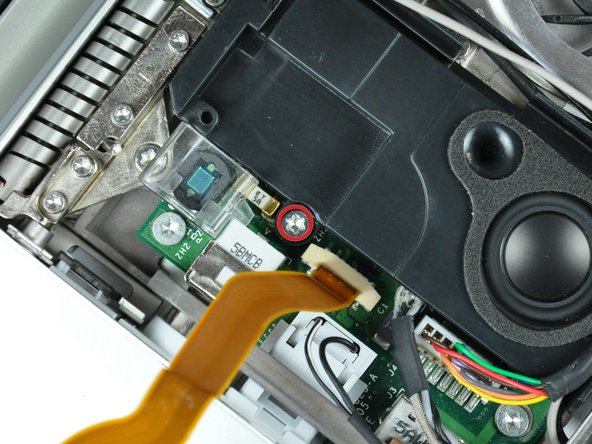
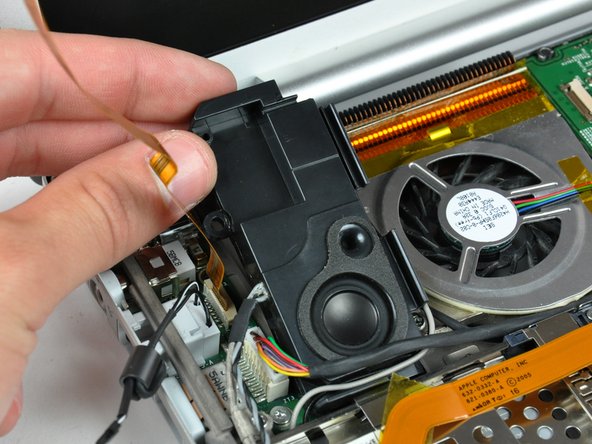
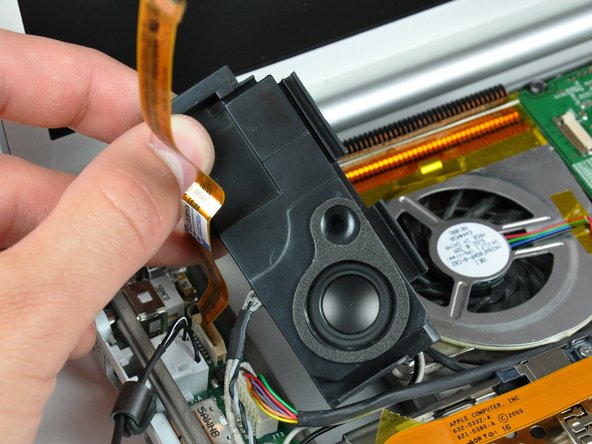
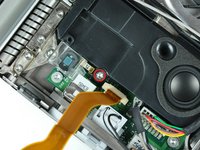
    • Remove the single T8 Torx screw securing the left speaker to the lower case.

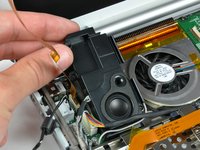
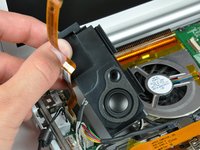
    • Lift the left speaker from its rear edge and maneuver it out of the lower case, minding the cables sitting in the channel near the front edge of the left speaker.

    • Set the speaker next to the lower case.

    Add Comment

  18. PowerBook G4 Aluminum 17" 1.67 GHz (High-Res) DC-In Board Replacement Replacement: step 18, image 1 of 1
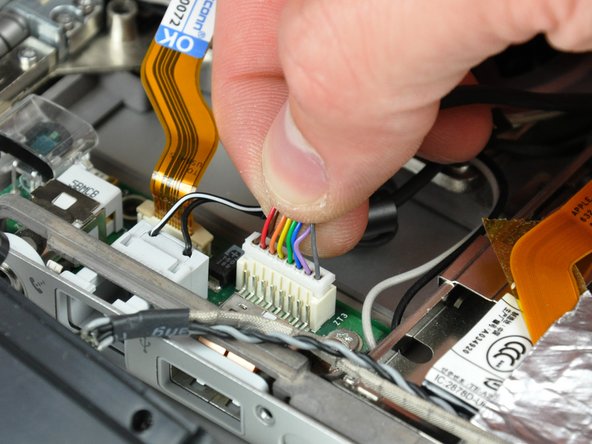
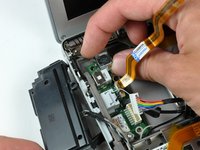
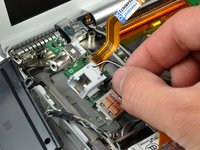
    • Pull the DC power cable connector straight up off the DC-in board.

    Add Comment

  19. PowerBook G4 Aluminum 17" 1.67 GHz (High-Res) DC-In Board Replacement Replacement: step 19, image 1 of 1
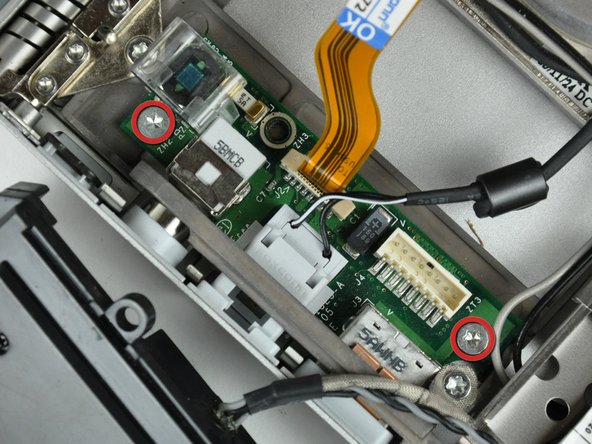
    • Remove the two T8 Torx screws securing the DC-in board to the lower case.

    • New line.

    Add Comment

  20. PowerBook G4 Aluminum 17" 1.67 GHz (High-Res) DC-In Board Replacement Replacement: step 20, image 1 of 2 PowerBook G4 Aluminum 17" 1.67 GHz (High-Res) DC-In Board Replacement Replacement: step 20, image 2 of 2
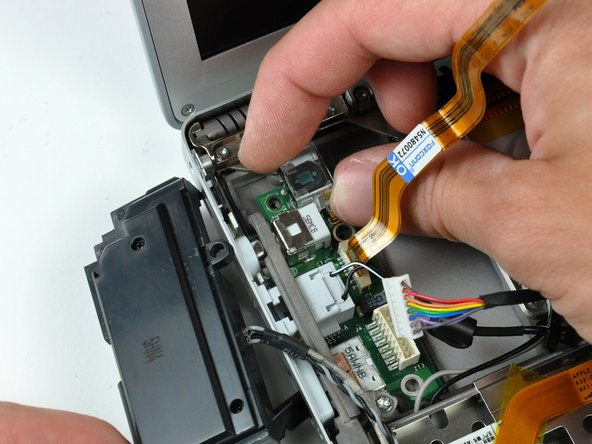
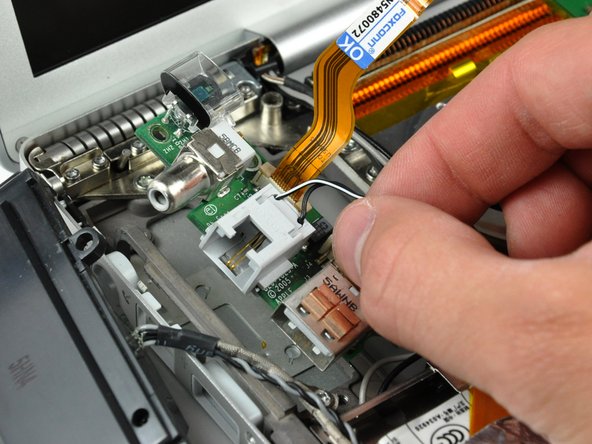
    • Pull the DC-in board away from the side of the lower case to separate the ports from their bezel.

    • Lift the DC-in board out of the lower case.

    Add Comment

  21. PowerBook G4 Aluminum 17" 1.67 GHz (High-Res) DC-In Board Replacement Replacement: step 21, image 1 of 1
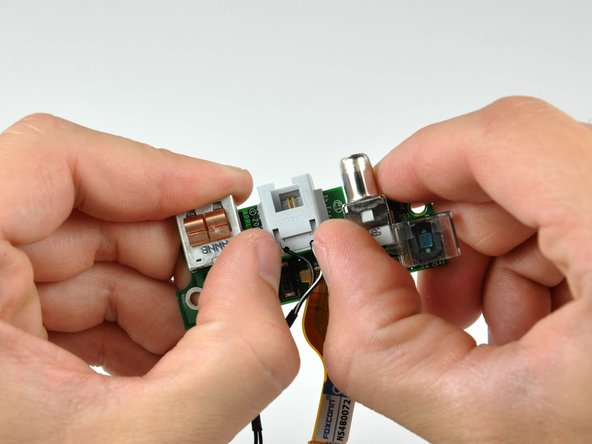
    • Use your thumbs to slide the RJ-11 board slightly away from the DC-In board.

    Add Comment

  22. PowerBook G4 Aluminum 17" 1.67 GHz (High-Res) DC-In Board Replacement Replacement: step 22, image 1 of 1
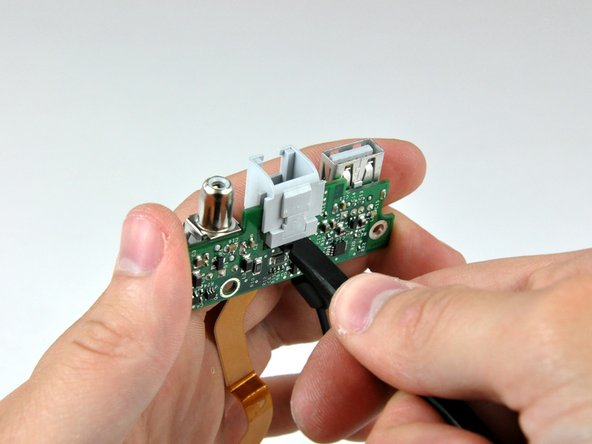
    • Use the flat end of a spudger to continue removing the RJ-11 board away from the DC-In board.

    Add Comment

  23. PowerBook G4 Aluminum 17" 1.67 GHz (High-Res) DC-In Board Replacement Replacement: step 23, image 1 of 2 PowerBook G4 Aluminum 17" 1.67 GHz (High-Res) DC-In Board Replacement Replacement: step 23, image 2 of 2
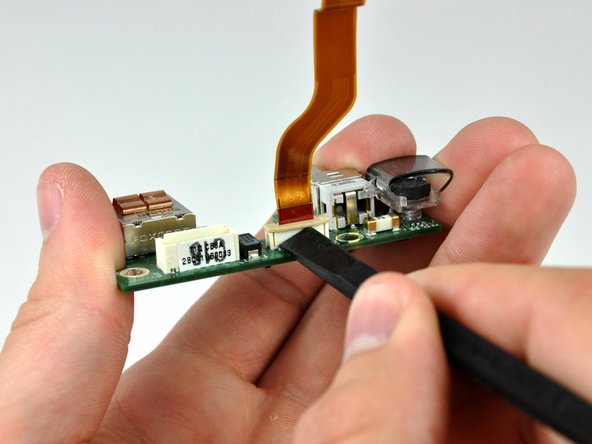
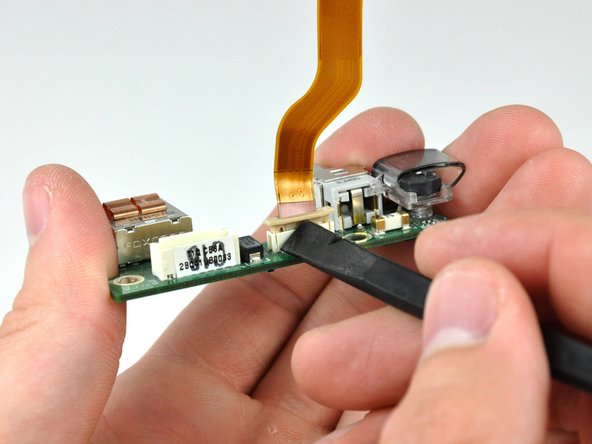
    • Use the flat end of a spudger to separate the ZIF cable lock from its socket.

    • The ZIF cable lock will move about 1 mm and stop. Do not attempt to completely remove the ZIF cable lock.

    Add Comment

  24. PowerBook G4 Aluminum 17" 1.67 GHz (High-Res) DC-In Board Replacement Replacement: step 24, image 1 of 1
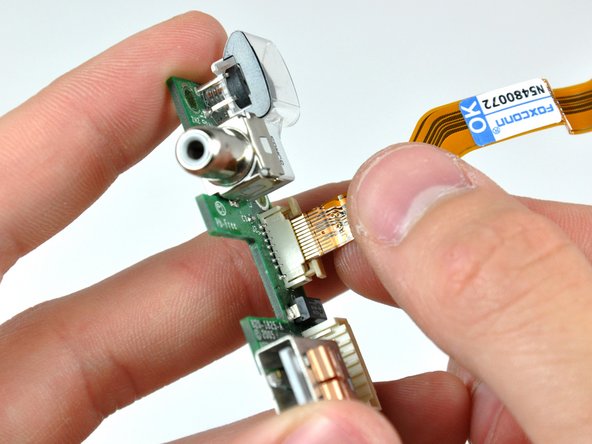
    • Pull the DC-in board cable straight out of its socket.

    • DC-in board remains.

    Add Comment

Conclusion

To reassemble your device, follow these instructions in reverse order.

Cancel: I did not complete this guide.

System

Member since: 09/24/09

2,562 Guides authored

0 Guide Comments

Add Comment

View Statistics:

Past 24 Hours: 0

Past 7 Days: 0

Past 30 Days: 0

All Time: 13