
PowerBook G4 Titanium Mercury Airport Card Replacement

Last updated on Sep 18, 2016
Views: 41
View statistics:
- Past 24 Hours:
- 0
- Past 7 Days:
- 0
- Past 30 Days:
- 3
- All Time:
- 41
Comments: 0
No one has left comments on this guide. Will you be first?
Go to guide commentsCompleted: 0 1
No one has marked this guide "completed." Will you be the first?
1 person has marked this guide "completed." It's you — great job!
Favorites: 0 1
No one has favorited (and subscribed to) this guide. Will you be the first?
1 person has favorited (and subscribed to) this guide — and that's you!
Introduction
Go to step 1 ↓Install an original Airport 802.11b card internally.
What you need
Parts
Tools
-
-
-
Turn the G4 over.
-
Remove the eight Phillips screws from the lower case.
-
-
-
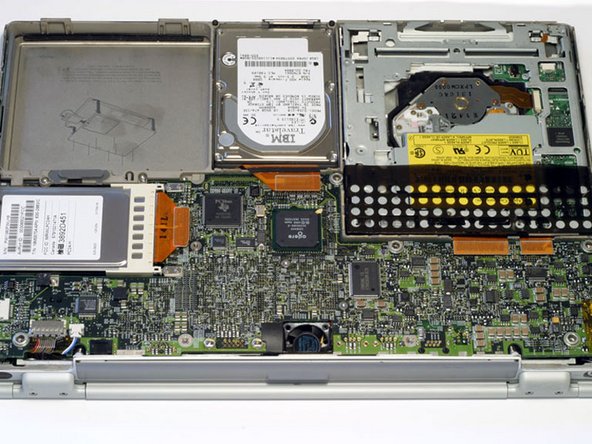
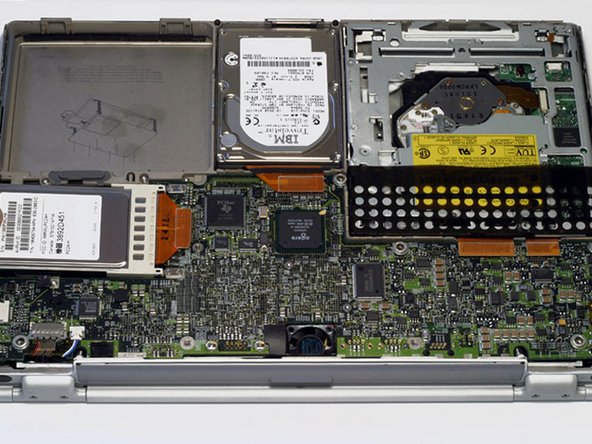
Firmly grasp the plastic tab attached to the Airport card and pull up and to the left.
-
Disconnect the antenna cable from the left side of the Airport card.
-
-

To reassemble your device, follow these instructions in reverse order.

