
PowerBook G4 Titanium Mercury Keyboard Replacement

Last updated on Sep 18, 2016
Views: 9
View statistics:
- Past 24 Hours:
- 0
- Past 7 Days:
- 0
- Past 30 Days:
- 2
- All Time:
- 9
Comments: 0
No one has left comments on this guide. Will you be first?
Go to guide commentsCompleted: 0 1
No one has marked this guide "completed." Will you be the first?
1 person has marked this guide "completed." It's you — great job!
Favorites: 0 1
No one has favorited (and subscribed to) this guide. Will you be the first?
1 person has favorited (and subscribed to) this guide — and that's you!
Introduction
Go to step 1 ↓Replacing this keyboard is easy. It requires no tools, and takes only a few minutes.
What you need
Parts
-
-
-
Remove the battery.
-
Turn the keyboard locking screw so that it is parallel to the space bar.
-
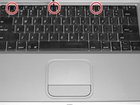
Pull the keyboard release tabs toward you and lift up on the keyboard until it pops free.
-
-
-
Rest the keyboard face down on the trackpad area.
-
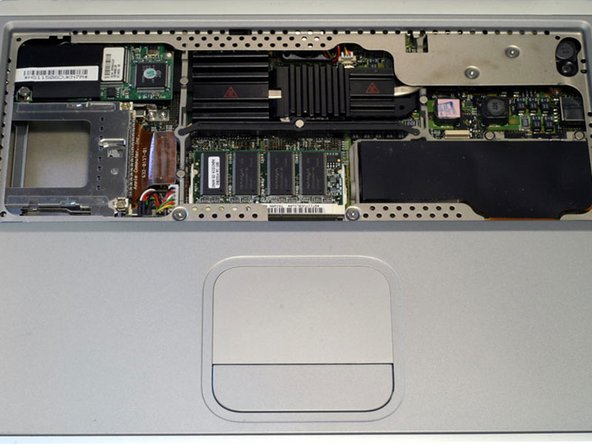
Disconnect the keyboard connector from the logic board.
-
-


To reassemble your device, follow these instructions in reverse order.

