PowerBook G4 Titanium Onyx Keyboard Replacement

What you need

    1. PowerBook G4 Titanium Onyx Keyboard Replacement, PowerBook G4 Titanium Onyx Keyboard Replacement: step 1, image 1 of 1
      • Remove the battery.

      • Turn the keyboard locking screw so that it is parallel to the space bar.

      • Pull the keyboard release tabs toward you and lift up on the keyboard until it pops free.

      Add Comment

    2. PowerBook G4 Titanium Onyx Keyboard Replacement: step 2, image 1 of 1
      • Rest the keyboard face down on the trackpad area.

      • Disconnect the keyboard connector from the logic board.

      Add Comment

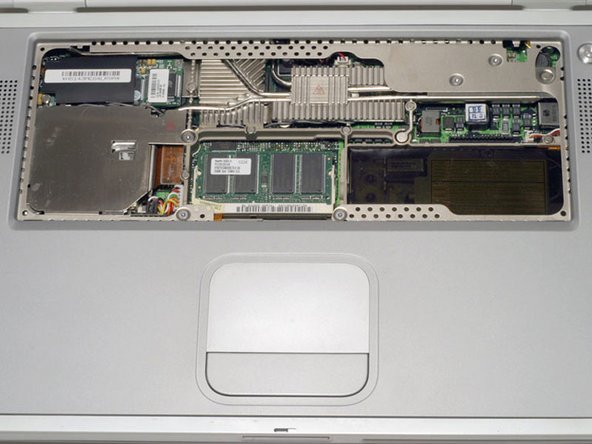
    3. PowerBook G4 Titanium Onyx Keyboard Replacement: step 3, image 1 of 1
      • Your laptop should look approximately like this.

      Add Comment

Conclusion

To reassemble your device, follow these instructions in reverse order.

Cancel: I did not complete this guide.

System

Member since: 09/24/09

2,562 Guides authored

0 Guide Comments

Add Comment

View Statistics:

Past 24 Hours: 0

Past 7 Days: 0

Past 30 Days: 1

All Time: 33