
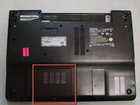
Sony Vaio PCG-7A2L RAM Cover Replacement

Last updated on Apr 11, 2016
Views: 44
View statistics:
- Past 24 Hours:
- 0
- Past 7 Days:
- 0
- Past 30 Days:
- 4
- All Time:
- 44
Comments: 0
No one has left comments on this guide. Will you be first?
Go to guide commentsCompleted: 0 1
No one has marked this guide "completed." Will you be the first?
1 person has marked this guide "completed." It's you — great job!
Favorites: 0 1
No one has favorited (and subscribed to) this guide. Will you be the first?
1 person has favorited (and subscribed to) this guide — and that's you!
Introduction
Go to step 1 ↓This guide helps users remove the plastic panel that covers the RAM compartment of the Sony Vaio PCG-7A2L laptop.
What you need
-
-
-
Lay the closed laptop on its screen so the bottom is facing towards you.
-
-
-
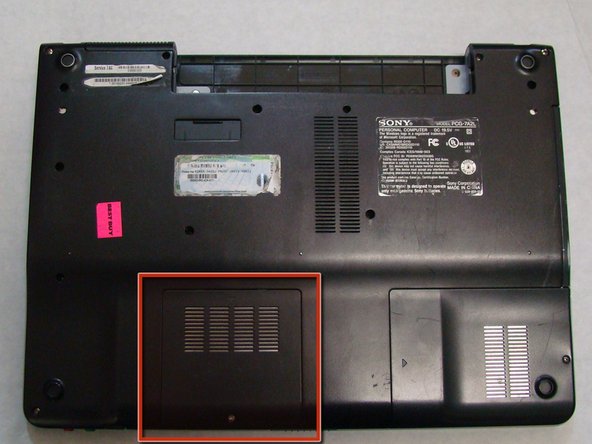
With the bottom of the laptop facing up, locate the RAM cover.
-
The RAM is covered by the panel with four columns of vents.
-
Locate the screw (Length: 4.8 mm) holding down the panel, which is near the edge of the laptop. Unscrew it with your phillips #0 screwdriver.
-
-
-
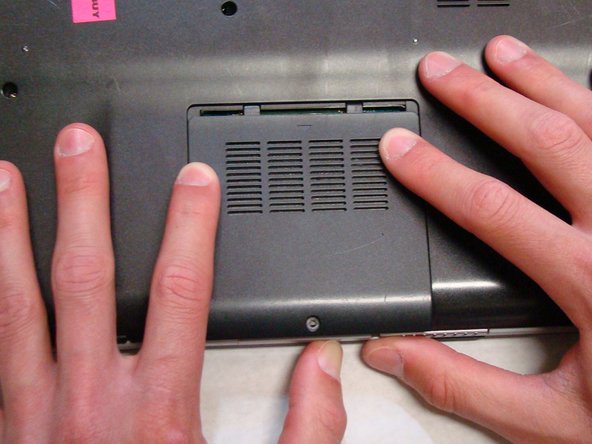
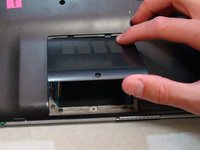
Use your fingers to slide the cover away from the laptop. (It will only slide a few millimeters)
-
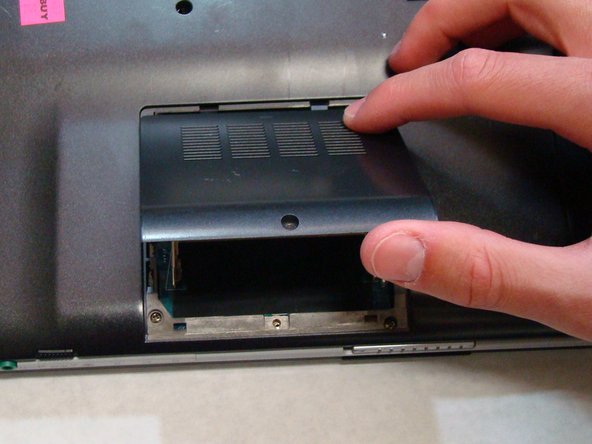
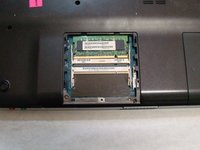
Once the panel is out of its locked position, it can be lifted out without any resistance.
-
-


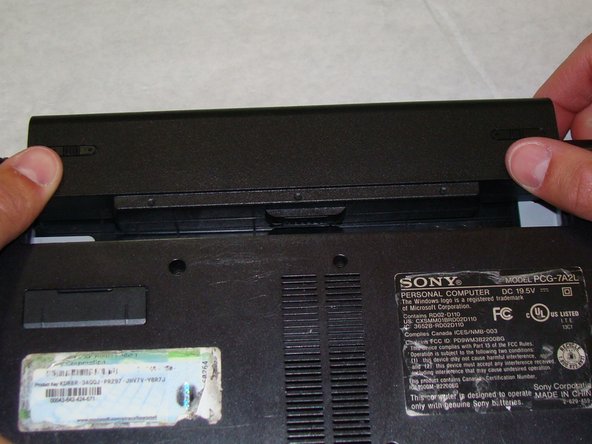





To reassemble your device, follow these instructions in reverse order.

