iBook G3 14" Inverter/AirPort Cables Replacement

What you need

  1. iBook G3 14" Inverter/AirPort Cables Replacement, iBook G3 14" Inverter/AirPort Cables Replacement: step 1, image 1 of 1
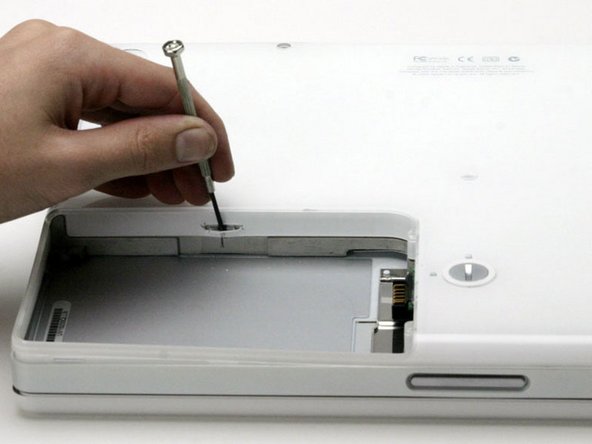
    • Use a coin to rotate the battery locking screw 90 degrees clockwise.

    • Lift the battery out of the computer.

    Add Comment

  2. iBook G3 14" Inverter/AirPort Cables Replacement: step 2, image 1 of 1
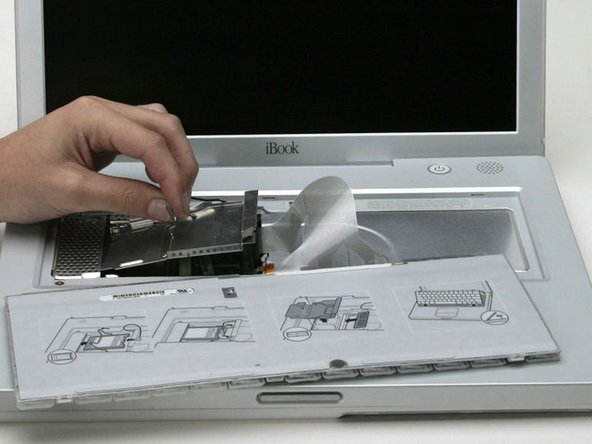
    • Pull the keyboard release tabs (highlighted in red) toward you and lift up on the keyboard until it pops free.

    • If the keyboard does not come free, use a small flathead screwdriver to turn the keyboard locking screw 180 degrees in either direction and try again.

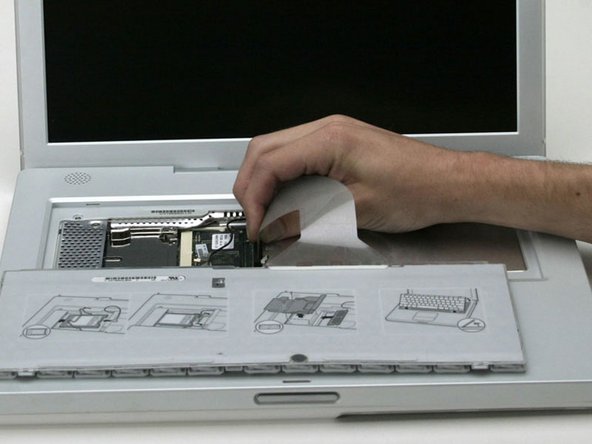
    • Flip the keyboard over, away from the screen, and rest it face-down on the trackpad area.

    Add Comment

  3. iBook G3 14" Inverter/AirPort Cables Replacement: step 3, image 1 of 1
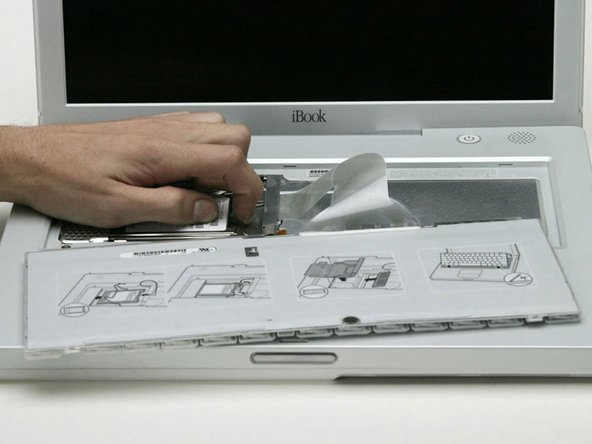
    • If your computer does not have an AirPort card installed, skip to the RAM shield removal step.

    • Push the wire clasp toward the AirPort card and pull it up to free it from the RAM shield.

    Add Comment

  4. iBook G3 14" Inverter/AirPort Cables Replacement: step 4, image 1 of 1
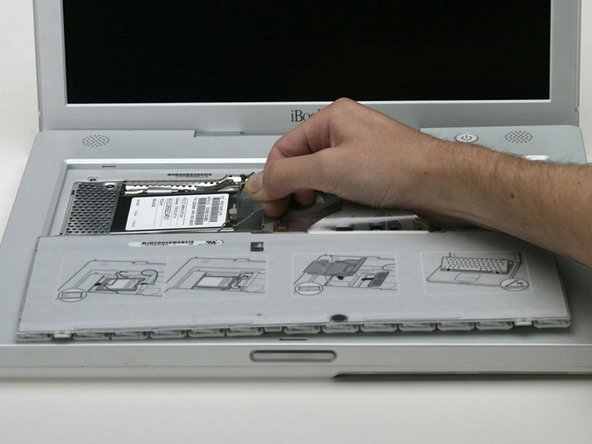
    • Grasp the clear plastic tab on the AirPort card and pull toward the right.

    Add Comment

  5. iBook G3 14" Inverter/AirPort Cables Replacement: step 5, image 1 of 1
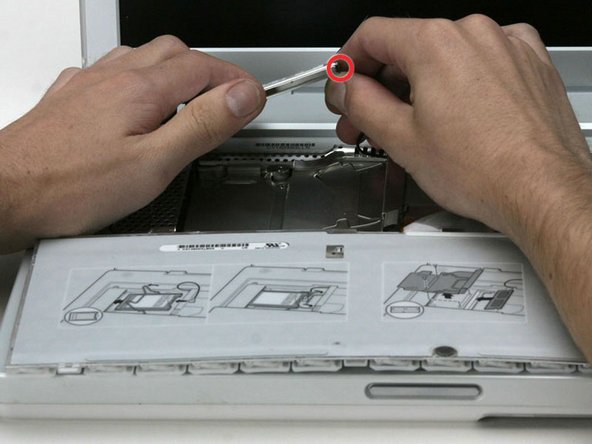
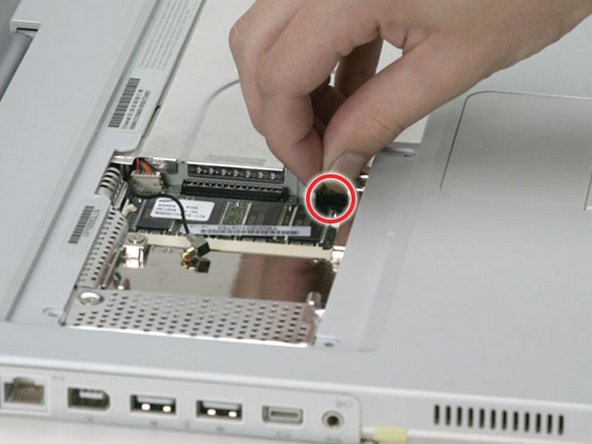
    • Hold the AirPort card in one hand and use your other hand to remove the antenna cable.

    Add Comment

  6. iBook G3 14" Inverter/AirPort Cables Replacement: step 6, image 1 of 1
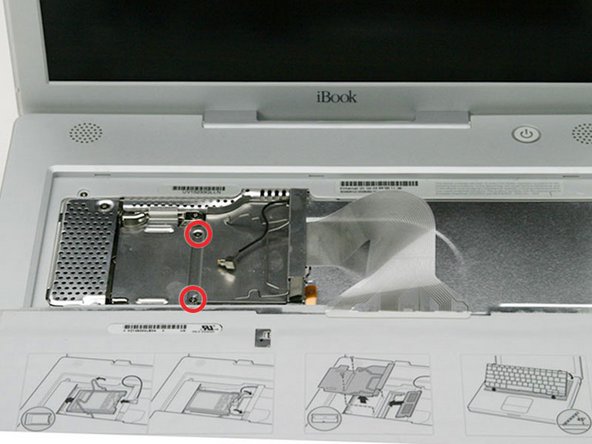
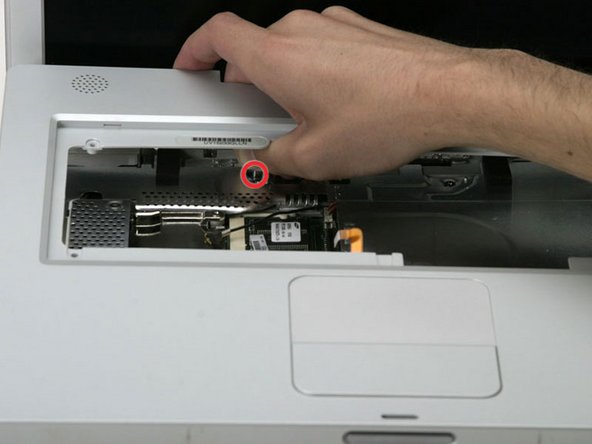
    • Remove the two Phillips screws that secure the RAM shield.

    Add Comment

  7. iBook G3 14" Inverter/AirPort Cables Replacement: step 7, image 1 of 1
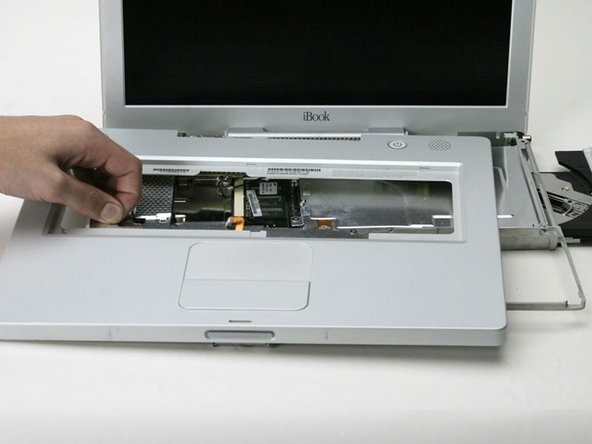
    • Grasp the metal bracket on top of the RAM shield and pull upward to remove the shield.

    Add Comment

  8. iBook G3 14" Inverter/AirPort Cables Replacement: step 8, image 1 of 1
    • Pull the keyboard cable up from the logic board, holding the cable as close to the connector as possible.

    Add Comment

  9. iBook G3 14" Inverter/AirPort Cables Replacement: step 9, image 1 of 1
    • Use a pin to remove the three rubber feet from the lower case.

    Add Comment

  10. iBook G3 14" Inverter/AirPort Cables Replacement: step 10, image 1 of 1
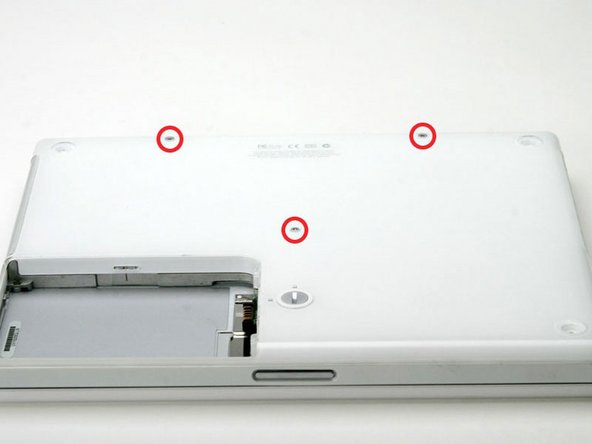
    • Remove the three newly-revealed Phillips screws.

    Add Comment

  11. iBook G3 14" Inverter/AirPort Cables Replacement: step 11, image 1 of 1
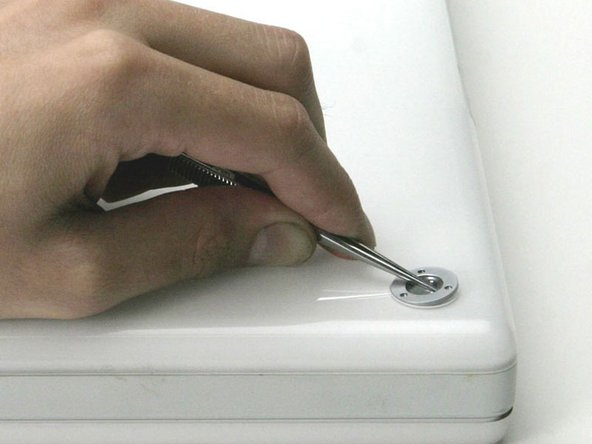
    • Use a spudger or small flathead screwdriver to pry up the three metal rings that housed the rubber bumpers.

    Add Comment

  12. iBook G3 14" Inverter/AirPort Cables Replacement: step 12, image 1 of 1
    • Remove the three hex screws using a T8 Torx screwdriver.

    • The screw in the center is shorter than the other two.

    Add Comment

  13. iBook G3 14" Inverter/AirPort Cables Replacement: step 13, image 1 of 1
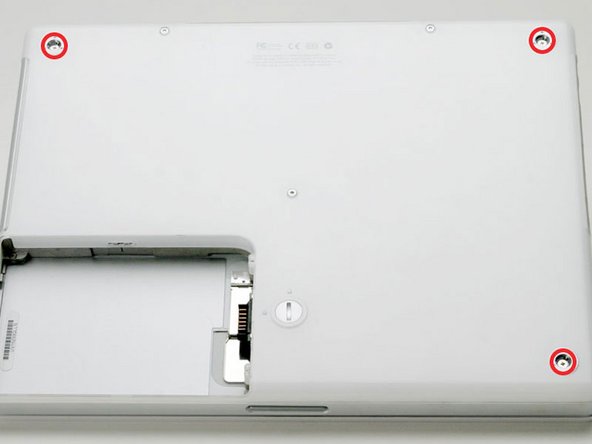
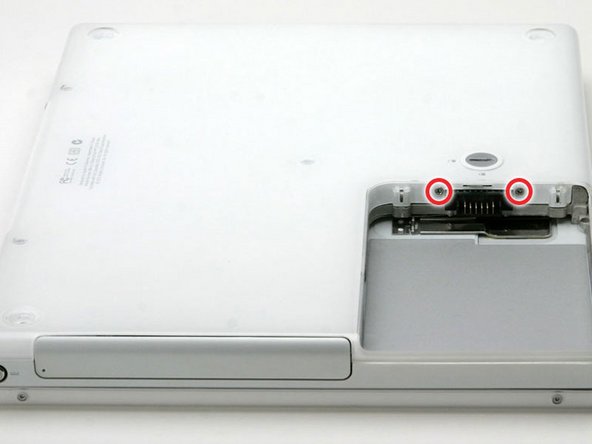
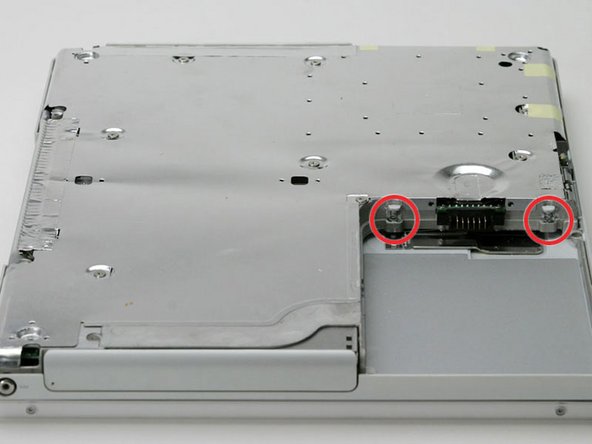
    • Remove the two Phillips screws on either side of the battery contacts.

    Add Comment

  14. iBook G3 14" Inverter/AirPort Cables Replacement: step 14, image 1 of 1
    • Breathe deeply. Trying times are ahead, but we promise the lower case does come off.

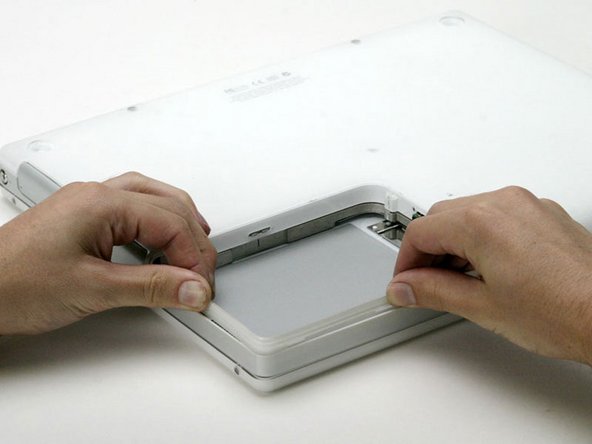
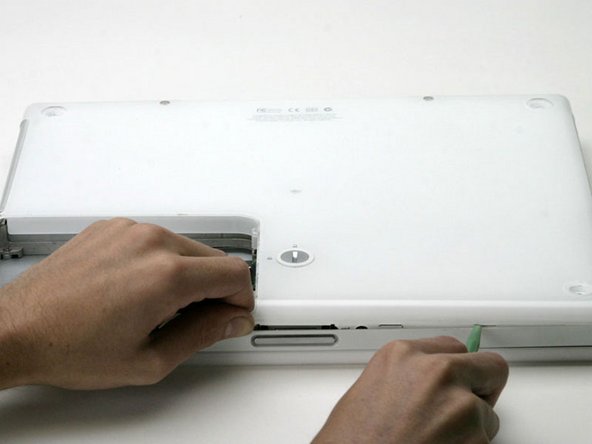
    • Push the thin rims of the lower case surrounding the battery compartment in, bending them past the tabs, and then lift up to free that corner of the lower case.

    Add Comment

  15. iBook G3 14" Inverter/AirPort Cables Replacement: step 15, image 1 of 1
    • There is a slot on the wall of the battery compartment that locks the lower case in place.

    • Use a small flathead screwdriver to pry out the slot's lower rim and pull up on the lower case to free the slot from the tabs holding it.

    Add Comment

  16. iBook G3 14" Inverter/AirPort Cables Replacement: step 16, image 1 of 1
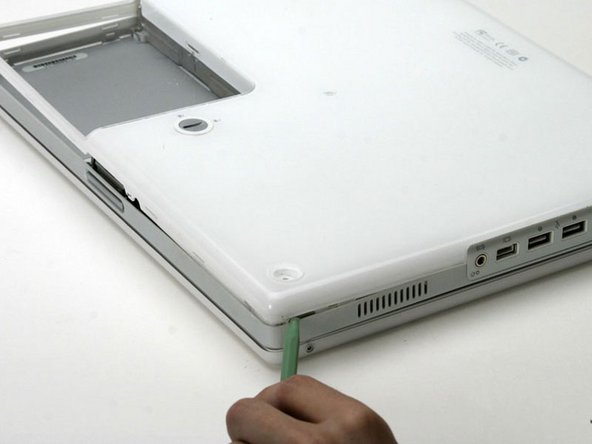
    • Run a spudger along the seam between the lower case and upper case on the front of the computer to free the tabs locking the lower case.

    • Pull up on the lower case and continue to use the spudger as necessary until you hear three distinct clicks.

    Add Comment

  17. iBook G3 14" Inverter/AirPort Cables Replacement: step 17, image 1 of 1
    • Continue to run the spudger around the front, right corner.

    • There are two tabs on the port side of the computer, one near the front corner and one near the sound out port.

    Add Comment

  18. iBook G3 14" Inverter/AirPort Cables Replacement: step 18, image 1 of 1
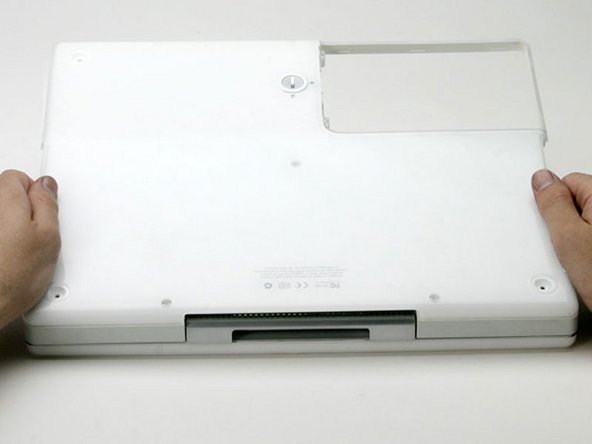
    • Once the front and sides of the lower case are free, turn the computer so that the back is facing you.

    • Pull the lower case up and toward you until the back tabs pop free.

    • It may be helpful to jiggle the case up and down.

    Add Comment

  19. iBook G3 14" Inverter/AirPort Cables Replacement: step 19, image 1 of 1
    • Remove the small greasy springs with white plastic caps from either side of the battery contacts.

    Add Comment

  20. iBook G3 14" Inverter/AirPort Cables Replacement: step 20, image 1 of 1
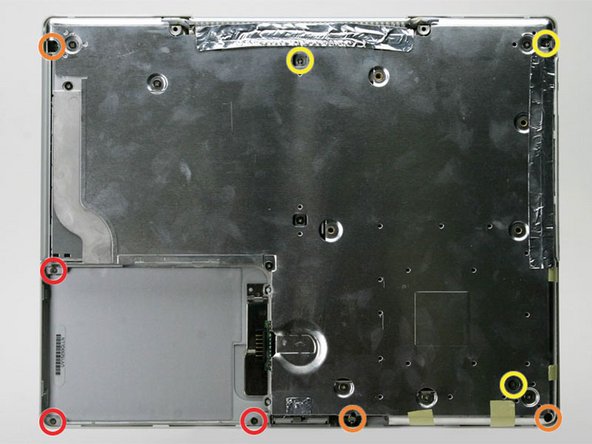
    • All of the screws in the following step have small heads - the screws with larger heads hold the bottom shield on.
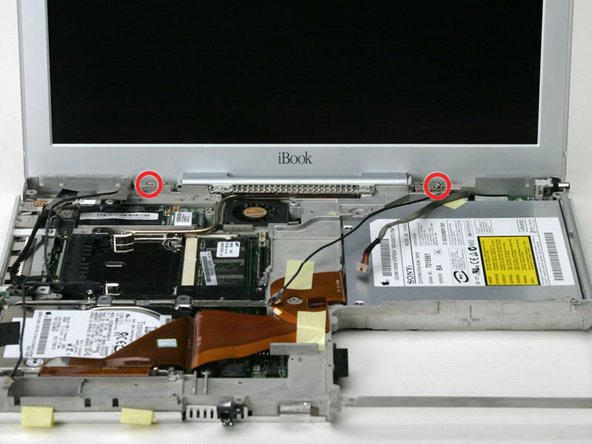
    • Remove the following 9 screws on the bottom of the computer:

    • Three 3 mm Phillips around the battery compartment.

    • Three 5 mm Phillips on the left and bottom edges.

    • Three 14.5 mm Phillips on the top and right edges (you may have to peel back the foil tape to reveal the screw near the security lock slot).

    Add Comment

  21. iBook G3 14" Inverter/AirPort Cables Replacement: step 21, image 1 of 1
    • Turn over the computer and open it.

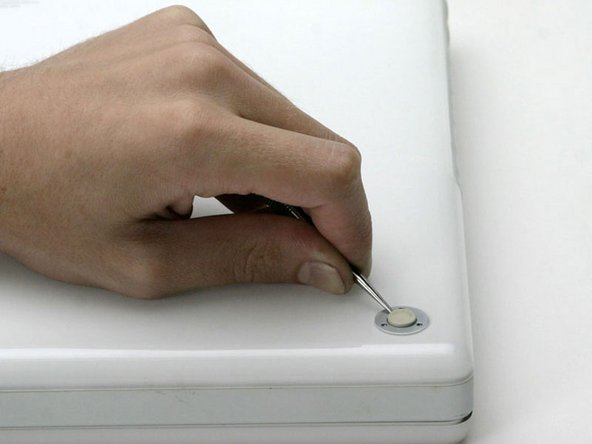
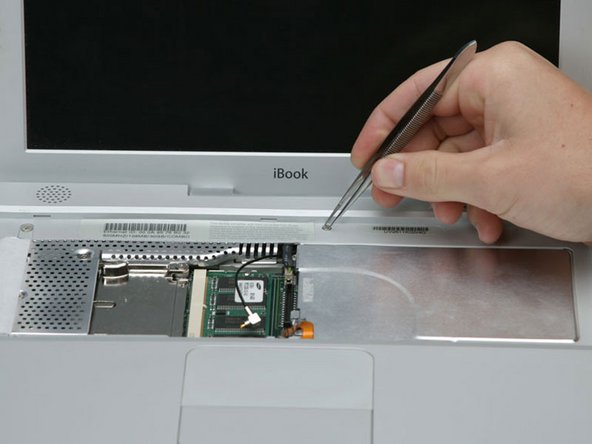
    • Pry up the magnet covering a Phillips screw near the middle of the computer.

    • You may need to peel back the serial number sticker to access the magnet.

    Add Comment

  22. iBook G3 14" Inverter/AirPort Cables Replacement: step 22, image 1 of 1
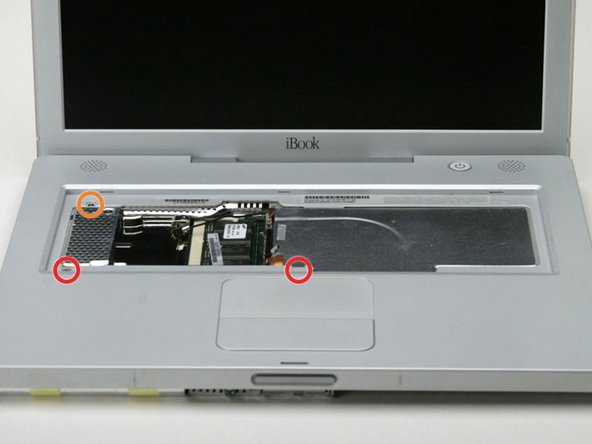
    • Remove the following 3 screws on the edges of the keyboard area:

    • Two 6 mm Phillips underneath the keyboard area.

    • One 9 mm Phillips above the keyboard area.

    • On some models, there may also be a screw under the magnet you just removed. If so, remove the screw at this point.

    Add Comment

  23. iBook G3 14" Inverter/AirPort Cables Replacement: step 23, image 1 of 1
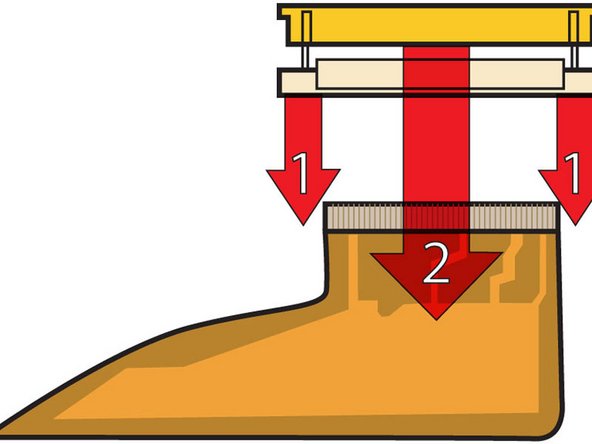
    • This is a diagram of the ribbon clamp connectors you will disconnect in the next step.

    • With your fingernails, grasp the locking bar on either side and pull up a small amount (about 1/16" or 2 mm).

    • After disengaging the locking bar, slide the cable out of the connector.

    Add Comment

  24. iBook G3 14" Inverter/AirPort Cables Replacement: step 24, image 1 of 1
    • Loosen the trackpad connector by pulling the top piece up slightly, freeing the trackpad ribbon.

    • Slide the orange trackpad ribbon out of the connector.

    Add Comment

  25. iBook G3 14" Inverter/AirPort Cables Replacement: step 25, image 1 of 1
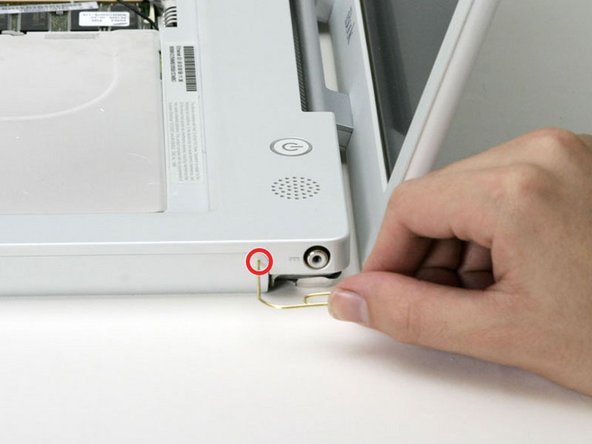
    • Use a straightened paperclip to open the optical drive tray, and pull it out about halfway.

    Add Comment

  26. iBook G3 14" Inverter/AirPort Cables Replacement: step 26, image 1 of 1
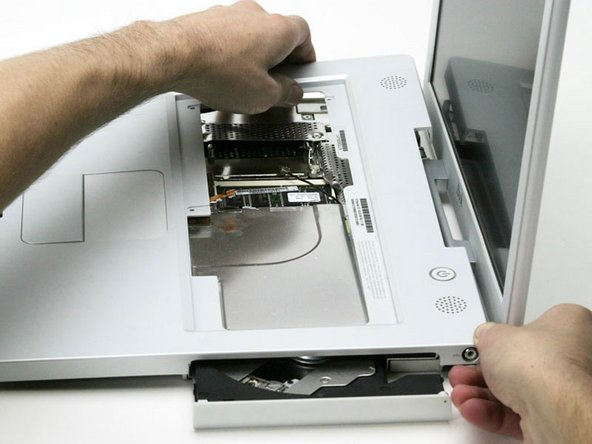
    • Don't lift the upper case off the computer yet as there are still two cables left to disconnect.

    • Lift the upper case from the left side and use your other hand to pull out the right side in order to clear the power receptacle.

    Add Comment

  27. iBook G3 14" Inverter/AirPort Cables Replacement: step 27, image 1 of 1
    • The connectors at the ends of the cables are attached very firmly to the sockets on the logic board. Pulling directly on the cable will either separate the cable from its connector or the socket from the logic board.

    • Lift the upper case enough to disconnect the blue and white power cable from the logic board.

    • Using your fingernails or a dental pick, carefully pry the connector from its socket.

    • Make sure you are pulling only on the connector and not on the socket.

    Add Comment

  28. iBook G3 14" Inverter/AirPort Cables Replacement: step 28, image 1 of 1
    • Lift the upper case off completely and disconnect the red and black speaker cable from the logic board.

    • Make sure you are pulling only on the connector and not on the socket.

    Add Comment

  29. iBook G3 14" Inverter/AirPort Cables Replacement: step 29, image 1 of 1
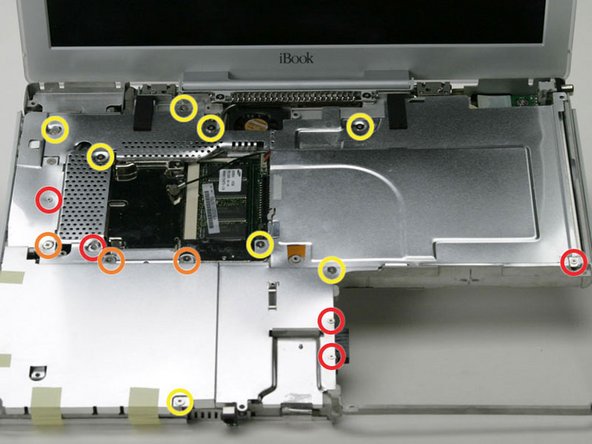
    • Remove the following 16 screws:

    • Five 3 mm Phillips (these have smaller heads than the others).

    • Three 5 mm Phillips.

    • Eight 6 mm Phillips.

    Add Comment

    • If you have already removed the yellow tape, skip this step.

    • Peel back three strips of yellow tape in the bottom, left corner.

    • Peel back one strip of foil tape near the audio-out port, one near where the trackpad connects to the logic board, and one near where the screen latch used to be.

    Add Comment

  30. iBook G3 14" Inverter/AirPort Cables Replacement: step 31, image 1 of 1
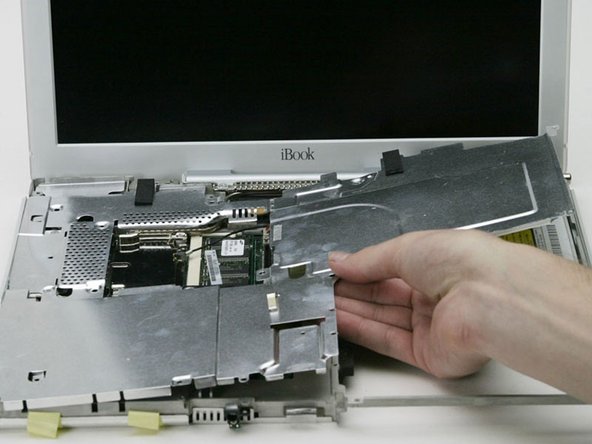
    • Lift the top shield up from the right side, minding the upper left corner, which may catch on the metal framework.

    Add Comment

  31. iBook G3 14" Inverter/AirPort Cables Replacement: step 32, image 1 of 1
    • If you have already removed the hard drive, ignore its presence in the following steps. The hard drive does not affect the display removal.

    • Disconnect the microphone cable from the front, left corner of the logic board.

    • Peel back the black tape and free the microphone cable from the hard drive.

    Add Comment

  32. iBook G3 14" Inverter/AirPort Cables Replacement: step 33, image 1 of 1
    • Use the black plastic handle to disconnect the display data cable from the logic board.

    Add Comment

  33. iBook G3 14" Inverter/AirPort Cables Replacement: step 34, image 1 of 1
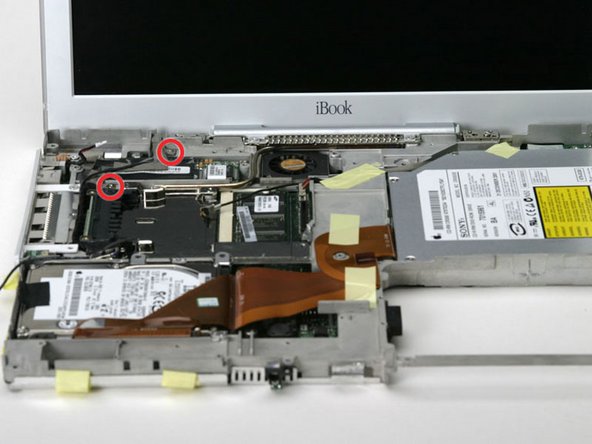
    • If you have already removed the modem, you will only need to remove one of these screws.

    • Remove the two Phillips screws securing the display data cable to the metal framework.

    Add Comment

  34. iBook G3 14" Inverter/AirPort Cables Replacement: step 35, image 1 of 1
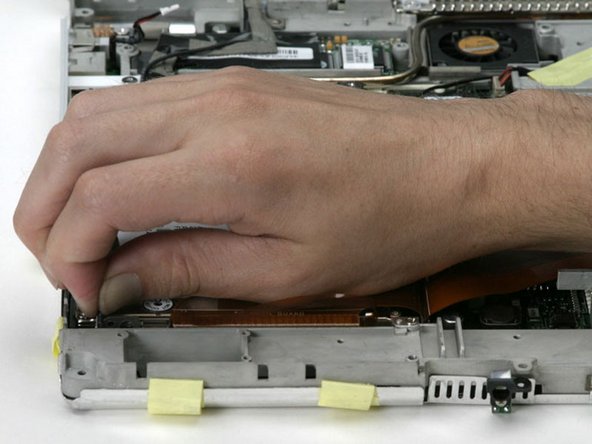
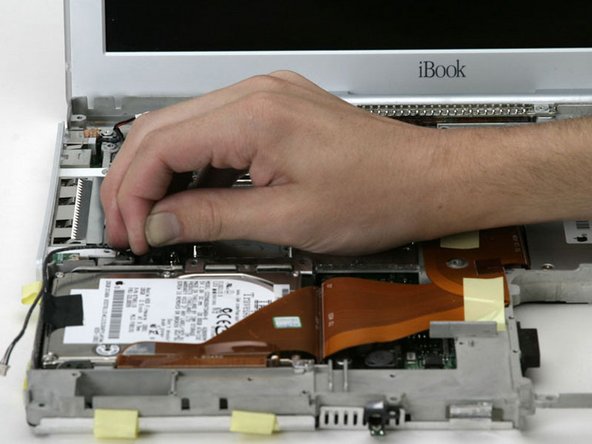
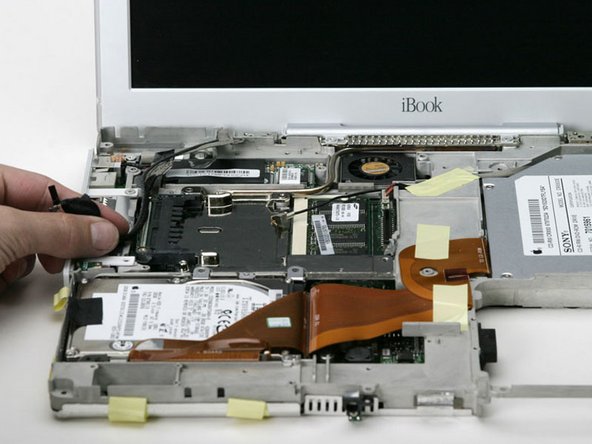
    • Deroute the display data and microphone cables, removing tape as necessary.

    Add Comment

  35. iBook G3 14" Inverter/AirPort Cables Replacement: step 36, image 1 of 1
    • Peel back the yellow tape securing the inverter cable to the metal framework.

    Add Comment

  36. iBook G3 14" Inverter/AirPort Cables Replacement: step 37, image 1 of 1
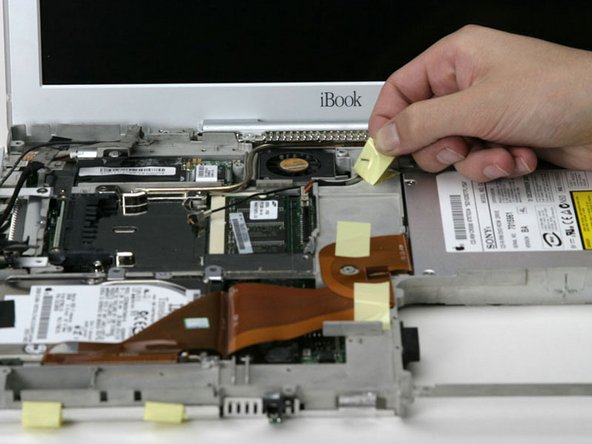
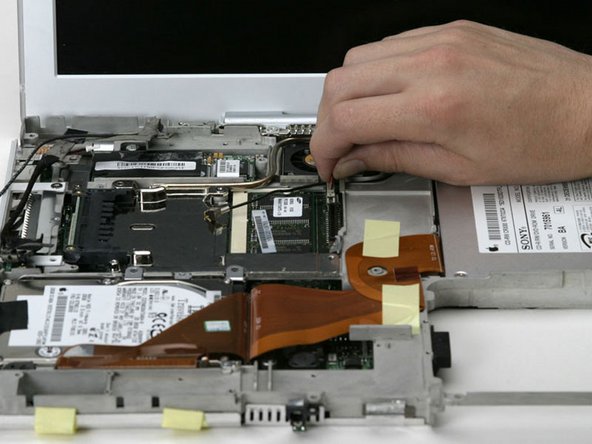
    • Disconnect the inverter cable from the logic board.

    • Carefully deroute the inverter cable from beneath the optical drive.

    Add Comment

  37. iBook G3 14" Inverter/AirPort Cables Replacement: step 38, image 1 of 1
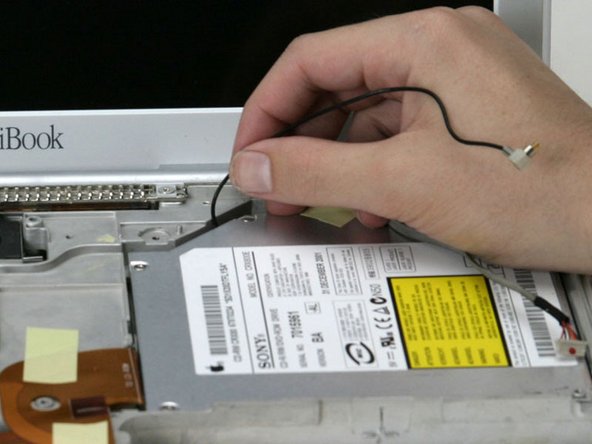
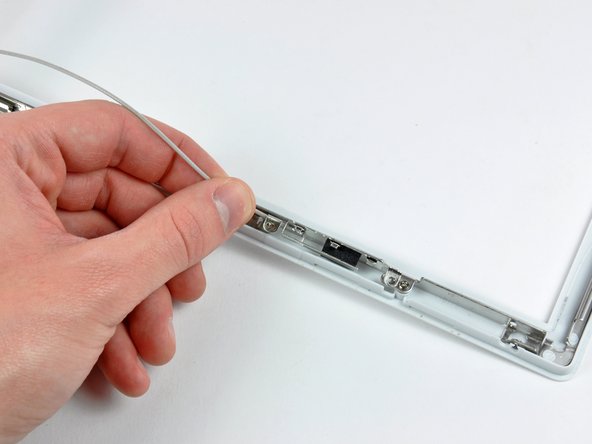
    • Deroute the AirPort antenna cable from beneath the optical drive.

    Add Comment

  38. iBook G3 14" Inverter/AirPort Cables Replacement: step 39, image 1 of 1
    • Support the display with your free hand removing the following screws.

    • Remove the single Phillips screw on the outer edge of either hinge (two screws total).

    • Tilt the display back to get over two small nubbins, and then slide it directly from the case and away.

    Add Comment

  39. iBook G3 14" Inverter/AirPort Cables Replacement: step 40, image 1 of 1
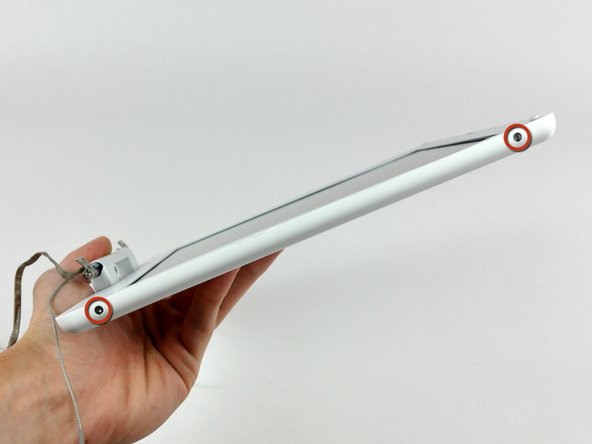
    • Use a 1.5 mm hex screwdriver to remove the two hex screws on either side of the display (four screws total).

    • If you don't have a 1.5 mm hex driver, you can probably get these screws out with a T6 Torx screwdriver. However, if you use a T6 Torx driver you'll be more likely to strip the screws.

    Add Comment

  40. iBook G3 14" Inverter/AirPort Cables Replacement: step 41, image 1 of 1
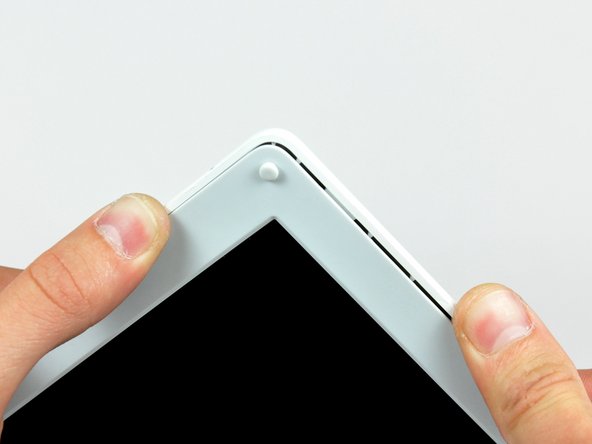
    • Use your thumbs to slightly separate the rear bezel from the front bezel.

    • It is helpful to hold the opposing corner of the display stationary to aid in flexing the rear bezel away from the display.

    Add Comment

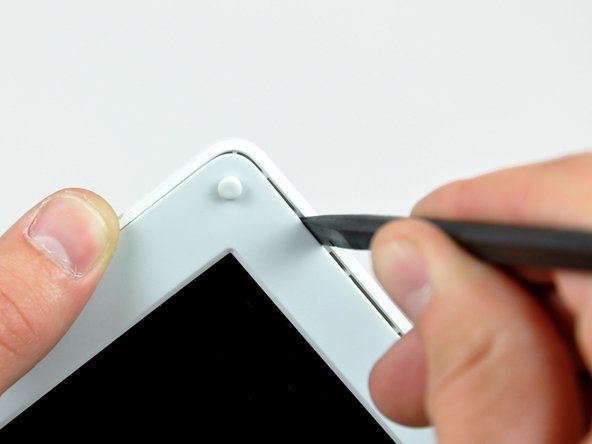
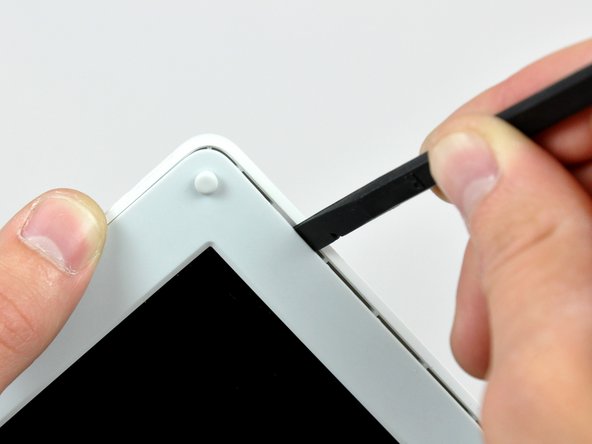
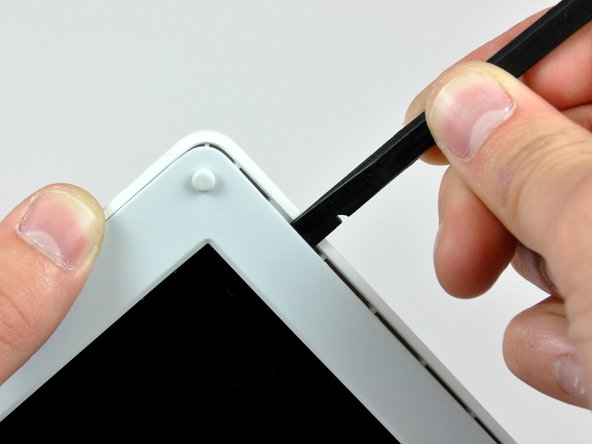
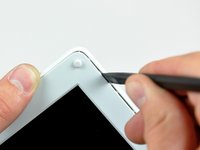
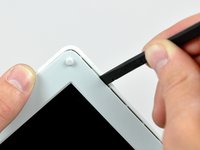
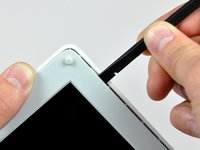
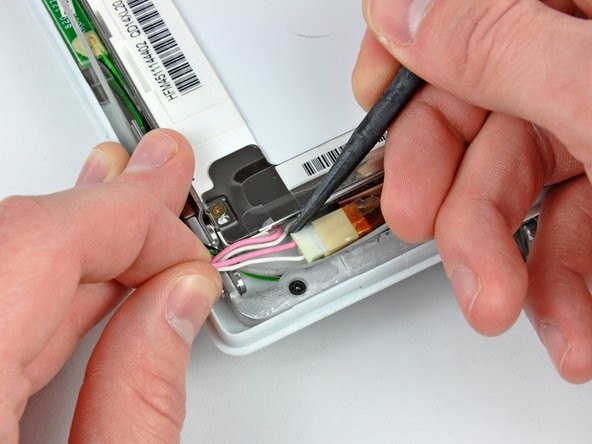
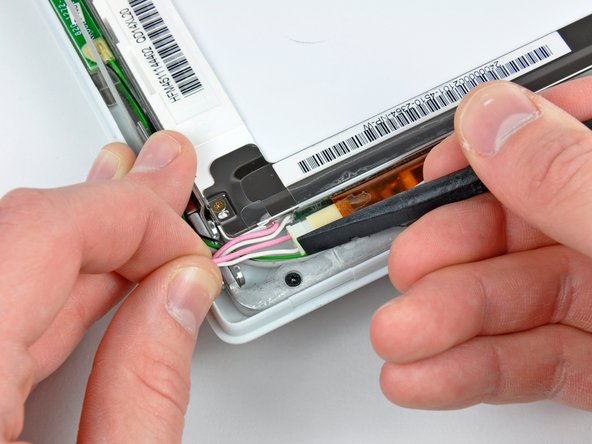
  41. iBook G3 14" Inverter/AirPort Cables Replacement: step 42, image 1 of 3 iBook G3 14" Inverter/AirPort Cables Replacement: step 42, image 2 of 3 iBook G3 14" Inverter/AirPort Cables Replacement: step 42, image 3 of 3
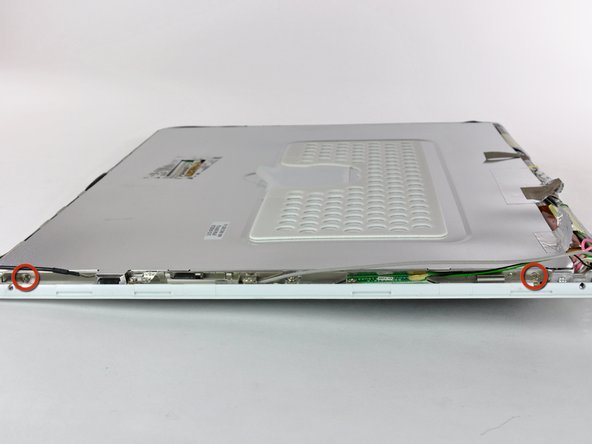
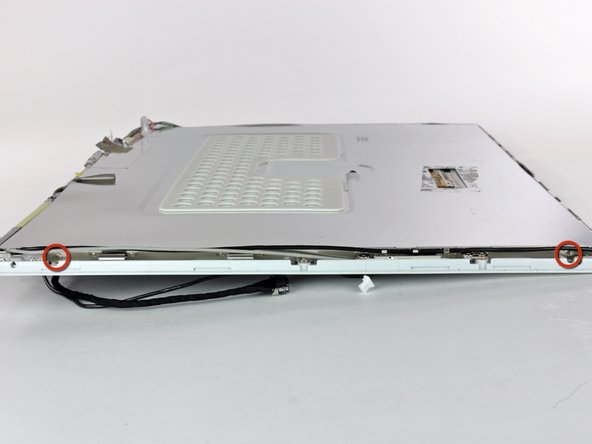
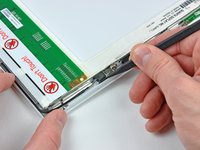
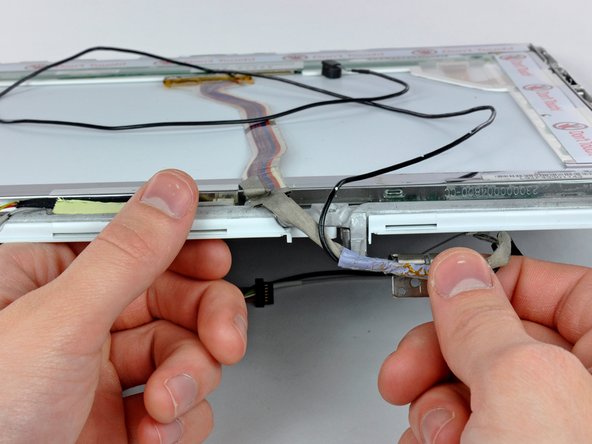
    • Insert the flat end of a spudger into the gap between the front and rear bezels.

    • Rotate your spudger until it is parallel to the front face of the display.

    • Run the spudger around the perimeter of the display to separate the rear bezel from its retaining clips.

    Add Comment

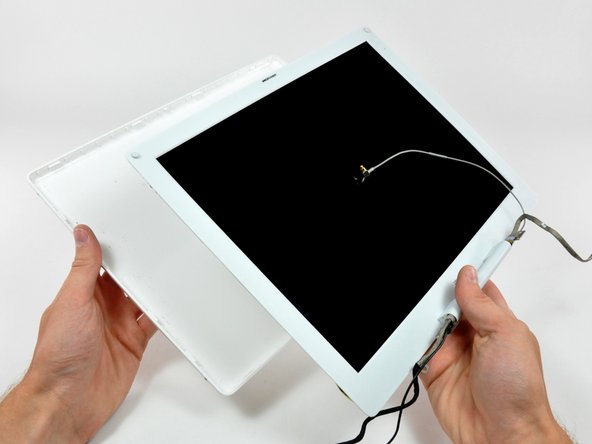
  42. iBook G3 14" Inverter/AirPort Cables Replacement: step 43, image 1 of 1
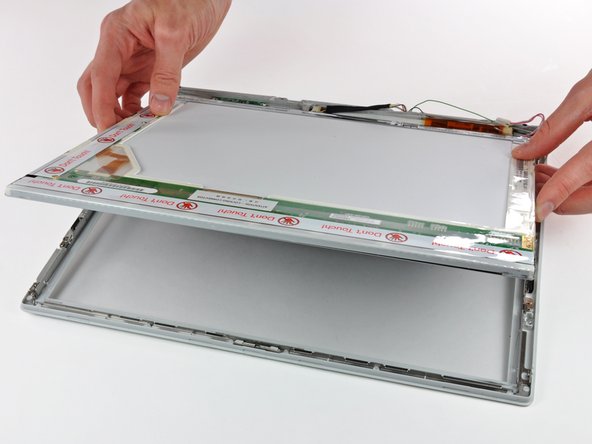
    • Lift the rear bezel off the display.

    Add Comment

  43. iBook G3 14" Inverter/AirPort Cables Replacement: step 44, image 1 of 2 iBook G3 14" Inverter/AirPort Cables Replacement: step 44, image 2 of 2
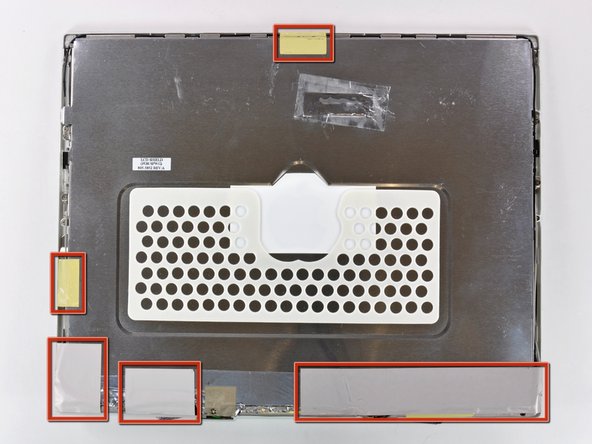
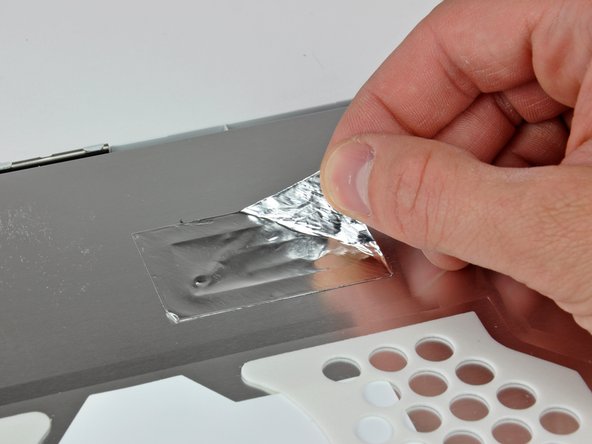
    • Remove the pieces of readily removable tape from around the perimeter of the display.

    • Carefully remove the aluminum tape covering the display data cable connection.

    Add Comment

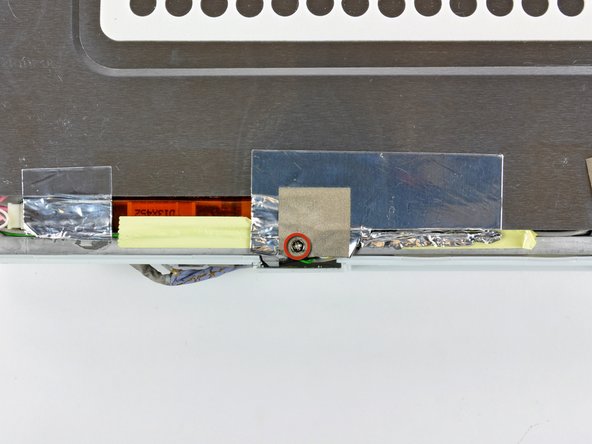
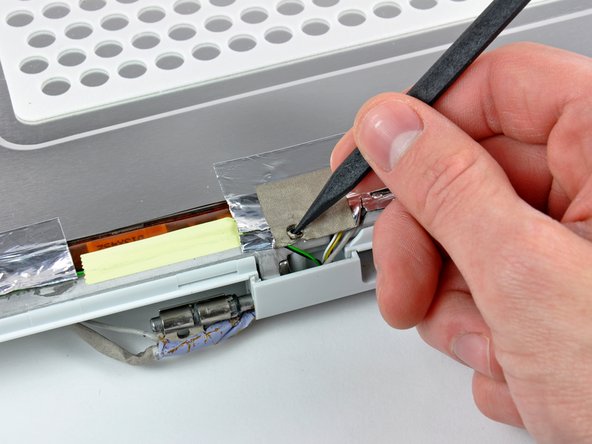
  44. iBook G3 14" Inverter/AirPort Cables Replacement: step 45, image 1 of 2 iBook G3 14" Inverter/AirPort Cables Replacement: step 45, image 2 of 2
    • Remove the single screw inserted through the piece of EMI tape near the bottom edge of the display.

    • Use the tip of a spudger to remove the small washer under the screw you just removed.

    Add Comment

  45. iBook G3 14" Inverter/AirPort Cables Replacement: step 46, image 1 of 1
    • Peel the aluminum/EMI tape off the cast aluminum frame of the clutch hinges.

    • It is not necessary to peel the tape off the thin steel LCD cover.

    Add Comment

  46. iBook G3 14" Inverter/AirPort Cables Replacement: step 47, image 1 of 2 iBook G3 14" Inverter/AirPort Cables Replacement: step 47, image 2 of 2
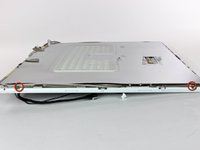
    • Remove the two Phillips screws securing each side of the LCD to the clutch hinge frame (four screws total).

    Add Comment

  47. iBook G3 14" Inverter/AirPort Cables Replacement: step 48, image 1 of 1
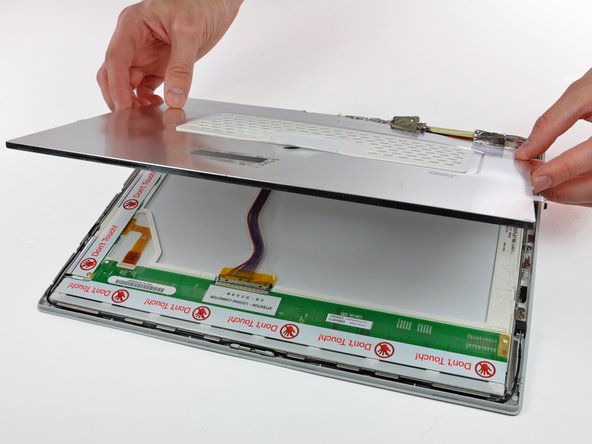
    • Lift the thin steel LCD cover off the LCD.

    Add Comment

  48. iBook G3 14" Inverter/AirPort Cables Replacement: step 49, image 1 of 1
    • Remove the second of the two Phillips screws securing the clutch cover to the cast aluminum frame of the clutch hinges.

    Add Comment

  49. iBook G3 14" Inverter/AirPort Cables Replacement: step 50, image 1 of 3 iBook G3 14" Inverter/AirPort Cables Replacement: step 50, image 2 of 3 iBook G3 14" Inverter/AirPort Cables Replacement: step 50, image 3 of 3
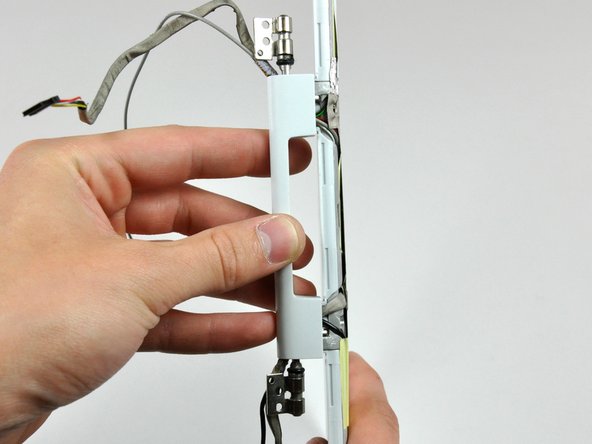
    • Pull the clutch cover away from the front of the display.

    • Keep track of the two covers that close the ends of the clutch cover. The third picture shows their correct orientation on the clutch cover.

    Add Comment

  50. iBook G3 14" Inverter/AirPort Cables Replacement: step 51, image 1 of 1
    • Remove the pieces of tape covering the display data and microphone cables near the bottom edge of the display.

    Add Comment

  51. iBook G3 14" Inverter/AirPort Cables Replacement: step 52, image 1 of 1
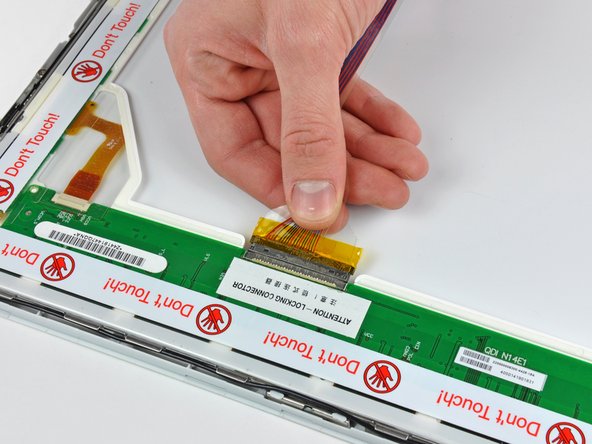
    • Disconnect the display data cable by pulling its connector away from the socket on the LCD.

    • Pull the connector parallel to the face of the LCD.

    • Remove the display data cable from the display.

    Add Comment

  52. iBook G3 14" Inverter/AirPort Cables Replacement: step 53, image 1 of 2 iBook G3 14" Inverter/AirPort Cables Replacement: step 53, image 2 of 2
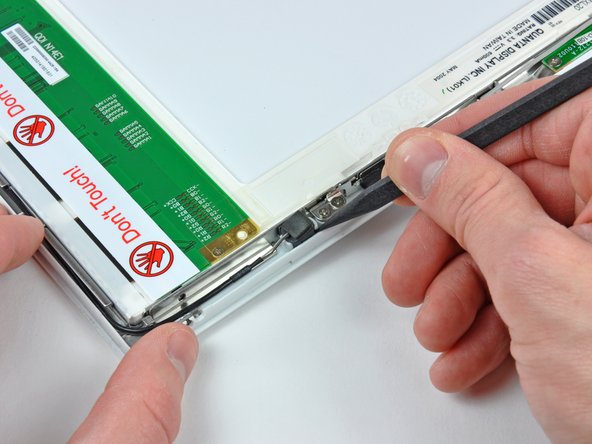
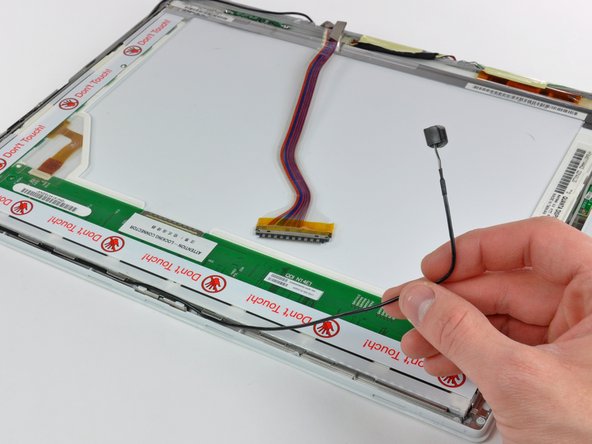
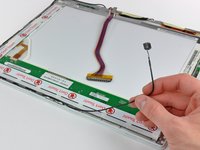
    • Use the tip of a spudger to lift the microphone out of the front bezel.

    • De-route the microphone cable from around the top and side of the display.

    Add Comment

  53. iBook G3 14" Inverter/AirPort Cables Replacement: step 54, image 1 of 1
    • Remove the display data cable from the display.

    Add Comment

  54. iBook G3 14" Inverter/AirPort Cables Replacement: step 55, image 1 of 2 iBook G3 14" Inverter/AirPort Cables Replacement: step 55, image 2 of 2
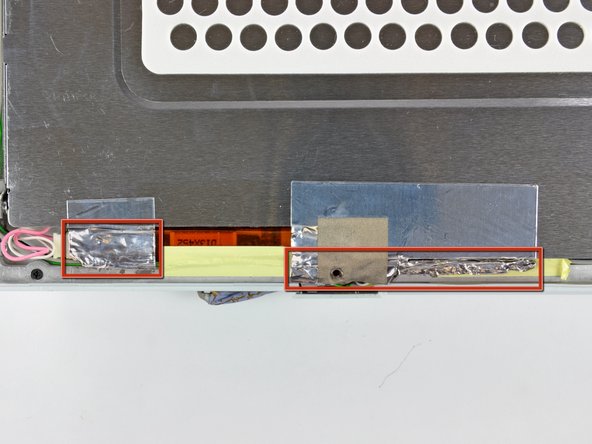
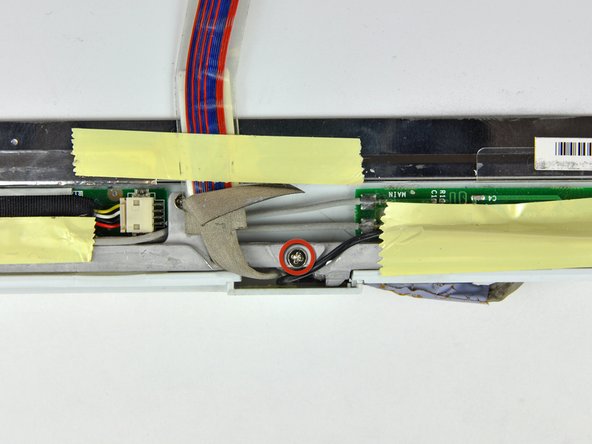
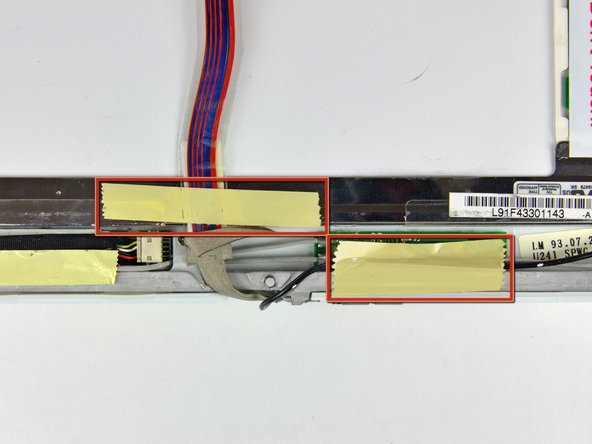
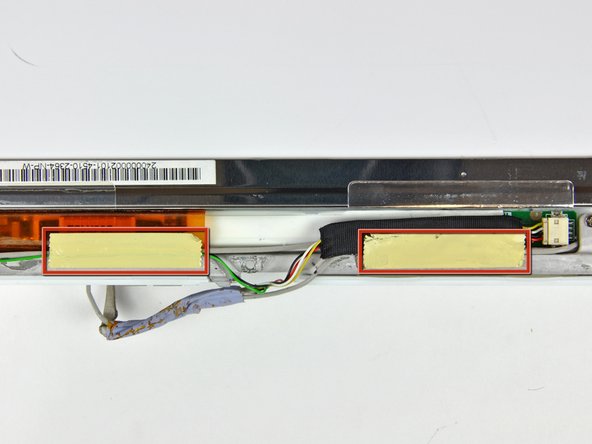
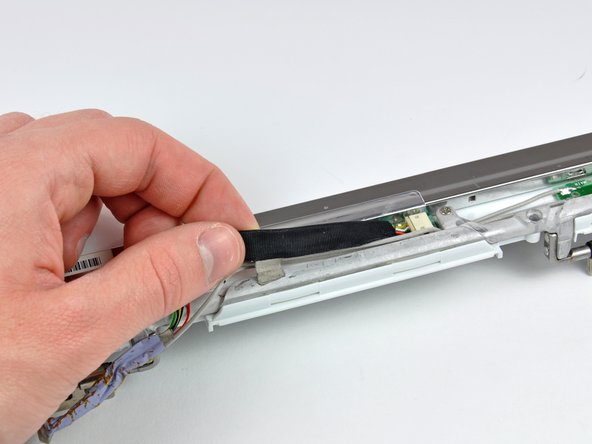
    • Remove the two pieces of tape covering the inverter/AirPort cables along the lower edge of the display.

    • Carefully peel the inverter cable ground strap off the cast aluminum frame of the clutch hinges.

    Add Comment

  55. iBook G3 14" Inverter/AirPort Cables Replacement: step 56, image 1 of 2 iBook G3 14" Inverter/AirPort Cables Replacement: step 56, image 2 of 2
    • Disconnect the backlight cable from the inverter.

    • It is helpful to use a spudger to push the backlight connector away from its socket while you lightly pull its cables away from the inverter.

    Add Comment

  56. iBook G3 14" Inverter/AirPort Cables Replacement: step 57, image 1 of 1
    • Lift the LCD out of the display assembly.

    • It may be helpful to press the latch release button and open your display slightly to push the LCD out of the display assembly.

    Add Comment

  57. iBook G3 14" Inverter/AirPort Cables Replacement: step 58, image 1 of 1
    • Remove the single Phillips screw securing the reed switch board to the front bezel.

    • Carefully lift the reed switch board off the metal frame of the clutch hinges.

    Add Comment

  58. iBook G3 14" Inverter/AirPort Cables Replacement: step 59, image 1 of 2 iBook G3 14" Inverter/AirPort Cables Replacement: step 59, image 2 of 2
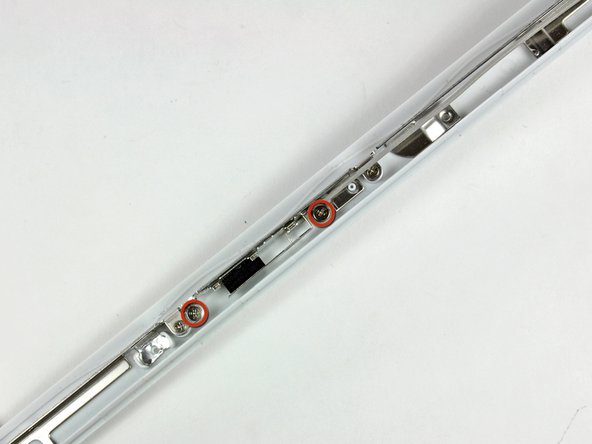
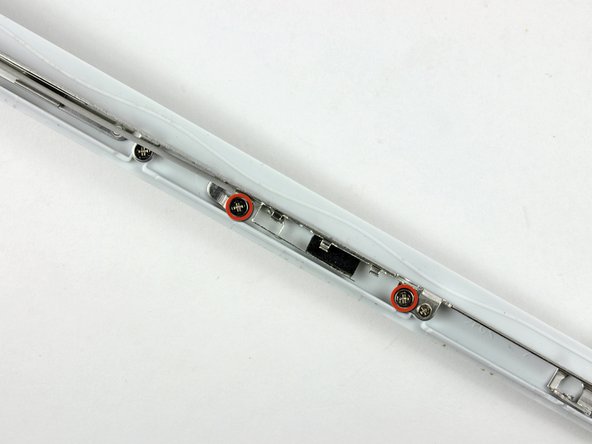
    • Remove the two Phillips screws securing the right AirPort antenna to the clutch hinge frame.

    • Carefully lift the right AirPort antenna off the clutch hinge frame.

    Add Comment

  59. iBook G3 14" Inverter/AirPort Cables Replacement: step 60, image 1 of 2 iBook G3 14" Inverter/AirPort Cables Replacement: step 60, image 2 of 2
    • Remove the two Phillips screws securing the left AirPort antenna to the clutch hinge frame.

    • Carefully lift the left AirPort antenna off the clutch hinge frame.

    Add Comment

  60. iBook G3 14" Inverter/AirPort Cables Replacement: step 61, image 1 of 1
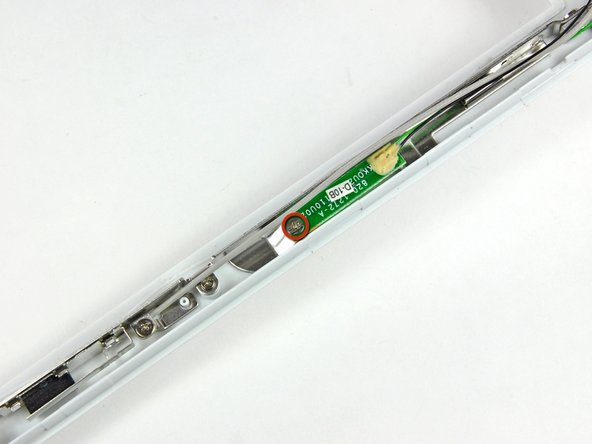
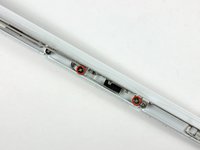
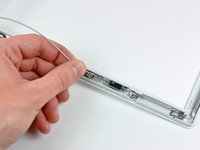
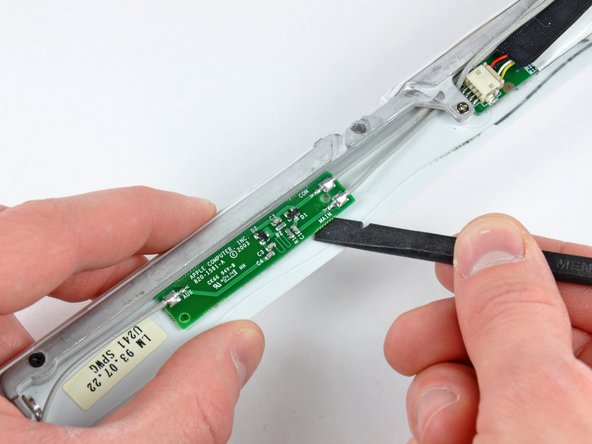
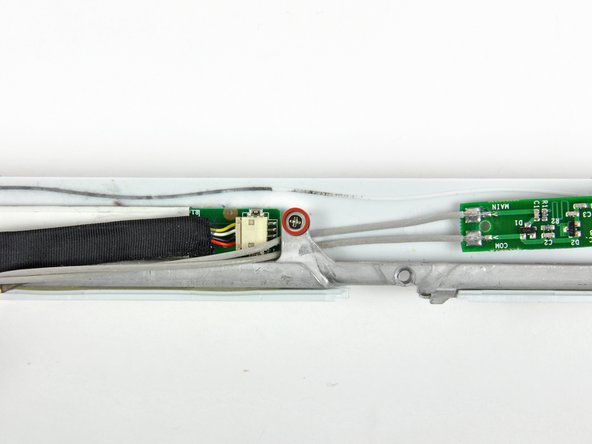
    • Use the flat end of a spudger to remove the antenna board from the front bezel.

    • The antenna board is very thin and delicate.

    Add Comment

  61. iBook G3 14" Inverter/AirPort Cables Replacement: step 62, image 1 of 2 iBook G3 14" Inverter/AirPort Cables Replacement: step 62, image 2 of 2
    • Remove the single Phillips screw securing the front bezel to the middle of the cast aluminum clutch hinge frame.

    • Carefully bend the front display bezel away from the clutch hinges as you slide the two AirPort antennas out from under the clutch hinge frame.

    Add Comment

  62. iBook G3 14" Inverter/AirPort Cables Replacement: step 63, image 1 of 2 iBook G3 14" Inverter/AirPort Cables Replacement: step 63, image 2 of 2
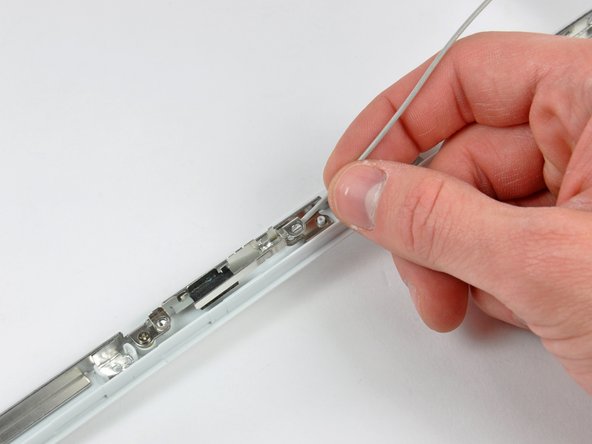
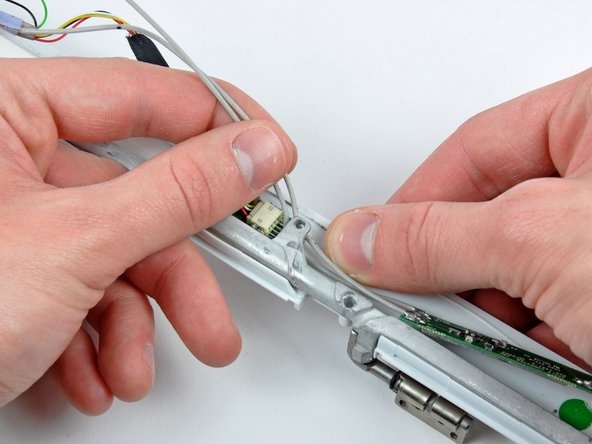
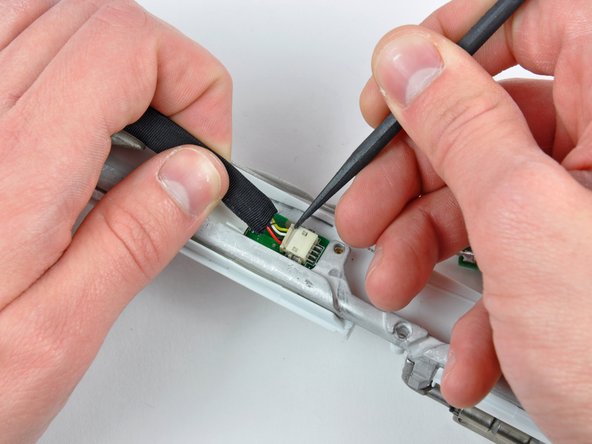
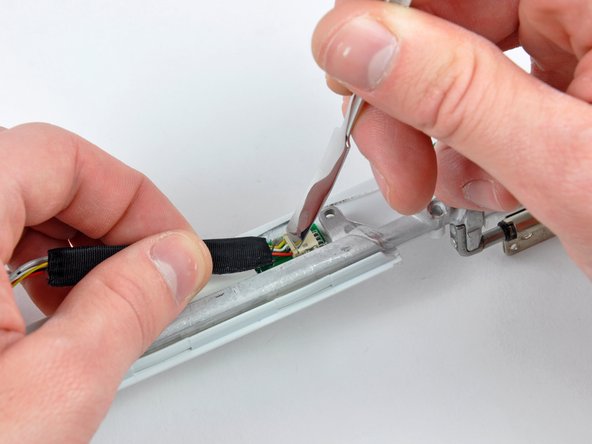
    • While pulling the inverter cable away from its socket on the inverter board, use the tip of a spudger to push the connector out of its socket.

    • If the connector won't budge from its socket, insert a metal spudger or similar tool into the gap between the connector and its socket and twist to separate the two pieces.

    Add Comment

Conclusion

To reassemble your device, follow these instructions in reverse order.

Cancel: I did not complete this guide.

System

Member since: 09/24/09

2,562 Guides authored

0 Guide Comments

Add Comment

View Statistics:

Past 24 Hours: 0

Past 7 Days: 0

Past 30 Days: 1

All Time: 11