iBook G4 14" 1.42 GHz LCD Replacement

What you need

  1. iBook G4 14" 1.42 GHz LCD Replacement, iBook G4 14" 1.42 GHz LCD Replacement: step 1, image 1 of 1
    • Use a coin to rotate the battery locking screw 90 degrees clockwise.

    Add Comment

  2. iBook G4 14" 1.42 GHz LCD Replacement: step 2, image 1 of 1
    • Lift the battery out of the computer.

    Add Comment

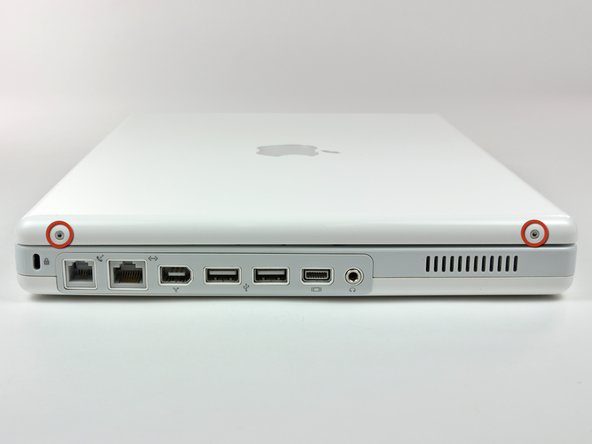
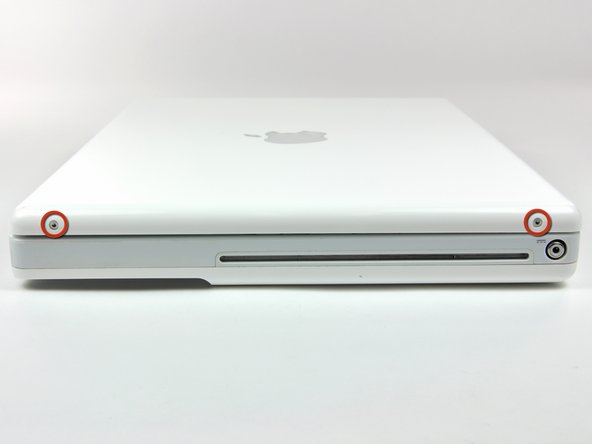
  3. iBook G4 14" 1.42 GHz LCD Replacement: step 3, image 1 of 2 iBook G4 14" 1.42 GHz LCD Replacement: step 3, image 2 of 2
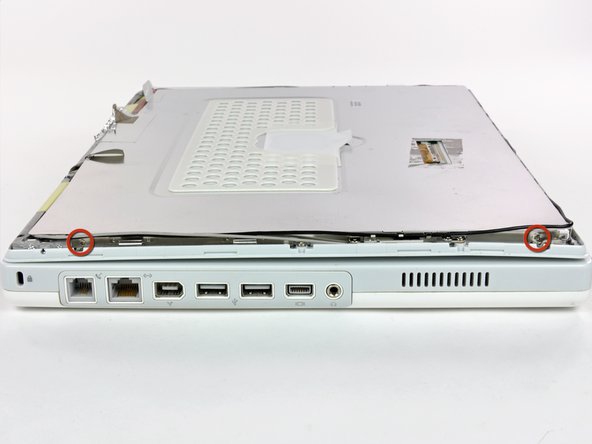
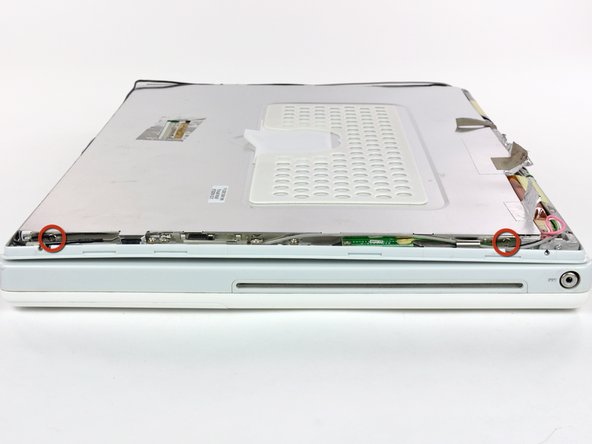
    • Use a 1.5 mm hex screwdriver to remove the two hex screws on either side of the display (four screws total).

    • If you don't have a 1.5 mm hex driver, you can probably get these screws out with a T6 Torx screwdriver. However, if you use a T6 Torx driver you'll be more likely to strip the screws.

    Add Comment

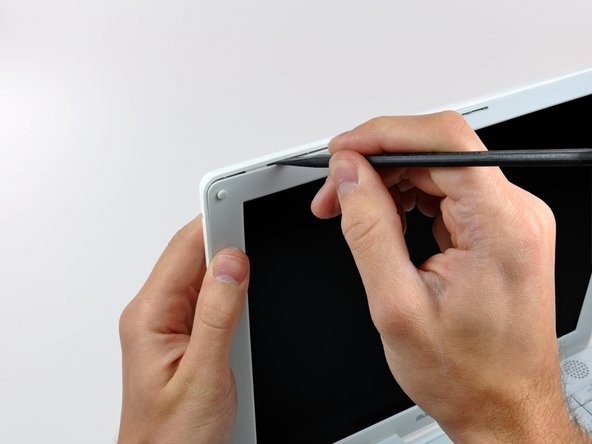
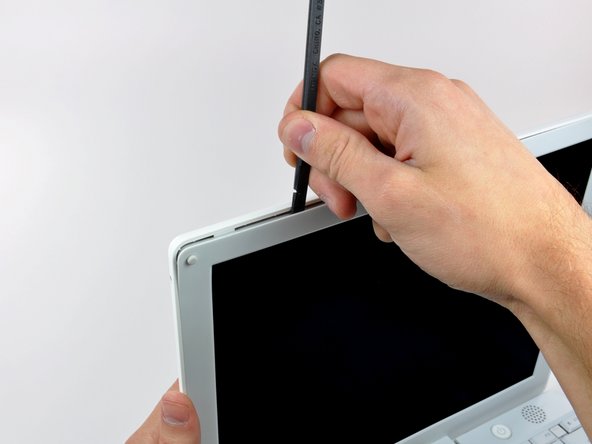
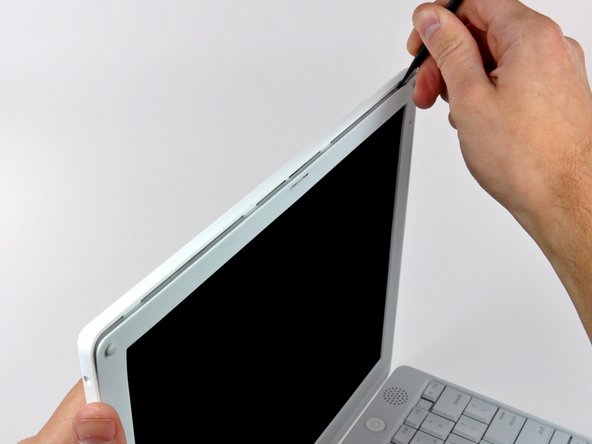
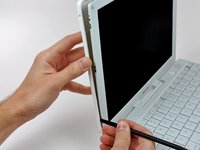
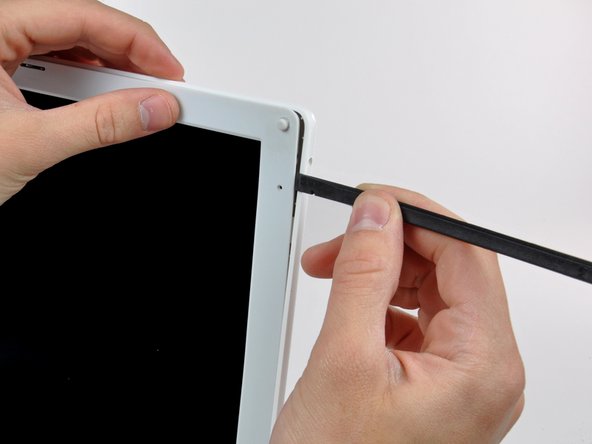
  4. iBook G4 14" 1.42 GHz LCD Replacement: step 4, image 1 of 2 iBook G4 14" 1.42 GHz LCD Replacement: step 4, image 2 of 2
    • Insert the flat end of a spudger perpendicular to the face of the display into the gap between the front and rear bezels near the upper left corner of the display.

    • Rotate the spudger away from the display to pry the rear bezel off the front bezel.

    Add Comment

  5. iBook G4 14" 1.42 GHz LCD Replacement: step 5, image 1 of 1
    • Run your spudger along the top edge of the front display bezel to evenly separate the two bezels.

    Add Comment

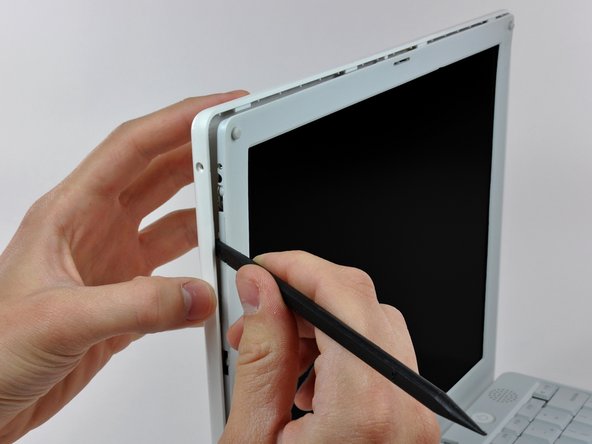
  6. iBook G4 14" 1.42 GHz LCD Replacement: step 6, image 1 of 2 iBook G4 14" 1.42 GHz LCD Replacement: step 6, image 2 of 2
    • Working down from the upper left corner, use the flat end of a spudger to pry the rear bezel away from the left edge of the display.

    Add Comment

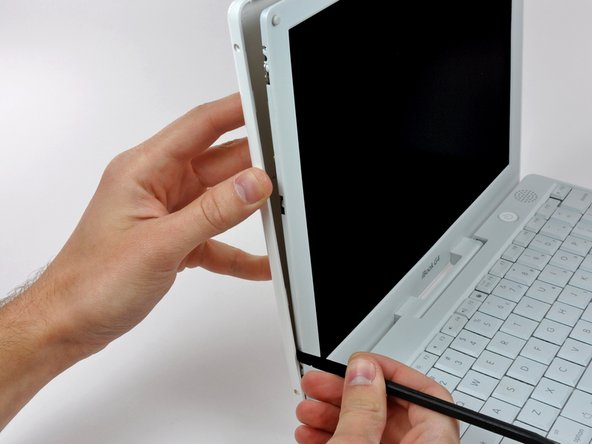
  7. iBook G4 14" 1.42 GHz LCD Replacement: step 7, image 1 of 1
    • Use the flat end of a spudger to pry the rear bezel away from the right edge of the display.

    • If necessary, pry along the bottom edge of the rear bezel to separate it from the display assembly.

    Add Comment

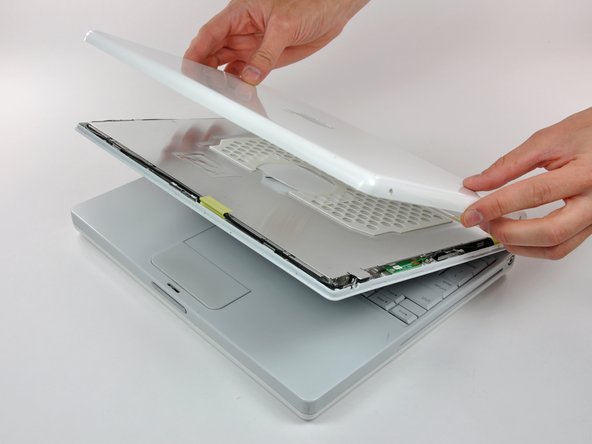
  8. iBook G4 14" 1.42 GHz LCD Replacement: step 8, image 1 of 1
    • Lift the rear bezel off the display assembly.

    Add Comment

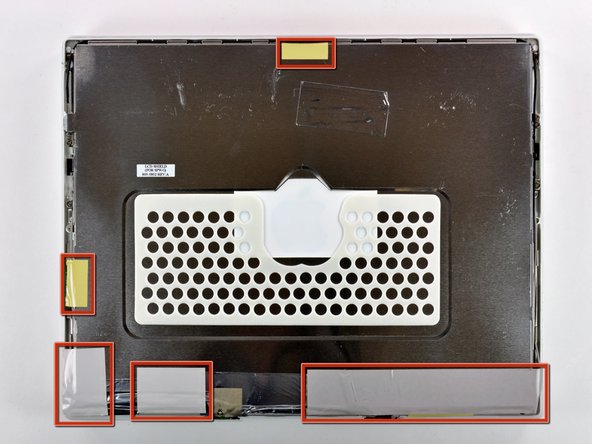
  9. iBook G4 14" 1.42 GHz LCD Replacement: step 9, image 1 of 2 iBook G4 14" 1.42 GHz LCD Replacement: step 9, image 2 of 2
    • Close the display.

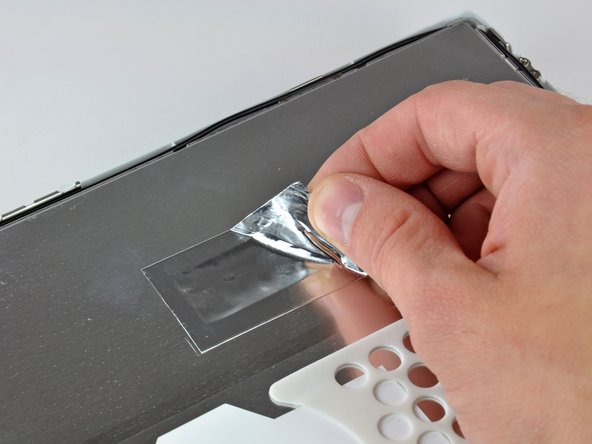
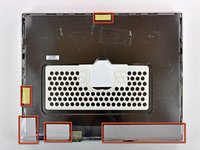
    • Remove the several pieces of tape securing the thin metal LCD cover to the display.

    • Carefully remove the piece of foil tape covering the display data cable connection.

    Add Comment

  10. iBook G4 14" 1.42 GHz LCD Replacement: step 10, image 1 of 2 iBook G4 14" 1.42 GHz LCD Replacement: step 10, image 2 of 2
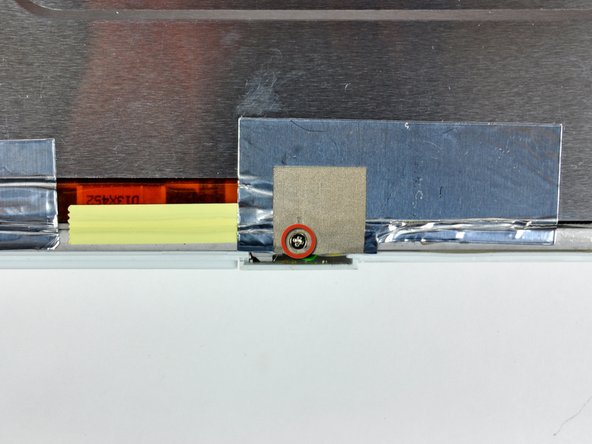
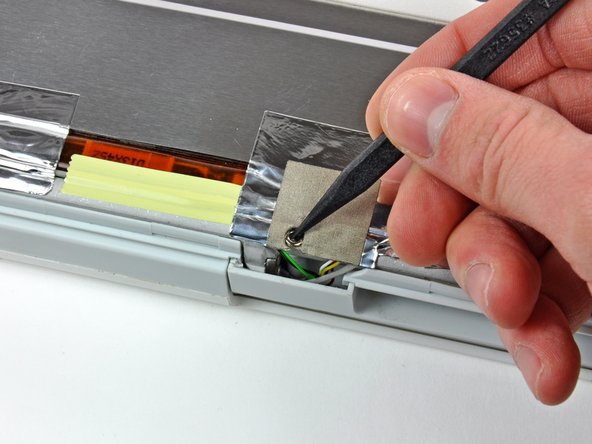
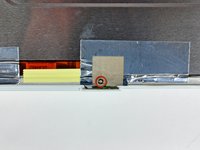
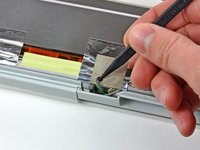
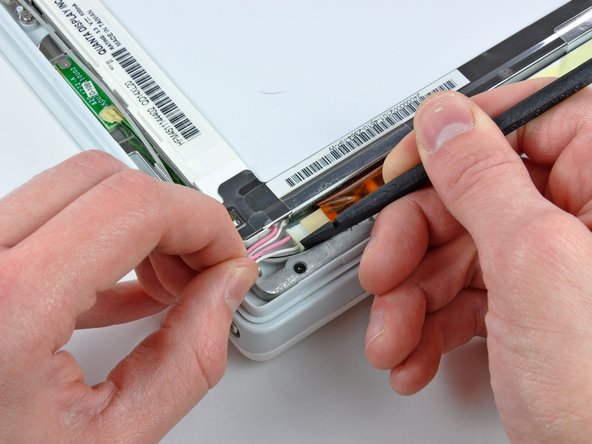
    • Remove the Phillips screw near the right display hinge.

    • Use the tip of a spudger to remove the small spacer under the screw you just removed.

    Add Comment

  11. iBook G4 14" 1.42 GHz LCD Replacement: step 11, image 1 of 1
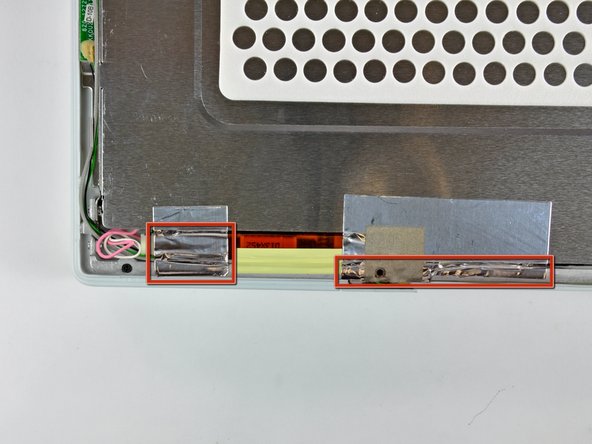
    • Pull the foil/braided pieces of tape off the aluminum frame of the clutch hinges.

    • Leave the tape attached to the thin steel LCD cover.

    Add Comment

  12. iBook G4 14" 1.42 GHz LCD Replacement: step 12, image 1 of 2 iBook G4 14" 1.42 GHz LCD Replacement: step 12, image 2 of 2
    • Remove the two Phillips screws securing the left and right sides of the LCD to the frame of the clutch hinges (four screws total).

    Add Comment

  13. iBook G4 14" 1.42 GHz LCD Replacement: step 13, image 1 of 1
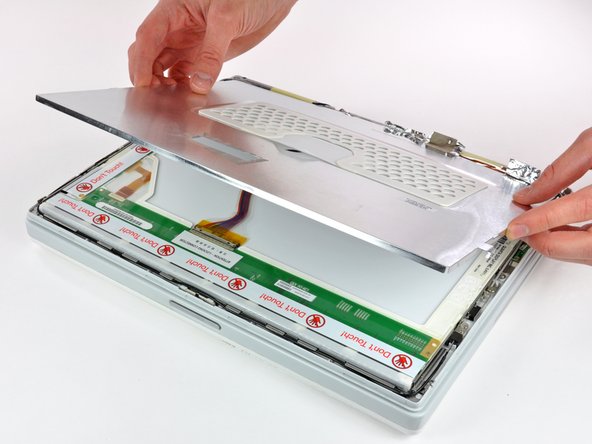
    • Carefully remove the thin steel LCD cover.

    Add Comment

  14. iBook G4 14" 1.42 GHz LCD Replacement: step 14, image 1 of 1
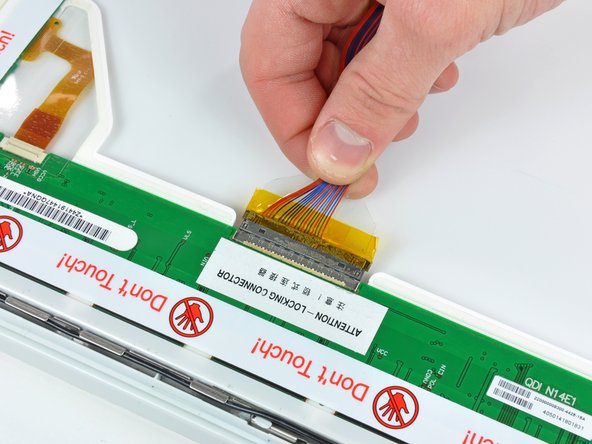
    • Disconnect the display data cable by pulling the cable away from the socket on the LCD.

    Add Comment

  15. iBook G4 14" 1.42 GHz LCD Replacement: step 15, image 1 of 1
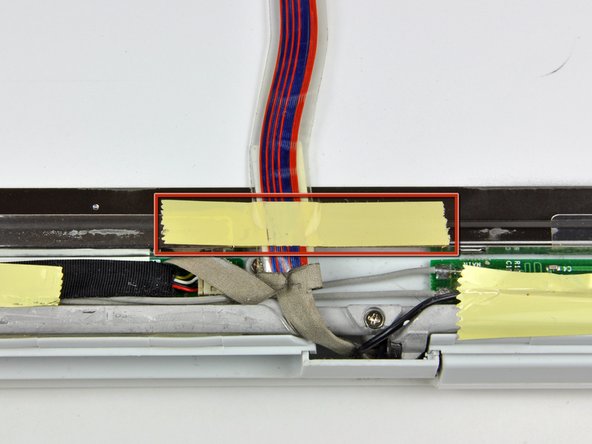
    • Remove the strip of yellow tape securing the display data cable to the metal LCD frame.

    Add Comment

  16. iBook G4 14" 1.42 GHz LCD Replacement: step 16, image 1 of 2 iBook G4 14" 1.42 GHz LCD Replacement: step 16, image 2 of 2
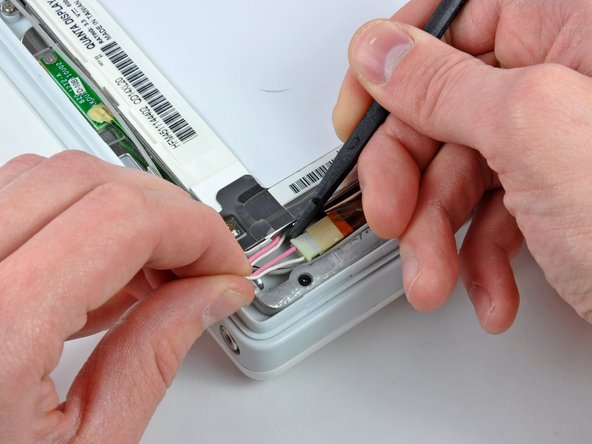
    • Disconnect the backlight cable from the inverter.

    • It is helpful to use a spudger to push the backlight connector away from its socket while you lightly pull its cables away from the inverter.

    Add Comment

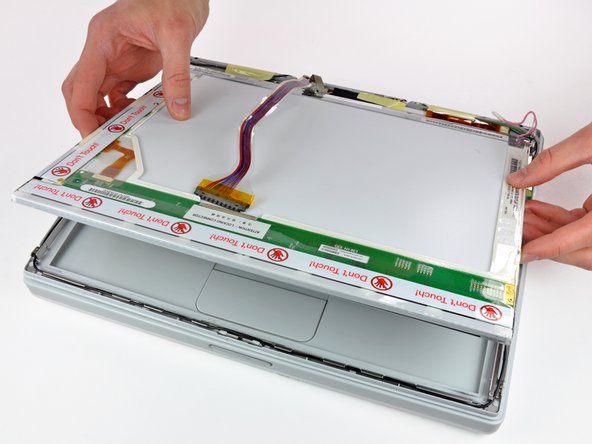
  17. iBook G4 14" 1.42 GHz LCD Replacement: step 17, image 1 of 1
    • Lift the LCD out of the display assembly.

    • It may be helpful to press the latch release button and open your display slightly to push the LCD out of the display assembly.

    Add Comment

Conclusion

To reassemble your device, follow these instructions in reverse order.

Cancel: I did not complete this guide.

System

Member since: 09/24/09

2,562 Guides authored

0 Guide Comments

Add Comment

View Statistics:

Past 24 Hours: 0

Past 7 Days: 0

Past 30 Days: 2

All Time: 21