iMac G4 17 800 MHz EMC 1936 Fan Replacement

Views: 11

View statistics:

Past 24 Hours:
0
Past 7 Days:
0
Past 30 Days:
2
All Time:
11
Comments: 0

No one has left comments on this guide. Will you be first?

Go to guide comments
Completed: 0

No one has marked this guide "completed." Will you be the first?

Favorites: 0

No one has favorited (and subscribed to) this guide. Will you be the first?

Time Required: No estimate
Difficulty: Moderate
iMac G4 17 800 MHz EMC 1936 Fan Replacement

Introduction

Go to step 1 ↓

Remove all electrical wires from the computer, and lay the computer flat on its screen. The computer should rest on a smooth, padded surface.

    1. iMac G4 17 800 MHz EMC 1936 Fan Replacement, iMac G4 17 800 MHz EMC 1936 Fan Replacement: step 1, image 1 of 1
      • Unplug all the cables from the computer, including the power cable. Lay the computer face-down, supporting the neck and base with a soft cloth under the screen.

      Add Comment

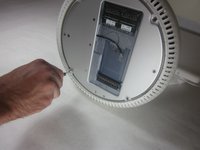
    2. iMac G4 17 800 MHz EMC 1936 Fan Replacement: step 2, image 1 of 1
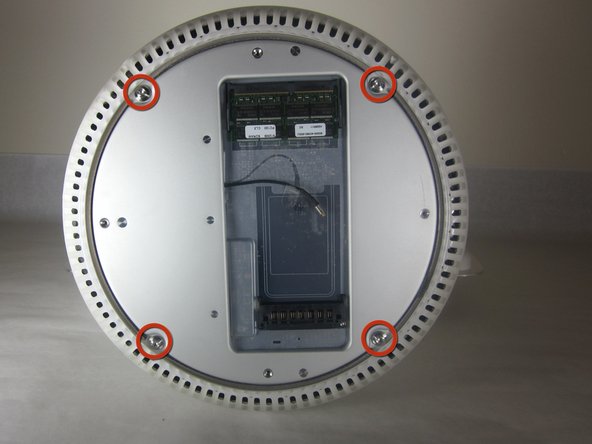
      • Loosen the four Phillips #0 screws.

      Add Comment

    3. iMac G4 17 800 MHz EMC 1936 Fan Replacement: step 3, image 1 of 1
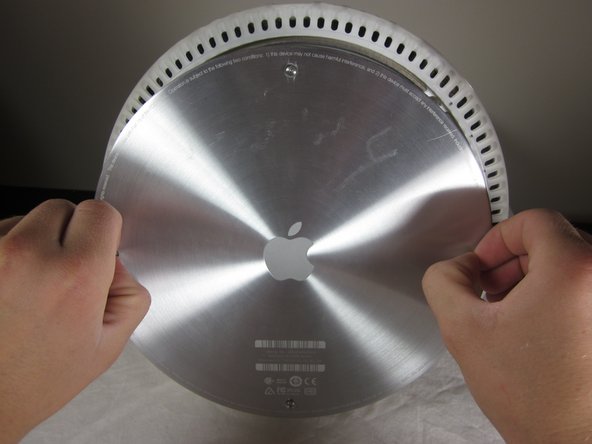
      • Carefully remove the base access panel.

      Add Comment

    4. iMac G4 17 800 MHz EMC 1936 Fan Replacement: step 4, image 1 of 2 iMac G4 17 800 MHz EMC 1936 Fan Replacement: step 4, image 2 of 2
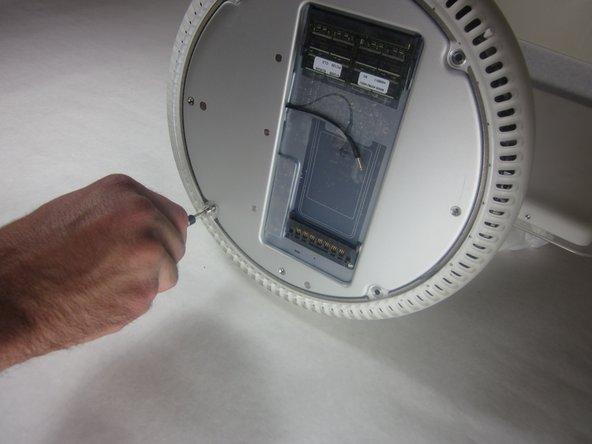
      • Remove the four 25mm T-15 screws.

      Add Comment

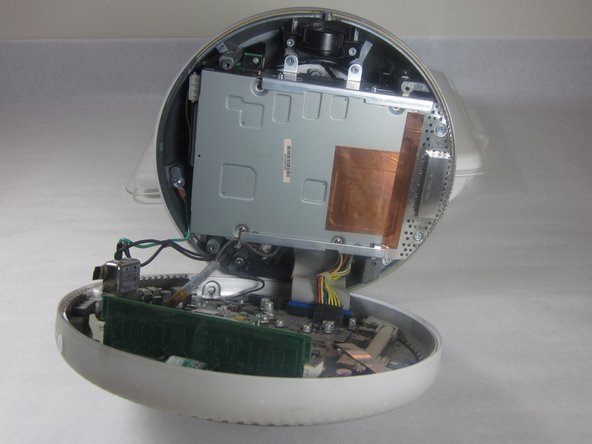
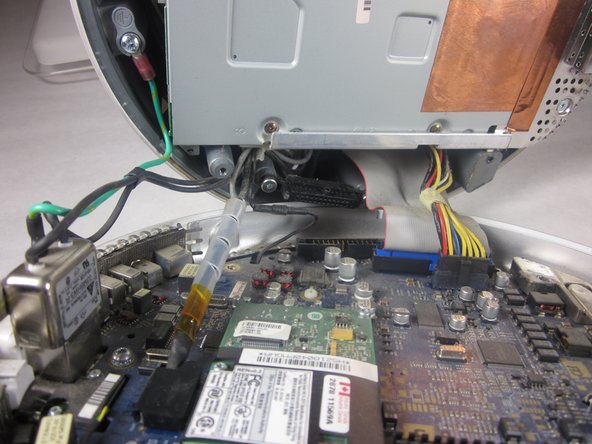
    5. iMac G4 17 800 MHz EMC 1936 Fan Replacement: step 5, image 1 of 2 iMac G4 17 800 MHz EMC 1936 Fan Replacement: step 5, image 2 of 2
      • Open the housing plate.

      • Be gentle with the wires still connected to the logic board so as not to ruin the cables.

      • A fixed plug connector between the logic board and upper unit will cause some resistance. Pull gently but firmly.

      Add Comment

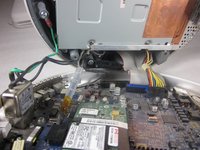
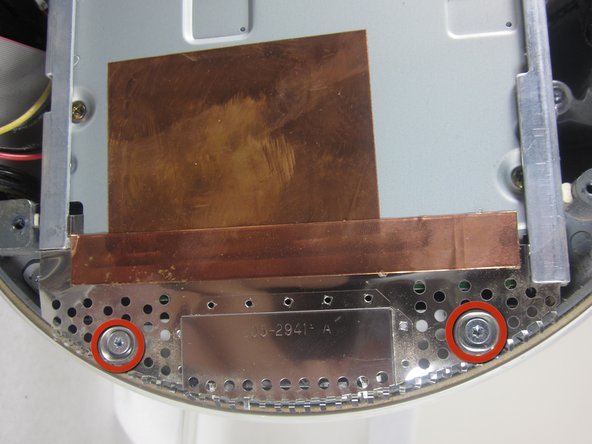
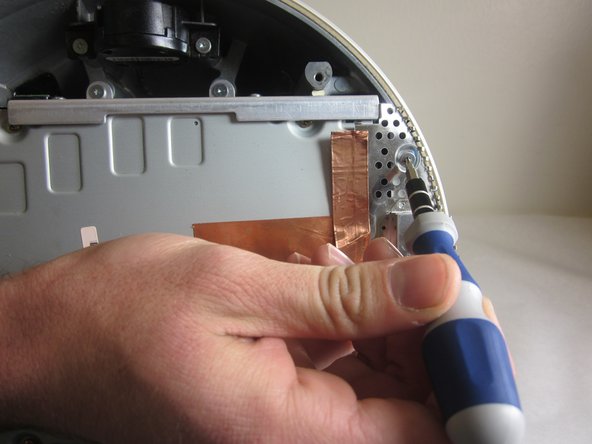
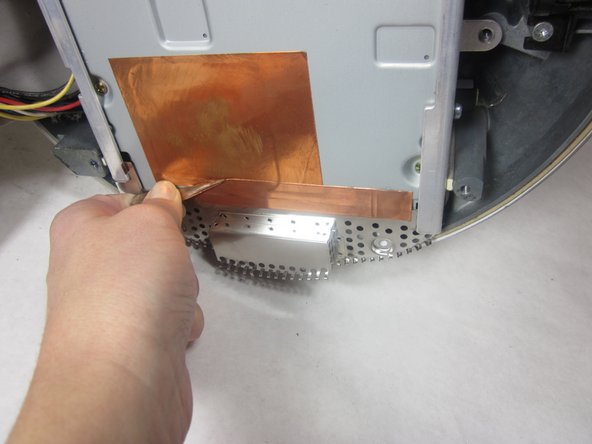
    6. iMac G4 17 800 MHz EMC 1936 Fan Replacement: step 6, image 1 of 3 iMac G4 17 800 MHz EMC 1936 Fan Replacement: step 6, image 2 of 3 iMac G4 17 800 MHz EMC 1936 Fan Replacement: step 6, image 3 of 3
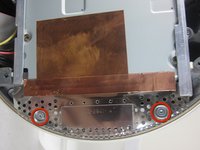
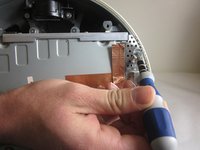
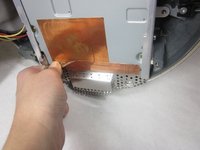
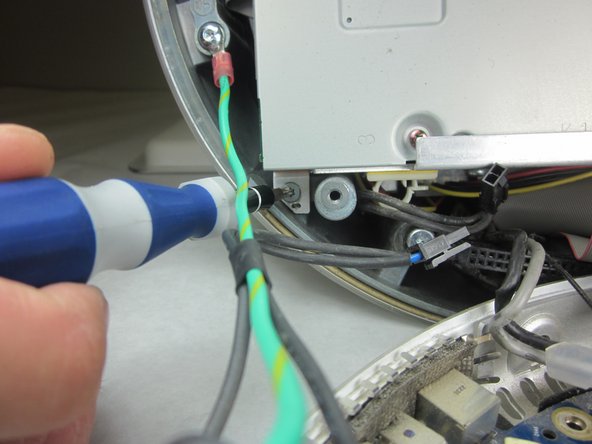
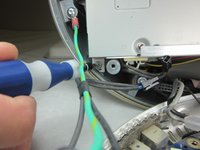
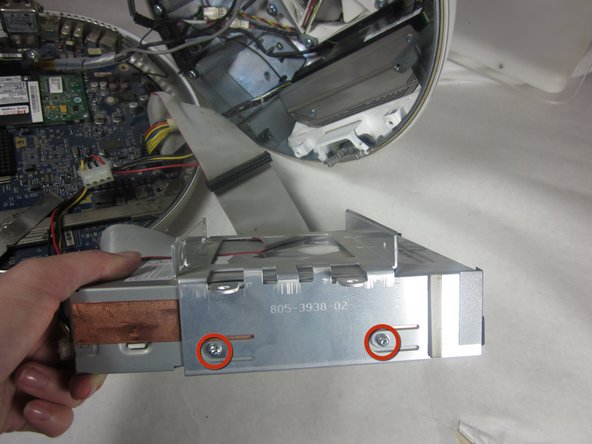
      • Remove the 2 torx 10mm screws on the EMI shield

      • Carefully remove shield and copper tape

      Add Comment

    7. iMac G4 17 800 MHz EMC 1936 Fan Replacement: step 7, image 1 of 2 iMac G4 17 800 MHz EMC 1936 Fan Replacement: step 7, image 2 of 2
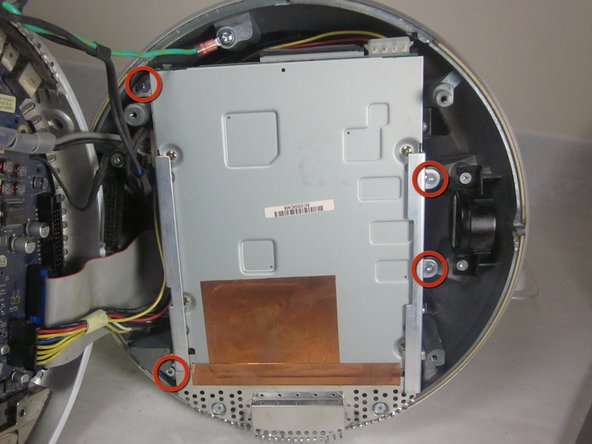
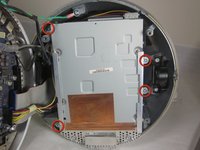
      • Remove the 4 10mm torx screws attatched to the drive carrier.

      • The drive carrier includes optical drive and hard drive.

      Add Comment

    8. iMac G4 17 800 MHz EMC 1936 Fan Replacement: step 8, image 1 of 1
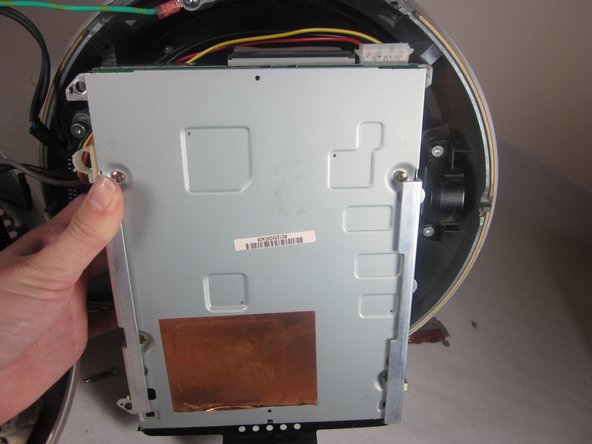
      • Grasp the carrier with both hands on each side.

      • Remove the carrier by lifting up and out.

      • Pull gently but firmly. The carrier is meant to fit snugly.

      Add Comment

    9. iMac G4 17 800 MHz EMC 1936 Fan Replacement: step 9, image 1 of 1
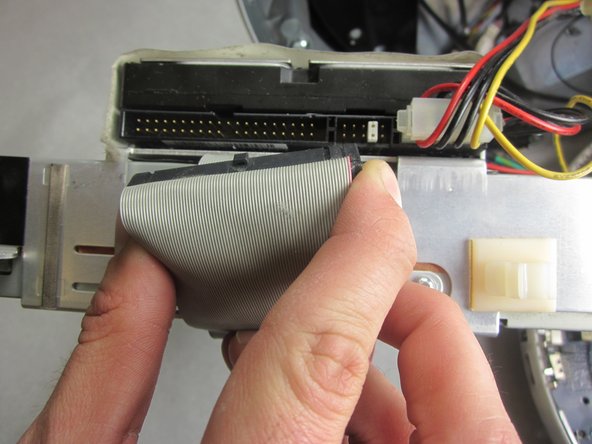
      • Flip the removed carrier to the right and pull out power cables.

      Add Comment

    10. iMac G4 17 800 MHz EMC 1936 Fan Replacement: step 10, image 1 of 3 iMac G4 17 800 MHz EMC 1936 Fan Replacement: step 10, image 2 of 3 iMac G4 17 800 MHz EMC 1936 Fan Replacement: step 10, image 3 of 3
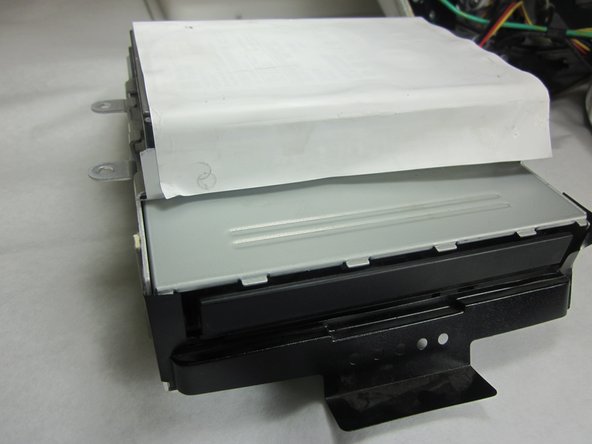
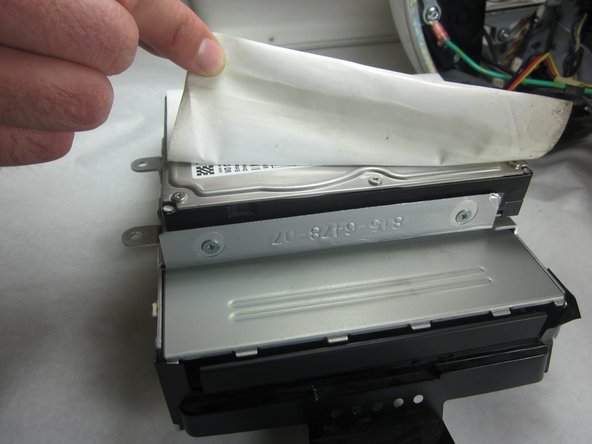
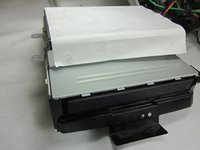
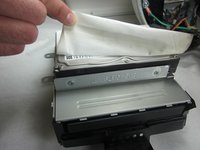
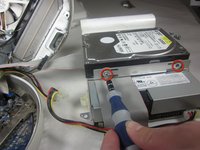
      • Peel back the white paper, revealing the screws that connect the hard drive to the carrier.

      • Remove the 4 T-10 5mm screws connecting the hard drive and frame. (There are 2 screws on each side)

      Add Comment

    11. iMac G4 17 800 MHz EMC 1936 Fan Replacement: step 11, image 1 of 1
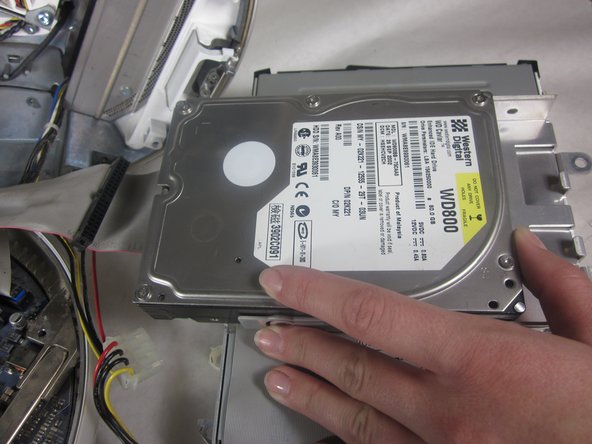
      • Slide the hard drive out from the frame and optical drive.

      Add Comment

    12. iMac G4 17 800 MHz EMC 1936 Fan Replacement: step 12, image 1 of 1
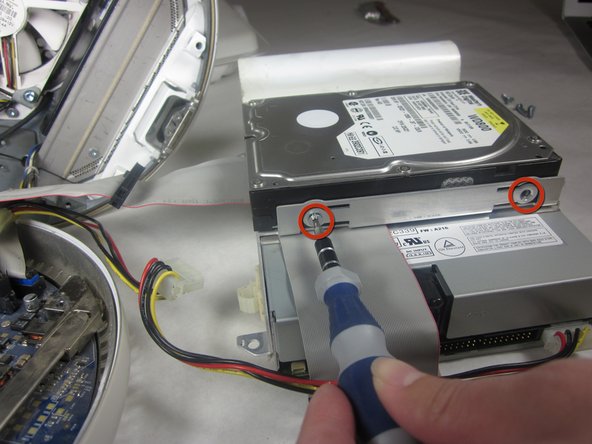
      • Remove the four T-10 6mm screws at the sides of the drive.

      Add Comment

    13. iMac G4 17 800 MHz EMC 1936 Fan Replacement: step 13, image 1 of 1
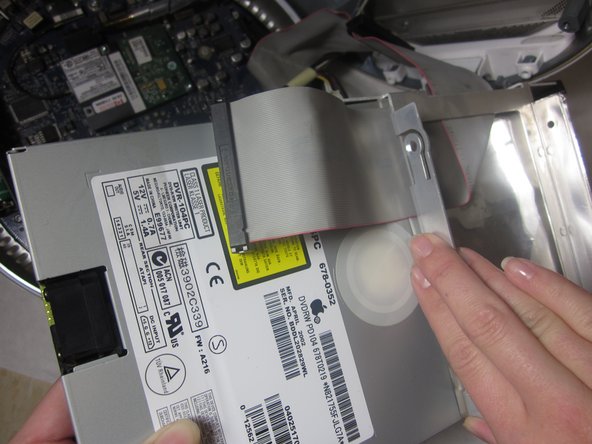
      • Slide the optical drive out of the carrier

      Add Comment

    14. iMac G4 17 800 MHz EMC 1936 Fan Replacement: step 14, image 1 of 2 iMac G4 17 800 MHz EMC 1936 Fan Replacement: step 14, image 2 of 2
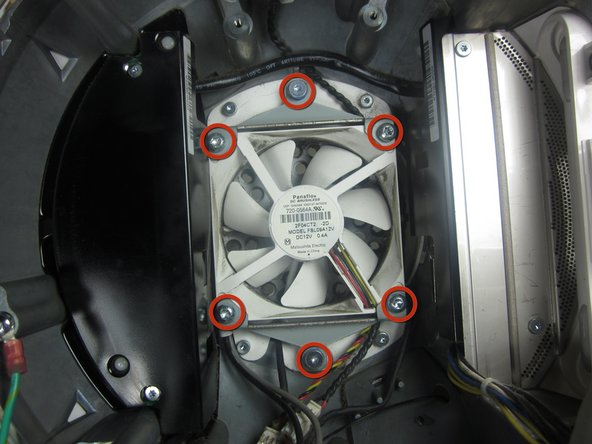
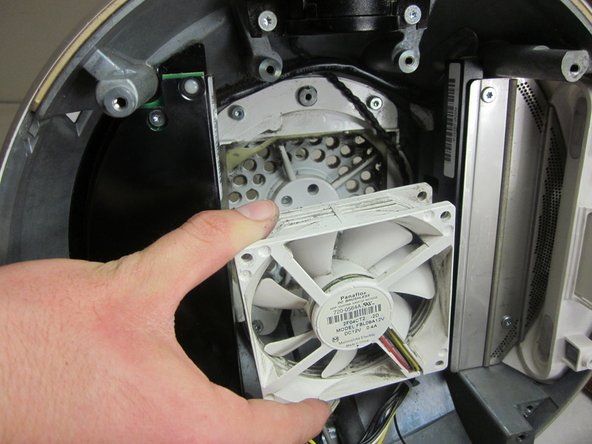
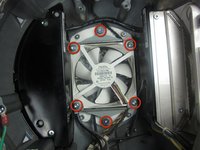
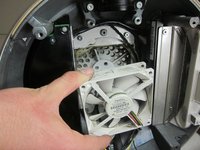
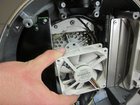
      • Take out the six T-15 screws that hold the fan in place, and remove the fan.

      Add Comment

Conclusion

To reassemble your device, follow these instructions in reverse order.

Cancel: I did not complete this guide.

System

Member since: 09/24/09

2,562 Guides authored

0 Guide Comments

Add Comment

View Statistics:

Past 24 Hours: 0

Past 7 Days: 0

Past 30 Days: 2

All Time: 11