iMac G5 20" Model A1076 Modem Replacement

What you need

  1. iMac G5 20" Model A1076 Modem Replacement, iMac G5 20" Model A1076 Modem Replacement: step 1, image 1 of 1
    • Lay the iMac display-side down on a flat surface.

    • Loosen the three Phillips screws securing the rear panel to the iMac.

    • These screws are captive in the iMac. The center screw will stop turning after about 3.5 turns and the outer screws will stop turning after about 5.5 turns. Do not try to remove these screws from your iMac.

    Add Comment

  2. iMac G5 20" Model A1076 Modem Replacement: step 2, image 1 of 2 iMac G5 20" Model A1076 Modem Replacement: step 2, image 2 of 2
    • Lift the rear panel slightly near the bottom of the iMac.

    • Pull the rear panel toward yourself and remove it from the iMac.

    Add Comment

  3. iMac G5 20" Model A1076 Modem Replacement: step 3, image 1 of 1
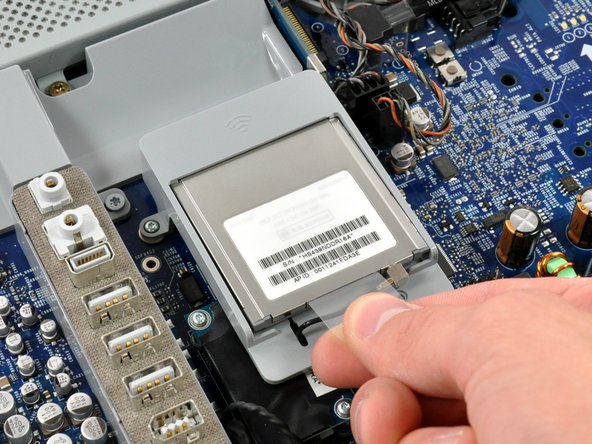
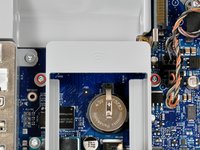
    • Lift the AirPort card slightly by its plastic tab and pull it straight away from its socket.

    • During reinstallation, insert the AirPort card such that the antenna side is nearest the center of the logic board.

    Add Comment

  4. iMac G5 20" Model A1076 Modem Replacement: step 4, image 1 of 1
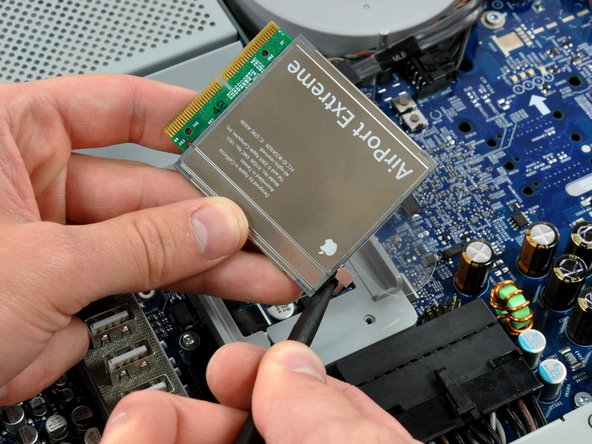
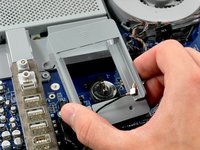
    • Insert the flat end of a spudger between the body of the AirPort card and its antenna connector.

    • Push the spudger away from the AirPort card to disconnect the AirPort antenna.

    • When reassembling your iMac, be sure to insert the AirPort card the way it was before disassembly.

    Add Comment

  5. iMac G5 20" Model A1076 Modem Replacement: step 5, image 1 of 2 iMac G5 20" Model A1076 Modem Replacement: step 5, image 2 of 2
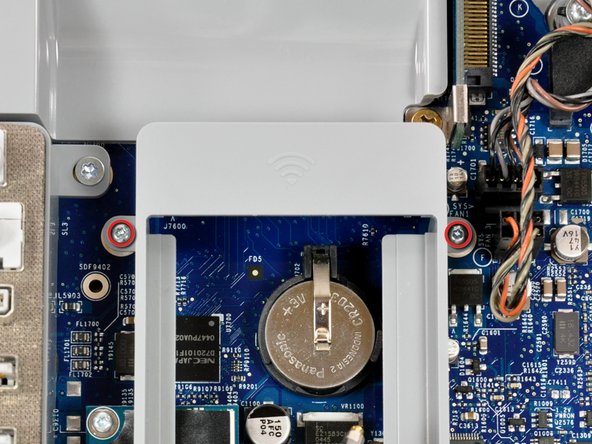
    • Remove the two 5.5 mm T6 Torx screws securing the AirPort bracket to the logic board.

    • Slightly lift the AirPort bracket off the logic board.

    Add Comment

  6. iMac G5 20" Model A1076 Modem Replacement: step 6, image 1 of 1
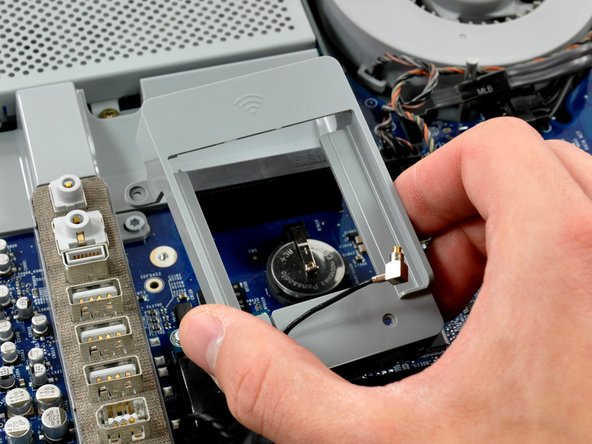
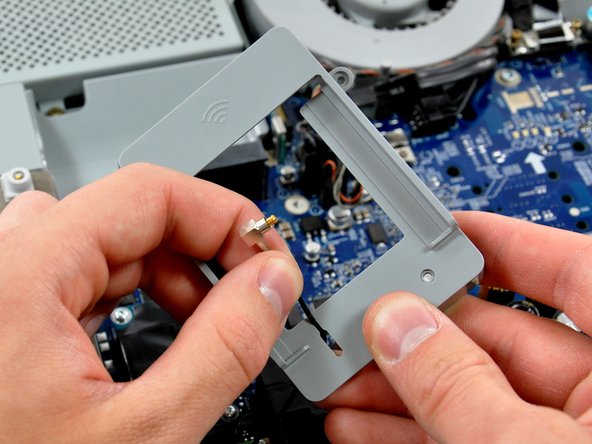
    • De-route the AirPort antenna through the slot in the AirPort bracket.

    Add Comment

  7. iMac G5 20" Model A1076 Modem Replacement: step 7, image 1 of 1
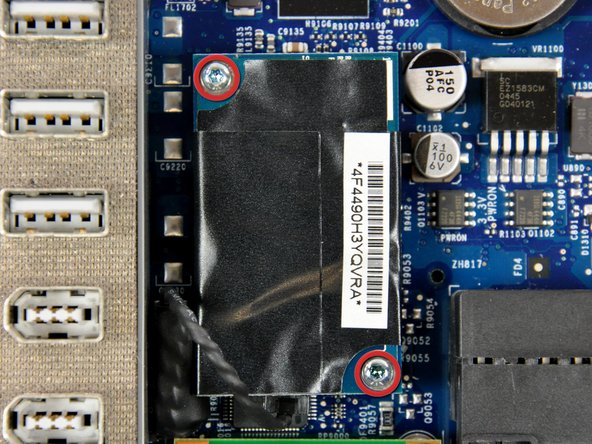
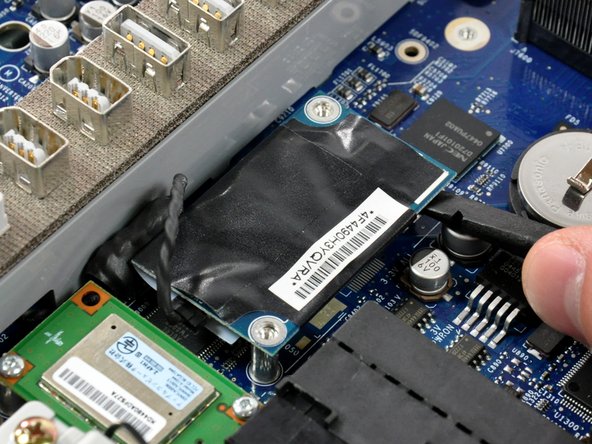
    • Remove the two 5.5 mm T6 Torx screws securing the modem to the logic board.

    Add Comment

  8. iMac G5 20" Model A1076 Modem Replacement: step 8, image 1 of 1
    • Pry the modem straight up from its top edge to disconnect it from the logic board.

    Add Comment

  9. iMac G5 20" Model A1076 Modem Replacement: step 9, image 1 of 1
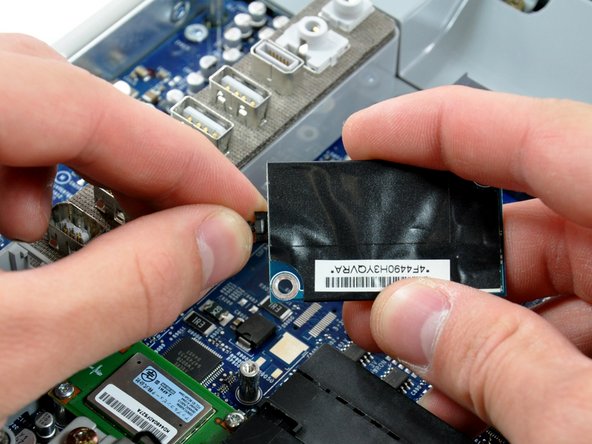
    • Pull the modem cable connector straight away from the modem.

    Add Comment

Conclusion

To reassemble your device, follow these instructions in reverse order.

Cancel: I did not complete this guide.

System

Member since: 09/24/09

2,562 Guides authored

0 Guide Comments

Add Comment

View Statistics:

Past 24 Hours: 0

Past 7 Days: 0

Past 30 Days: 1

All Time: 9