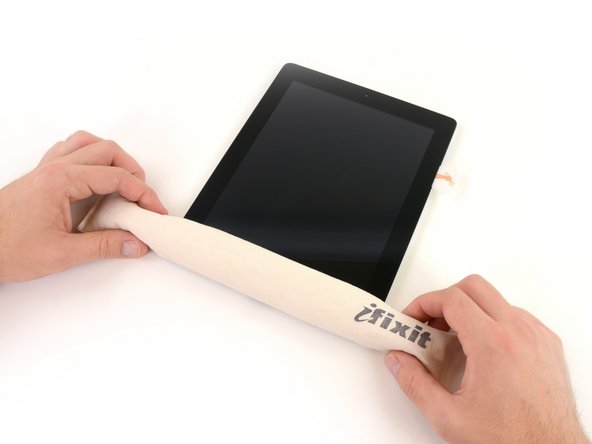
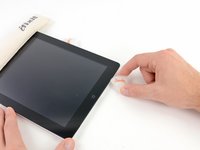
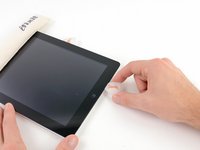
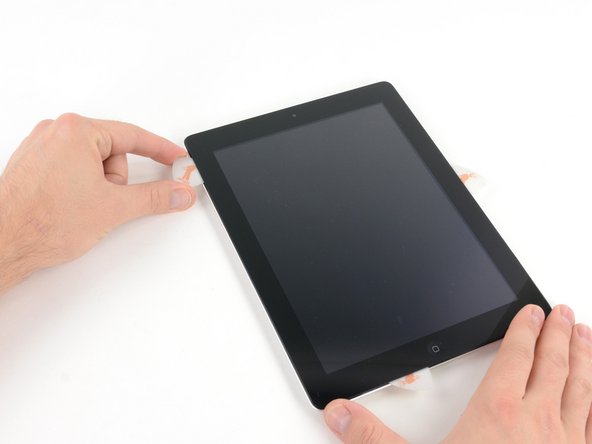
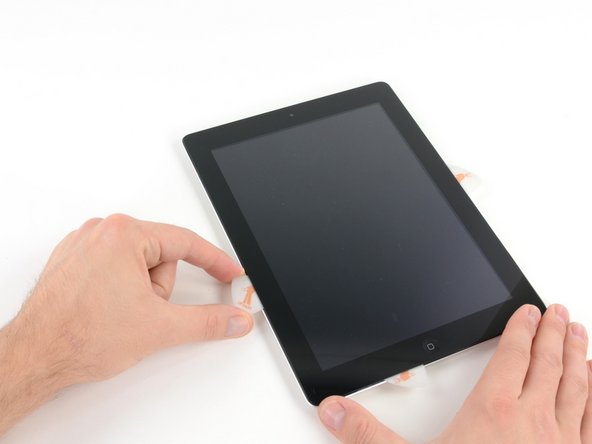
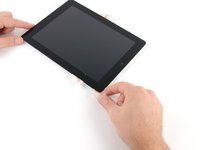
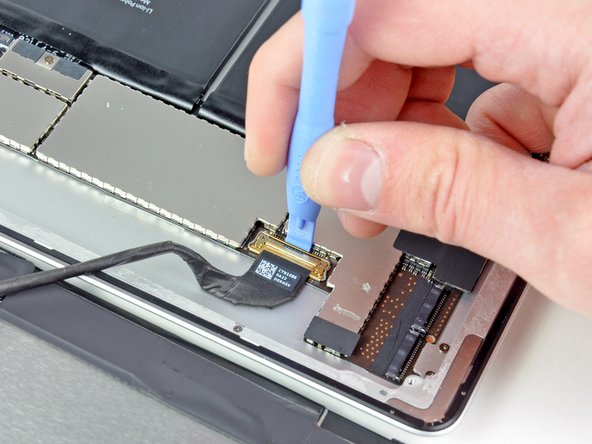
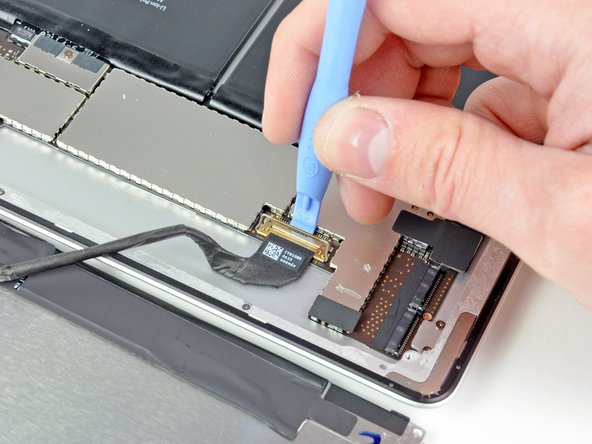
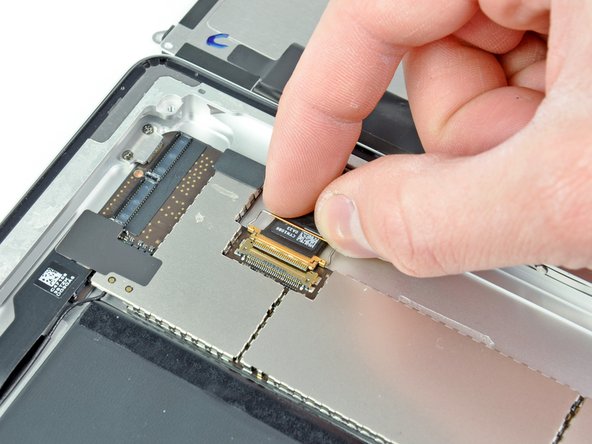
iPad 2 GSM Bluetooth/Wi-Fi Antenna Replacement

What you need

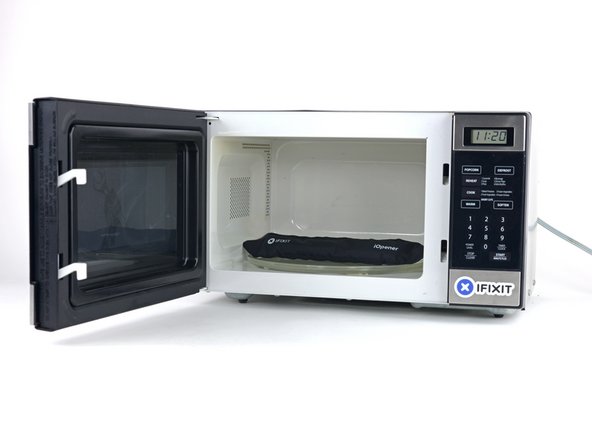
  1. iPad 2 GSM Bluetooth/Wi-Fi Antenna Replacement, iPad 2 GSM Bluetooth/Wi-Fi Antenna Replacement: step 1, image 1 of 2 iPad 2 GSM Bluetooth/Wi-Fi Antenna Replacement, iPad 2 GSM Bluetooth/Wi-Fi Antenna Replacement: step 1, image 2 of 2
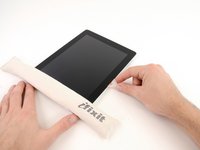
    • We recommend that you clean your microwave before proceeding, as any nasty gunk on the bottom may end up stuck to the iOpener.

    • Place the iOpener in the center of the microwave.

    • For carousel microwaves: Make sure the plate spins freely. If your iOpener gets stuck, it may overheat and burn.

    Add Comment

  2. iPad 2 GSM Bluetooth/Wi-Fi Antenna Replacement: step 2, image 1 of 1
    • Heat the iOpener for thirty seconds.

    • Throughout the repair procedure, as the iOpener cools, reheat it in the microwave for an additional thirty seconds at a time.

    • Be careful not to overheat the iOpener during the repair. Overheating may cause the iOpener to burst.

    • Never touch the iOpener if it appears swollen.

    • If the iOpener is still too hot in the middle to touch, continue using it while waiting for it to cool down some more before reheating. A properly heated iOpener should stay warm for up to 10 minutes.

    Add Comment

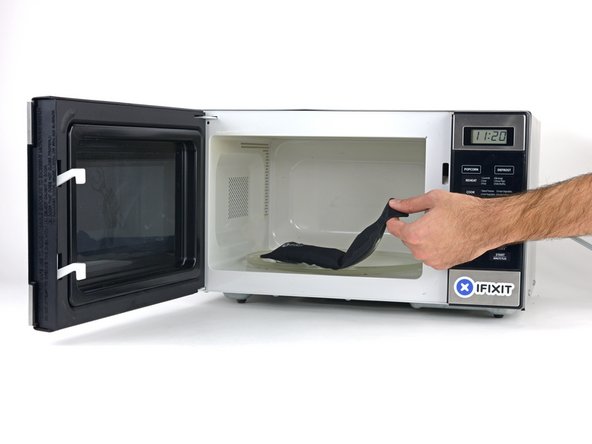
  3. iPad 2 GSM Bluetooth/Wi-Fi Antenna Replacement: step 3, image 1 of 1
    • Remove the iOpener from the microwave, holding it by one of the two flat ends to avoid the hot center.

    • The iOpener will be very hot, so be careful when handling it. Use an oven mitt if necessary.

    Add Comment

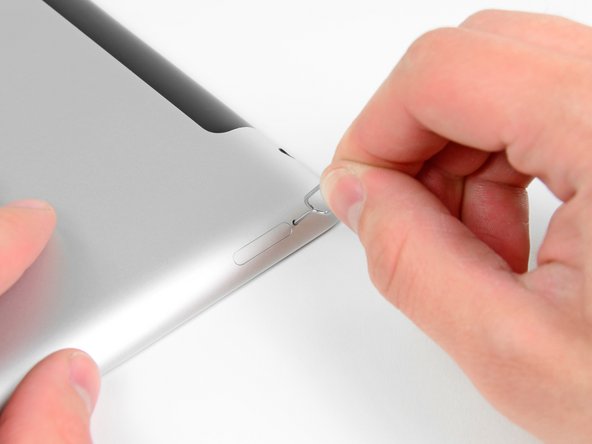
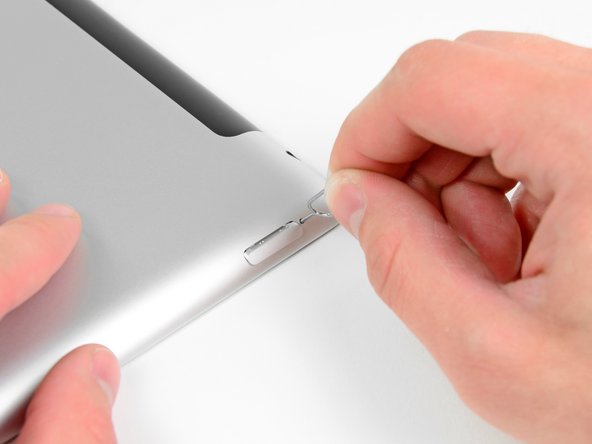
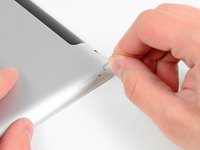
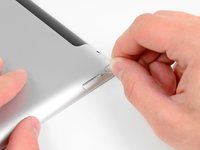
  4. iPad 2 GSM Bluetooth/Wi-Fi Antenna Replacement: step 4, image 1 of 2 iPad 2 GSM Bluetooth/Wi-Fi Antenna Replacement: step 4, image 2 of 2
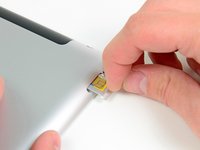
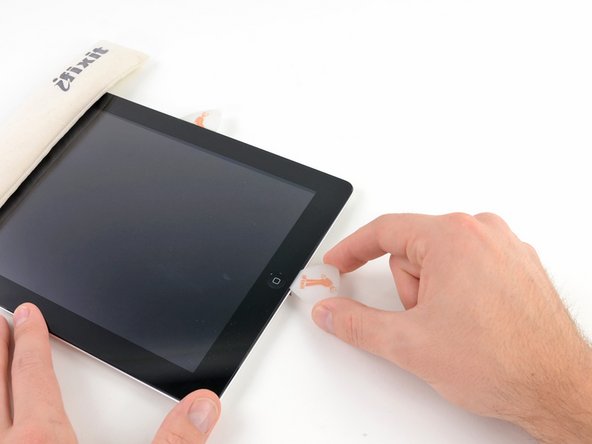
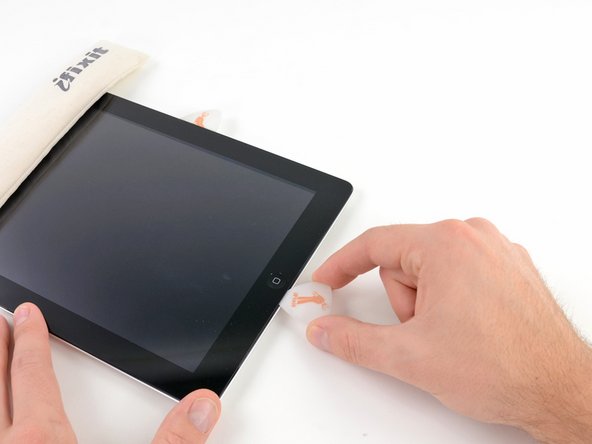
    • Use a SIM eject tool or an uncoiled paperclip to eject the SIM card tray.

    Add Comment

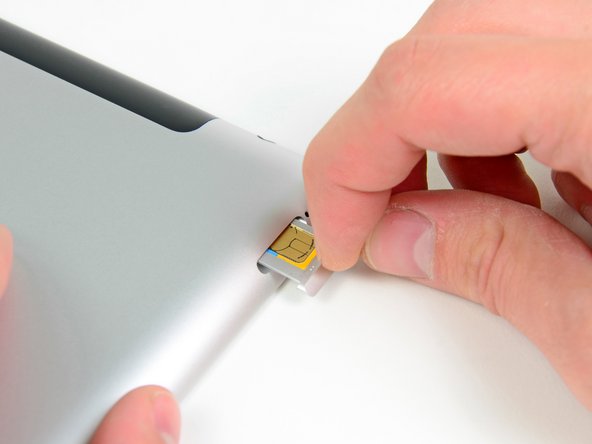
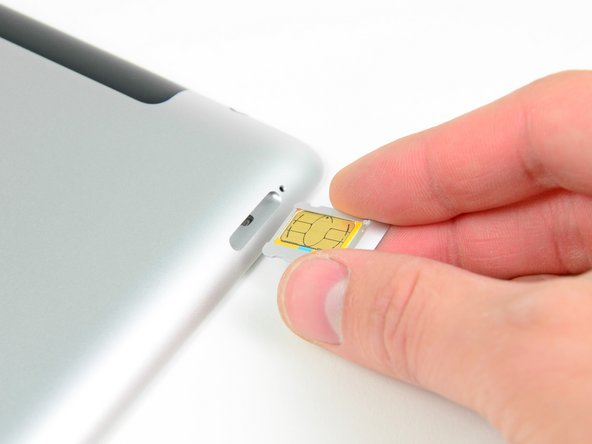
  5. iPad 2 GSM Bluetooth/Wi-Fi Antenna Replacement: step 5, image 1 of 2 iPad 2 GSM Bluetooth/Wi-Fi Antenna Replacement: step 5, image 2 of 2
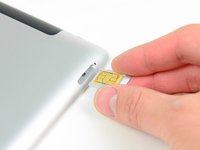
    • Pull the SIM tray out of its slot and remove it from the iPad 2.

    • If replacing the SIM card, pop it out of its tray and install the new one.

    Add Comment

  6. iPad 2 GSM Bluetooth/Wi-Fi Antenna Replacement: step 6, image 1 of 3 iPad 2 GSM Bluetooth/Wi-Fi Antenna Replacement: step 6, image 2 of 3 iPad 2 GSM Bluetooth/Wi-Fi Antenna Replacement: step 6, image 3 of 3
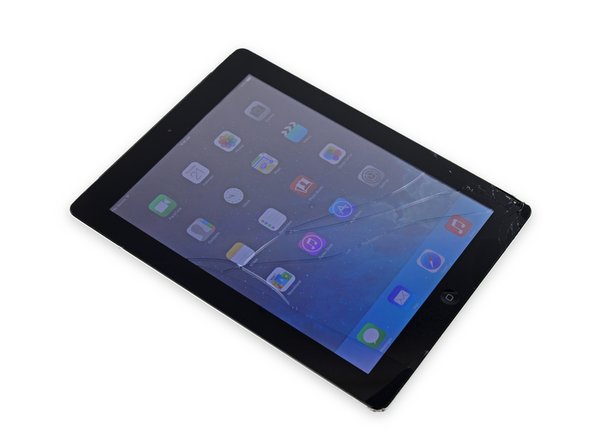
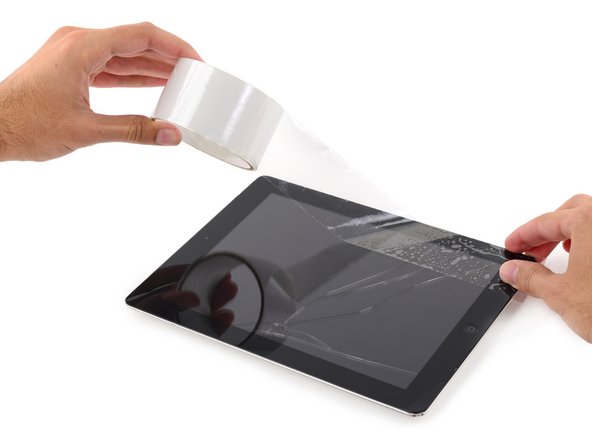
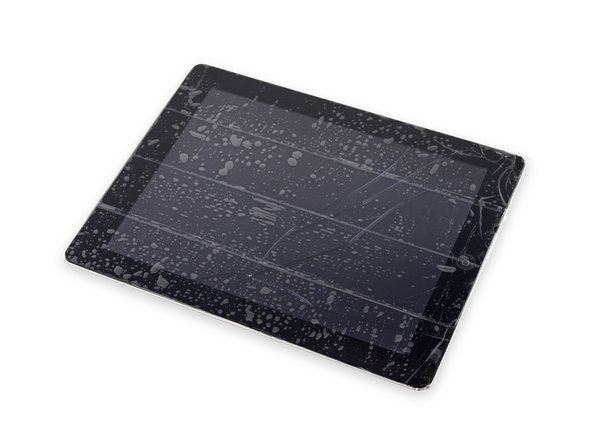
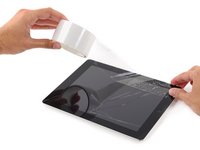
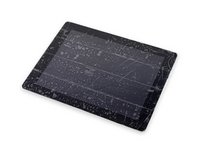
    • If your display glass is cracked, keep further breakage contained and prevent bodily harm during your repair by taping the glass.

    • Lay overlapping strips of clear packing tape over the iPad's display until the whole face is covered.

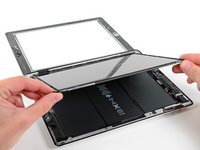
    • This will keep glass shards contained and provide structural integrity when prying and lifting the display.

    • Do your best to follow the rest of the guide as described. However, once the glass is broken, it will likely continue to crack as you work, and you may need to use a metal prying tool to scoop the glass out.

    • Wear safety glasses to protect your eyes, and be careful not to damage the LCD screen.

    Add Comment

  7. iPad 2 GSM Bluetooth/Wi-Fi Antenna Replacement: step 7, image 1 of 1
    • Again, as you may find yourself working with broken glass during this procedure, we strongly recommend wearing for protection from flying shards.

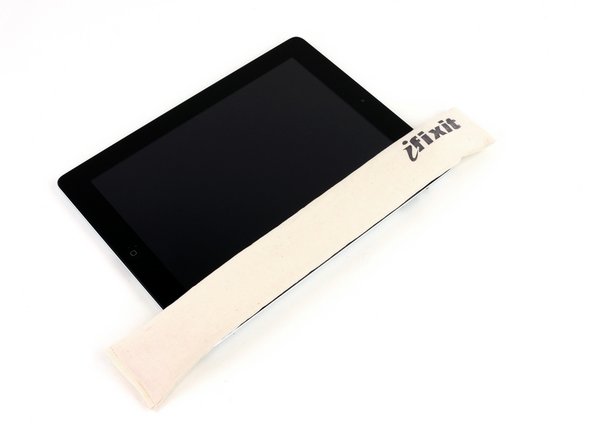
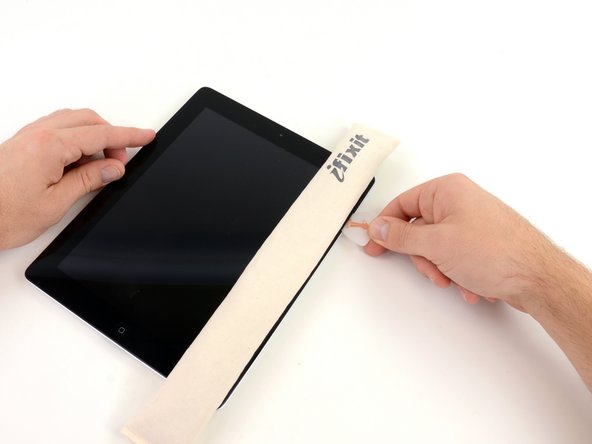
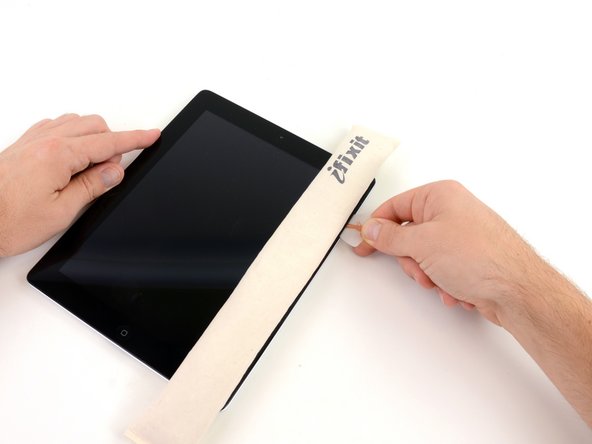
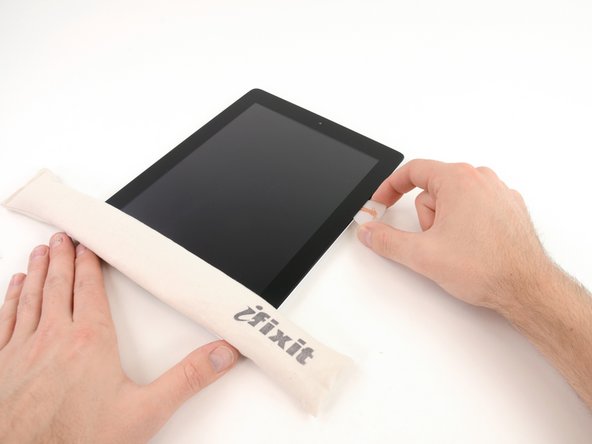
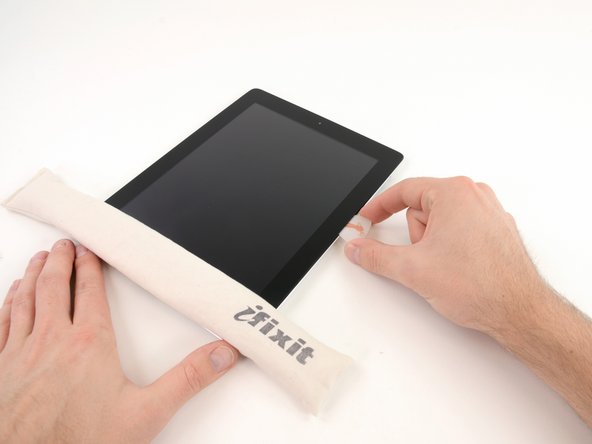
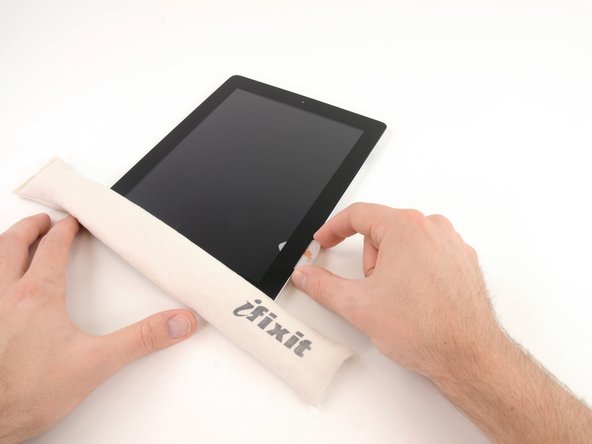
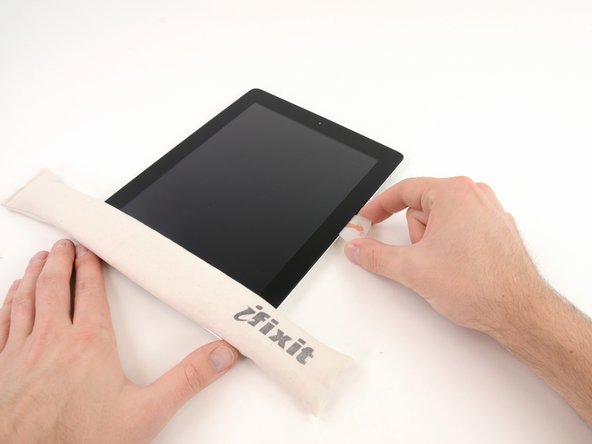
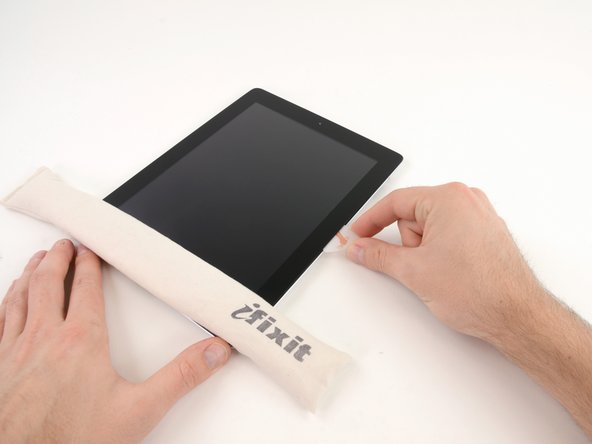
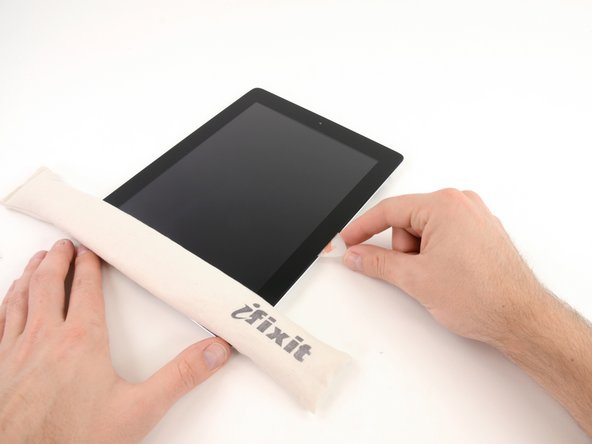
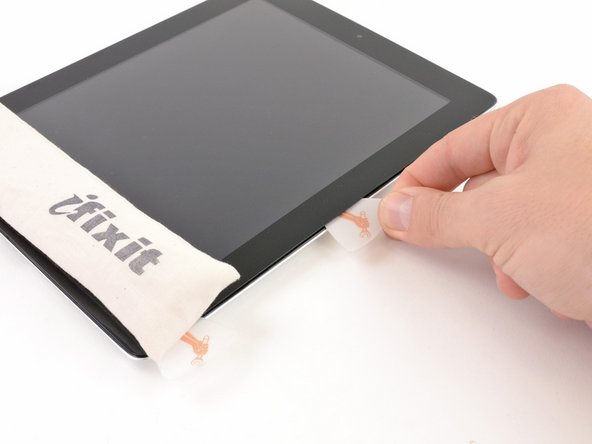
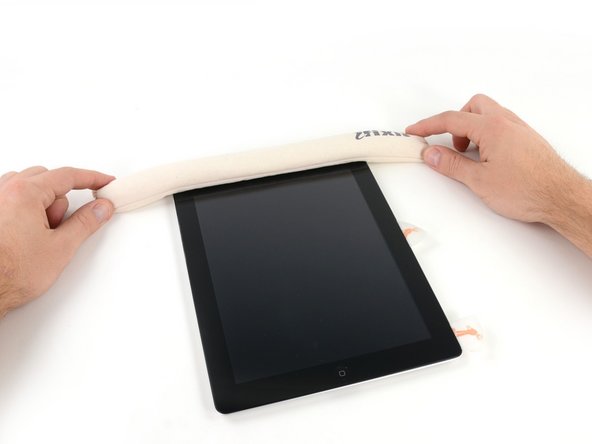
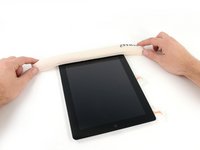
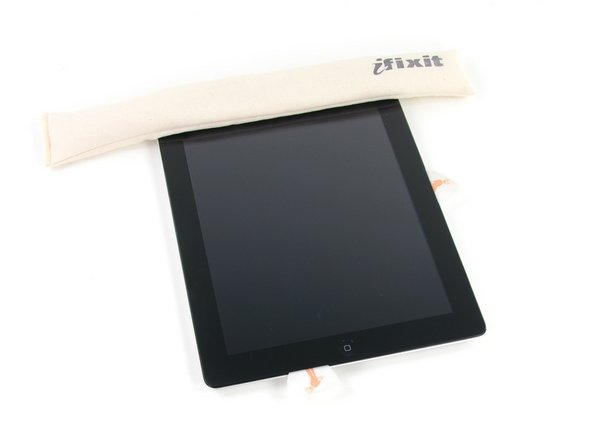
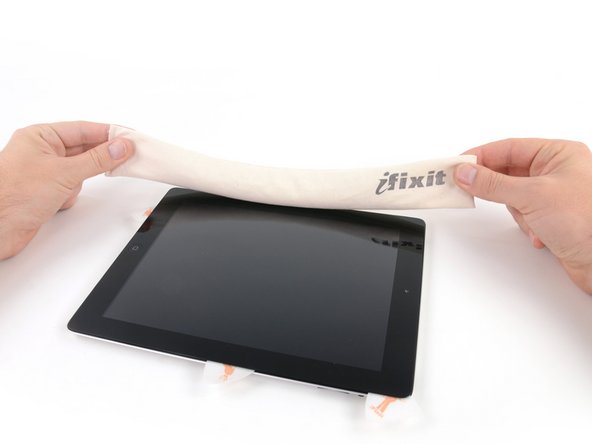
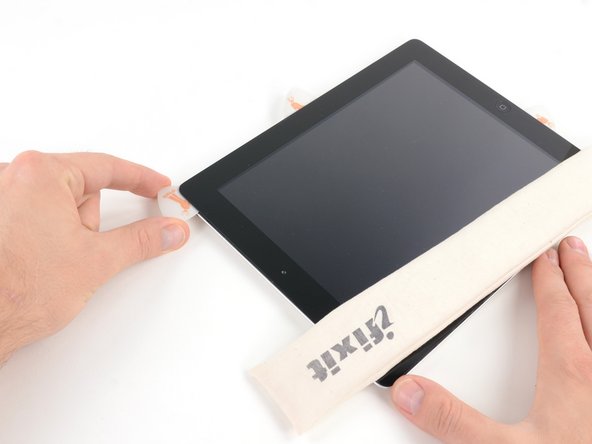
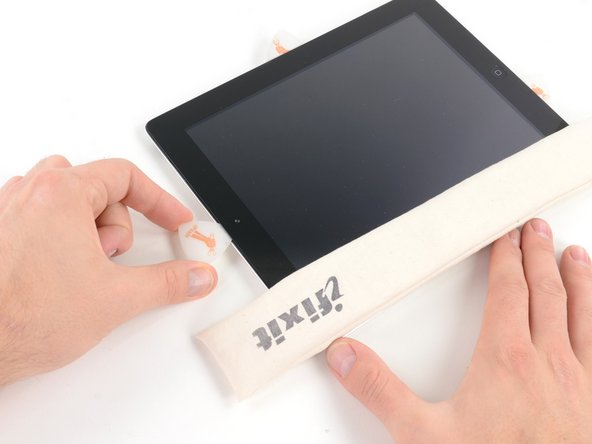
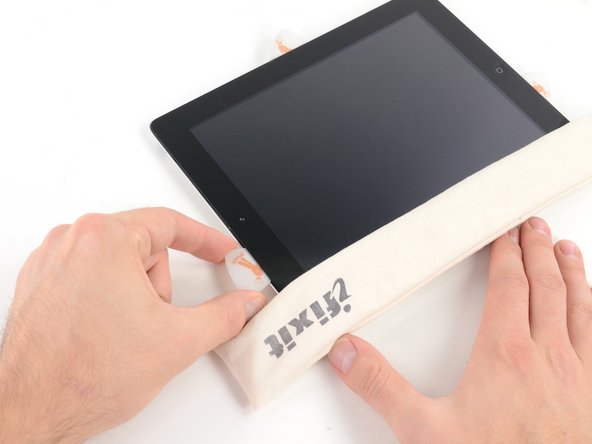
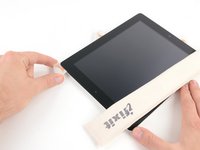
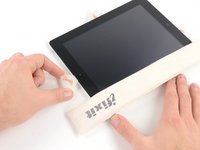
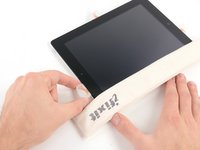
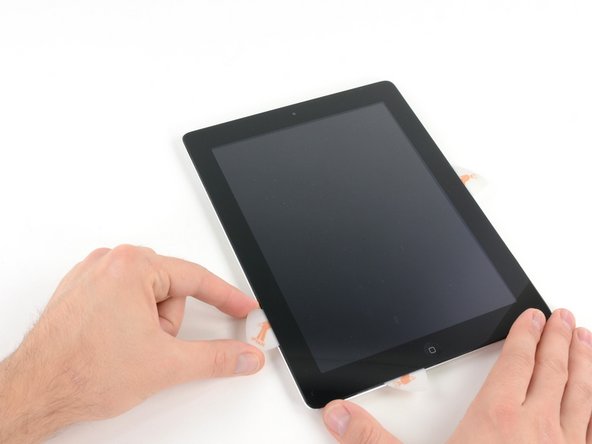
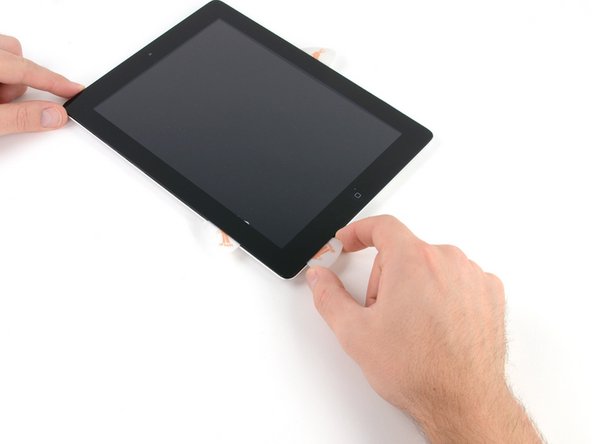
    • Lay the iOpener flat on the right edge of the iPad, smoothing it out so that there is good contact between the surface of the iPad and the iOpener.

    • Let the bag sit on the iPad for approximately 90 seconds before attempting to open the front panel.

    Add Comment

  8. iPad 2 GSM Bluetooth/Wi-Fi Antenna Replacement: step 8, image 1 of 3 iPad 2 GSM Bluetooth/Wi-Fi Antenna Replacement: step 8, image 2 of 3 iPad 2 GSM Bluetooth/Wi-Fi Antenna Replacement: step 8, image 3 of 3
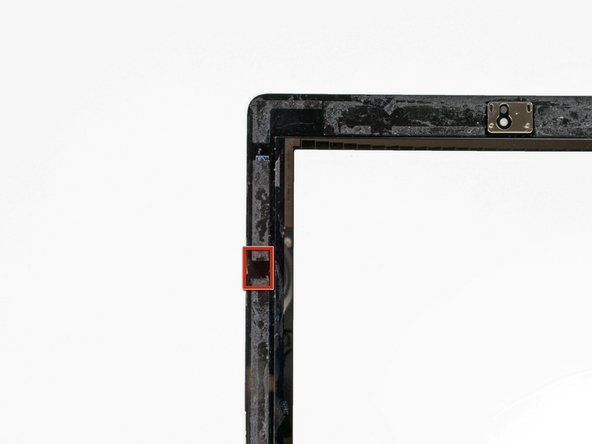
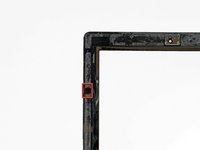
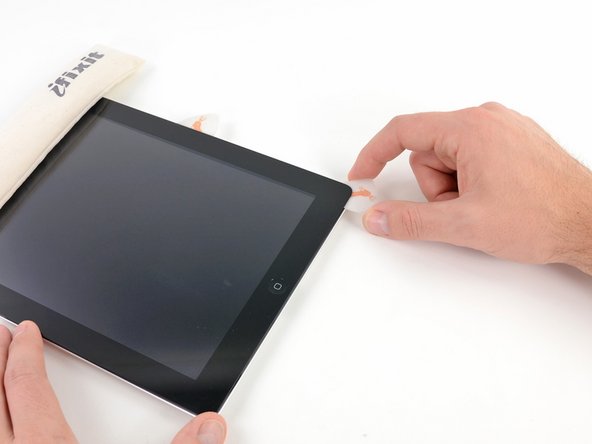
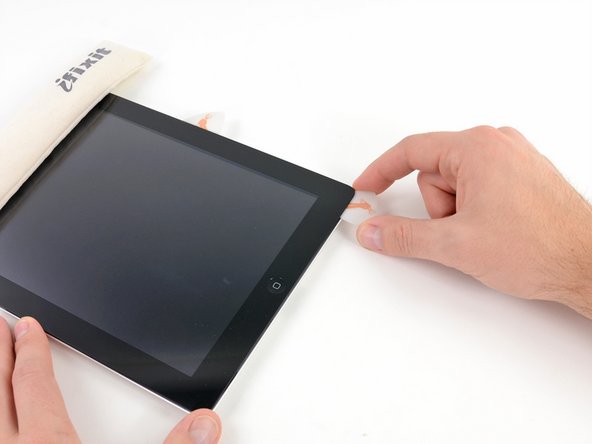
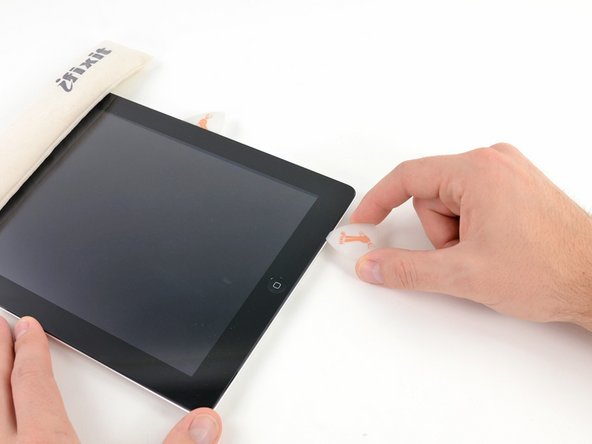
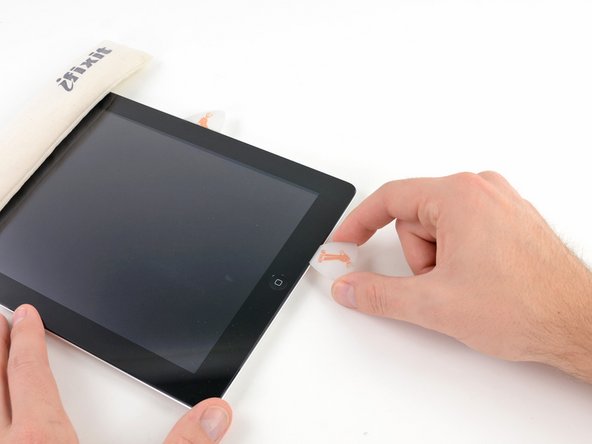
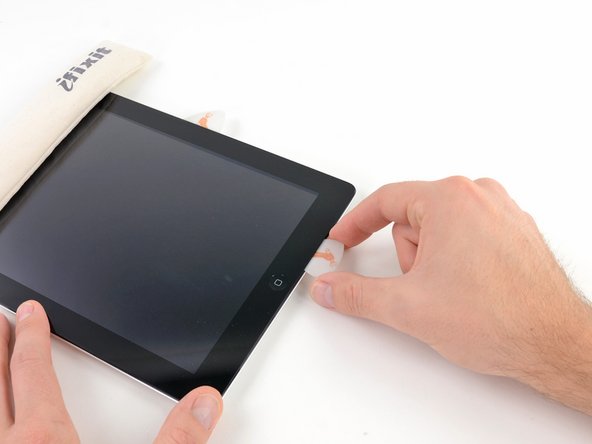
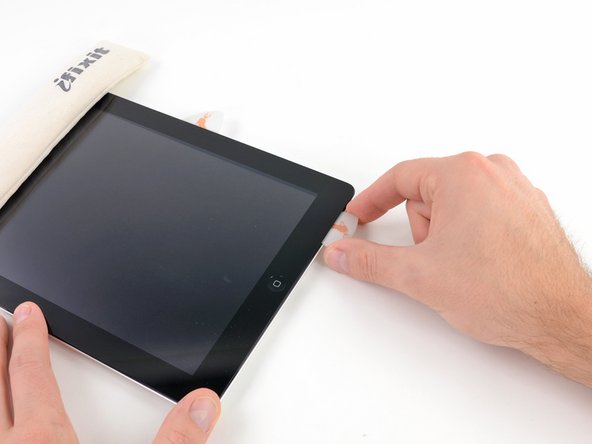
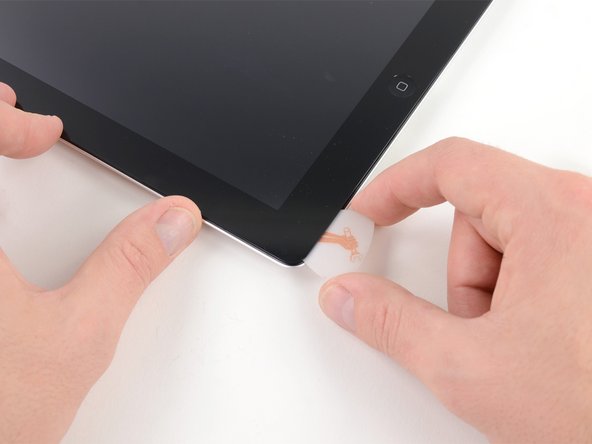
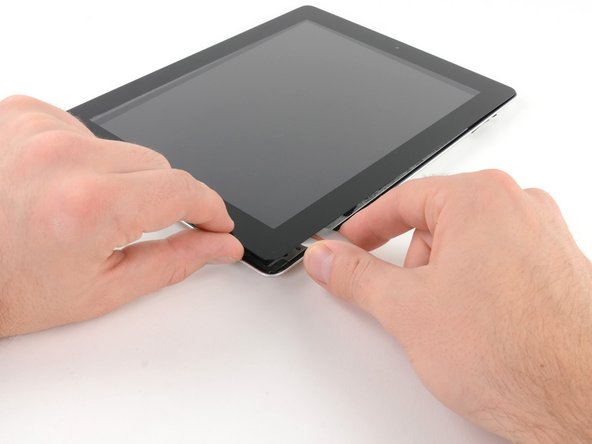
    • There is a small gap in the iPad's adhesive ring in the upper right corner of the iPad, approximately 2.0 inches (~5 cm) from the top of the iPad. You are going to exploit this weakness.

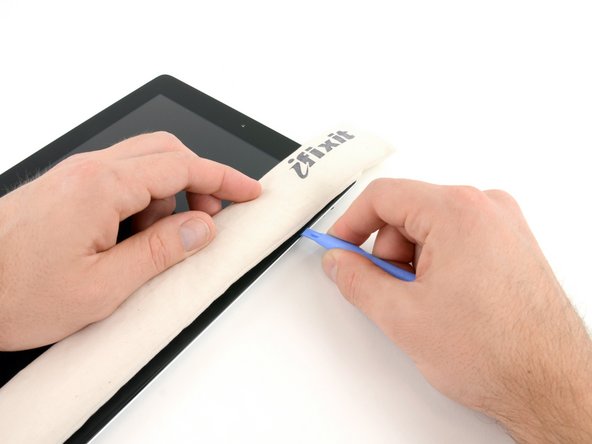
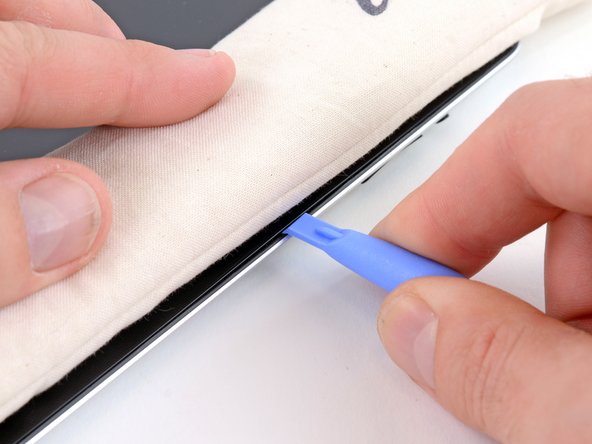
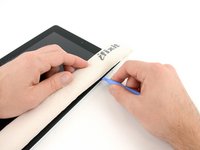
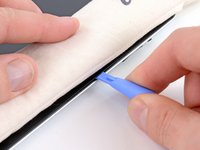
    • Align the tool with the mute button. Insert the tip of a plastic opening tool into the gap between the front glass and the plastic bezel. Just insert the very tip of the opening tool, just enough to widen the crack.

    • It may require some force to get the wedged tip of the opening tool between the glass and plastic. Work patiently and carefully, wiggling the plastic opening tool back and forth as necessary.

    Add Comment

  9. iPad 2 GSM Bluetooth/Wi-Fi Antenna Replacement: step 9, image 1 of 1
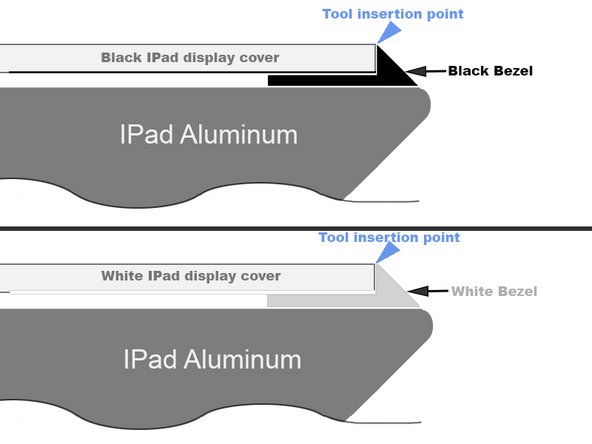
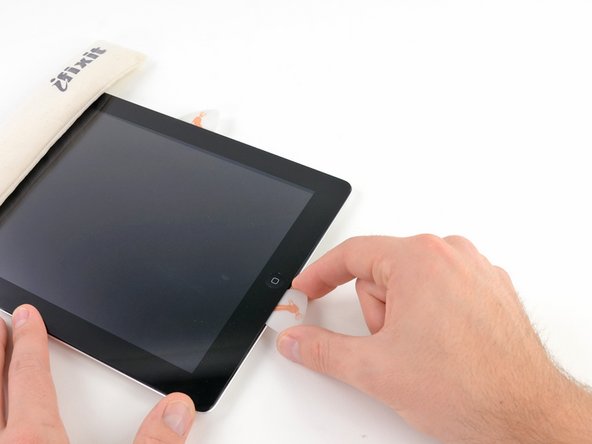
    • Make sure you place the tool in the proper spot—between the plastic display bezel and the front panel glass.

    Add Comment

  10. iPad 2 GSM Bluetooth/Wi-Fi Antenna Replacement: step 10, image 1 of 2 iPad 2 GSM Bluetooth/Wi-Fi Antenna Replacement: step 10, image 2 of 2
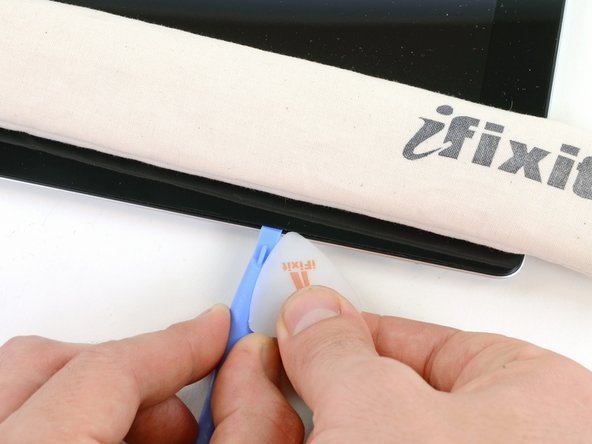
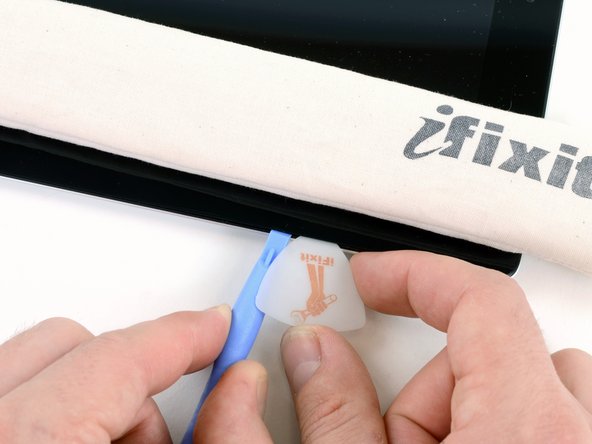
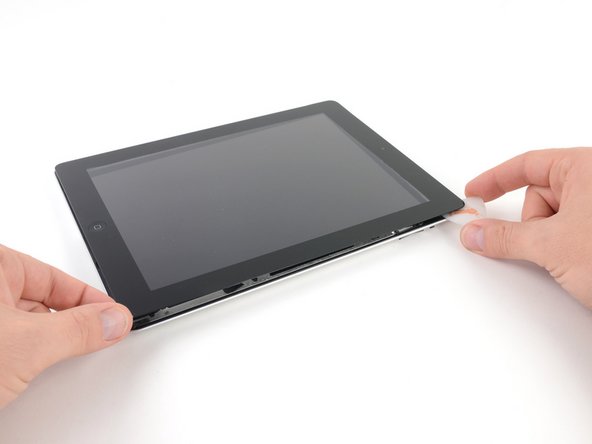
    • Keeping the tip of the plastic opening tool wedged between the front glass and plastic bezel, slide a plastic opening pick in the gap, right next to the plastic opening tool.

    Add Comment

  11. iPad 2 GSM Bluetooth/Wi-Fi Antenna Replacement: step 11, image 1 of 2 iPad 2 GSM Bluetooth/Wi-Fi Antenna Replacement: step 11, image 2 of 2
    • Remove the plastic opening tool from the iPad, and push the opening pick further underneath the front glass to a depth of ~0.5 inches.

    Add Comment

  12. iPad 2 GSM Bluetooth/Wi-Fi Antenna Replacement: step 12, image 1 of 1
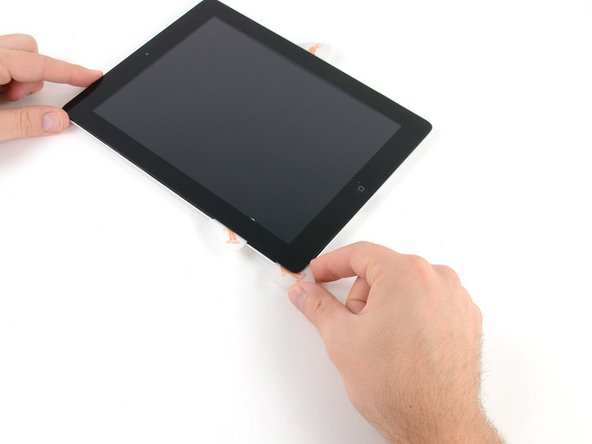
    • While you work on releasing the adhesive on the right side of the iPad, reheat the iOpener, and replace it on the bottom edge of the iPad.

    Add Comment

  13. iPad 2 GSM Bluetooth/Wi-Fi Antenna Replacement: step 13, image 1 of 3 iPad 2 GSM Bluetooth/Wi-Fi Antenna Replacement: step 13, image 2 of 3 iPad 2 GSM Bluetooth/Wi-Fi Antenna Replacement: step 13, image 3 of 3
    • While the bottom edge is being heated by the iOpener, begin releasing the adhesive from the right edge of the iPad.

    • Slide the opening pick down along the edge of the iPad, releasing the adhesive as you go.

    • The adhesive is very strong, and some serious force may be required. Work carefully.

    • If you can see the tip of the opening pick underneath the front glass, pull the pick out just a little bit. While using the opening pick this deep won't damage anything, it may get adhesive residue all over the LCD.

    Add Comment

  14. iPad 2 GSM Bluetooth/Wi-Fi Antenna Replacement: step 14, image 1 of 3 iPad 2 GSM Bluetooth/Wi-Fi Antenna Replacement: step 14, image 2 of 3 iPad 2 GSM Bluetooth/Wi-Fi Antenna Replacement: step 14, image 3 of 3
    • It may be necessary to move the heated iOpener back onto the right edge of the iPad as you release the adhesive. This depends on how long the iPad has been able to cool while you were working on it.

    • If the opening pick gets stuck in the adhesive, "roll" the pick along the side of the iPad, continuing to release the adhesive.

    Add Comment

  15. iPad 2 GSM Bluetooth/Wi-Fi Antenna Replacement: step 15, image 1 of 2 iPad 2 GSM Bluetooth/Wi-Fi Antenna Replacement: step 15, image 2 of 2
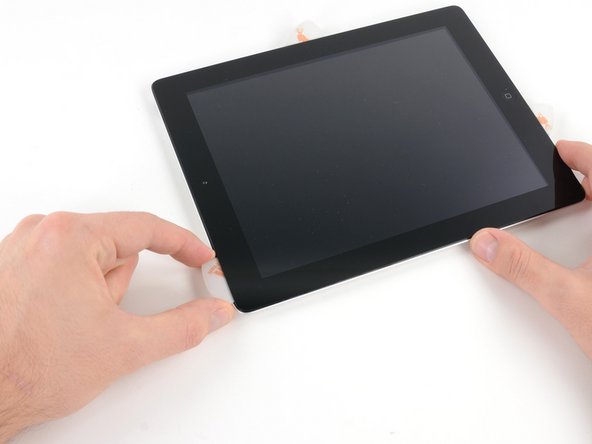
    • Before removing the first opening pick from the bottom corner of the iPad, insert a second pick under the right edge of the front glass to keep the adhesive from re-adhering.

    • Re-heat the iOpener, and move it to the top edge of the iPad.

    Add Comment

  16. iPad 2 GSM Bluetooth/Wi-Fi Antenna Replacement: step 16, image 1 of 1
    • The next few steps require extreme caution.

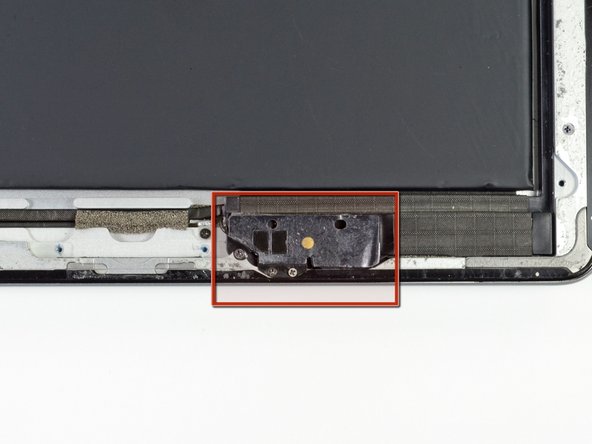
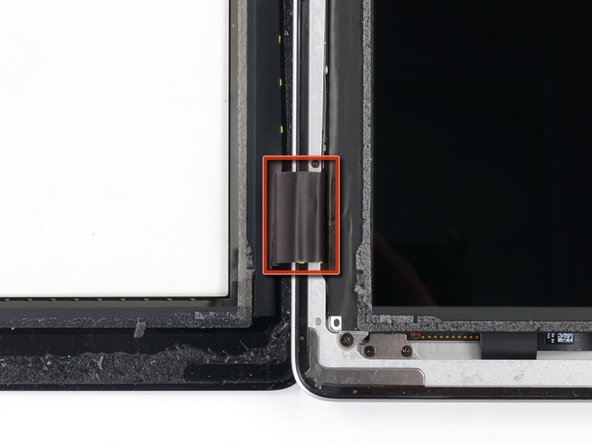
    • The Wi-Fi antenna is attached to the bottom right edge of the rear case of the iPad via screws and a cable. Because of the orientation of the Wi-Fi antenna, it is imperative to proceed with caution otherwise irreversible damage to the Wi-Fi antenna may result.

    • You will have to release the adhesive securing the antenna to the front panel without damaging the delicate parts attaching the antenna to the bottom of the iPad. Follow the next steps carefully.

    Add Comment

  17. iPad 2 GSM Bluetooth/Wi-Fi Antenna Replacement: step 17, image 1 of 2 iPad 2 GSM Bluetooth/Wi-Fi Antenna Replacement: step 17, image 2 of 2
    • Slide the opening pick around the bottom right corner of the iPad, releasing the adhesive there.

    • Do not slide the pick further than the bottom right corner. You may damage the Wi-Fi antenna by doing so.

    Add Comment

  18. iPad 2 GSM Bluetooth/Wi-Fi Antenna Replacement: step 18, image 1 of 2 iPad 2 GSM Bluetooth/Wi-Fi Antenna Replacement: step 18, image 2 of 2
    • This step requires you to move the opening pick along the bottom right edge of the front panel. The Wi-Fi antenna is very close to the corner and is easily severed if the adhesive is released improperly.

    • Do not completely remove the pick from under the front glass, but pull it out just a little bit so that ~1/8" of the tip is still under the front glass.

    • Slide the tip of the opening pick along the bottom edge of the iPad, releasing the adhesive over the Wi-Fi antenna.

    Add Comment

  19. iPad 2 GSM Bluetooth/Wi-Fi Antenna Replacement: step 19, image 1 of 2 iPad 2 GSM Bluetooth/Wi-Fi Antenna Replacement: step 19, image 2 of 2
    • Once you have moved past the Wi-FI antenna (approximately 3" from the right edge, or right next to the home button) re-insert the opening pick to its full depth.

    • Slide the pick to the right, releasing the adhesive securing the Wi-Fi antenna to the front glass.

    • The antenna is attached to the bottom of the iPad via screws and a cable. This step detaches the antenna from the front panel, ensuring that when you remove the panel, the antenna will not be damaged.

    Add Comment

  20. iPad 2 GSM Bluetooth/Wi-Fi Antenna Replacement: step 20, image 1 of 3 iPad 2 GSM Bluetooth/Wi-Fi Antenna Replacement: step 20, image 2 of 3 iPad 2 GSM Bluetooth/Wi-Fi Antenna Replacement: step 20, image 3 of 3
    • Continue releasing the adhesive along the bottom of the iPad, pulling the opening pick out far enough to go around the home button, and re-inserting it to a depth of 1/2 inch once the pick is past the home button.

    • If the adhesive has cooled too much along the bottom edge, reheat the iOpener to warm the adhesive where you are working.

    • Do not heat the iOpener more than a minute at a time, and always allow at least two minutes before reheating it.

    Add Comment

  21. iPad 2 GSM Bluetooth/Wi-Fi Antenna Replacement: step 21, image 1 of 2 iPad 2 GSM Bluetooth/Wi-Fi Antenna Replacement: step 21, image 2 of 2
    • Continue releasing the adhesive all the way along the bottom edge of the iPad.

    • On iPad 4 models, insert the pick to a maximum depth of 1/2 inch in this area, to avoid damaging the home button ribbon cable.

    • Leave the opening pick wedged underneath the front glass near the home button.

    Add Comment

  22. iPad 2 GSM Bluetooth/Wi-Fi Antenna Replacement: step 22, image 1 of 1
    • Reheat the iOpener in the microwave and set it on the left edge of the iPad to start warming the adhesive in that section.

    Add Comment

  23. iPad 2 GSM Bluetooth/Wi-Fi Antenna Replacement: step 23, image 1 of 3 iPad 2 GSM Bluetooth/Wi-Fi Antenna Replacement: step 23, image 2 of 3 iPad 2 GSM Bluetooth/Wi-Fi Antenna Replacement: step 23, image 3 of 3
    • Slide the opening pick along the top edge of the iPad, pulling it out slightly to go around the front-facing camera bracket.

    • The adhesive along this section is very thick, and a fair amount of force may be required. Work carefully and slowly, making sure to not slip and damage yourself or your iPad.

    • If the adhesive has cooled too much, replace the iOpener along the top edge and continue working. If the iOpener has cooled too much, reheat it.

    • If the opening pick is getting stuck in the adhesive, "roll" the pick as shown in step 9.

    Add Comment

  24. iPad 2 GSM Bluetooth/Wi-Fi Antenna Replacement: step 24, image 1 of 2 iPad 2 GSM Bluetooth/Wi-Fi Antenna Replacement: step 24, image 2 of 2
    • Continue releasing the adhesive along the top edge of the iPad, and slide the opening pick around the top left corner.

    • If the adhesive is warm enough, remove the iOpener from the iPad for convenience. However, if the adhesive is still quite sticky, re-heat the iOpener and lay it on the left edge while you work.

    Add Comment

  25. iPad 2 GSM Bluetooth/Wi-Fi Antenna Replacement: step 25, image 1 of 3 iPad 2 GSM Bluetooth/Wi-Fi Antenna Replacement: step 25, image 2 of 3 iPad 2 GSM Bluetooth/Wi-Fi Antenna Replacement: step 25, image 3 of 3
    • Slide the opening pick along the left edge of the iPad, releasing the adhesive as you go. The adhesive is thin here due to the digitizer along the whole left side. Make sure the pick is not too deep (max 1/2 inch) to prevent damaging the digitizer.

    • The digitizer cable is located approximately 2" from the bottom of the iPad. Stop sliding the pick when you get ~2.25" from the bottom of the iPad.

    Add Comment

  26. iPad 2 GSM Bluetooth/Wi-Fi Antenna Replacement: step 26, image 1 of 2 iPad 2 GSM Bluetooth/Wi-Fi Antenna Replacement: step 26, image 2 of 2
    • Using the opening pick that is still underneath the bottom edge of the iPad, release the adhesive along the bottom left corner.

    • The bottom of the digitizer cable is only ~1" from the bottom of the iPad. Work carefully and slowly, making sure to not sever this cable.

    Add Comment

  27. iPad 2 GSM Bluetooth/Wi-Fi Antenna Replacement: step 27, image 1 of 2 iPad 2 GSM Bluetooth/Wi-Fi Antenna Replacement: step 27, image 2 of 2
    • Using one of the opening picks, pry up the bottom right corner of the iPad and grab it with your fingers.

    • Some of the adhesive along the perimeter of the iPad may have stuck back down again. If this is the case, slide a pick underneath the edge of the iPad where the front glass is still stuck and "cut" the adhesive.

    Add Comment

  28. iPad 2 GSM Bluetooth/Wi-Fi Antenna Replacement: step 28, image 1 of 2 iPad 2 GSM Bluetooth/Wi-Fi Antenna Replacement: step 28, image 2 of 2
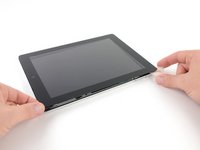
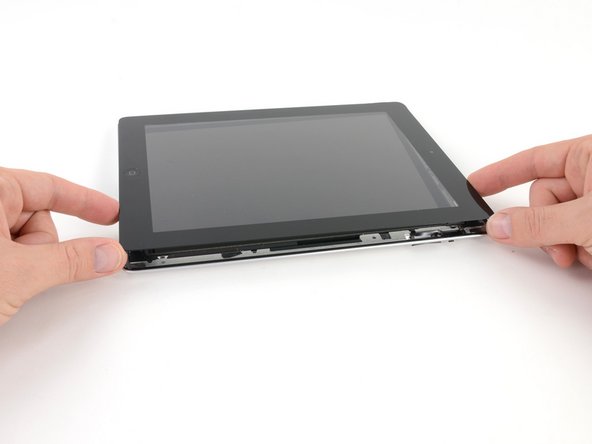
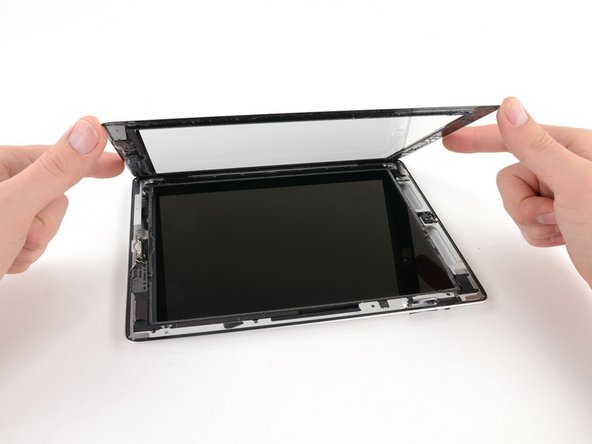
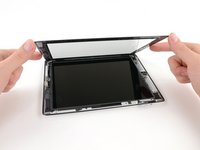
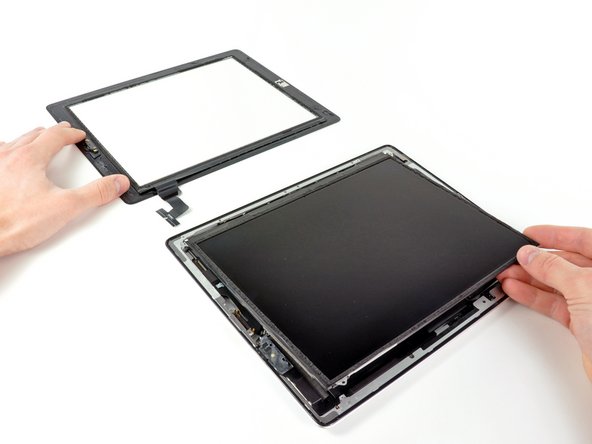
    • Holding the iPad by the top and bottom right corners, rotate the front glass away from the iPad.

    • Be careful of any adhesive that may still be attached, and use an opening pick to cut any adhesive that may still be holding the front panel down.

    Add Comment

  29. iPad 2 GSM Bluetooth/Wi-Fi Antenna Replacement: step 29, image 1 of 1
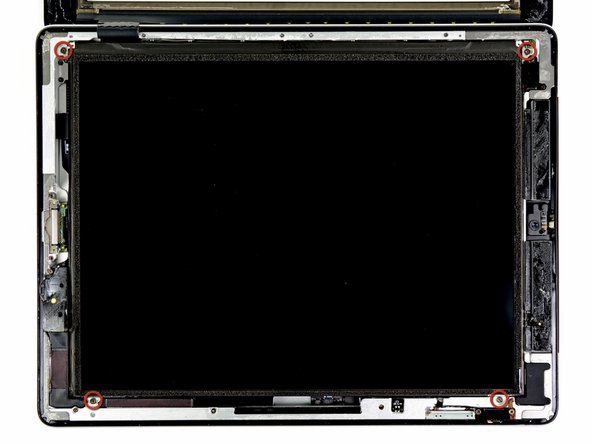
    • Remove the four 2.0 mm Phillips screws securing the LCD to the rear case.

    Add Comment

  30. iPad 2 GSM Bluetooth/Wi-Fi Antenna Replacement: step 30, image 1 of 2 iPad 2 GSM Bluetooth/Wi-Fi Antenna Replacement: step 30, image 2 of 2
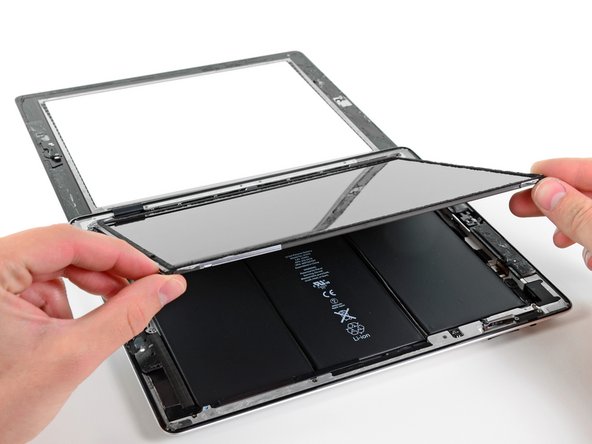
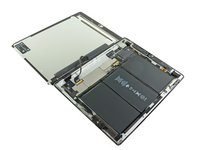
    • Lift the LCD from its long edge closest to the volume buttons and rotate it out of the rear case.

    • Lay the LCD on the front panel as seen in the second picture.

    Add Comment

  31. iPad 2 GSM Bluetooth/Wi-Fi Antenna Replacement: step 31, image 1 of 2 iPad 2 GSM Bluetooth/Wi-Fi Antenna Replacement: step 31, image 2 of 2
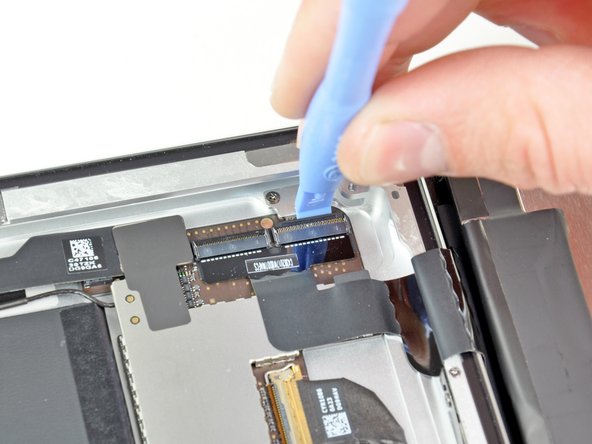
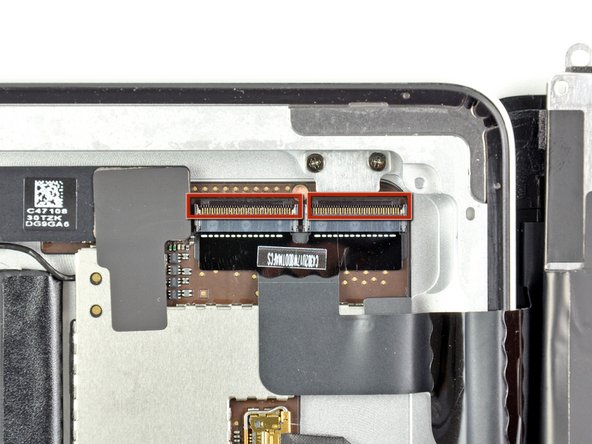
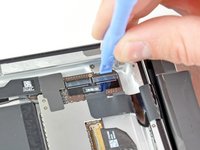
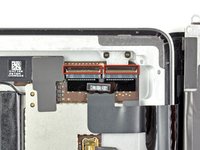
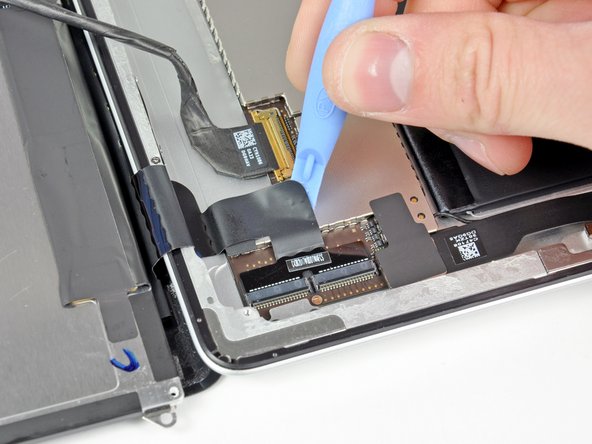
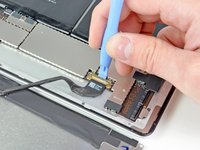
    • Use the edge of a plastic opening tool to carefully flip up the retaining flaps on the two digitizer ribbon cable ZIF sockets.

    • Be sure you are prying up on the hinged retaining flaps, not the sockets themselves.

    • The retaining flaps are highlighted in red in the second picture.

    Add Comment

  32. iPad 2 GSM Bluetooth/Wi-Fi Antenna Replacement: step 32, image 1 of 2 iPad 2 GSM Bluetooth/Wi-Fi Antenna Replacement: step 32, image 2 of 2
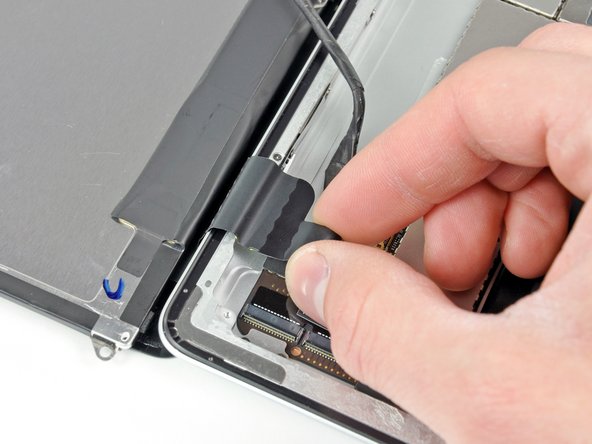
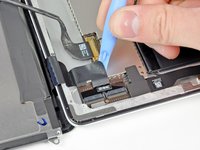
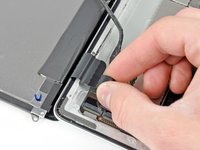
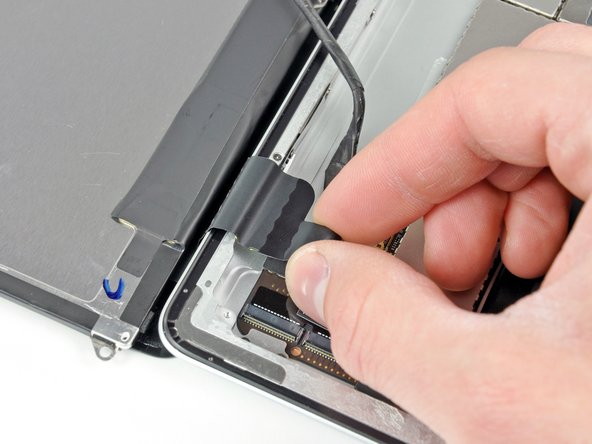
    • Use the edge of a plastic opening tool to peel the digitizer cable off the shields on the logic board.

    • Carefully pull the digitizer cable off the adhesive securing it to the side of the rear case.

    Add Comment

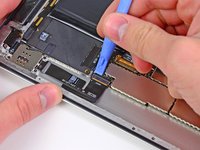
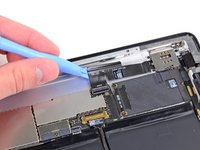
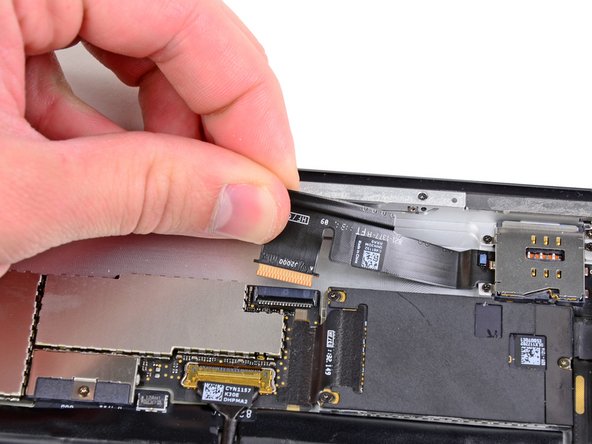
  33. iPad 2 GSM Bluetooth/Wi-Fi Antenna Replacement: step 33, image 1 of 1
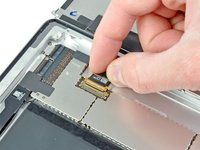
    • Pull the digitizer ribbon cable straight out of its two sockets on the logic board.

    Add Comment

  34. iPad 2 GSM Bluetooth/Wi-Fi Antenna Replacement: step 34, image 1 of 2 iPad 2 GSM Bluetooth/Wi-Fi Antenna Replacement: step 34, image 2 of 2
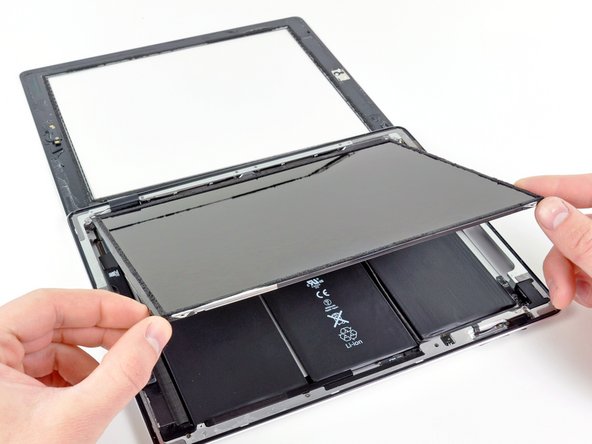
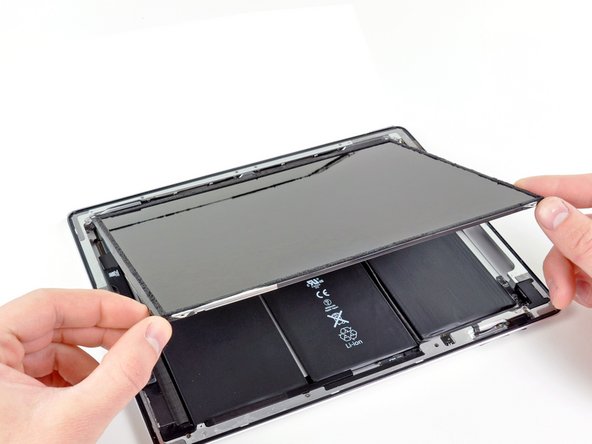
    • In order to remove the front panel assembly, the ribbon cable needs to slide out between the case and the LCD. You'll need to move the LCD to make some room.

    • Be very careful when moving the LCD, and do not attempt to remove it from the iPad—its cable will remain connected while it is rotated over.

    • Lift the LCD from its long edge farthest from the digitizer cable and gently flip it toward the rear case—like closing a book.

    • While holding the LCD up, gently slide the front panel away from the iPad. Be careful not to snag the digitizer cable on the rear case or LCD.

    • Set the LCD back into the body for safekeeping.

    Add Comment

  35. iPad 2 GSM Bluetooth/Wi-Fi Antenna Replacement: step 35, image 1 of 1
    • In order to work on the iPad's innards, we need to flip the LCD back out of the case.

    • Lift the LCD from its long edge closest to the volume buttons and gently flip it out of the rear case—like turning the page in a book.

    • Set the LCD face down on a clean surface. You may want to rest it on a soft cloth to prevent scratches.

    Add Comment

  36. iPad 2 GSM Bluetooth/Wi-Fi Antenna Replacement: step 36, image 1 of 3 iPad 2 GSM Bluetooth/Wi-Fi Antenna Replacement: step 36, image 2 of 3 iPad 2 GSM Bluetooth/Wi-Fi Antenna Replacement: step 36, image 3 of 3
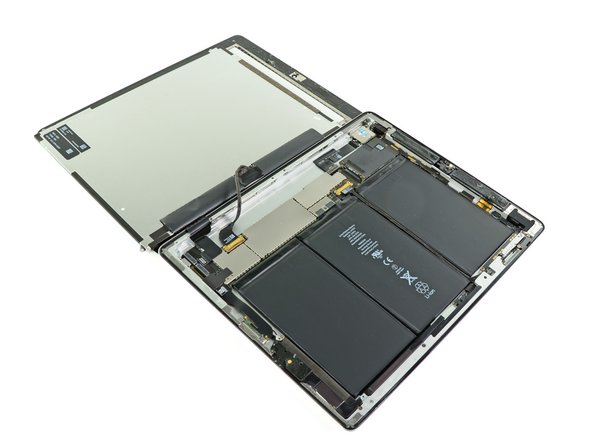
    • Carefully lay the LCD next to the rear panel.

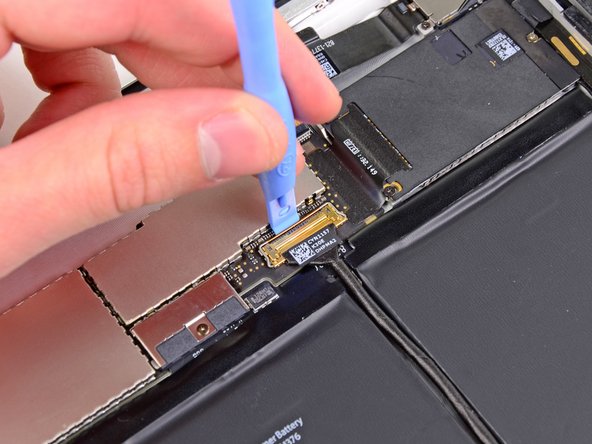
    • Use a plastic opening tool to lift the display data cable lock upwards.

    • Pull the display data cable out of its socket.

    • Do not pull the connector upward as you disconnect it from its socket.

    Add Comment

  37. iPad 2 GSM Bluetooth/Wi-Fi Antenna Replacement: step 37, image 1 of 1
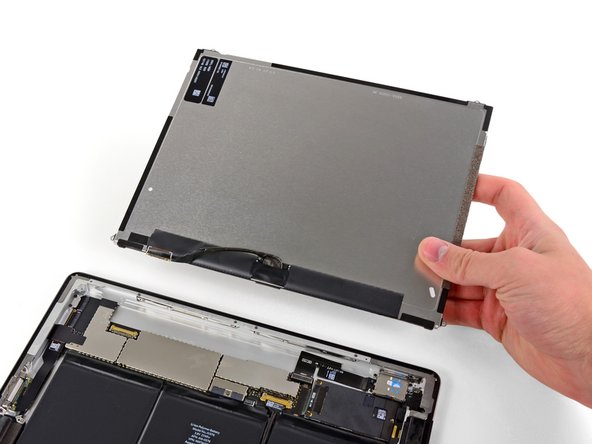
    • Remove the LCD assembly from the rear panel assembly.

    Add Comment

  38. iPad 2 GSM Bluetooth/Wi-Fi Antenna Replacement: step 38, image 1 of 3 iPad 2 GSM Bluetooth/Wi-Fi Antenna Replacement: step 38, image 2 of 3 iPad 2 GSM Bluetooth/Wi-Fi Antenna Replacement: step 38, image 3 of 3
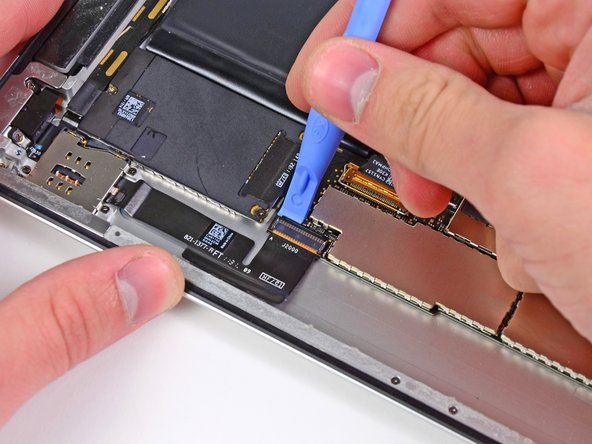
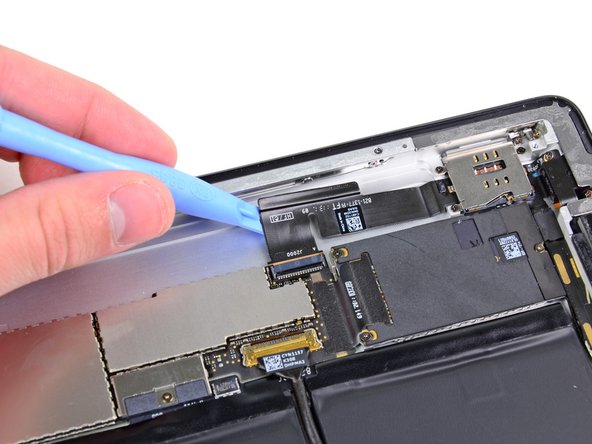
    • If present, use a plastic opening tool to help remove the piece of tape covering the end of the dock connector cable.

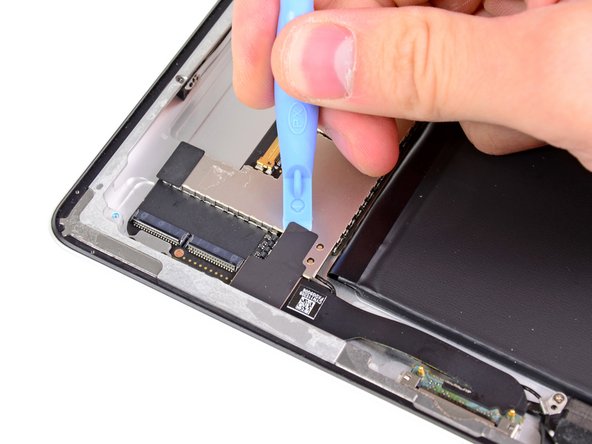
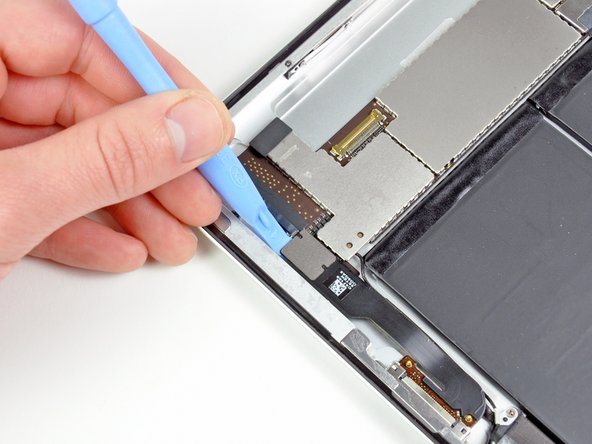
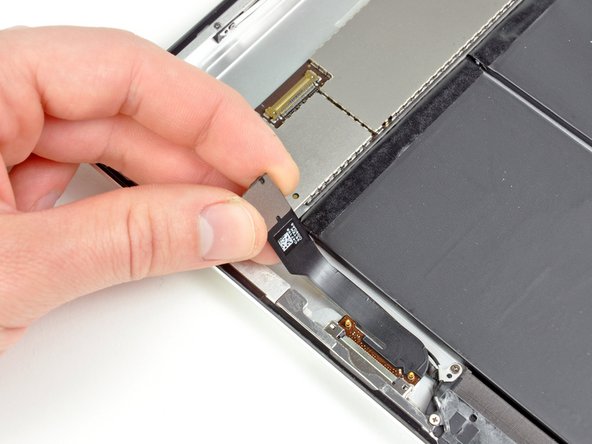
    • Use the edge of a plastic opening tool to carefully pry the dock connector cable's connector up from its socket on the logic board.

    • Peel the dock connector ribbon cable off the rear panel.

    Add Comment

  39. iPad 2 GSM Bluetooth/Wi-Fi Antenna Replacement: step 39, image 1 of 1
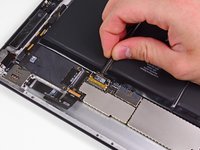
    • Pry the speaker cable connector straight up from its socket on the logic board.

    Add Comment

  40. iPad 2 GSM Bluetooth/Wi-Fi Antenna Replacement: step 40, image 1 of 2 iPad 2 GSM Bluetooth/Wi-Fi Antenna Replacement: step 40, image 2 of 2
    • Use the edge of a plastic opening tool to flip up the retaining flap on the headphone jack and front camera cable ZIF socket.

    • Be sure you are prying upward on the hinged retaining flap, not the socket itself.

    • Peel the headphone jack and front camera cable off the rear case.

    Add Comment

  41. iPad 2 GSM Bluetooth/Wi-Fi Antenna Replacement: step 41, image 1 of 1
    • Pull the headphone jack and front camera ribbon cable straight out of its socket on the logic board.

    Add Comment

  42. iPad 2 GSM Bluetooth/Wi-Fi Antenna Replacement: step 42, image 1 of 3 iPad 2 GSM Bluetooth/Wi-Fi Antenna Replacement: step 42, image 2 of 3 iPad 2 GSM Bluetooth/Wi-Fi Antenna Replacement: step 42, image 3 of 3
    • Use the edge of a plastic opening tool to flip up the retainer securing the upper component board cable connector to its socket on the logic board.

    • Pull the connector away from its socket on the logic board.

    • Do not lift the cable upward as you disconnect it.

    Add Comment

  43. iPad 2 GSM Bluetooth/Wi-Fi Antenna Replacement: step 43, image 1 of 1
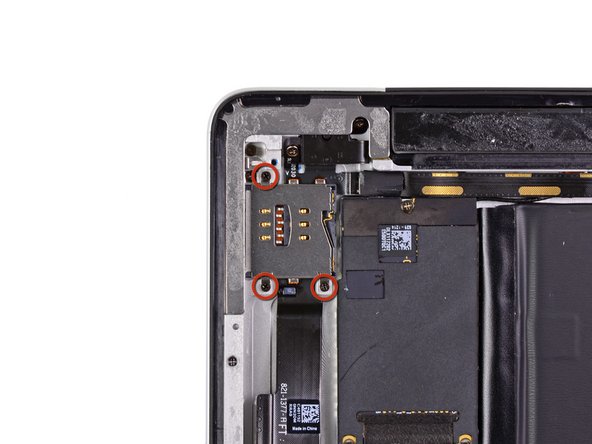
    • Remove the three 2 mm Phillips screws securing the SIM card slot to the rear panel.

    Add Comment

  44. iPad 2 GSM Bluetooth/Wi-Fi Antenna Replacement: step 44, image 1 of 1
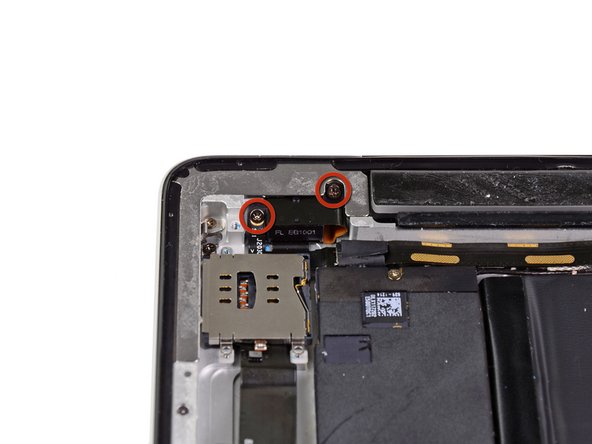
    • Remove the two 2.9 mm Phillips screws securing the headphone jack to the top edge of the rear panel.

    Add Comment

  45. iPad 2 GSM Bluetooth/Wi-Fi Antenna Replacement: step 45, image 1 of 1
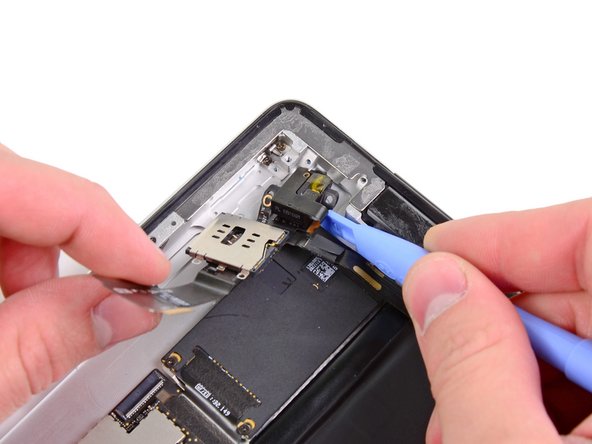
    • Use a plastic opening tool to help pull the headphone jack out of its recess in the top of the rear panel.

    • Peel the headphone jack/SIM slot assembly away from the top edge of the communications board.

    Add Comment

  46. iPad 2 GSM Bluetooth/Wi-Fi Antenna Replacement: step 46, image 1 of 2 iPad 2 GSM Bluetooth/Wi-Fi Antenna Replacement: step 46, image 2 of 2
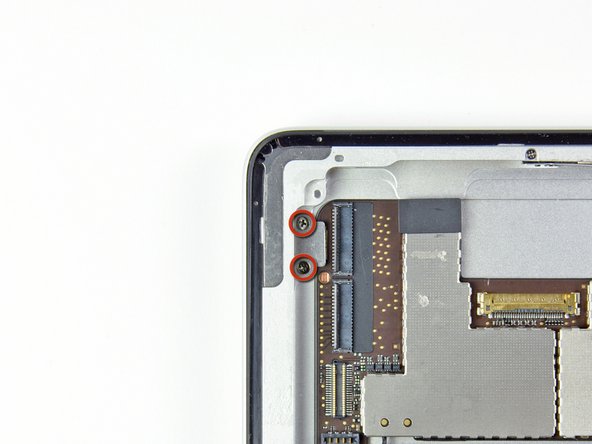
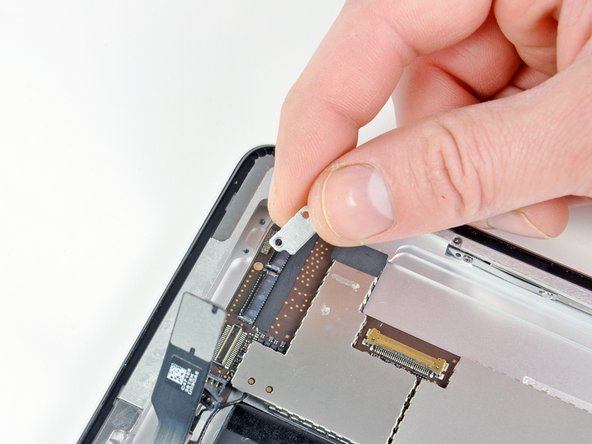
    • Remove the two 2.1 mm Phillips screws securing the logic board bracket to the rear case near the digitizer cable socket.

    • Remove the logic board bracket from the rear case.

    Add Comment

  47. iPad 2 GSM Bluetooth/Wi-Fi Antenna Replacement: step 47, image 1 of 1
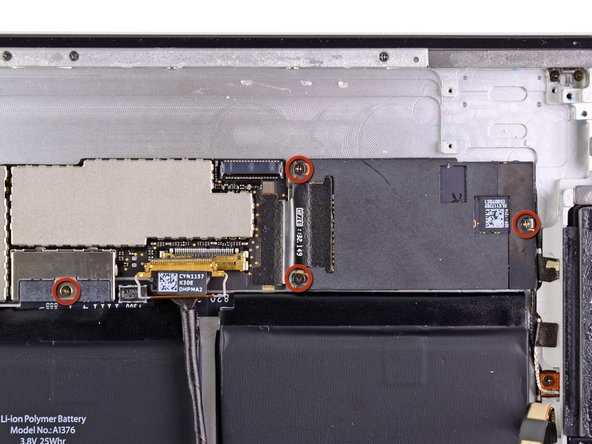
    • Remove the four 2.6 mm Phillips screws securing the logic and communications boards to the rear panel.

    Add Comment

  48. iPad 2 GSM Bluetooth/Wi-Fi Antenna Replacement: step 48, image 1 of 1
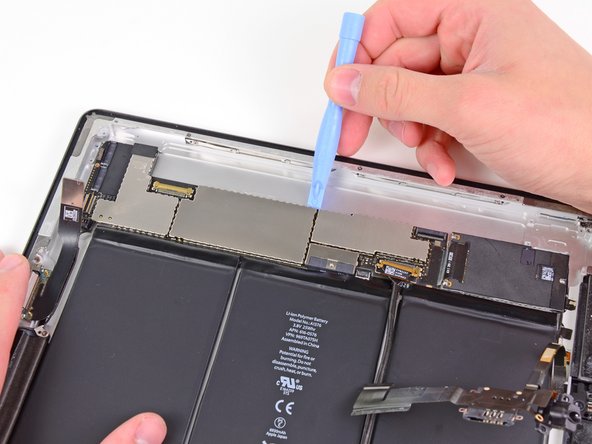
    • Use the edge of a plastic opening tool to gently pry the logic board up from the adhesive securing it to the rear case.

    Add Comment

  49. iPad 2 GSM Bluetooth/Wi-Fi Antenna Replacement: step 49, image 1 of 1
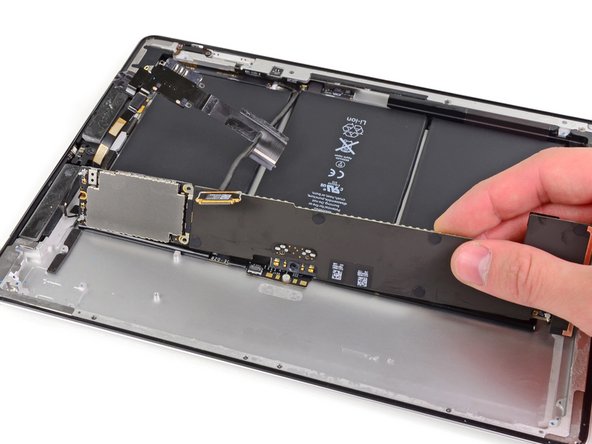
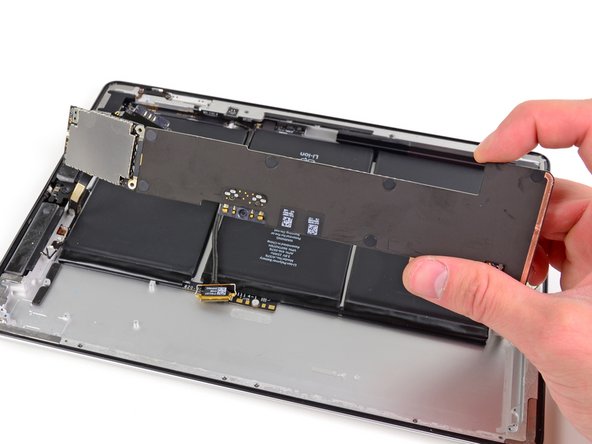
    • Lift the logic board out from the rear case and rotate it slightly toward the battery.

    • Do not try to completely remove it just yet. There are still three antenna cables attached to it.

    Add Comment

  50. iPad 2 GSM Bluetooth/Wi-Fi Antenna Replacement: step 50, image 1 of 2 iPad 2 GSM Bluetooth/Wi-Fi Antenna Replacement: step 50, image 2 of 2
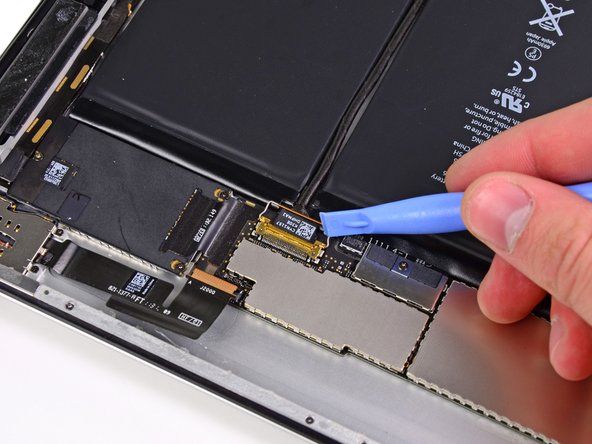
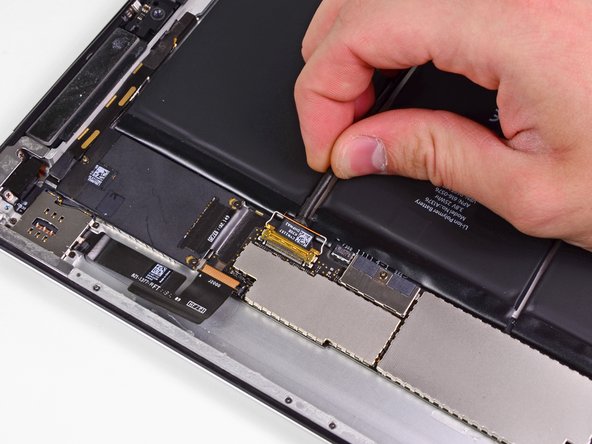
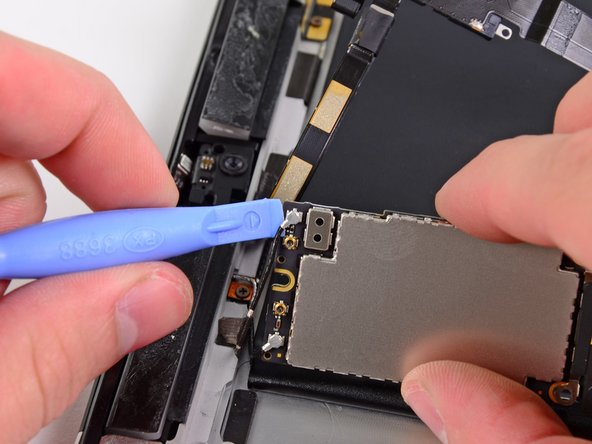
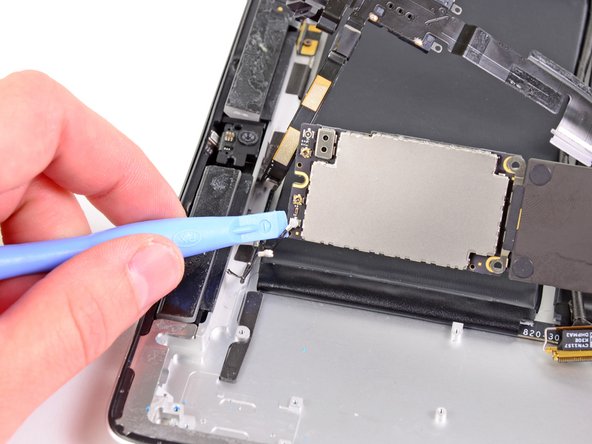
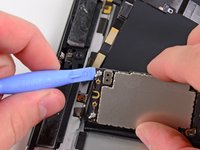
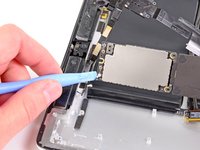
    • Use a plastic opening tool to disconnect both antenna connectors from their sockets on the communications board.

    Add Comment

  51. iPad 2 GSM Bluetooth/Wi-Fi Antenna Replacement: step 51, image 1 of 1
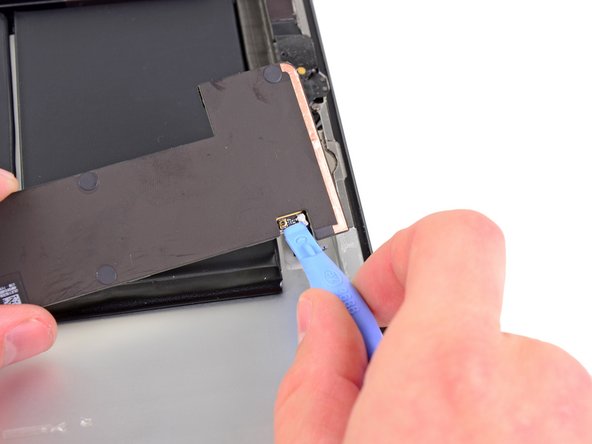
    • Disconnect the Wi-Fi antenna connector from its socket on the logic board.

    Add Comment

  52. iPad 2 GSM Bluetooth/Wi-Fi Antenna Replacement: step 52, image 1 of 1
    • Remove the logic board from the iPad 2.

    Add Comment

  53. iPad 2 GSM Bluetooth/Wi-Fi Antenna Replacement: step 53, image 1 of 1
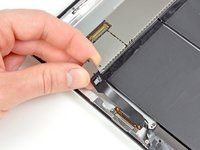
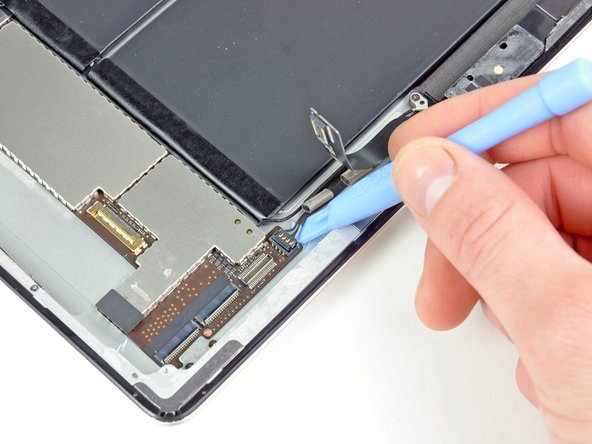
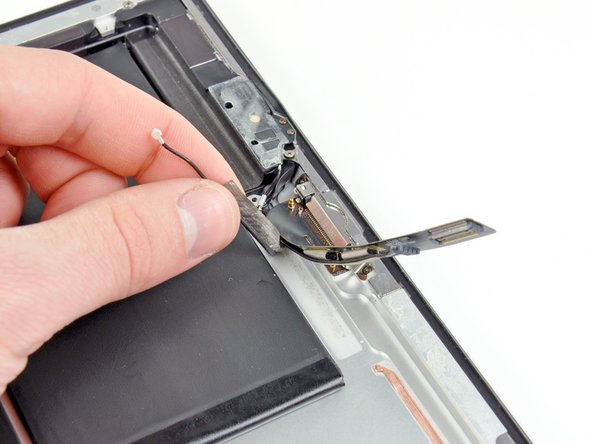
    • Move the dock connector/speaker cables out of the way and peel the bluetooth/wi-fi antenna cable off the adhesive securing it to the rear case.

    Add Comment

  54. iPad 2 GSM Bluetooth/Wi-Fi Antenna Replacement: step 54, image 1 of 1
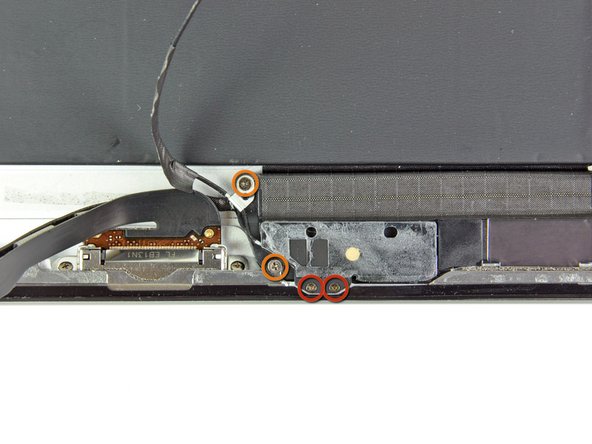
    • Remove the following screws securing the bluetooth/wi-fi antenna to the rear panel:

    • Two 1.7 mm Phillips screws

    • Two 2 mm Phillips screws

    Add Comment

  55. iPad 2 GSM Bluetooth/Wi-Fi Antenna Replacement: step 55, image 1 of 1
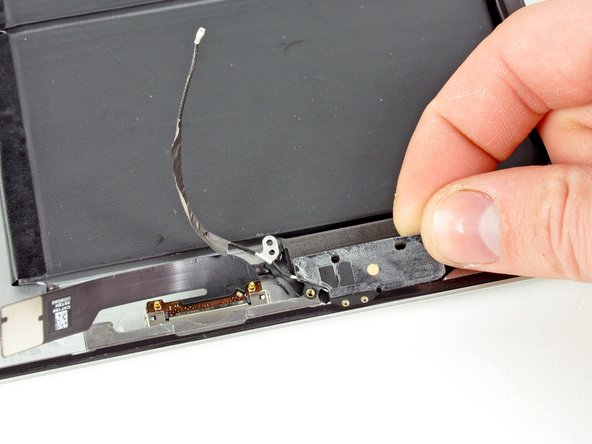
    • Peel the bluetooth/wi-fi antenna off the speaker enclosure and remove it from the iPad 2.

    Add Comment

Conclusion

To reassemble your device, follow these directions in reverse and use our [invalid guide link] guide to reattach the front panel.

Cancel: I did not complete this guide.

System

Member since: 09/24/09

2,562 Guides authored

0 Guide Comments

Add Comment

View Statistics:

Past 24 Hours: 1

Past 7 Days: 3

Past 30 Days: 3

All Time: 32