iPad Wi-Fi Dock Connector Cable Replacement

What you need

  1. iPad Wi-Fi Dock Connector Cable Replacement, iPad Wi-Fi Dock Connector Cable Replacement: step 1, image 1 of 3 iPad Wi-Fi Dock Connector Cable Replacement, iPad Wi-Fi Dock Connector Cable Replacement: step 1, image 2 of 3 iPad Wi-Fi Dock Connector Cable Replacement, iPad Wi-Fi Dock Connector Cable Replacement: step 1, image 3 of 3
    • If your display glass is cracked, keep further breakage contained and prevent bodily harm during your repair by taping the glass.

    • Lay overlapping strips of clear packing tape over the iPad's display until the whole face is covered.

    • This will keep glass shards contained and provide structural integrity when prying and lifting the display.

    • Do your best to follow the rest of the guide as described. However, once the glass is broken, it will likely continue to crack as you work, and you may need to use a metal prying tool to scoop the glass out.

    • Wear safety glasses to protect your eyes, and be careful not to damage the LCD screen.

    Add Comment

  2. iPad Wi-Fi Dock Connector Cable Replacement: step 2, image 1 of 2 iPad Wi-Fi Dock Connector Cable Replacement: step 2, image 2 of 2
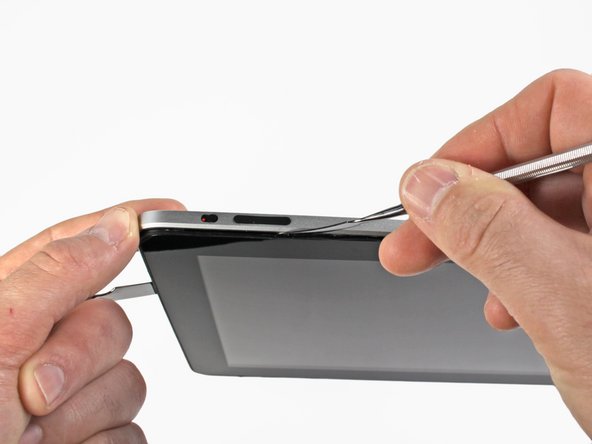
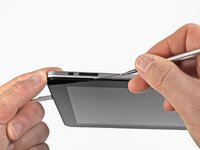
    • Insert a metal spudger between the top edge of the display assembly and the rear panel assembly.

    • Rotate the spudger away from you to release the tabs along the top edge of the display.

    • Insert a second metal spudger between the top edge of the display assembly and the rear panel assembly to keep the tabs from snapping back into place.

    Add Comment

  3. iPad Wi-Fi Dock Connector Cable Replacement: step 3, image 1 of 2 iPad Wi-Fi Dock Connector Cable Replacement: step 3, image 2 of 2
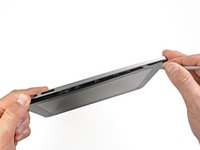
    • With one spudger, work your way along the right edge of the iPad.

    • The front panel is held to the aluminum back by metal clips on the top, bottom, and left sides. The right side has plastic tabs which slide into recesses in the backplate.

    • Once the clips are released, lift the left side of the front panel up and slide it to the left to clear the tabs from the aluminum backplate.

    Add Comment

  4. iPad Wi-Fi Dock Connector Cable Replacement: step 4, image 1 of 1
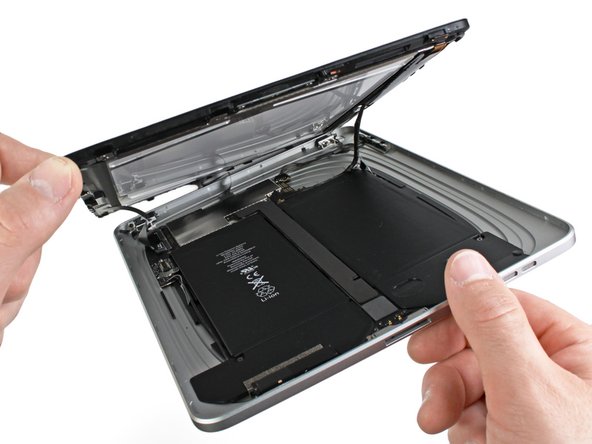
    • Lift the display assembly away from the rear panel assembly by its bottom edge.

    • Do not attempt to remove the display at this time, as it is attached to the rear panel assembly.

    Add Comment

  5. iPad Wi-Fi Dock Connector Cable Replacement: step 5, image 1 of 1
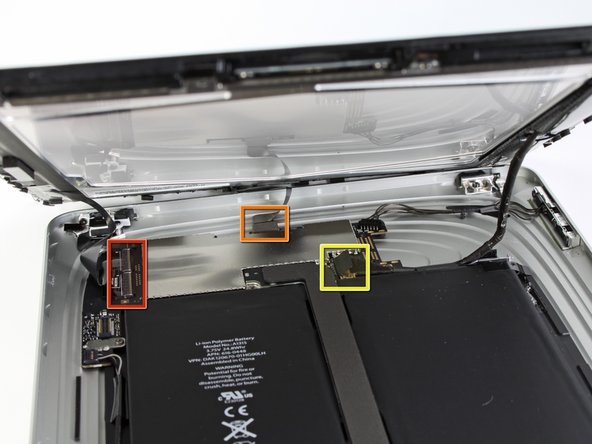
    • In the following steps, you will disconnect the three cables attaching the display assembly to the logic board. The cables are for the following components:

    • Digitizer

    • Ambient Light Sensor

    • Display Data Cable

    Add Comment

  6. iPad Wi-Fi Dock Connector Cable Replacement: step 6, image 1 of 3 iPad Wi-Fi Dock Connector Cable Replacement: step 6, image 2 of 3 iPad Wi-Fi Dock Connector Cable Replacement: step 6, image 3 of 3
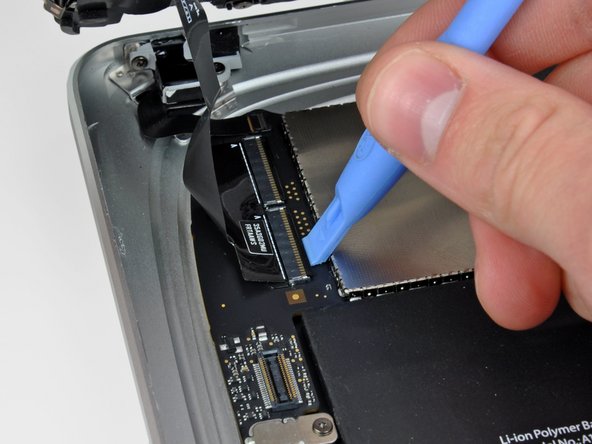
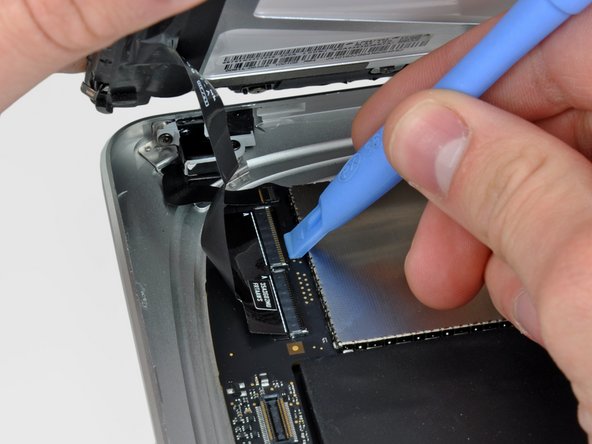
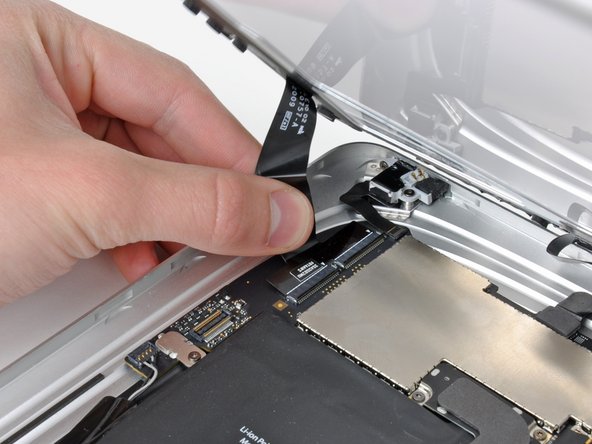
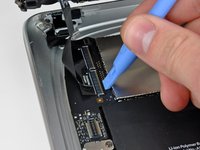
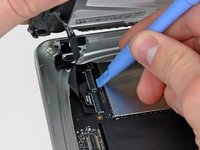
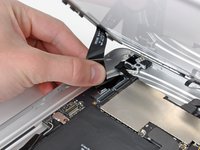
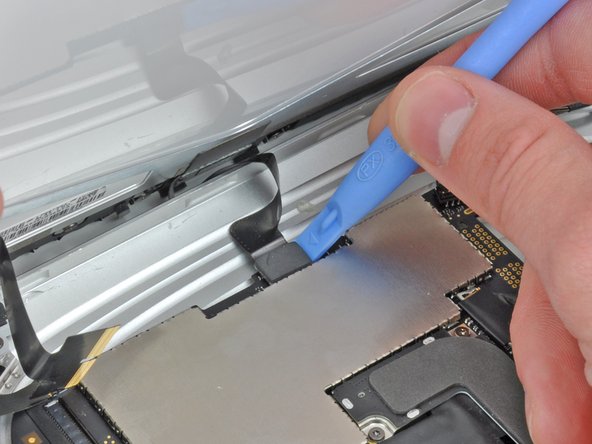
    • Use the edge of a plastic opening tool to flip up the retaining flaps holding the digitizer ribbon cables in their sockets on the logic board.

    • Be sure you are flipping up the retaining flap, not the socket itself.

    • Pull the digitizer ribbon cables straight out of their sockets.

    Add Comment

  7. iPad Wi-Fi Dock Connector Cable Replacement: step 7, image 1 of 1
    • Use a plastic opening tool to remove the ambient light sensor connector from its socket by gently prying upward.

    Add Comment

  8. iPad Wi-Fi Dock Connector Cable Replacement: step 8, image 1 of 2 iPad Wi-Fi Dock Connector Cable Replacement: step 8, image 2 of 2
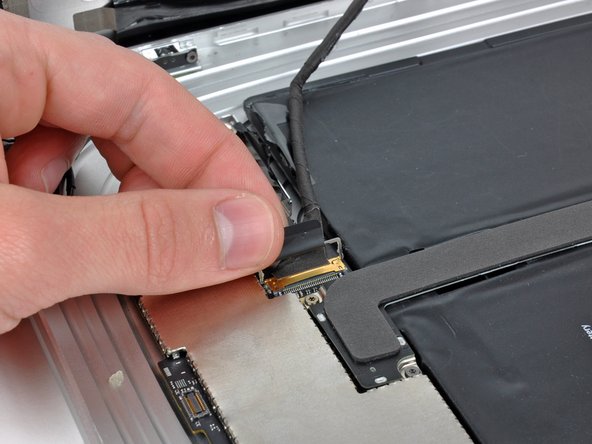
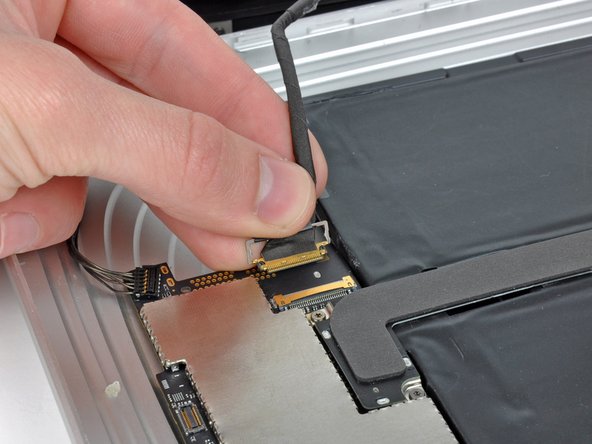
    • Disconnect the display data cable from the main board by flipping up the metal retainer by its black plastic pull tab.

    • Pull the cable connector away from its socket.

    • Pull the connector parallel to the face of the logic board.

    Add Comment

  9. iPad Wi-Fi Dock Connector Cable Replacement: step 9, image 1 of 1
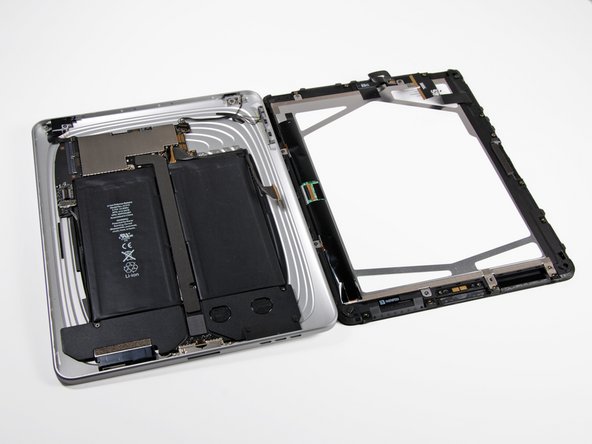
    • Remove the display assembly from the rear panel assembly.

    Add Comment

  10. iPad Wi-Fi Dock Connector Cable Replacement: step 10, image 1 of 1
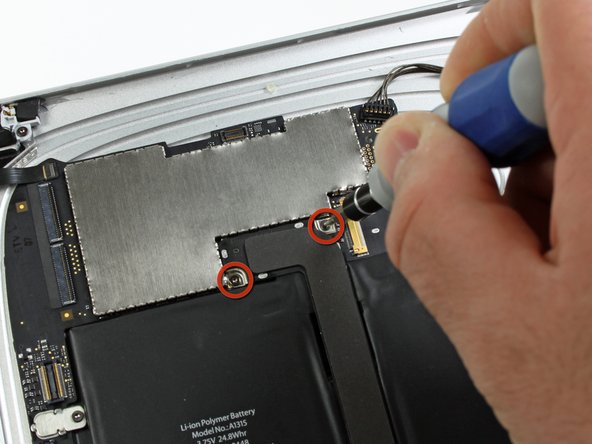
    • Remove the two 4.56 mm T5 Torx screws securing the dock connector cable to the main board.

    Add Comment

  11. iPad Wi-Fi Dock Connector Cable Replacement: step 11, image 1 of 1
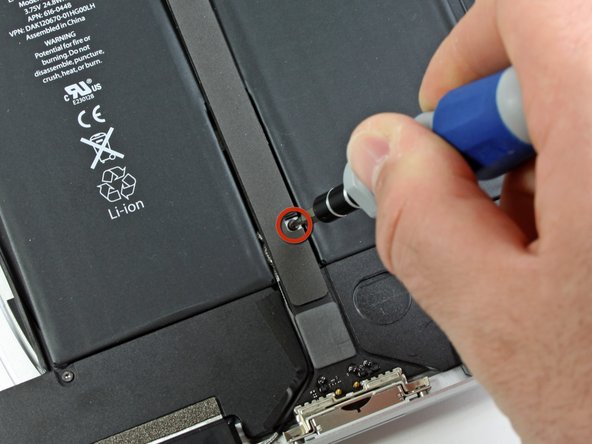
    • Remove the single 2.84 mm T5 Torx screw connecting the dock connector cable to the rear case assembly.

    Add Comment

  12. iPad Wi-Fi Dock Connector Cable Replacement: step 12, image 1 of 1
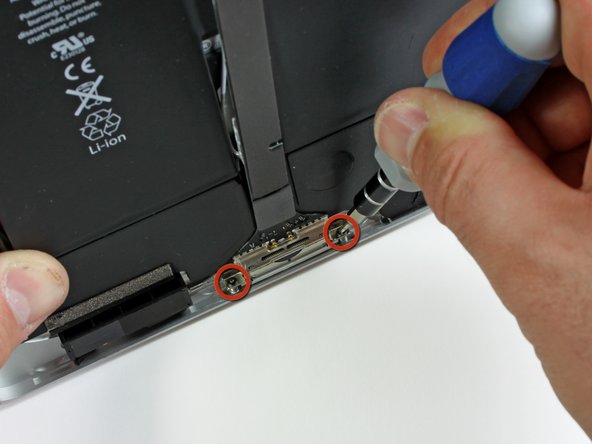
    • Remove the two 2.84 mm T5 Torx screws securing the dock connector cable to the rear panel assembly.

    Add Comment

  13. iPad Wi-Fi Dock Connector Cable Replacement: step 13, image 1 of 1
    • Carefully remove the plastic cover over the WiFi/Bluetooth board and dock connector cable using a plastic opening tool.

    Add Comment

  14. iPad Wi-Fi Dock Connector Cable Replacement: step 14, image 1 of 1
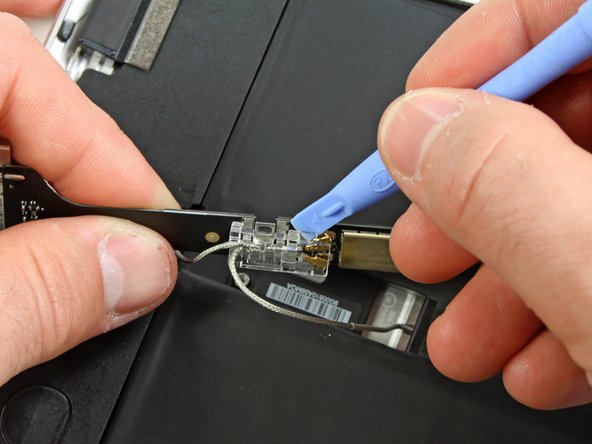
    • Pry the Wi-Fi and Bluetooth antennas up off their respective sockets on the Wi-Fi/Bluetooth board.

    • Remove the dock connector cable from the rear panel assembly.

    Add Comment

Conclusion

To reassemble your device, follow these instructions in reverse order.

Cancel: I did not complete this guide.

System

Member since: 09/24/09

2,562 Guides authored

0 Guide Comments

Add Comment

View Statistics:

Past 24 Hours: 0

Past 7 Days: 1

Past 30 Days: 7

All Time: 29