
iPod 2nd Generation Display Replacement

Last updated on Sep 17, 2016
Views: 10
View statistics:
- Past 24 Hours:
- 0
- Past 7 Days:
- 2
- Past 30 Days:
- 2
- All Time:
- 10
Comments: 0
No one has left comments on this guide. Will you be first?
Go to guide commentsCompleted: 0 1
No one has marked this guide "completed." Will you be the first?
1 person has marked this guide "completed." It's you — great job!
Favorites: 0 1
No one has favorited (and subscribed to) this guide. Will you be the first?
1 person has favorited (and subscribed to) this guide — and that's you!
Introduction
Go to step 1 ↓Replace a cracked or faulty display.
-
-
-
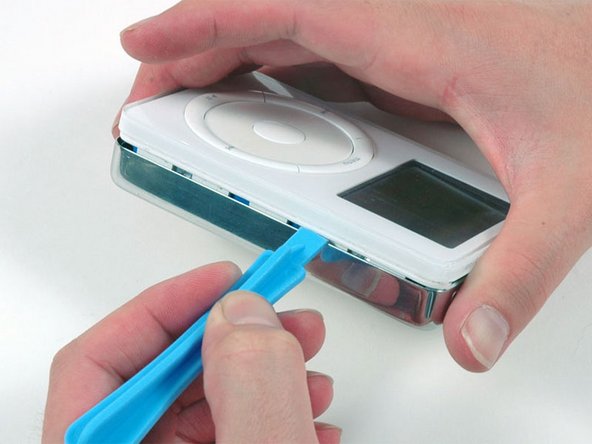
Insert a plastic iPod opening tool in the seam between the white plastic front and metal back of the iPod. Once you've inserted the tool, run it along the seam to free the five tabs holding the iPod together.
-
-
-
Continue to run the opening tool along the side of the case until all five tabs have been released.
-
-
-
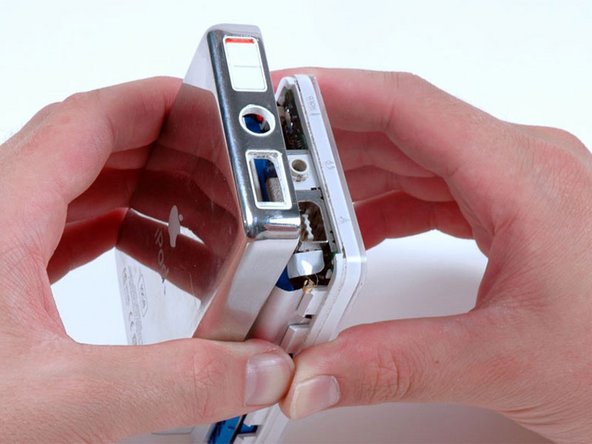
Work around the corner of the iPod and release the two tabs holding the iPod together near the dock connector.
-
-
-
Free the five tabs holding the iPod together on the other side. You may be able to free the tabs by gently wiggling the front panel of the iPod.
-
-
-
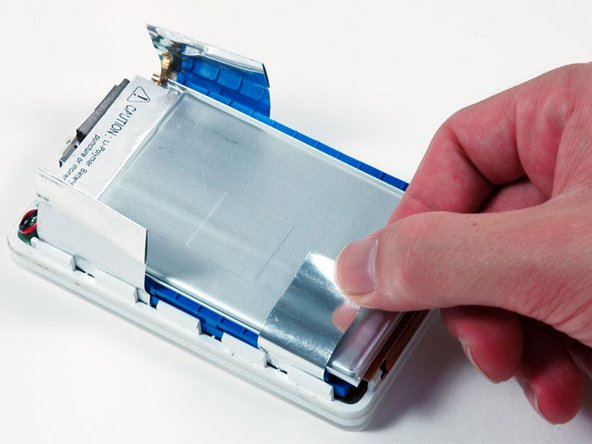
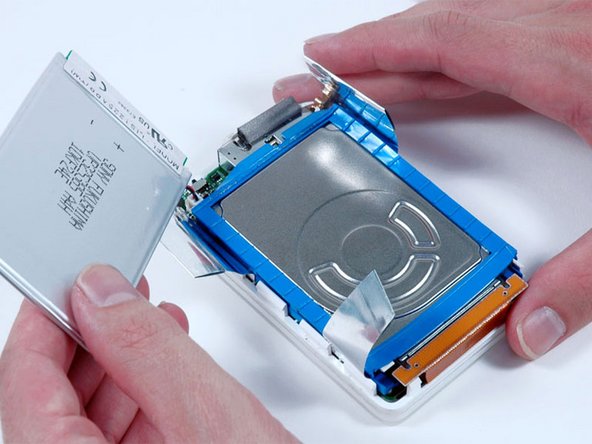
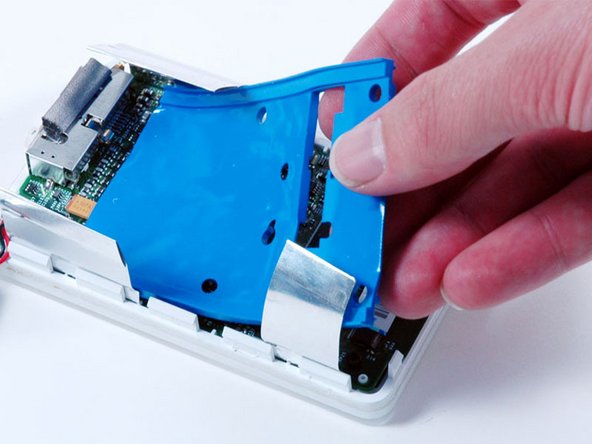
Lift the battery up from the hard drive and lay it next the the iPod (it is still connected to the logic board).
-
-
-
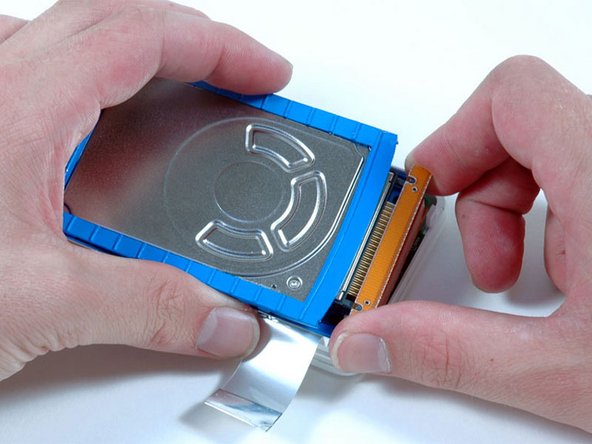
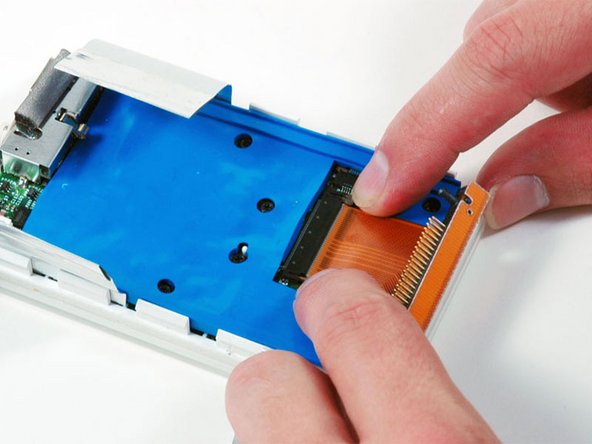
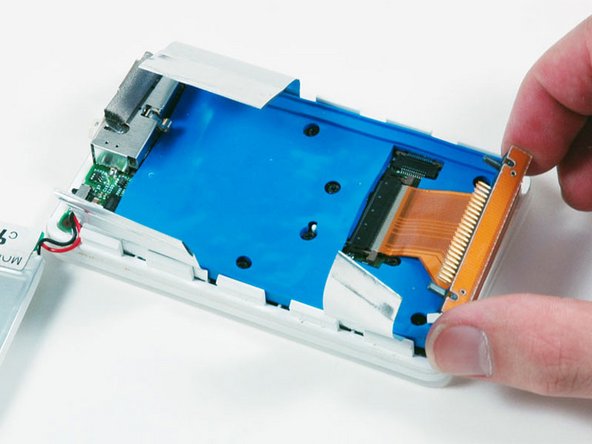
Carefully disconnect the orange ribbon cable from the hard drive.
-
If the cable doesn't come free easily, it may be helpful to gently wiggle the cable from side to side.
-
Lift the hard drive out of the iPod.
-
-
-
Loosen the connector by pulling the brown locking bar toward the hard drive cable using the tips of your fingers.
-
-
-
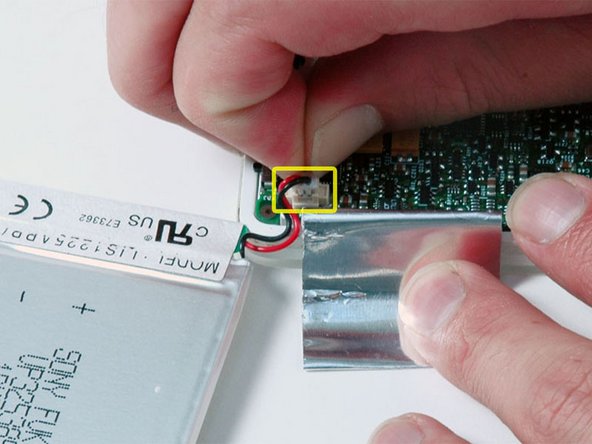
Carefully disconnect the white battery connector from the logic board. Be sure to pull only on the connector itself and not on the cables.
-
-
-
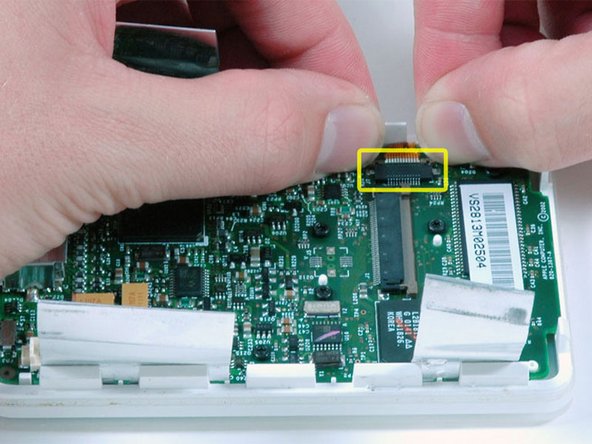
Loosen the touch wheel connector by pulling the brown locking bar toward the side of the iPod using the tips of your fingers.
-
-
-
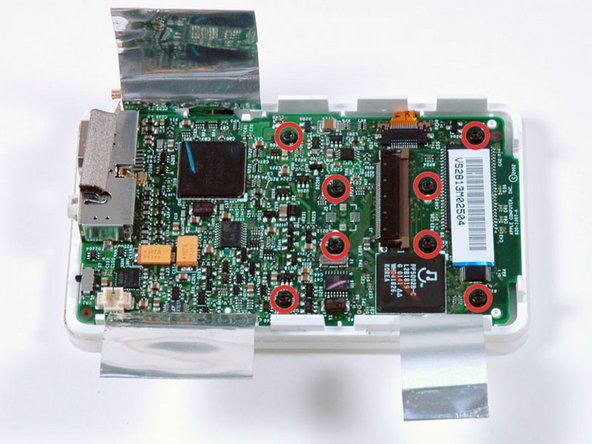
Lift the logic board up enough to disconnect the orange touch wheel cable.
-
Lift the logic board out of the iPod.
-
-
-
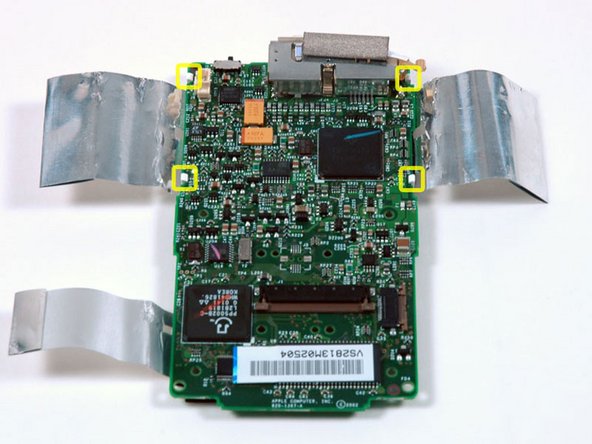
Note the location of the four white plastic tabs securing the display to the logic board. These tabs must be released before the display can be removed.
-
-
-
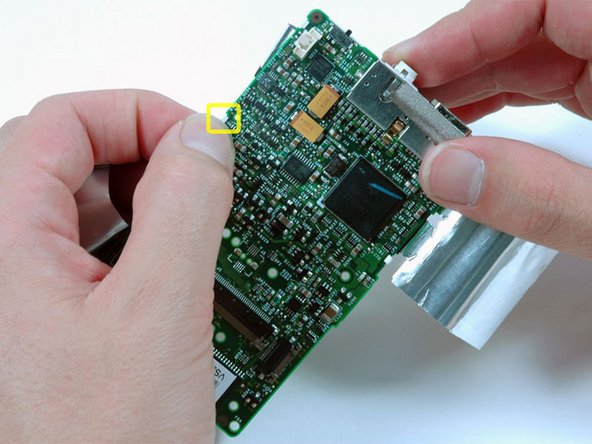
Use a spudger or your finger to free the four white plastic tabs indicated in the previous picture.
-
-
-
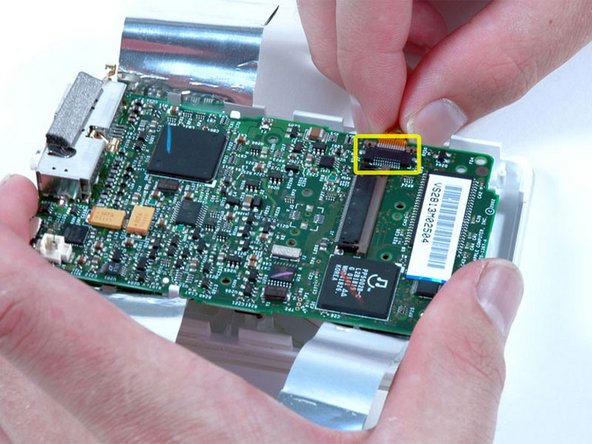
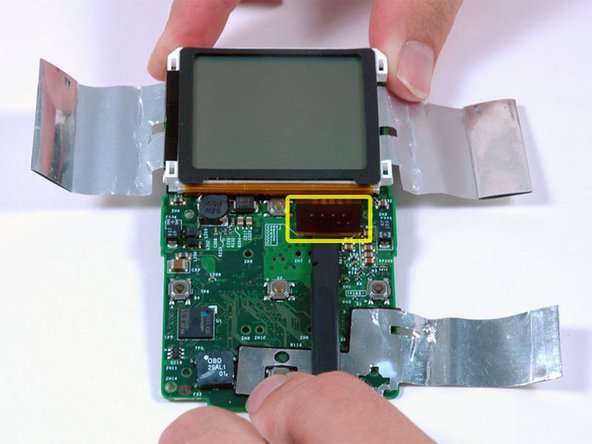
Use a spudger to carefully disconnect the display ribbon cable from beneath the scroll wheel.
-
Lift the display off the logic board.
-


To reassemble your device, follow these instructions in reverse order.

