
Introduction
Source: Dismantling Guide for IT Equipment, which was elaborated within the SRI project and financially supported by SECO and UNIDO, June 2015

World Resources Forum (WRF)
Mathias Schluep, St. Gallen / Switzerland

Dismantling and Recycling Centre (DRZ)
Markus Spitzbart, Vienna / Austria

Institute for Materials Science & Technology (Empa)
Fabian Blaser, St. Gallen / Switzerland
Laptops
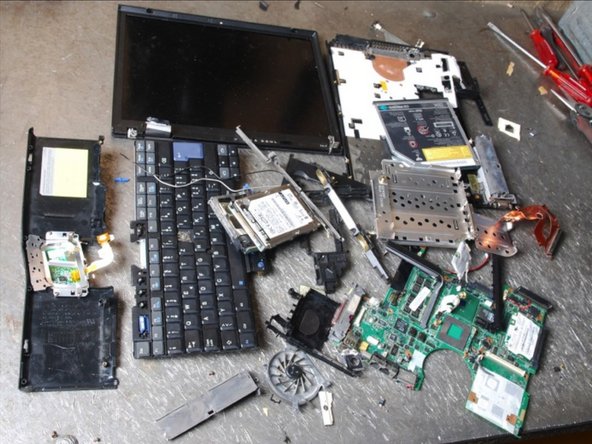
A large variety of different laptop models exist and disassembly steps can thus vary a lot according to brand and model. A laptop usually consists of the following subcomponents: LCD screen, hard disk drive, battery, PWBs, compact disk drive, cables, keyboard, etc. To separate the subcomponents of a laptop computer can be tricky and laborious.
Dismantling of subcomponents does not always make sense as it is highly labor-intensive and can be processed by appropriate industries. However, the removal of hazardous substances (e.g. capacitors on PWBs) is required.
Health & Safety
Workers should wear aprons, gloves and protective shoes.
The critical step when disassembling a laptop is the removal of the cold cathode fluorescent lamps (CCFL). Avoid the damage of the CCFL during the removal of the LCD screen from the laptop body. Once the CCFLs are separated, they must immediately be put into an adequate recipient. As these lamps contain mercury, wearing an appropriate mask is recommended.
Note: As the construction of laptops can differ a lot, the dismantling steps mentioned below can vary in their order. However, the described steps show what parts the removal should focus on.
What you need
-
-
-
Remove the battery. Usually, no tools are needed to remove it.
-
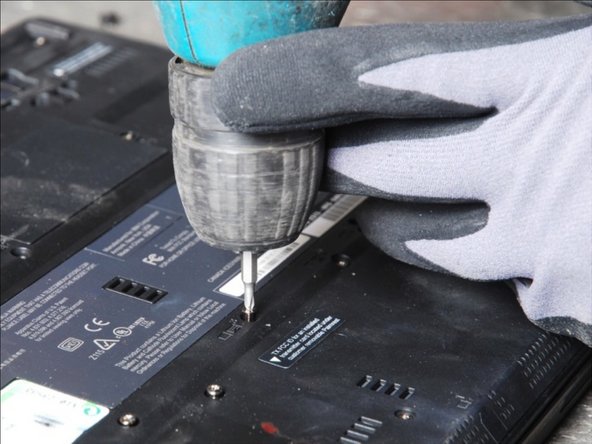
Remove all cards on the bottom (memory module, wireless card, modem card, etc.).
-
-
-
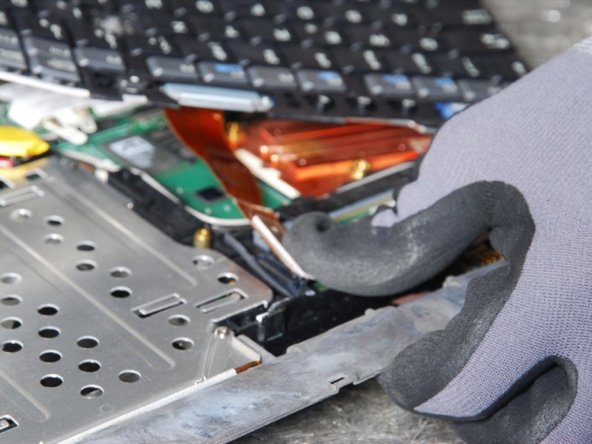
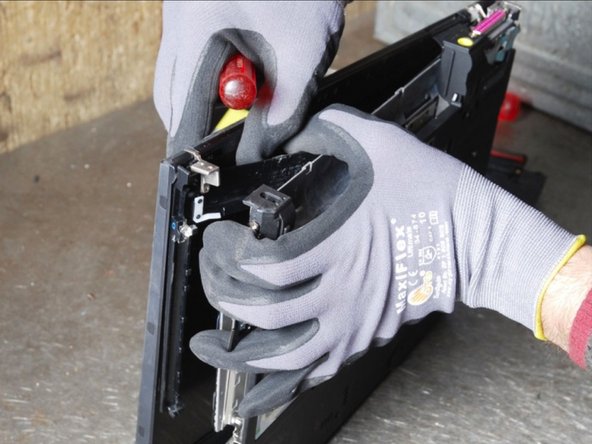
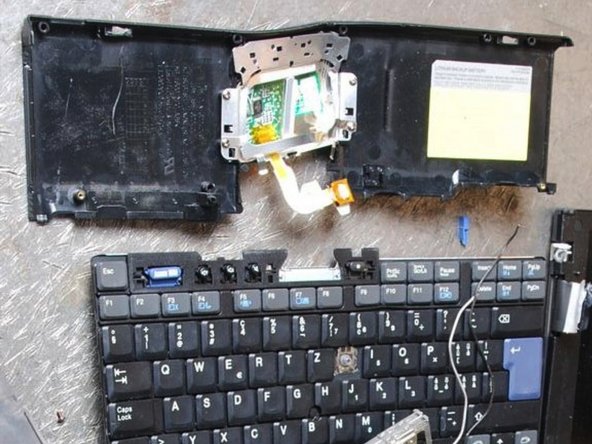
Remove all drives (HDD, CDD, etc.). If you cannot find the HDD, it is hidden most likely under the keyboard or under the top cover assembly. If you cannot find securing screws for the optical drive on the bottom, they are most likely under the keyboard.
-
-
-
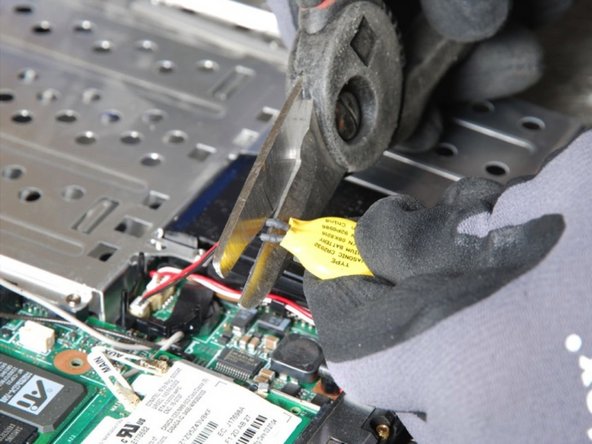
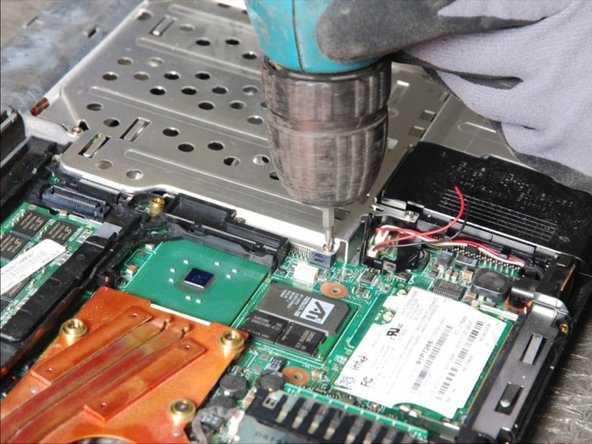
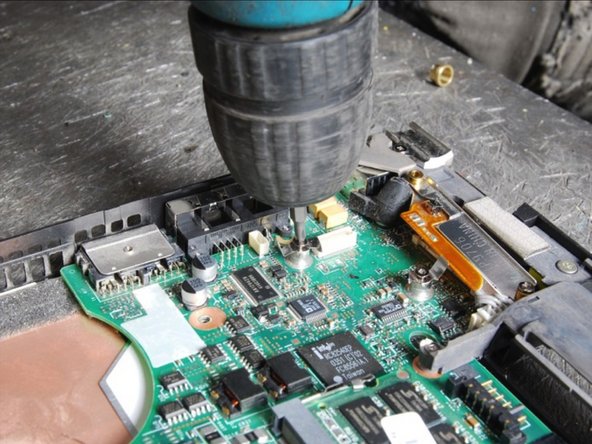
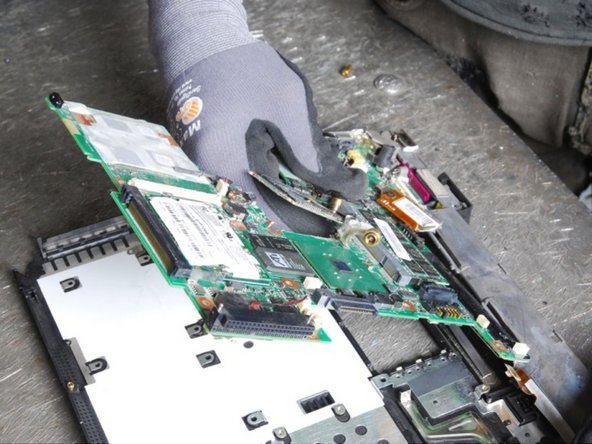
Remove all screws securing the system board, the power board, the video board, etc. Disconnect all cables, connecting the boards.
-
-
-
Separate the remaining materials according to their type and go on with the appropriate data sheet (e.g. aluminium, ferrous metals, plastic, further PWBs, etc.).
-
-
-
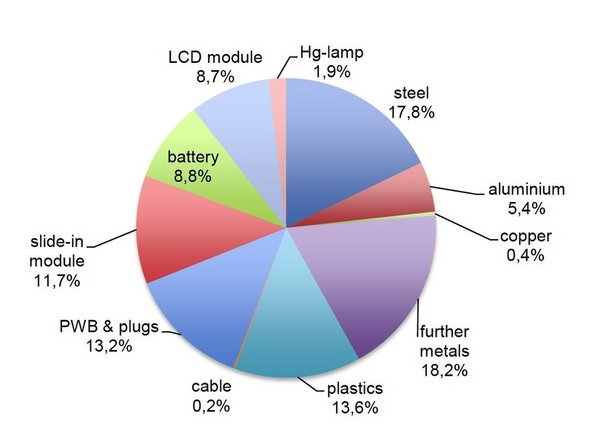
In average, a laptop weights 3.5 kg. The graph shows the share by weight of the recoverable material (ecoinvent 2010).
-
Output Fractions: LCD-Modules, Hg-Lamps, Aluminium, Copper, Ferrous Scrap, Mixed Plastics, Cable, Printed Wiring Boards, slide-in module, Batteries
-
-


Cancel: I did not complete this guide.
One other person completed this guide.

